> ## Documentation Index
> Fetch the complete documentation index at: https://docs.retellai.com/llms.txt
> Use this file to discover all available pages before exploring further.
# Account
> Manage your Retell AI account: check account status, reset your password with Auth0, sign in with Google, and delete your account when no longer needed.
To keep your information safe, we use **Auth0** as our login system.
## Account Status
Your account could have the following statuses:
* **Active**: Your account is active and all services are available.
* **Verification Needed**: Your account is on hold for further verification due to high volume calls, please contact [support@retellai.com](mailto:support@retellai.com) with your company's name, use case, and verification that you represent the company.
* **Invoice Past Due**: Your account has a past due invoice and is at risk of automatic shutdown in 7 days. Please make a payment to keep your service active.
* **Invoice Overdue**: Your account has an overdue balance, and your service has been temporarily deactivated. Please make a payment to restore your service.
## Reset your password
If you want to change or reset your password:
1. Go to the login page.
2. Click the **"Don’t remember your password?"** link.
3. Enter your email address and follow the instructions sent to your inbox.
For better security, we recommend using **Sign in with Google**. This provides an extra layer of protection and reduces the need to manage separate passwords.
### Important Note About SSO and Password-Based Sign-In
Please note that **Google SSO** and **email-password sign-in** are treated as **separate accounts** in our system. They are not automatically linked.
If you currently use one sign-in method (e.g., **email-password sign-in**) and wish to switch to the other (e.g., **Google SSO**), follow these steps:
1. Log in to your account using your current method (either Google SSO or email-password sign-in).
2. Click your profile photo at the bottom left of the dashboard.
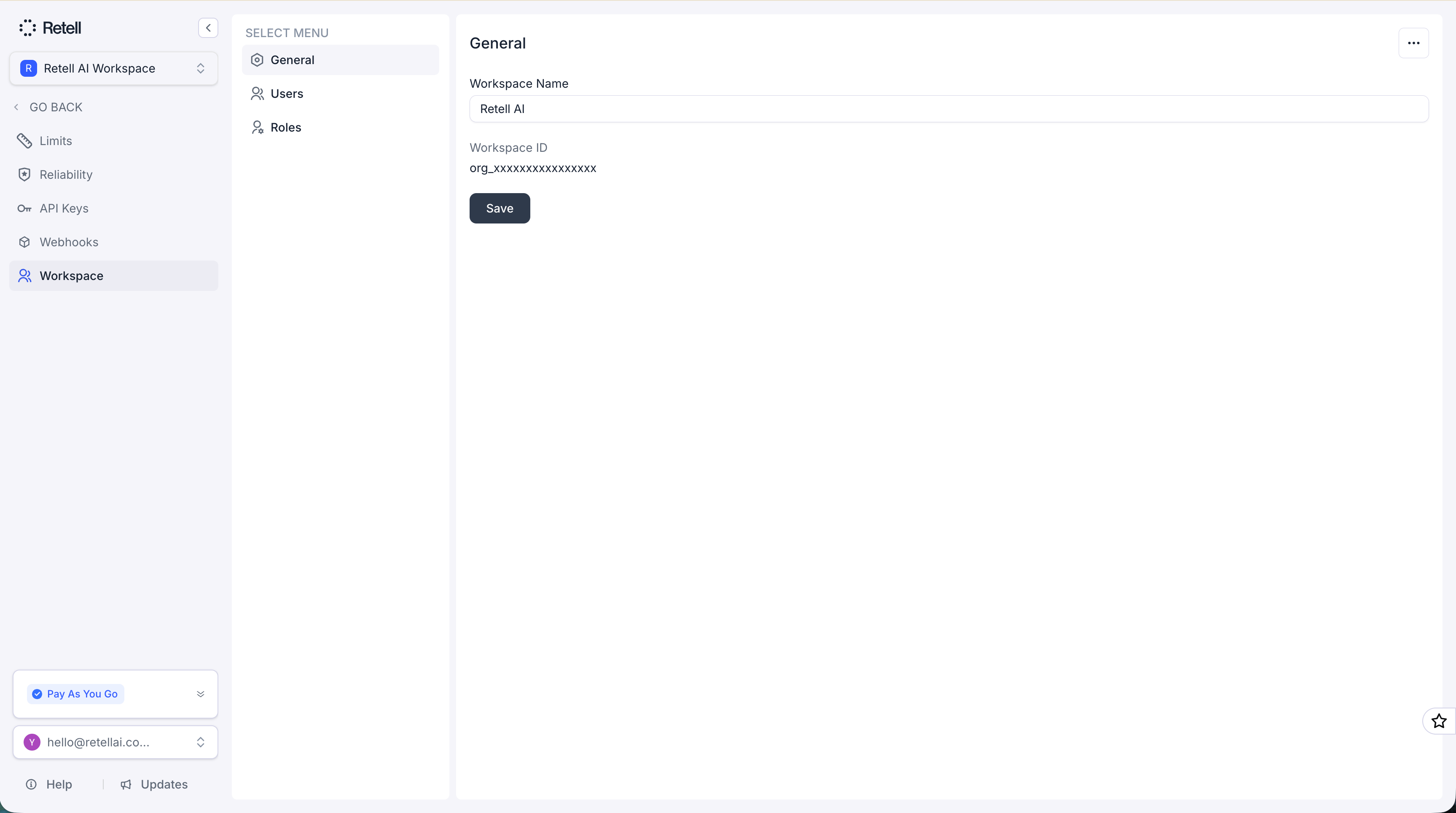
3. Navigate to **"Workspace"** and send an invite to your email address.
4. Log out of your current account.
5. Open the invite email and use the **alternative sign-in method** to create a new account (e.g., sign in with Google if you currently use email, or sign up with email and password if you currently use Google SSO).
This will create a separate account with the new sign-in method while maintaining access to your existing workspace.
## Delete your account
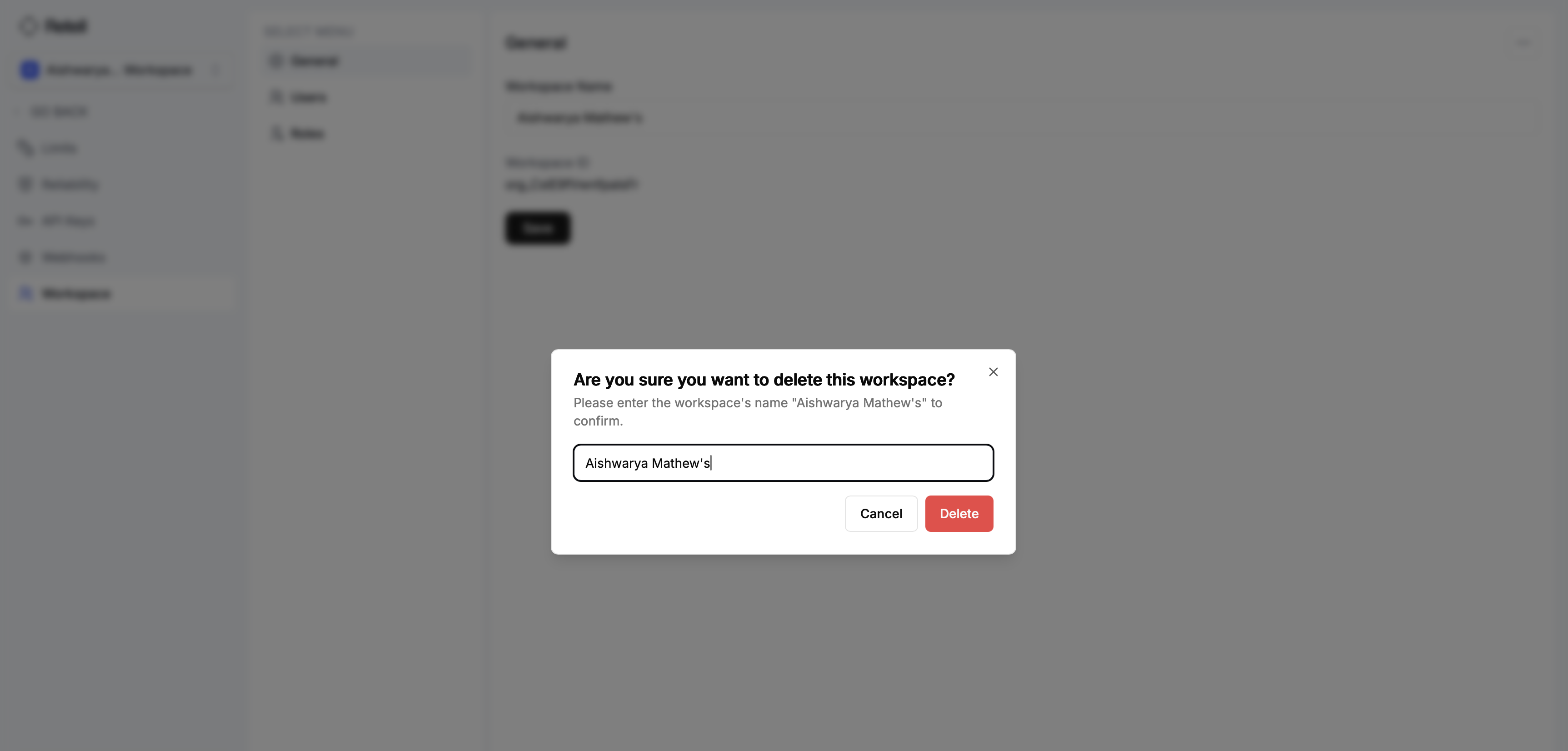
If you are deleting the only workspace in the account, the account will be deleted automatically. Before proceeding:
* Ensure you have downloaded any important data you wish to keep
* Check that all pending invoices are settled
* Cancel any active subscriptions
* Remove any connected third-party integrations
Account deletion is permanent and cannot be undone. All associated data, including billing history and user preferences, will be permanently removed.