> ## Documentation Index
> Fetch the complete documentation index at: https://docs.retellai.com/llms.txt
> Use this file to discover all available pages before exploring further.
# Create and manage Retell workspaces
> Create and manage Retell workspaces, find your workspace ID, invite teammates to collaborate, switch between workspaces, and safely delete a workspace.
Learn how to create and manage workspaces, and collaborate with team members.
## Default Workspace
When you first create an account, a default workspace is automatically created for you. This workspace serves as your primary environment for managing projects and collaborating with team members.
## Find your Workspace id / org id
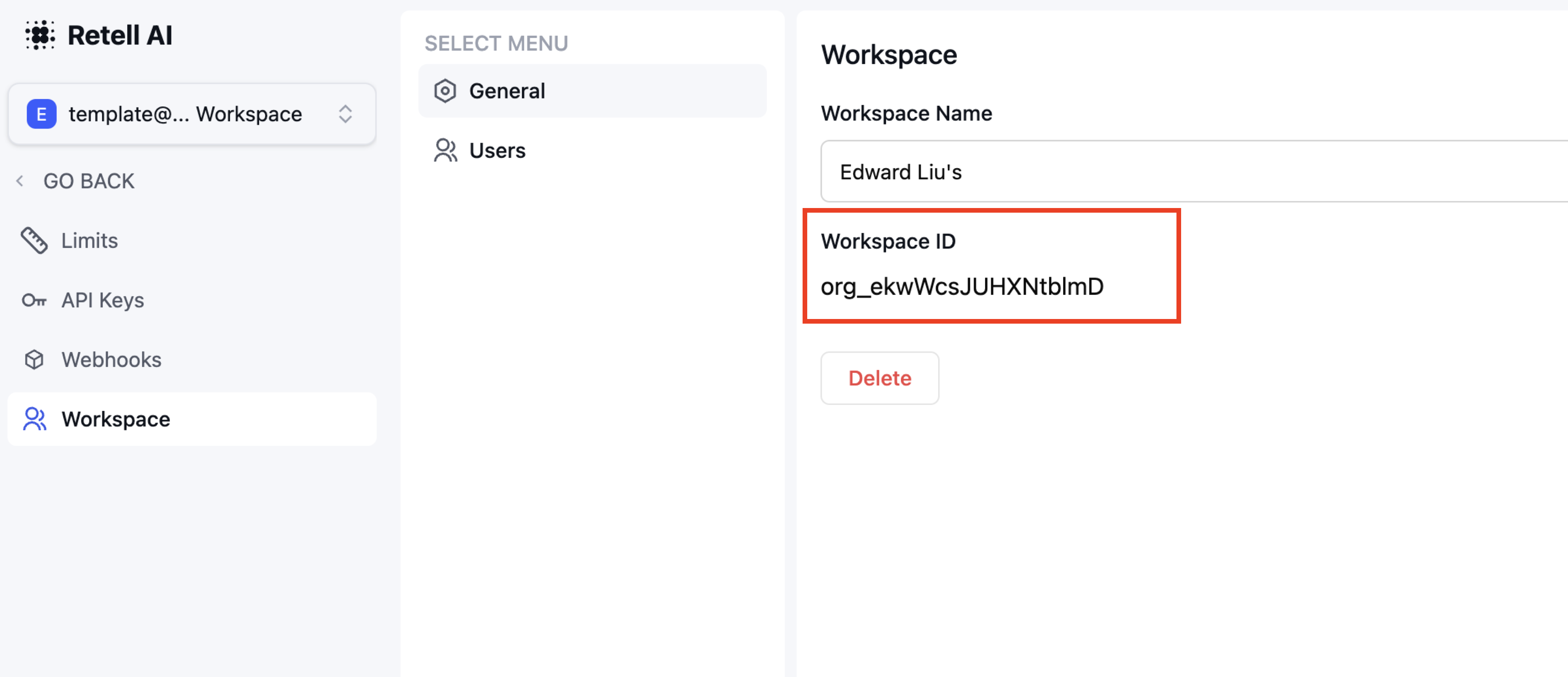
Sometimes we might ask for your workspace id / org id when debugging issues related to your account. You can find it in your workspace settings page.
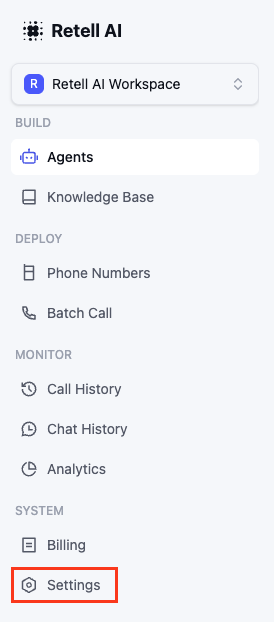 You can access your workspace settings in the system settings page:
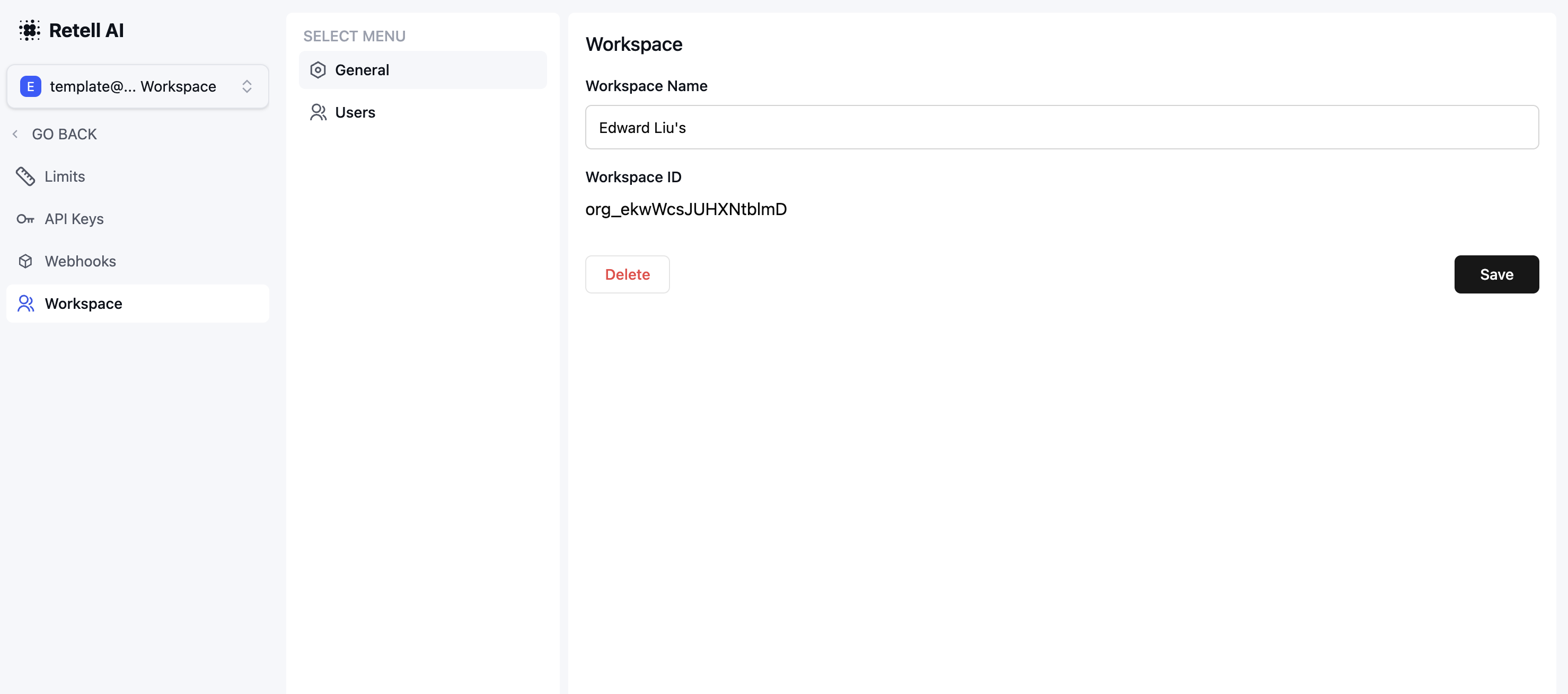 And retrieve the workspace id here:
 ## Creating Additional Workspaces
To create a new workspace:
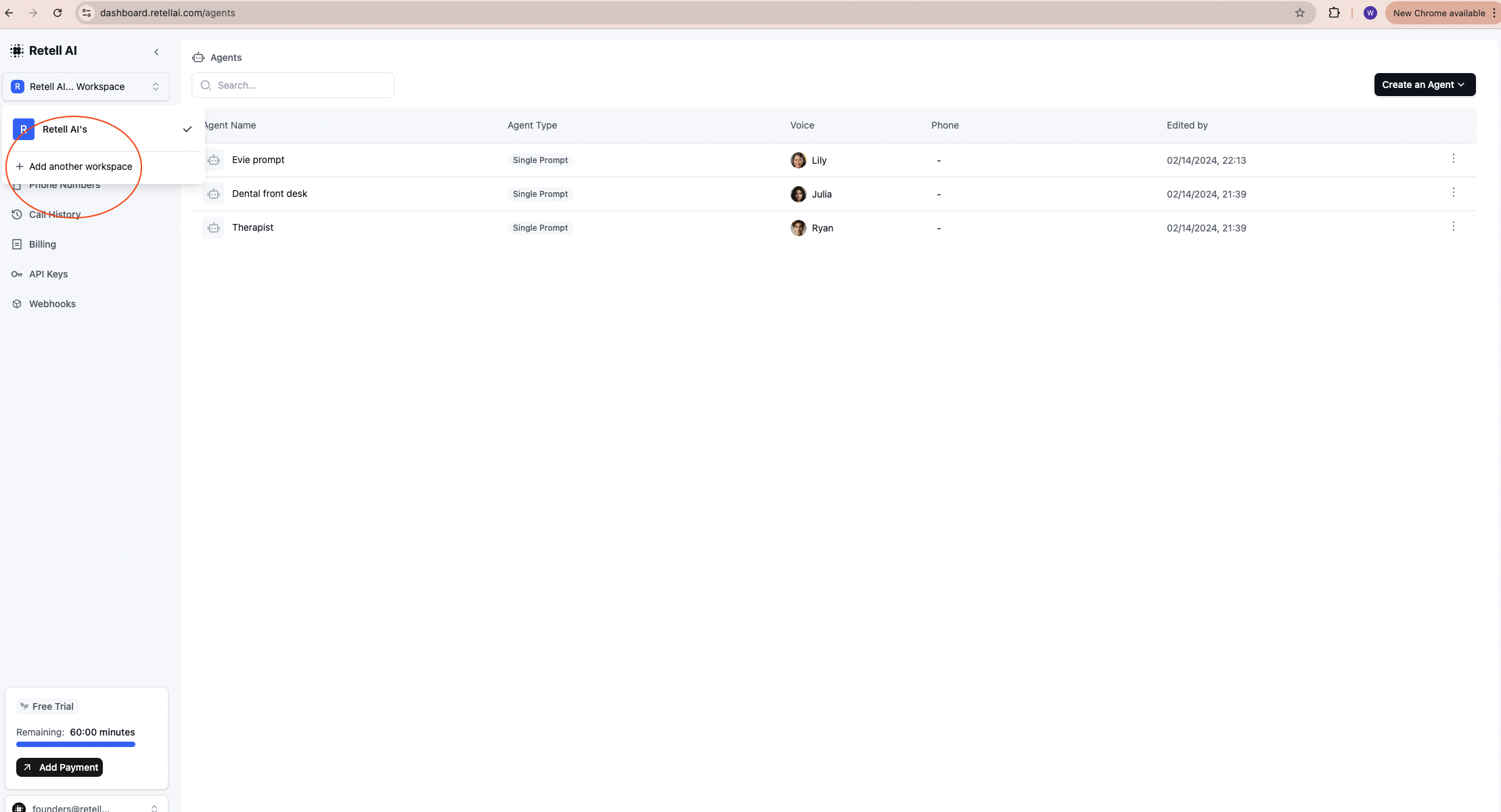
1. Click the workspace selector in the top left corner of the dashboard
2. Select "Add another workspace"
3. Enter your workspace name
4. Click "Save"
## Creating Additional Workspaces
To create a new workspace:
1. Click the workspace selector in the top left corner of the dashboard
2. Select "Add another workspace"
3. Enter your workspace name
4. Click "Save"
 ## Managing Team Members
### Inviting Members
To invite team members to your workspace:
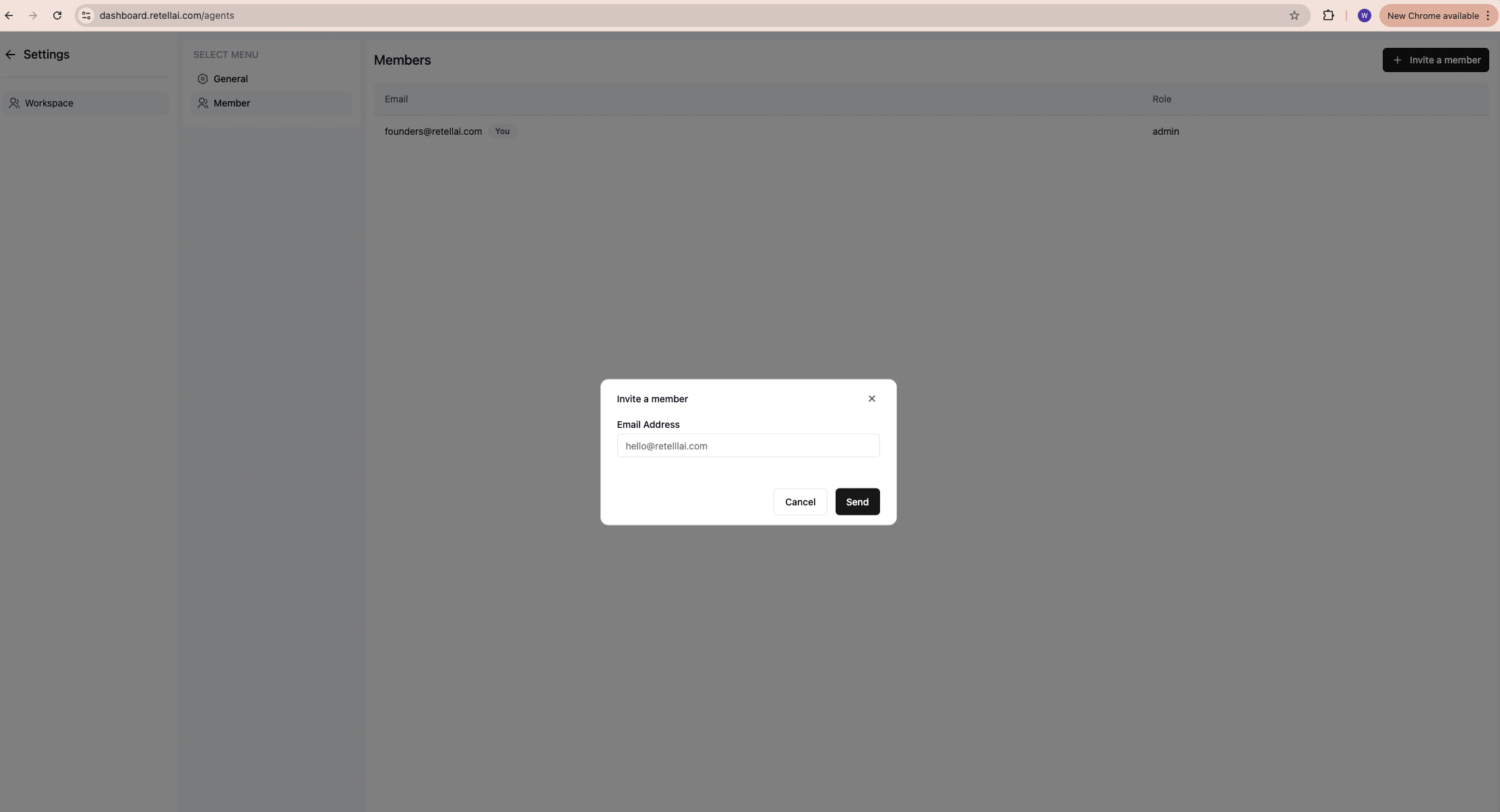
1. Click the "Workspace" button in the bottom left corner
2. Navigate to the "Members" tab
3. Click "Invite Members"
4. Enter the email addresses of team members
5. Click "Send"
If a team member does not receive the invitation email, you can resend it by clicking the "Invite Members" button again, re-entering their email address, and clicking "Send".
## Managing Team Members
### Inviting Members
To invite team members to your workspace:
1. Click the "Workspace" button in the bottom left corner
2. Navigate to the "Members" tab
3. Click "Invite Members"
4. Enter the email addresses of team members
5. Click "Send"
If a team member does not receive the invitation email, you can resend it by clicking the "Invite Members" button again, re-entering their email address, and clicking "Send".
 ### Invitation Process
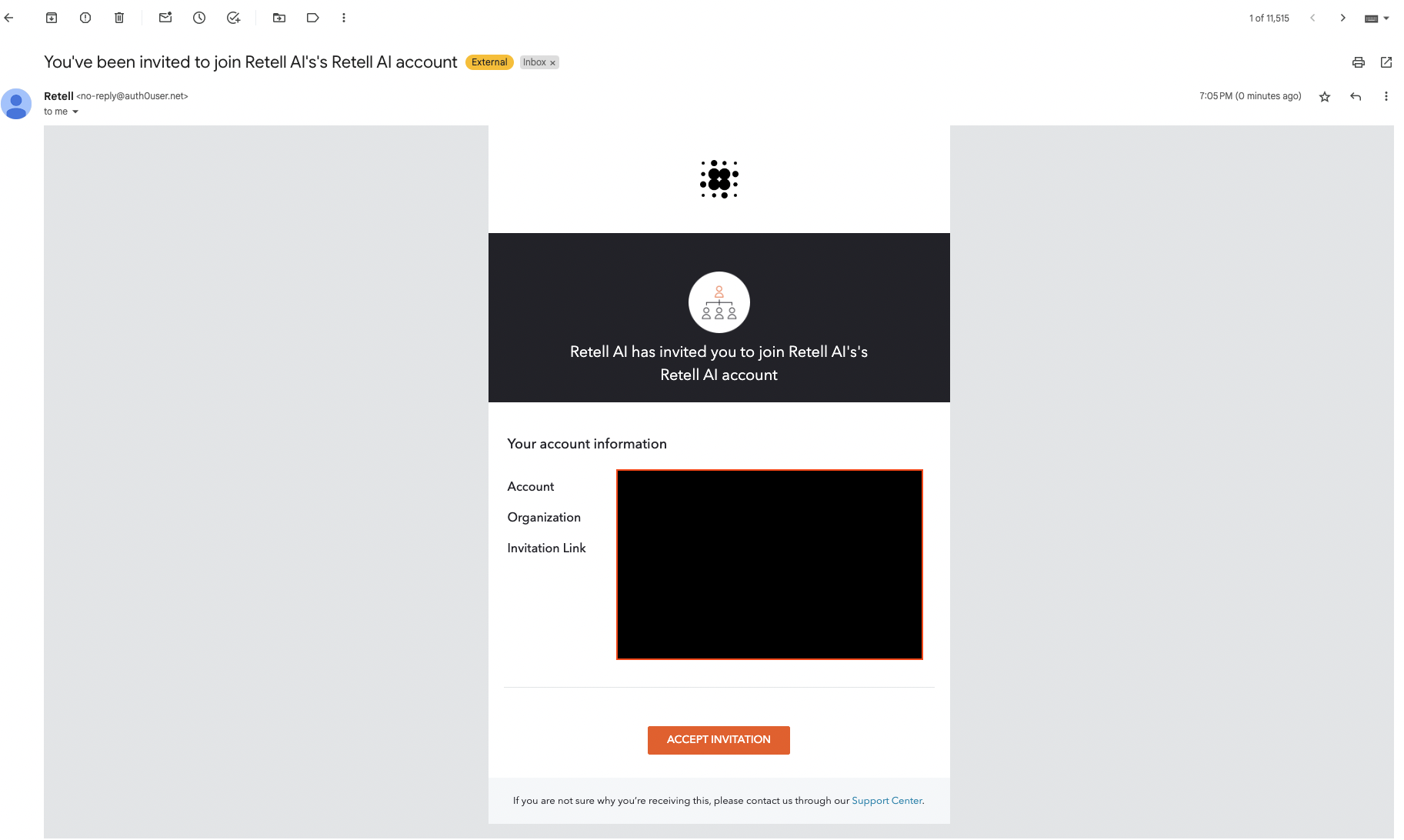
* Invited members will receive an email with a link to join the workspace
* They can create a new account or use an existing one
* Once accepted, they'll have immediate access
### Invitation Process
* Invited members will receive an email with a link to join the workspace
* They can create a new account or use an existing one
* Once accepted, they'll have immediate access
 ## Leave a Workspace
To leave a workspace:
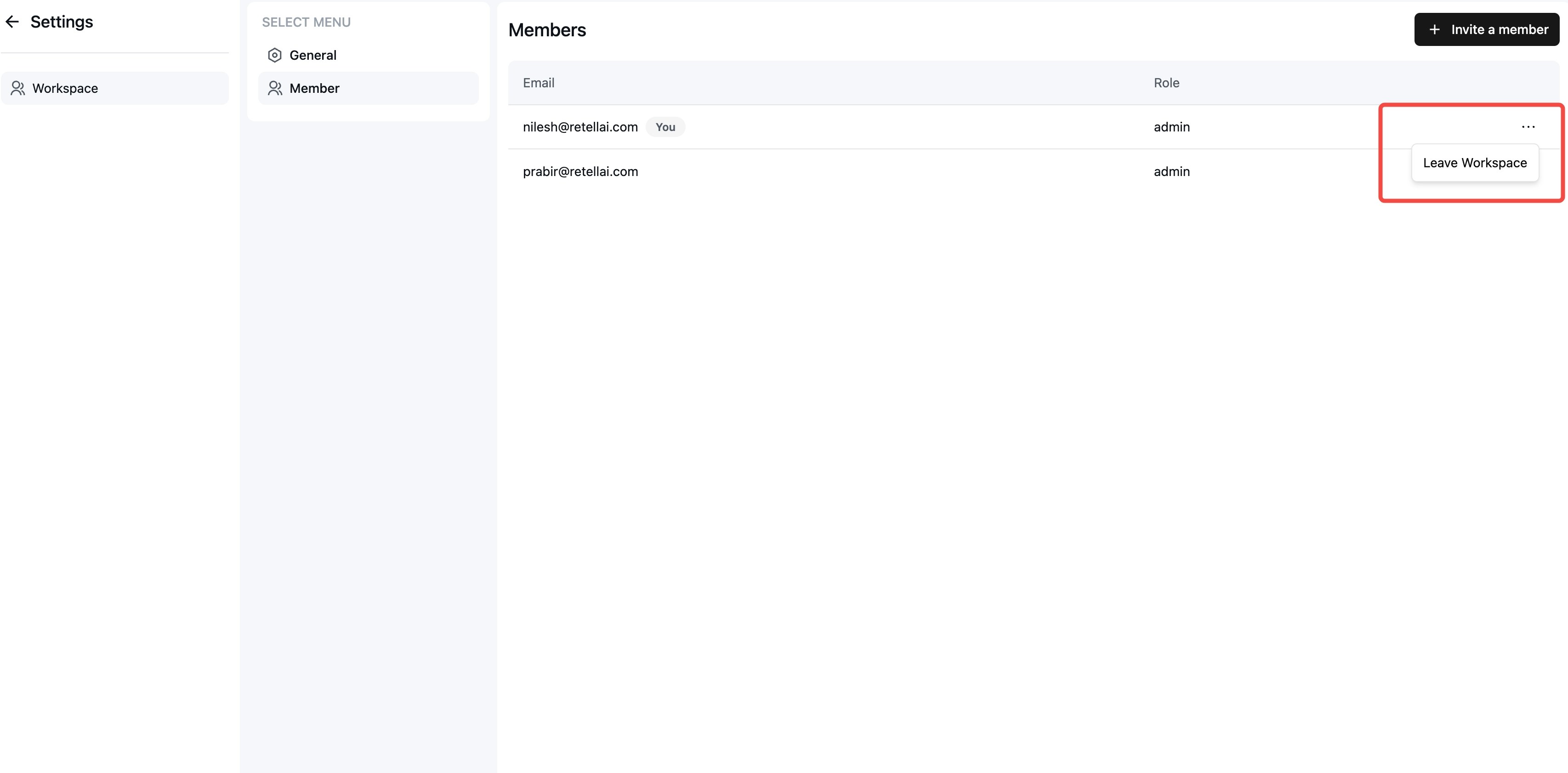
1. Navigate to the workspace settings page
2. Click the Options menu (three dots) button against your name
3. Select "Leave workspace"
4. Confirm your action
**Important considerations before leaving:**
* You can only leave a workspace if there is at least one other member remaining
* If you are the only member in the workspace, you must delete the workspace instead
* You can rejoin the workspace if another member invites you back
## Leave a Workspace
To leave a workspace:
1. Navigate to the workspace settings page
2. Click the Options menu (three dots) button against your name
3. Select "Leave workspace"
4. Confirm your action
**Important considerations before leaving:**
* You can only leave a workspace if there is at least one other member remaining
* If you are the only member in the workspace, you must delete the workspace instead
* You can rejoin the workspace if another member invites you back
 ## Delete Workspace
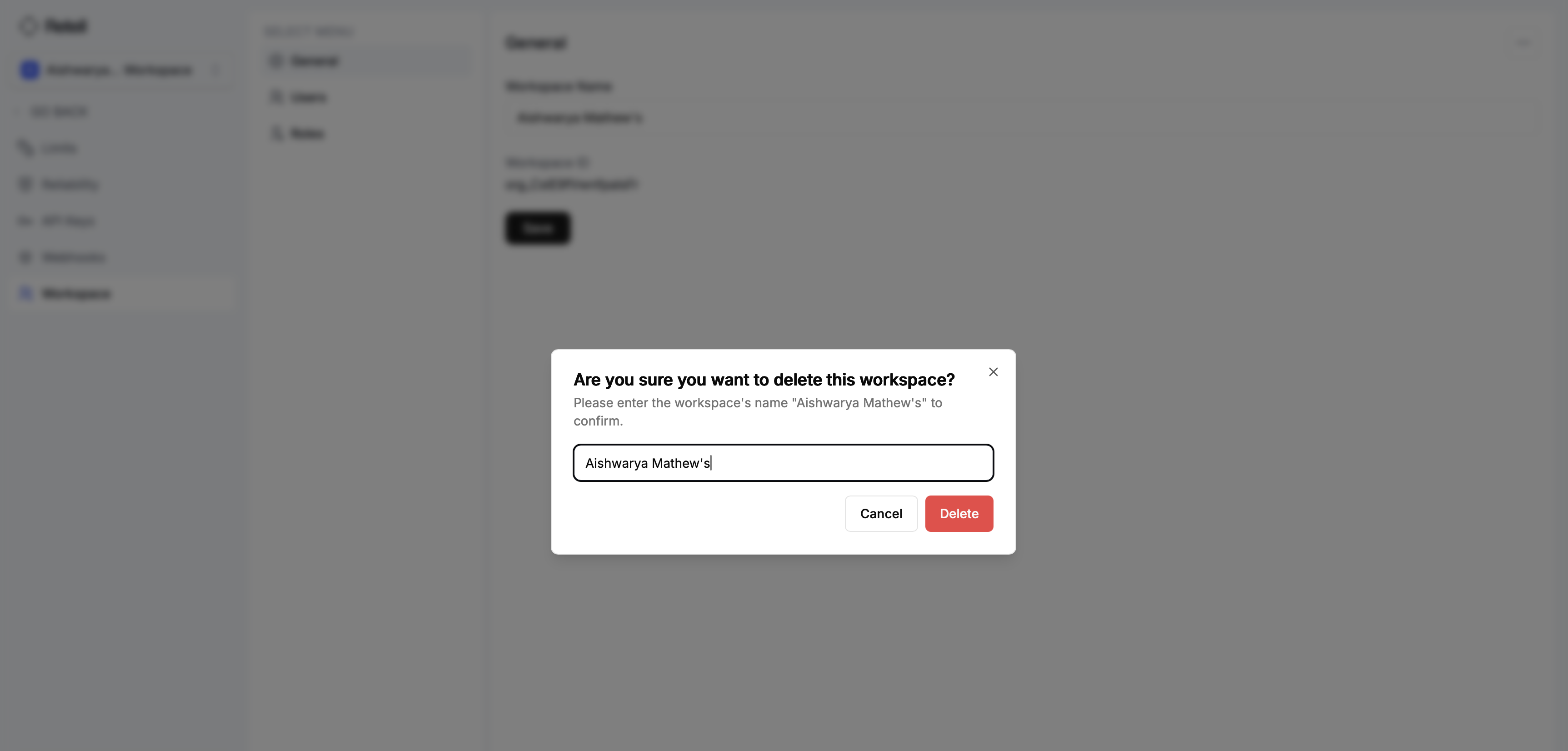
In the workspace settings page, you can delete the workspace by clicking the "Delete" button. Before deletion, please note:
* All workspace data will be permanently deleted and cannot be recovered
* A final invoice will be generated and charged for any usage up to the deletion date
* All team members will lose access to the workspace
* Any active API keys will be invalidated
If there is no payment method on file when you delete the workspace, the final invoice is still generated for any outstanding usage and remains due. Add a valid payment method before deleting (see [Add payment methods](/accounts/add-payment)) so the final charge can settle automatically. If a charge fails afterward, follow [Handle failed payments](/accounts/fail-payment) or contact Retell support to resolve the balance.
## Delete Workspace
In the workspace settings page, you can delete the workspace by clicking the "Delete" button. Before deletion, please note:
* All workspace data will be permanently deleted and cannot be recovered
* A final invoice will be generated and charged for any usage up to the deletion date
* All team members will lose access to the workspace
* Any active API keys will be invalidated
If there is no payment method on file when you delete the workspace, the final invoice is still generated for any outstanding usage and remains due. Add a valid payment method before deleting (see [Add payment methods](/accounts/add-payment)) so the final charge can settle automatically. If a charge fails afterward, follow [Handle failed payments](/accounts/fail-payment) or contact Retell support to resolve the balance.