> ## Documentation Index
> Fetch the complete documentation index at: https://docs.retellai.com/llms.txt
> Use this file to discover all available pages before exploring further.
# Setup versioning and tags for agents
> Use Retell agent versions and environment tags to lock in production configurations, track change history, and roll back drafts without breaking live calls.
Versioning lets you update an agent while keeping other versions unchanged for production use.
It has two main purposes:
1. **Lock in configuration**: published versions cannot be changed, and you can attach specific versions to phone numbers or environment tags to lock in the agent configuration.
2. **Version control & history**: you can create multiple draft versions from any past version, track your version history, and publish any draft when it's ready.
## How version numbers work
Version numbers start at **V0** and go up by one each time you create a new version. The dashboard labels tell you whether a version is live or still in progress.
| UI | Meaning |
| ----------------------------- | ----------------------------------------------------------------------------------------------------------------------------------------------- |
| `V0`, `V1`, `V2`, … | **Published** versions, immutable |
| `V3 (draft)`, `V4 (draft)`, … | **Draft** versions — unpublished copies that reserve the next version number. The **(draft)** suffix means you can still edit and publish them. |
**Example flow**
1. You publish your first agent → **V0** appears under **Published**.
2. You create a new draft from V0 → the UI shows **V1 (draft)** under **Draft**.
3. You publish that draft → **V1** moves to **Published** and is no longer editable.
4. You create another draft from V1 → **V2 (draft)** appears under **Draft**.
Multiple drafts can exist at the same time (for example **V2 (draft)** and **V3 (draft)**). Each version also shows which version it was branched from.
Published versions cannot be changed. Only versions labeled with **(draft)** can be edited.
## How to manage versions
Click the version button in the upper right corner of the agent page to open the versions panel.
The panel shows two sections:
* **Draft**: unpublished versions that can still be edited.
* **Published**
Versions with attached environment tags (e.g. `prod`, `staging`) are shown inline on the version entry.
### Create a new draft
Click the **+** button in the versions panel to create a new draft from the currently selected version. The draft will show which version it was branched from.
### Publish a draft
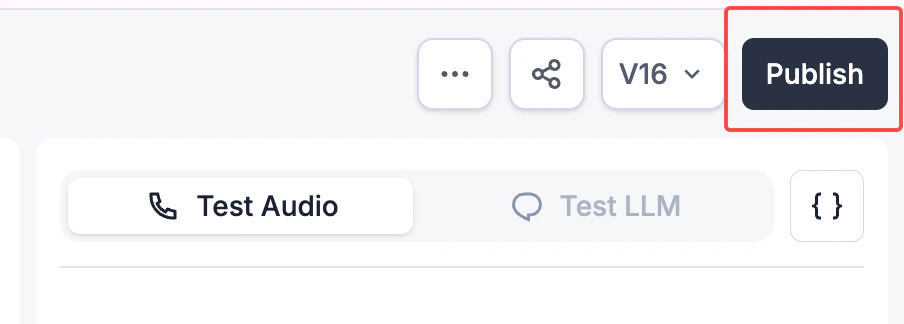
You can publish any draft version. Select the draft in the versions panel, then click the **Publish** button in the upper right corner.
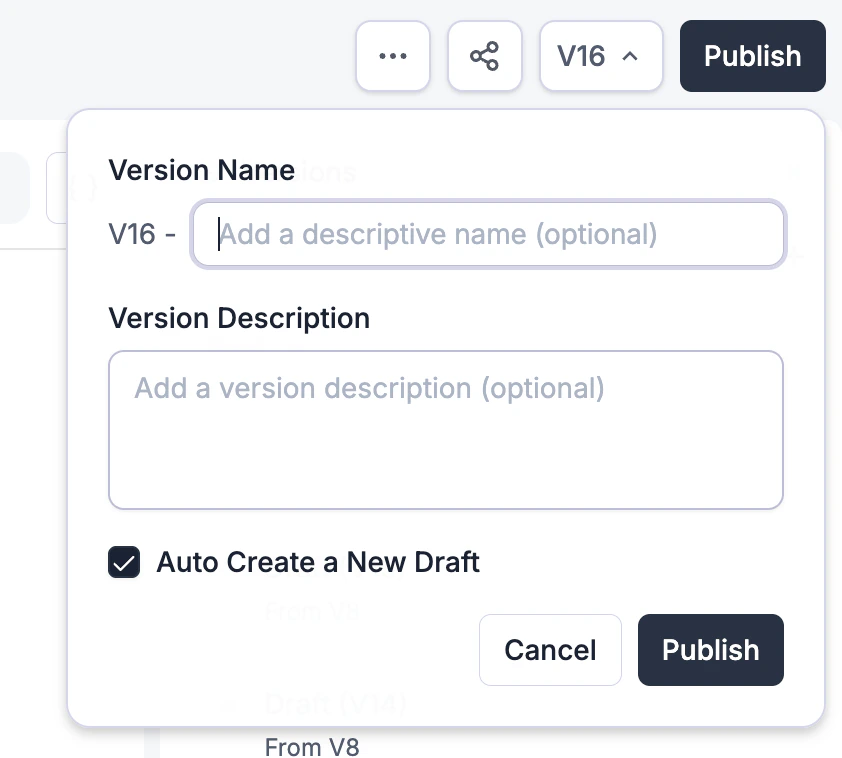
After clicking **Publish**, a modal appears where you can add an optional version name and description. You can also check **Auto Create a New Draft** to automatically create a new draft version after publishing.
If a draft has no changes compared to the version it was branched from, the **Publish** button is disabled. Hovering over it shows **No changes to publish since V*N***, where V*N* is the base version. Make an edit to the draft to enable publishing again.
To attach phone numbers to a version, use the **Phone Numbers** tab in the dashboard.
### Delete a version
To delete a draft or published version, open the versions panel, select the version, and use the delete option. Published versions with active phone numbers or environment tags attached should have those removed before deleting.
## Environment Tags
Environment tags store environment-specific configs. Apply a tag (e.g. `prod`, `staging`) to a version to instantly load the right settings — and move the tag to a different version to deploy without manually rerouting phone numbers, dynamic variables, etc.
A version can have multiple tags attached.
### How environment tags work
Each agent comes with `prod` and `staging` tags by default. You can create up to **10 tags total** per agent (including the defaults).
Tags serve two purposes:
1. **Labels** — tags appear directly on version entries in the panel, so you can see at a glance which versions are running in which environments (e.g. which version is `prod`, which is `staging`).
2. **Environment-specific config** — each tag carries its own set of dynamic variable values. When a tag is active on a version, those values are automatically injected, so the same agent behaves correctly across environments without duplicating configuration.
To deploy a new version, move the tag from the old version to the new one. Phone numbers, webhooks, and anything else pointing to that tag switch over instantly — no manual rerouting needed.
### Configure tags
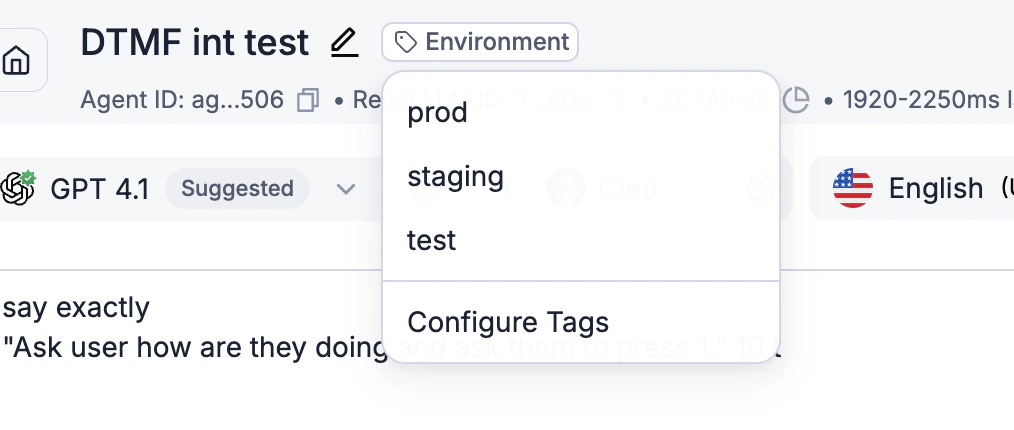
Click the **Environment** button in the agent header to apply a tag to the current version, or select **Configure Tags** to manage your tags.
In the **Configure Environment Tags** modal you can:
* Create a new tag by clicking **+ Add** in the left sidebar and giving it a name.
* Define **environment dynamic variables** — key/value pairs that are injected into the agent when that tag is active. This lets the same agent behave differently across environments without duplicating configuration.
**Tag name requirements**
* Up to 20 characters
* May contain lowercase letters, numbers, `-`, or `_`
* Must start with a lowercase letter
* Cannot be `latest`
* Cannot match the pattern `v` followed by numbers only (e.g. `v3`, `v12`)
### Applying tags to a version
To attach a tag to a version, select the version in the versions panel, then click the **Environment** button and choose the tag. The tag label will appear on the version entry in the panel.
## How to use versions and tags in the API
You can pass a version reference in API calls such as `get_agent`, `get_retell_llm`, `create_web_call`, and `create_phone_number`.
A version reference can be:
* A version number, such as `2`
* `latest`
* An environment tag, such as `prod` or `staging`
When you pass an environment tag, Retell uses the version currently assigned to
that tag and applies the tag's dynamic variables. If the tag exists but is not
assigned to a version, Retell uses the latest version.
If you do not pass a version reference, the Retell SDK defaults to the latest
version of the agent.
```typescript Node theme={null}
// Gets the version with version number 2.
const agent = await client.agent.retrieve("agent_id", { version: 2 });
// Gets the version assigned to the prod tag.
const prodAgent = await client.agent.retrieve("agent_id", { version: "prod" });
// Starts a web call with the version assigned to the staging tag.
const webCall = await client.call.createWebCall({
agent_id: "agent_id",
agent_version: "staging",
});
// Gets the latest version of the agent.
const latestAgent = await client.agent.retrieve("agent_id");
```
```python Python theme={null}
# Gets the version with version number 2.
agent = client.agent.retrieve("agent_id", version=2)
# Gets the version assigned to the prod tag.
prod_agent = client.agent.retrieve("agent_id", version="prod")
# Starts a web call with the version assigned to the staging tag.
web_call = client.call.create_web_call(
agent_id="agent_id",
agent_version="staging",
)
# Gets the latest version of the agent.
latest_agent = client.agent.retrieve("agent_id")
```
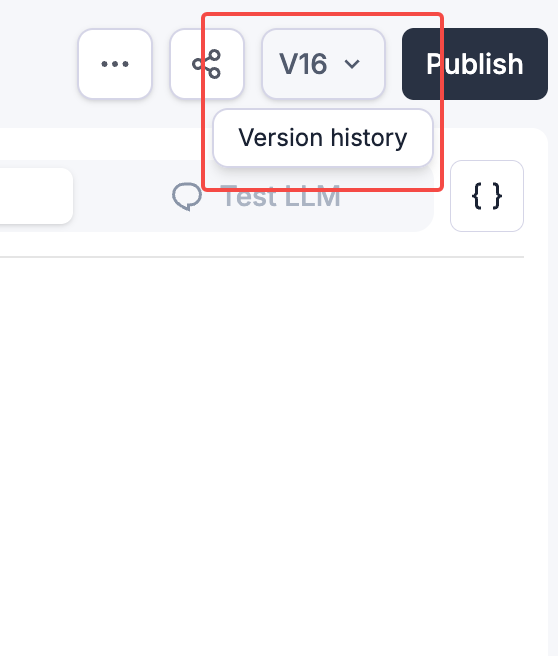 The panel shows two sections:
* **Draft**: unpublished versions that can still be edited.
* **Published**
The panel shows two sections:
* **Draft**: unpublished versions that can still be edited.
* **Published**
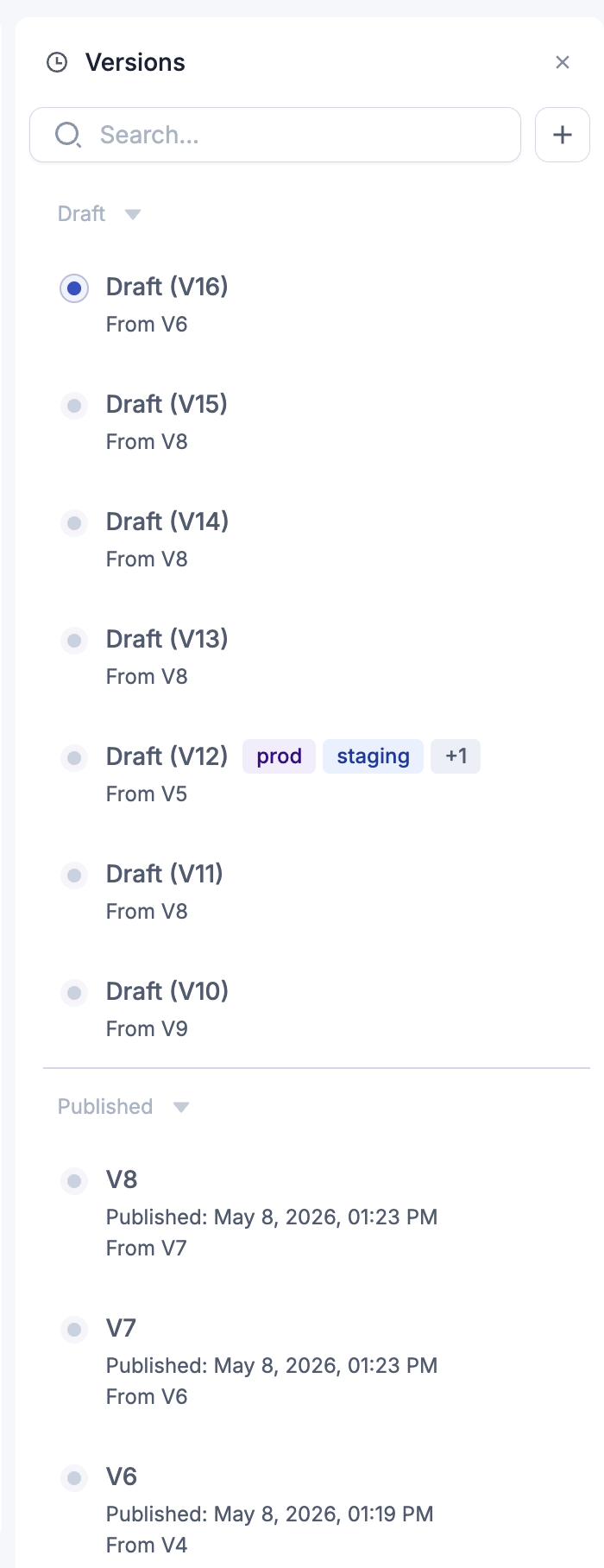 Versions with attached environment tags (e.g. `prod`, `staging`) are shown inline on the version entry.
### Create a new draft
Click the **+** button in the versions panel to create a new draft from the currently selected version. The draft will show which version it was branched from.
### Publish a draft
You can publish any draft version. Select the draft in the versions panel, then click the **Publish** button in the upper right corner.
Versions with attached environment tags (e.g. `prod`, `staging`) are shown inline on the version entry.
### Create a new draft
Click the **+** button in the versions panel to create a new draft from the currently selected version. The draft will show which version it was branched from.
### Publish a draft
You can publish any draft version. Select the draft in the versions panel, then click the **Publish** button in the upper right corner.
 After clicking **Publish**, a modal appears where you can add an optional version name and description. You can also check **Auto Create a New Draft** to automatically create a new draft version after publishing.
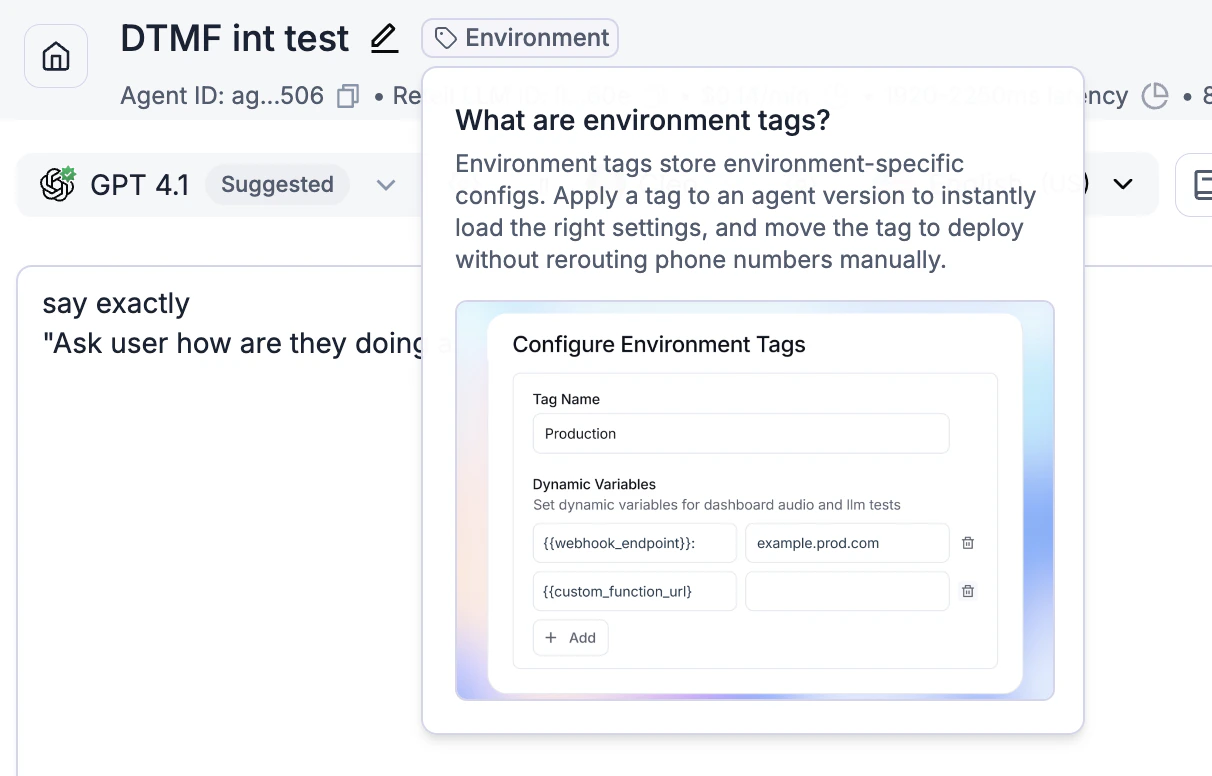 Environment tags store environment-specific configs. Apply a tag (e.g. `prod`, `staging`) to a version to instantly load the right settings — and move the tag to a different version to deploy without manually rerouting phone numbers, dynamic variables, etc.
A version can have multiple tags attached.
### How environment tags work
Each agent comes with `prod` and `staging` tags by default. You can create up to **10 tags total** per agent (including the defaults).
Tags serve two purposes:
1. **Labels** — tags appear directly on version entries in the panel, so you can see at a glance which versions are running in which environments (e.g. which version is `prod`, which is `staging`).
2. **Environment-specific config** — each tag carries its own set of dynamic variable values. When a tag is active on a version, those values are automatically injected, so the same agent behaves correctly across environments without duplicating configuration.
To deploy a new version, move the tag from the old version to the new one. Phone numbers, webhooks, and anything else pointing to that tag switch over instantly — no manual rerouting needed.
### Configure tags
Click the **Environment** button in the agent header to apply a tag to the current version, or select **Configure Tags** to manage your tags.
Environment tags store environment-specific configs. Apply a tag (e.g. `prod`, `staging`) to a version to instantly load the right settings — and move the tag to a different version to deploy without manually rerouting phone numbers, dynamic variables, etc.
A version can have multiple tags attached.
### How environment tags work
Each agent comes with `prod` and `staging` tags by default. You can create up to **10 tags total** per agent (including the defaults).
Tags serve two purposes:
1. **Labels** — tags appear directly on version entries in the panel, so you can see at a glance which versions are running in which environments (e.g. which version is `prod`, which is `staging`).
2. **Environment-specific config** — each tag carries its own set of dynamic variable values. When a tag is active on a version, those values are automatically injected, so the same agent behaves correctly across environments without duplicating configuration.
To deploy a new version, move the tag from the old version to the new one. Phone numbers, webhooks, and anything else pointing to that tag switch over instantly — no manual rerouting needed.
### Configure tags
Click the **Environment** button in the agent header to apply a tag to the current version, or select **Configure Tags** to manage your tags.
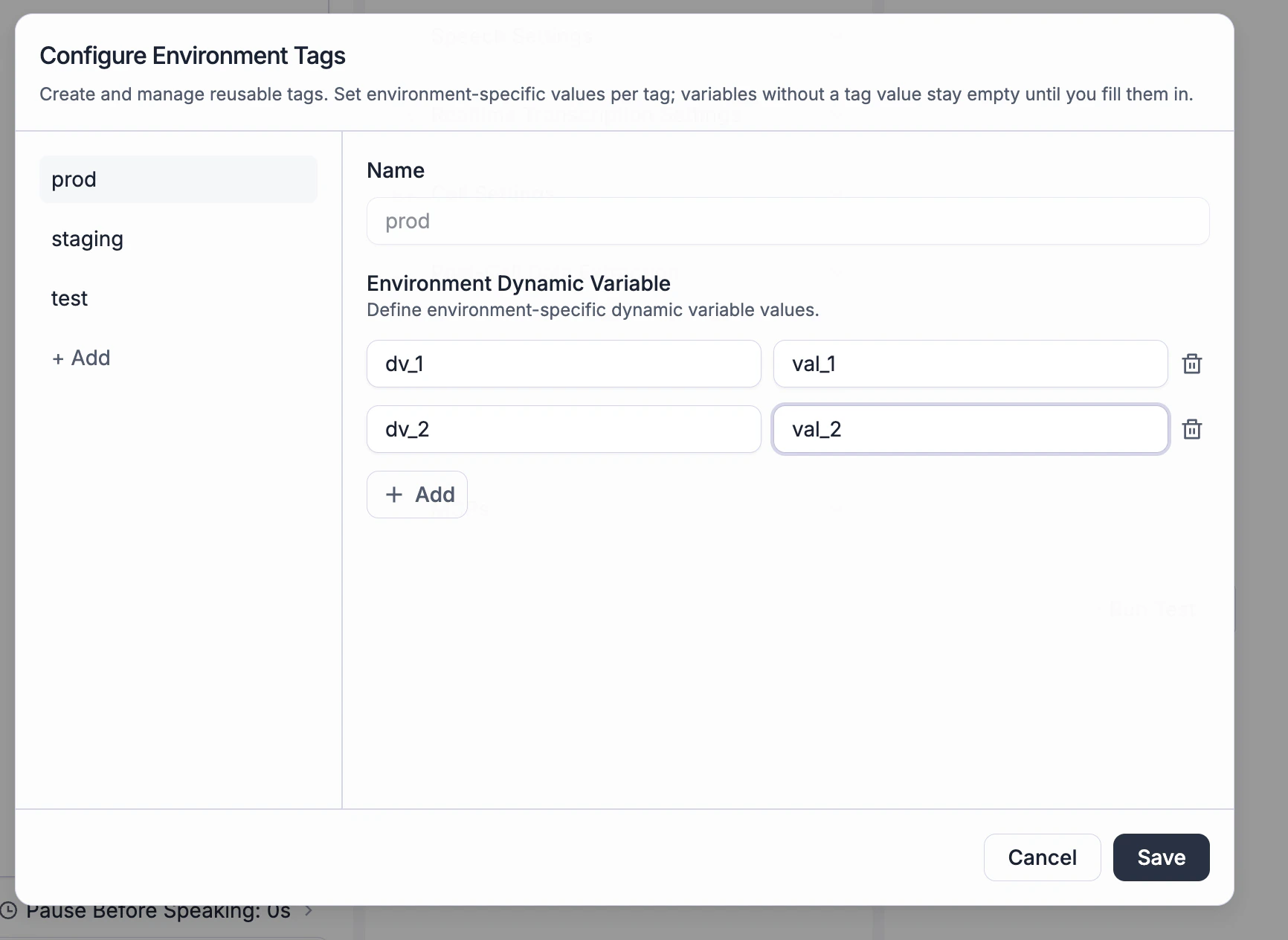 In the **Configure Environment Tags** modal you can:
* Create a new tag by clicking **+ Add** in the left sidebar and giving it a name.
* Define **environment dynamic variables** — key/value pairs that are injected into the agent when that tag is active. This lets the same agent behave differently across environments without duplicating configuration.
**Tag name requirements**
* Up to 20 characters
* May contain lowercase letters, numbers, `-`, or `_`
* Must start with a lowercase letter
* Cannot be `latest`
* Cannot match the pattern `v` followed by numbers only (e.g. `v3`, `v12`)
### Applying tags to a version
To attach a tag to a version, select the version in the versions panel, then click the **Environment** button and choose the tag. The tag label will appear on the version entry in the panel.
## How to use versions and tags in the API
You can pass a version reference in API calls such as `get_agent`, `get_retell_llm`, `create_web_call`, and `create_phone_number`.
A version reference can be:
* A version number, such as `2`
* `latest`
* An environment tag, such as `prod` or `staging`
When you pass an environment tag, Retell uses the version currently assigned to
that tag and applies the tag's dynamic variables. If the tag exists but is not
assigned to a version, Retell uses the latest version.
If you do not pass a version reference, the Retell SDK defaults to the latest
version of the agent.
In the **Configure Environment Tags** modal you can:
* Create a new tag by clicking **+ Add** in the left sidebar and giving it a name.
* Define **environment dynamic variables** — key/value pairs that are injected into the agent when that tag is active. This lets the same agent behave differently across environments without duplicating configuration.
**Tag name requirements**
* Up to 20 characters
* May contain lowercase letters, numbers, `-`, or `_`
* Must start with a lowercase letter
* Cannot be `latest`
* Cannot match the pattern `v` followed by numbers only (e.g. `v3`, `v12`)
### Applying tags to a version
To attach a tag to a version, select the version in the versions panel, then click the **Environment** button and choose the tag. The tag label will appear on the version entry in the panel.
## How to use versions and tags in the API
You can pass a version reference in API calls such as `get_agent`, `get_retell_llm`, `create_web_call`, and `create_phone_number`.
A version reference can be:
* A version number, such as `2`
* `latest`
* An environment tag, such as `prod` or `staging`
When you pass an environment tag, Retell uses the version currently assigned to
that tag and applies the tag's dynamic variables. If the tag exists but is not
assigned to a version, Retell uses the latest version.
If you do not pass a version reference, the Retell SDK defaults to the latest
version of the agent.