> ## Documentation Index
> Fetch the complete documentation index at: https://docs.retellai.com/llms.txt
> Use this file to discover all available pages before exploring further.
# Define QA Cohort
> Define a Retell AI QA cohort: name it, choose which calls and agents to evaluate, set the date range, and select the metrics used to score conversations.
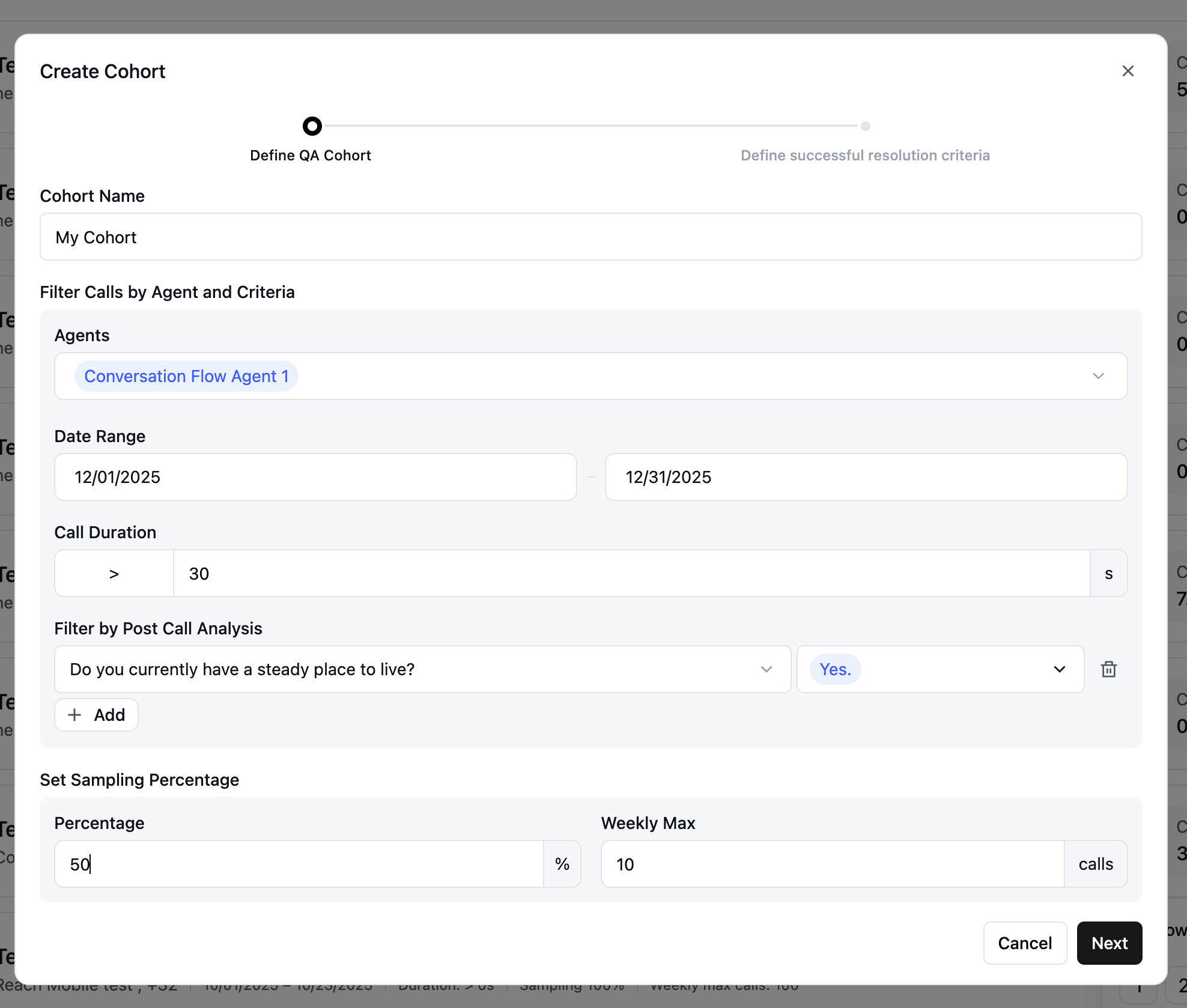 The **Cohort Name** field is where you define a unique identifier for your QA cohort. This name helps you organize and identify different cohorts in your AI QA dashboard.
* **Best Practice**: Use descriptive names that indicate the purpose or criteria of the cohort (e.g., High-Value Customers Q4, Support Calls - Week 1)
This section allows you to define which calls should be included in your cohort based on multiple filtering criteria.
**1. Agents**
The **Agents** dropdown lets you select one or more agents whose calls you want to analyze.
* **Use Case**: Analyze performance across specific agents, compare agent performance, or focus on a particular agent's calls
**2. Date Range**
The **Date Range** fields allow you to specify a time period for the calls you want to include in your cohort.
* **Start Date**: Required. Sets the beginning of the date range for calls to include in the cohort.
* **End Date**: Optional. If omitted, the cohort will continuously add new calls that match the other criteria as they occur, creating a dynamic cohort that updates over time.
**3. Call Duration**
The **Call Duration** filter lets you include or exclude calls based on their length.
* **Use Case**:
* Filter out very short calls (e.g., \< 30 seconds) that may not be meaningful
* Focus on longer calls that require more analysis
* Identify calls that are too short or too long
**4. Disconnection Reason**
You can filter calls by various [disconnection reasons](/reliability/debug-call-disconnect).
**5. Post Call Analysis**
The **Post Call Analysis** filter allows you to add custom filters based on post-call analysis results.
This section controls how many calls from your filtered set will actually be analyzed, helping you manage analysis volume and costs.
#### Percentage
The **Percentage** field determines what percentage of calls matching your filters will be included in the cohort.
* **Example**: Setting 50% means half of all calls matching your filters will be analyzed
#### Weekly Max
The **Weekly Max** field sets a maximum number of calls that can be analyzed per week.
* **Example**: Setting the Weekly Max to 100 ensures that no more than 100 calls are included in the cohort each week, even if the percentage filter would otherwise allow more.
The Weekly Max acts as a cap. If your percentage calculation results in fewer calls than the Weekly Max, the percentage takes precedence. If it results in more, the Weekly Max limit applies.
After configuring your cohort filters and sampling options, select the **Next** button to proceed.
The **Cohort Name** field is where you define a unique identifier for your QA cohort. This name helps you organize and identify different cohorts in your AI QA dashboard.
* **Best Practice**: Use descriptive names that indicate the purpose or criteria of the cohort (e.g., High-Value Customers Q4, Support Calls - Week 1)
This section allows you to define which calls should be included in your cohort based on multiple filtering criteria.
**1. Agents**
The **Agents** dropdown lets you select one or more agents whose calls you want to analyze.
* **Use Case**: Analyze performance across specific agents, compare agent performance, or focus on a particular agent's calls
**2. Date Range**
The **Date Range** fields allow you to specify a time period for the calls you want to include in your cohort.
* **Start Date**: Required. Sets the beginning of the date range for calls to include in the cohort.
* **End Date**: Optional. If omitted, the cohort will continuously add new calls that match the other criteria as they occur, creating a dynamic cohort that updates over time.
**3. Call Duration**
The **Call Duration** filter lets you include or exclude calls based on their length.
* **Use Case**:
* Filter out very short calls (e.g., \< 30 seconds) that may not be meaningful
* Focus on longer calls that require more analysis
* Identify calls that are too short or too long
**4. Disconnection Reason**
You can filter calls by various [disconnection reasons](/reliability/debug-call-disconnect).
**5. Post Call Analysis**
The **Post Call Analysis** filter allows you to add custom filters based on post-call analysis results.
This section controls how many calls from your filtered set will actually be analyzed, helping you manage analysis volume and costs.
#### Percentage
The **Percentage** field determines what percentage of calls matching your filters will be included in the cohort.
* **Example**: Setting 50% means half of all calls matching your filters will be analyzed
#### Weekly Max
The **Weekly Max** field sets a maximum number of calls that can be analyzed per week.
* **Example**: Setting the Weekly Max to 100 ensures that no more than 100 calls are included in the cohort each week, even if the percentage filter would otherwise allow more.
The Weekly Max acts as a cap. If your percentage calculation results in fewer calls than the Weekly Max, the percentage takes precedence. If it results in more, the Weekly Max limit applies.
After configuring your cohort filters and sampling options, select the **Next** button to proceed.