> ## Documentation Index
> Fetch the complete documentation index at: https://docs.retellai.com/llms.txt
> Use this file to discover all available pages before exploring further.
# Agent Handbook
> Turn on Retell Agent Handbook presets to add best-practice prompts for personality, accuracy, and safety with one toggle — no manual prompt writing required.
The Agent Handbook is a collection of ready-to-use prompt presets that improve how your agent communicates. Each preset encodes a specific best practice — toggle it on and the behavior is added automatically, no prompt writing needed.
New agents are created with the **Default Tone (Professional)** and **AI Disclosure When Asked** presets enabled by default.
## How It Works
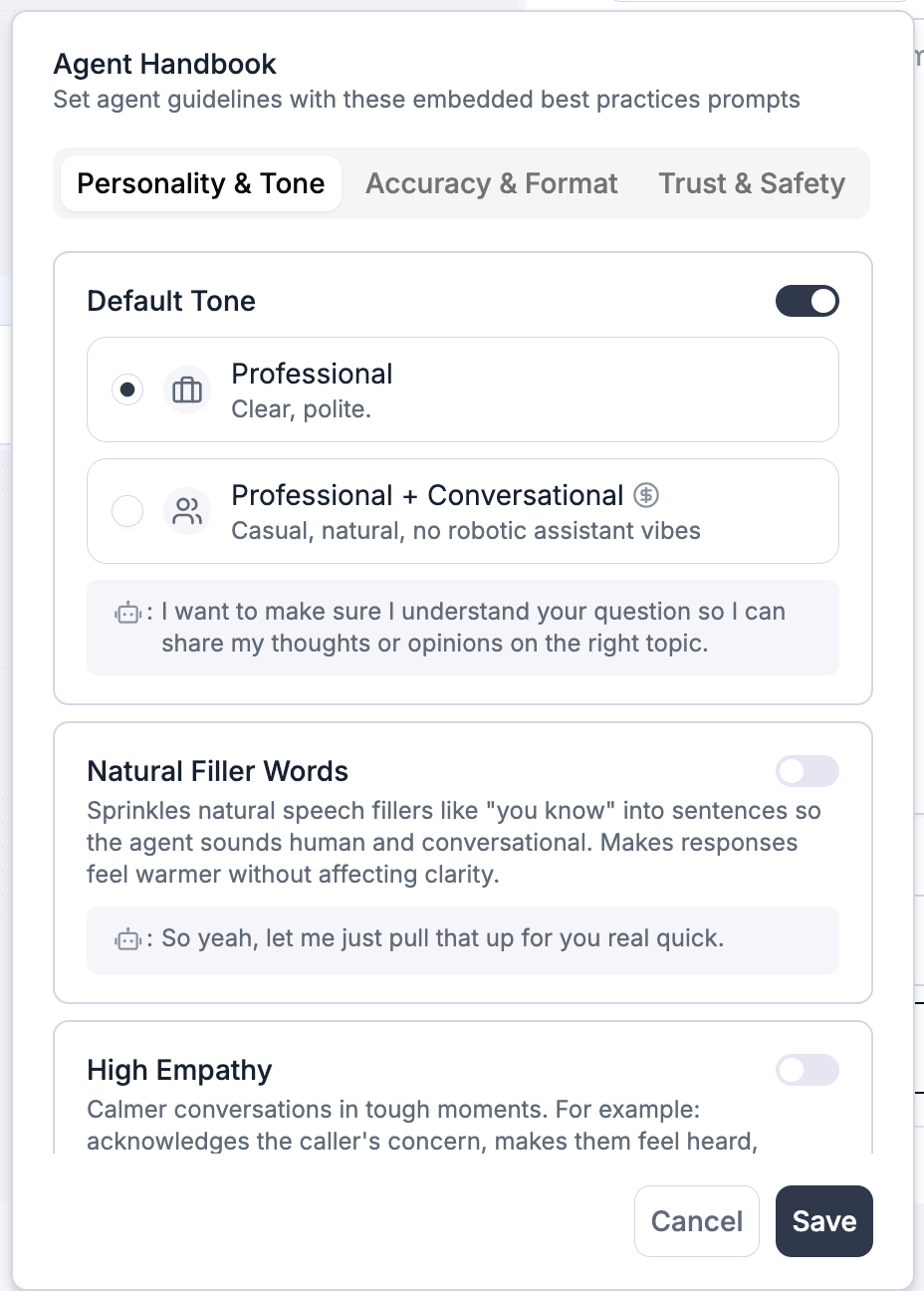
The Agent Handbook organizes presets into three categories:
* **Personality & Tone** — Shape how the agent sounds and feels in conversation
* **Accuracy & Format** — Improve how the agent handles names, numbers, and data (voice agents only)
* **Trust & Safety** — Control transparency and scope of responses
Toggle any preset on or off from the Agent Handbook panel. Each preset adds a small number of tokens to every interaction — estimated token counts are shown on hover.
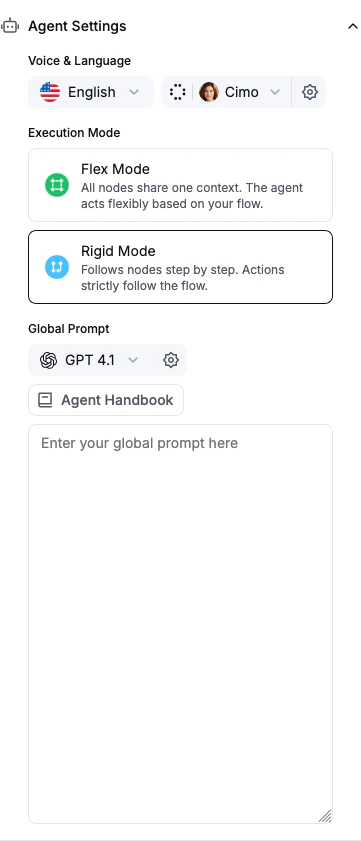 To open the Agent Handbook, click the **Agent Handbook** button in the prompt section of your agent settings.
 ## Presets
### Personality & Tone
Sets your agent's baseline speaking style. Choose one of two tones:
* **Professional** *(\~480 tokens · Voice and Chat · default)* — clear and polite, like a courteous representative. Follows an **Acknowledge → Statement → Next Step** structure, limits filler acknowledgments, and avoids robotic phrases like "Certainly!" or "Absolutely!".
* **Professional + Conversational** *(\~910 tokens · Voice only)* — casual and natural, with no robotic assistant vibes: short turns, one question at a time, real recommendations instead of "it depends", and numbers and times spoken the way people say them. Best for sales, front desk, scheduling, and customer success. See [Conversational Mode](/build/conversational-mode) for side-by-side examples.
**Professional sounds like:** *"I understand this is frustrating — let me look into that for you."*
**Professional + Conversational sounds like:** *"Morning's pretty open — nine or ten thirty. Afternoon works too if that's easier."*
**Available for:** Voice agents only | **Default:** Disabled
Adds occasional filler words like "um", "uh", and "you know" to make the agent sound more human and conversational. Fillers are used sparingly — roughly once every 2–3 sentences.
**When to use:** Great for sales, customer success, or casual conversations. Avoid for formal or regulated contexts (medical, legal).
**Example:** *"So yeah, let me just pull that up for you real quick."*
**Available for:** Voice and Chat agents | **Default:** Disabled
Guides the agent to use empathetic language when the situation calls for it — acknowledging concerns, making callers feel heard, and reassuring them before moving to a solution.
**When to use:** Useful for support agents, complaint handling, or any scenario where callers may be frustrated or emotional.
**Example:** *"I'm sorry you're dealing with this. Let's get it sorted."*
### Accuracy & Format
All presets in this category are available for voice agents only. They are automatically disabled for chat agents.
**Default:** Disabled
The agent repeats back names, phone numbers, and other critical details for confirmation. For uncommon names, it spells them out letter by letter.
**When to use:** Enable for appointment booking, data collection, or any workflow where accurate information capture is critical.
**Example:** *"Just to confirm, your first name is Ryan, last name is James — is that correct?"*
**Default:** Disabled
When spelling is needed, the agent uses the NATO phonetic alphabet (A as in Alfa, B as in Bravo, etc.) with natural pauses for clarity.
**When to use:** Useful for confirming email addresses, reference numbers, account IDs, or names over the phone.
**Example:** *"That's B as in Bravo, 7, K as in Kilo, 2 — correct?"*
**Default:** Disabled
Formats numbers, dates, money, phone numbers, addresses, and emails into natural spoken form. For example, "\$758.08" becomes "seven fifty-eight dollars and eight cents" and phone numbers are read digit by digit with pauses.
**When to use:** Enable when your agent frequently reads back structured data like prices, dates, or contact information. Note the higher token cost (\~910 tokens).
This preset tells the LLM how to format its text output for natural speech. For converting text to spoken form at the audio level, enable the `speech_normalization` option in `handbook_config`. Both can be used together.
**Example:** *"Your total is seventy dollars and eighty-four cents."*
**Default:** Disabled
Handles common speech recognition variations of names gracefully. If a caller confirms their name but the transcription is slightly different (e.g., "Brandon" vs. "Brendon"), the agent treats it as a match and continues naturally.
**When to use:** Enable when your agent looks up names in a database or CRM and needs tolerance for transcription variations.
**Example:** Agent asks "Are you Brandon?" and the caller says "Yes, this is Brendon" — the agent continues without flagging the difference.
### Trust & Safety
**Available for:** Voice and Chat agents | **Default:** Enabled
When someone asks if they're speaking to a human or an AI, the agent clearly acknowledges that it's a virtual assistant.
**When to use:** Recommended for transparency and compliance. Only disable if your use case has specific reasons not to disclose.
**Example:** *"Yes — I'm an AI assistant here to help."*
**Available for:** Voice and Chat agents | **Default:** Disabled
Restricts the agent to only answer questions based on information available in its prompt and knowledge base. If it doesn't know, it says so instead of guessing.
**When to use:** Enable for any agent where factual accuracy is critical, such as healthcare, finance, or legal use cases.
**Example:** *"I don't have that information, but I can connect you to someone who can help."*
## Token Cost Summary
| Preset | Est. Tokens | Voice | Chat | Default |
| -------------------------------------------- | ----------- | ----- | ---- | ------- |
| Default Tone — Professional | \~480 | ✓ | ✓ | On |
| Default Tone — Professional + Conversational | \~910 | ✓ | — | Off |
| Natural Filler Words | \~100 | ✓ | — | Off |
| High Empathy | \~70 | ✓ | ✓ | Off |
| Echo Verification | \~190 | ✓ | — | Off |
| NATO Phonetic Alphabet | \~190 | ✓ | — | Off |
| Speech Normalization | \~910 | ✓ | — | Off |
| Smart Matching | \~110 | ✓ | — | Off |
| AI Disclosure When Asked | \~30 | ✓ | ✓ | On |
| Scope Boundaries | \~60 | ✓ | ✓ | Off |
Token counts are approximate. The token cost of all enabled presets is added to every interaction.
## FAQ
No — presets are fixed best-practice prompts. For custom instructions, write them directly in your agent's prompt. See the [Prompt Engineering Guide](/build/prompt-engineering-guide) for tips.
Handbook presets work alongside your custom prompt. If your prompt gives instructions that overlap with a preset (e.g., you wrote your own empathy guidelines), you may want to disable the overlapping preset to avoid inconsistent behavior.
Five presets — Natural Filler Words, Echo Verification, NATO Phonetic Alphabet, Speech Normalization, and Smart Matching — are designed specifically for voice interactions and are not applicable to chat agents.
## Presets
### Personality & Tone
Sets your agent's baseline speaking style. Choose one of two tones:
* **Professional** *(\~480 tokens · Voice and Chat · default)* — clear and polite, like a courteous representative. Follows an **Acknowledge → Statement → Next Step** structure, limits filler acknowledgments, and avoids robotic phrases like "Certainly!" or "Absolutely!".
* **Professional + Conversational** *(\~910 tokens · Voice only)* — casual and natural, with no robotic assistant vibes: short turns, one question at a time, real recommendations instead of "it depends", and numbers and times spoken the way people say them. Best for sales, front desk, scheduling, and customer success. See [Conversational Mode](/build/conversational-mode) for side-by-side examples.
**Professional sounds like:** *"I understand this is frustrating — let me look into that for you."*
**Professional + Conversational sounds like:** *"Morning's pretty open — nine or ten thirty. Afternoon works too if that's easier."*
**Available for:** Voice agents only | **Default:** Disabled
Adds occasional filler words like "um", "uh", and "you know" to make the agent sound more human and conversational. Fillers are used sparingly — roughly once every 2–3 sentences.
**When to use:** Great for sales, customer success, or casual conversations. Avoid for formal or regulated contexts (medical, legal).
**Example:** *"So yeah, let me just pull that up for you real quick."*
**Available for:** Voice and Chat agents | **Default:** Disabled
Guides the agent to use empathetic language when the situation calls for it — acknowledging concerns, making callers feel heard, and reassuring them before moving to a solution.
**When to use:** Useful for support agents, complaint handling, or any scenario where callers may be frustrated or emotional.
**Example:** *"I'm sorry you're dealing with this. Let's get it sorted."*
### Accuracy & Format
All presets in this category are available for voice agents only. They are automatically disabled for chat agents.
**Default:** Disabled
The agent repeats back names, phone numbers, and other critical details for confirmation. For uncommon names, it spells them out letter by letter.
**When to use:** Enable for appointment booking, data collection, or any workflow where accurate information capture is critical.
**Example:** *"Just to confirm, your first name is Ryan, last name is James — is that correct?"*
**Default:** Disabled
When spelling is needed, the agent uses the NATO phonetic alphabet (A as in Alfa, B as in Bravo, etc.) with natural pauses for clarity.
**When to use:** Useful for confirming email addresses, reference numbers, account IDs, or names over the phone.
**Example:** *"That's B as in Bravo, 7, K as in Kilo, 2 — correct?"*
**Default:** Disabled
Formats numbers, dates, money, phone numbers, addresses, and emails into natural spoken form. For example, "\$758.08" becomes "seven fifty-eight dollars and eight cents" and phone numbers are read digit by digit with pauses.
**When to use:** Enable when your agent frequently reads back structured data like prices, dates, or contact information. Note the higher token cost (\~910 tokens).
This preset tells the LLM how to format its text output for natural speech. For converting text to spoken form at the audio level, enable the `speech_normalization` option in `handbook_config`. Both can be used together.
**Example:** *"Your total is seventy dollars and eighty-four cents."*
**Default:** Disabled
Handles common speech recognition variations of names gracefully. If a caller confirms their name but the transcription is slightly different (e.g., "Brandon" vs. "Brendon"), the agent treats it as a match and continues naturally.
**When to use:** Enable when your agent looks up names in a database or CRM and needs tolerance for transcription variations.
**Example:** Agent asks "Are you Brandon?" and the caller says "Yes, this is Brendon" — the agent continues without flagging the difference.
### Trust & Safety
**Available for:** Voice and Chat agents | **Default:** Enabled
When someone asks if they're speaking to a human or an AI, the agent clearly acknowledges that it's a virtual assistant.
**When to use:** Recommended for transparency and compliance. Only disable if your use case has specific reasons not to disclose.
**Example:** *"Yes — I'm an AI assistant here to help."*
**Available for:** Voice and Chat agents | **Default:** Disabled
Restricts the agent to only answer questions based on information available in its prompt and knowledge base. If it doesn't know, it says so instead of guessing.
**When to use:** Enable for any agent where factual accuracy is critical, such as healthcare, finance, or legal use cases.
**Example:** *"I don't have that information, but I can connect you to someone who can help."*
## Token Cost Summary
| Preset | Est. Tokens | Voice | Chat | Default |
| -------------------------------------------- | ----------- | ----- | ---- | ------- |
| Default Tone — Professional | \~480 | ✓ | ✓ | On |
| Default Tone — Professional + Conversational | \~910 | ✓ | — | Off |
| Natural Filler Words | \~100 | ✓ | — | Off |
| High Empathy | \~70 | ✓ | ✓ | Off |
| Echo Verification | \~190 | ✓ | — | Off |
| NATO Phonetic Alphabet | \~190 | ✓ | — | Off |
| Speech Normalization | \~910 | ✓ | — | Off |
| Smart Matching | \~110 | ✓ | — | Off |
| AI Disclosure When Asked | \~30 | ✓ | ✓ | On |
| Scope Boundaries | \~60 | ✓ | ✓ | Off |
Token counts are approximate. The token cost of all enabled presets is added to every interaction.
## FAQ
No — presets are fixed best-practice prompts. For custom instructions, write them directly in your agent's prompt. See the [Prompt Engineering Guide](/build/prompt-engineering-guide) for tips.
Handbook presets work alongside your custom prompt. If your prompt gives instructions that overlap with a preset (e.g., you wrote your own empathy guidelines), you may want to disable the overlapping preset to avoid inconsistent behavior.
Five presets — Natural Filler Words, Echo Verification, NATO Phonetic Alphabet, Speech Normalization, and Smart Matching — are designed specifically for voice interactions and are not applicable to chat agents.