> ## Documentation Index
> Fetch the complete documentation index at: https://docs.retellai.com/llms.txt
> Use this file to discover all available pages before exploring further.
# Check Calendar Availability
> Connect Cal.com to a Retell voice agent to fetch open time slots during a call so the agent can quote real availability before booking an appointment.
This guide explains how to integrate cal.com's calendar availability checking functionality into your application. This integration allows you to check available time slots for your cal.com event types.
1. Visit [cal.com](https://cal.com) to create an account
1. Navigate to the "Event Types" section in your cal.com dashboard
2. Click "New"
3. Configure your event settings
4. Click "Save" to create the event type
#### Get Event Type ID
1. Open your created event type
2. Look at the URL in your browser
3. The event type ID is the number in the URL
Example: `https://app.cal.com/your-username/event-type/1427703`
In this case, `1427703` is your event type ID
#### Get API Key
1. Go to "Settings" in your cal.com dashboard
2. Navigate to "Developer" section
3. Click on "API Keys" to retrieve your API key
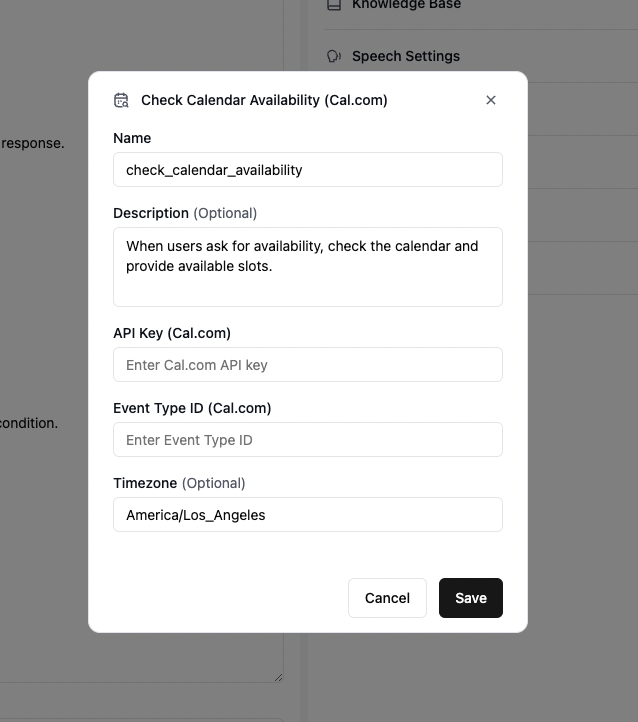
1. Enter the following details:
* Tool name: this has to be unique within that agent
* API Key from cal.com
* Event Type ID
* Tool description (example: "Checks availability for 30-minute consultation calls")
* (optional): add a timezone to be used in the function
2. Click "Save" to complete the setup
It's best to include in the prompt explicitly when is the best time to invoke the custom function. For example:
```
When user stated a time range, please check the calendar availability by calling the `check_calendar_availability` function and let user know whether that range works or not.
```
Video tutorial (based on single / multi prompt agent):
 #### Get Event Type ID
1. Open your created event type
2. Look at the URL in your browser
3. The event type ID is the number in the URL
Example: `https://app.cal.com/your-username/event-type/1427703`
In this case, `1427703` is your event type ID
#### Get API Key
1. Go to "Settings" in your cal.com dashboard
2. Navigate to "Developer" section
3. Click on "API Keys" to retrieve your API key
#### Get Event Type ID
1. Open your created event type
2. Look at the URL in your browser
3. The event type ID is the number in the URL
Example: `https://app.cal.com/your-username/event-type/1427703`
In this case, `1427703` is your event type ID
#### Get API Key
1. Go to "Settings" in your cal.com dashboard
2. Navigate to "Developer" section
3. Click on "API Keys" to retrieve your API key