> ## Documentation Index
> Fetch the complete documentation index at: https://docs.retellai.com/llms.txt
> Use this file to discover all available pages before exploring further.
# MCP node in conversation flow
> Add an MCP node to a Retell conversation flow to call remote MCP server tools during a live call, with custom headers and authentication.
MCP node is used to call tools on your MCP server. It's not intended for having a conversation with the user, but agent can still talk while in this node if needed.
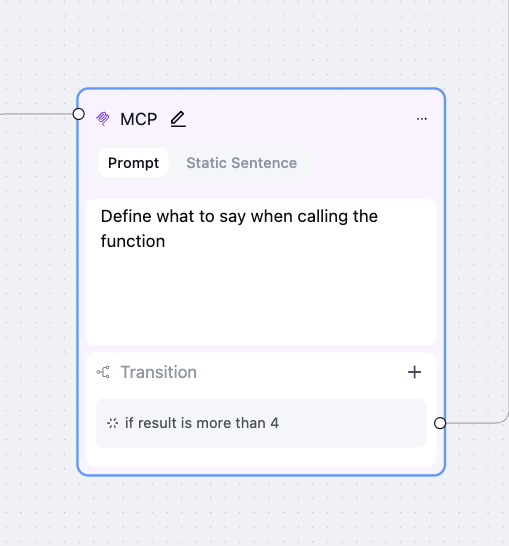 ## Add MCP server
To create an MCP node, we first need to add an MCP server.
## Add MCP server
To create an MCP node, we first need to add an MCP server.
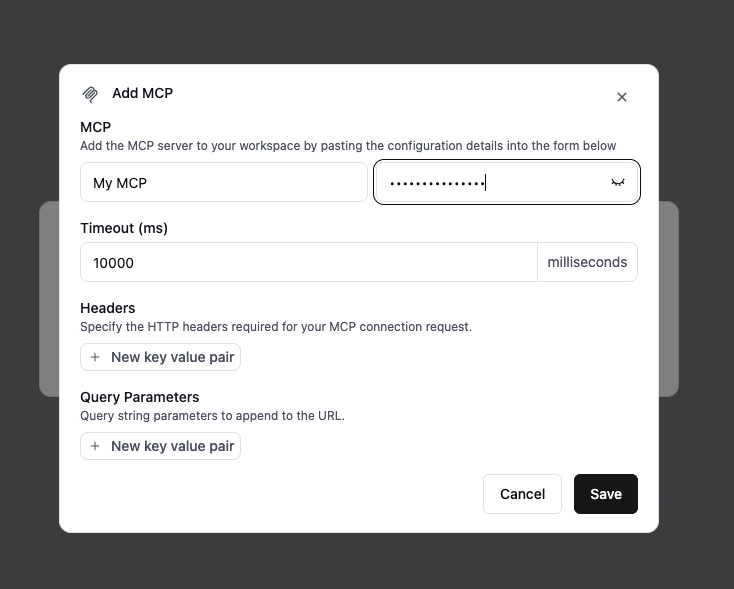 You can define custom headers to include with the request Retell sends to your MCP Server.
 You can define query parameters to include in the request URL that Retell appends to your MCP Server Endpoint.
 Select MCP Tool
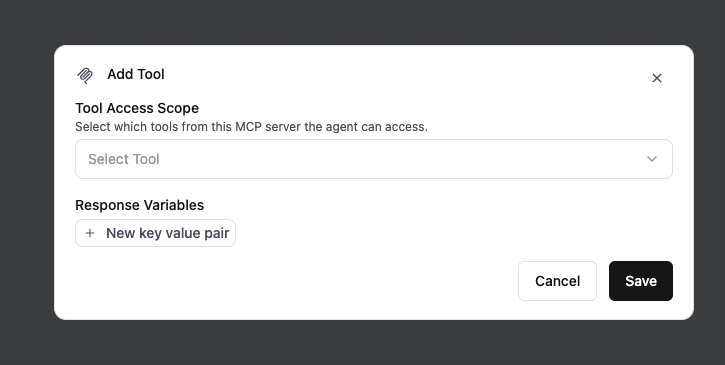 Extract values from the MCP tool response and save them as dynamic variables for use later in the conversation.
For example, you can extract a user’s name from the response and reference it later using
Extract values from the MCP tool response and save them as dynamic variables for use later in the conversation.
For example, you can extract a user’s name from the response and reference it later using \{\{user\_name}}.
Example response body
```javascript theme={null}
{
"properties": {
"user": {
"name": "John Doe",
"age": 26
}
}
}
```
 ## Node Settings
* **Global Node**: read more at [Global Node](/build/conversation-flow/global-node)
* **Fine-tuning Examples**: Can finetune transition. Read more at [Finetune Examples](/build/conversation-flow/finetune-examples)
## Node Settings
* **Global Node**: read more at [Global Node](/build/conversation-flow/global-node)
* **Fine-tuning Examples**: Can finetune transition. Read more at [Finetune Examples](/build/conversation-flow/finetune-examples)