> ## Documentation Index
> Fetch the complete documentation index at: https://docs.retellai.com/llms.txt
> Use this file to discover all available pages before exploring further.
# Step 3: Add transition conditions
> Define transition conditions in a Retell conversation flow using prompts or strict rules to control when and which node the agent moves to next.
## What is a transition condition?
Transition conditions are used to determine whether and which node the agent will transition to. If no transition condition is met, the agent will transition to the next node. This is the most essential part of the conversation flow, as this gives you the utmost control, and this requires most careful testing.
## Types of transition conditions
There are two types of transition conditions:
* **Prompt**: The condition is a prompt that is evaluated by the LLM.
* **Equation**: The condition is a mathematical equation that is hardcoded. This is useful for testing if dynamic variables meet a certain condition.
All equation conditions are evaluated first, and then the prompt conditions are evaluated. Note that equation conditions are evaluated from top to bottom, and we travel on the first condition that evaluates to true.
Example of prompt conditions:
* `User said something about booking a meeting`
* `User said something about cancelling a meeting`
* `User claims to be over 18`
* `User said they lived in New York`
* `User said they lived in New York or Los Angeles`
Example of equation conditions:
```
- {{user_age}} > 18
- {{current_time}} > 9 AND {{current_time}} < 18
- {{user_location}} == "New York"
- {{user_location}} != "New York"
- "New York, Los Angeles" CONTAINS {{user_location}}
- "New York, Los Angeles" NOT CONTAINS {{user_location}}
- {{user_age}} < 18 OR {{user_location}} == "New York"
- {{name}} exists
```
Note: You can only use variables that are passed in as dynamic variables for equation conditions. If you need to use information extracted by the LLM (such as information learned during the call), you can use prompt conditions.
## Where to define transition conditions?
For different node types:
* Conversation & Function & Press Digit Node: can define conditions to transition out of the node.
* Call Transfer Node: can select a destination node to transition to when transfer is unsuccessful.
For features:
* Skip response: can select a destination node to transition to when agent done speaking content of that node.
* [Global node](/build/conversation-flow/global-node): When enabled, must define the condition to transition into this node.
## How to update transition conditions?
You can update transition conditions by clicking on the node and then clicking on the "+" button for adding a transition condition.
You can then choose to add either a prompt or an equation transition condition. See the picture below.
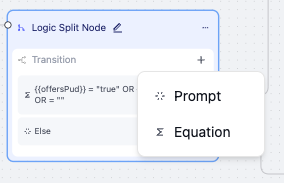 For prompt conditions, this will open the text on the transition condition editing.
For equation conditions, this will open the equation editor. See the picture below.
For prompt conditions, this will open the text on the transition condition editing.
For equation conditions, this will open the equation editor. See the picture below.
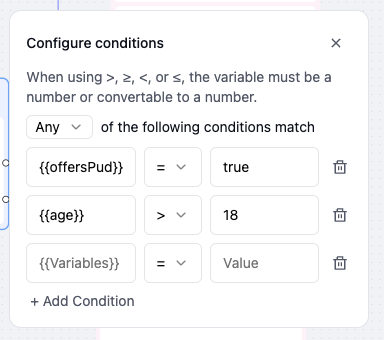 This editor allows you to add and drop equations. You can click on the "Add equation" button to add a new equation.
You can delete an equation by clicking on the trash can icon. In addition, you can change the "ANY" to "ALL" to force all equations to be true instead of just one.
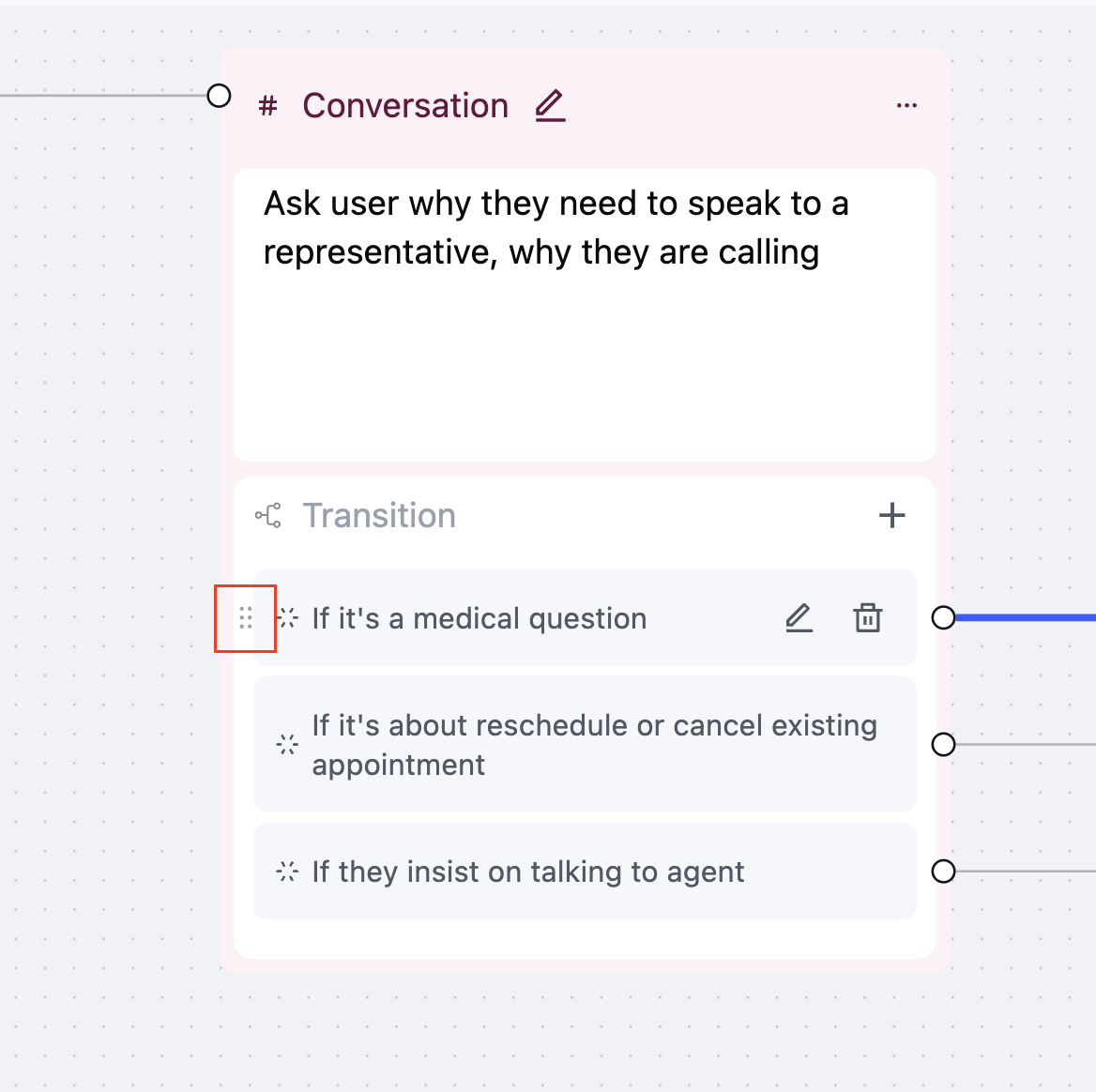
To change the order of the equations, you can click on the 6 dots on the left of the equation and drag it up or down. See the picture below.
This editor allows you to add and drop equations. You can click on the "Add equation" button to add a new equation.
You can delete an equation by clicking on the trash can icon. In addition, you can change the "ANY" to "ALL" to force all equations to be true instead of just one.
To change the order of the equations, you can click on the 6 dots on the left of the equation and drag it up or down. See the picture below.
 ## New equation conditions
### Check Dynamic variable exists
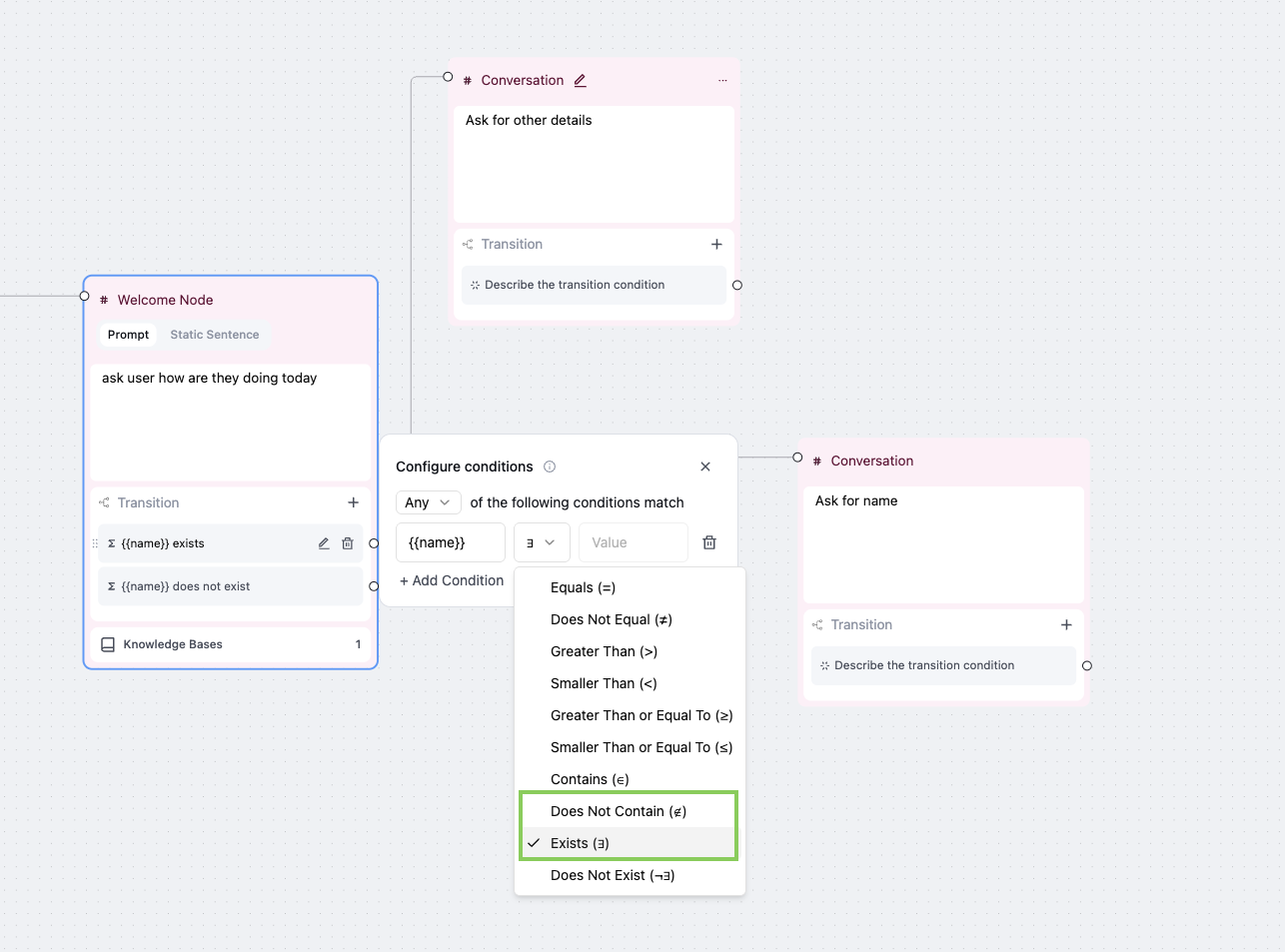
You can check whether a dynamic variable exists or doesn't exist using the following equation conditions:
* `{{variable_name}} exists` - Returns true if the variable is defined and has a value (even an empty string is considered having a value)
* `{{variable_name}} does not exist` - Returns true if the variable is undefined
This is particularly useful when you want to handle cases where certain information may or may not be available. For example:
```
- {{user_email}} exists
- {{user_phone}} not exists
- {{preferred_language}} exists
```
## New equation conditions
### Check Dynamic variable exists
You can check whether a dynamic variable exists or doesn't exist using the following equation conditions:
* `{{variable_name}} exists` - Returns true if the variable is defined and has a value (even an empty string is considered having a value)
* `{{variable_name}} does not exist` - Returns true if the variable is undefined
This is particularly useful when you want to handle cases where certain information may or may not be available. For example:
```
- {{user_email}} exists
- {{user_phone}} not exists
- {{preferred_language}} exists
```
 ## When will the transition happen?
It usually happens after user speaks, but also has other cases based on node type. Check out specific docs for that node to learn more.
When you are testing in the dashboard (both audio and text), you can see what node is highlighted to find the current node, so you can see how and when the transition happens.
## What should I write inside the transition condition?
Although the agent will have access to the current node's instruction when evaluating the conditions, it's recommended to write conditions to be clear and not reference the instruction that much.
Here're some examples:
* `When user indicates they want to book a meeting`
* `User declines the invitation`
* `User responds to question of their age`
* example for function nodes where you can reference function results: `CRM lookup returned successful result`
To ensure a smooth transition (making sure your agent does not get stuck on a node), it's recommended to cover all possible cases inside transition condition. Some general cases can be covered by the global nodes (like objection handling), so you can focus on the specific cases that can happen inside the specific node.
For equation conditions, it's recommended to cover all branching paths that are determined solely by the dynamic variables.
This can be done if we want to treat users in California and New York differently, and we have access to the user's location before the call starts.
In this case, the equation conditions can be:
```
- {{user_location}} == "New York"
- {{user_location}} == "Los Angeles"
```
Note that the ==, Contains, Not Contains, and Not Equal are string comparisons. They do not require numerical input.
The other comparison operators require numerical input, and will always evaluate to false if the input is not a number.
## Improve transition condition
If you've observed an incorrect transition, you can
* prompt engineer the conditions
* add transition finetune examples (read more at [Finetune Examples](/build/conversation-flow/finetune-examples))
## FAQ
If what user said can be handled by a global node, the agent will transition to the global node. Otherwise the agent will stay in the current node.
You can find node transitions inside the call transcript in the history tab, it will show the node names that it transitions from and to. Thus you might want to name your nodes accordingly.
No, but more conditions can make it harder for agent to choose the desired one.
## When will the transition happen?
It usually happens after user speaks, but also has other cases based on node type. Check out specific docs for that node to learn more.
When you are testing in the dashboard (both audio and text), you can see what node is highlighted to find the current node, so you can see how and when the transition happens.
## What should I write inside the transition condition?
Although the agent will have access to the current node's instruction when evaluating the conditions, it's recommended to write conditions to be clear and not reference the instruction that much.
Here're some examples:
* `When user indicates they want to book a meeting`
* `User declines the invitation`
* `User responds to question of their age`
* example for function nodes where you can reference function results: `CRM lookup returned successful result`
To ensure a smooth transition (making sure your agent does not get stuck on a node), it's recommended to cover all possible cases inside transition condition. Some general cases can be covered by the global nodes (like objection handling), so you can focus on the specific cases that can happen inside the specific node.
For equation conditions, it's recommended to cover all branching paths that are determined solely by the dynamic variables.
This can be done if we want to treat users in California and New York differently, and we have access to the user's location before the call starts.
In this case, the equation conditions can be:
```
- {{user_location}} == "New York"
- {{user_location}} == "Los Angeles"
```
Note that the ==, Contains, Not Contains, and Not Equal are string comparisons. They do not require numerical input.
The other comparison operators require numerical input, and will always evaluate to false if the input is not a number.
## Improve transition condition
If you've observed an incorrect transition, you can
* prompt engineer the conditions
* add transition finetune examples (read more at [Finetune Examples](/build/conversation-flow/finetune-examples))
## FAQ
If what user said can be handled by a global node, the agent will transition to the global node. Otherwise the agent will stay in the current node.
You can find node transitions inside the call transcript in the history tab, it will show the node names that it transitions from and to. Thus you might want to name your nodes accordingly.
No, but more conditions can make it harder for agent to choose the desired one.