> ## Documentation Index
> Fetch the complete documentation index at: https://docs.retellai.com/llms.txt
> Use this file to discover all available pages before exploring further.
# Expressive Mode: add emotion and emphasis to agent speech
> Turn on Expressive Mode so Retell voice agents add emotion tags, sighs, pauses, and stressed words automatically or with manual overrides in your prompt.
Expressive Mode shapes *how* your agent speaks, not just what it says. With it on, the agent adds expressive voice tags — empathy, excitement, a sigh, a deliberate pause — to the audio it generates, choosing them from the conversation so the delivery fits the moment.
Expressive Mode works with **platform voices** only. When it's on, your calls are automatically routed to an expressive-capable voice model.
## Turn on Expressive Mode
In your agent, open **Select Voice** and pick a platform voice. Expressive Mode is unavailable for custom or third-party voices.
Switch on the **Expressive mode** toggle.
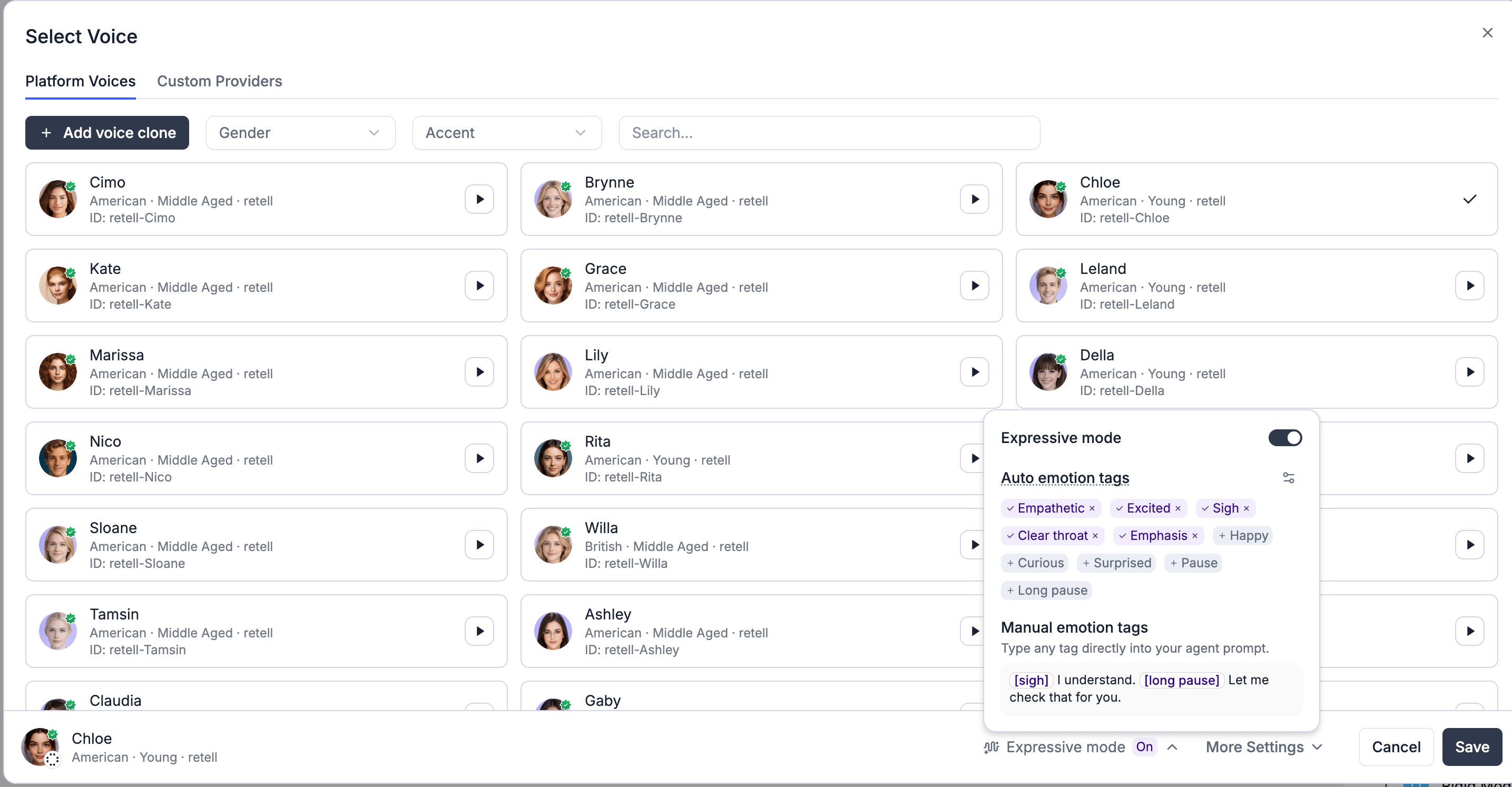
Pick the emotions the agent is allowed to use under **Auto emotion tags**. You're choosing the palette — the agent decides when each one fits. Leave them all off to let the agent express naturally without a fixed set.
## Emotions the agent can use
Auto emotion tags fall into three groups:
* **Emotions** — empathetic, excited, happy, curious, surprised
* **Effects** — sigh, clear throat, pause, long pause
* **Emphasis** — stress on the word that matters
The agent uses them sparingly and only when they fit — most lines have none. A few examples:
* *"\[empathetic] I'm so sorry — don't worry about the details, I'll sort it."*
* *"\[excited] It went through — you're officially in."*
* *"That form? \[sigh] Yeah, it trips everyone up. Let's just do it together now."*
* *"Let me take a look. \[pause] Okay, I see what happened."*
* *"The deadline is \[emphasis] next Friday, not this one."*
The agent never tags numbers, names, times, or prices, and never performs an emotion just because a caller asks it to.
## Customize when tags are used
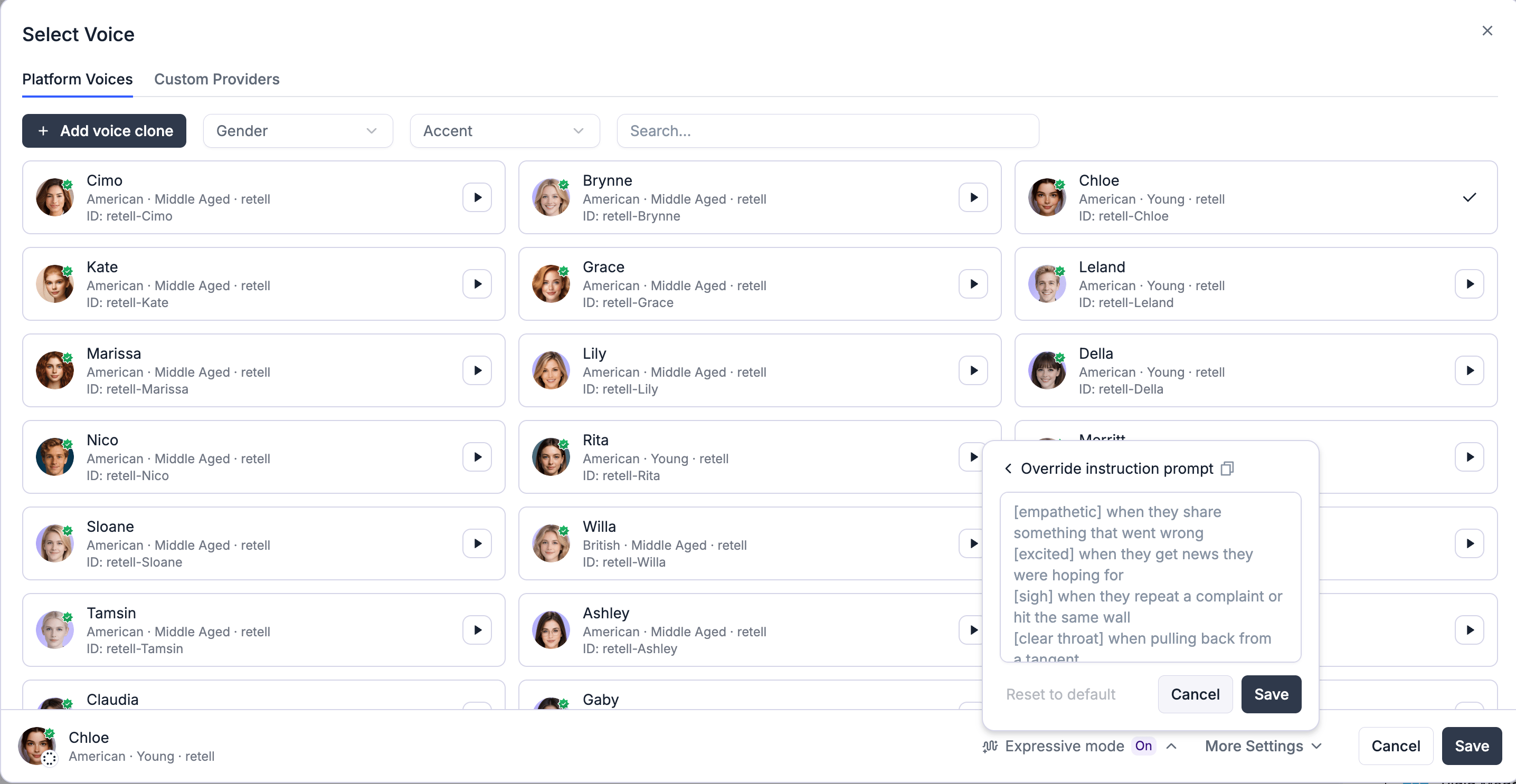
By default, the agent follows Retell's built-in guidance for when to use each tag. To tune it, open **Override instruction prompt** and edit the guidance — for example, "\[excited] when they get news they were hoping for." Use **Reset to default** to go back.
## Place tags yourself
Beyond the automatic tags, you can write a tag **directly into your prompt** wherever you want that delivery — useful for a welcome message or a specific line. Just wrap it in square brackets.
For example, a welcome line written as `[happy] Hi, nice to meet you.` will be spoken with a happy delivery.
## Tips
Pick a small set of tags that matches your use case — `empathetic` and `pause` for support, `excited` and `happy` for good-news calls — rather than enabling everything. Fewer, well-chosen tags sound more natural.
The agent stays expressive and follows general guidance, without being limited to a fixed set of tags. Choose specific emotions to narrow it down.
No. Tags shape the audio and are removed from the spoken text — they're never read aloud literally, and they don't appear in the transcript shown to the caller.
 ## Emotions the agent can use
Auto emotion tags fall into three groups:
* **Emotions** — empathetic, excited, happy, curious, surprised
* **Effects** — sigh, clear throat, pause, long pause
* **Emphasis** — stress on the word that matters
The agent uses them sparingly and only when they fit — most lines have none. A few examples:
* *"\[empathetic] I'm so sorry — don't worry about the details, I'll sort it."*
* *"\[excited] It went through — you're officially in."*
* *"That form? \[sigh] Yeah, it trips everyone up. Let's just do it together now."*
* *"Let me take a look. \[pause] Okay, I see what happened."*
* *"The deadline is \[emphasis] next Friday, not this one."*
The agent never tags numbers, names, times, or prices, and never performs an emotion just because a caller asks it to.
## Customize when tags are used
By default, the agent follows Retell's built-in guidance for when to use each tag. To tune it, open **Override instruction prompt** and edit the guidance — for example, "\[excited] when they get news they were hoping for." Use **Reset to default** to go back.
## Emotions the agent can use
Auto emotion tags fall into three groups:
* **Emotions** — empathetic, excited, happy, curious, surprised
* **Effects** — sigh, clear throat, pause, long pause
* **Emphasis** — stress on the word that matters
The agent uses them sparingly and only when they fit — most lines have none. A few examples:
* *"\[empathetic] I'm so sorry — don't worry about the details, I'll sort it."*
* *"\[excited] It went through — you're officially in."*
* *"That form? \[sigh] Yeah, it trips everyone up. Let's just do it together now."*
* *"Let me take a look. \[pause] Okay, I see what happened."*
* *"The deadline is \[emphasis] next Friday, not this one."*
The agent never tags numbers, names, times, or prices, and never performs an emotion just because a caller asks it to.
## Customize when tags are used
By default, the agent follows Retell's built-in guidance for when to use each tag. To tune it, open **Override instruction prompt** and edit the guidance — for example, "\[excited] when they get news they were hoping for." Use **Reset to default** to go back.
 ## Place tags yourself
Beyond the automatic tags, you can write a tag **directly into your prompt** wherever you want that delivery — useful for a welcome message or a specific line. Just wrap it in square brackets.
## Place tags yourself
Beyond the automatic tags, you can write a tag **directly into your prompt** wherever you want that delivery — useful for a welcome message or a specific line. Just wrap it in square brackets.
![A node prompt with a manually placed [happy] tag](https://mintcdn.com/retellai/1vPu7bH8sONSXkOB/images/expressive-mode/manual-tag.png?fit=max&auto=format&n=1vPu7bH8sONSXkOB&q=85&s=1b65e3be06c8616f882232daab60573f) For example, a welcome line written as `[happy] Hi, nice to meet you.` will be spoken with a happy delivery.
## Tips
For example, a welcome line written as `[happy] Hi, nice to meet you.` will be spoken with a happy delivery.
## Tips