> ## Documentation Index
> Fetch the complete documentation index at: https://docs.retellai.com/llms.txt
> Use this file to discover all available pages before exploring further.
# Handle background speech & noise
> Tune Retell denoising modes, interruption sensitivity, and background noise handling so your voice agent stays accurate in loud or noisy environments.
In real-world scenarios, phone calls often face audio quality challenges such as background noise, echo, or other unwanted sounds.
We have a couple different features that are designed to help you handle these challenges.
## Set denoising mode
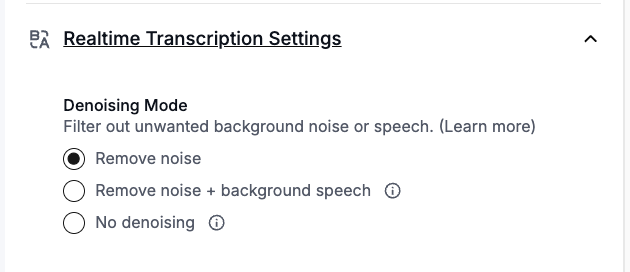 * **No denoising**: disables all audio preprocessing and passes the raw audio signal directly to the ASR model. The ASR model itself can handle a minimal level of ambient noise without preprocessing. Choose this mode if you experience issues with missing short responses (e.g. "sure", "yes") or degraded accuracy with non-English transcription, particularly when background noise is not significant.
* **Remove noise** (default): removes background noise with nearly no distortion to the waveform, so it has no meaningful impact on speech-to-text accuracy. It will not remove loud background speech.
* **Remove noise + background speech**: a more aggressive mode that removes both background noise and background speech. This may distort the waveform and can reduce speech-to-text accuracy in some cases. This option incurs a \$0.005/min surcharge due to the additional processing required.
This mode runs a background voice cancellation (BVC) model that isolates a single **primary speaker** and suppresses every other human voice, on top of removing background noise. The model identifies the primary speaker continuously by proximity and loudness cues — the voice that is closest and most dominant on the mic — rather than transcribing whoever happens to be loudest in the room. It is built for close-talk audio (a caller speaking directly into a phone or headset), which is where it performs best.
Because this model keeps only the dominant near-mic voice, the speaker you care about must be the clearly dominant voice on the line. If your user is far from the mic, soft-spoken, or no louder than the people around them, the model can mistake them for background speech and filter them out.
**When the results can get weird.** Because the model aggressively isolates one voice and reshapes the waveform, these situations can produce dropped, clipped, or distorted transcription — test before relying on this mode:
* **No single dominant speaker** — speakerphone in a room, two people equally close to the mic, or a handoff between people. The model may pick the wrong voice, switch between voices, or drop one of them.
* **The intended speaker is quiet or distant** while background voices are loud (e.g. a far-field mic). Your user can be treated as background and suppressed.
* **Already-clean, single-speaker audio.** The extra processing distorts the waveform and can *lower* accuracy or drop short utterances (e.g. "yes", "sure") that `Remove noise` would keep — with no benefit and an added surcharge.
* **Non-speech or machine audio that you still need transcribed** — IVR prompts, voicemail greetings, hold music, or announcements. Aggressive voice isolation can mangle or drop these, since the model is tuned to keep a live human primary speaker.
If your use case typically involves loud background speech — such as a TV or a construction site, with a single caller speaking close to the mic — try the `Remove noise + background speech` mode, and verify accuracy on real calls before rolling it out. For most use cases, `Remove noise` is the recommended default.
## Tuning interruption sensitivity
The denoising mode setting is to combat background speech and noise before the transcription is generated. And even with those in place, there can still be cases of unwanted interruptions. You can configure the interruption sensitivity to reduce these cases. Set it lower if you want the agent to be more resilient to background speech or user interruptions.
1. In the same settings panel
2. Set the "Interruption Sensitivity" to 0.8
3. This setting helps the agent reduce false interruptions from background speech and noise
* **No denoising**: disables all audio preprocessing and passes the raw audio signal directly to the ASR model. The ASR model itself can handle a minimal level of ambient noise without preprocessing. Choose this mode if you experience issues with missing short responses (e.g. "sure", "yes") or degraded accuracy with non-English transcription, particularly when background noise is not significant.
* **Remove noise** (default): removes background noise with nearly no distortion to the waveform, so it has no meaningful impact on speech-to-text accuracy. It will not remove loud background speech.
* **Remove noise + background speech**: a more aggressive mode that removes both background noise and background speech. This may distort the waveform and can reduce speech-to-text accuracy in some cases. This option incurs a \$0.005/min surcharge due to the additional processing required.
This mode runs a background voice cancellation (BVC) model that isolates a single **primary speaker** and suppresses every other human voice, on top of removing background noise. The model identifies the primary speaker continuously by proximity and loudness cues — the voice that is closest and most dominant on the mic — rather than transcribing whoever happens to be loudest in the room. It is built for close-talk audio (a caller speaking directly into a phone or headset), which is where it performs best.
Because this model keeps only the dominant near-mic voice, the speaker you care about must be the clearly dominant voice on the line. If your user is far from the mic, soft-spoken, or no louder than the people around them, the model can mistake them for background speech and filter them out.
**When the results can get weird.** Because the model aggressively isolates one voice and reshapes the waveform, these situations can produce dropped, clipped, or distorted transcription — test before relying on this mode:
* **No single dominant speaker** — speakerphone in a room, two people equally close to the mic, or a handoff between people. The model may pick the wrong voice, switch between voices, or drop one of them.
* **The intended speaker is quiet or distant** while background voices are loud (e.g. a far-field mic). Your user can be treated as background and suppressed.
* **Already-clean, single-speaker audio.** The extra processing distorts the waveform and can *lower* accuracy or drop short utterances (e.g. "yes", "sure") that `Remove noise` would keep — with no benefit and an added surcharge.
* **Non-speech or machine audio that you still need transcribed** — IVR prompts, voicemail greetings, hold music, or announcements. Aggressive voice isolation can mangle or drop these, since the model is tuned to keep a live human primary speaker.
If your use case typically involves loud background speech — such as a TV or a construction site, with a single caller speaking close to the mic — try the `Remove noise + background speech` mode, and verify accuracy on real calls before rolling it out. For most use cases, `Remove noise` is the recommended default.
## Tuning interruption sensitivity
The denoising mode setting is to combat background speech and noise before the transcription is generated. And even with those in place, there can still be cases of unwanted interruptions. You can configure the interruption sensitivity to reduce these cases. Set it lower if you want the agent to be more resilient to background speech or user interruptions.
1. In the same settings panel
2. Set the "Interruption Sensitivity" to 0.8
3. This setting helps the agent reduce false interruptions from background speech and noise
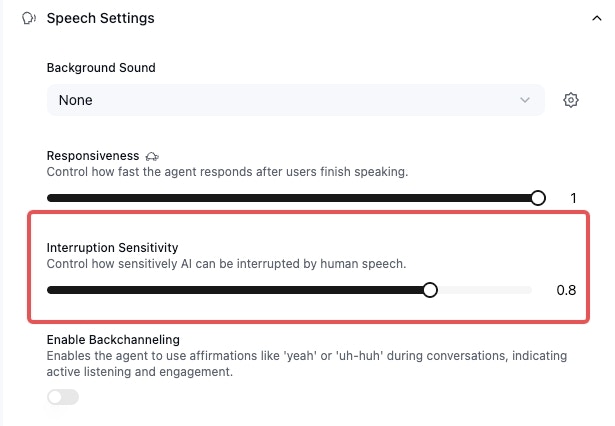 For extremely noisy environments, you may need to experiment with even higher settings. Note that this setting will hinder the ability of your agent getting interrupted, so it's a trade-off you need to make.
## Remove noise from the user's side
As the audio quality is determined by the user's side, you can also try the following:
* User side noise reduction: use better microphone & client side noise reduction libraries if using web calls
* Prompt the agent to ask your users to speak louder so it can be distinguished from background speech easier
For extremely noisy environments, you may need to experiment with even higher settings. Note that this setting will hinder the ability of your agent getting interrupted, so it's a trade-off you need to make.
## Remove noise from the user's side
As the audio quality is determined by the user's side, you can also try the following:
* User side noise reduction: use better microphone & client side noise reduction libraries if using web calls
* Prompt the agent to ask your users to speak louder so it can be distinguished from background speech easier