> ## Documentation Index
> Fetch the complete documentation index at: https://docs.retellai.com/llms.txt
> Use this file to discover all available pages before exploring further.
# Knowledge base setup and retrieval tuning
> Attach URLs, documents, and custom text to a Retell agent, then tune retrieval with query-rewrite instructions so it answers calls with accurate context.
## Overview
Knowledge bases are a collection of sources of information that your agent can access to retrieve relevant information during the call, that can provide additional context to the conversation. It can greatly improve the quality of the responses and the overall experience, especially in cases where there is a lot of information available (too long for putting in prompt), but having the information is essential for the agent to respond correctly. This feature is quite useful for use cases like support, helpdesk, FAQ, etc.
Supported sources:
* Website content (via URLs)
* Documents (supported formats: .bmp, .csv, .doc, .docx, .eml, .epub, .heic, .html, .jpeg, .png, .md, .msg, .odt, .org, .p7s, .pdf, .png, .ppt, .pptx, .rst, .rtf, .tiff, .txt, .tsv, .xls, .xlsx, .xml)
* Custom text snippets
### How it works
You can create knowledge bases, and link them to your agents. When a knowledge base is linked to an agent, the agent will always try to retrieve information from the knowledge base before responding. There's no need to change your prompt for it to trigger, as it will be done automatically, for every response generation.
During the creation of knowledge bases, it will chunk the source, embed them and store into a vector database.
During the call, when the agent is about to respond, it will use the transcript so far (prompt is not included) to find the most relevant chunks from the knowledge base, and feed them to the LLM as context.
Before searching, Retell condenses the recent conversation into a short, standalone search query and uses that query to find the most relevant chunks. You can steer how this query is built with a Knowledge Base Instruction (see the "Configure Knowledge Base Instruction" step below).
### Auto-refreshing and auto-crawling
You can enable auto-refreshing and/or auto-crawling for URL sources in your knowledge base.
* Auto-refreshing: When enabled, the system re-fetches all URLs in the knowledge base every 24 hours to ensure the latest content is reflected.
* Auto-crawling: You can enable this feature for specific URL paths. The system will automatically crawl all pages under each path every 24 hours, excluding any URLs you’ve added to the exclusion list. All pages found—except those explicitly excluded—will be stored.
### Limits
Each knowledge base has the following limits:
* URL: at max 500 URLs.
* Auto-Crawling URL Paths: at max 200 exclusion URLs for each auto-crawling path, and at max 500 exclusion URLs per knowledge base.
* Text: at max 50 text snippets
* File: at max 25 files, with each file at max 50MB. For CSV, TSV, XLS, and XLSX, the row limit is 1000 rows and the column limit is 50 columns.
You can create multiple knowledge bases to overcome these limits. An agent can have more than one knowledge base linked to it.
## Best Practices
* Prefer `.md` (Markdown) files over `.txt`. Well-structured Markdown is chunked and retrieved more accurately.
* Use clear, descriptive headings and keep each `##` section focused and reasonably short. If a `##` becomes long, split it into multiple `##`/`###` sections.
* Write short paragraphs and lists to separate concepts; avoid walls of text.
* For tabular or image-heavy content, retrieval may be less reliable; consider adding explanatory text so related information stays in the same chunk.
* Group related information within the same section so chunks remain cohesive and relevant.
* Avoid ambiguity and use specificity in references. Include names, dates, units, and avoid ambiguous pronouns like `it` or `this`, because prior chunks may not be present.
* Use more granular paths for auto-crawling instead of broad paths with many exclusion URLs. This improves crawl performance and helps avoid hitting the exclusion URL limits.
* Use the knowledge base to supply supporting information, not agent instructions or prompts. Put instructions in the agent's prompt.
## Use Knowledge Base
1. Navigate to your dashboard
2. Select the "Knowledge Base" tab
3. Click the "Add" button in the top-right corner
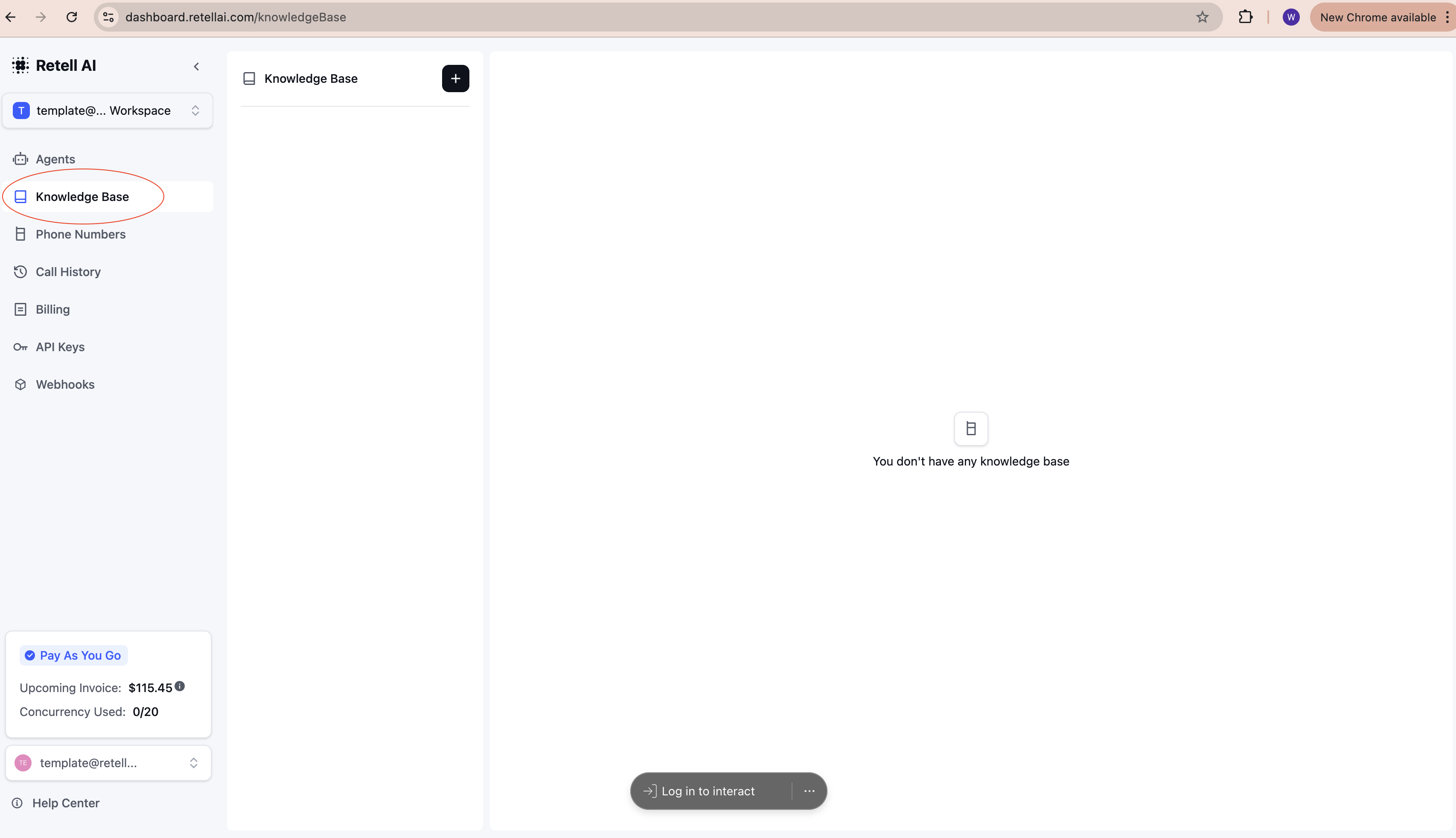 Choose from three types of knowledge sources:
1. **URL**: Import content from web pages
* Supports single pages or entire websites
* Automatically updates when content changes
2. **File**: Upload documents
* Supported formats: PDF, TXT, DOCX, etc.
* Maximum file size: 50MB
3. **Text**: Add custom content
* Paste or type direct information
* Ideal for specific instructions or data
Choose from three types of knowledge sources:
1. **URL**: Import content from web pages
* Supports single pages or entire websites
* Automatically updates when content changes
2. **File**: Upload documents
* Supported formats: PDF, TXT, DOCX, etc.
* Maximum file size: 50MB
3. **Text**: Add custom content
* Paste or type direct information
* Ideal for specific instructions or data
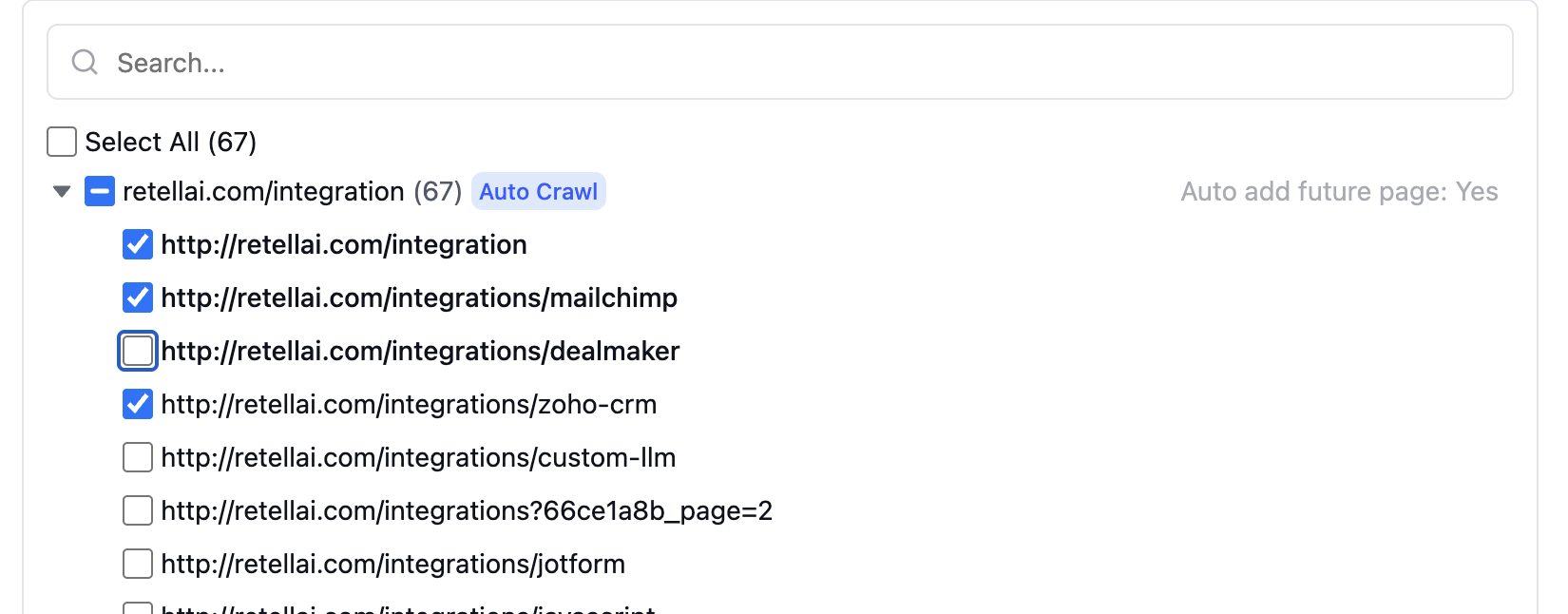
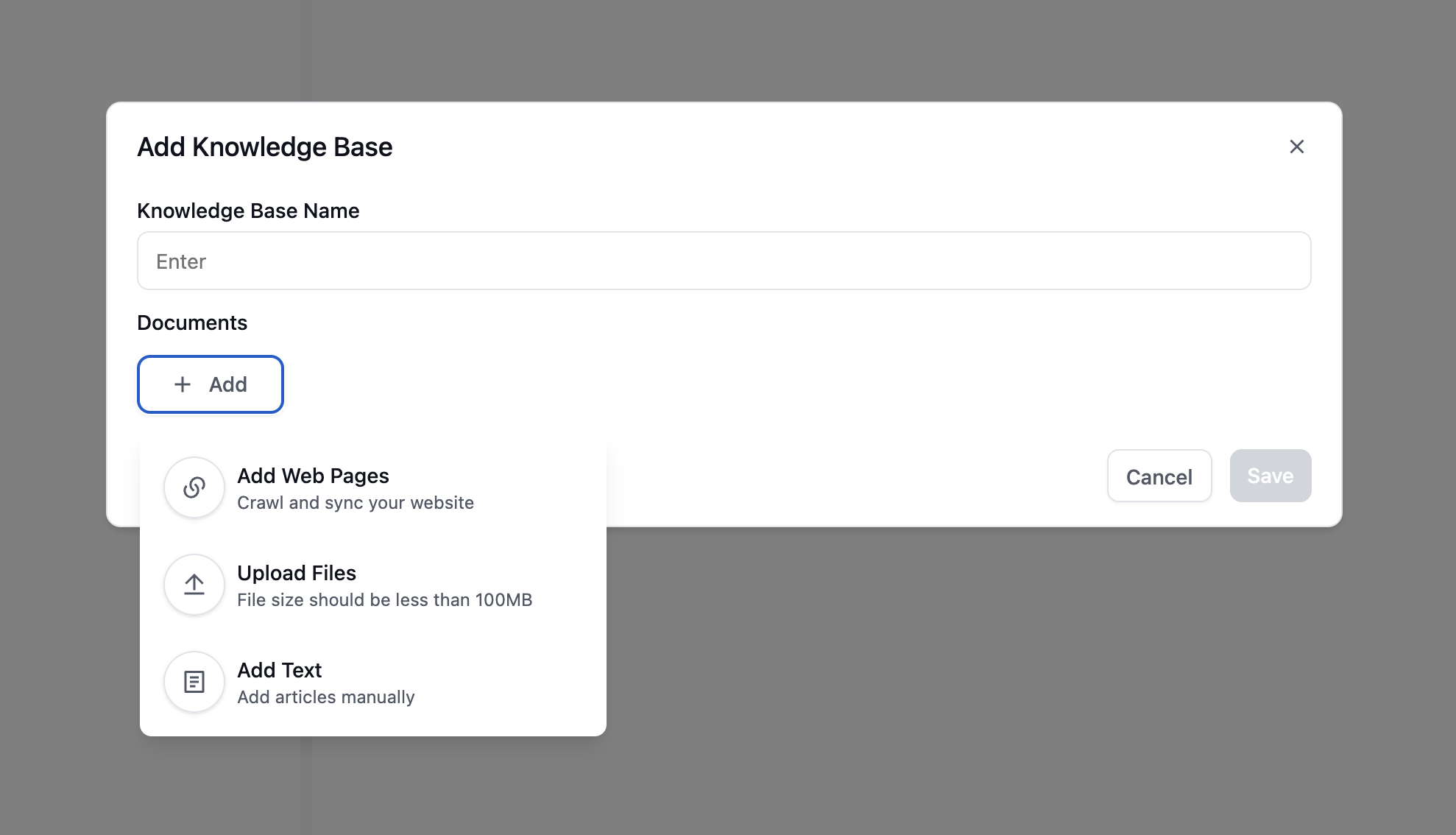 Auto-crawling can be enabled for individual URL paths. URLs that are not selected will be added to the exclusion list and excluded from the knowledge base.
You can edit auto-crawling paths to add or remove URLs from the exclusion list. Previously crawled URLs (displayed in bold) can be excluded, and URLs currently on the exclusion list can be reinstated.
Auto-crawling can be enabled for individual URL paths. URLs that are not selected will be added to the exclusion list and excluded from the knowledge base.
You can edit auto-crawling paths to add or remove URLs from the exclusion list. Previously crawled URLs (displayed in bold) can be excluded, and URLs currently on the exclusion list can be reinstated.
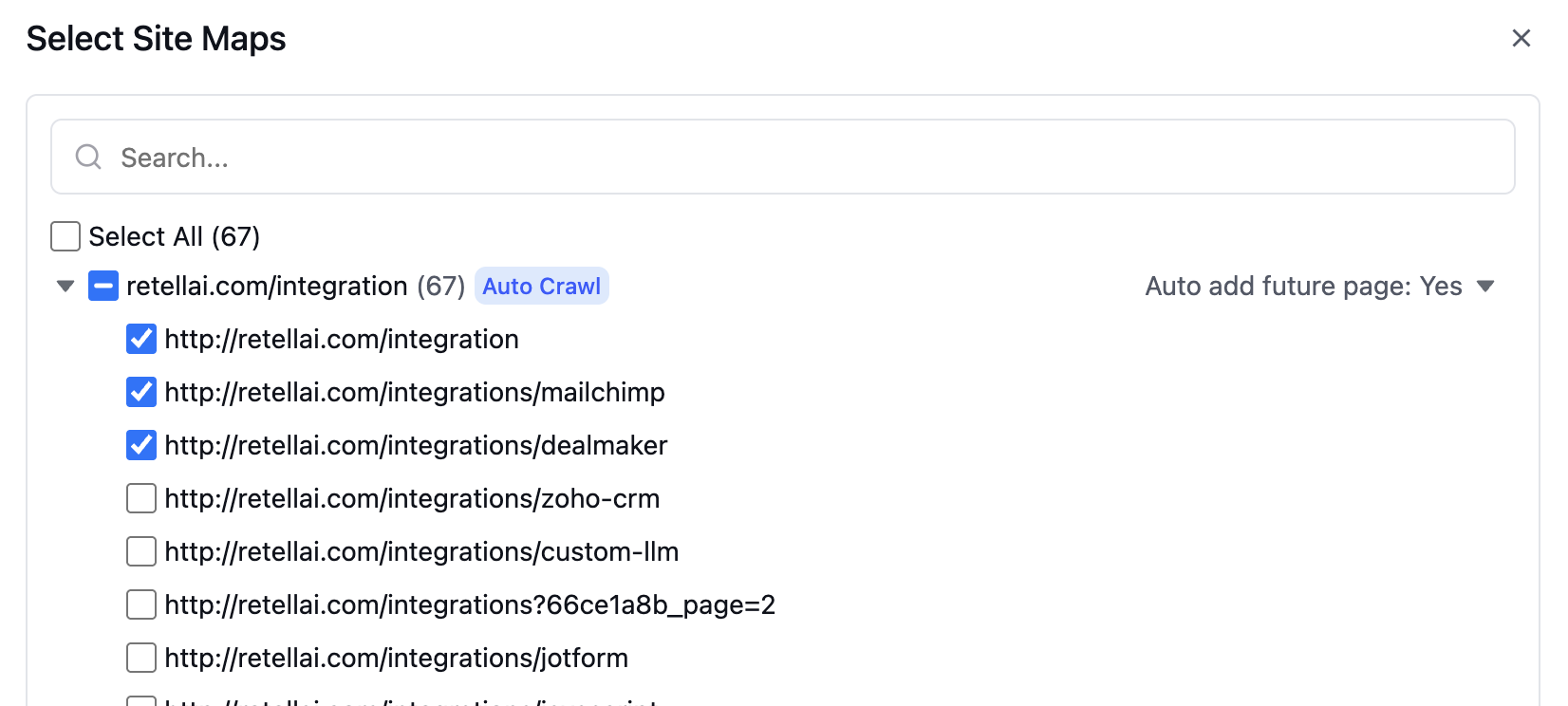
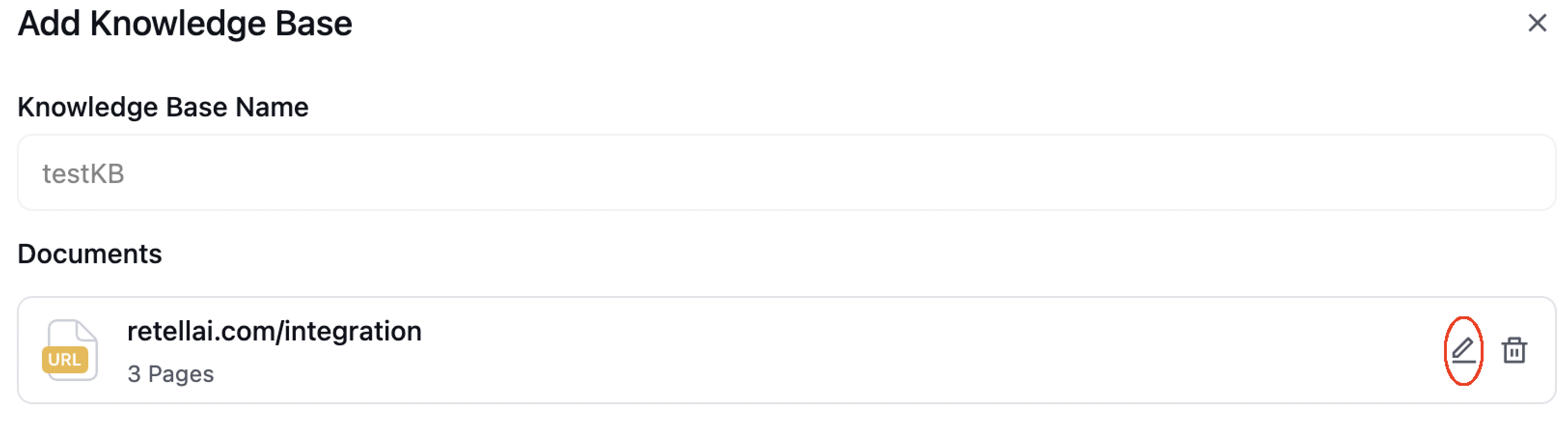
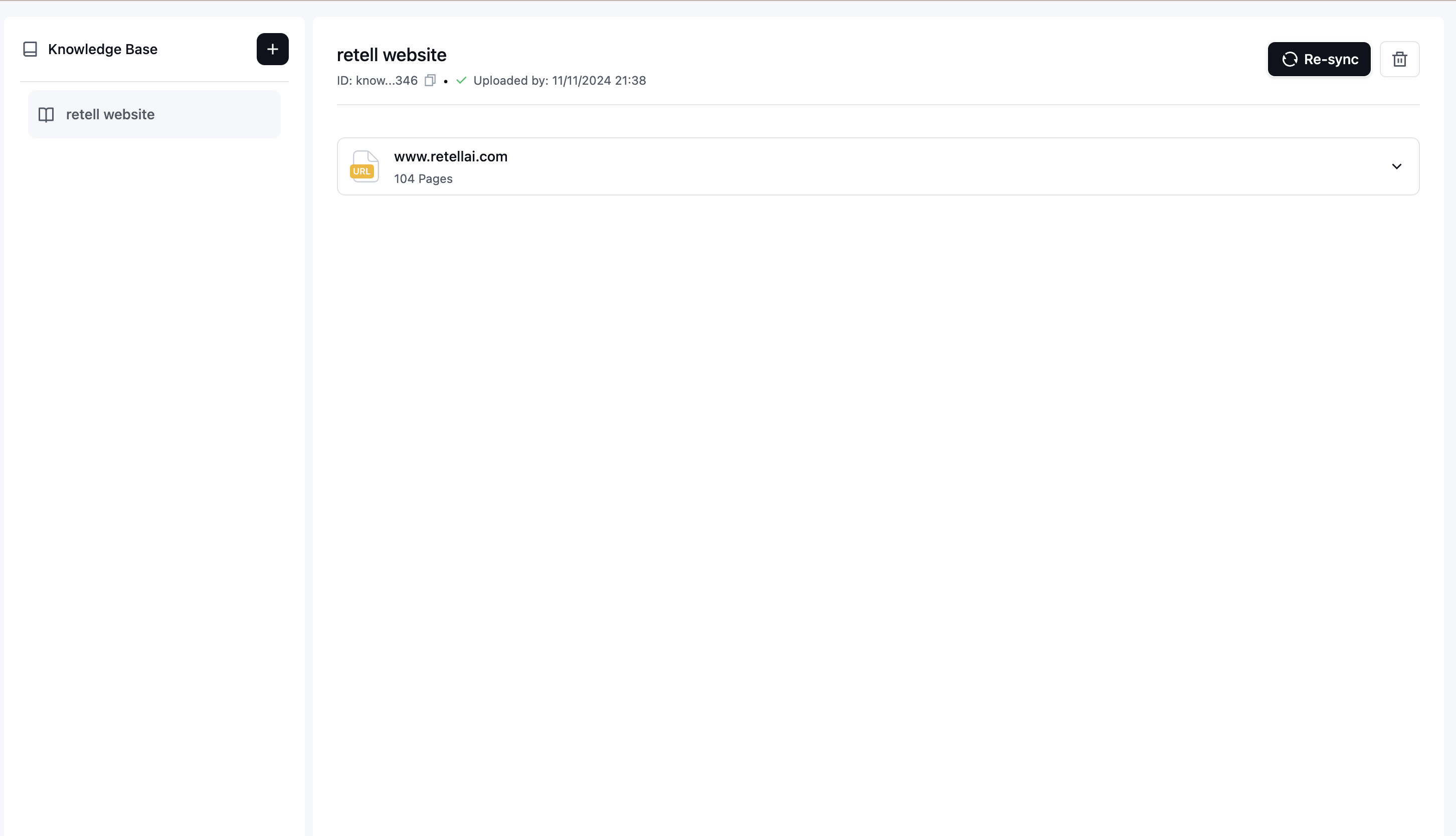
 After adding items, they will appear in your knowledge base list. You can:
* View all added items
* Edit existing items
* Delete items when no longer needed
After adding items, they will appear in your knowledge base list. You can:
* View all added items
* Edit existing items
* Delete items when no longer needed
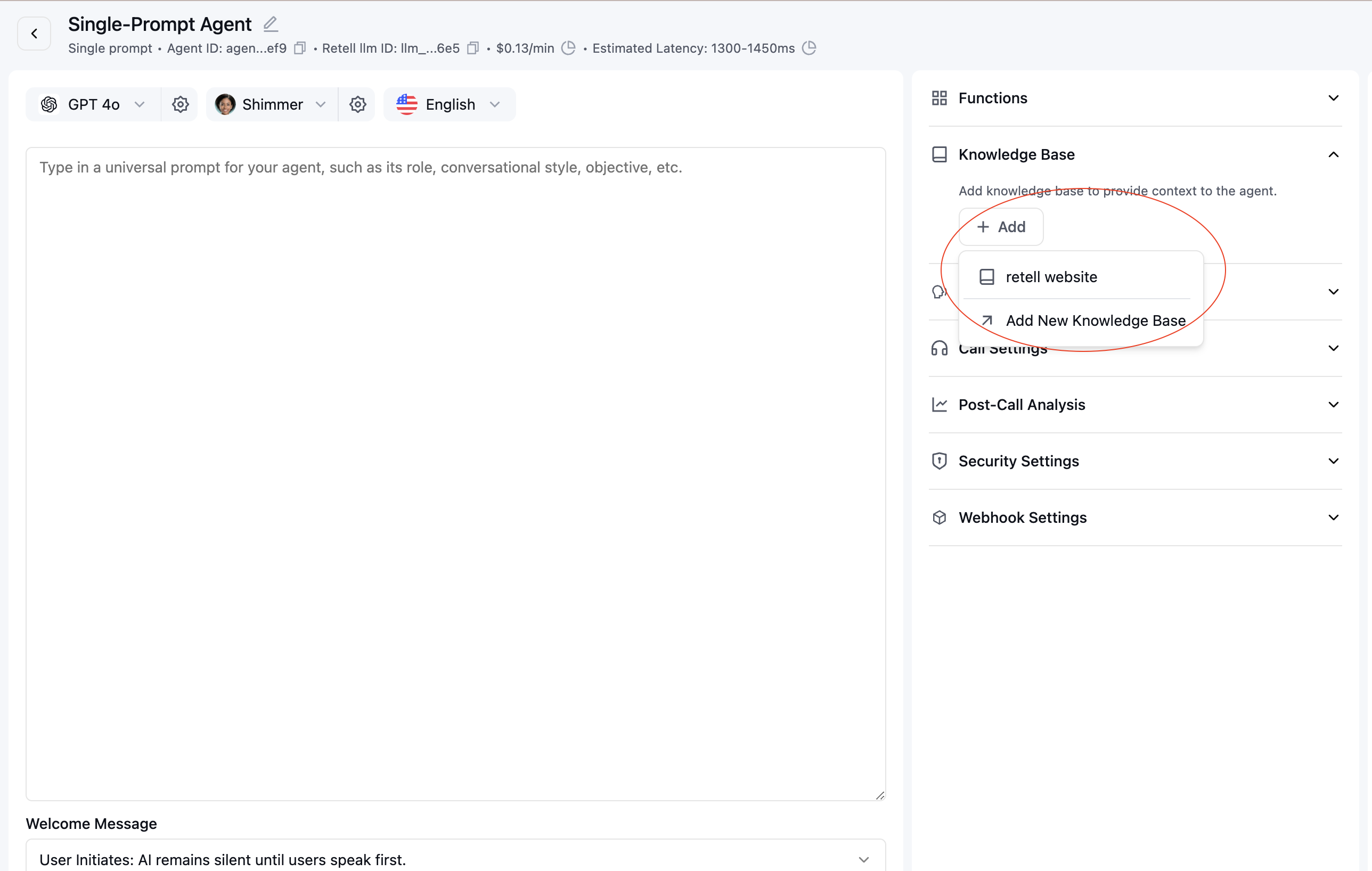
 1. Open the agent editor
2. Locate the "Knowledge Base" section
3. Select the knowledge base items you want to use
1. Open the agent editor
2. Locate the "Knowledge Base" section
3. Select the knowledge base items you want to use
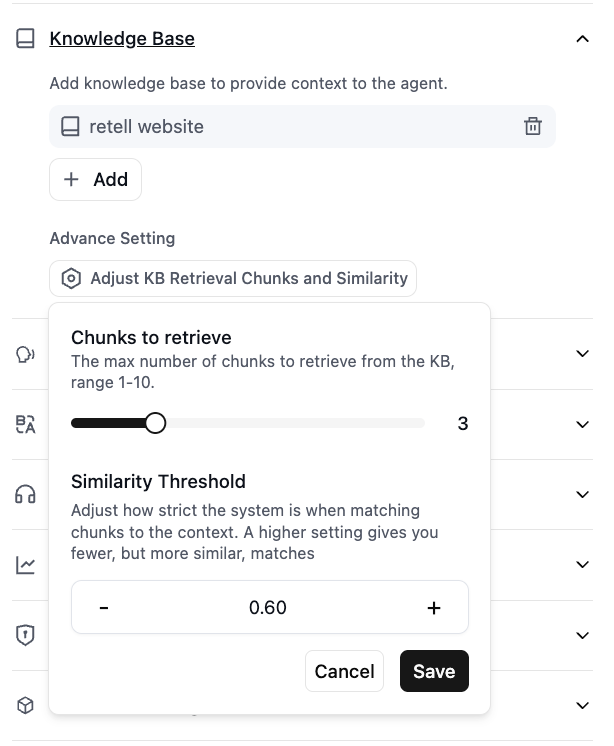
 After connecting a knowledge base to your agent, you can configure how many chunks are retrieved via "Adjust KB Retrieval Chunks and Similarity".
* Chunks to retrieve: The max number of chunks to retrieve from the knowledge base, range 1-10. Default: 3.
* Similarity Threshold: Adjust how strict the system is when matching chunks to the context. A higher setting gives you fewer, but more similar, matches. Default: 0.6.
Note: Increasing "Chunks to retrieve" gives the LLM more context, but also increases the prompt length and can interfere with generation quality. For most cases, the recommended settings are 3 chunks and a 0.60 similarity threshold.
After connecting a knowledge base to your agent, you can configure how many chunks are retrieved via "Adjust KB Retrieval Chunks and Similarity".
* Chunks to retrieve: The max number of chunks to retrieve from the knowledge base, range 1-10. Default: 3.
* Similarity Threshold: Adjust how strict the system is when matching chunks to the context. A higher setting gives you fewer, but more similar, matches. Default: 0.6.
Note: Increasing "Chunks to retrieve" gives the LLM more context, but also increases the prompt length and can interfere with generation quality. For most cases, the recommended settings are 3 chunks and a 0.60 similarity threshold.
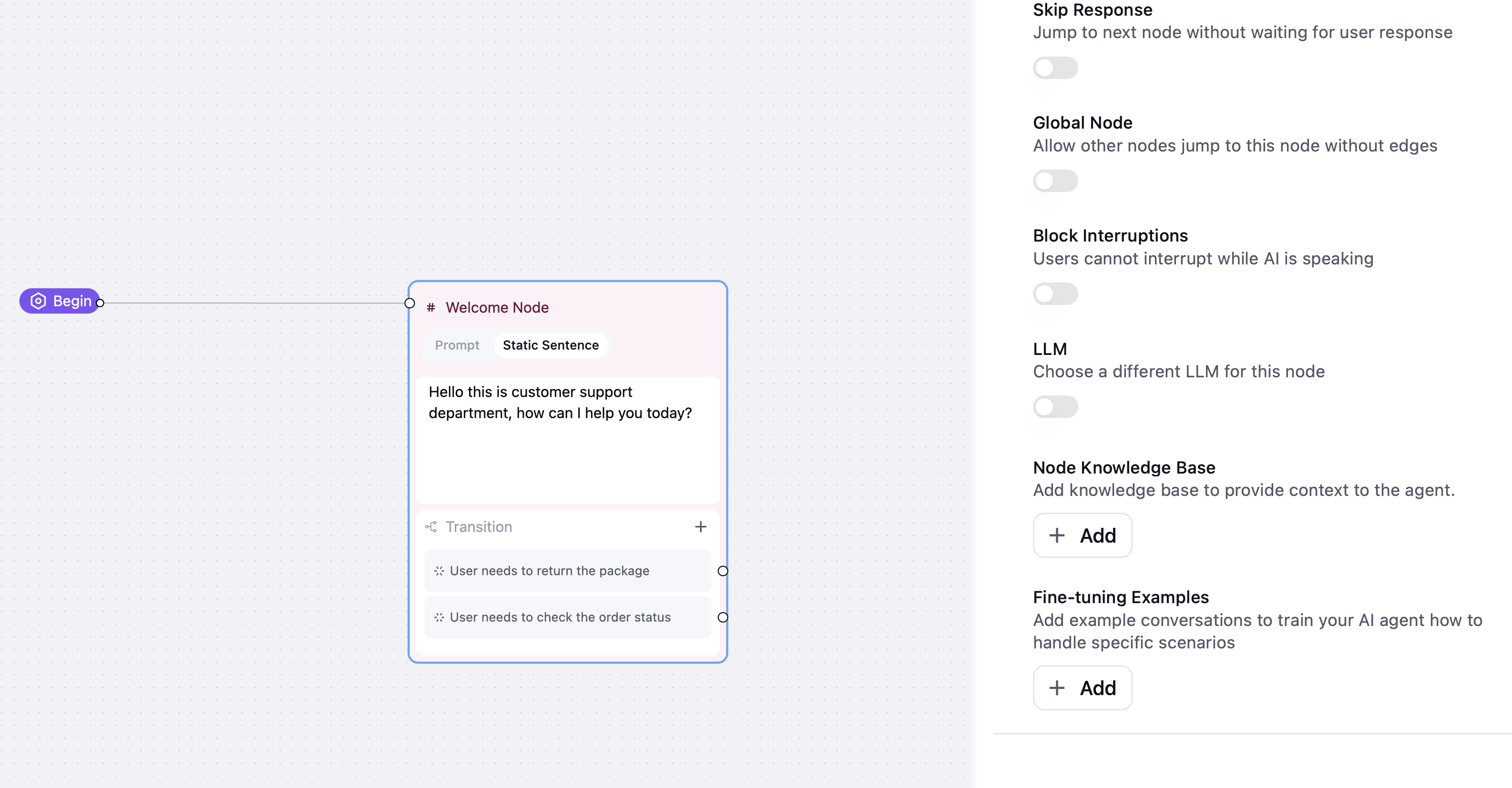
 For Conversation Flow Agent, you can configure knowledge base at both Conversation Node level and Subagent Node level. Node-level knowledge base will be combined with the agent-level knowledge base to provide more accurate context for a specific topic.
1. Open the agent editor
2. Click the Conversation Node or Subagent Node you want to configure.
3. Similar to agent level knowledge base config above, you can select and add the knowledge base items you want to use.
For Conversation Flow Agent, you can configure knowledge base at both Conversation Node level and Subagent Node level. Node-level knowledge base will be combined with the agent-level knowledge base to provide more accurate context for a specific topic.
1. Open the agent editor
2. Click the Conversation Node or Subagent Node you want to configure.
3. Similar to agent level knowledge base config above, you can select and add the knowledge base items you want to use.
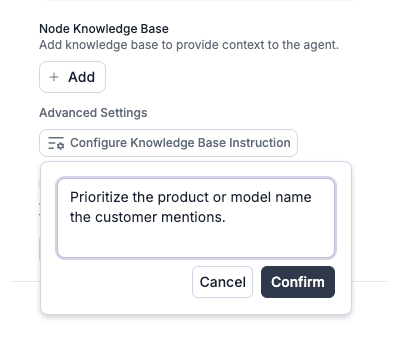
 Before searching your knowledge base, Retell condenses the recent conversation into a short search query. The **Knowledge Base Instruction** lets you give that step extra guidance, so the search focuses on what matters for your use case. This setting is optional.
To set it, open the knowledge base's **Advanced Settings**, select **Configure Knowledge Base Instruction**, and enter the specific focus areas for retrieval (see the example below).
* It shapes the search query; it does not filter or rewrite the retrieved chunks. Use "Chunks to retrieve" and "Similarity Threshold" above to control how much content is returned.
* Keep it short and specific (up to 500 characters).
* For most cases you can leave it empty, as the default query building already works well. Add an instruction only when retrieval keeps focusing on the wrong topic or misses context you expect.
For Conversation Flow agents, you can set this per Conversation Node or Subagent Node. A node-level instruction overrides the flow-level instruction while that node is active.
Before searching your knowledge base, Retell condenses the recent conversation into a short search query. The **Knowledge Base Instruction** lets you give that step extra guidance, so the search focuses on what matters for your use case. This setting is optional.
To set it, open the knowledge base's **Advanced Settings**, select **Configure Knowledge Base Instruction**, and enter the specific focus areas for retrieval (see the example below).
* It shapes the search query; it does not filter or rewrite the retrieved chunks. Use "Chunks to retrieve" and "Similarity Threshold" above to control how much content is returned.
* Keep it short and specific (up to 500 characters).
* For most cases you can leave it empty, as the default query building already works well. Add an instruction only when retrieval keeps focusing on the wrong topic or misses context you expect.
For Conversation Flow agents, you can set this per Conversation Node or Subagent Node. A node-level instruction overrides the flow-level instruction while that node is active.
 Your agent will now use this information when responding to queries related to the added content. Retrieved knowledge base content will be appended to the LLM prompt under the header **## Related Knowledge Base Contexts**.
## FAQ
No, you don't need to change your prompt. It will be used automatically when added to an agent.
You can add the following prompt to the agent:
```
Only answer using the information in ## Related Knowledge Base Contexts.
If ## Related Knowledge Base Contexts is missing or does not contain relevant information, respond:
"There is no related information in knowledge base."
```
Please check the knowledge base documents to see if the information is correct. And check the format of the source as suggested above, markdown format with clear paragraphs is recommended.
We've optimized Knowledge Base retrieval latency for real time use case, so it should generally be under 100ms of latency impact.
We're working on adding this feature to expose this information soon.
No, the name is for display purpose only. It's not included in the retrieval process.
Before each retrieval, Retell turns the recent conversation into a short search query. The Knowledge Base Instruction is extra guidance for building that query, for example telling it which topics or terms to prioritize. It influences what is searched for, not how results are filtered or ranked. It's optional, limited to 500 characters, and can be set per node for Conversation Flow agents. See the "Configure Knowledge Base Instruction" step above.
## Pricing
* Knowledge base creation:
* First 10 knowledge bases are free.
* Additional ones are billed at \$8 / month per knowledge base.
* Using knowledge base:
* \$0.005 per minute of calls that have knowledge base enabled.
* It does not matter if your agent is using 1 or many knowledge bases, the billing is the same.
Your agent will now use this information when responding to queries related to the added content. Retrieved knowledge base content will be appended to the LLM prompt under the header **## Related Knowledge Base Contexts**.
## FAQ
No, you don't need to change your prompt. It will be used automatically when added to an agent.
You can add the following prompt to the agent:
```
Only answer using the information in ## Related Knowledge Base Contexts.
If ## Related Knowledge Base Contexts is missing or does not contain relevant information, respond:
"There is no related information in knowledge base."
```
Please check the knowledge base documents to see if the information is correct. And check the format of the source as suggested above, markdown format with clear paragraphs is recommended.
We've optimized Knowledge Base retrieval latency for real time use case, so it should generally be under 100ms of latency impact.
We're working on adding this feature to expose this information soon.
No, the name is for display purpose only. It's not included in the retrieval process.
Before each retrieval, Retell turns the recent conversation into a short search query. The Knowledge Base Instruction is extra guidance for building that query, for example telling it which topics or terms to prioritize. It influences what is searched for, not how results are filtered or ranked. It's optional, limited to 500 characters, and can be set per node for Conversation Flow agents. See the "Configure Knowledge Base Instruction" step above.
## Pricing
* Knowledge base creation:
* First 10 knowledge bases are free.
* Additional ones are billed at \$8 / month per knowledge base.
* Using knowledge base:
* \$0.005 per minute of calls that have knowledge base enabled.
* It does not matter if your agent is using 1 or many knowledge bases, the billing is the same.