> ## Documentation Index
> Fetch the complete documentation index at: https://docs.retellai.com/llms.txt
> Use this file to discover all available pages before exploring further.
# Code tool for single and multi-prompt agents
> Code Tool runs JavaScript directly inside a Retell single or multi-prompt agent — call it as a function for formatting, calculations, and lightweight lookups.
Code Tool lets your agent execute JavaScript code as a function call — no external server needed. Unlike [custom functions](/build/single-multi-prompt/custom-function) that send HTTP requests to your endpoint, code tools run directly in Retell's sandbox.
The LLM decides when to call the code tool based on the function name, description, and conversation context.
Code Tool is designed for lightweight logic like formatting, calculations, and simple read-only lookups. Do not use it to access internal systems, write to production databases, or handle sensitive credentials. Both `dv` and `metadata` values are stored in plaintext with every call record. For integrations that require authentication, secrets management, or write access, use a [Custom Function](/build/single-multi-prompt/custom-function) hosted on your own backend. See [Security and Architecture Guidance](#security-and-architecture-guidance) for details.
## Create a Code Tool
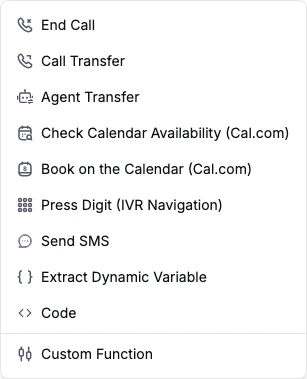
In the agent's **Functions** section, click **+ Add** and select **Code**.
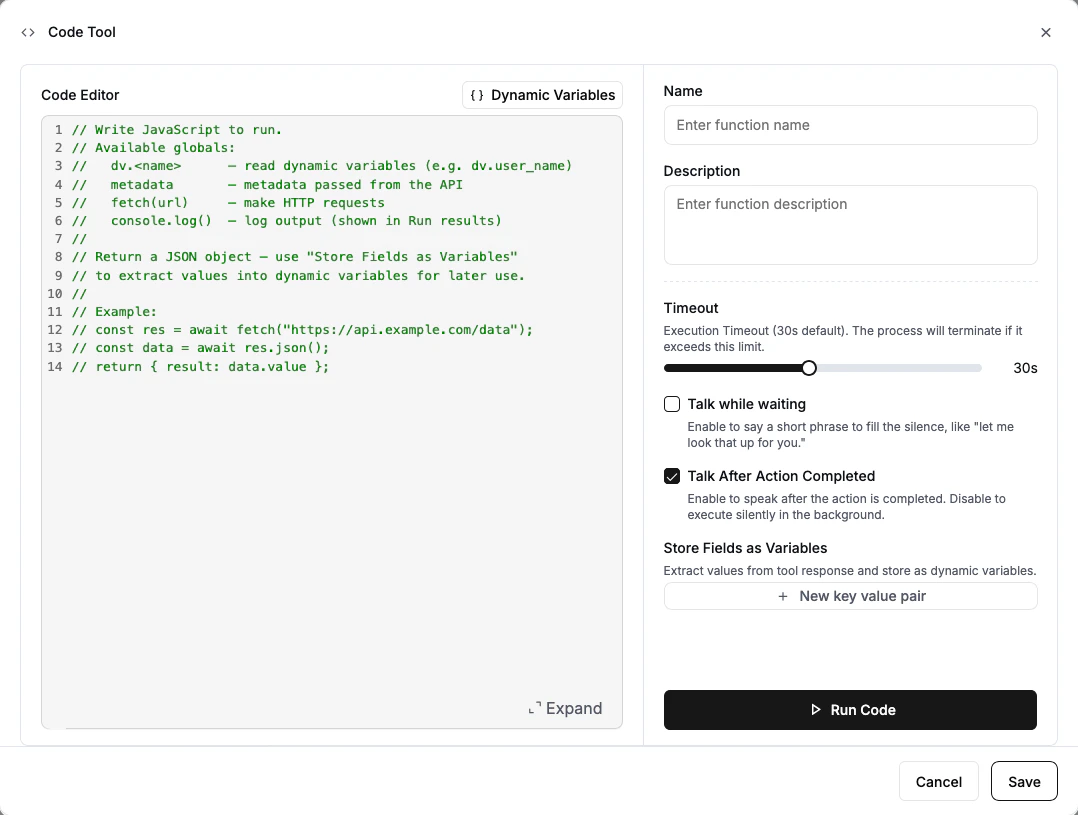
 * **Name**: A unique identifier (alphanumeric, dashes, underscores). Example: `calculate_shipping_cost`
* **Description**: Explain what the tool does and when to call it. The LLM uses this to decide when the function is appropriate. Example: "Calculate shipping cost based on the customer's zip code and order weight."
Write your JavaScript code in the editor. You have access to dynamic variables, call metadata, and the `fetch` function for HTTP requests. See [JavaScript Environment](#javascript-environment) below for details.
* **Name**: A unique identifier (alphanumeric, dashes, underscores). Example: `calculate_shipping_cost`
* **Description**: Explain what the tool does and when to call it. The LLM uses this to decide when the function is appropriate. Example: "Calculate shipping cost based on the customer's zip code and order weight."
Write your JavaScript code in the editor. You have access to dynamic variables, call metadata, and the `fetch` function for HTTP requests. See [JavaScript Environment](#javascript-environment) below for details.
 ```javascript theme={null}
// Example: calculate shipping based on dynamic variables
const weight = parseFloat(dv.order_weight);
const zone = dv.shipping_zone;
let cost;
if (zone === "local") {
cost = weight * 0.5;
} else if (zone === "domestic") {
cost = weight * 1.2;
} else {
cost = weight * 3.0;
}
return { shipping_cost: "$" + cost.toFixed(2), zone: zone };
```
Use **Store Fields as Variables** to extract values from your code's return value and save them as dynamic variables. Specify a variable name and the JSON path to the value.
For example, if your code returns `{ "shipping_cost": "$6.00", "zone": "domestic" }`:
| Variable Name | JSON Path | Extracted Value |
| --------------- | --------------- | --------------- |
| `shipping_cost` | `shipping_cost` | `"$6.00"` |
| `shipping_zone` | `zone` | `"domestic"` |
* **Speak During Execution**: When enabled, the agent says something while the code runs (e.g., "Let me calculate that for you."). Choose **Prompt** or **Static Text**.
* **Speak After Execution**: When enabled (default), the LLM speaks about the result. Turn off if you want the tool to run silently.
Guide the LLM on when to use the code tool in your agent's prompt. For example:
```
When the customer asks about shipping costs, use the calculate_shipping_cost
tool to compute the cost based on their order details.
```
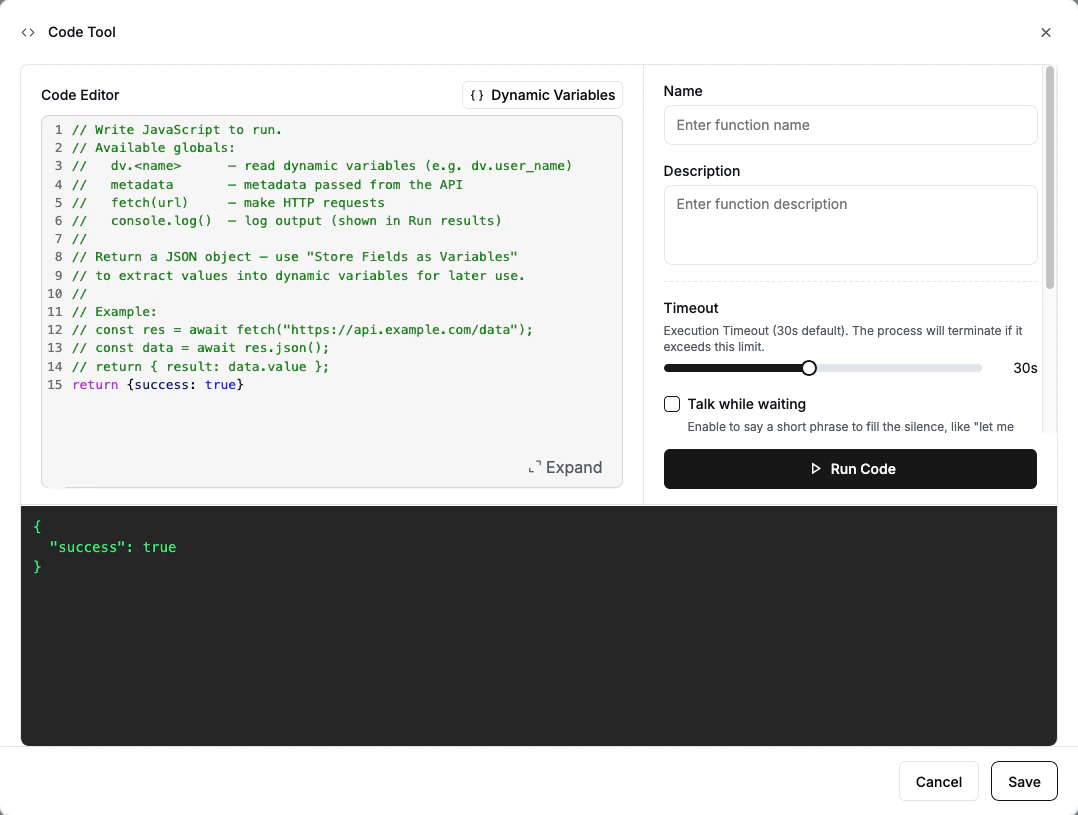
Click **Run Code** at the bottom of the editor to test. Use the **Dynamic Variables** dropdown in the editor to set test values for your variables (e.g., give `order_weight` a value of "5") — these values are only used during testing and won't affect your live agent. The output panel will show the result and any `console.log()` output.
```javascript theme={null}
// Example: calculate shipping based on dynamic variables
const weight = parseFloat(dv.order_weight);
const zone = dv.shipping_zone;
let cost;
if (zone === "local") {
cost = weight * 0.5;
} else if (zone === "domestic") {
cost = weight * 1.2;
} else {
cost = weight * 3.0;
}
return { shipping_cost: "$" + cost.toFixed(2), zone: zone };
```
Use **Store Fields as Variables** to extract values from your code's return value and save them as dynamic variables. Specify a variable name and the JSON path to the value.
For example, if your code returns `{ "shipping_cost": "$6.00", "zone": "domestic" }`:
| Variable Name | JSON Path | Extracted Value |
| --------------- | --------------- | --------------- |
| `shipping_cost` | `shipping_cost` | `"$6.00"` |
| `shipping_zone` | `zone` | `"domestic"` |
* **Speak During Execution**: When enabled, the agent says something while the code runs (e.g., "Let me calculate that for you."). Choose **Prompt** or **Static Text**.
* **Speak After Execution**: When enabled (default), the LLM speaks about the result. Turn off if you want the tool to run silently.
Guide the LLM on when to use the code tool in your agent's prompt. For example:
```
When the customer asks about shipping costs, use the calculate_shipping_cost
tool to compute the cost based on their order details.
```
Click **Run Code** at the bottom of the editor to test. Use the **Dynamic Variables** dropdown in the editor to set test values for your variables (e.g., give `order_weight` a value of "5") — these values are only used during testing and won't affect your live agent. The output panel will show the result and any `console.log()` output.
 ## JavaScript Environment
Your code runs in a JavaScript sandbox with the following globals available. The code editor provides **autocomplete** — as you type, it will suggest available globals, dynamic variable names, and built-in functions.
### `dv` — Dynamic Variables
Access your agent's dynamic variables as properties on the `dv` object. All values are strings.
```javascript theme={null}
const name = dv.customer_name; // "John Doe"
const orderId = dv.order_id; // "78542"
const total = parseFloat(dv.amount); // Convert to number if needed
```
### `metadata` — Call Metadata
Access metadata passed when the call was created via the API. This is the same object you pass in the `metadata` field of the [Create Call](/api-references/create-phone-call) API.
```javascript theme={null}
const customerId = metadata.customer_id;
const priority = metadata.priority_level;
```
Both `dv` and `metadata` values are stored in plaintext with every call record and are visible in call logs and API responses. Do not use them to pass API keys, database credentials, or other sensitive secrets. See [Security and Architecture Guidance](#security-and-architecture-guidance) for more details.
### `fetch(url)` — HTTP Requests
Make HTTP requests to external APIs. Works like the standard [Fetch API](https://developer.mozilla.org/en-US/docs/Web/API/Fetch_API).
```javascript theme={null}
// GET request
const response = await fetch("https://api.example.com/data");
const data = await response.json();
// POST request
const response = await fetch("https://api.example.com/submit", {
method: "POST",
headers: { "Content-Type": "application/json" },
body: JSON.stringify({ name: dv.customer_name })
});
```
### `console.log()` — Debugging
Log output for debugging. Logs appear in the test output panel when using **Run Code**.
```javascript theme={null}
console.log("Customer:", dv.customer_name);
console.log("API response:", JSON.stringify(data));
```
* Your code can return any value (object, string, number) or return nothing at all.
* Standard JavaScript built-ins are available: `Math`, `JSON`, `Date`, `Array`, `Object`, `String` methods, etc.
* External packages (`require`, `import`) are **not** available. Use `fetch()` for external integrations.
* Code is limited to 5,000 characters.
## Examples
### Format data from dynamic variables
```javascript theme={null}
// Combine and format customer info
const fullName = dv.first_name + " " + dv.last_name;
const summary = `Customer ${fullName} (ID: ${dv.customer_id}) requested a callback.`;
return { full_name: fullName, summary: summary };
```
### Fetch data from a public API
```javascript theme={null}
// Look up current weather for the customer's city
const response = await fetch("https://api.weatherapi.com/v1/current.json?q=" + encodeURIComponent(dv.city));
const weather = await response.json();
return {
location: weather.location.name,
temperature: weather.current.temp_f + "°F",
condition: weather.current.condition.text
};
```
### Conditional logic with API call
```javascript theme={null}
// Route based on customer tier
const response = await fetch("https://api.example.com/customers/" + dv.customer_id);
const customer = await response.json();
if (customer.tier === "premium") {
return { action: "priority_support", wait_time: "0 minutes" };
} else if (customer.tier === "standard") {
return { action: "standard_queue", wait_time: "5 minutes" };
} else {
return { action: "general_queue", wait_time: "10 minutes" };
}
```
## Security and Architecture Guidance
Code Tool is best for lightweight, low-risk logic that runs entirely within Retell's sandbox. As your integration needs grow, use a [Custom Function](/build/single-multi-prompt/custom-function) hosted on your own backend where you control the security boundary.
| Use case | Recommended |
| ------------------------------------------------------------------------------------ | ----------------------- |
| Formatting, calculations, string cleanup | Code Tool |
| Simple read-only lookups to low-risk public APIs | Code Tool, with caution |
| Accessing internal systems or private APIs | Custom Function |
| Writing to CRM, EHR, booking, payment, or ticketing systems | Custom Function |
| Workflows requiring secrets, audit logs, retries, idempotency, or policy enforcement | Custom Function |
**Do not treat dynamic variables or metadata as a secret vault.** Avoid placing long-lived API keys, database credentials, or other sensitive secrets in dynamic variables or call metadata for use in Code Tool. Both `dv` and `metadata` values are stored in plaintext with every call record — anything you pass in will be visible in call logs and API responses. They are not designed for secret management. Prefer short-lived tokens where possible, and use a [Custom Function](/build/single-multi-prompt/custom-function) for integrations that require sensitive credentials or customer-controlled secret handling.
**Use `fetch()` with caution.** Enabling outbound HTTP requests from an LLM-invoked tool increases security and operational risk. Treat any use of `fetch()` as an external integration surface. Prefer read-only requests to low-risk, public endpoints. Avoid direct state-changing actions (writes, payments, deletions) unless you fully understand the risks and have appropriate controls in place.
**Keep production logic in your own backend.** For anything involving sensitive credentials, direct writes to production systems, payment actions, regulated data workflows, or business-critical operations that require strict authentication, validation, audit logging, idempotency, or approval controls — use a [Custom Function](/build/single-multi-prompt/custom-function) hosted on your own backend. Code Tool should be reserved for data transformation, calculations, and simple read-only lookups.
## Response Variables
Response variables let you extract specific values from your code's return value and store them as dynamic variables.
Specify each variable as a **name** and a **JSON path** using dot notation:
| Path Syntax | Example | Extracts |
| --------------- | --------------- | ---------------------- |
| Top-level field | `status` | `result.status` |
| Nested field | `data.order.id` | `result.data.order.id` |
| Array element | `items[0].name` | First item's name |
If a path doesn't exist in the return value, the variable is skipped (no error).
## Configuration
* **Timeout**: How long the code can run before timing out. Range: 5–60 seconds. Default: 30 seconds.
* **Speak During Execution**: When enabled, the agent says something while the code runs. Choose between **Prompt** (LLM generates the message) or **Static Text** (exact text you provide). Recommended when your code takes more than 1 second.
* **Speak After Execution**: When enabled (default), the LLM speaks about the result after execution. Turn off to run the tool silently (e.g., for background logging).
The code result is capped at 15,000 characters to prevent overloading the LLM context.
## FAQ
No. The code runs in a lightweight JavaScript sandbox without access to `require` or `import`. You can use all standard JavaScript built-ins (`Math`, `JSON`, `Date`, `Array` methods, etc.) and the `fetch()` function for external API calls.
If your code exceeds the timeout or throws an error, the execution is marked as failed and the error message is returned to the LLM. Response variables will not be extracted.
Yes. The `fetch()` function is async, so you can use `await` to wait for HTTP responses. Top-level `await` is supported.
Use **Code Tool** for lightweight, low-risk logic — data formatting, calculations, and simple read-only lookups to public APIs. Use **Custom Function** when you need access to internal systems, databases, sensitive credentials, or any workflow that requires authentication, audit logging, idempotency, or write access to production systems. See [Security and Architecture Guidance](#security-and-architecture-guidance) for a detailed breakdown.
## JavaScript Environment
Your code runs in a JavaScript sandbox with the following globals available. The code editor provides **autocomplete** — as you type, it will suggest available globals, dynamic variable names, and built-in functions.
### `dv` — Dynamic Variables
Access your agent's dynamic variables as properties on the `dv` object. All values are strings.
```javascript theme={null}
const name = dv.customer_name; // "John Doe"
const orderId = dv.order_id; // "78542"
const total = parseFloat(dv.amount); // Convert to number if needed
```
### `metadata` — Call Metadata
Access metadata passed when the call was created via the API. This is the same object you pass in the `metadata` field of the [Create Call](/api-references/create-phone-call) API.
```javascript theme={null}
const customerId = metadata.customer_id;
const priority = metadata.priority_level;
```
Both `dv` and `metadata` values are stored in plaintext with every call record and are visible in call logs and API responses. Do not use them to pass API keys, database credentials, or other sensitive secrets. See [Security and Architecture Guidance](#security-and-architecture-guidance) for more details.
### `fetch(url)` — HTTP Requests
Make HTTP requests to external APIs. Works like the standard [Fetch API](https://developer.mozilla.org/en-US/docs/Web/API/Fetch_API).
```javascript theme={null}
// GET request
const response = await fetch("https://api.example.com/data");
const data = await response.json();
// POST request
const response = await fetch("https://api.example.com/submit", {
method: "POST",
headers: { "Content-Type": "application/json" },
body: JSON.stringify({ name: dv.customer_name })
});
```
### `console.log()` — Debugging
Log output for debugging. Logs appear in the test output panel when using **Run Code**.
```javascript theme={null}
console.log("Customer:", dv.customer_name);
console.log("API response:", JSON.stringify(data));
```
* Your code can return any value (object, string, number) or return nothing at all.
* Standard JavaScript built-ins are available: `Math`, `JSON`, `Date`, `Array`, `Object`, `String` methods, etc.
* External packages (`require`, `import`) are **not** available. Use `fetch()` for external integrations.
* Code is limited to 5,000 characters.
## Examples
### Format data from dynamic variables
```javascript theme={null}
// Combine and format customer info
const fullName = dv.first_name + " " + dv.last_name;
const summary = `Customer ${fullName} (ID: ${dv.customer_id}) requested a callback.`;
return { full_name: fullName, summary: summary };
```
### Fetch data from a public API
```javascript theme={null}
// Look up current weather for the customer's city
const response = await fetch("https://api.weatherapi.com/v1/current.json?q=" + encodeURIComponent(dv.city));
const weather = await response.json();
return {
location: weather.location.name,
temperature: weather.current.temp_f + "°F",
condition: weather.current.condition.text
};
```
### Conditional logic with API call
```javascript theme={null}
// Route based on customer tier
const response = await fetch("https://api.example.com/customers/" + dv.customer_id);
const customer = await response.json();
if (customer.tier === "premium") {
return { action: "priority_support", wait_time: "0 minutes" };
} else if (customer.tier === "standard") {
return { action: "standard_queue", wait_time: "5 minutes" };
} else {
return { action: "general_queue", wait_time: "10 minutes" };
}
```
## Security and Architecture Guidance
Code Tool is best for lightweight, low-risk logic that runs entirely within Retell's sandbox. As your integration needs grow, use a [Custom Function](/build/single-multi-prompt/custom-function) hosted on your own backend where you control the security boundary.
| Use case | Recommended |
| ------------------------------------------------------------------------------------ | ----------------------- |
| Formatting, calculations, string cleanup | Code Tool |
| Simple read-only lookups to low-risk public APIs | Code Tool, with caution |
| Accessing internal systems or private APIs | Custom Function |
| Writing to CRM, EHR, booking, payment, or ticketing systems | Custom Function |
| Workflows requiring secrets, audit logs, retries, idempotency, or policy enforcement | Custom Function |
**Do not treat dynamic variables or metadata as a secret vault.** Avoid placing long-lived API keys, database credentials, or other sensitive secrets in dynamic variables or call metadata for use in Code Tool. Both `dv` and `metadata` values are stored in plaintext with every call record — anything you pass in will be visible in call logs and API responses. They are not designed for secret management. Prefer short-lived tokens where possible, and use a [Custom Function](/build/single-multi-prompt/custom-function) for integrations that require sensitive credentials or customer-controlled secret handling.
**Use `fetch()` with caution.** Enabling outbound HTTP requests from an LLM-invoked tool increases security and operational risk. Treat any use of `fetch()` as an external integration surface. Prefer read-only requests to low-risk, public endpoints. Avoid direct state-changing actions (writes, payments, deletions) unless you fully understand the risks and have appropriate controls in place.
**Keep production logic in your own backend.** For anything involving sensitive credentials, direct writes to production systems, payment actions, regulated data workflows, or business-critical operations that require strict authentication, validation, audit logging, idempotency, or approval controls — use a [Custom Function](/build/single-multi-prompt/custom-function) hosted on your own backend. Code Tool should be reserved for data transformation, calculations, and simple read-only lookups.
## Response Variables
Response variables let you extract specific values from your code's return value and store them as dynamic variables.
Specify each variable as a **name** and a **JSON path** using dot notation:
| Path Syntax | Example | Extracts |
| --------------- | --------------- | ---------------------- |
| Top-level field | `status` | `result.status` |
| Nested field | `data.order.id` | `result.data.order.id` |
| Array element | `items[0].name` | First item's name |
If a path doesn't exist in the return value, the variable is skipped (no error).
## Configuration
* **Timeout**: How long the code can run before timing out. Range: 5–60 seconds. Default: 30 seconds.
* **Speak During Execution**: When enabled, the agent says something while the code runs. Choose between **Prompt** (LLM generates the message) or **Static Text** (exact text you provide). Recommended when your code takes more than 1 second.
* **Speak After Execution**: When enabled (default), the LLM speaks about the result after execution. Turn off to run the tool silently (e.g., for background logging).
The code result is capped at 15,000 characters to prevent overloading the LLM context.
## FAQ
No. The code runs in a lightweight JavaScript sandbox without access to `require` or `import`. You can use all standard JavaScript built-ins (`Math`, `JSON`, `Date`, `Array` methods, etc.) and the `fetch()` function for external API calls.
If your code exceeds the timeout or throws an error, the execution is marked as failed and the error message is returned to the LLM. Response variables will not be extracted.
Yes. The `fetch()` function is async, so you can use `await` to wait for HTTP responses. Top-level `await` is supported.
Use **Code Tool** for lightweight, low-risk logic — data formatting, calculations, and simple read-only lookups to public APIs. Use **Custom Function** when you need access to internal systems, databases, sensitive credentials, or any workflow that requires authentication, audit logging, idempotency, or write access to production systems. See [Security and Architecture Guidance](#security-and-architecture-guidance) for a detailed breakdown.