> ## Documentation Index
> Fetch the complete documentation index at: https://docs.retellai.com/llms.txt
> Use this file to discover all available pages before exploring further.
# Monitor ongoing calls
> Watch ongoing Retell calls in real time from the dashboard: see a live list of active calls, follow live transcripts, listen in, take over, or end a call.
Live Monitoring lets you observe calls **while they are happening**. Unlike Session History and Post Call Analysis, which are after-the-fact, Live Monitoring shows your active calls in real time, streams their transcripts as the conversation unfolds, and lets you step in when needed: listen silently, take over from the AI agent, or end the call.
## Access Live Monitoring
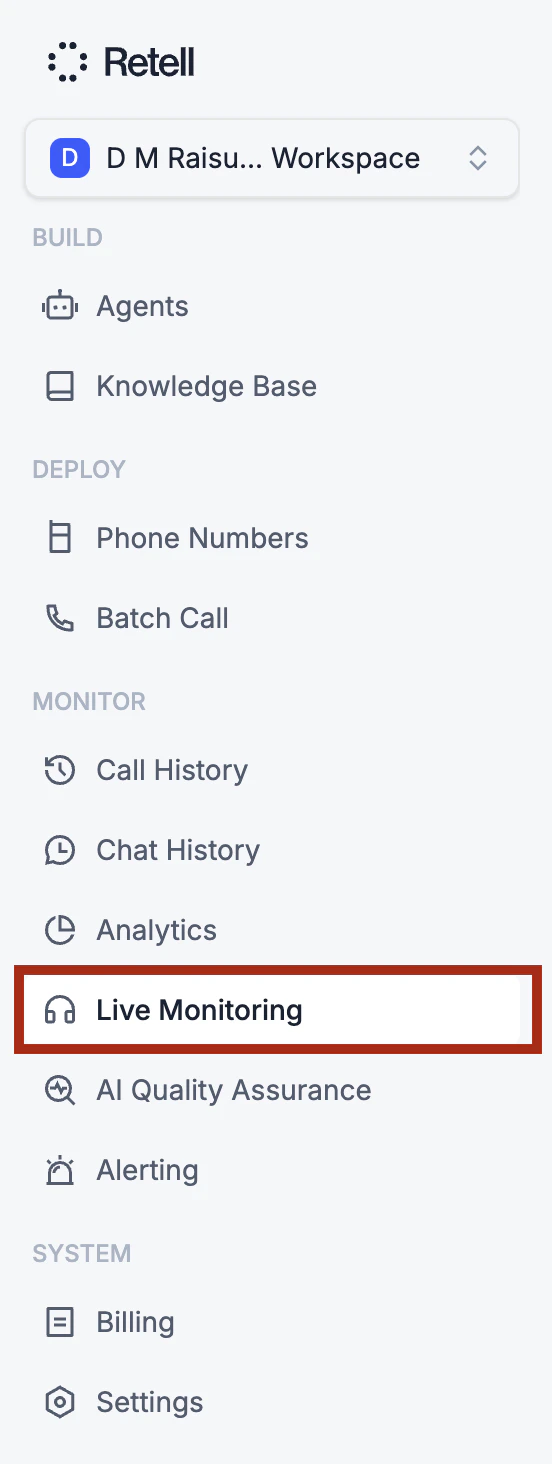
1. Navigate to the dashboard
2. Select the **Live Monitoring** tab
Live Monitoring is available to the **Admin** and **Developer** roles. If you don't see the Live Monitoring tab, ask your workspace admin to update your role. See [Access Control](/accounts/access-control) for details.
## Live call list
The main view lists every call that is currently ongoing in your workspace.
* **Updates automatically**: new calls appear as they start and drop off as they end, with new calls briefly highlighted.
* **Keyboard navigation**: use the up and down arrow keys to move through the list.
Select any call to open its detail drawer.
## Follow a live transcript
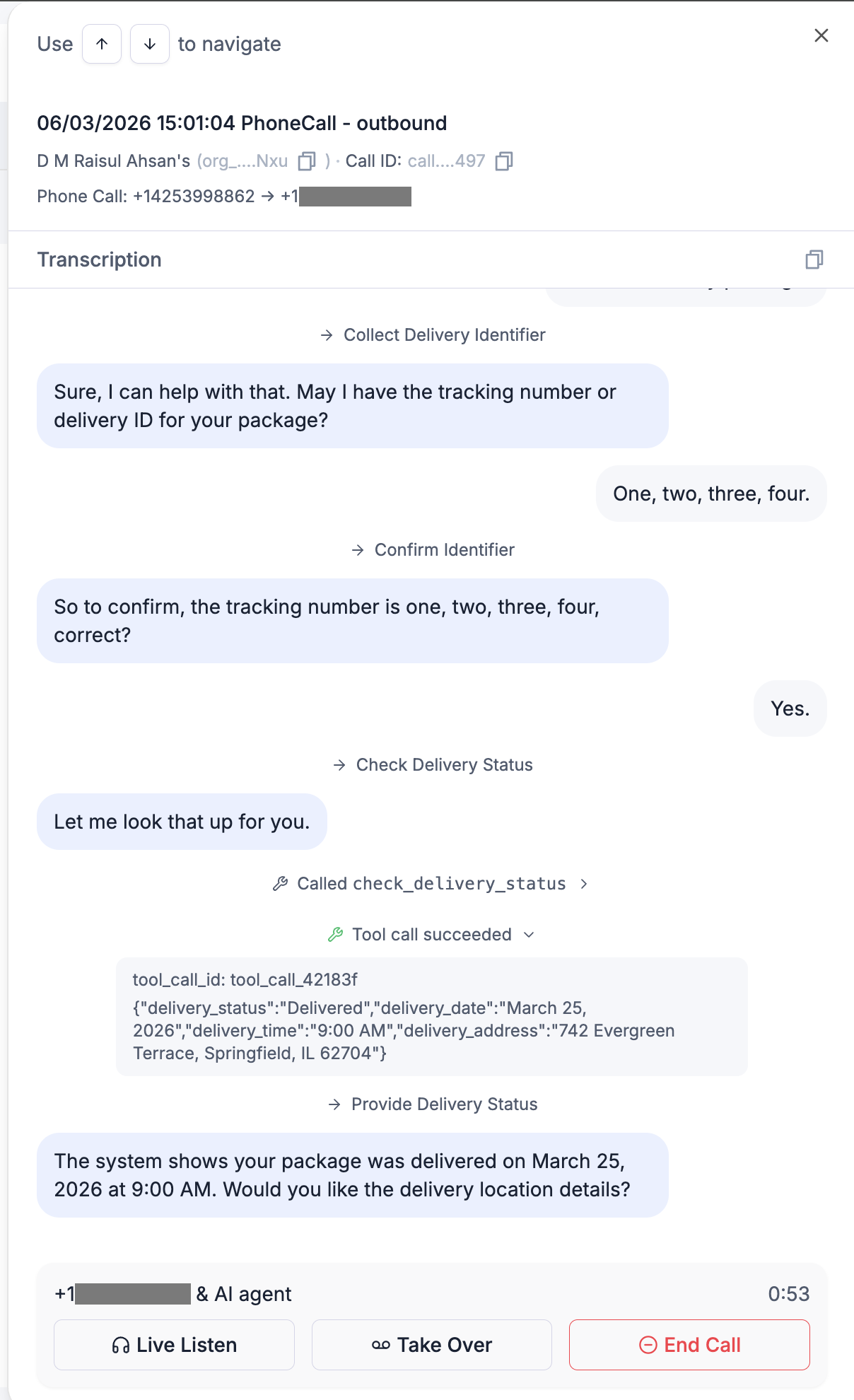
Opening a call shows a drawer with its details and a **live transcript** that streams in as the conversation happens.
The transcript renders:
* **Agent and caller turns** as chat bubbles
* **System events** for tool calls (with expandable details), SMS messages, and node transitions
## Listen, take over, or end a call
The drawer footer provides three actions for the live call.
### Live Listen
Click **Live Listen** to hear the call audio in real time. Listening is silent: the caller and the AI agent are not aware you have joined, and you cannot be heard. Click **Exit Live Listen** to stop.
### Take Over
Click **Take Over** to step onto the call and speak directly with the caller. You will be asked to confirm, and your browser will prompt for microphone access.
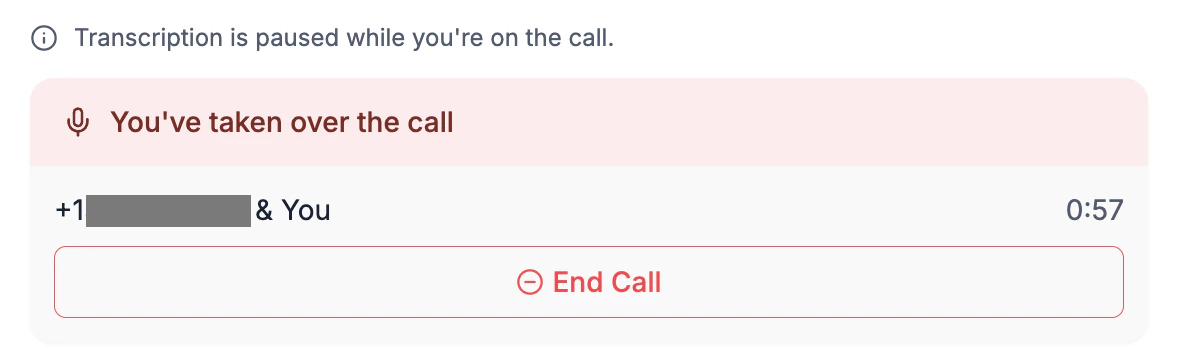
Taking over **permanently stops the AI agent** for that call and connects you to the caller. This cannot be undone, and the agent will not resume. The live transcript pauses while you are on the call.
### End Call
Click **End Call** to disconnect the caller and end the call for everyone. You will be asked to confirm before the call is ended.
## FAQ
Live Monitoring is available to the **Admin** and **Developer** roles. Contact your workspace admin if you need access. See [Access Control](/accounts/access-control) for details.
No. Live Listen is silent and hidden: neither the caller nor the AI agent is notified, and your microphone is not transmitted until you explicitly take over.
The AI agent is permanently stopped for that call. You are connected directly to the caller, and the agent does not resume. The call ends normally when either side hangs up or you click End Call.
The take-over is canceled and the AI agent keeps handling the call. Grant microphone access and try again to take over.
Whispering or coaching the AI agent mid-call (sending guidance only the agent can hear) is not currently supported. The available actions during a live call are **Live Listen**, **Take Over**, and **End Call**.
To inject context or steer behavior on an ongoing call programmatically, use the [Update Live Call](/api-references/update-live-call) API to override dynamic variables, update metadata, or trigger an agent response.
 * **Updates automatically**: new calls appear as they start and drop off as they end, with new calls briefly highlighted.
* **Keyboard navigation**: use the up and down arrow keys to move through the list.
Select any call to open its detail drawer.
## Follow a live transcript
Opening a call shows a drawer with its details and a **live transcript** that streams in as the conversation happens.
* **Updates automatically**: new calls appear as they start and drop off as they end, with new calls briefly highlighted.
* **Keyboard navigation**: use the up and down arrow keys to move through the list.
Select any call to open its detail drawer.
## Follow a live transcript
Opening a call shows a drawer with its details and a **live transcript** that streams in as the conversation happens.
 The transcript renders:
* **Agent and caller turns** as chat bubbles
* **System events** for tool calls (with expandable details), SMS messages, and node transitions
## Listen, take over, or end a call
The drawer footer provides three actions for the live call.
The transcript renders:
* **Agent and caller turns** as chat bubbles
* **System events** for tool calls (with expandable details), SMS messages, and node transitions
## Listen, take over, or end a call
The drawer footer provides three actions for the live call.
 ### Live Listen
Click **Live Listen** to hear the call audio in real time. Listening is silent: the caller and the AI agent are not aware you have joined, and you cannot be heard. Click **Exit Live Listen** to stop.
### Take Over
Click **Take Over** to step onto the call and speak directly with the caller. You will be asked to confirm, and your browser will prompt for microphone access.
### Live Listen
Click **Live Listen** to hear the call audio in real time. Listening is silent: the caller and the AI agent are not aware you have joined, and you cannot be heard. Click **Exit Live Listen** to stop.
### Take Over
Click **Take Over** to step onto the call and speak directly with the caller. You will be asked to confirm, and your browser will prompt for microphone access.
 ### End Call
Click **End Call** to disconnect the caller and end the call for everyone. You will be asked to confirm before the call is ended.
## FAQ
### End Call
Click **End Call** to disconnect the caller and end the call for everyone. You will be asked to confirm before the call is ended.
## FAQ