> ## Documentation Index
> Fetch the complete documentation index at: https://docs.retellai.com/llms.txt
> Use this file to discover all available pages before exploring further.
# Set up post-call analysis categories
> Set up Retell post-call analysis to extract structured insights from every call — text, selector, boolean, and number categories evaluated by an LLM.
## Overview
Post-call analysis is a feature that allows you to analyze calls after they have ended. We provide several built-in analysis categories, and you can also customize your own.
## Step 1: Create an Analysis Category
In the dashboard, navigate to the "Post-Call Analysis" tab to create a new analysis category.
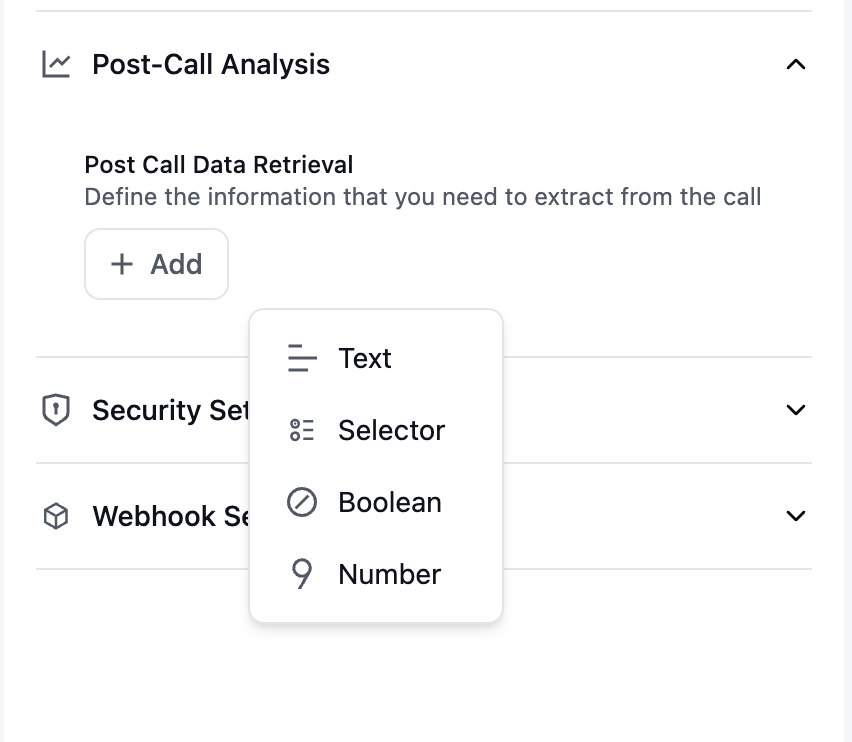 We offer four types of analysis categories:
1. Text
2. Selector
3. Boolean
4. Number
### Examples
1. If you find the default agent call summary doesn't satisfy your needs, you can create a new analysis category with type `Text` and name it "detailed\_call\_summary".
* **Description**: "Provide a detailed summary of the call so that when the call is transferred, the new human agent has the full context."
* **Format Example**: Provide an example of how the output of this analysis category should look.
2. To analyze whether the customer is a new or existing customer, create a new analysis category with type `Boolean` and name it "is\_new\_customer".
* **Description**: "Indicates whether the customer is new or existing."
* **Format Example**: Provide an example of how the output of this analysis category should look.
3. To determine if the customer was transferred to a human agent, create a new analysis category with type `Boolean` and name it "is\_transferred".
* **Description**: "Indicates whether the call was transferred to a human agent."
* **Format Example**: Provide an example of how the output of this analysis category should look.
4. To analyze the transaction amount for the customer, create a new analysis category with type `Number` and name it "transaction\_amount".
* **Description**: "The transaction amount for the customer."
* **Format Example**: Provide an example of how the output of this analysis category should look.
## Step 2: Consume the Analysis Result
### Method 1: Dashboard History Tab
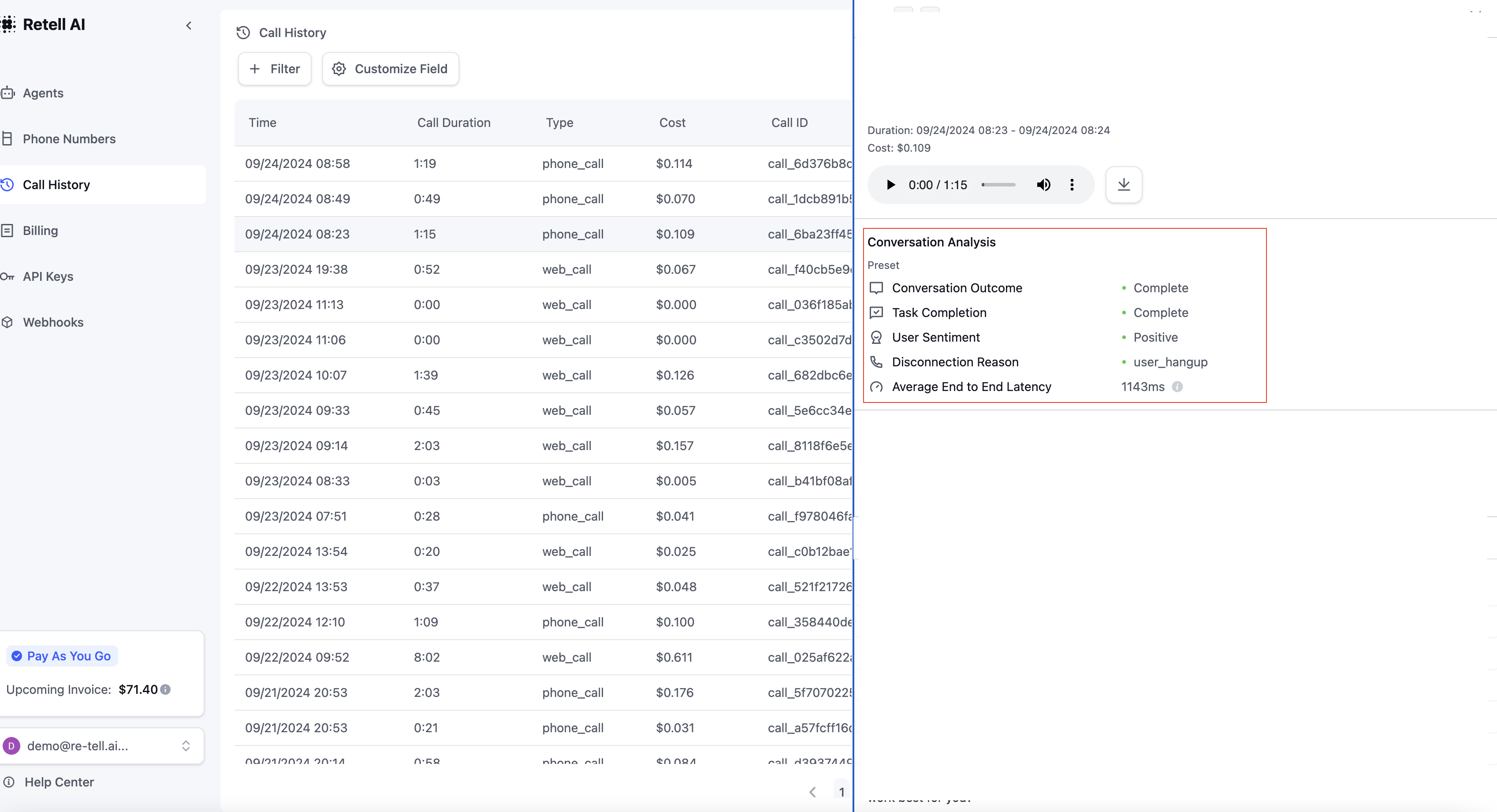
You can view the analysis results in the dashboard history tab.
We offer four types of analysis categories:
1. Text
2. Selector
3. Boolean
4. Number
### Examples
1. If you find the default agent call summary doesn't satisfy your needs, you can create a new analysis category with type `Text` and name it "detailed\_call\_summary".
* **Description**: "Provide a detailed summary of the call so that when the call is transferred, the new human agent has the full context."
* **Format Example**: Provide an example of how the output of this analysis category should look.
2. To analyze whether the customer is a new or existing customer, create a new analysis category with type `Boolean` and name it "is\_new\_customer".
* **Description**: "Indicates whether the customer is new or existing."
* **Format Example**: Provide an example of how the output of this analysis category should look.
3. To determine if the customer was transferred to a human agent, create a new analysis category with type `Boolean` and name it "is\_transferred".
* **Description**: "Indicates whether the call was transferred to a human agent."
* **Format Example**: Provide an example of how the output of this analysis category should look.
4. To analyze the transaction amount for the customer, create a new analysis category with type `Number` and name it "transaction\_amount".
* **Description**: "The transaction amount for the customer."
* **Format Example**: Provide an example of how the output of this analysis category should look.
## Step 2: Consume the Analysis Result
### Method 1: Dashboard History Tab
You can view the analysis results in the dashboard history tab.
 ### Method 2: Webhook
The webhook will be triggered when the call ends, and the payload will contain the analysis results.
### Method 3: Get Call API
You can also use the [Get Call API](/api-references/get-call) to retrieve the analysis results.
### Method 2: Webhook
The webhook will be triggered when the call ends, and the payload will contain the analysis results.
### Method 3: Get Call API
You can also use the [Get Call API](/api-references/get-call) to retrieve the analysis results.