> ## Documentation Index
> Fetch the complete documentation index at: https://docs.retellai.com/llms.txt
> Use this file to discover all available pages before exploring further.
# Rerun Post-Call/Chat Analysis
> Edit Retell post-call or post-chat analysis prompts and rerun processing on past sessions to regenerate summaries and success metrics with new criteria.
You can now customize the prompts used to summarize conversations and determine call/chat success. After updating these prompts, you can rerun the analysis to regenerate results that better match your criteria.
When you rerun the analysis for a call, the system always uses the analysis prompts from the latest draft version of the agent—even if the call was originally handled by an older published version. To update the analysis results, make sure to edit the prompts in the latest draft agent.
If the session included an [Agent Transfer](/build/single-multi-prompt/transfer-agent), rerunning the analysis follows the same **Post call analysis setting** chosen for that transfer. If the transfer used **Only transferred agent**, the rerun applies the destination agent's full analysis configuration—its analysis fields, analysis model, and analysis prompts—so the rerun results match what you'd get from the live call.
## Editing Analysis Prompts
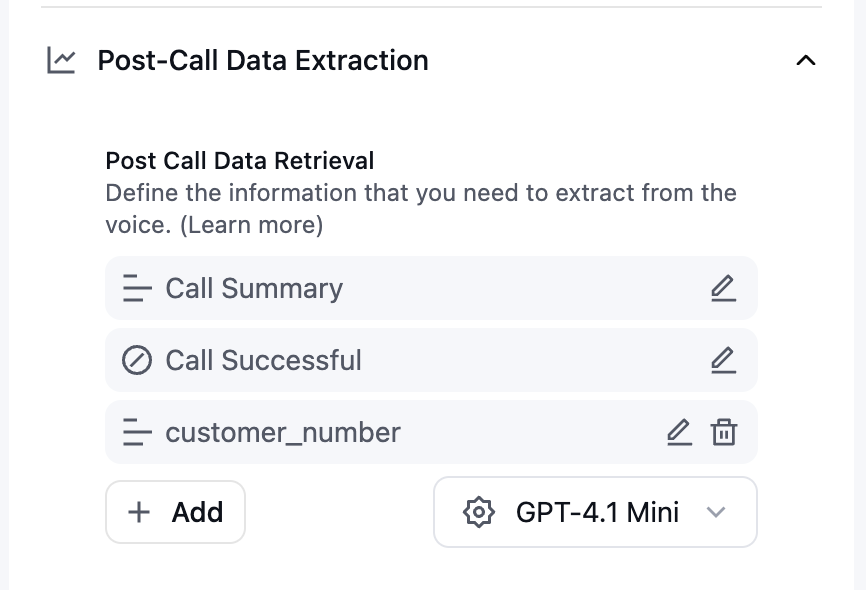 In the agent’s `Post-Call Data Extraction` section (formerly `Post-Call Analysis`), you can customize prompts for the following built-in analysis categories:
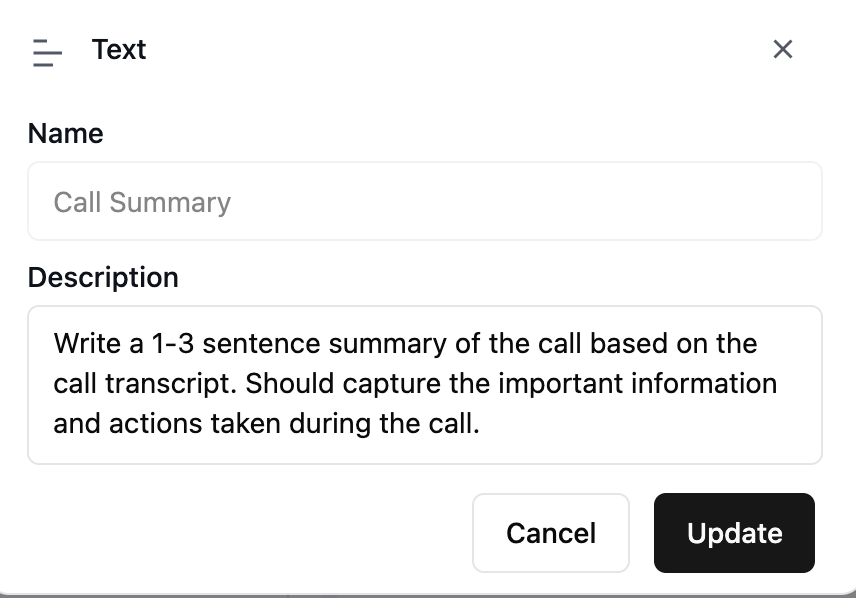
### Call Summary
The `call_summary` field provides a high-level summary of the conversation. Adjust this prompt to extract the type of summary or details you care about.
In the agent’s `Post-Call Data Extraction` section (formerly `Post-Call Analysis`), you can customize prompts for the following built-in analysis categories:
### Call Summary
The `call_summary` field provides a high-level summary of the conversation. Adjust this prompt to extract the type of summary or details you care about.
 ### Call Successful
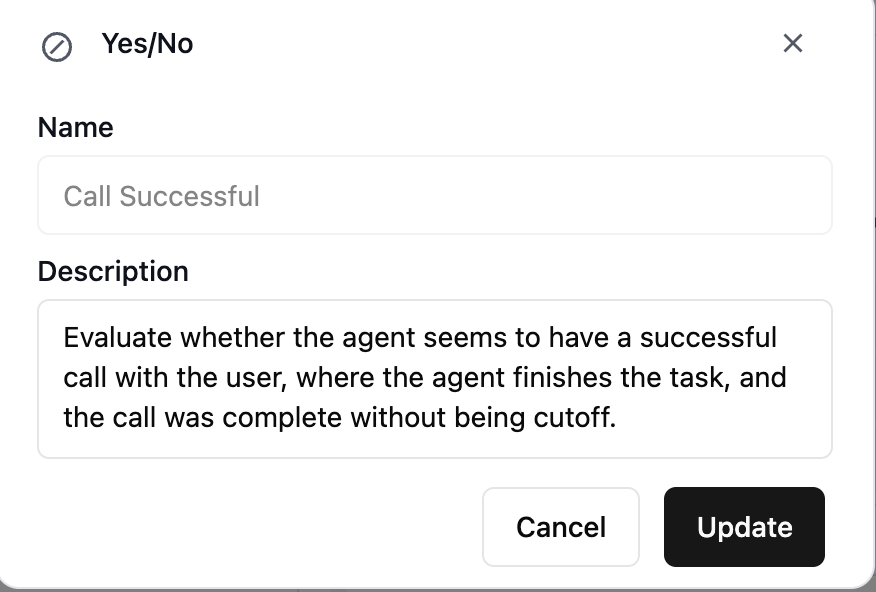
You can also customize the prompt that evaluates whether a call or chat was successful, allowing you to define your own success criteria.
### Call Successful
You can also customize the prompt that evaluates whether a call or chat was successful, allowing you to define your own success criteria.
 ## Rerunning Post-Call Analysis
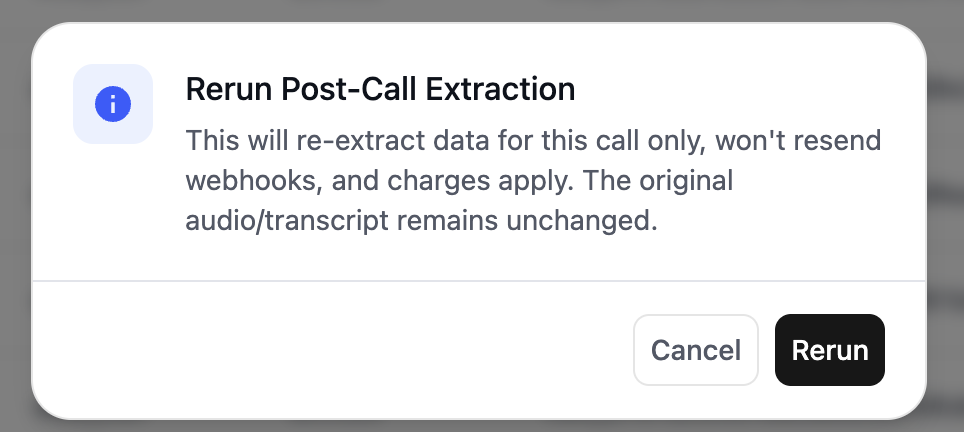
**Important**: Rerunning analysis will incur charges for *all* models, including those that were free during the initial post-call/post-chat run.
After updating your prompts, you can rerun the post-call analysis to generate new outputs based on the revised instructions.
## Rerunning Post-Call Analysis
**Important**: Rerunning analysis will incur charges for *all* models, including those that were free during the initial post-call/post-chat run.
After updating your prompts, you can rerun the post-call analysis to generate new outputs based on the revised instructions.
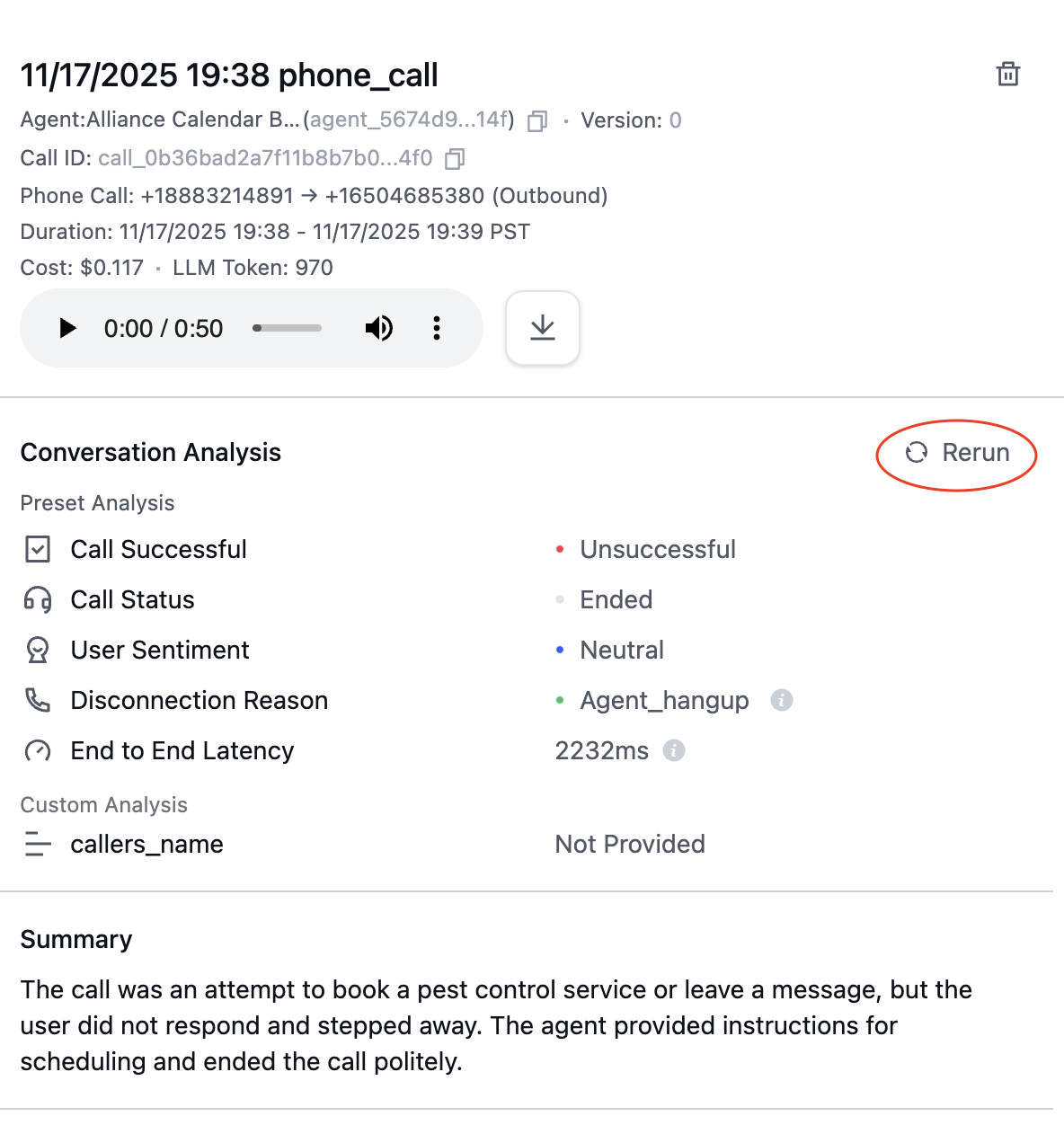
 Below is an example of a regenerated summary using the prompt: `Write a 1–5 word summary of the call.`
 ## Batch Rerun from Call/Chat History
You can rerun post-call or post-chat analysis in bulk directly from the **Call History** or **Chat History** page. This is useful when you've updated analysis prompts and want to regenerate results across many past sessions at once.
On the **Call History** or **Chat History** page, click the **Actions** button in the top-right corner.
Choose **Backfill from Post-Call Data** (or **Backfill from Post-Chat Data** on the Chat History page) from the dropdown.
The backfill modal lets you scope which sessions to rerun analysis on. Add one or more filter criteria to narrow down the sessions. You can add multiple filter rows to combine criteria. Click **Add** to add another filter row.
Click **Save** to queue the batch rerun. The system will re-extract post-call/chat analysis data for all matching sessions using the latest draft agent's analysis prompts.
**Important**: Batch rerun will incur charges. The cost scales with the number of matching sessions.
If you have [CRM integration](/integrations/crm-overview) enabled, the re-extracted analysis data will also flow through your configured [analysis data mappings](/integrations/crm-mappings) and update the corresponding contact fields.
## Batch Rerun from Call/Chat History
You can rerun post-call or post-chat analysis in bulk directly from the **Call History** or **Chat History** page. This is useful when you've updated analysis prompts and want to regenerate results across many past sessions at once.
On the **Call History** or **Chat History** page, click the **Actions** button in the top-right corner.
Choose **Backfill from Post-Call Data** (or **Backfill from Post-Chat Data** on the Chat History page) from the dropdown.
The backfill modal lets you scope which sessions to rerun analysis on. Add one or more filter criteria to narrow down the sessions. You can add multiple filter rows to combine criteria. Click **Add** to add another filter row.
Click **Save** to queue the batch rerun. The system will re-extract post-call/chat analysis data for all matching sessions using the latest draft agent's analysis prompts.
**Important**: Batch rerun will incur charges. The cost scales with the number of matching sessions.
If you have [CRM integration](/integrations/crm-overview) enabled, the re-extracted analysis data will also flow through your configured [analysis data mappings](/integrations/crm-mappings) and update the corresponding contact fields.