> ## Documentation Index
> Fetch the complete documentation index at: https://docs.retellai.com/llms.txt
> Use this file to discover all available pages before exploring further.
# Cal.com agent functions
> Cal.com tools for Retell AI agents: check live availability, book appointments, and list, get, reschedule, or cancel bookings during the call.
A [connected Cal.com account](/integrations/cal-com) gives your agents the full booking lifecycle as live tools: check availability, book, and list, get, reschedule, or cancel bookings. Tools run during a conversation or [before and after it](/integrations/overview#run-tools-before-or-after-the-call-or-chat). There's no synced copy of your calendar in Retell; every tool call reads or writes Cal.com live.
## Available tools
These tools appear in your agent's function menu once your account is connected. **Check Availability** and **Book Appointment** each take an [event type ID](#find-an-event-type-id), so they're pinned to one event type. See [use integration tools in an agent](/integrations/overview#use-integration-tools-in-an-agent) for how to add and configure them.
| Tool | What it does |
| ---------------------- | ----------------------------------------------------------------------------------- |
| **Check Availability** | List open slots for the configured event type in a time window |
| **Book Appointment** | Book the configured event type after the caller confirms a time |
| **List Bookings** | List a caller's upcoming bookings (up to 50) by attendee email within a time window |
| **Get Booking** | Fetch one booking by its UID |
| **Reschedule Booking** | Move an existing booking to a new confirmed time |
| **Cancel Booking** | Cancel an existing booking |
Chain the tools: **List Bookings** finds the booking UID by the caller's email, **Check Availability** confirms the new slot exists, and **Reschedule Booking** moves it. Map the UID from the list result to a [dynamic variable](/build/dynamic-variables) so the later tools can use it.
## Find an event type ID
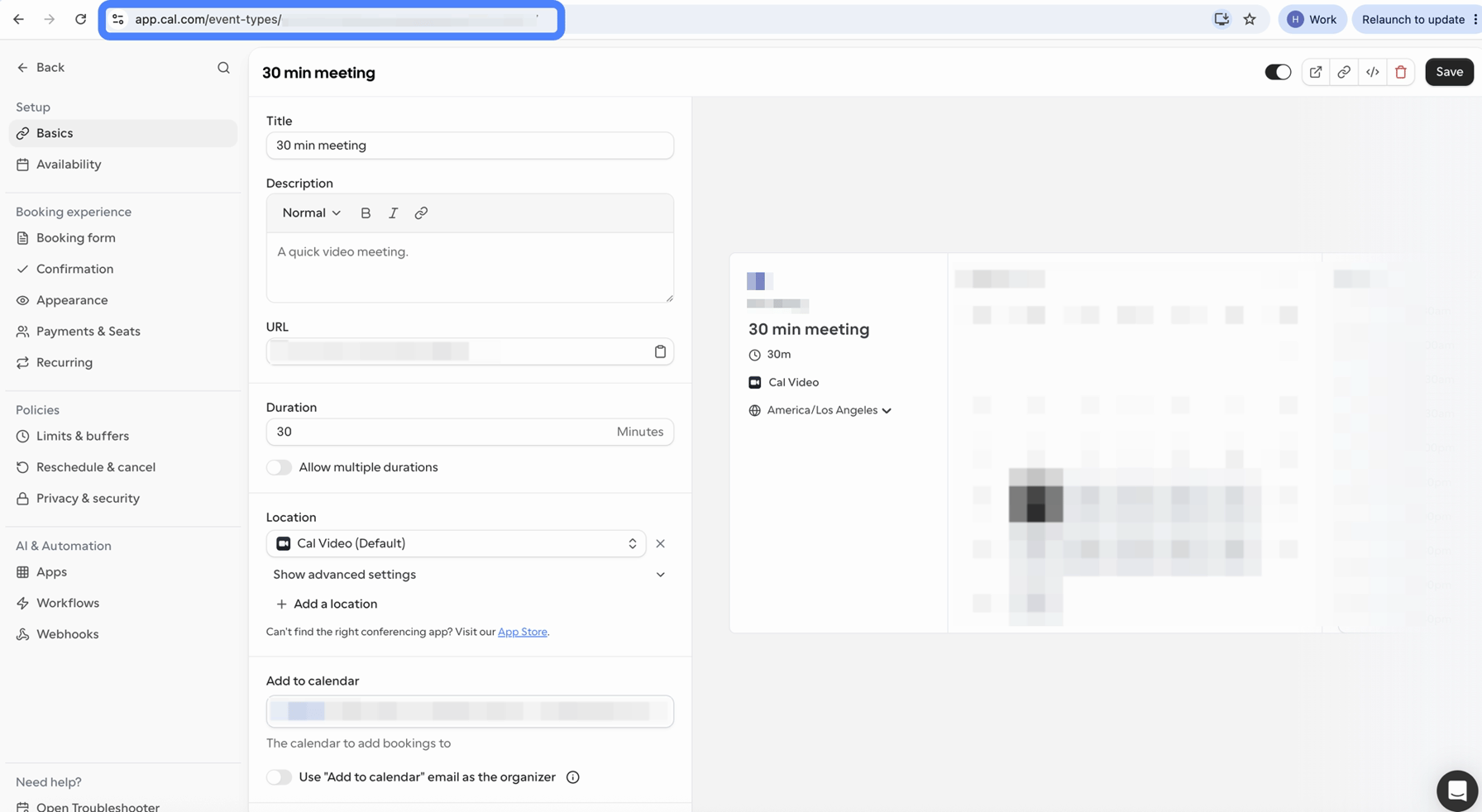
In the Cal.com dashboard, open **Event Types** and select the one the agent should book.
The event type ID is the number in the address bar, for example `https://app.cal.com/event-types/1234567` — the ID is `1234567`.
Enter that number in the tool's event type ID input. Point a separate tool at each event type you want the agent to handle.
## Permissions
The API key grants the connected account's full API access; there are no per-tool scopes to grant. Every tool reads the connected account's event types and reads and writes its bookings.
## Troubleshooting
Check the event type ID on the tool: it must be an event type the connected account can book, and the ID must match the number in the event type's URL. Then check the event type has open hours in the window the agent asked about.
The lookup matches on the attendee email within the time window the agent supplies. Have the agent confirm the email used to book, and if the booking might sit outside the window, widen it.
## FAQ
Use the integration. The built-in [availability](/build/check-availability) and [booking](/build/book-calendar) tools are being deprecated — they keep working on existing agents for now, but the integration manages the key once for the workspace, adds list, get, reschedule, and cancel, and is where new capability lands. To migrate an agent, [connect Cal.com](/integrations/cal-com), add the integration's availability and booking tools with the same event type ID, and remove the old tools.
[Calendly](/integrations/calendly-functions) covers availability, booking, and cancellation, and [GoHighLevel calendars](/integrations/gohighlevel-functions#book-the-sub-account-s-calendars) cover the full lifecycle when your scheduling sits in the same sub-account as your contacts.
Yes. Bookings, reschedules, and cancellations go through Cal.com, so attendees get exactly the notifications and calendar invites your event type is configured to send.
## Next steps
Add Cal.com tools to a single- or multi-prompt agent and test them with live requests.
Call Cal.com tools from a function node and branch on the result.
Carry booking UIDs and confirmed times between tools and prompts.
Mock the booking tools to test your scheduling flow without creating real bookings.