> ## Documentation Index
> Fetch the complete documentation index at: https://docs.retellai.com/llms.txt
> Use this file to discover all available pages before exploring further.
# Trigger Retell calls from HubSpot workflows
> Install and configure the Retell AI HubSpot app to trigger outbound voice agent calls from HubSpot workflows, pass contact context, and sync call results back.
This guide provides instructions for setting up and using the **Retell AI** application within **HubSpot** to automate outbound phone calls using voice agents.
Click here to open the Retell AI integration in HubSpot Marketplace.
## Overview
The Retell AI application enables the **Make a Phone Call** action in HubSpot workflows. This action creates an outbound call using your AI agents and pauses the workflow until the call is finished.
Once a call is completed, HubSpot is automatically updated with:
* **Activity Timeline**: Post-call analysis and call summary
* **Call Log**: Recording and detailed call transcript
* **Company Record**: Call logs also appear on the associated company timeline
## Installing the Application
Click **Connect app** when prompted during installation.
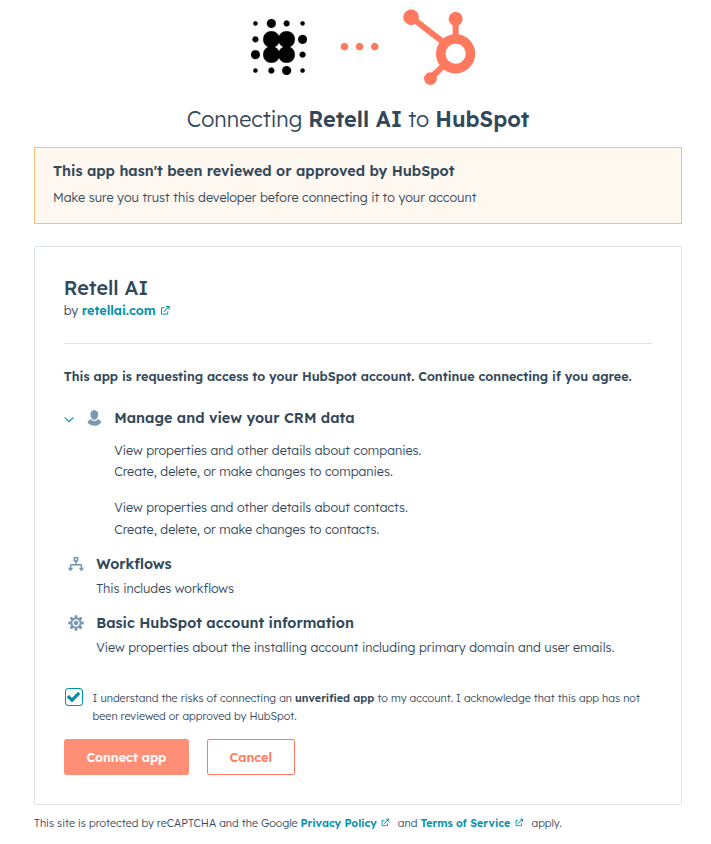 You will be redirected to an external integration form.
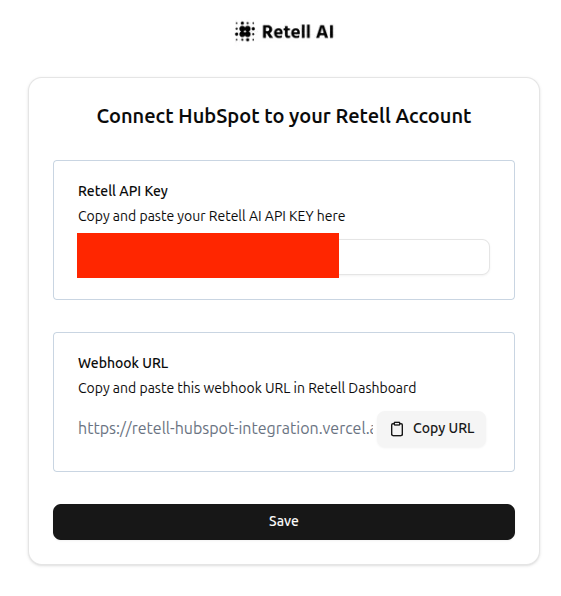 Sign up on the Retell AI website to access your dashboard if you don't already have an account.
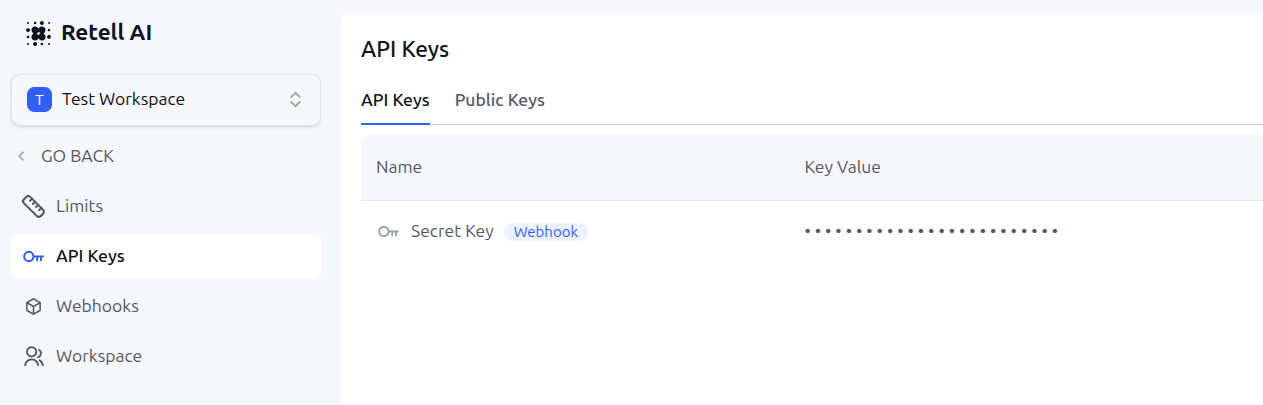
Navigate to **Settings → API Keys** in the Retell AI Dashboard.
Copy the **Secret Key (Webhook)** and paste it into the **Retell API Key** field on the installation form.
Sign up on the Retell AI website to access your dashboard if you don't already have an account.
Navigate to **Settings → API Keys** in the Retell AI Dashboard.
Copy the **Secret Key (Webhook)** and paste it into the **Retell API Key** field on the installation form.
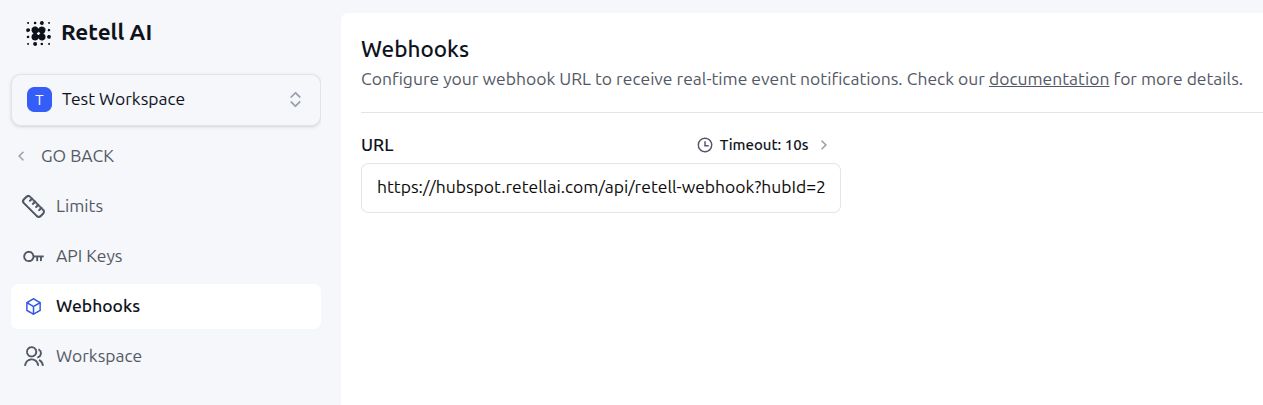
 Copy the **Webhook URL** provided in the form and paste it into the Webhooks section of your Retell Dashboard (**Settings → Webhooks**).
 Click **Save** to submit the form, then close the page and return to HubSpot.
## Using the Application
HubSpot workflows allow you to automatically trigger outbound calls based on various events. Common use cases include:
* **New lead qualification**: Call leads immediately after they submit a form to qualify interest
* **New contact created**: Reach out to new contacts added to your CRM
* **Deal stage changes**: Follow up when a deal moves to a specific stage
* **Re-engagement**: Call contacts who haven't been active for a set period
* **Appointment reminders**: Confirm upcoming meetings or demos
* **Post-purchase follow-up**: Check in with customers after a purchase
You must have a Retell AI account and an agent with a connected phone number.
### Step 1: Creating the HubSpot Workflow
Navigate to **Automation → Workflows** in HubSpot.
Create a new workflow and choose your trigger based on your use case:
* **Form submission**: Trigger when a lead fills out a specific form
* **Record created**: Trigger when a new contact is added to your CRM
* **Property value change**: Trigger when a deal stage or lead status changes
* **Date-based**: Trigger based on a specific date property (e.g., appointment date)
For this example, set the trigger to **Data Values → Record Created**.
Click **Save** to submit the form, then close the page and return to HubSpot.
## Using the Application
HubSpot workflows allow you to automatically trigger outbound calls based on various events. Common use cases include:
* **New lead qualification**: Call leads immediately after they submit a form to qualify interest
* **New contact created**: Reach out to new contacts added to your CRM
* **Deal stage changes**: Follow up when a deal moves to a specific stage
* **Re-engagement**: Call contacts who haven't been active for a set period
* **Appointment reminders**: Confirm upcoming meetings or demos
* **Post-purchase follow-up**: Check in with customers after a purchase
You must have a Retell AI account and an agent with a connected phone number.
### Step 1: Creating the HubSpot Workflow
Navigate to **Automation → Workflows** in HubSpot.
Create a new workflow and choose your trigger based on your use case:
* **Form submission**: Trigger when a lead fills out a specific form
* **Record created**: Trigger when a new contact is added to your CRM
* **Property value change**: Trigger when a deal stage or lead status changes
* **Date-based**: Trigger based on a specific date property (e.g., appointment date)
For this example, set the trigger to **Data Values → Record Created**.
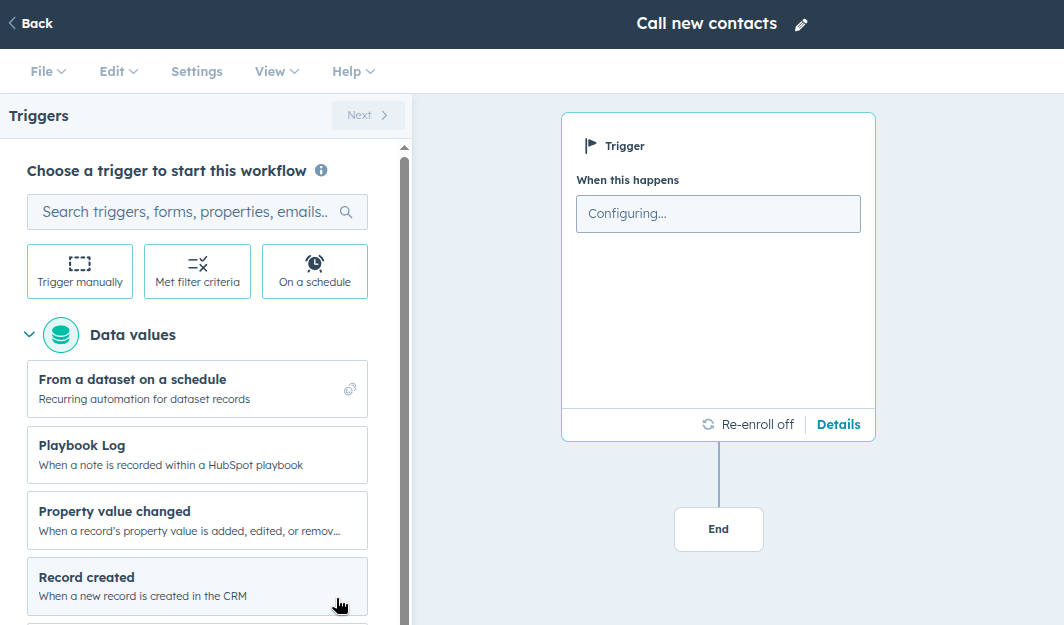 Add a condition for **Phone number is known**. This ensures the workflow only triggers for contacts with valid phone numbers, preventing failed call attempts.
You can also add additional conditions to further qualify which contacts receive calls:
* **Lead status**: Only call contacts with a specific lead status
* **Lifecycle stage**: Target contacts at a particular stage (e.g., "Lead" or "Marketing Qualified Lead")
* **Contact owner**: Route calls based on the assigned sales rep
* **Custom properties**: Filter based on your business-specific criteria
Add a condition for **Phone number is known**. This ensures the workflow only triggers for contacts with valid phone numbers, preventing failed call attempts.
You can also add additional conditions to further qualify which contacts receive calls:
* **Lead status**: Only call contacts with a specific lead status
* **Lifecycle stage**: Target contacts at a particular stage (e.g., "Lead" or "Marketing Qualified Lead")
* **Contact owner**: Route calls based on the assigned sales rep
* **Custom properties**: Filter based on your business-specific criteria
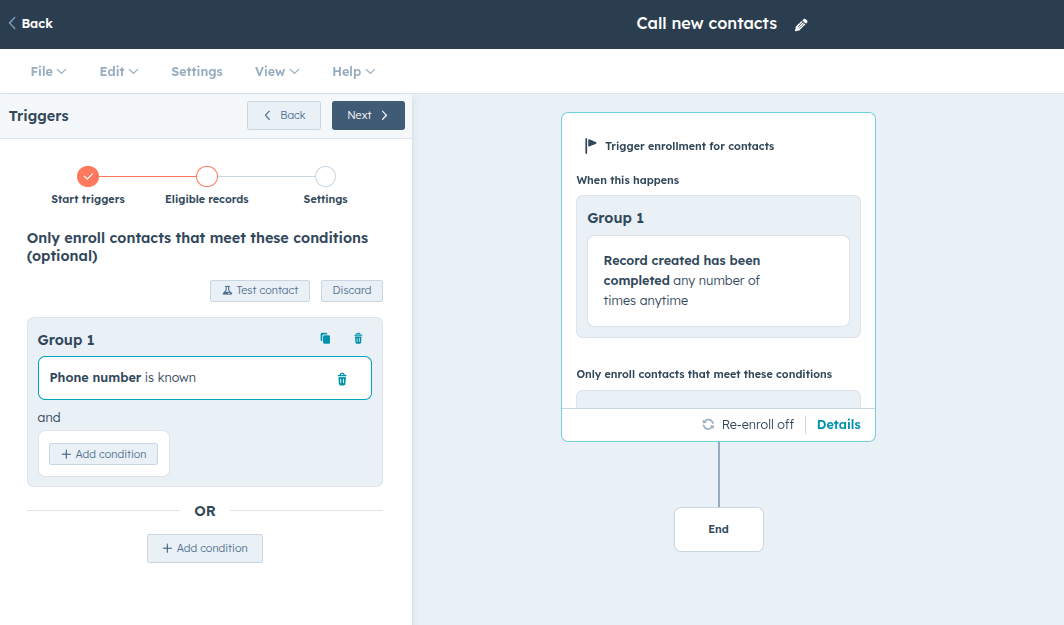 The final trigger should look like the following:
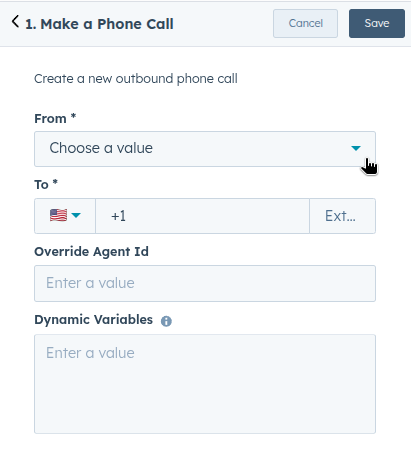
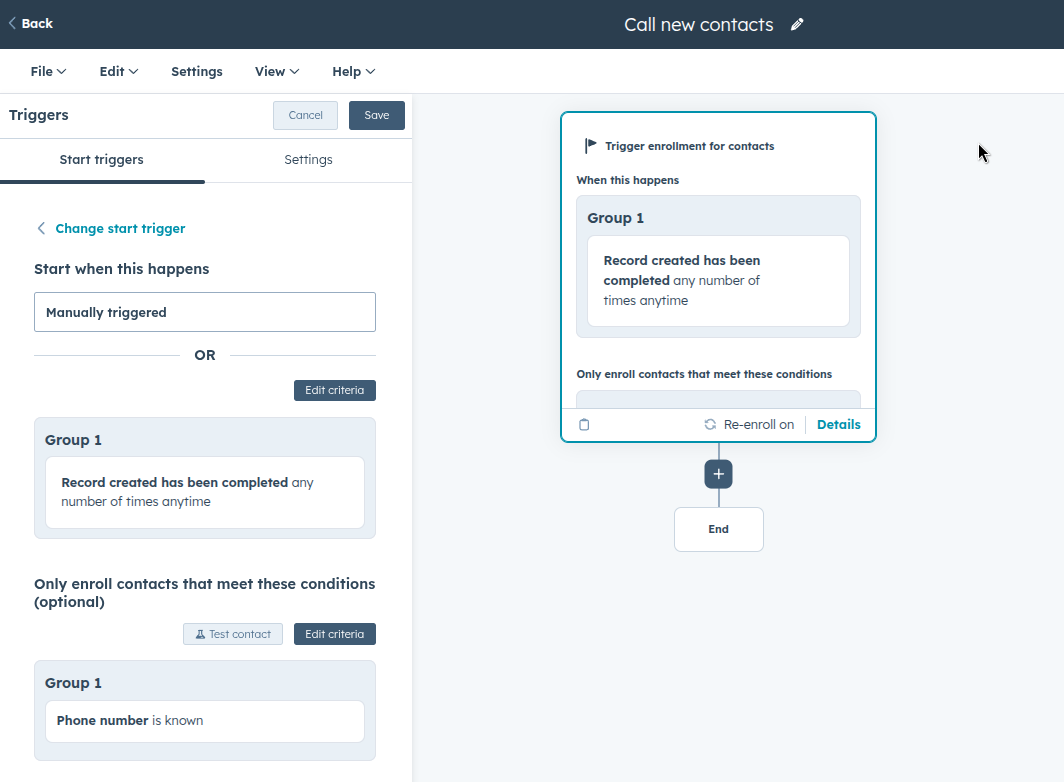 Click the **(+)** button to add an action. Select **Retell AI → Make a Phone Call** under "Integrated apps".
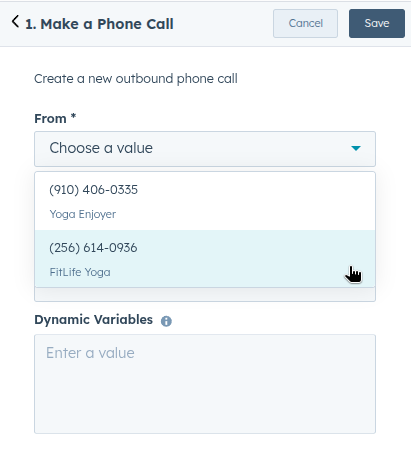
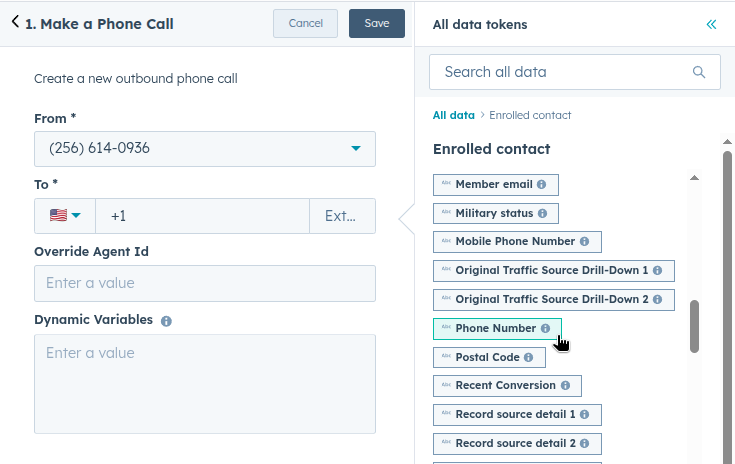
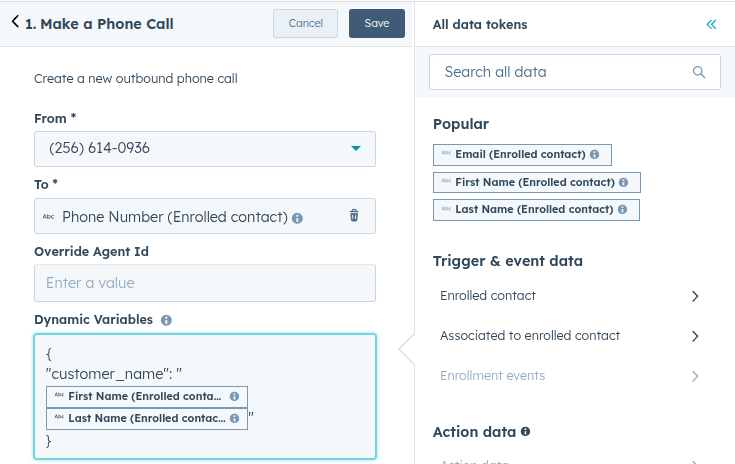
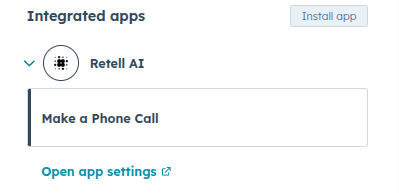 Configure the call form with the following settings:
* **From**: Select the Retell AI agent/phone number
* **To**: Select the contact's phone number token
* **Dynamic Variables** (Optional): Pass data like the contact's name using JSON format. Ensure all values are surrounded by quotes.
Configure the call form with the following settings:
* **From**: Select the Retell AI agent/phone number
* **To**: Select the contact's phone number token
* **Dynamic Variables** (Optional): Pass data like the contact's name using JSON format. Ensure all values are surrounded by quotes.
 Click **Save**.
After the call completes, you can branch your workflow based on the call outcome to automate follow-up actions.
Use the **Call Success** output from the Retell AI action to create branches:
**If call was successful:**
* Send a follow-up email with next steps
* Create a task for the sales rep to review the call
* Update the contact's lifecycle stage
* Add the contact to a nurture sequence
**If call was unsuccessful** (no answer, voicemail, etc.):
* Schedule a retry call for a later time
* Send an SMS or email as an alternative touchpoint
* Add to a "needs follow-up" list
Click **Save**.
After the call completes, you can branch your workflow based on the call outcome to automate follow-up actions.
Use the **Call Success** output from the Retell AI action to create branches:
**If call was successful:**
* Send a follow-up email with next steps
* Create a task for the sales rep to review the call
* Update the contact's lifecycle stage
* Add the contact to a nurture sequence
**If call was unsuccessful** (no answer, voicemail, etc.):
* Schedule a retry call for a later time
* Send an SMS or email as an alternative touchpoint
* Add to a "needs follow-up" list
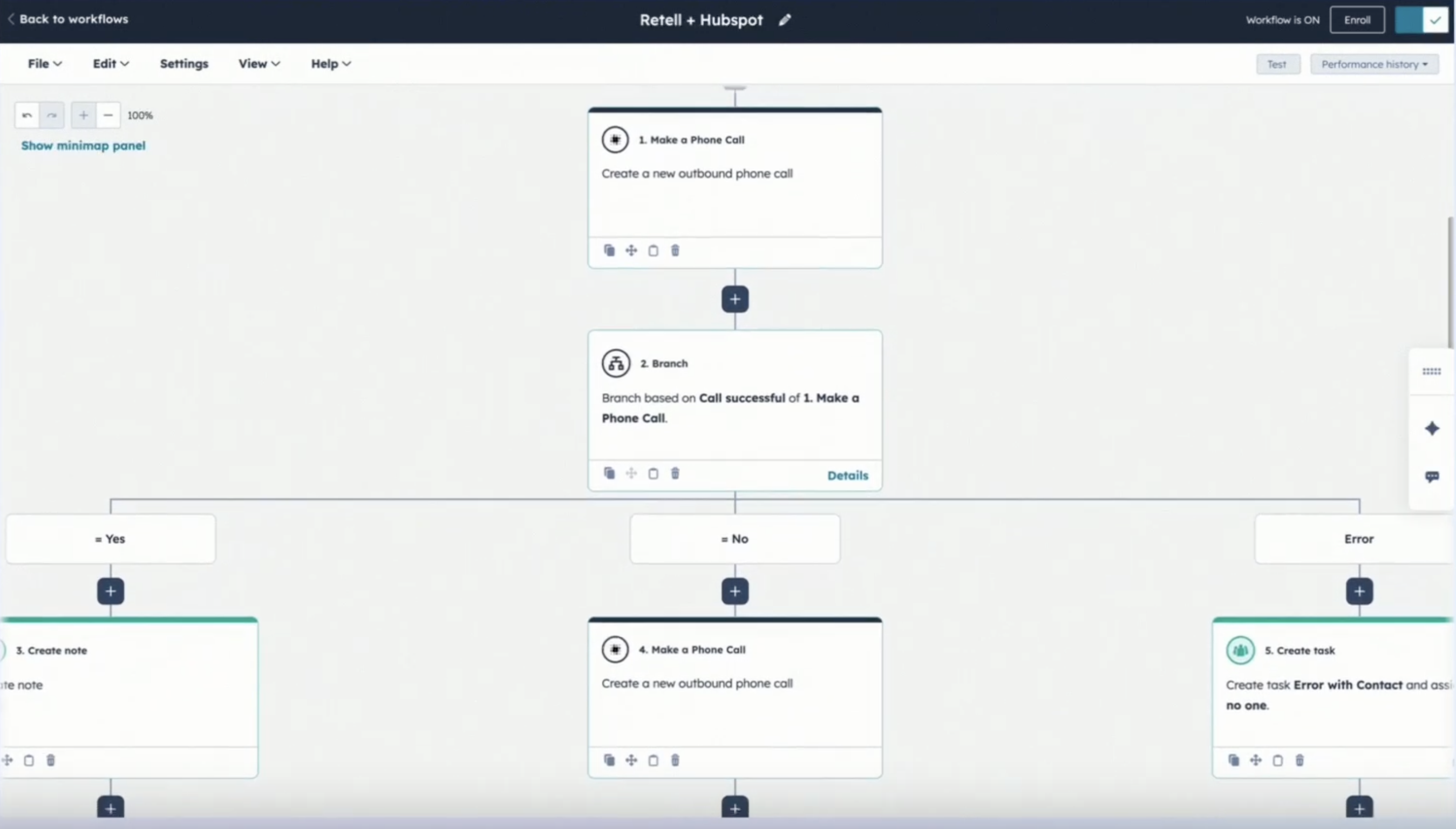 You can also use other call outputs like **User Sentiment** or **Call Outcome** to create more granular branching logic.
Review and click **Review and publish** to activate.
### Step 2: Viewing Call Results in HubSpot
After a contact is enrolled in the workflow and the call completes, you can view the results directly in HubSpot.
Navigate to **CRM → Contacts** and open the contact that was enrolled in the workflow.
You can also find recently called contacts by filtering the contact list by the workflow enrollment date or checking the workflow history.
You can also use other call outputs like **User Sentiment** or **Call Outcome** to create more granular branching logic.
Review and click **Review and publish** to activate.
### Step 2: Viewing Call Results in HubSpot
After a contact is enrolled in the workflow and the call completes, you can view the results directly in HubSpot.
Navigate to **CRM → Contacts** and open the contact that was enrolled in the workflow.
You can also find recently called contacts by filtering the contact list by the workflow enrollment date or checking the workflow history.
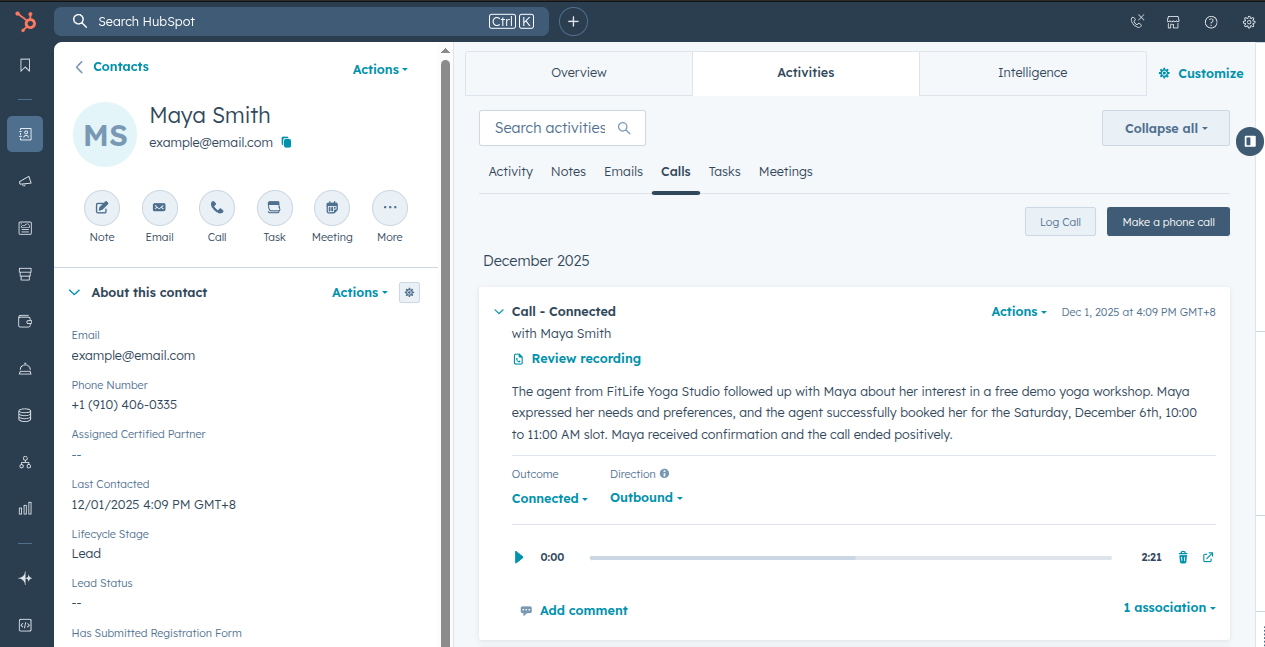 Check the contact's **Activity** tab to view the **Call Analysis**.
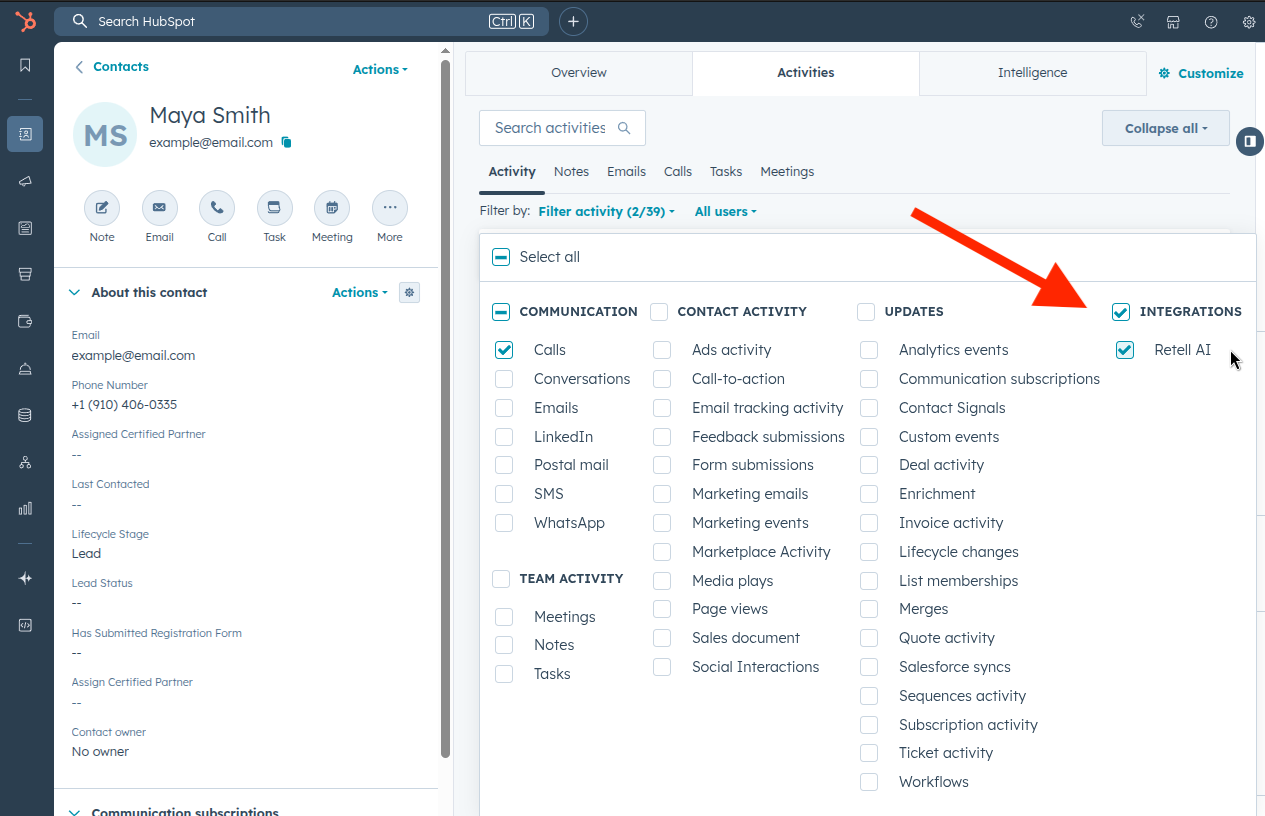
Ensure your activity filters include "Retell AI" as shown below:
Check the contact's **Activity** tab to view the **Call Analysis**.
Ensure your activity filters include "Retell AI" as shown below:
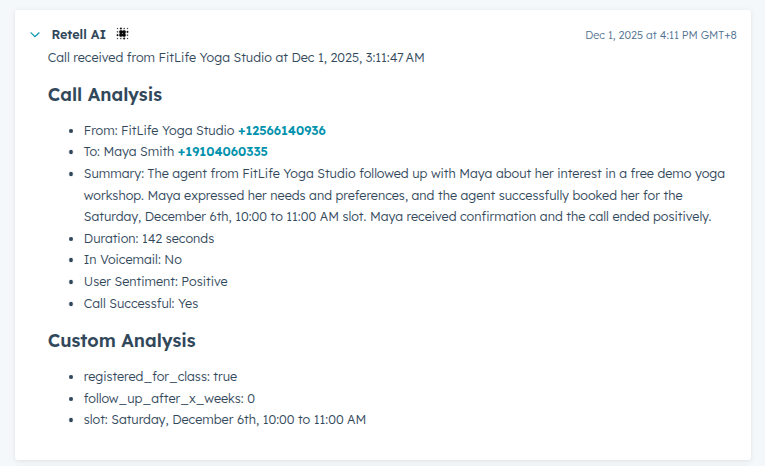
 Each call displays two types of analysis data:
**Default Call Results** — Automatically generated for every call:
* Summary
* Duration
* Voicemail detection
* User Sentiment
* Call Outcome
**Custom Analysis** — Additional insights you configure in Retell AI using [Post-Call Analysis](/features/post-call-analysis-overview):
* Lead qualification status
* Custom scoring metrics
* Business-specific data extraction
* Any other fields you define
Each call displays two types of analysis data:
**Default Call Results** — Automatically generated for every call:
* Summary
* Duration
* Voicemail detection
* User Sentiment
* Call Outcome
**Custom Analysis** — Additional insights you configure in Retell AI using [Post-Call Analysis](/features/post-call-analysis-overview):
* Lead qualification status
* Custom scoring metrics
* Business-specific data extraction
* Any other fields you define
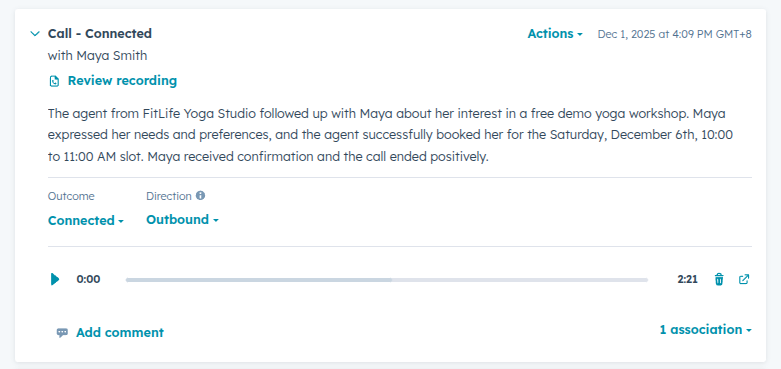
 Check the **Calls** tab to view the full **Call Log** and recording.
 ## Uninstalling the Application
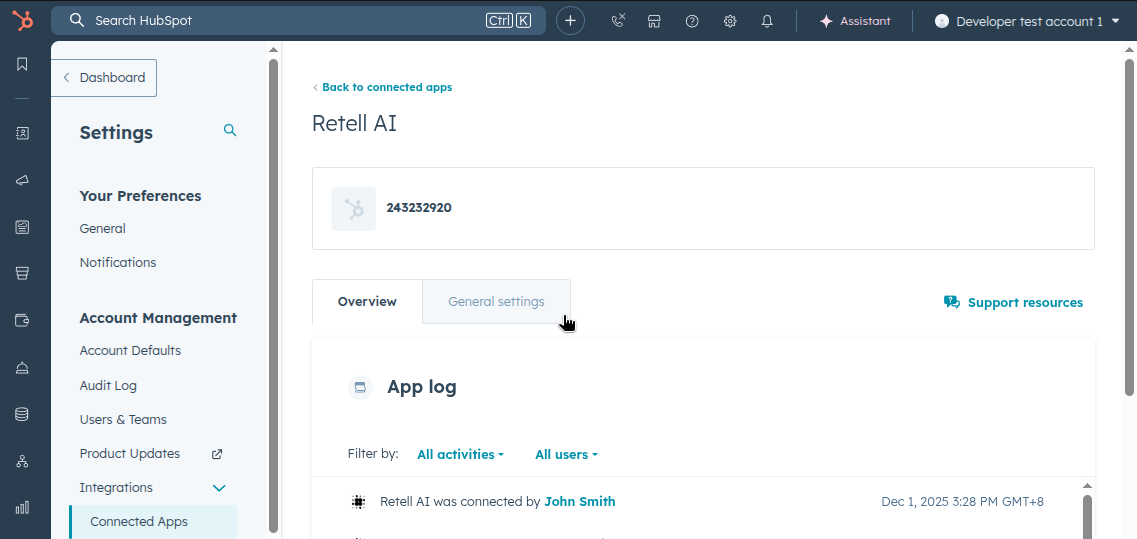
Go to **Connected Apps** and select **Retell AI**.
Navigate to the **General Settings** tab.
## Uninstalling the Application
Go to **Connected Apps** and select **Retell AI**.
Navigate to the **General Settings** tab.
 Click **Uninstall**.
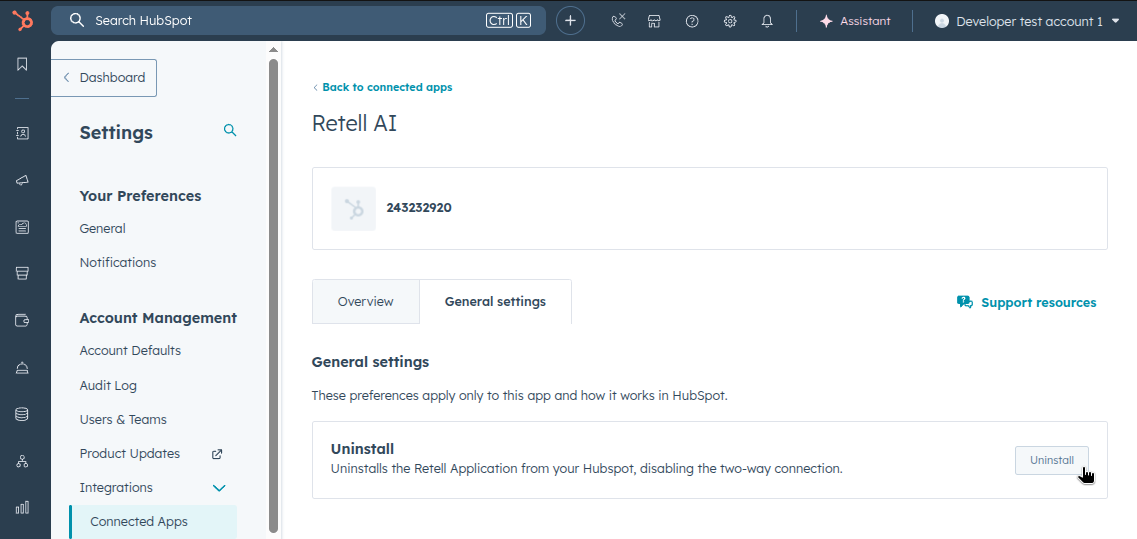 Your data will be deleted from Retell AI records and the app will be removed from HubSpot.