> ## Documentation Index
> Fetch the complete documentation index at: https://docs.retellai.com/llms.txt
> Use this file to discover all available pages before exploring further.
# OneDrive knowledge base sync
> Sync Microsoft OneDrive files into a Retell AI knowledge base: pick files in Microsoft's file picker, and changed files re-sync every 24 hours.
Files you add from Microsoft OneDrive become [knowledge base](/build/knowledge-base) sources that follow the file: when the document changes in OneDrive, Retell re-syncs it on the next refresh, so your agent answers from the version your team edits. This page covers picking the files and keeping them current.
Adding OneDrive files requires a [connected OneDrive account](/integrations/microsoft-onedrive).
## Add OneDrive files
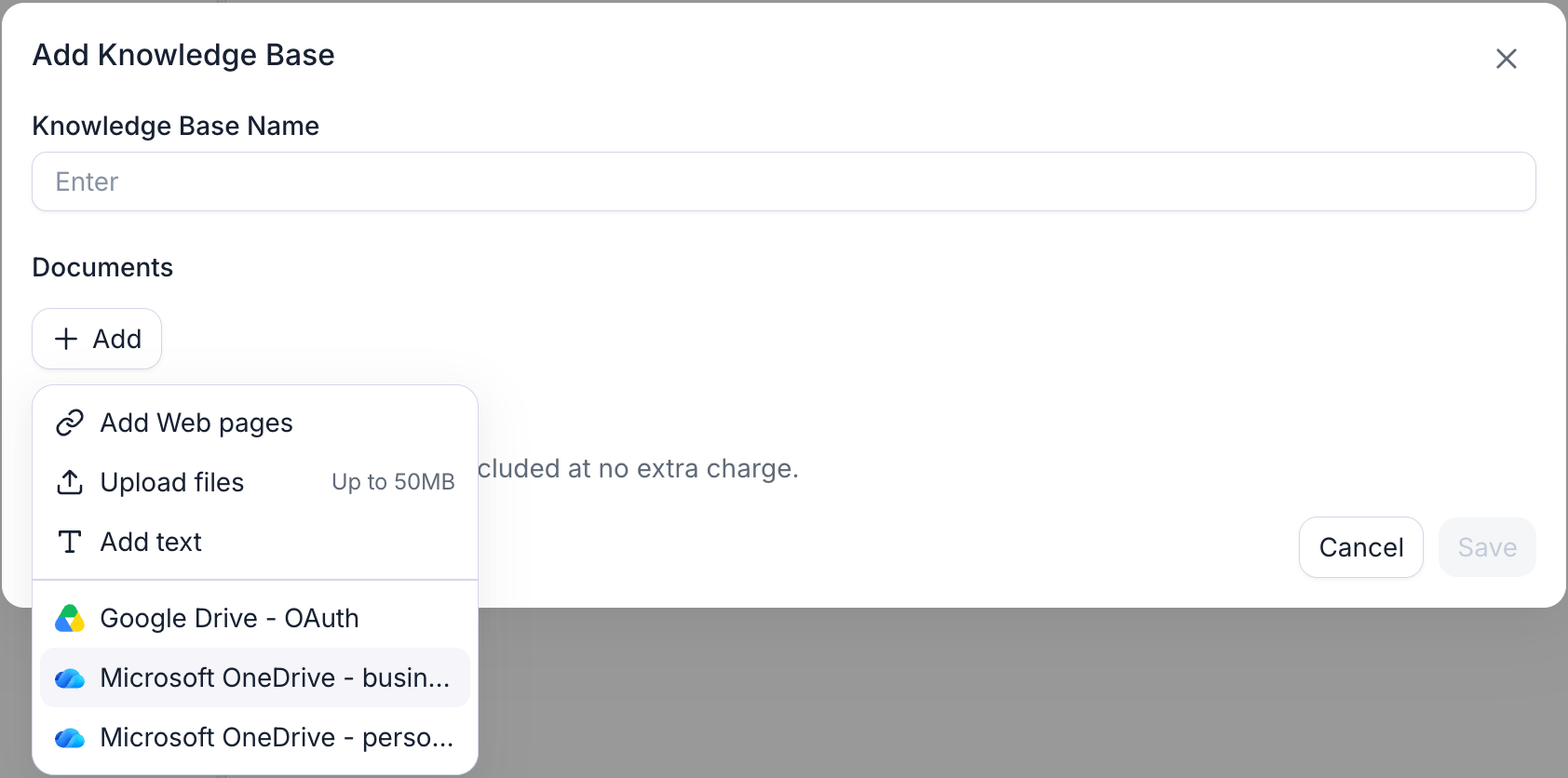
Go to **Knowledge Base**, open or create one, and open the **Add** menu. Your connected OneDrive accounts are listed there; with none connected yet, the menu offers **Connect Microsoft OneDrive** instead.
Select the OneDrive account. Microsoft's own file picker opens in a **pop-up window**, so allow pop-ups for the Retell dashboard. If the browser blocks it, Retell reports **Allow pop-ups for this site to pick files from OneDrive**.
Select one or more files, then confirm. The picker only offers [file types the knowledge base can parse](#supported-file-types), and only files in the connected account's own OneDrive — not SharePoint libraries, shared-with-me files, folders, or OneNote notebooks (see [what you can pick](/integrations/microsoft-onedrive#what-you-can-pick)).
Picked files are downloaded, chunked, and embedded like any other source. The knowledge base shows each file with its processing status, and its row is labeled **OneDrive**. A source that fails to process doesn't block the others.
## Limits
| Limit | Value |
| ----------------------------------- | -------------------------------------------------------------------------------------------------------------------------- |
| File size | 50 MB per file. Oversized files are dropped before the knowledge base saves, with a **File too large** notice naming them. |
| OneDrive sources per knowledge base | 25. Adding beyond that fails with `too many OneDrive sources, please reduce the number to below 25`. |
| Refresh cadence | Every 24 hours, with auto-refresh enabled on the knowledge base. |
Adding the same file twice is skipped rather than duplicated: Retell identifies a file by its drive and item, and reports **Already added**.
## Supported file types
OneDrive stores plain files, so what syncs is exactly what the knowledge base accepts for [document upload](/build/knowledge-base):
| Kind | Formats |
| ------------- | ------------------------------------------------------------------------------- |
| Documents | `.pdf`, `.doc`, `.docx`, `.odt`, `.rtf`, `.epub`, `.txt`, `.md`, `.rst`, `.org` |
| Spreadsheets | `.xls`, `.xlsx`, `.csv`, `.tsv` |
| Presentations | `.ppt`, `.pptx` |
| Web and data | `.htm`, `.html`, `.xml` |
| Email | `.eml`, `.msg`, `.p7s` |
| Images | `.bmp`, `.heic`, `.jpg`, `.jpeg`, `.png`, `.tif`, `.tiff` |
A file with no extractable text produces no content to index and fails with `produced no content to index`. The common case is a scanned, image-only PDF: Retell doesn't run OCR on it.
## Keeping content in sync
With auto-refresh enabled on the knowledge base, Retell re-checks each OneDrive file's last-modified time every 24 hours and re-downloads only the files that changed; unchanged files are skipped. Adding a OneDrive file to a new knowledge base turns auto-refresh on for you, and the toggle then reads **Automatically sync OneDrive files every 24 hours**.
Renaming a file in OneDrive is safe. Retell reads the current name from OneDrive on every sync, so a renamed file keeps syncing and a changed extension still picks the right parser.
If a file can't be re-fetched (deleted, permission lost, or the connection removed), the knowledge base keeps serving the previously synced content rather than dropping it. When the connection behind a source is gone, its row shows **Sync not available**.
## Troubleshooting
Microsoft's picker runs in a pop-up rather than inside the page, so a pop-up blocker stops it and Retell reports **Allow pop-ups for this site to pick files from OneDrive**. Allow pop-ups for the dashboard and try again. Only one picker runs at a time: launching a second one refocuses the window that's already open instead of starting over.
The picker has 30 seconds to load and connect back to the dashboard. Missing that window means the pop-up couldn't reach Microsoft's picker page: a network block, a browser extension interfering with the pop-up, or your organization's policy blocking the page. Retry once those are ruled out, and reconnect the integration if it keeps failing.
The connection is missing the account details the picker needs, which happens when a connect flow was interrupted partway. Open the connection on the **Connected** tab and click **Reconnect** to run the [Microsoft sign-in](/integrations/microsoft-onedrive) again.
The picker shows only files in the connected account's own OneDrive, filtered to [supported types](#supported-file-types). Files in a SharePoint site or document library, files shared with you from someone else's OneDrive, folders, and OneNote notebooks are all excluded. Copy the file into the connected account's OneDrive to sync it.
The knowledge base detail view names the source and the reason. The common ones are `is too large to index (max 50 MB)`, `produced no content to index` (an empty file or a scanned PDF), `is not a downloadable file` (a folder or OneNote notebook), and `Selected file is in SharePoint, not OneDrive`. Fix the file or pick a different one; the other sources still finish.
Check three things: the knowledge base has auto-refresh enabled, the OneDrive connection still exists on the **Connected** tab, and the connected account still has access to the file in OneDrive.
## FAQ
With auto-refresh enabled, changed files re-sync on the knowledge base's refresh cycle, which runs every 24 hours. An edit made this morning reaches the agent after the next refresh, not instantly. You can also trigger a sync by hand from the knowledge base detail view.
No. A connection reaches the signed-in account's own OneDrive only, personal or business. Copy the file into that OneDrive, or connect an account that owns it.
Yes. OneDrive sources sit alongside uploaded documents, crawled URLs, custom text, and [Google Drive files](/integrations/google-drive-knowledge-base) in the same knowledge base, and the auto-refresh toggle covers whichever syncing source types it holds.
No. The file stays in OneDrive: the knowledge base row references the OneDrive item rather than a stored copy, so it has no download action. Retell keeps only the extracted, embedded content used for retrieval.
## Next steps
Create a knowledge base, tune retrieval, and see the formatting that retrieves well.
Set up the connection and see exactly what access Retell asks Microsoft for.