> ## Documentation Index
> Fetch the complete documentation index at: https://docs.retellai.com/llms.txt
> Use this file to discover all available pages before exploring further.

# Integrations overview

> Connect HubSpot, Salesforce, Zendesk, Google Drive, Notion, Calendly, and more to Retell AI for agent tools, contact sync, and knowledge base sync.

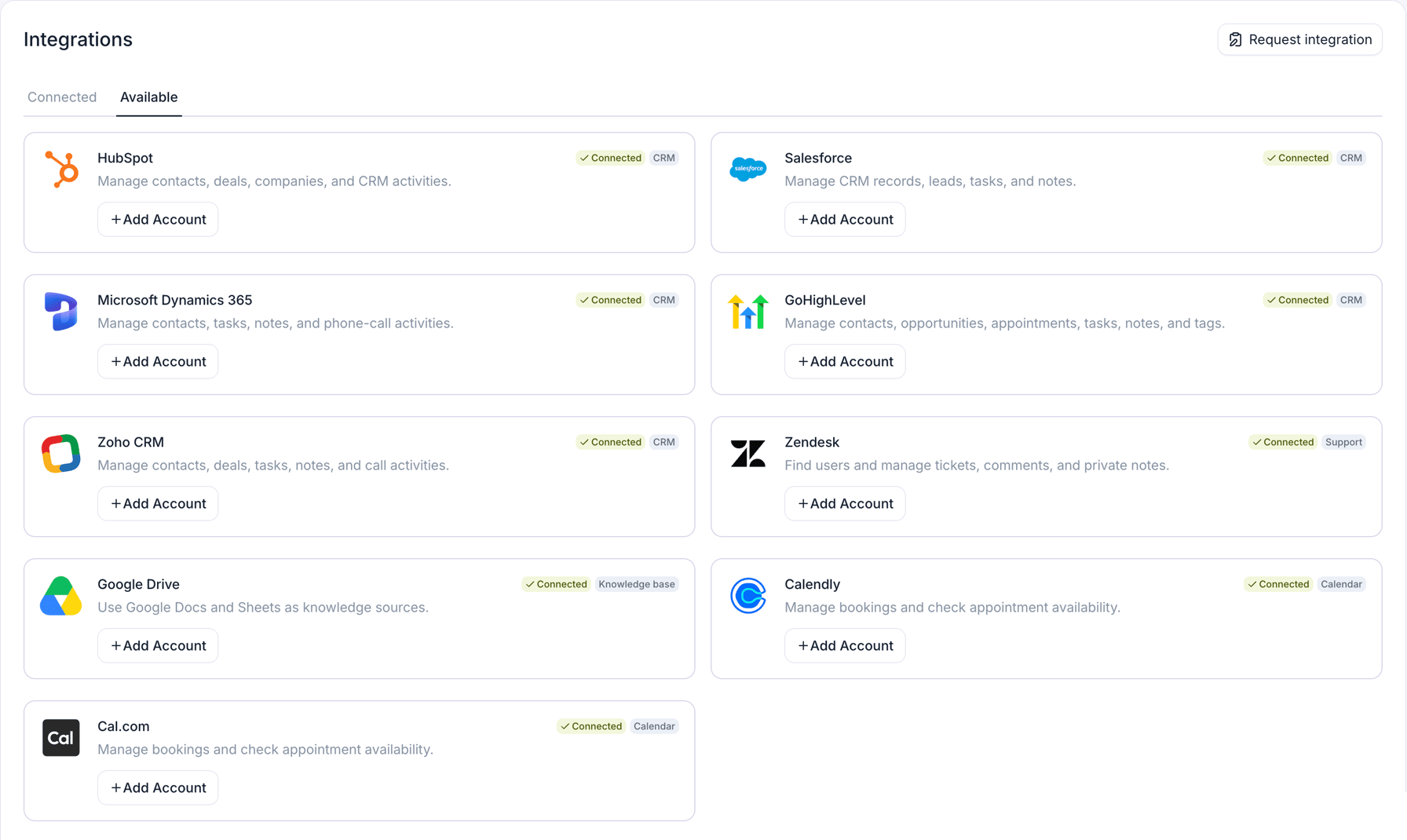
Retell connects to the CRMs, helpdesks, calendars, and knowledge sources your agents work against: HubSpot, Salesforce, Microsoft Dynamics 365, GoHighLevel, and Zoho CRM for CRM, Zendesk for support tickets, Google Drive, Microsoft OneDrive, and Notion for knowledge bases, and Calendly, Cal.com, and GoHighLevel for scheduling. Connect a provider once on the dashboard's **Integrations** page, and every agent in your workspace can use its tools before, during, and after a conversation (or, for the three knowledge base providers, their synced knowledge base content). The [table below](#supported-providers) is the current list.

<Frame caption="The Integrations page's Available tab, shown here with every provider already connected.">
  <div style={{ aspectRatio: '16 / 9', width: '100%', background: 'rgba(128,128,128,0.15)', display: 'flex', alignItems: 'center', justifyContent: 'center', borderRadius: '8px', overflow: 'hidden' }}>
    <img src="https://mintcdn.com/retellai/E9lBDpcEWOeDePme/images/integration/integrations-available-tab.png?fit=max&auto=format&n=E9lBDpcEWOeDePme&q=85&s=a5fcd8e836d9370cbaa30a39eab1cdae" alt="The Retell Dashboard's Integrations page on the Available tab, showing nine provider cards in two columns: HubSpot, Salesforce, Microsoft Dynamics 365, GoHighLevel, and Zoho CRM tagged CRM; Zendesk tagged Support; Google Drive tagged Knowledge base; and Calendly and Cal.com tagged Calendar. Each card carries a short description, a green Connected tag, and an Add Account button, and a Request integration button sits at the top right." style={{ maxWidth: '100%', maxHeight: '100%', objectFit: 'contain' }} width="1792" height="1070" data-path="images/integration/integrations-available-tab.png" />
  </div>
</Frame>

## What does an integration give you?

* **Integration tools.** Every provider except Google Drive, Microsoft OneDrive, and Notion adds tools your agent can call before, during, or after a call or chat: search a contact by the caller's number, check calendar availability, book an appointment, create a support ticket. See [use integration tools in an agent](#use-integration-tools-in-an-agent) and [agent workflow](/agent/agent-workflow).
* **Contact sync and activity logging** (CRM providers). Import CRM contacts into Retell, write [Post Call Extraction](/features/post-call-analysis-overview) results back to contact fields, and log each conversation to the CRM. [CRM integrations](/integrations/crm-overview) covers this in full.
* **Knowledge base sources** ([Google Drive](/integrations/google-drive), [Microsoft OneDrive](/integrations/microsoft-onedrive), [Notion](/integrations/notion)). Sync files or pages from a connected account into a [knowledge base](/build/knowledge-base) so your agent answers from their content, and re-syncs them as they change.

## Supported providers

| Provider                                                   | Category       | What your agent can do                                                                                                                                                                                                                 | Credentials                                                      |
| ---------------------------------------------------------- | -------------- | -------------------------------------------------------------------------------------------------------------------------------------------------------------------------------------------------------------------------------------- | ---------------------------------------------------------------- |
| [HubSpot](/integrations/hubspot)                           | CRM            | Look up and manage contacts, deals, companies, and tasks; log calls and notes to the timeline                                                                                                                                          | Private app access token                                         |
| [Salesforce](/integrations/salesforce)                     | CRM            | Look up and manage contacts, leads, accounts, opportunities, cases, and custom objects; create tasks and notes; run SOQL queries                                                                                                       | External Client App client ID and secret, plus your instance URL |
| [Microsoft Dynamics 365](/integrations/microsoft-dynamics) | CRM            | Look up and manage contacts; create tasks and notes; log phone call activities                                                                                                                                                         | OAuth sign-in, plus your Dynamics environment URL                |
| [GoHighLevel](/integrations/gohighlevel)                   | CRM            | Look up and manage contacts, opportunities, and tasks; add tags; create notes; check availability and book, reschedule, or cancel appointments on its [calendars](/integrations/gohighlevel-functions#book-the-sub-accounts-calendars) | API key, plus the sub-account Location ID                        |
| [Zoho CRM](/integrations/zoho)                             | CRM            | Look up and manage Contacts, read their Deals, create Tasks and Notes, and log calls to the timeline                                                                                                                                   | OAuth sign-in                                                    |
| [Zendesk](/integrations/zendesk)                           | Support        | Identify the caller, look up their tickets, create and update tickets, add public comments or private notes                                                                                                                            | OAuth sign-in, plus your Zendesk URL                             |
| [Google Drive](/integrations/google-drive)                 | Knowledge base | Answer questions from Docs, Sheets, and files synced into a knowledge base                                                                                                                                                             | Google OAuth sign-in                                             |
| [Microsoft OneDrive](/integrations/microsoft-onedrive)     | Knowledge base | Answer questions from OneDrive files synced into a knowledge base                                                                                                                                                                      | Microsoft OAuth sign-in                                          |
| [Notion](/integrations/notion)                             | Knowledge base | Answer questions from Notion pages synced into a knowledge base                                                                                                                                                                        | API key (internal connection token)                              |
| [Calendly](/integrations/calendly)                         | Calendar       | Check availability, book, cancel, and look up appointments                                                                                                                                                                             | API key (personal access token)                                  |
| [Cal.com](/integrations/cal-com)                           | Calendar       | Check availability, book, reschedule, cancel, and look up appointments                                                                                                                                                                 | API key, on cal.com or cal.eu                                    |

## Connect a provider

<Steps>
  <Step title="Open the Integrations page">
    In the Retell Dashboard, open **Integrations** and select the **Available** tab. Connecting requires an Admin or Developer role; custom roles need the **App.Write** and **CRM.Write** permissions.
  </Step>

  <Step title="Connect and authenticate">
    Pick your provider and enter what it asks for: an API key, or an OAuth sign-in on the provider's own page. Some providers also ask for your tenant URL (Salesforce instance URL, Dynamics environment URL, Zendesk URL) or account ID (GoHighLevel Location ID). Retell encrypts stored credentials and never returns them through the API.
  </Step>

  <Step title="Verify the connection">
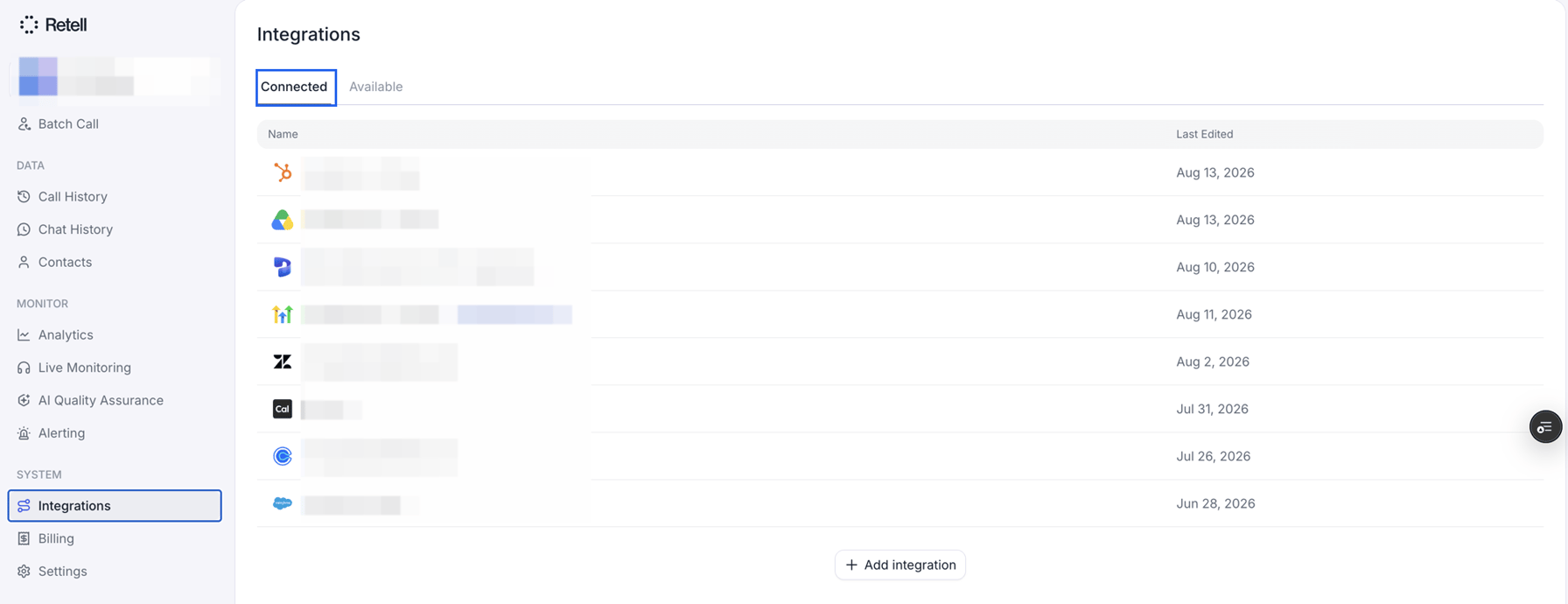
    Retell tests the credentials as part of connecting. The connection then appears on the **Connected** tab; from there you can rename it, rotate credentials, or set up CRM contact sync. A healthy connection shows no tag; a broken one carries a red **Connection error** tag, and the connection driving contact sync carries a blue **Contacts sync on** tag.

    <Frame caption="The Connected tab, listing each connection with its provider and when it was last edited.">
      <div style={{ aspectRatio: '16 / 9', width: '100%', background: 'rgba(128,128,128,0.15)', display: 'flex', alignItems: 'center', justifyContent: 'center', borderRadius: '8px', overflow: 'hidden' }}>
        <img src="https://mintcdn.com/retellai/eQ17pyeTZnmNJIsQ/images/integration/integrations-connected-tab.png?fit=max&auto=format&n=eQ17pyeTZnmNJIsQ&q=85&s=45b4c26ceccef1edb6cb152d32d87af0" alt="The Retell Dashboard's Integrations page with the Connected tab selected and ringed in blue. A table lists eight connections with provider icons for HubSpot, Google Drive, Microsoft Dynamics 365, GoHighLevel, Zendesk, Cal.com, Calendly, and Salesforce, with connection names redacted and Last Edited dates visible. One connection carries the blue Contacts sync on tag, and an Add integration button sits below the table." style={{ maxWidth: '100%', maxHeight: '100%', objectFit: 'contain' }} width="1792" height="690" data-path="images/integration/integrations-connected-tab.png" />
      </div>
    </Frame>
  </Step>
</Steps>

For the provider-side setup (creating the app, granting scopes, finding the token), follow the provider's guide, linked in the table above.

## Use integration tools in an agent

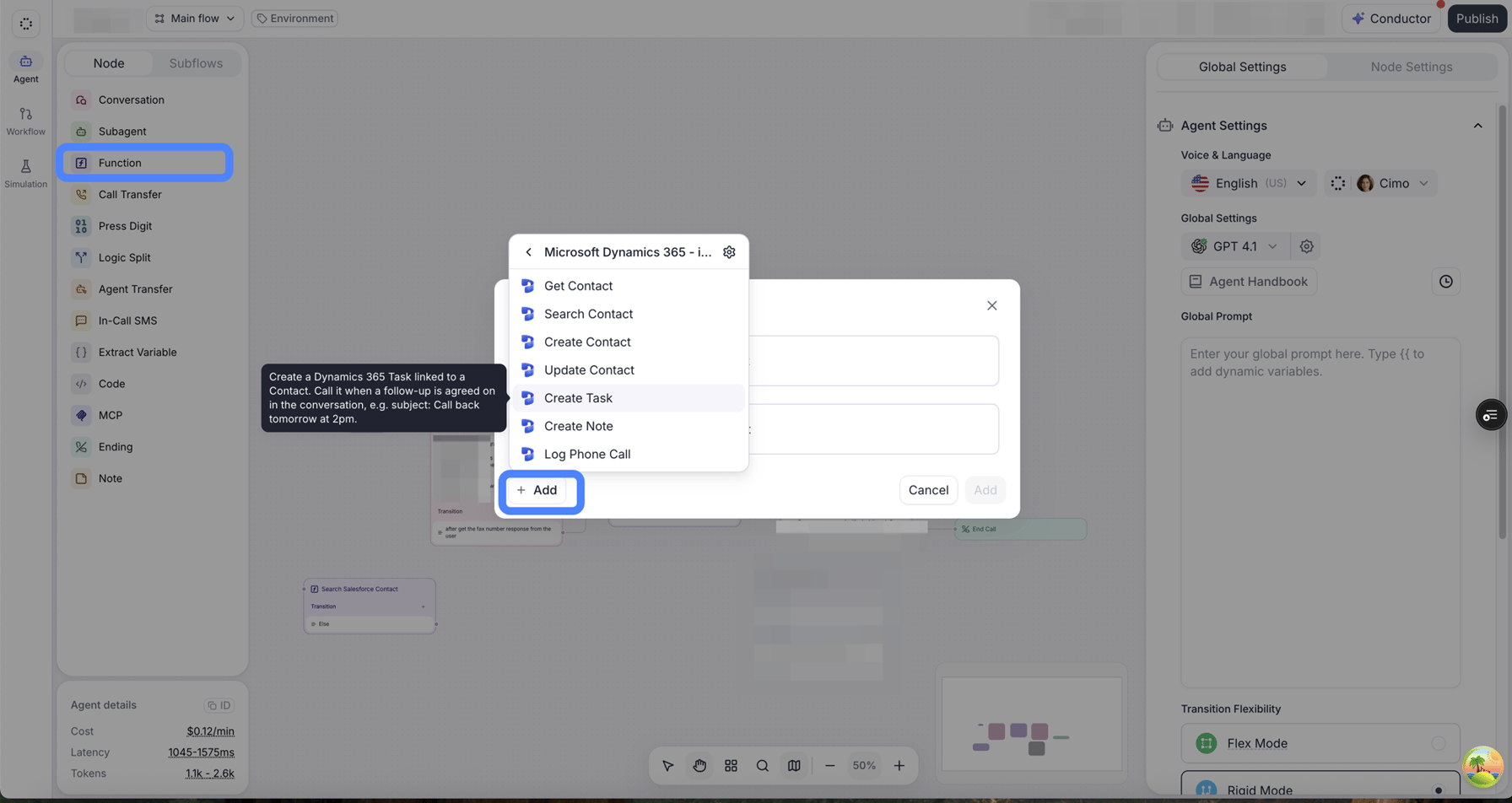
Once a provider is connected, its tools show up when you add a function to an agent, whether in a prompt agent's **Functions** section or a conversation flow's function node; see [integration tools for prompt agents](/build/single-multi-prompt/integration-tools) and [integration tools in conversation flow](/build/conversation-flow/integration-tools) for each surface. Each configured tool is bound to one specific connection, so if you connect two HubSpot accounts, you choose which one the tool uses.
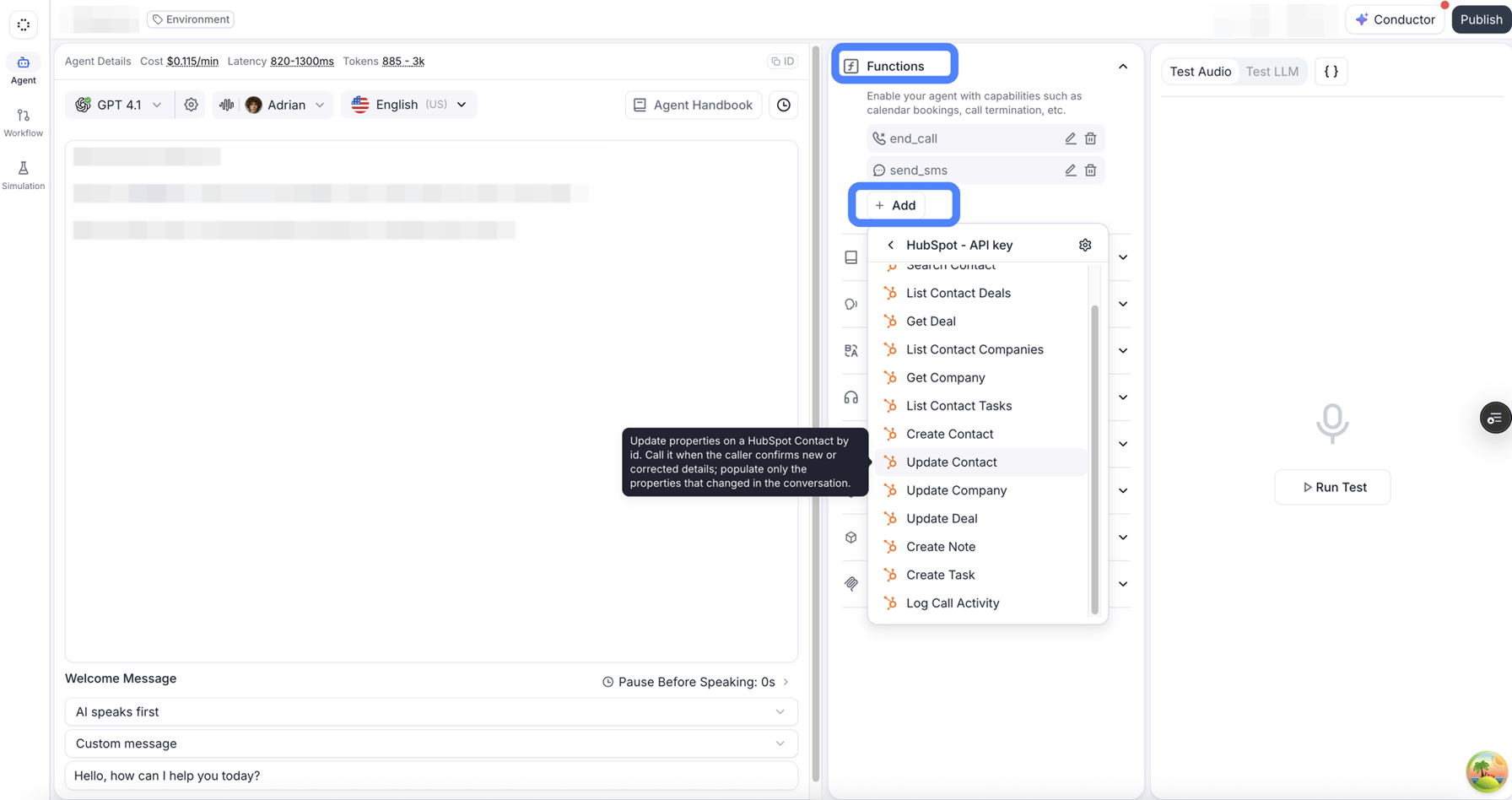
<Frame caption="Adding a HubSpot tool to a single prompt agent's Functions section.">
  <div style={{ aspectRatio: '16 / 9', width: '100%', background: 'rgba(128,128,128,0.15)', display: 'flex', alignItems: 'center', justifyContent: 'center', borderRadius: '8px', overflow: 'hidden' }}>
    <img src="https://mintcdn.com/retellai/eQ17pyeTZnmNJIsQ/images/integration/agent-functions-add-integration.png?fit=max&auto=format&n=eQ17pyeTZnmNJIsQ&q=85&s=bd69e74c3a9aacb25f4add169593fc2e" alt="A single prompt agent's editor with the Functions section and its + Add button ringed in blue. The add menu is open on a connection named HubSpot - API key, listing HubSpot tools such as List Contact Deals, Get Deal, Create Contact, and Log Call Activity. Update Contact is hovered, showing its description. The agent's prompt is redacted." style={{ maxWidth: '100%', maxHeight: '100%', objectFit: 'contain' }} width="1792" height="948" data-path="images/integration/agent-functions-add-integration.png" />
  </div>
</Frame>

<Frame caption="The same menu in a conversation flow's function node, here on a Microsoft Dynamics 365 connection.">
  <div style={{ aspectRatio: '16 / 9', width: '100%', background: 'rgba(128,128,128,0.15)', display: 'flex', alignItems: 'center', justifyContent: 'center', borderRadius: '8px', overflow: 'hidden' }}>
    <img src="https://mintcdn.com/retellai/eQ17pyeTZnmNJIsQ/images/integration/function-node-add-integration-tool.png?fit=max&auto=format&n=eQ17pyeTZnmNJIsQ&q=85&s=43f3006b516ff2967157505186395670" alt="A conversation flow editor with the Function node type ringed in blue in the node palette. The add-function dialog is open on a Microsoft Dynamics 365 connection, listing its tools with Create Task hovered and its description shown. The Add button below the list is also ringed." style={{ maxWidth: '100%', maxHeight: '100%', objectFit: 'contain' }} width="1792" height="952" data-path="images/integration/function-node-add-integration-tool.png" />
  </div>
</Frame>

### Configure a tool's inputs and outputs

Every tool config carries a **Name**, a **Description** that tells the LLM when to call it, and a **Function fields** card with an **Input** tab and an **Output** tab.

On the **Input** tab, each field the provider accepts carries a mode pill that decides where its value comes from:

* **Value** — a literal you type, like a Cal.com event type ID. It can contain `{{variable}}` references, resolved when the tool runs.
* **Description** — a sentence the LLM uses to fill the value from the conversation, like "the caller's preferred appointment time."
* **Select**, **Boolean**, or **Array items** — the typed control the field's own shape gives it: a fixed list of options, a true/false toggle, or a list of rows. A field gets at most one of these.

Not every field offers all of these. Where the provider requires a fixed value, the field shows only the control it allows.
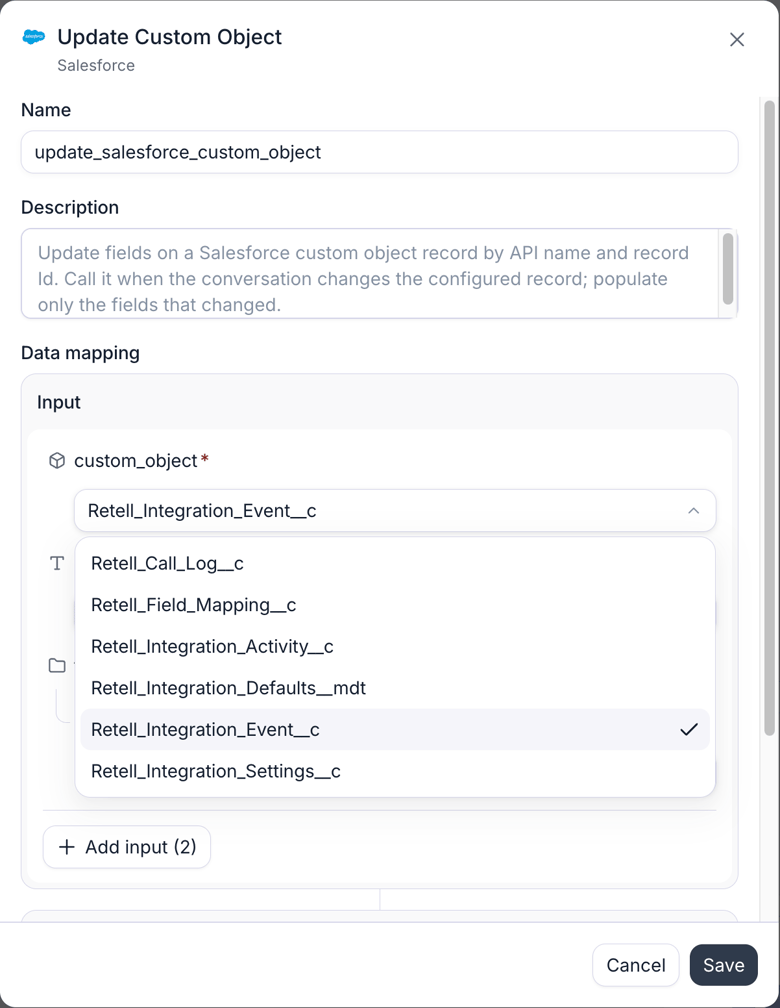
<Frame caption="A tool's configuration: the Salesforce custom object is a fixed value picked now; other inputs come from the conversation.">
  <div style={{ aspectRatio: '16 / 9', width: '100%', background: 'rgba(128,128,128,0.15)', display: 'flex', alignItems: 'center', justifyContent: 'center', borderRadius: '8px', overflow: 'hidden' }}>
    <img src="https://mintcdn.com/retellai/eQ17pyeTZnmNJIsQ/images/integration/integration-tool-config.png?fit=max&auto=format&n=eQ17pyeTZnmNJIsQ&q=85&s=03c3f525bcd2806d6c678c6b6dd9e60e" alt="The configuration dialog for Salesforce's Update Custom Object integration tool, with editable Name and Description fields. Under Data mapping, the required custom_object input's dropdown is open, listing the org's custom objects with Retell_Integration_Event__c selected. An Add input button and Cancel and Save buttons complete the dialog." style={{ maxWidth: '100%', maxHeight: '100%', objectFit: 'contain' }} width="780" height="1008" data-path="images/integration/integration-tool-config.png" />
  </div>
</Frame>

### Run a test to get a tool's output fields

The **Output** tab decides what the response gives back: which fields the agent sees, and which become [dynamic variables](/build/dynamic-variables). Most providers ship a response schema, so the field picker is already populated. Run a test when a tool has no schema, or when you want the real field names and values in front of you.

<Warning>
  A test request is sent to the connected provider for real. A lookup reads live data, and testing a create or update tool writes a real record. Use values you don't mind touching.
</Warning>

<Steps>
  <Step title="Run a test">
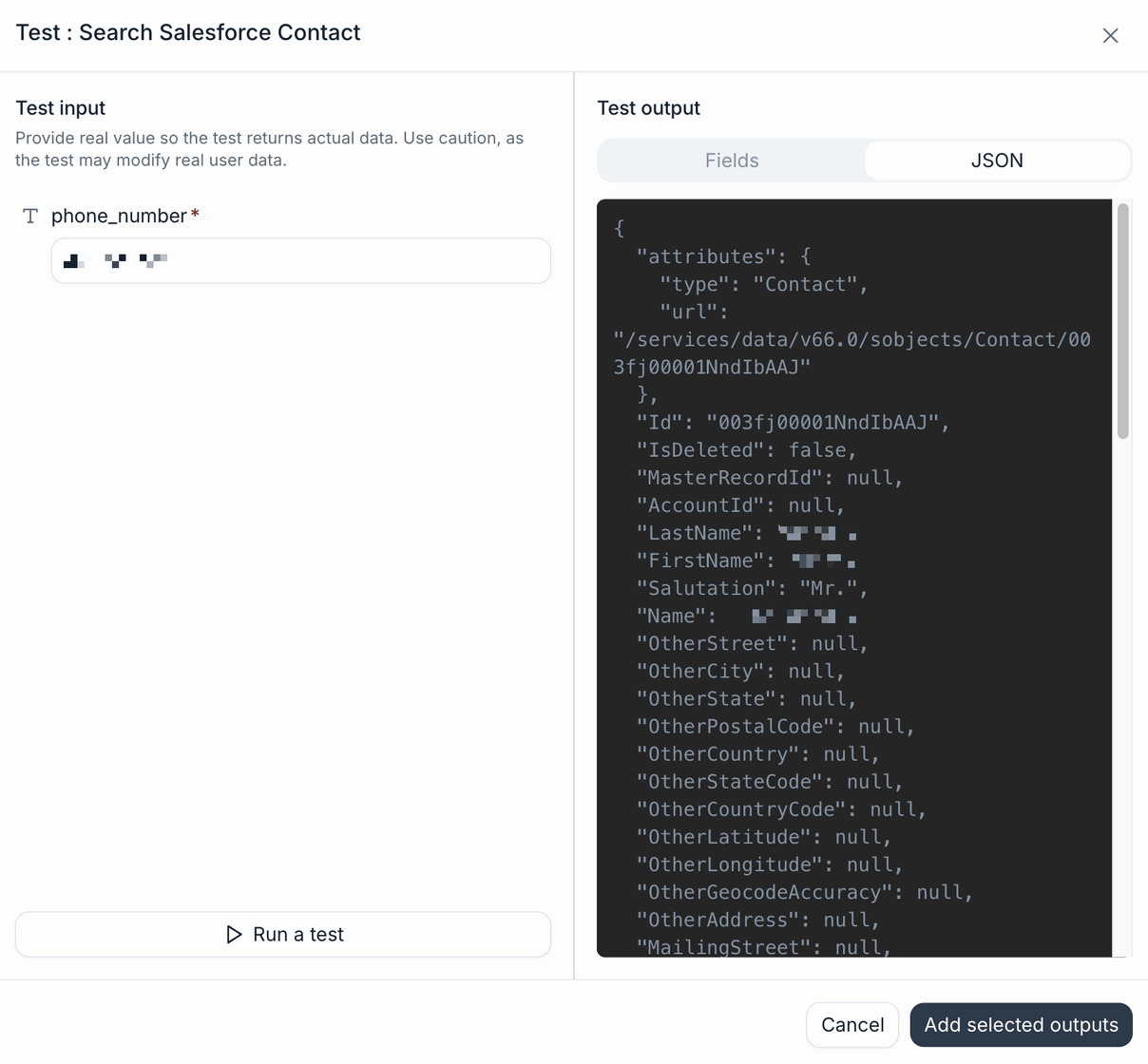
    On the **Output** tab, click **Run a test**, fill in the tool's inputs, and run it. Retell calls the provider and shows the actual response: a checkable field tree on the **Fields** tab, the raw payload on the **JSON** tab.

    Enter concrete values here rather than `{{variable}}` references. A test resolves variables in the tool's pinned inputs, but not in the values you type into the test panel.

    <Frame caption="The test panel for a Search Salesforce Contact function, on the JSON tab after a run.">
      <div style={{ aspectRatio: '16 / 9', width: '100%', background: 'rgba(128,128,128,0.15)', display: 'flex', alignItems: 'center', justifyContent: 'center', borderRadius: '8px', overflow: 'hidden' }}>
        <img src="https://mintcdn.com/retellai/wpYimq3MbpJ26a1D/images/integration/integration-tool-test-json.png?fit=max&auto=format&n=wpYimq3MbpJ26a1D&q=85&s=823d942680621e8b0e065fd567a38c6c" alt="The Test : Search Salesforce Contact dialog. The left pane, Test input, warns to provide real values because the test may modify real user data, and holds a required phone_number field whose value is pixelated, above a Run a test button. The right pane, Test output, has Fields and JSON tabs with JSON selected, showing the live Salesforce response: an attributes object with type Contact and a record url, then Id, IsDeleted false, MasterRecordId, AccountId, and a long list of fields, with the LastName, FirstName, and Name values pixelated and the remaining address fields null. Cancel and Add selected outputs buttons sit at the bottom." style={{ maxWidth: '100%', maxHeight: '100%', objectFit: 'contain' }} width="1208" height="1120" data-path="images/integration/integration-tool-test-json.png" />
      </div>
    </Frame>
  </Step>

  <Step title="Pick the fields the agent should see">
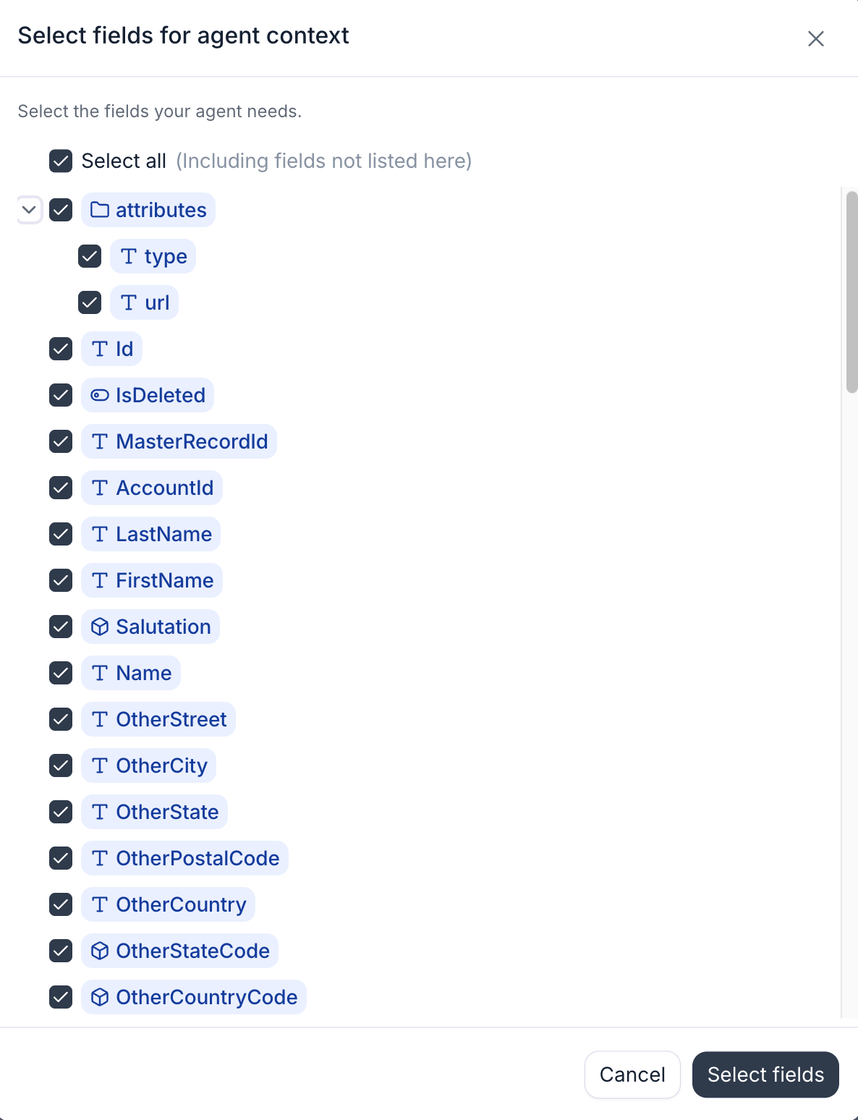
    In the test panel, tick the fields worth keeping and click **Add selected outputs**. They land in the **Output** tab's list under **Fields for agent context**, the only part of the response the agent and the transcript see, which keeps a large provider payload from crowding the prompt. Leave the list empty to send the whole response.

    **Select fields** on the **Output** tab opens the same picker against the tool's response schema, so you can choose fields without running anything; it confirms with its own **Select fields** button.

    <Frame caption="The Select fields dialog, with the whole Salesforce Contact response checked.">
      <div style={{ aspectRatio: '16 / 9', width: '100%', background: 'rgba(128,128,128,0.15)', display: 'flex', alignItems: 'center', justifyContent: 'center', borderRadius: '8px', overflow: 'hidden' }}>
        <img src="https://mintcdn.com/retellai/wpYimq3MbpJ26a1D/images/integration/integration-tool-select-fields.png?fit=max&auto=format&n=wpYimq3MbpJ26a1D&q=85&s=200d87ceda98d343a5a21c0a6e545c14" alt="The Select fields for agent context dialog, headed with the line Select the fields your agent needs. A checked Select all box is labelled Including fields not listed here, followed by a checkbox tree of the Salesforce Contact response: an expanded attributes folder holding type and url, then Id, IsDeleted, MasterRecordId, AccountId, LastName, FirstName, Salutation, Name, and a run of Other address fields, every box checked. Cancel and Select fields buttons close the dialog." style={{ maxWidth: '100%', maxHeight: '100%', objectFit: 'contain' }} width="858" height="1120" data-path="images/integration/integration-tool-select-fields.png" />
      </div>
    </Frame>

    **Manually add fields** takes a dot-path the schema doesn't describe. A path names a branch and keeps everything under it; a plain segment reaches into every element of an array (`deals.properties.amount` keeps that field on all of them), while `deals[0].id` keeps only the first.
  </Step>

  <Step title="Name the ones you need as variables">
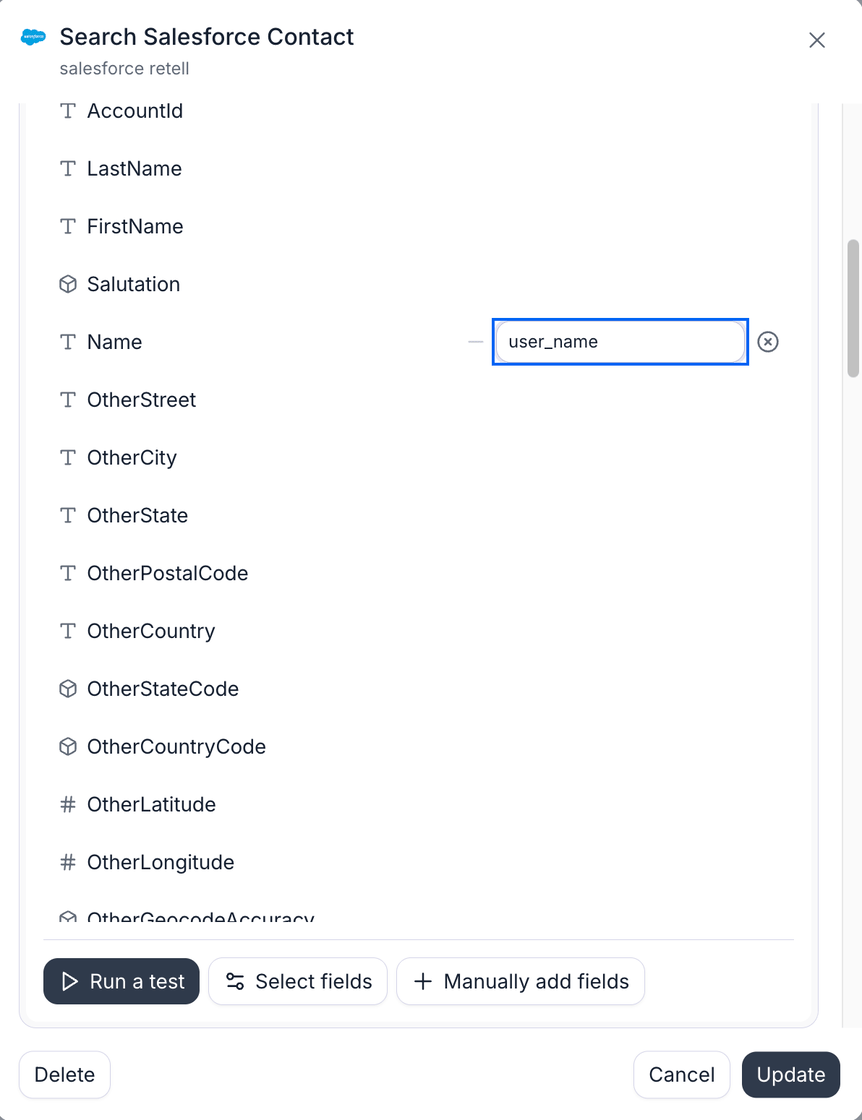
    In the **Dynamic variable** column, name any field you want to reuse: in the prompt, in a later tool's input, or in a function on the [agent's workflow](/agent/agent-workflow). Variables are extracted from the raw response, so narrowing what the agent sees never breaks one you mapped.

    <Frame caption="The Output tab: the Name field is kept for the agent and saved as `user_name`.">
      <div style={{ aspectRatio: '16 / 9', width: '100%', background: 'rgba(128,128,128,0.15)', display: 'flex', alignItems: 'center', justifyContent: 'center', borderRadius: '8px', overflow: 'hidden' }}>
        <img src="https://mintcdn.com/retellai/wpYimq3MbpJ26a1D/images/integration/integration-tool-output-fields.png?fit=max&auto=format&n=wpYimq3MbpJ26a1D&q=85&s=140dab39d485d5f33f14df7190d4dc9c" alt="The Output tab of the Search Salesforce Contact function, on a connection named salesforce retell. Response fields are listed one per row: AccountId, LastName, FirstName, Salutation, Name, then a run of Other address fields. The Name row carries a dynamic variable input reading user_name, ringed in blue, with a button beside it to clear the mapping. A pinned bar below holds Run a test, Select fields, and Manually add fields, above Delete, Cancel, and Update." style={{ maxWidth: '100%', maxHeight: '100%', objectFit: 'contain' }} width="862" height="1120" data-path="images/integration/integration-tool-output-fields.png" />
      </div>
    </Frame>
  </Step>
</Steps>

For example, a dental clinic connects Cal.com and HubSpot. Its inbound agent searches HubSpot for the caller's number to greet them by name, checks Cal.com availability for the requested week, books the cleaning appointment, then logs the call on the HubSpot timeline, without a human touching either system.

## Run tools before or after the call or chat

Tools can also run outside the conversation. On the agent's **Workflow** page, add them as **pre-call functions**, which run before the call starts so the agent has context before it speaks, or as **post-call functions**, which run after the call ends to update your systems. Chat agents have the same two slots, named pre-chat and post-chat functions.

Each slot is a dependency graph rather than a list: functions with no dependency all start at once, and a function you add as sequential waits for the one above it and can use its output through a dynamic variable. Post-conversation functions can also be gated on a condition, so a follow-up task is created only when the session earned one.

[Agent workflow](/agent/agent-workflow) covers the whole surface: chaining, conditions, timing budgets, failure behavior, and worked examples for both voice and chat.

## FAQ

<AccordionGroup>
  <Accordion title="Can I connect more than one account for the same provider?">
    Yes. Each connection is separate, and each tool is bound to a specific connection. The one exception is CRM contact sync: only one CRM connection can drive [contact sync](/integrations/crm-overview) for your workspace at a time.
  </Accordion>

  <Accordion title="Do I need contact sync to use CRM integration tools?">
    No. Integration tools work as soon as the connection is made. Contact sync and automatic activity logging are separate CRM features you opt into per connection; [analysis data mappings](/integrations/crm-mappings) are configured once per workspace.
  </Accordion>

  <Accordion title="What happens if a tool call fails mid-conversation?">
    Each tool call times out after 3 to 14 seconds, depending on the provider and tool (as of August 2026). If the provider doesn't respond in time or returns an error, the tool call fails and the agent continues the conversation; prompt your agent on what to say when a lookup or booking doesn't go through.
  </Accordion>

  <Accordion title="How do I know a connection is healthy?">
    Retell marks a connection as errored when the provider rejects its credentials, flagging it with the red **Connection error** tag on the **Connected** tab. On most providers a missing scope or permission doesn't flag the connection, because the provider answers with a permission error rather than rejecting the credentials; the affected feature quietly stops working, so check provider-side permissions first when one tool misbehaves.

    Two things do flag it. The connection test, run when you connect or reconnect, flags the connection whenever it fails, including on a scope the test itself needs. And on [GoHighLevel](/integrations/gohighlevel-functions#required-scopes) a missing scope comes back as an authorization error Retell can't tell apart from a dead token, so a tool call can flag the connection.
  </Accordion>
</AccordionGroup>