> ## Documentation Index
> Fetch the complete documentation index at: https://docs.retellai.com/llms.txt
> Use this file to discover all available pages before exploring further.
# Trigger Retell calls from Slack
> Install the Retell AI Slack app to start outbound voice agent calls from Slack and post call summaries, results, and recordings back to channels.
This guide connects **Retell AI** to Slack so team members can start outbound calls with a slash command. After each analyzed call, Retell posts the result to the originating channel.
## Before you start
* Permission to install apps in the target Slack workspace
* A Retell account with an API key, configured voice agent, and outbound phone number
* A Slack channel where Retell can post call results; invite Retell AI before using a private channel
* A valid destination number in E.164 format, such as `+15551234567`
Use your own API key, webhook URL, agent, caller ID, channels, and test numbers. The screenshots use sample or masked values.
## Install Retell AI in Slack
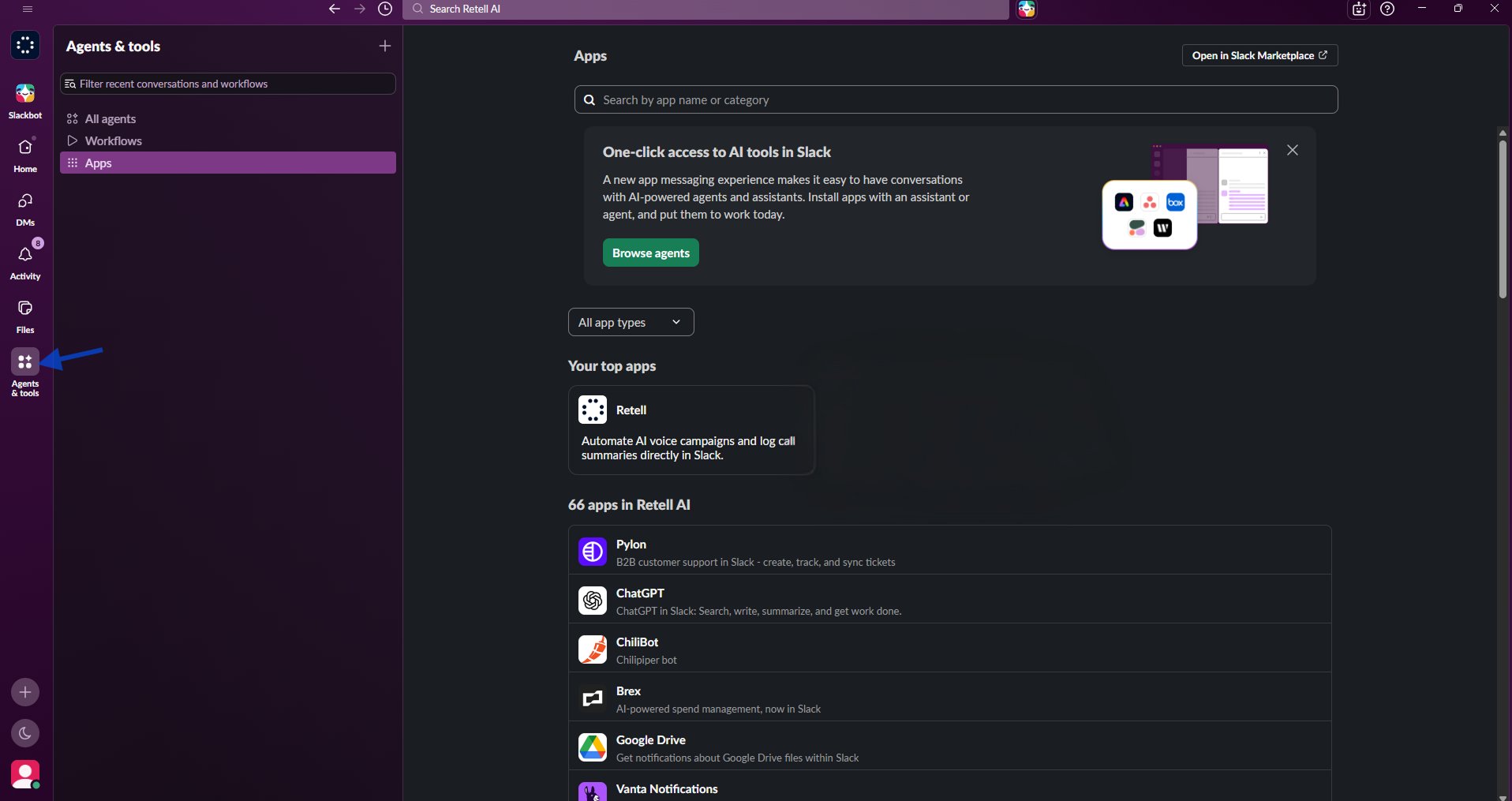
Open the Slack App Directory, search for **Retell AI**, select **Add to Slack**, and choose the workspace you want to connect.
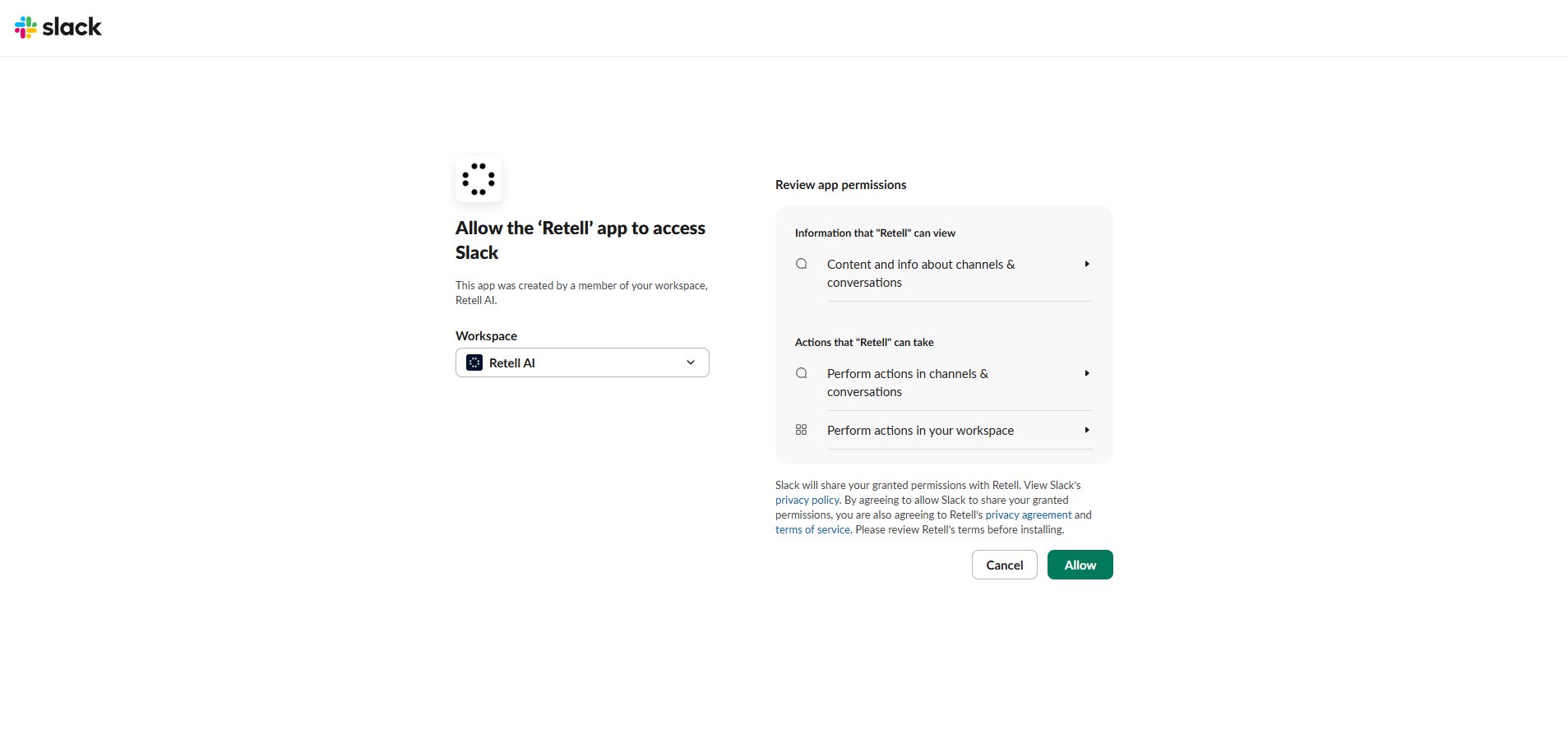
 Review the Slack permissions, then select **Allow** to finish installing the app.
 ## Connect Slack and configure Retell
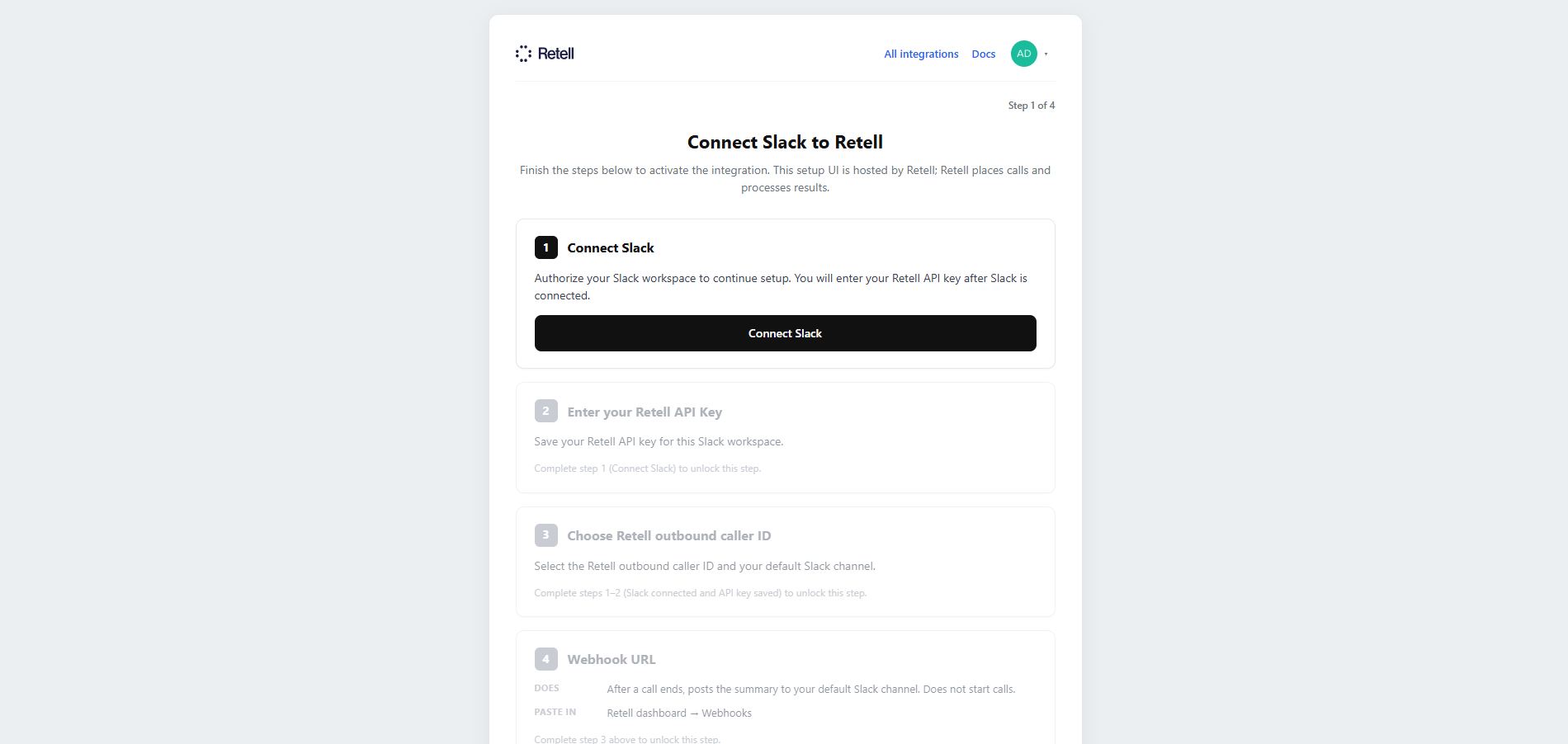
In Slack, open **Apps → Retell AI → Home**. If the workspace is not connected, select **Connect Slack** and approve access.
## Connect Slack and configure Retell
In Slack, open **Apps → Retell AI → Home**. If the workspace is not connected, select **Connect Slack** and approve access.
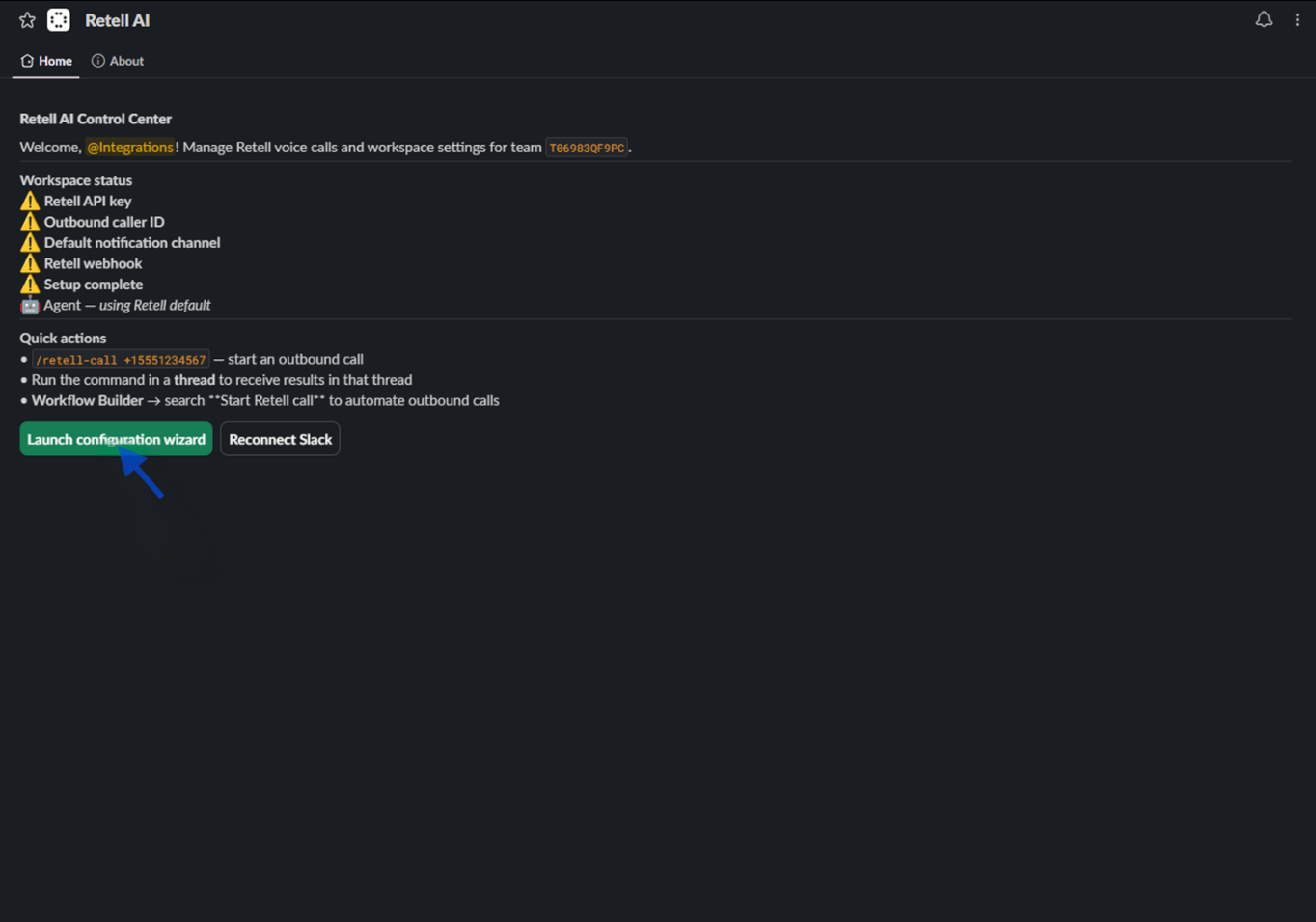 From App Home, select **Launch configuration wizard**. Sign in to Retell if required, or continue without signing in when your Retell account is already configured.
 In the Retell dashboard, go to **Settings → API Keys**. Copy an existing key or select **Add Key** to create one. Open the key's **⋮** options menu and select **Set as webhook key**, then copy the key value.
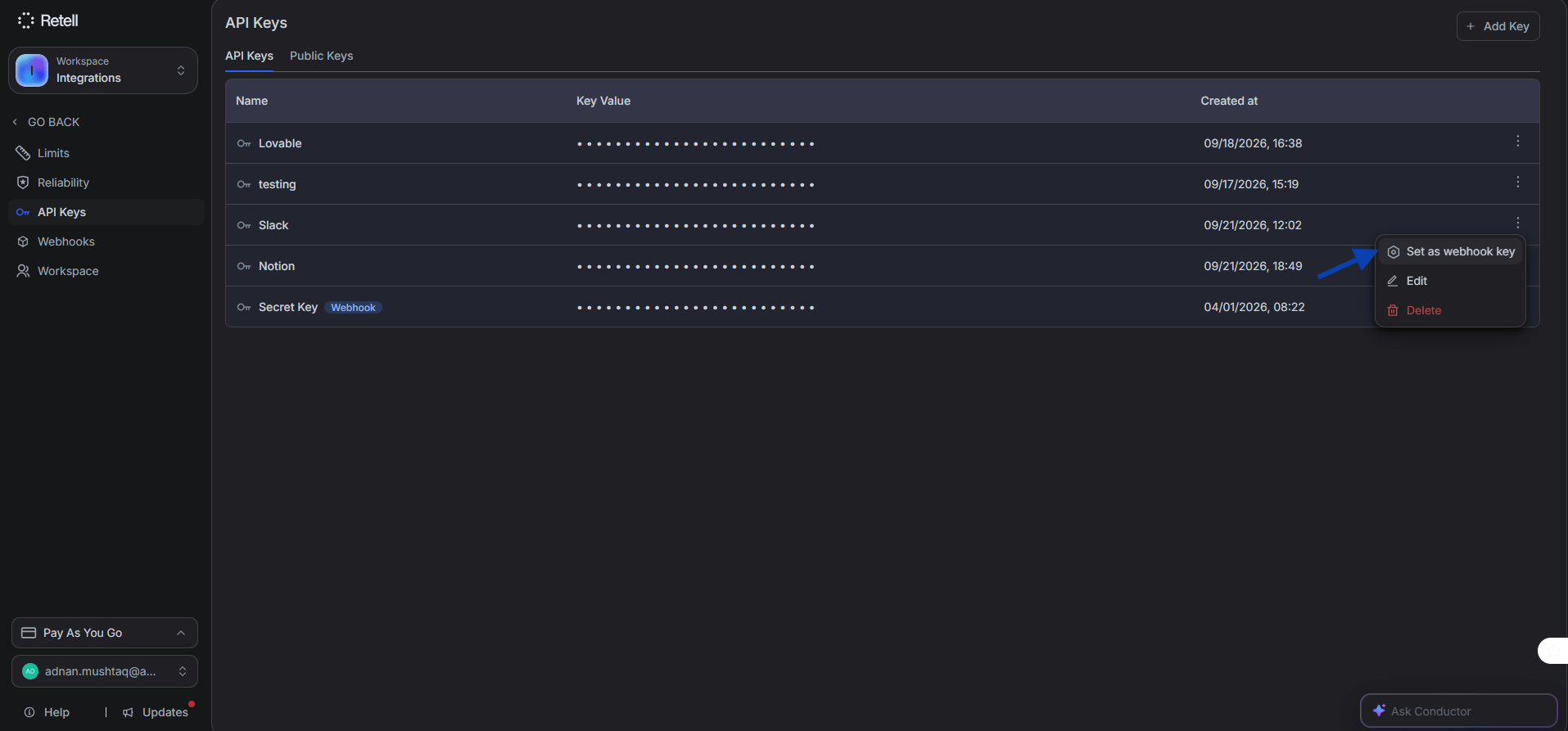 The API key must have the webhook option enabled. Post-call analysis data is only posted back to Slack when the key is designated as a webhook key.
Paste the webhook key into **Retell API Key** and select **Save API key**. Confirm that the status shows **Saved** before continuing.
Retell AI supports only one active webhook integration at a time. If you are also using Notion or Zoho, choose which integration receives webhook events.
The API key must have the webhook option enabled. Post-call analysis data is only posted back to Slack when the key is designated as a webhook key.
Paste the webhook key into **Retell API Key** and select **Save API key**. Confirm that the status shows **Saved** before continuing.
Retell AI supports only one active webhook integration at a time. If you are also using Notion or Zoho, choose which integration receives webhook events.
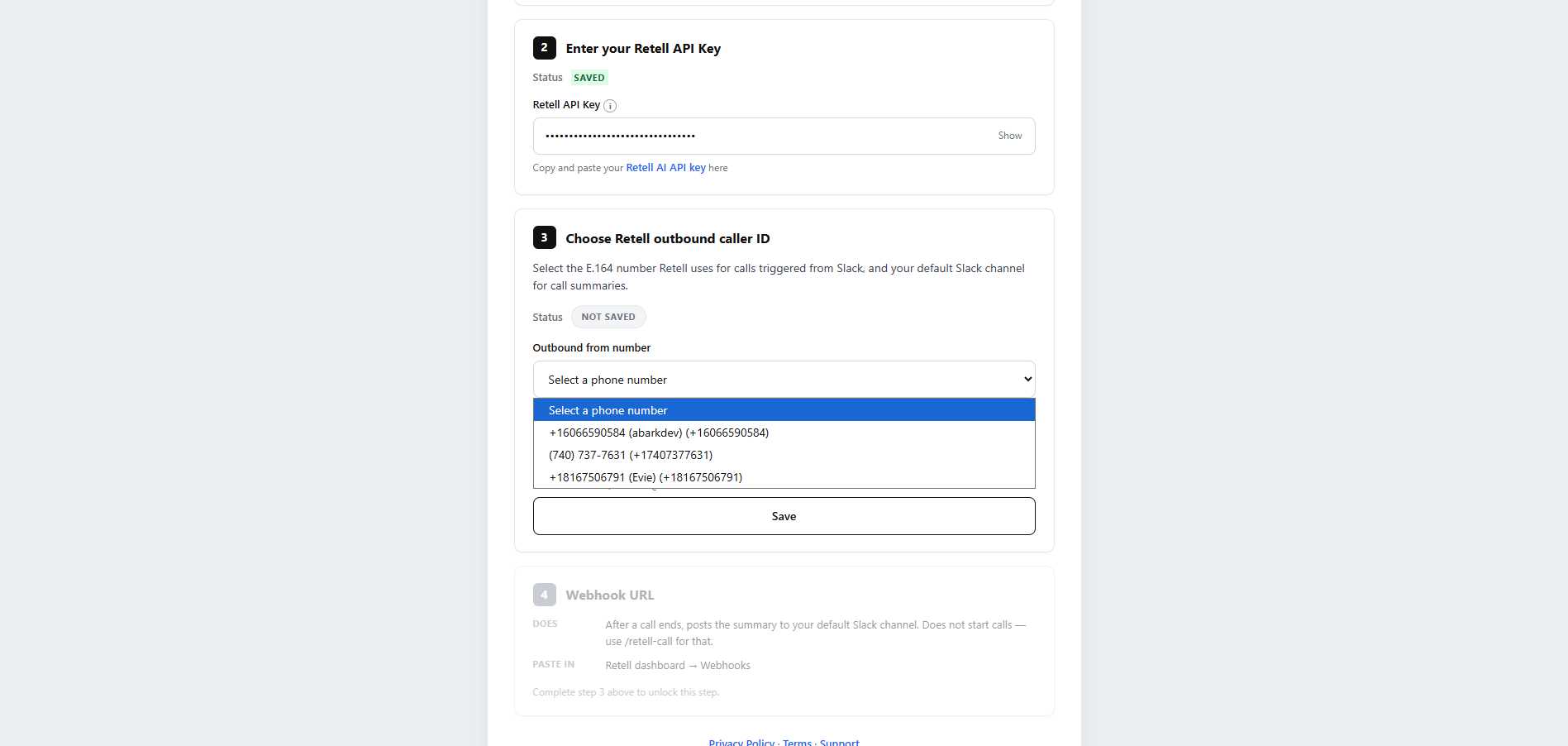
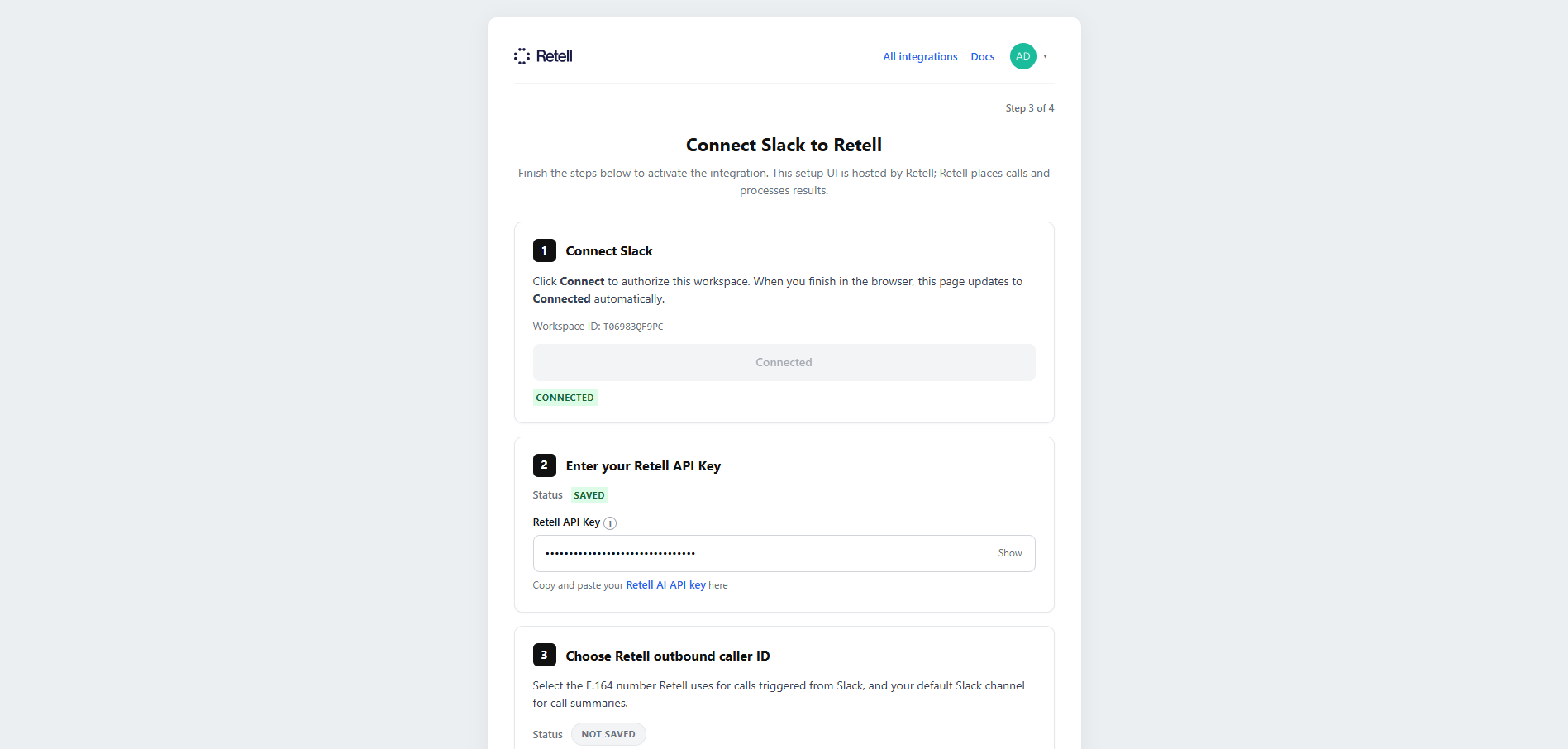 Select the Retell phone number used for outbound calls. If an agent option appears, choose the default agent or keep the Retell account default.
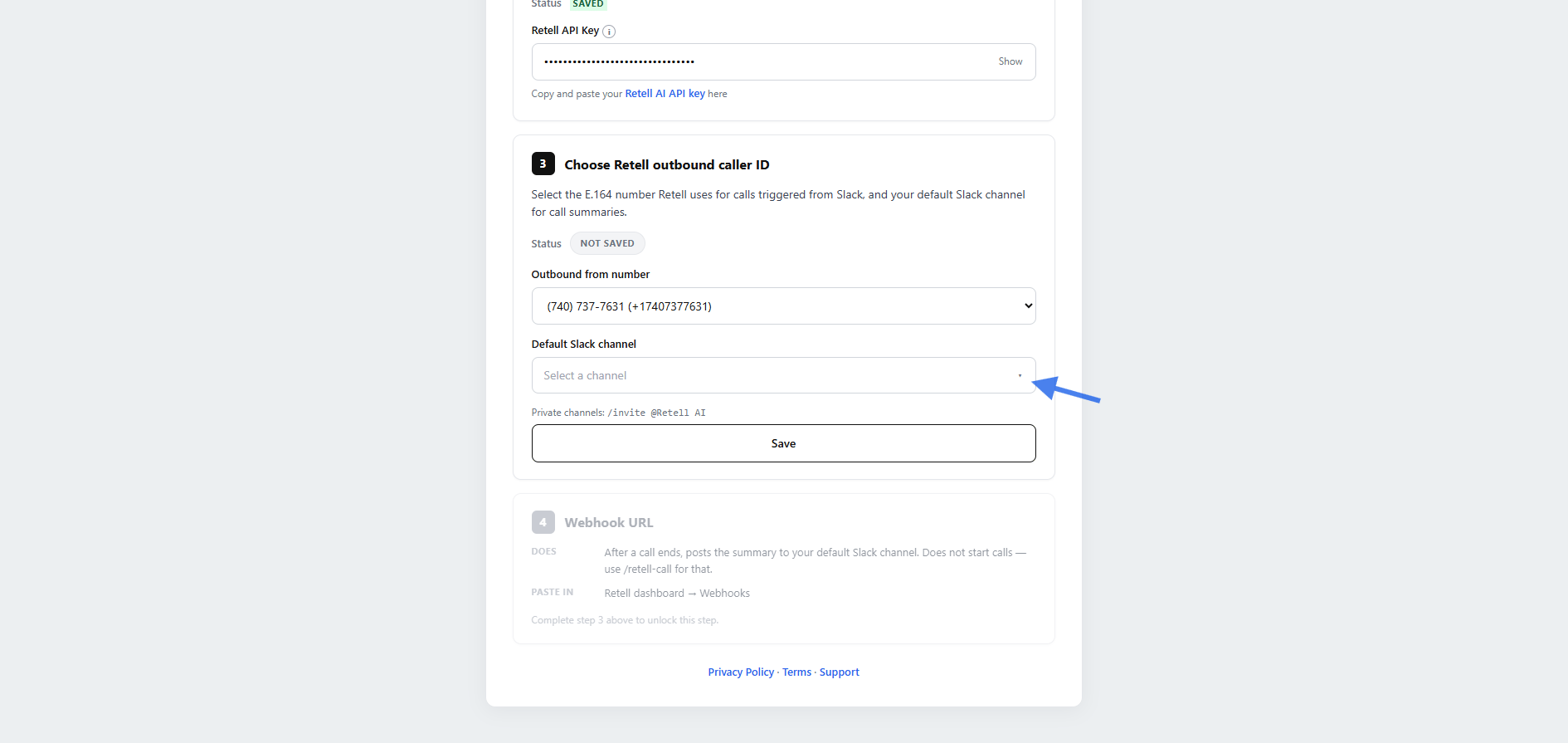
 Choose the Slack channel that receives results when a call does not specify one. For a private channel, first run `/invite @Retell AI` in that channel.
 ## Register the Retell webhook
In the setup wizard, find **Register the Webhook URL in Retell** and select **Copy webhook URL**.
## Register the Retell webhook
In the setup wizard, find **Register the Webhook URL in Retell** and select **Copy webhook URL**.
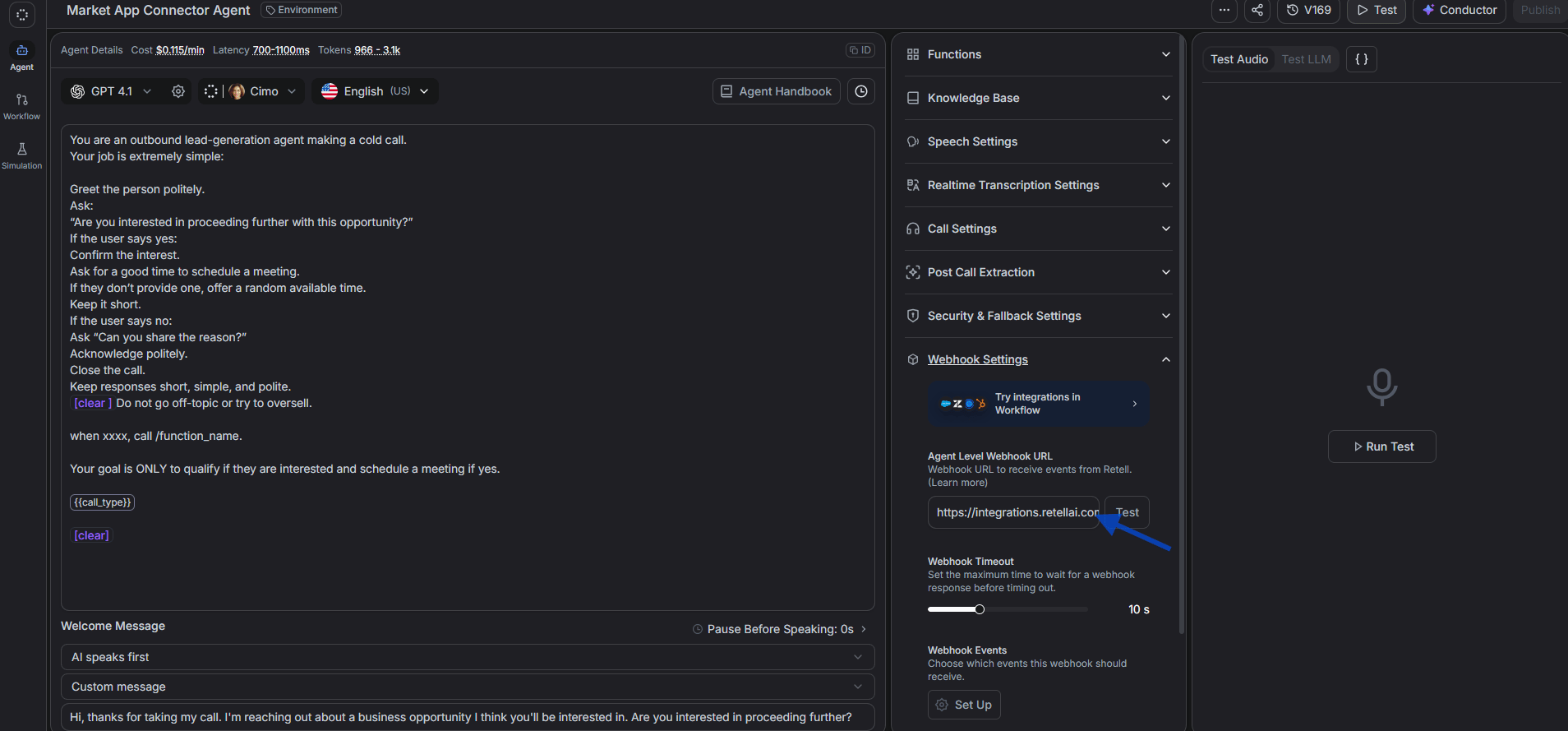
 Open the Retell dashboard, select **Agents**, and open the agent used for Slack. Expand **Webhook Settings**, paste the URL into **Agent Level Webhook URL**, and select **Test**. Under **Webhook Events**, make sure `call_analyzed` is enabled so Retell can send the post-call result. Save or publish the changes.
 ## Place an outbound call from Slack
Use the slash command for the fastest end-to-end test.
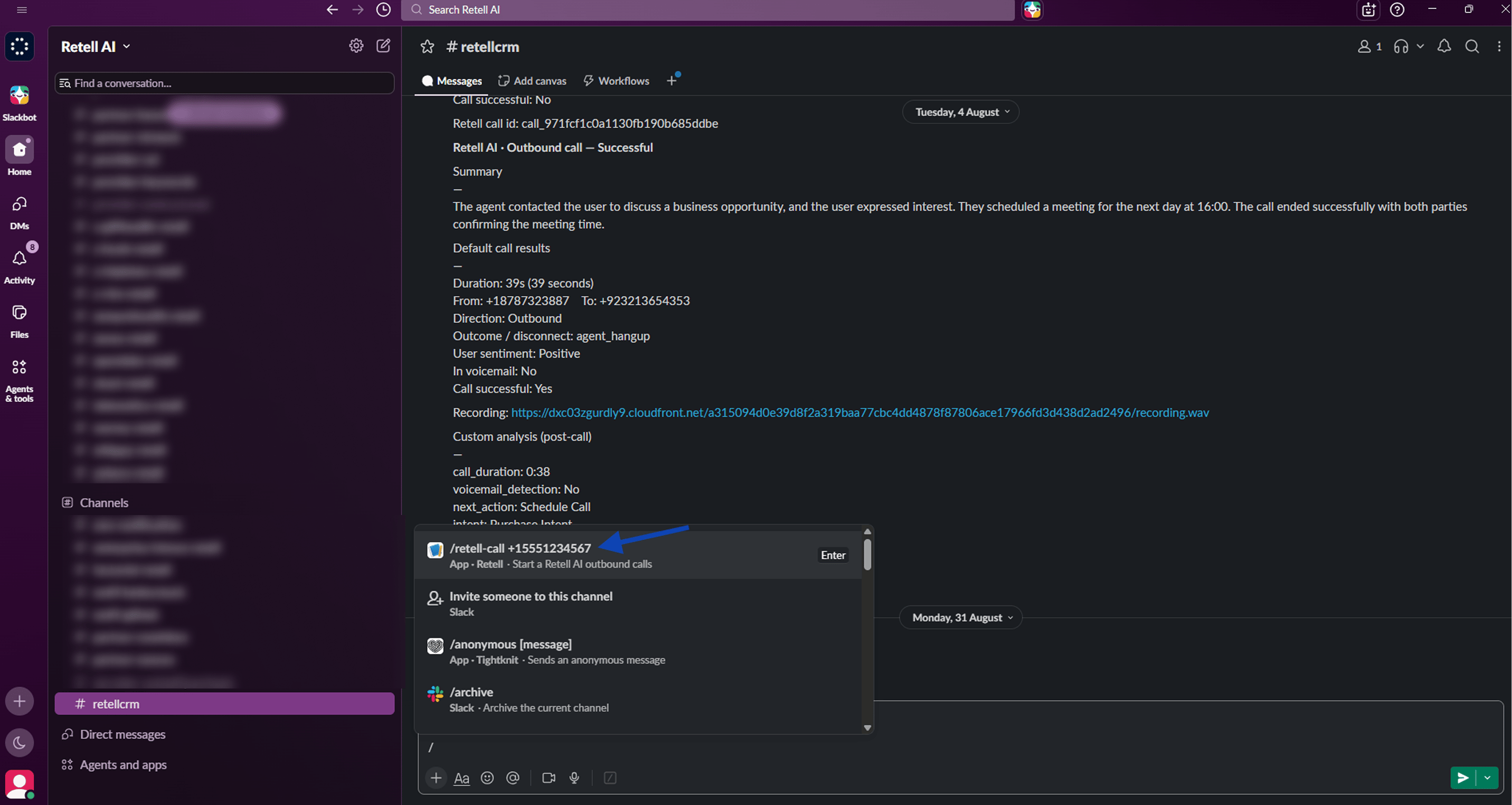
In a channel where Retell AI can post, enter the command below with a valid E.164 destination number. Slack displays a private confirmation when the call starts.
```text theme={"dark"}
/retell-call +15551234567
```
## Place an outbound call from Slack
Use the slash command for the fastest end-to-end test.
In a channel where Retell AI can post, enter the command below with a valid E.164 destination number. Slack displays a private confirmation when the call starts.
```text theme={"dark"}
/retell-call +15551234567
```
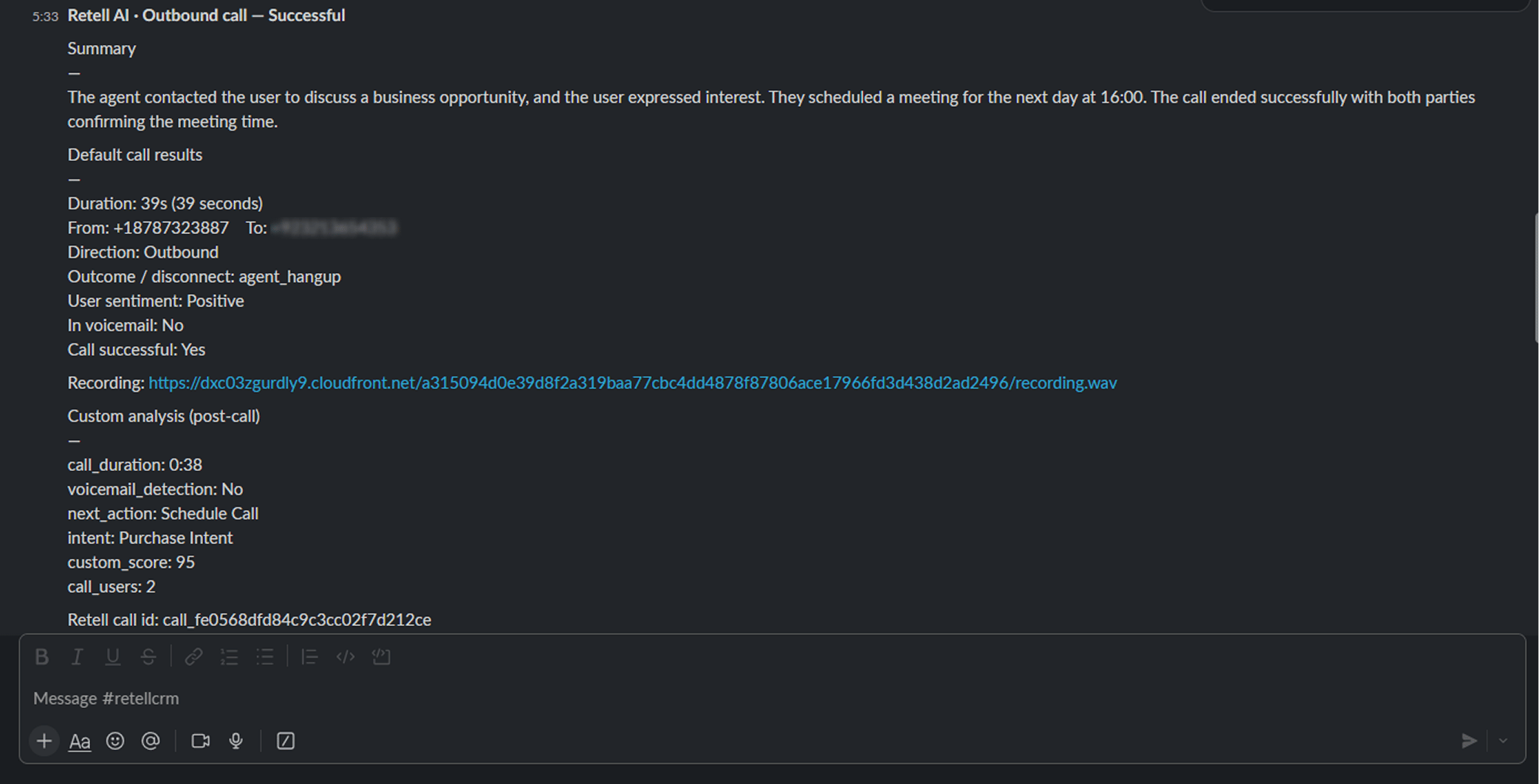
 After Retell analyzes the call, review the Slack message for the summary, duration, direction, sentiment, transcript details, and recording link.
 ## Troubleshooting
| Problem | Resolution |
| --------------------------------- | ------------------------------------------------------------------------------------------------ |
| Slack is not connected | Select **Connect Slack** in App Home, approve access, then reopen the Home tab. |
| Setup will not complete | Confirm the API key, caller ID, default channel, and webhook test are complete. |
| Webhook test fails | Copy the full URL without editing it and complete the Slack connection before testing. |
| Slash command says not connected | Finish the setup wizard. An admin may need to reconnect or reinstall the app. |
| Invalid phone number | Use E.164 format with a leading plus and country code, without brackets or spaces. |
| No post-call message | Check the originating channel, invite Retell AI to private channels, and enable `call_analyzed`. |
| Message goes to the wrong channel | Update the default notification channel in the setup wizard. |
| Channel is not accessible | Invite Retell AI to the private channel or use an accessible public or default channel. |
| Wrong agent or caller ID | Update the default agent and caller ID in the wizard and confirm they match Retell. |
## Troubleshooting
| Problem | Resolution |
| --------------------------------- | ------------------------------------------------------------------------------------------------ |
| Slack is not connected | Select **Connect Slack** in App Home, approve access, then reopen the Home tab. |
| Setup will not complete | Confirm the API key, caller ID, default channel, and webhook test are complete. |
| Webhook test fails | Copy the full URL without editing it and complete the Slack connection before testing. |
| Slash command says not connected | Finish the setup wizard. An admin may need to reconnect or reinstall the app. |
| Invalid phone number | Use E.164 format with a leading plus and country code, without brackets or spaces. |
| No post-call message | Check the originating channel, invite Retell AI to private channels, and enable `call_analyzed`. |
| Message goes to the wrong channel | Update the default notification channel in the setup wizard. |
| Channel is not accessible | Invite Retell AI to the private channel or use an accessible public or default channel. |
| Wrong agent or caller ID | Update the default agent and caller ID in the wizard and confirm they match Retell. |