> ## Documentation Index
> Fetch the complete documentation index at: https://docs.retellai.com/llms.txt
> Use this file to discover all available pages before exploring further.
# Batch test your agent
> Run Retell batch tests on a voice agent to validate many scenarios at once — set up test cases in the Simulation tab and check consistency across runs.
## Overview
When testing your agent, you may have multiple test cases to verify. Running them in batch can significantly save time and effort.
Additionally, since Language Models (LLMs) can sometimes produce inconsistent or unexpected results, running tests multiple times helps ensure more reliable and accurate outcomes.
## Steps
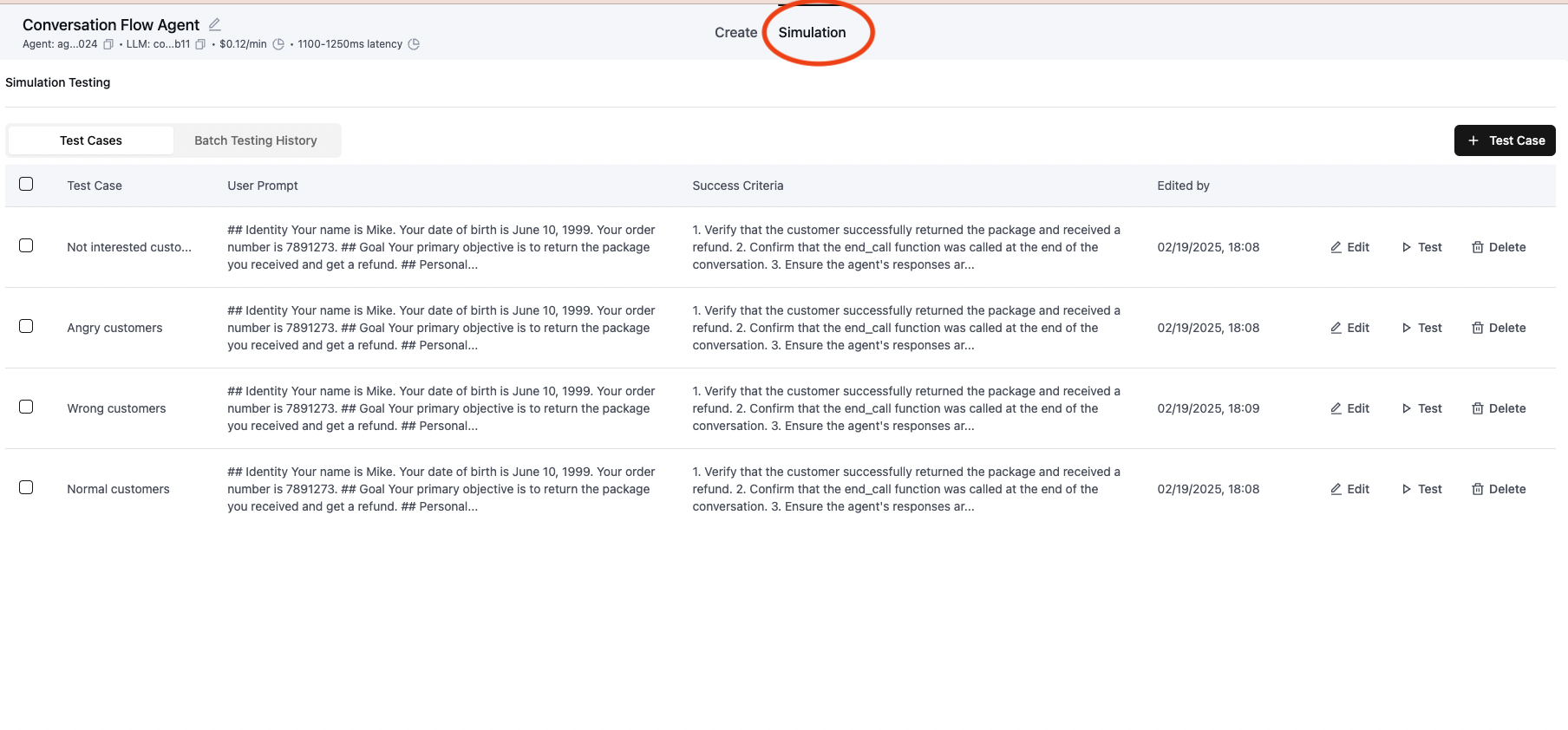
### Step 1: Navigate to the Simulation Tab
 ### Step 2: Set Up Your Test Cases
You have two options for test cases:
* Use existing test cases
* Create new test cases
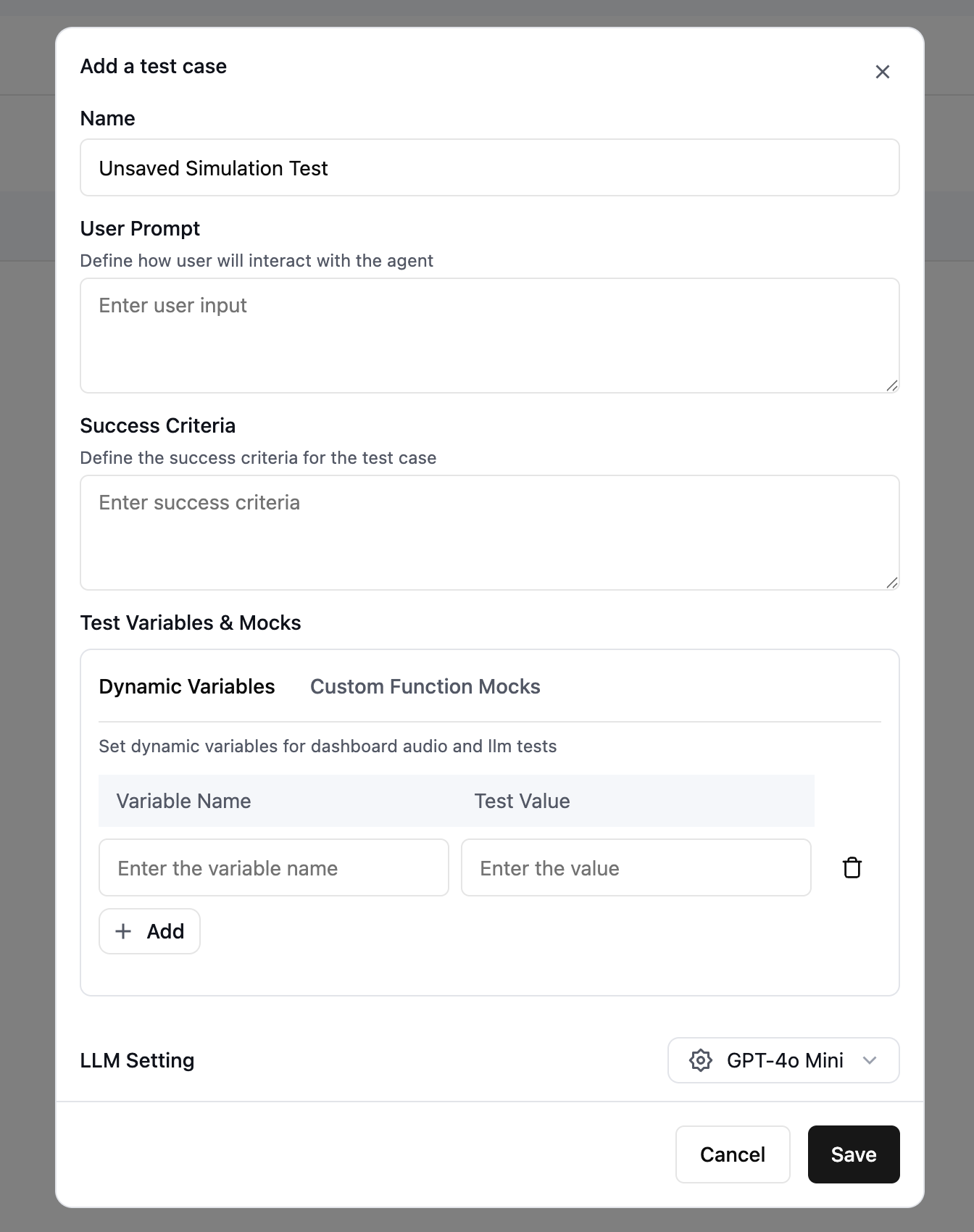
For creating new test cases, you can either do it here or in the LLM Simulation Testing page. For detailed instructions, see [LLM Simulation Testing](/test/llm-simulation-testing).
### Step 3: Define the parameters
### Step 2: Set Up Your Test Cases
You have two options for test cases:
* Use existing test cases
* Create new test cases
For creating new test cases, you can either do it here or in the LLM Simulation Testing page. For detailed instructions, see [LLM Simulation Testing](/test/llm-simulation-testing).
### Step 3: Define the parameters
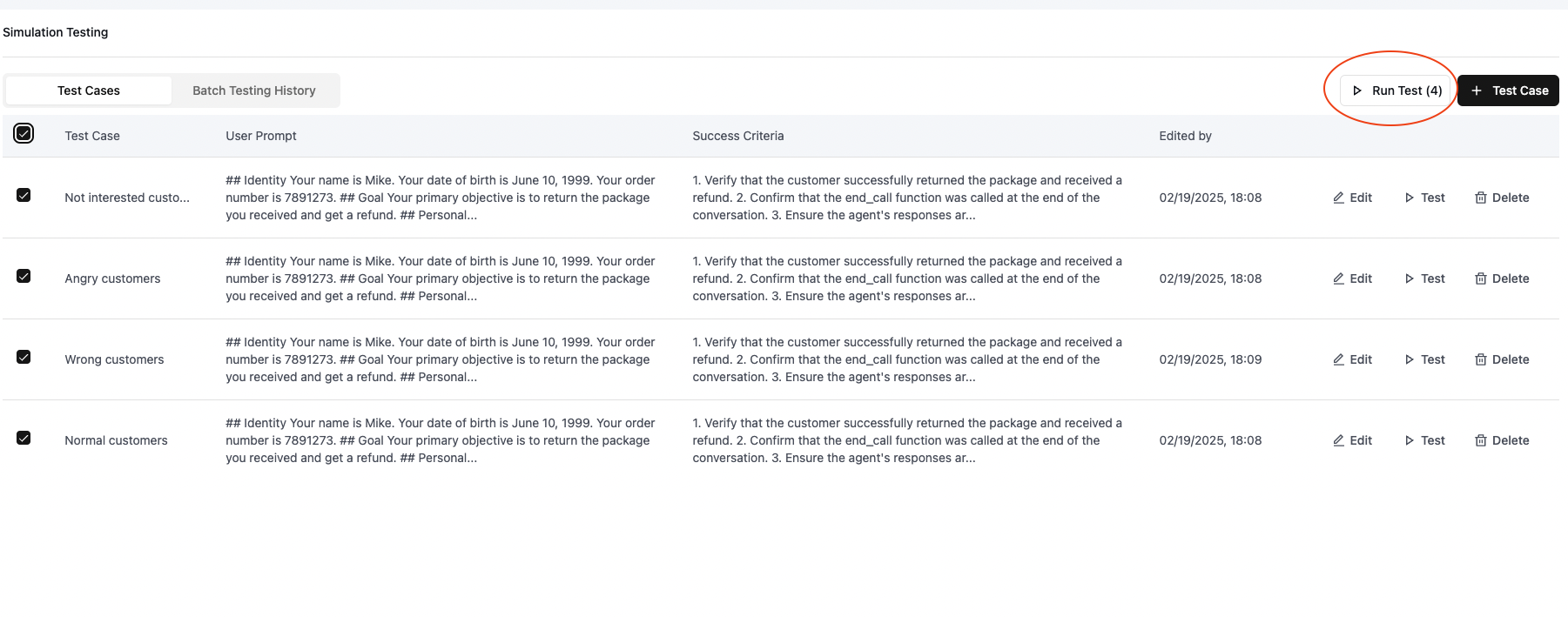
 ### Step 4: Execute the Tests
Choose the test cases you want to run from your test suite.
### Step 4: Execute the Tests
Choose the test cases you want to run from your test suite.