

This page covers the Retell AI connector in Claude’s connectors directory, which signs in with OAuth. For Cursor, Claude Code, Claude Desktop config files, and other MCP clients that use a Retell API key, see the Retell MCP server.
When to use it
Use the connector when you want to describe an agent in plain language and have Claude set it up, or make quick changes to an existing agent without opening the dashboard. Use the dashboard instead when you need settings the widgets don’t expose, such as conversation flow agents, knowledge bases, integrations, or credentials for custom functions. The connector builds single-prompt agents. It can’t edit conversation flow agents.Example
A restaurant owner asks Claude for a receptionist agent for Bella’s Bistro that takes reservations and answers questions about the menu and opening hours. Claude opens the build wizard with those details filled in, writes the prompt, lets them pick a voice, and creates the agent. They then put it on the restaurant’s Retell number and place a test call to their own phone.Before you start
- A Retell account at dashboard.retellai.com with at least one workspace.
- A Claude account. On Free, Pro, and Max plans you connect directly. On Team and Enterprise plans, an organization owner adds the connector under Organization settings > Connectors first, and then each member connects with their own Retell login. See Use connectors. The widgets render in Claude on the web and in Claude Desktop.
- To deploy an agent or place a call, a Retell phone number in the workspace. Outbound calls also require KYC, which some accounts pass automatically.
- Usage through the connector is billed to your Retell workspace like any other usage. Test calls and test chats cost the same as live ones. See Testing pricing.
Connect Retell AI to Claude
1
Find the connector
In Claude, open Customize > Connectors, browse the directory, and search for Retell AI.
2
Sign in to Retell
Select Connect and sign in with the email you use for the Retell dashboard. The connector uses OAuth 2.0, so Claude never sees your Retell password.
3
Pick a workspace
If your login belongs to one workspace, the connector selects it for you. If it belongs to several, Claude shows the list and asks which one to use. The choice is saved for your login and carries over to new chats. To change it later, ask Claude to switch to another workspace by name.
What you can do
- Build an agent. A wizard collects the agent’s name, purpose, audience, tone, and language, writes a prompt, lets you pick a voice with audio previews, and adds functions such as call transfer, custom API calls, data extraction, agent swap, SMS, and press digit.
- Edit an agent. Change the voice, name, language, or prompt. Prompt changes appear side by side with the current prompt before you apply them. You can also set default values for dynamic variables and add, change, or remove functions.
- Deploy an agent. Assign the agent to one of your Retell numbers for inbound calls, outbound calls, or both. The deploy screen shows which agent is on each number today.
- Test an agent. Chat with the agent in text, or have it place a real phone call from one of your numbers after you confirm the details.
- Analyze calls. Filter call history, open a call’s transcript, recording, and analysis, and see call volume, success rate, sentiment, and latency for an agent.
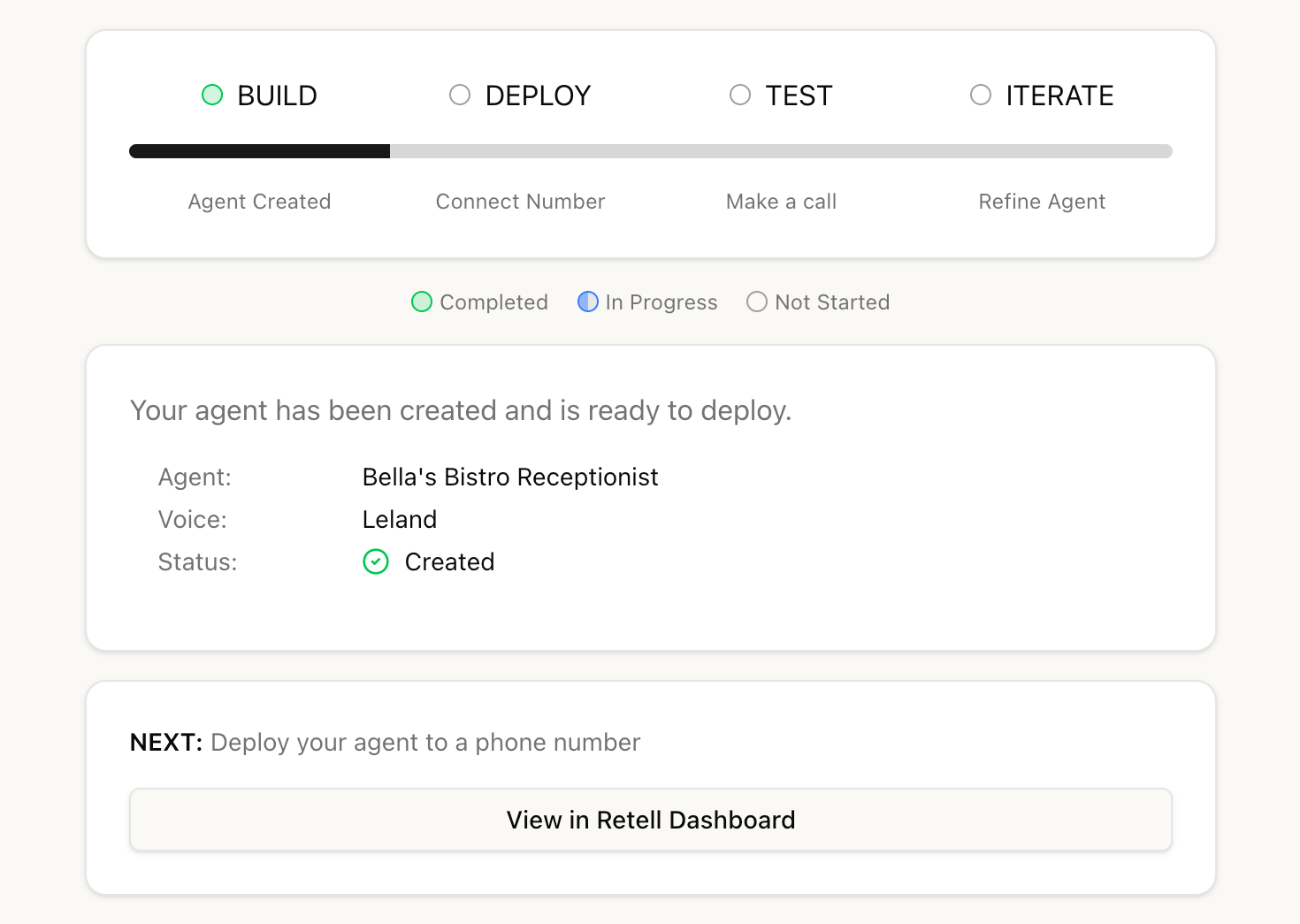
The build wizard after Claude creates an agent.
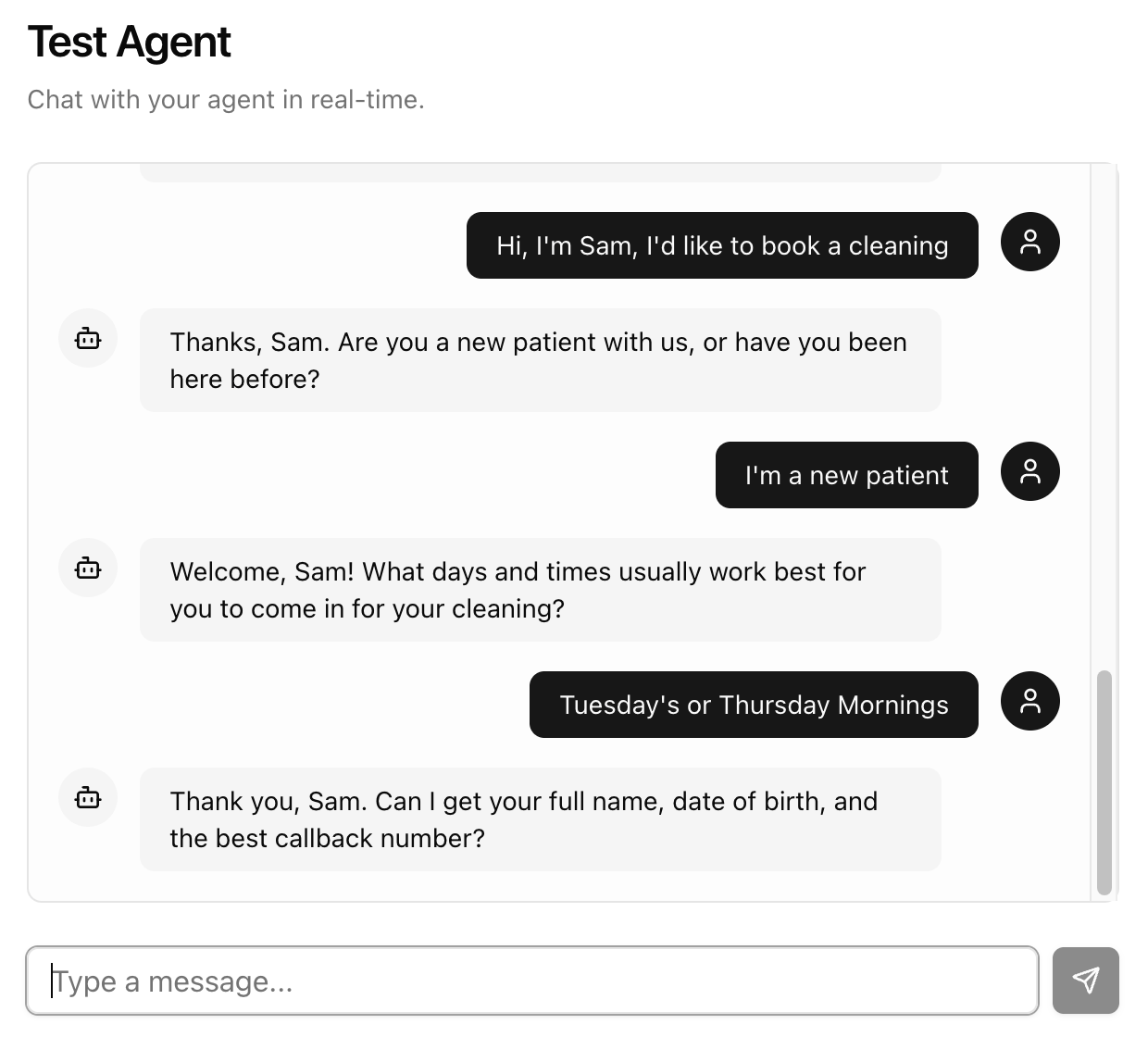
A text test chat with an agent.
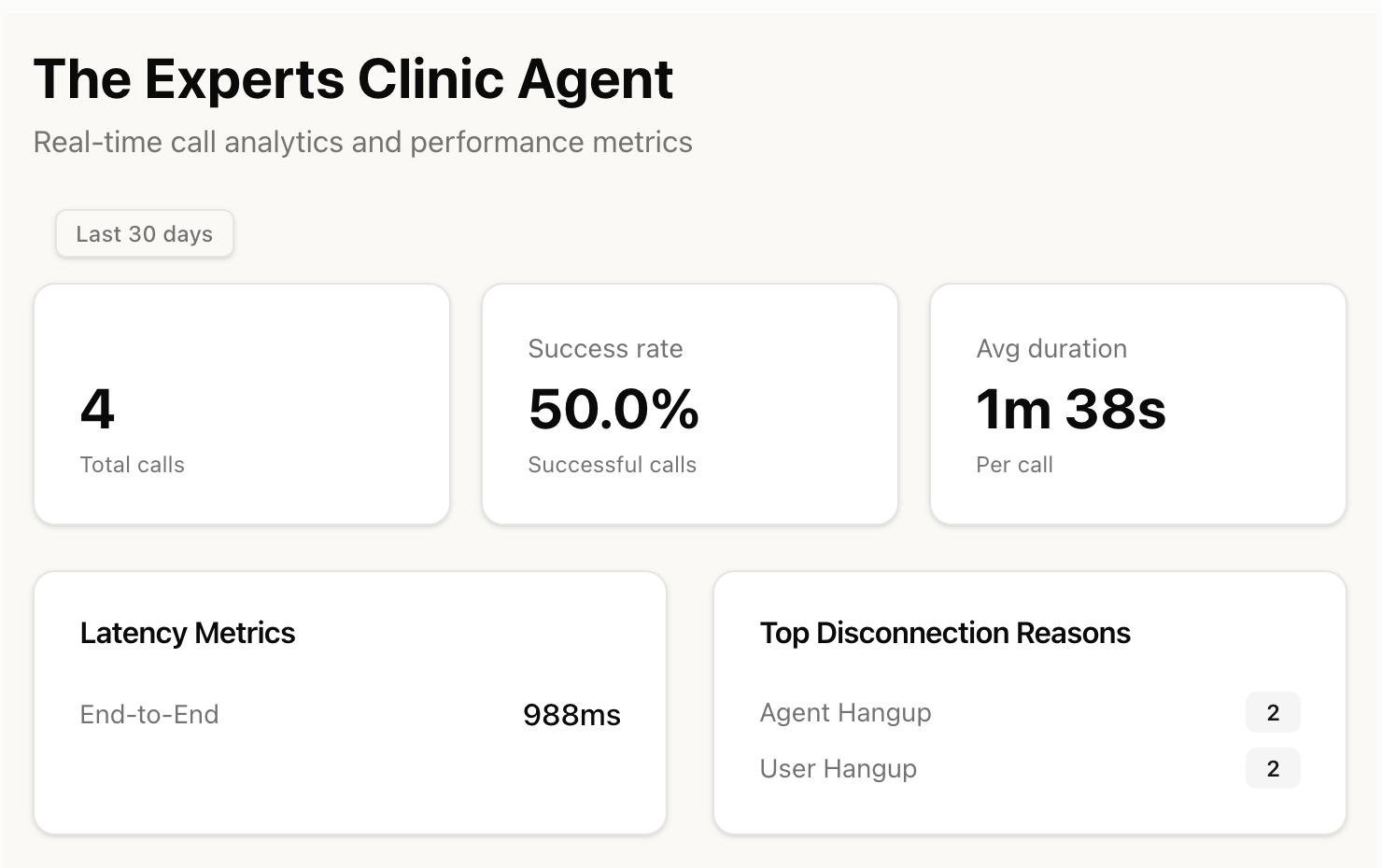
Call analytics for an agent over the last 30 days.
#), a value that looks like an API key, or a webhook secret in its path (Slack, Discord, Zapier, Make, Telegram, IFTTT, Microsoft Teams). It checks when it creates an agent, when it adds or edits a custom function, and before it fills in a widget. A new dynamic variable value that looks like an API key is refused too, and a function with credentials saved in the dashboard can only be moved, from the chat, to another https:// address on the same host.
Usage examples
Build an agent. “Build me a receptionist agent for a dental clinic. It should answer questions about hours and insurance and transfer billing questions to the front desk.” Claude opens the build wizard with those details filled in and writes a prompt. You pick a voice and review the functions, and the connector creates the agent in your workspace. Edit the prompt. “Show me the prompt for my receptionist agent and make it more concise.” Claude shows the current prompt next to the shorter version. Nothing changes until you apply it. Deploy to a number. “Put my receptionist agent on my Retell number for inbound calls.” The deploy screen lists your numbers and the agent on each one. If another agent already answers the number you pick, you confirm the replacement before it happens. Test with a phone call. “Have my receptionist agent call my phone at +14155551234 so I can hear it.” Claude shows the agent, the number it calls from, and the number it calls, and waits for you to confirm before Retell dials. Review calls. “How did my receptionist agent do this week? Show me the calls that failed.” The analytics view shows call volume, success rate, duration, and latency, and you can open any call’s transcript and recording.Which actions ask for confirmation?
Three actions take effect outside Claude, so the connector runs them in two steps. The first step returns a preview and changes nothing. The action only runs after you confirm. You confirm a call in the test widget or in the chat, a deletion in the chat, and a number replacement in the deploy widget.
A confirmation covers only the exact request in its preview, in the same workspace, and works once, even if the same request arrives twice. If anything in the request changes, or the confirmation is older than 2 minutes for a call or 5 minutes for a deletion or replacement, the connector asks again.
The connector checks that a confirmation matches its preview, but it can’t tell whether you or Claude sent it. Claude asks for your approval in the chat before it confirms, so read the preview before you approve.
Outbound calls
Outbound calls from the connector are meant for testing an agent, usually by calling your own phone. The connector can’t verify that a number belongs to you, so it doesn’t limit calls to your own numbers. Instead, every call needs your confirmation of the exact destination, and the checks below apply. The call goes from a Retell number in the selected workspace to the number you give, in E.164 format such as+14155551234. Before it shows the preview, the connector checks that:
- Both numbers are valid and different, and the from number belongs to the workspace.
- The destination isn’t a premium-rate number (the US and Canada 900 area code and 976 local exchanges, and the international +979 range), a shared-cost or satellite number (+808, +870, +881, +882, +883), or a +1 number outside the US and Canada, such as Jamaica (+1 876) or the Dominican Republic (+1 809). US territories such as Puerto Rico and Guam can be called.
AI disclosure
Agents you build through the connector tell callers they’re an AI in two ways:- At the start of every call. The agent’s opening message is “Hi, this is an AI assistant. How can I help you today?” You can ask Claude for a different opening when you build the agent, or change it in the dashboard later. Keep the disclosure in it, because some jurisdictions require it.
- When asked. The AI Disclosure When Asked preset in the Agent Handbook is on, the same default as agents built in the dashboard. The agent says it’s a virtual assistant whenever a caller asks if they’re talking to a person. To review it, open the agent in the dashboard and select Agent Handbook in the prompt section.
Tools
The connector has 52 tools (as of October 2026). Tools marked widget are for the connector’s own widgets. The connector marks them as widget-only, and Claude doesn’t offer them to the model.Workspaces and session
Agents
Editing
Deployment
Testing and calls
Analytics
What data does the connector use?
The connector runs on Retell’s infrastructure and calls the Retell API on your behalf. Retell’s privacy policy applies.- Your Retell login. Sign-in uses OAuth 2.0 through Retell’s identity provider. The connector uses the access token to call the Retell API during the session and doesn’t store it. It reads your login’s name, email address, and whether the email is verified, to send you the dashboard link when you ask and to identify your account in Retell’s product analytics (Mixpanel). It caches these for up to 24 hours.
- Agent configuration. Names, prompts, voices, phone numbers, and functions are read from and written to the Retell API.
- OpenAI. Four tools use OpenAI to write or rewrite prompt text:
generate_prompt,refine_prompt,preview_agent_prompt_edit, andshow_prompt_preview. When generating a prompt they send the agent’s name, description, use cases, audience, tone, style, and language. When editing one they send the current prompt and your change request. Anything written in that text, including phone numbers, goes to OpenAI. Call transcripts and recordings aren’t sent. - Email.
send_dashboard_linksends one email to the verified address on your Retell login, up to 3 times an hour. You can’t give it another address. - Stored by the connector. Your workspace selection and Claude’s OAuth client registration are kept in a database for as long as your connection is active. Unsaved widget drafts and test chat transcripts are held in memory for up to 24 hours, and the counts behind the hourly limits for up to an hour. A used confirmation is remembered until it would have expired.
- Logs and analytics. For each tool call, the connector records the tool name, timing, whether it succeeded, the error message if it failed, your login and workspace IDs, and the shape of the input. The shape keeps field names, on and off settings, numbers, and the voice and language. Every other text value, such as prompts, phone numbers, and messages, is replaced by its length. These records go to Retell’s logging service (Axiom) and to Mixpanel.
- Deleting your data. Remove the connector in Claude to end the connection. To have Retell delete data it holds about you, email support@retellai.com. The privacy policy describes the process.
Troubleshooting
FAQ
Is this the same as the Retell MCP server?
Is this the same as the Retell MCP server?
No. The connector signs in with your Retell login through OAuth and shows widgets in the chat. The Retell MCP server uses a Retell API key and exposes the Retell API through three generic tools, for clients such as Cursor and Claude Code.
Why does Claude ask which workspace to use?
Why does Claude ask which workspace to use?
Your Retell login belongs to more than one workspace, and every tool acts on one of them. Tell Claude which one by name, or ask for the workspace picker. The choice is remembered.
Why does deploying ask me to confirm a replacement?
Why does deploying ask me to confirm a replacement?
Another agent is already on the number you picked. The panel shows which one. Confirm to move the number to your agent, or pick a different number.
Can Claude set up Cal.com booking for my agent?
Can Claude set up Cal.com booking for my agent?
No. Connect Cal.com or another calendar on the dashboard’s Integrations page, where Retell stores the credentials. You can then add its booking functions to your agents in the dashboard. See Cal.com. If an agent still has the older per-agent Cal.com functions, Claude can edit the rest of the agent but can’t change or remove those functions. Manage them in the dashboard.