

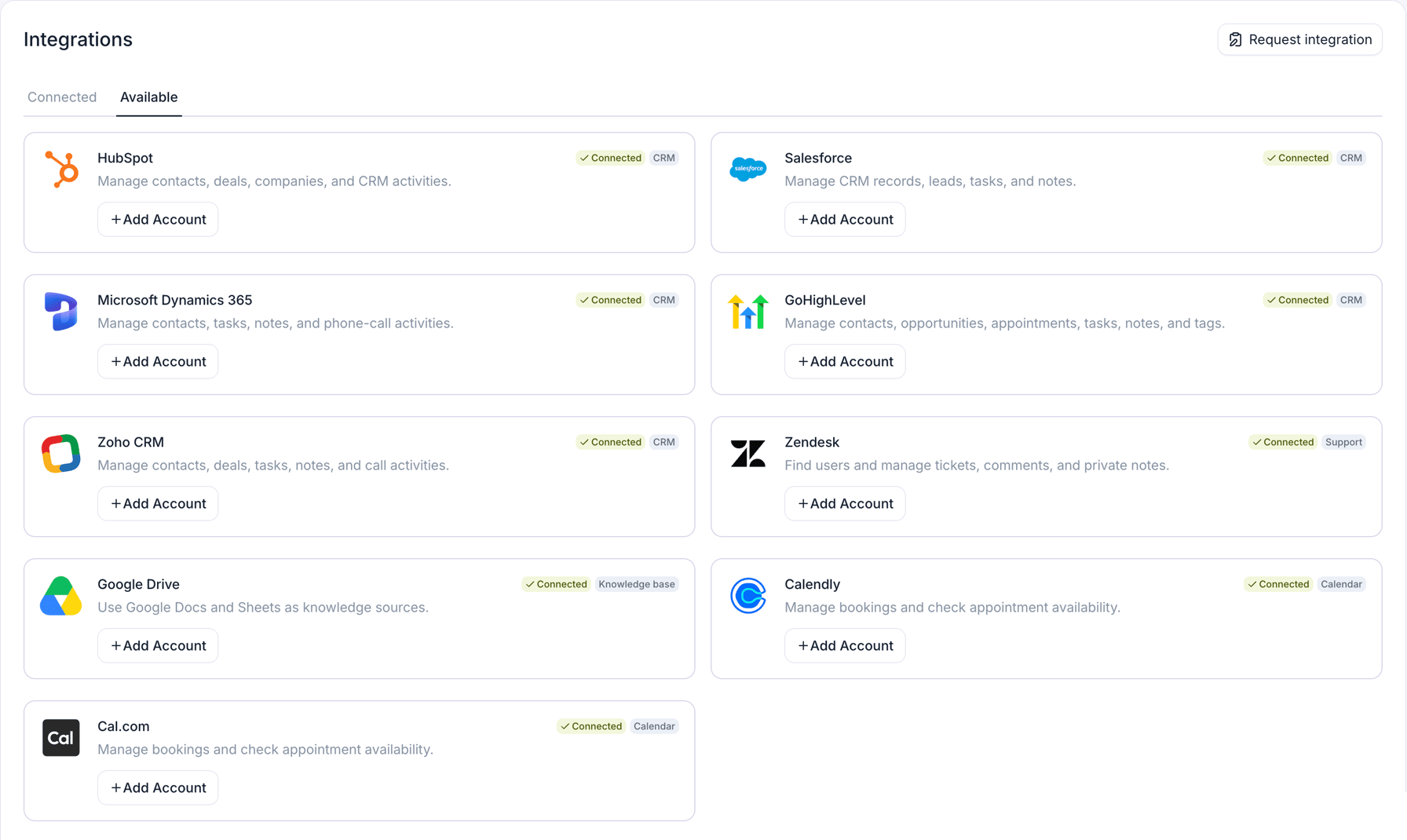
The Integrations page's Available tab, shown here with every provider already connected.
What does an integration give you?
- Integration tools. Every provider except Google Drive, Microsoft OneDrive, and Notion adds tools your agent can call before, during, or after a call or chat: search a contact by the caller’s number, check calendar availability, book an appointment, create a support ticket. See use integration tools in an agent and agent workflow.
- Contact sync and activity logging (CRM providers). Import CRM contacts into Retell, write Post Call Extraction results back to contact fields, and log each conversation to the CRM. CRM integrations covers this in full.
- Knowledge base sources (Google Drive, Microsoft OneDrive, Notion). Sync files or pages from a connected account into a knowledge base so your agent answers from their content, and re-syncs them as they change.
Supported providers
Connect a provider
Open the Integrations page
Connect and authenticate
Verify the connection
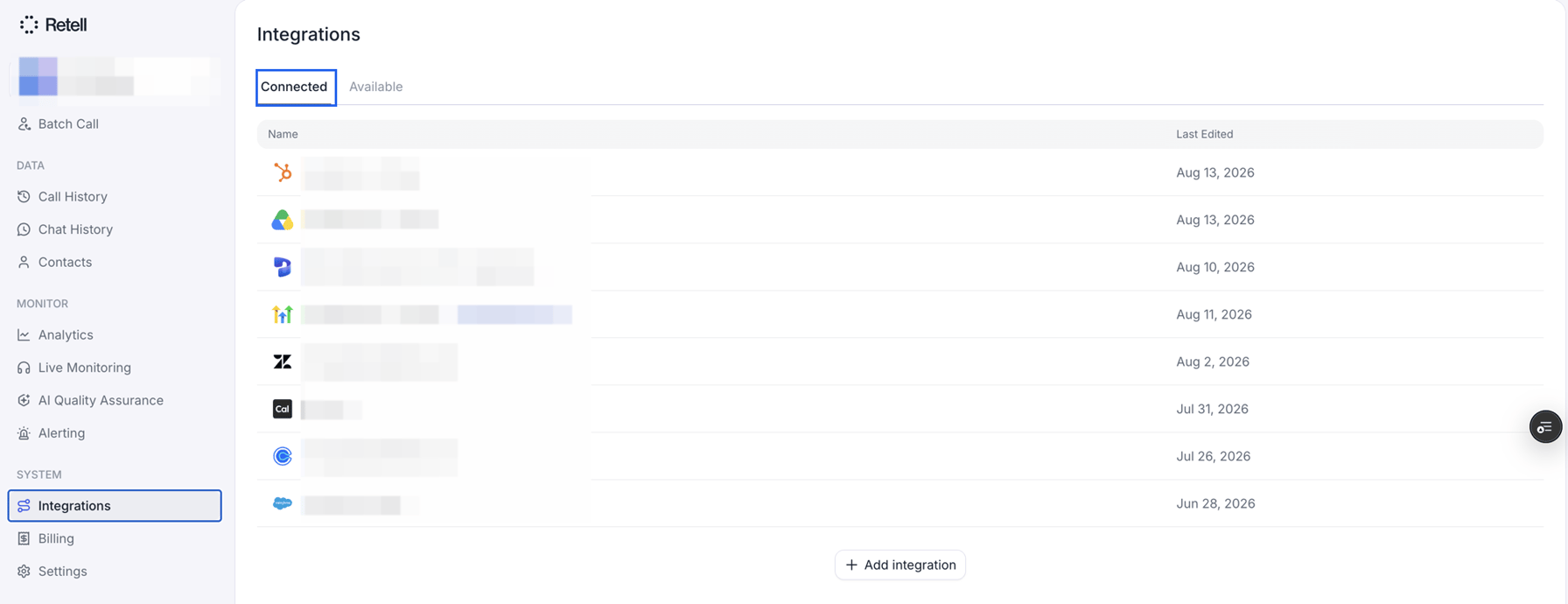
The Connected tab, listing each connection with its provider and when it was last edited.
Use integration tools in an agent
Once a provider is connected, its tools show up when you add a function to an agent, whether in a prompt agent’s Functions section or a conversation flow’s function node; see integration tools for prompt agents and integration tools in conversation flow for each surface. Each configured tool is bound to one specific connection, so if you connect two HubSpot accounts, you choose which one the tool uses.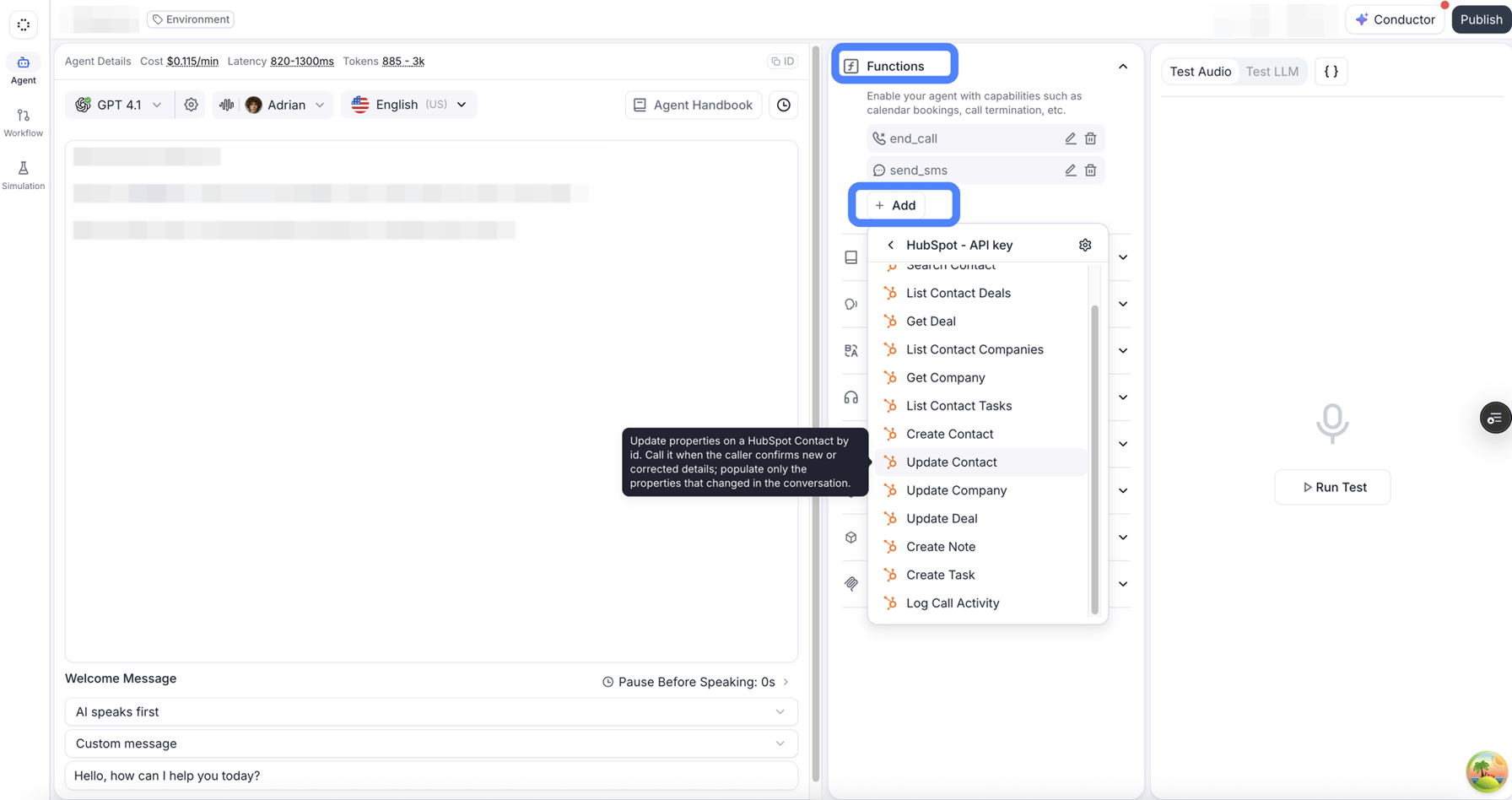
Adding a HubSpot tool to a single prompt agent's Functions section.
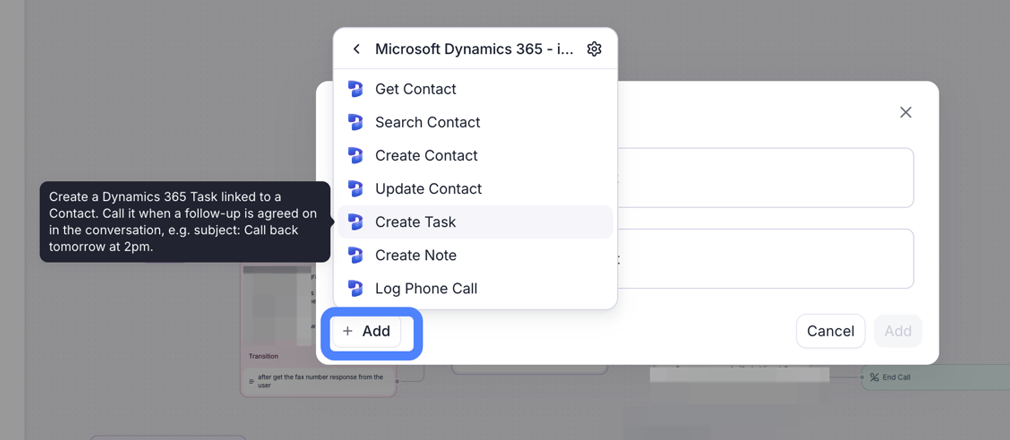
The same menu in a conversation flow's function node, here on a Microsoft Dynamics 365 connection.
Configure a tool’s inputs and outputs
Every tool config carries a Name, a Description that tells the LLM when to call it, and a Function fields card with an Input tab and an Output tab. On the Input tab, each field the provider accepts carries a mode pill that decides where its value comes from:- Value — a literal you type, like a Cal.com event type ID. It can contain
{{variable}}references, resolved when the tool runs. - Description — a sentence the LLM uses to fill the value from the conversation, like “the caller’s preferred appointment time.”
- Select, Boolean, or Array items — the typed control the field’s own shape gives it: a fixed list of options, a true/false toggle, or a list of rows. A field gets at most one of these.
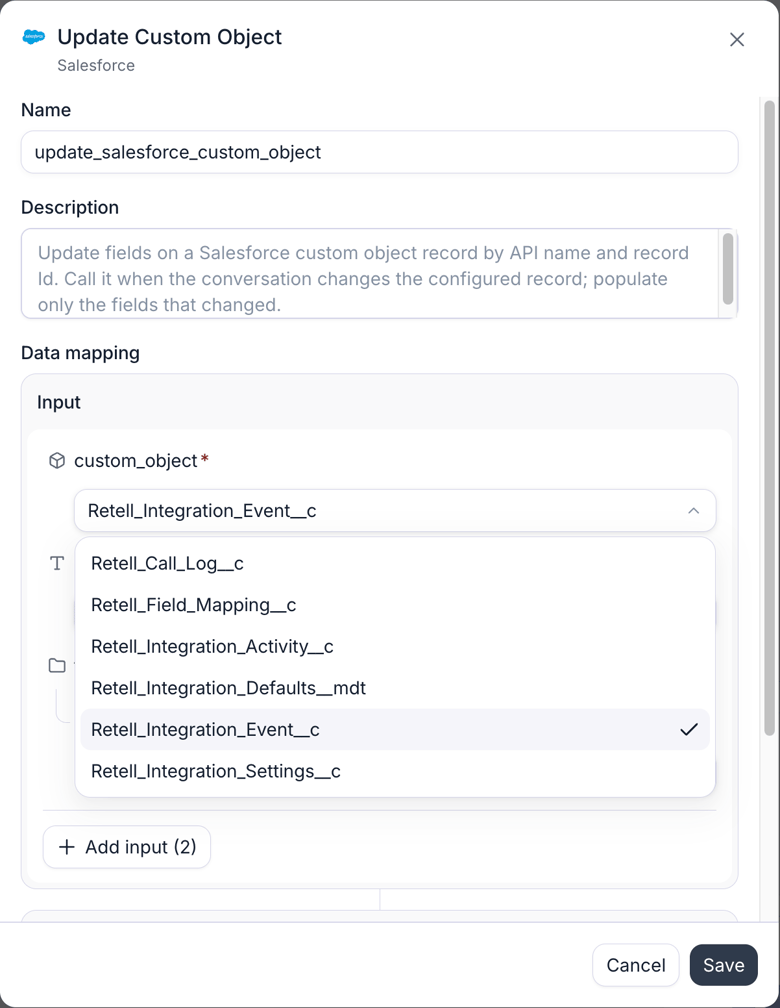
A tool's configuration: the Salesforce custom object is a fixed value picked now; other inputs come from the conversation.
Run a test to get a tool’s output fields
The Output tab decides what the response gives back: which fields the agent sees, and which become dynamic variables. Most providers ship a response schema, so the field picker is already populated. Run a test when a tool has no schema, or when you want the real field names and values in front of you.Run a test
{{variable}} references. A test resolves variables in the tool’s pinned inputs, but not in the values you type into the test panel.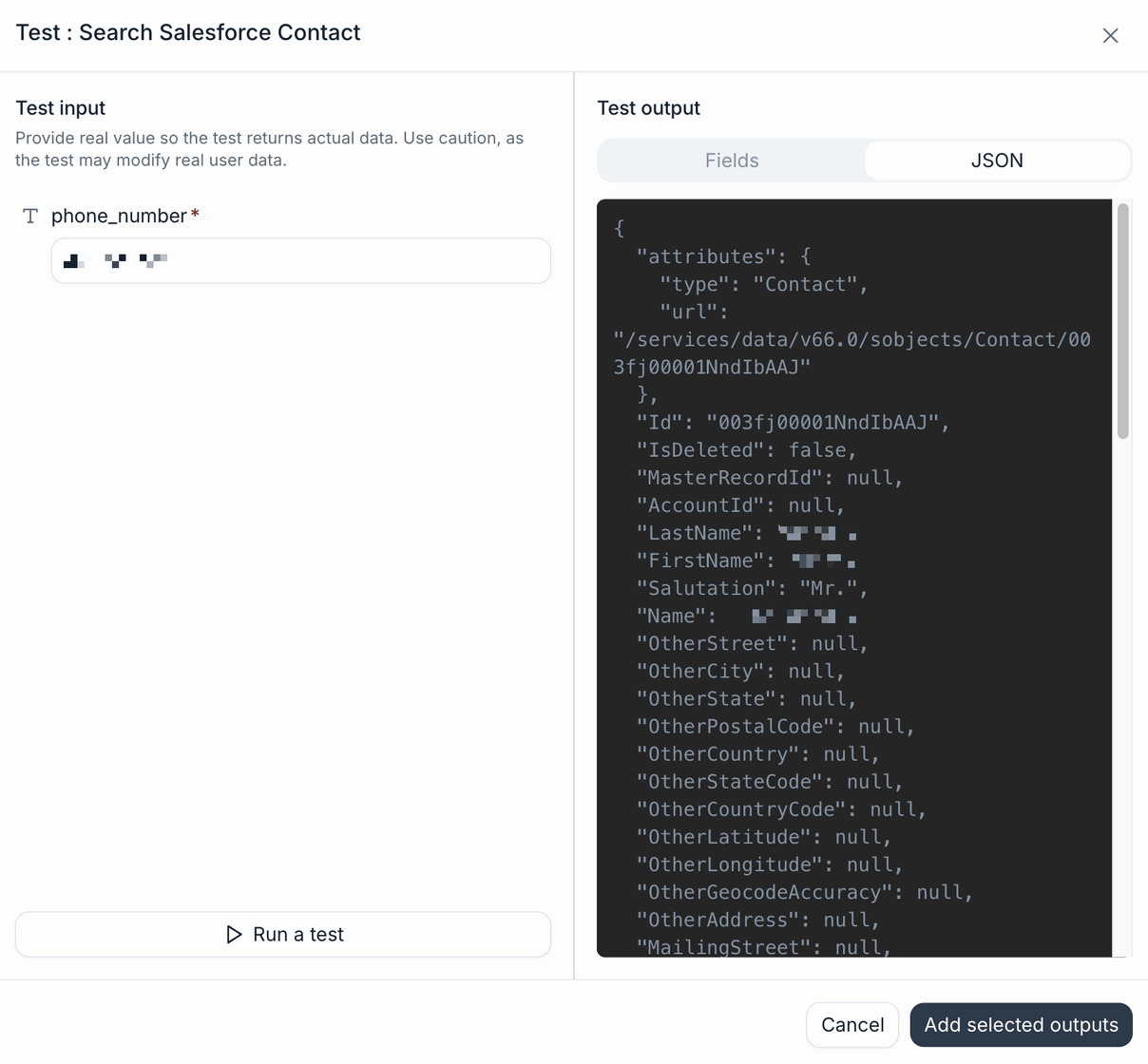
The test panel for a Search Salesforce Contact function, on the JSON tab after a run.
Pick the fields the agent should see
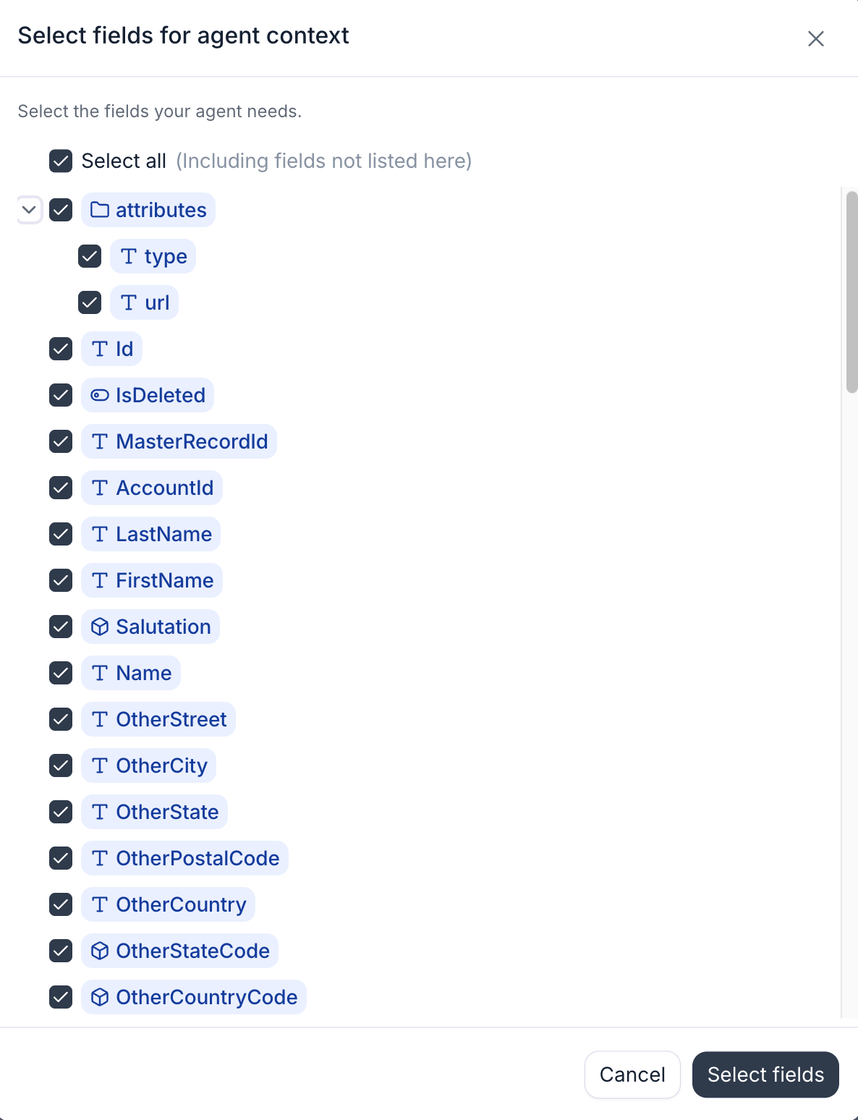
The Select fields dialog, with the whole Salesforce Contact response checked.
deals.properties.amount keeps that field on all of them), while deals[0].id keeps only the first.Name the ones you need as variables
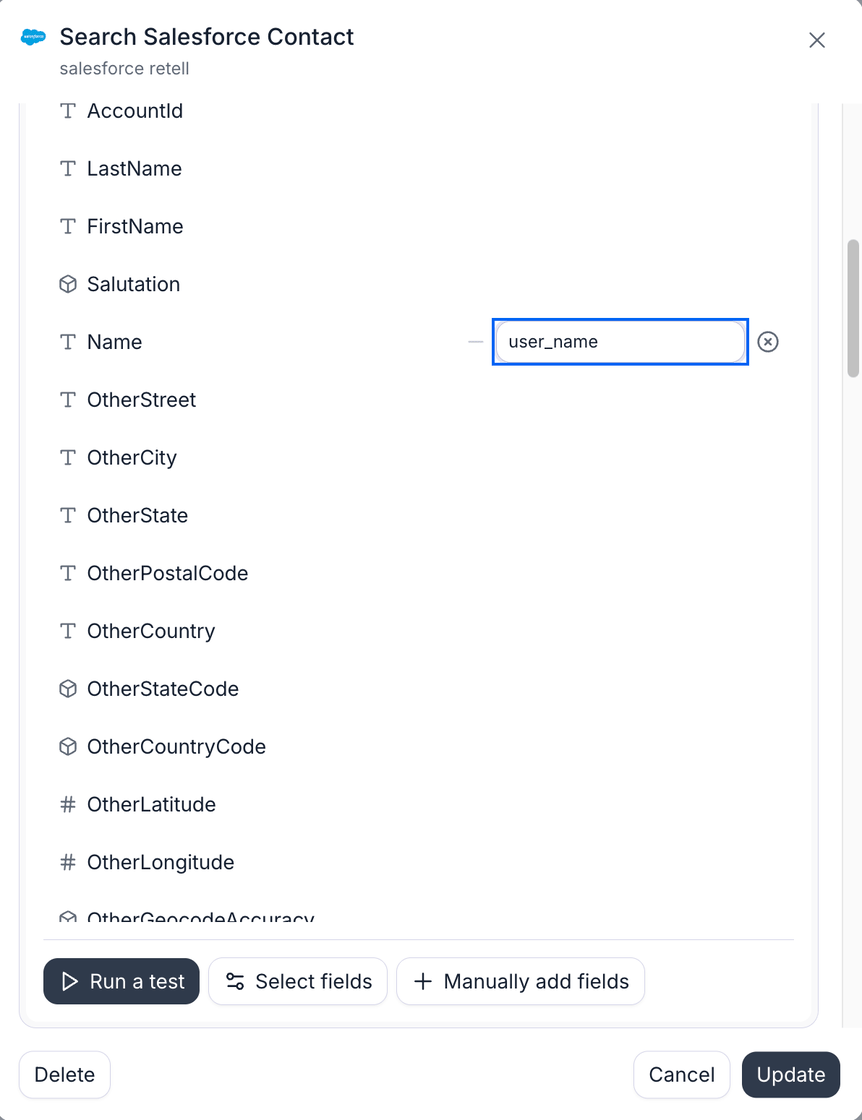
The Output tab: the Name field is kept for the agent and saved as user_name.
Run tools before or after the call or chat
Tools can also run outside the conversation. On the agent’s Workflow page, add them as pre-call functions, which run before the call starts so the agent has context before it speaks, or as post-call functions, which run after the call ends to update your systems. Chat agents have the same two slots, named pre-chat and post-chat functions. Each slot is a dependency graph rather than a list: functions with no dependency all start at once, and a function you add as sequential waits for the one above it and can use its output through a dynamic variable. Post-conversation functions can also be gated on a condition, so a follow-up task is created only when the session earned one. Agent workflow covers the whole surface: chaining, conditions, timing budgets, failure behavior, and worked examples for both voice and chat.FAQ
Can I connect more than one account for the same provider?
Can I connect more than one account for the same provider?
Do I need contact sync to use CRM integration tools?
Do I need contact sync to use CRM integration tools?
What happens if a tool call fails mid-conversation?
What happens if a tool call fails mid-conversation?
How do I know a connection is healthy?
How do I know a connection is healthy?