

When to use boosted keywords
Add keywords when the transcript repeatedly misses a term you expect callers to say. For example, an appointment-booking agent can boost the clinic’s name globally and use a list of clinician names only in the node that asks which clinician the caller wants to see. Boosting makes a term more likely to be recognized; it does not guarantee the transcript will contain it. If the problem is background noise or speech being cut off, use the settings below.Set the agent’s keyword list
Open Realtime transcription settings in the agent editor and find Boosted Keywords. For a conversation flow, select Global settings first. Enter a keyword and press Enter, or separate entries with commas. Each list supports up to 100 keywords (as of October 2026). Use focused lists of terms relevant to the call.Override boosted keywords for a node
Conversation nodes and subagent nodes can replace the agent’s keyword list while that node is active. This control is available for cascading voice agents, which use a separate speech recognition provider. It is not available for chat agents or speech-to-speech models.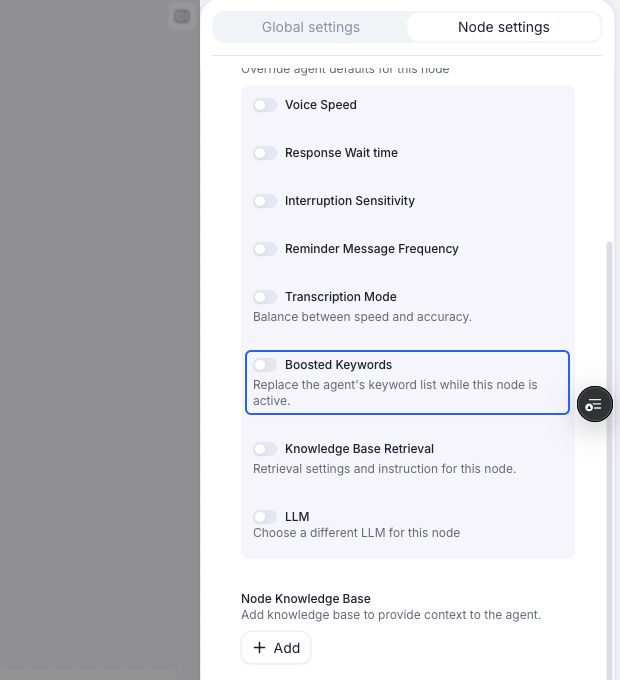
Find Boosted Keywords under Node settings. The override is off here, so the node inherits the agent's list.
1
Open the node settings
Select a conversation or subagent node on the canvas, then select Node settings in the right panel. Expand the Node settings section if it is collapsed.
2
Enable the keyword override
Under Node-level overrides, turn on Boosted Keywords. The list starts with a copy of the agent’s current keywords, or an empty list if the agent has none.
3
Edit the node's list
Add the terms this step needs and remove any that no longer apply. The node’s list replaces the global list; include any global keywords you still want boosted in this step.
4
Test the flow
Run a web test and check the transcript for the target terms. Continue to the next node to check recognition after the override ends.
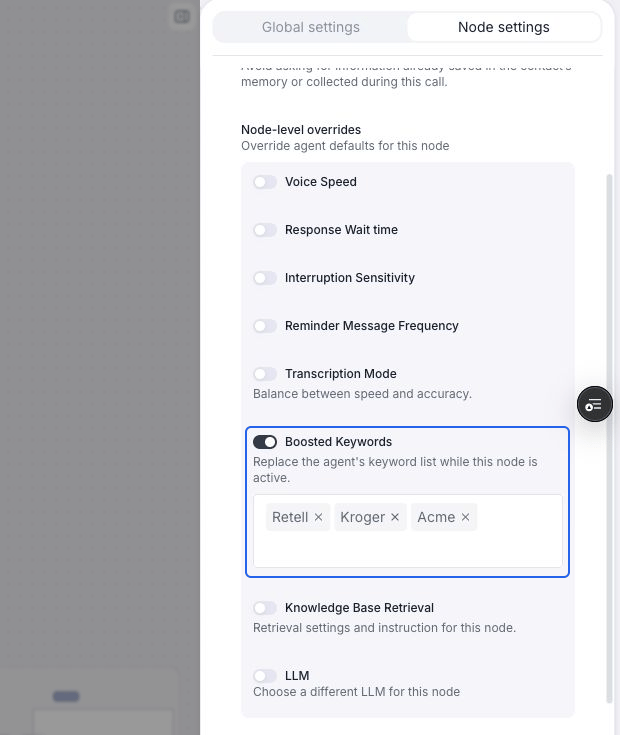
With the override enabled, edit the keyword list used by this node. This example boosts Retell, Kroger, and Acme.
How does the override affect other nodes?
When the node exits, Retell restores the agent’s list and applies the next node’s override, if any. Changes to the global list do not update an enabled node override. Turn the override off to inherit the global list again.
The keyword override is independent of Transcription Mode. You can change the vocabulary without changing the node’s transcription mode or provider.
Use dynamic variables in keywords
Keyword entries support dynamic variables, such as{{customer_name}}. Agent-level entries are resolved when transcription starts; node-level entries are resolved when the node is entered, using the values available at that point. Empty entries and entries with unresolved variables are omitted.
For example, look up the caller’s clinician before entering the appointment node, then include {{clinician_name}} in that node’s keyword list.
Other transcription issues
Background noise or speech
Try a denoising mode suited to the caller’s environment.Sentences are cut off
If the transcriber finalizes a sentence before the caller finishes, try Optimize for accuracy under Transcription Mode. For a problem limited to one conversation or subagent node, use a node transcription override. With Custom Settings, you can also adjust the provider’s endpointing, then test with the phrases that were cut off.FAQ
How do I disable boosted keywords for just one node?
How do I disable boosted keywords for just one node?
Keep the node’s Boosted Keywords override on and remove every keyword. Turning the override off restores the agent’s global list instead.
The agent is missing short responses like 'sure' or 'yes'. How do I fix this?
The agent is missing short responses like 'sure' or 'yes'. How do I fix this?
In a quiet environment, try setting the denoising mode to No Denoising. Noise filtering can remove short, low-energy responses; test whether preserving the raw audio improves recognition.