

How to Access Version Comparison
There are two ways to open the version comparison modal:- From Version History: Click the clock icon to open version history, hover over a version, and click the “Compare versions” button. This will compare the selected version against the current draft.
- From Publish Modal: When publishing a new version, click the “Compare” button in the publish modal to see what’s changing between the last published version and your current draft.
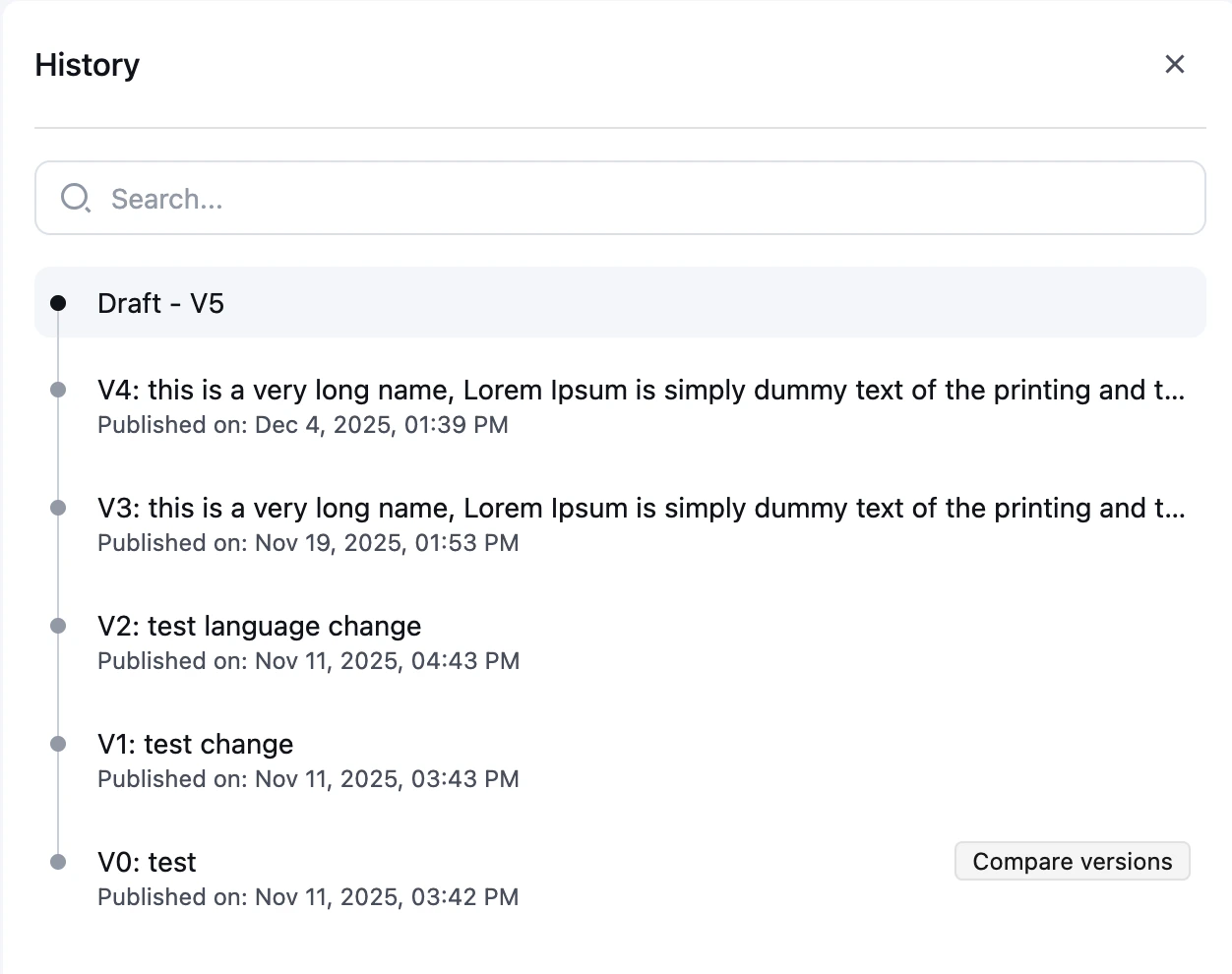
Comparison Modes
The version comparison feature offers two different view modes to help you understand changes:Standard View (JSON Diff)
The standard view shows a traditional diff view with the full JSON configuration of both versions side by side.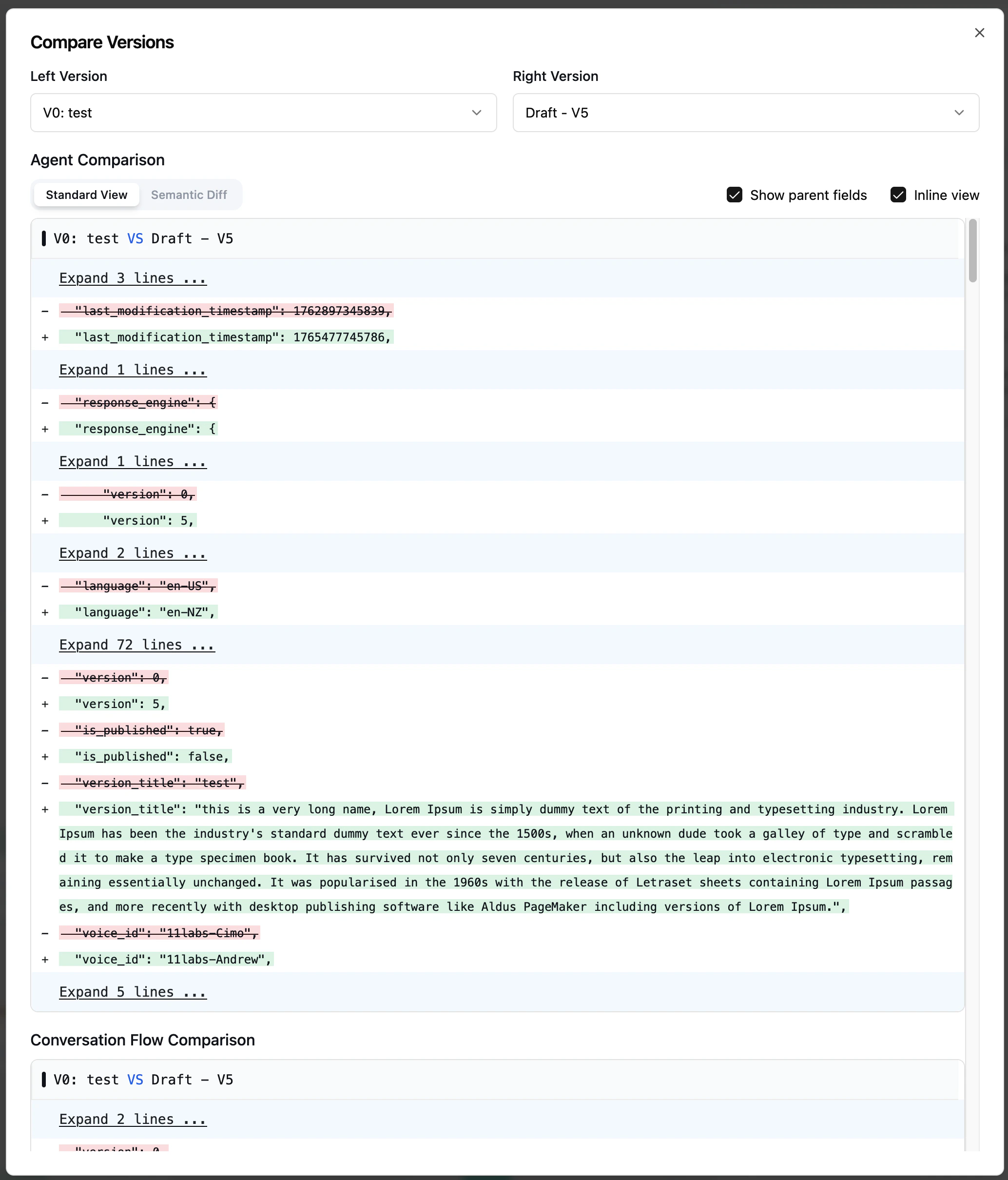
- Split view: Shows the two versions in separate columns for easy comparison
- Syntax highlighting: JSON syntax is color-coded for readability
- Show parent fields: Toggle this option to see the parent JSON structure containing changes, making it easier to understand the context of modifications
Semantic Diff
The semantic diff view provides a more human-readable summary of changes, organizing them by field.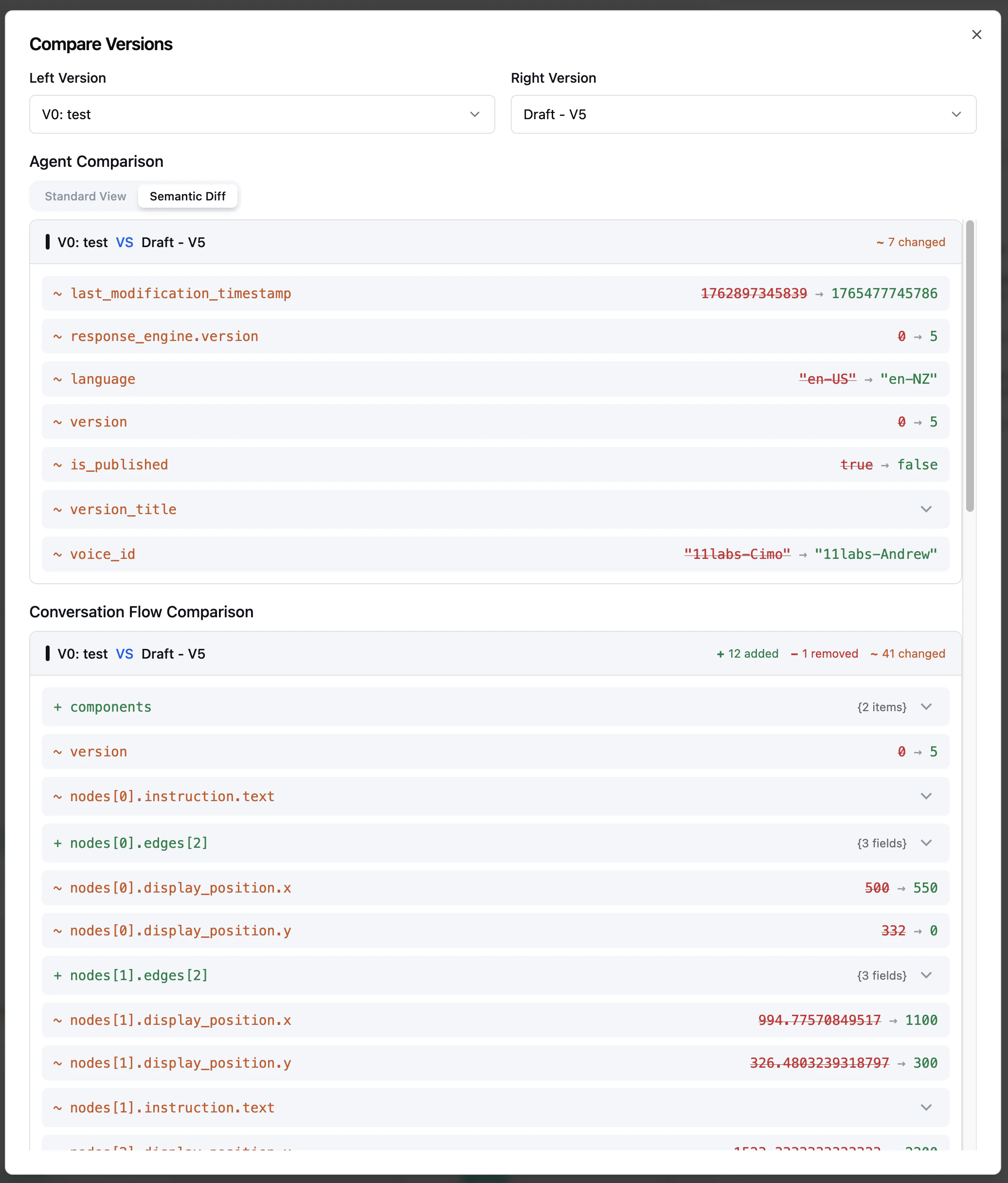
- Change summary: Shows a count of additions, removals, and modifications at the top
- Categorized by change type: Changes are categorized as added (+), removed (−), or changed (~)
- Field paths: Each change shows the full path to the modified field (e.g.,
response_engine.prompt) - Expandable details: Click on complex values to expand and see the full content
- Word-level diffs: For long text changes, highlights the specific words that were added or removed
What Gets Compared
When comparing versions, the modal shows differences across all components of your agent:- Agent configuration: Basic agent settings and metadata
- Response Engine: For single/multi prompt agents, shows Retell LLM changes. For conversation flow agents, shows flow configuration changes
- Related entities: Any linked knowledge bases, functions, or other configurations