

Call QA Overview tab
The Call QA Overview tab gives a high-level view of the cohort’s performance through summary metrics and trend charts.Summary metrics
The top section shows key metrics in a grid:- Calls Analyzed — Total calls analyzed in the cohort
- Average Score — Overall quality score based on your resolution criteria
- Call Resolution Rate — Percentage of calls successfully resolved
- Transfer Success Rate — Percentage of calls transferred successfully to another agent or system
- Transfer Wait Time — Average time users wait before a transfer completes
- Average Latency — Mean response time across all calls
- LLM Hallucination Rate — Percentage of calls with AI-generated inaccuracies
- KB (Knowledge Base) Recall — How effectively the knowledge base was retrieved
- Negative Sentiment Rate — Percentage of interactions with negative sentiment
- WER (Word Error Rate) — Transcription accuracy
- Avg. Overlapping Speech — Average overlapping-speech instances per call
- Tool Call Accuracy — Rate of correct tool invocations
- Transition Accuracy — Accuracy of conversation flow transitions
- Agent Natural Tonality Rate — Percentage of natural-sounding agent speech
- Agent Positive Sentiment Rate — Percentage of agent responses with positive sentiment
- Avg Custom Tool Latency — Average time custom tools take to return
- Custom Tool Success Rate — Percentage of custom tool calls that completed successfully
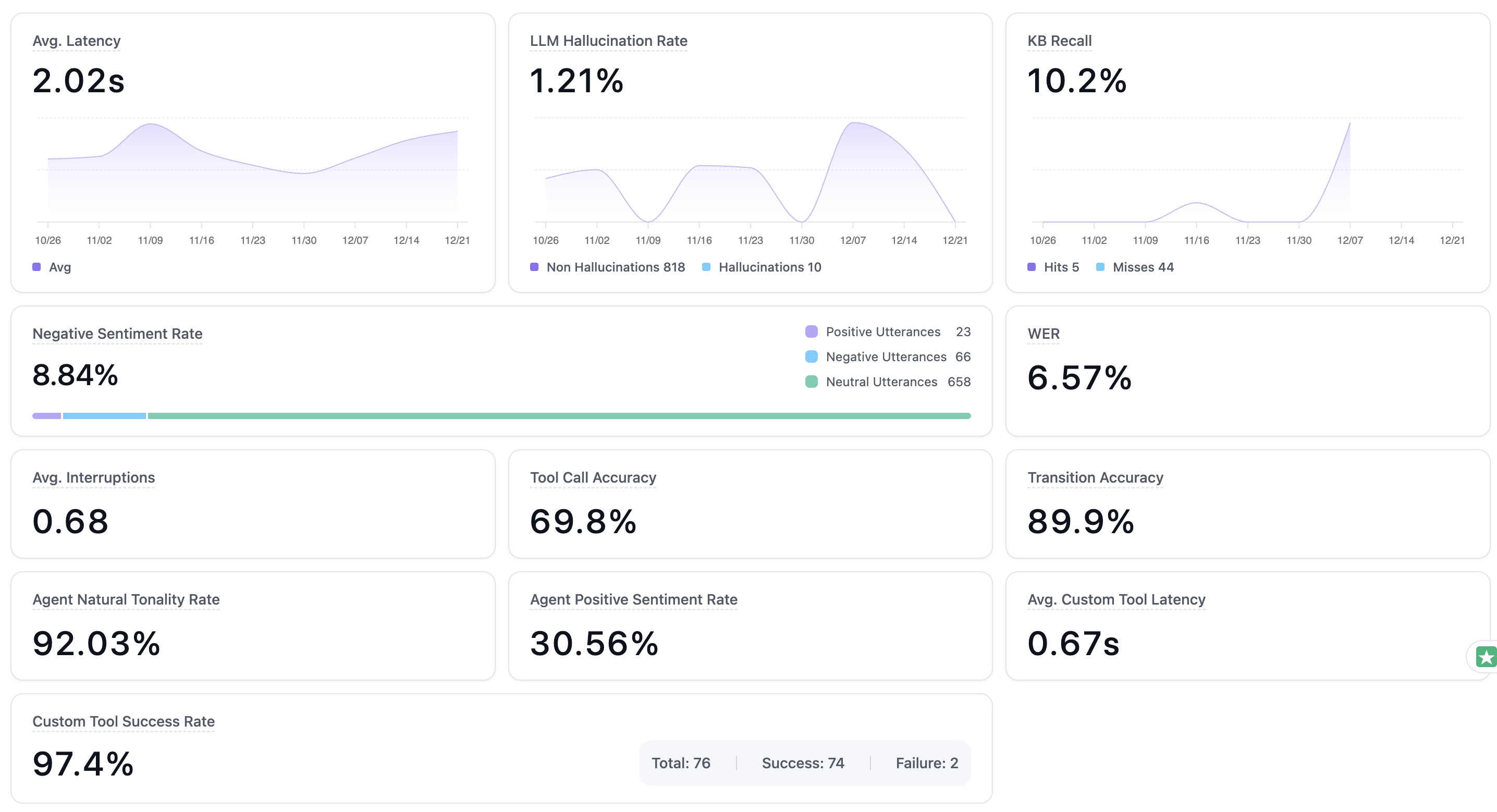
Trend charts show how each metric moves over time.
Top questions from users
A table shows the questions callers asked most often, alongside each one’s resolution rate.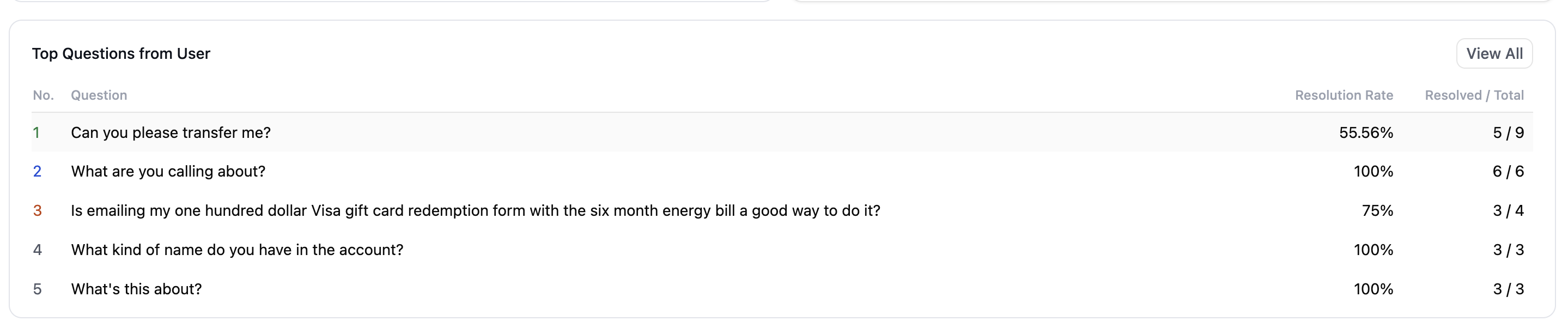
Top user questions ranked with their resolution rates.
Detailed Calls tab
The Detailed Calls tab is a table of every analyzed call, with sortable columns and per-call metrics.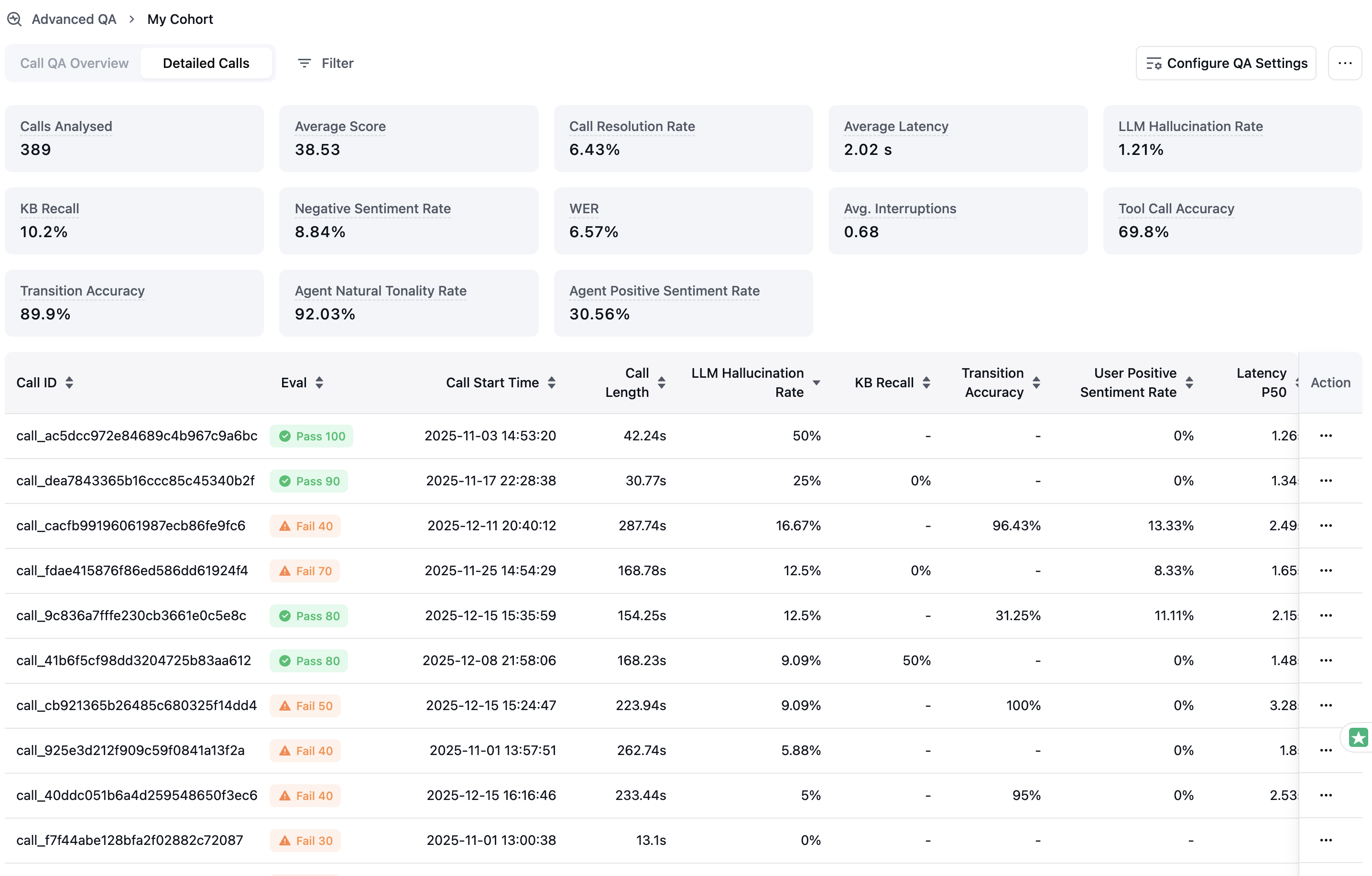
The Detailed Calls table, one row per analyzed call.
Calls table
Each row shows: Call ID, Evaluation Result, Call Start Time, Call Length, LLM Hallucination Rate, KB Recall, Transition Accuracy, User Positive Sentiment Rate, Latency P50, Overlapping Speech Count, WER, Tool Call Accuracy, and Natural Tonality Rate.Sorting and filtering
- Sort — Click any column header to sort by that metric.
- Filter — Use the Filter button to apply date ranges, score thresholds, and more.
Use the ellipsis menu (⋯) in the Action column to rerun QA for a call or delete a call from QA.
Call-level QA sheet
Click any row in the Detailed Calls table to open its Call QA Sheet, which shows the full diagnostics for that call.QA result overview
The sheet shows:- Overall Score — Pass/fail status with a numerical score
- Passed metrics — Metrics that met their thresholds (green checkmarks)
- Failed metrics — Metrics that missed their thresholds (orange warning triangles)
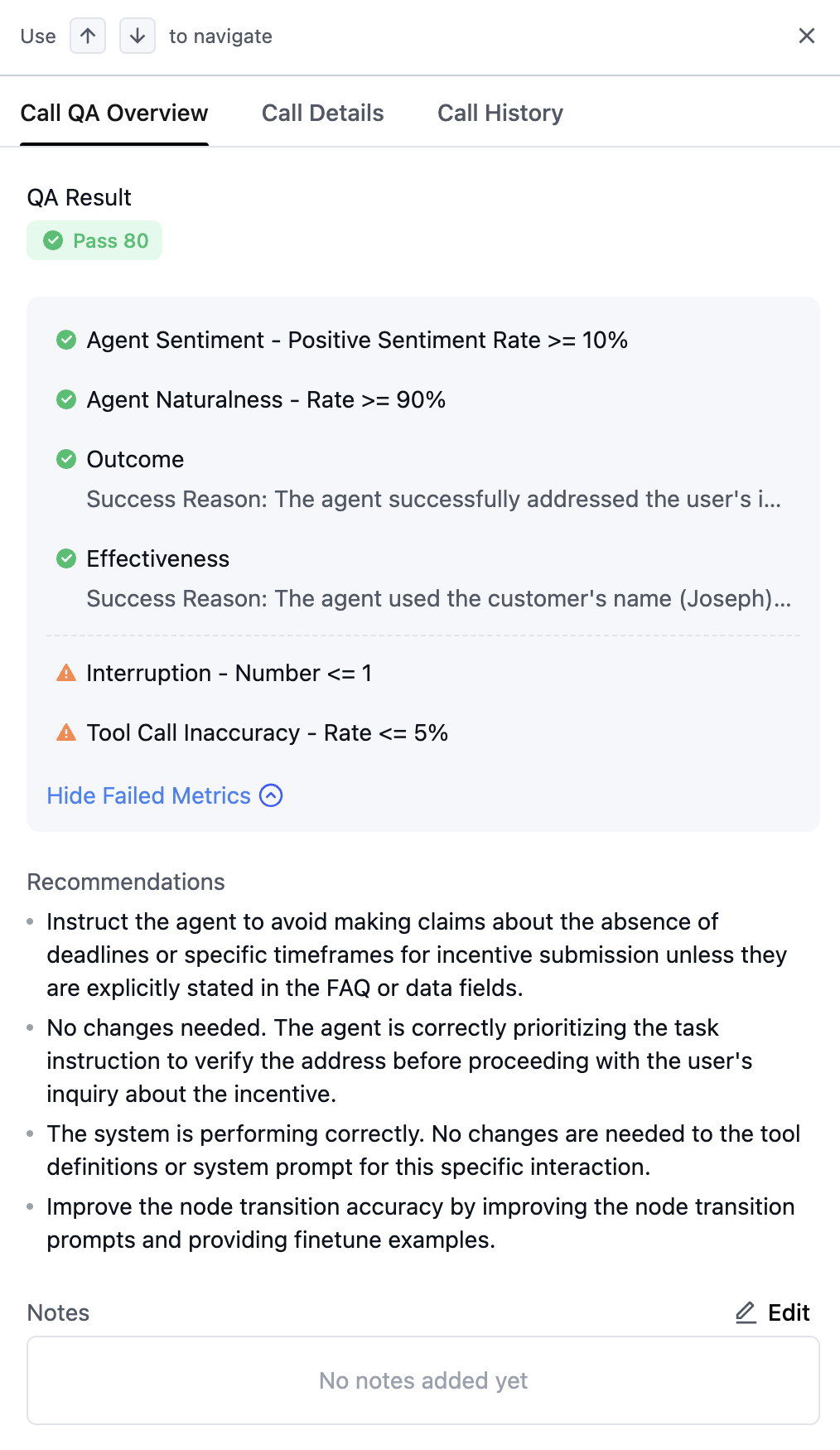
A call QA sheet listing passed and failed metrics with notes.
Calibrate a call
You can override an individual call’s evaluation by calibrating it:- Mark a passed metric as failed if it should have failed
- Mark a failed metric as passed if it should have passed
Transcript and errors
The sheet also gives you the full call transcript, specific transcription errors with corrections, and highlights marking where errors occurred.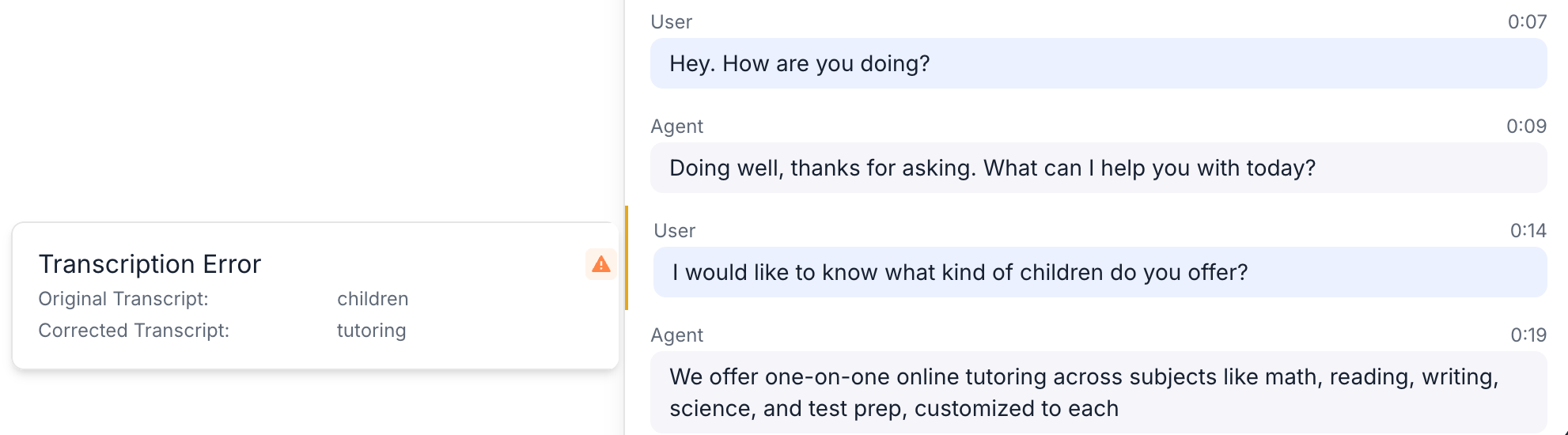
Transcript errors shown inline with their corrections.