

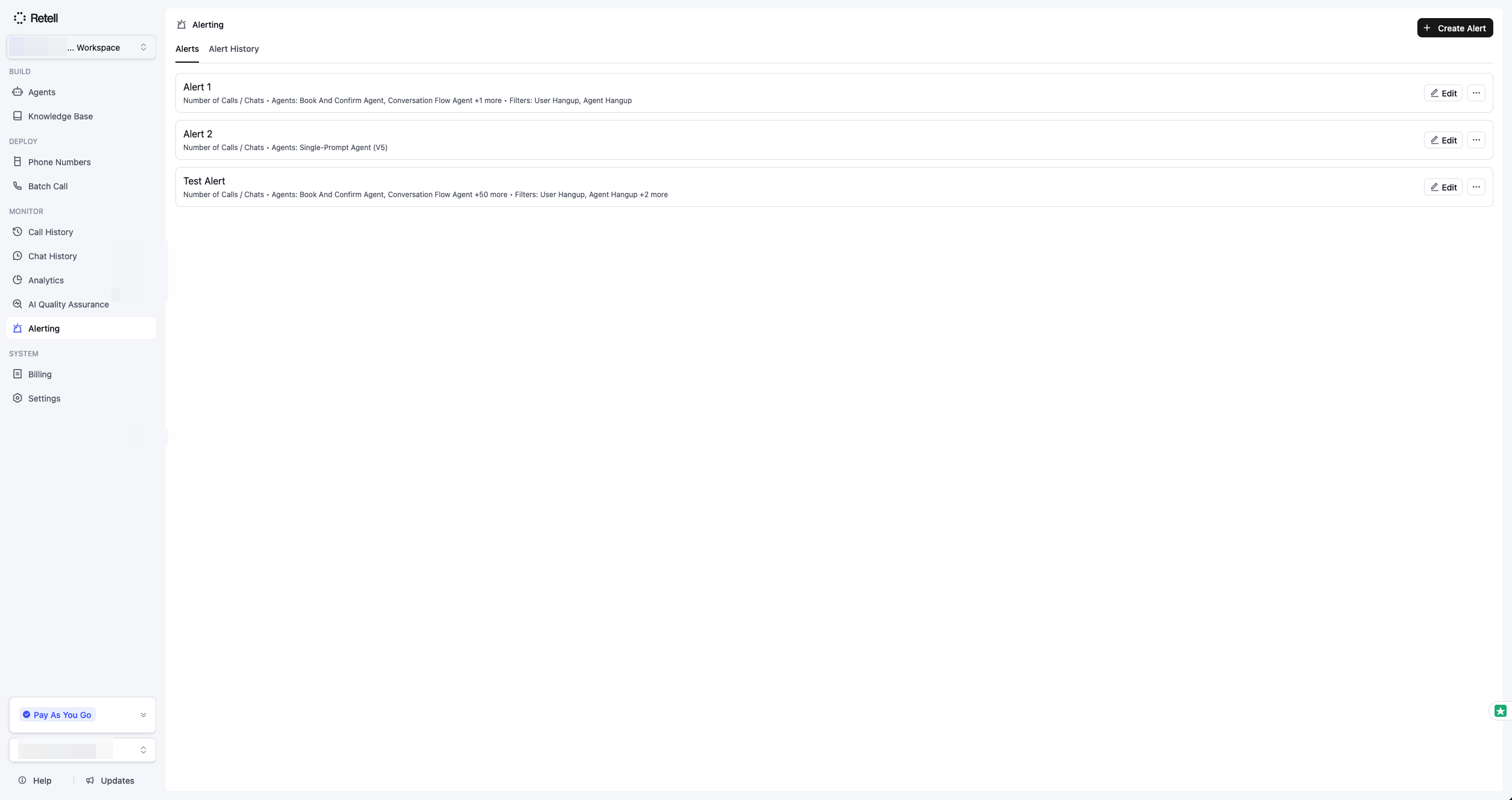
The Alerting page lists your saved rules on the Alerts tab.
When to use it
Reach for alerting when you need to catch a change in your call or chat operations fast, without a person watching for it. Common cases:- Catch outages early. Alert when call or chat success rate drops or API errors climb, so you react before customers complain.
- Detect volume anomalies. Alert on an unexpected spike or drop in call or chat volume, or when concurrency approaches your limit.
- Control spend. Alert when total call or chat cost over a window exceeds a budget.
- Watch quality. Alert on rising negative sentiment or a growing count of calls that fail QA.
Alerting is a dashboard feature. Rules are created and managed in the dashboard, not through the public API.
Example
A support team wants to know the instant call quality slips. They create a rule on Call success rate, set it to trigger when the rate is below 90% over the last 1 hour, checked every 5 minutes, and add a webhook that posts to their on-call Slack channel. When success rate dips, the on-call engineer is paged within minutes instead of hearing about it from customers.Create an alert rule
Open the Alerting tab in the dashboard and select Create Alert.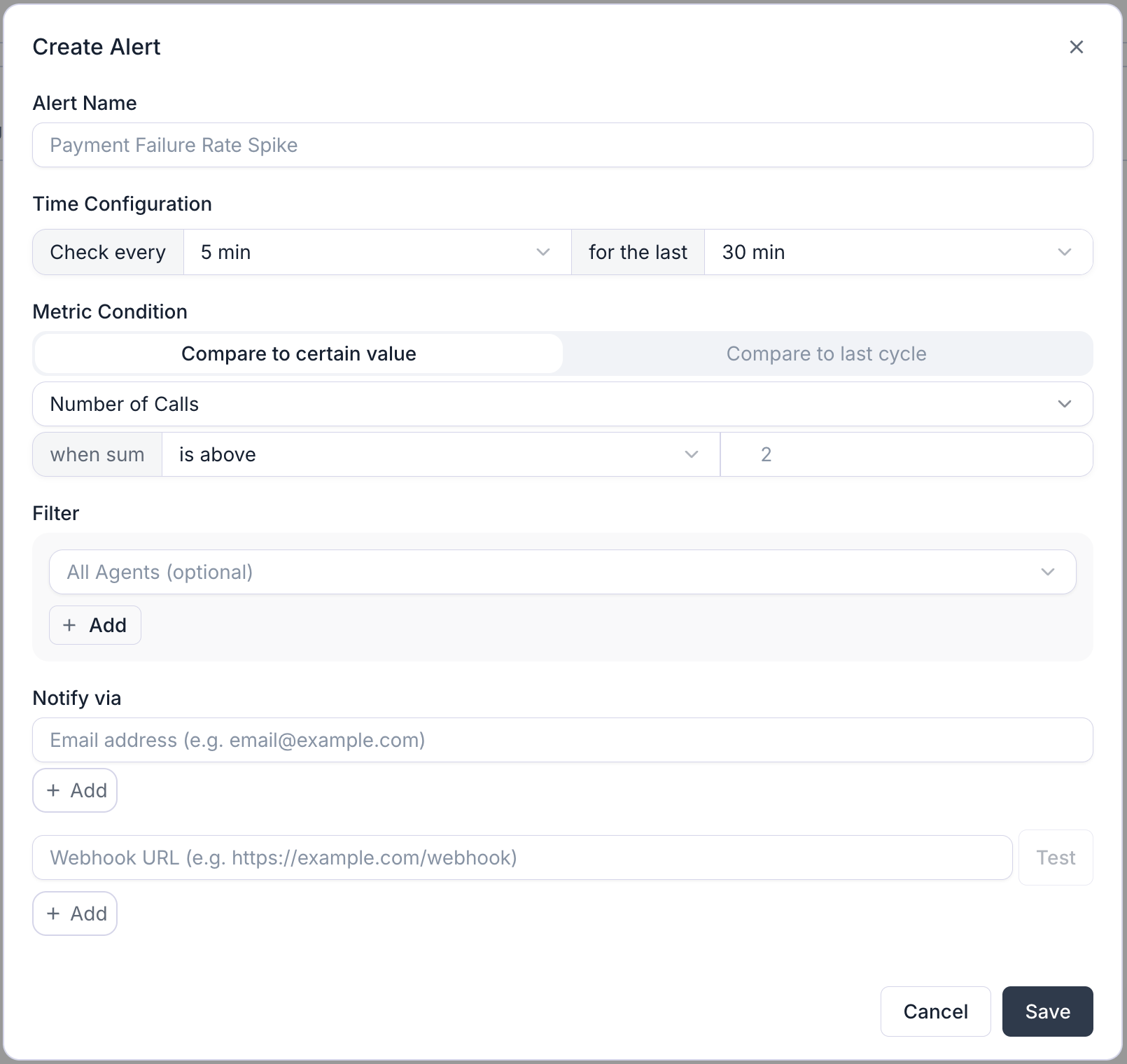
The Create Alert dialog, configuring a rule on call volume.
1
Name the rule
Give it a descriptive name, such as
Call success rate drop. The name appears in every notification.2
Pick the metric and condition
Choose the metric to watch; the picker groups them into API, Call, Chat, and QA. Then pick a threshold type: Compare to certain value (absolute) or Compare to last cycle (relative). Choose the comparator (for example, is above or is below) and enter the threshold value.
3
Set the window and frequency
Under Time Configuration, set how often the rule runs (Check every, the frequency) and how far back each check looks (for the last, the window). See Evaluation window and frequency for the valid combinations.
4
Narrow with filters (optional)
Restrict the metric to specific agents, agent environment tags, disconnection reasons, API error codes, a QA cohort, or Post Call Extraction fields. See Filters.
5
Add notification channels
Add one or more email addresses, webhook URLs, or both. At least one is required. Use Test next to a webhook URL to send a sample payload and confirm your endpoint accepts it before saving.
6
Save
Select Save. The rule starts evaluating on its next scheduled check.
Metrics you can monitor
Themetric_type value is what appears in the webhook payload.
The metric decides which channel the rule watches. Call metrics aggregate over voice calls; chat metrics aggregate over chat agent sessions, counting each chat when it ends, the same way call metrics count a call.
Thresholds
Every rule uses one of two threshold types.Compare to certain value (absolute)
Compares the metric against a fixed number. Example: trigger whenNumber of calls is above 100 in the last hour.
Compare to last cycle (relative)
Compares the percentage change from the previous window against your threshold. Use it to catch sudden spikes or drops regardless of the baseline. Example: trigger whenNumber of calls increases by more than 50% compared to the previous hour.
The percentage change is calculated as:
If the previous window had zero activity and the current window has activity, the change is treated as an infinite increase and shown as
+∞%. Rules that trigger on an increase (increases by more than or increases by at least) fire in this case.Evaluation window and frequency
The window is how far back each check looks when aggregating the metric. The frequency is how often the rule runs. A shorter window can only be paired with faster frequencies:Filters
Filters narrow what data feeds the metric. Which filters are available depends on the metric.Notifications
When a rule triggers, Retell notifies every channel you configured. When a later check finds the condition no longer met, the incident resolves and the same channels are notified again.[Retell Alert] <rule name>. The body includes the workspace, the metric, the value that triggered the alert, the threshold that was breached, the trigger time, and a link back to the dashboard. For most metrics it also links to the call history, chat history, or QA results behind the incident; Concurrency used and API error count have no drill-down. When the incident resolves, a follow-up email with subject [Retell Alert Resolved] <rule name> confirms it.
Webhook
Each webhook URL receives aPOST request. The body wraps the incident under an alert object:
eventisalert_triggeredwhen an incident opens. When it resolves, the same URLs receive a second request withalert_resolved.filterechoes the filters set on the rule. An environment-tag filter appears asagent_tag, for example"agent_tag": { "type": "enum", "op": "in", "value": ["prod", "staging"] }.comparatoris one ofgt,lt,ge,le(the symbol forms>,<,>=,<=are also accepted).current_valueis the aggregated value that triggered the rule.previous_valueis populated only for relative thresholds.- For
total_call_costandtotal_chat_cost,current_value,previous_value, andthreshold_valueare in cents (the dashboard displays them as dollars). triggered_timestampandresolved_timestampare Unix timestamps in milliseconds.resolved_timestampisnullwhile the incident is active.
X-Retell-Signature header. Verify it before trusting the payload. Alert webhooks use the same HMAC-SHA256 scheme as other Retell webhooks, so the webhook verification steps and code apply here too. Retell sends each request once and waits up to 10 seconds for a response; it does not retry, so acknowledge quickly and do heavy work asynchronously.
Alert history
Each time a rule’s condition is met, Retell opens an incident and sends notifications. Incidents are listed under the Alert History tab, with the active period, the rule name, the condition, the value that triggered it, and the channels notified.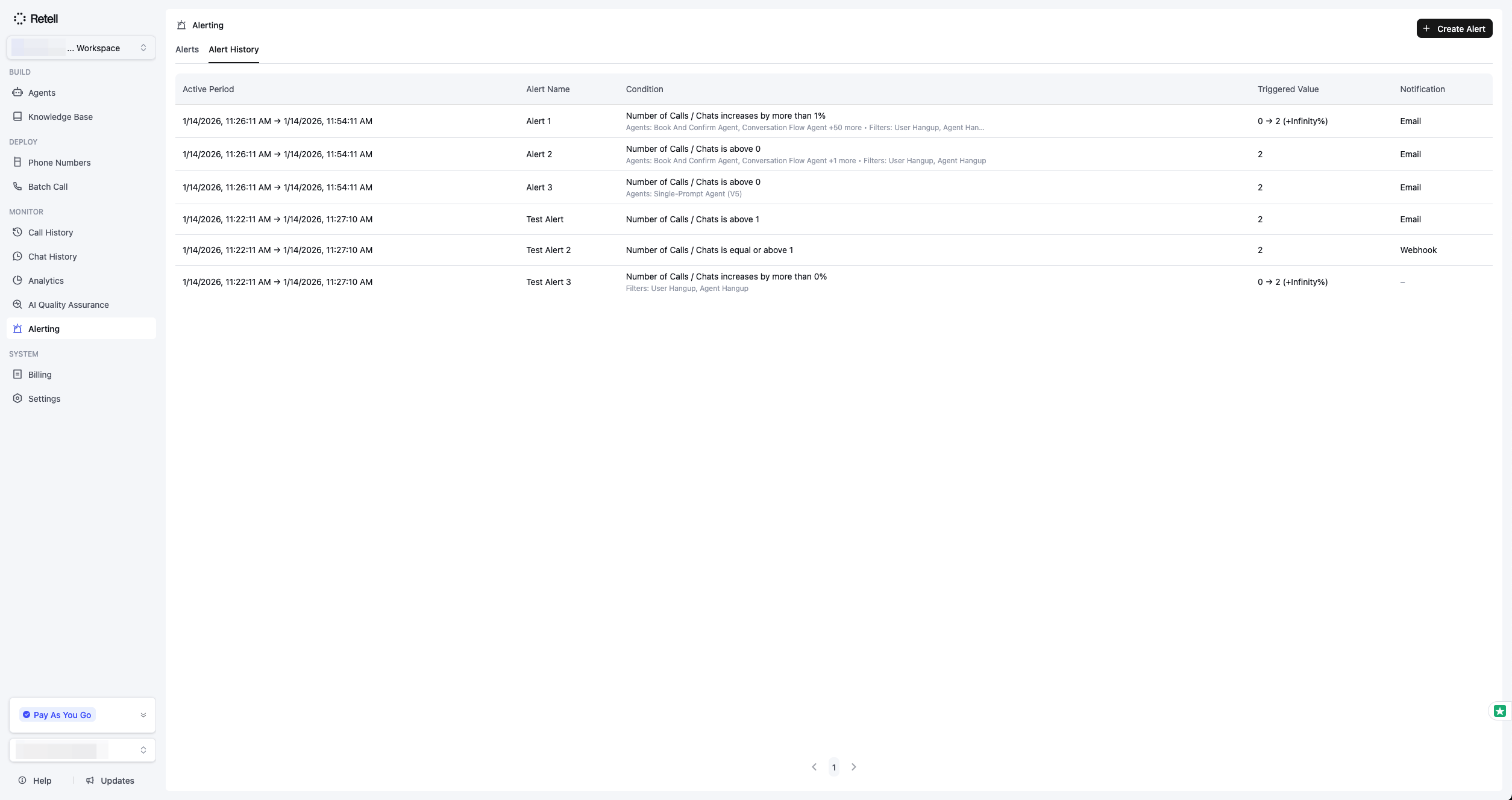
The Alert History tab lists past incidents and the value that triggered each one.
Limits
As of July 2026:- Up to 10 alert rules per workspace. Creating an 11th returns a
400error. - Up to 100 agents in a single rule’s agent filter.
FAQ
How often are alerts evaluated?
How often are alerts evaluated?
The system checks for due rules every minute and runs each one on its own configured frequency (1 minute to 24 hours). A rule with a 5-minute frequency is evaluated roughly every 5 minutes, not every minute.
Will I get repeated notifications for the same issue?
Will I get repeated notifications for the same issue?
No. A notification is sent once when a new incident opens, and once more when it resolves. You won’t get repeat notifications while the condition persists.
What happens when I edit a rule?
What happens when I edit a rule?
Editing a rule resets its evaluation schedule and clears any active incident, so it starts evaluating fresh on the next check. This prevents a stale incident from lingering after you’ve changed the condition.
What happens if an agent in a rule's filter is deleted?
What happens if an agent in a rule's filter is deleted?
When you open the rule to edit it, Retell removes any agent that no longer exists from the Agents filter and shows a notice that some agents were removed. Select Save to keep the cleaned-up filter. The rule keeps evaluating on its remaining agents; a transient fetch error (not a deletion) leaves the agent in place so it isn’t dropped by mistake.
Can I alert across multiple agents at once?
Can I alert across multiple agents at once?
Yes. Select multiple agents in the Agents filter and the metric is aggregated across all of them. Leave the filter empty to include every agent of the metric’s channel. A single rule can’t mix voice and chat agents; create one rule per channel instead.
Can I alert on chat agents?
Can I alert on chat agents?
Yes. Pick one of the chat metrics (Number of chats, Chat success rate, Chat negative sentiment rate, or Total chat cost) and the rule evaluates chats instead of calls. Filters work the same way: narrow by chat agent, environment tag, or Post Call Extraction fields.