

When to use this
- You’re starting a new agent and want a solid first draft rather than a blank prompt.
- You have a clear use case in mind — booking calls, customer support, lead qualification — and want Conductor to rough out the structure.
- You have an existing script, SOP, or brief you want the agent to follow, and you’d rather hand it to Conductor than copy it in manually.
How to create an agent with Conductor
1
Start a new agent
From the Agents page, click Create an agent. In the Templates section of the dialog, click the Generate from prompt card (marked Suggested) to open the Conductor creation modal.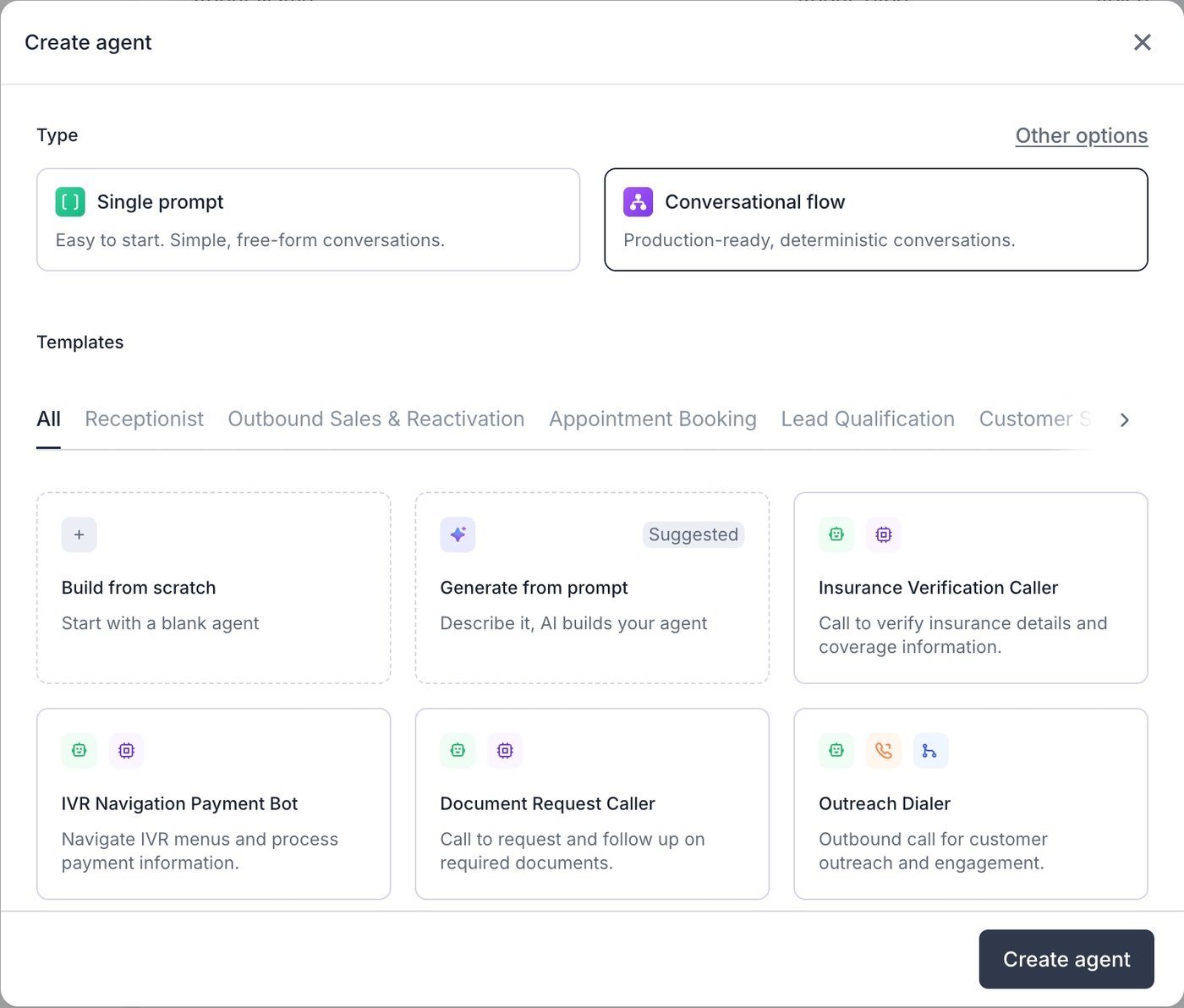
2
Describe your use case
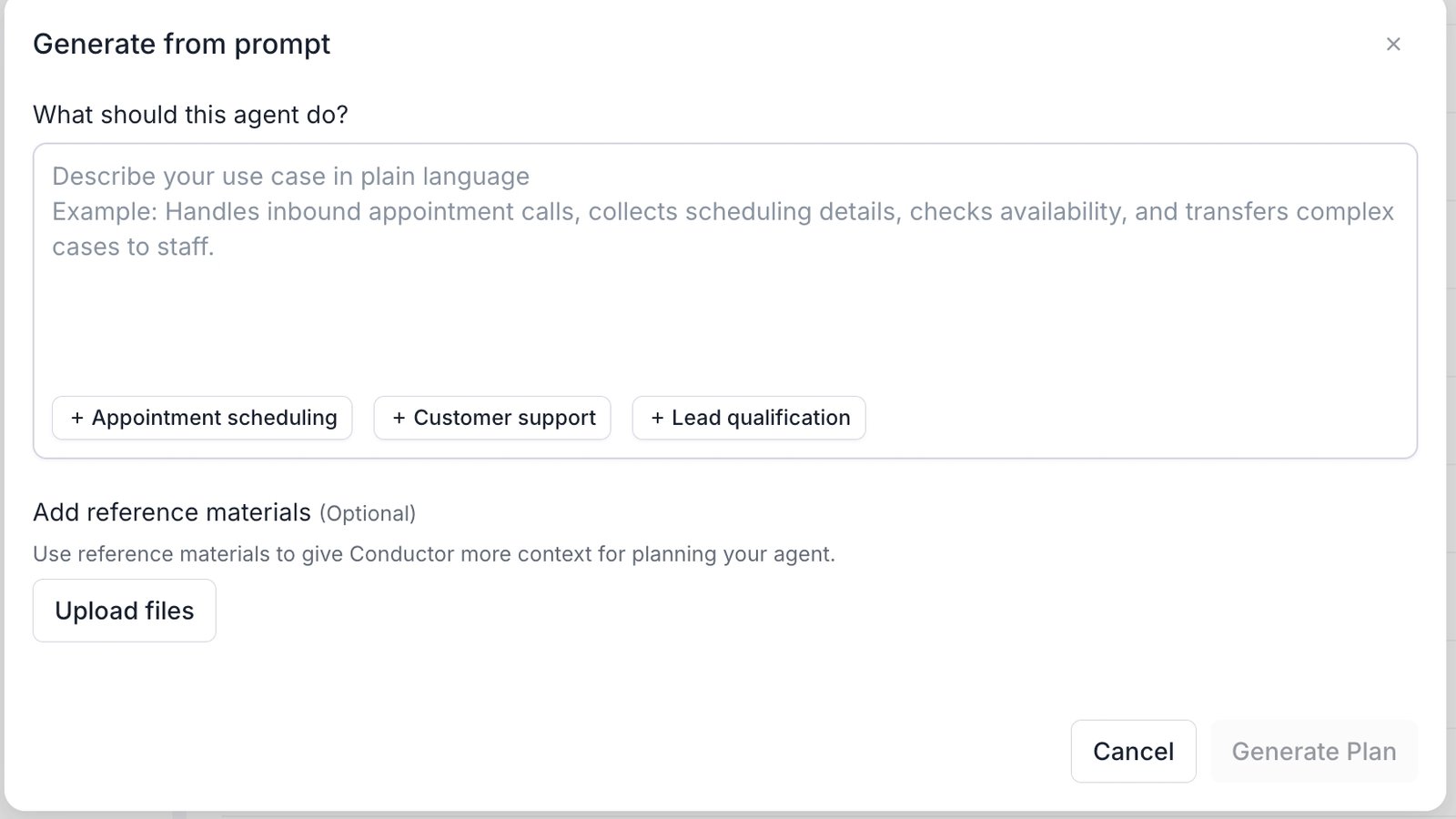
In the What should this agent do? field, describe the agent in plain English. Be specific about:
- The type of calls it handles (inbound or outbound)
- The goal of each call
- Any key steps — collecting information, transferring to a human, booking an appointment
Handles inbound calls from patients who want to book, reschedule, or cancel appointments. Confirms their identity, finds an available slot, and books it. Transfers billing or medical questions to staff.
3
Pick a starter (optional)
If you’re not sure where to start, click one of the use case chips below the text field. Conductor will fill in a complete example prompt for that scenario — appointment scheduling, customer support, or lead qualification. You can use it as-is or edit it before generating.
4
Attach reference materials (optional)
Under Add reference materials, click Upload files to attach any documents that should shape the agent — a call script, a product brief, a list of FAQs, a company SOP. Conductor reads these before generating, so the output reflects your specific content rather than a generic template.You can attach up to 10 files, each up to 50 MB.
Supported file types: PDF, DOCX, plain text (TXT, MD, RTF), CSV, HTML, JSON, and images (JPG, PNG, GIF, WEBP). Conductor uses these only for the current generation — they’re not stored permanently against the agent.
5
Generate the plan
Click Generate Plan. Conductor will think for a moment and then propose the initial agent — prompts, steps, and settings — as a change proposal in the Conductor panel.Review each proposed change, accept what looks right, and reject or ask Conductor to revise anything that doesn’t fit.
Once you’ve accepted the changes, your agent is ready to test. Head to the Test panel to run a call and see how it sounds.
After you generate
The generated agent is a starting point, not a finished product. After reviewing the initial proposal, continue refining it with Conductor:- “Make the greeting shorter.”
- “Add a step that asks for the caller’s callback number before booking.”
- “If the caller mentions billing, transfer them immediately instead of collecting more information first.”
Tips
- Include the edge cases in your description. “Transfer to a human if the caller asks for a refund” in your prompt means Conductor builds that branch from the start, rather than you adding it later.
- Use reference files for content, not instructions. Upload the source material the agent should know — your FAQ doc, your product sheet — rather than writing out every answer in the description field.
- Reject and revise freely. If a change isn’t right, reject it and tell Conductor what to do differently. It’s faster to iterate than to get the description perfect upfront.