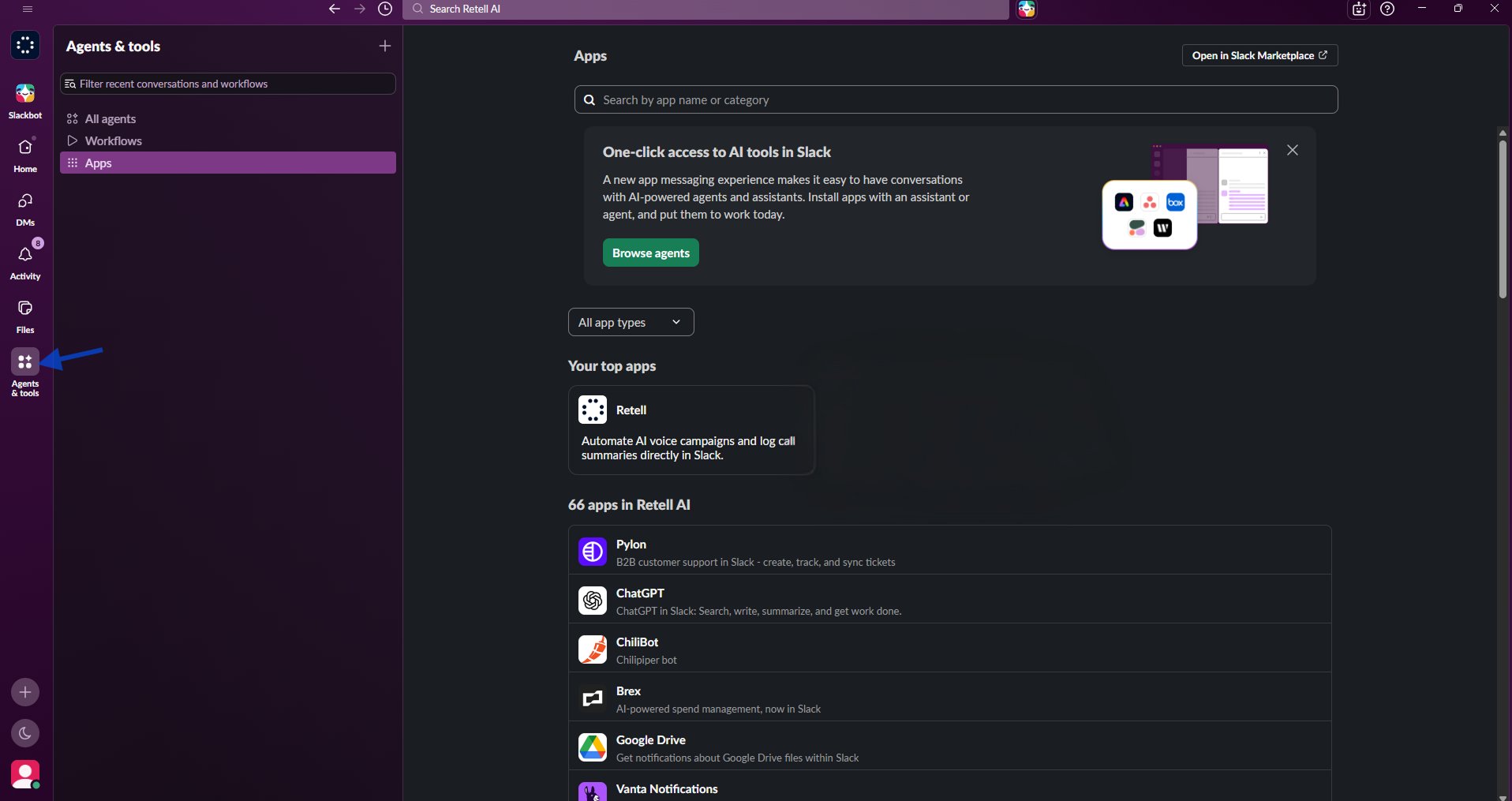
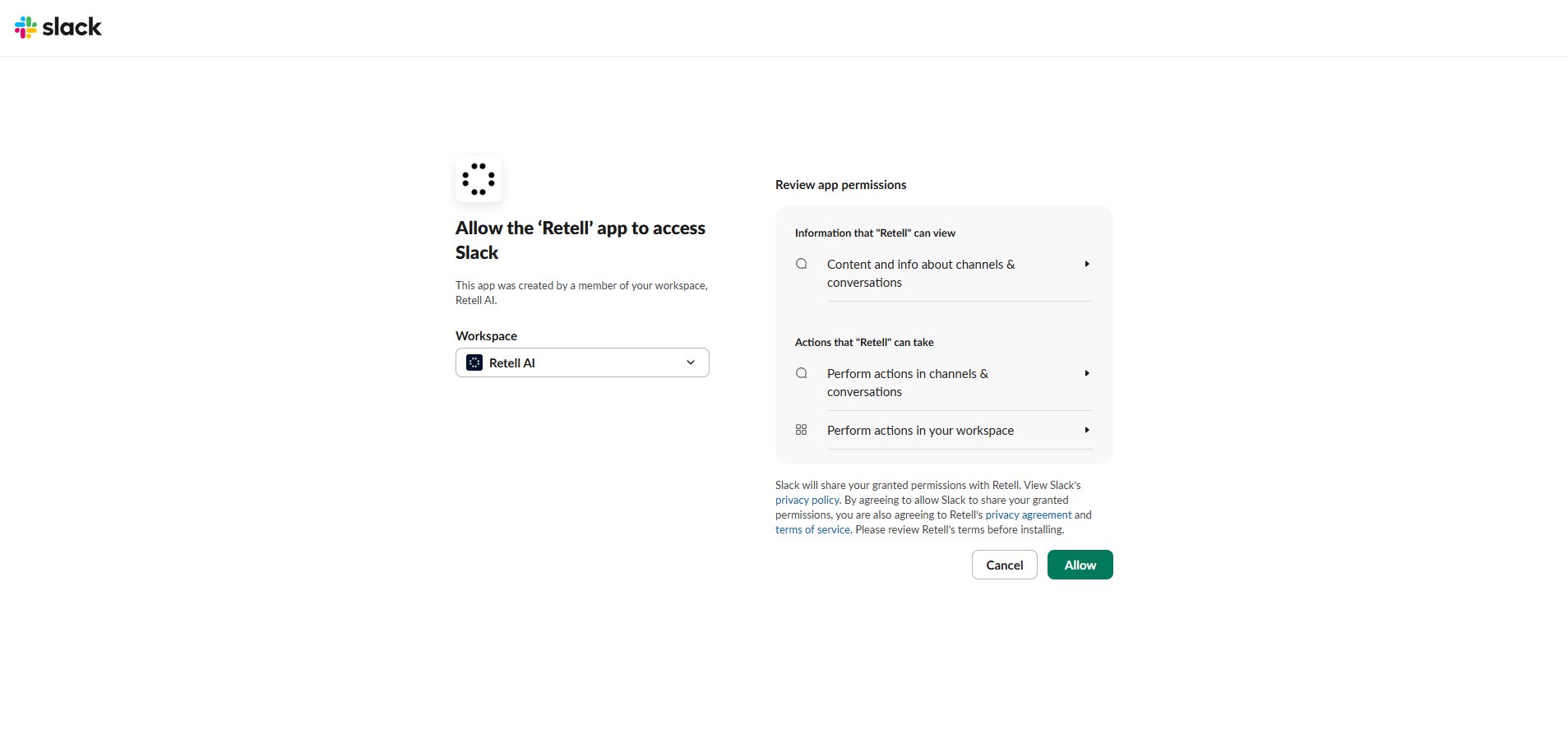
Install the Retell AI Slack app to start outbound voice agent calls from Slack and post call summaries, results, and recordings back to channels.
This guide connects Retell AI to Slack so team members can start outbound calls with a slash command. After each analyzed call, Retell posts the result to the originating channel.
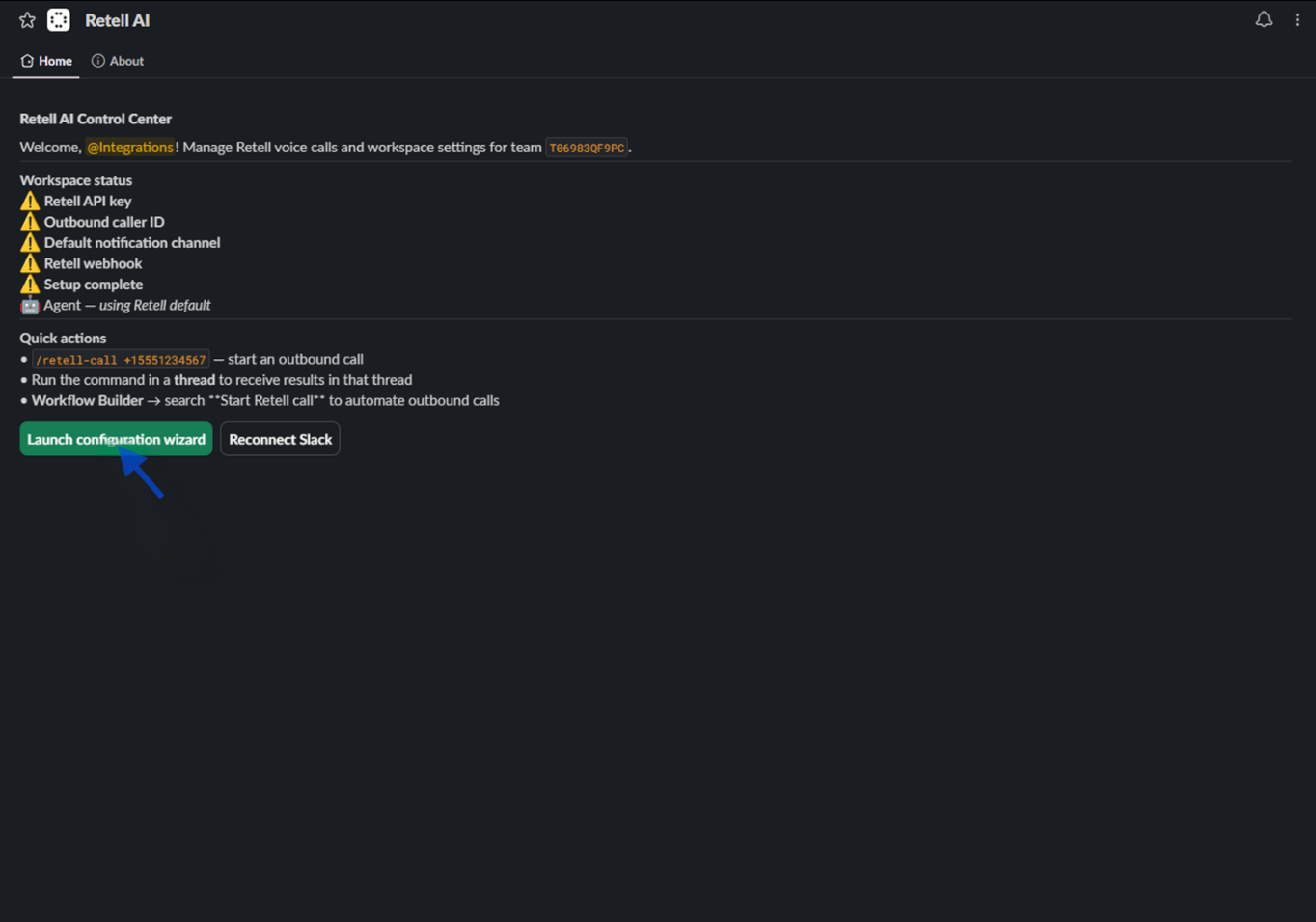
In Slack, open Apps → Retell AI → Home. If the workspace is not connected, select Connect Slack and approve access.
2
Launch the configuration wizard
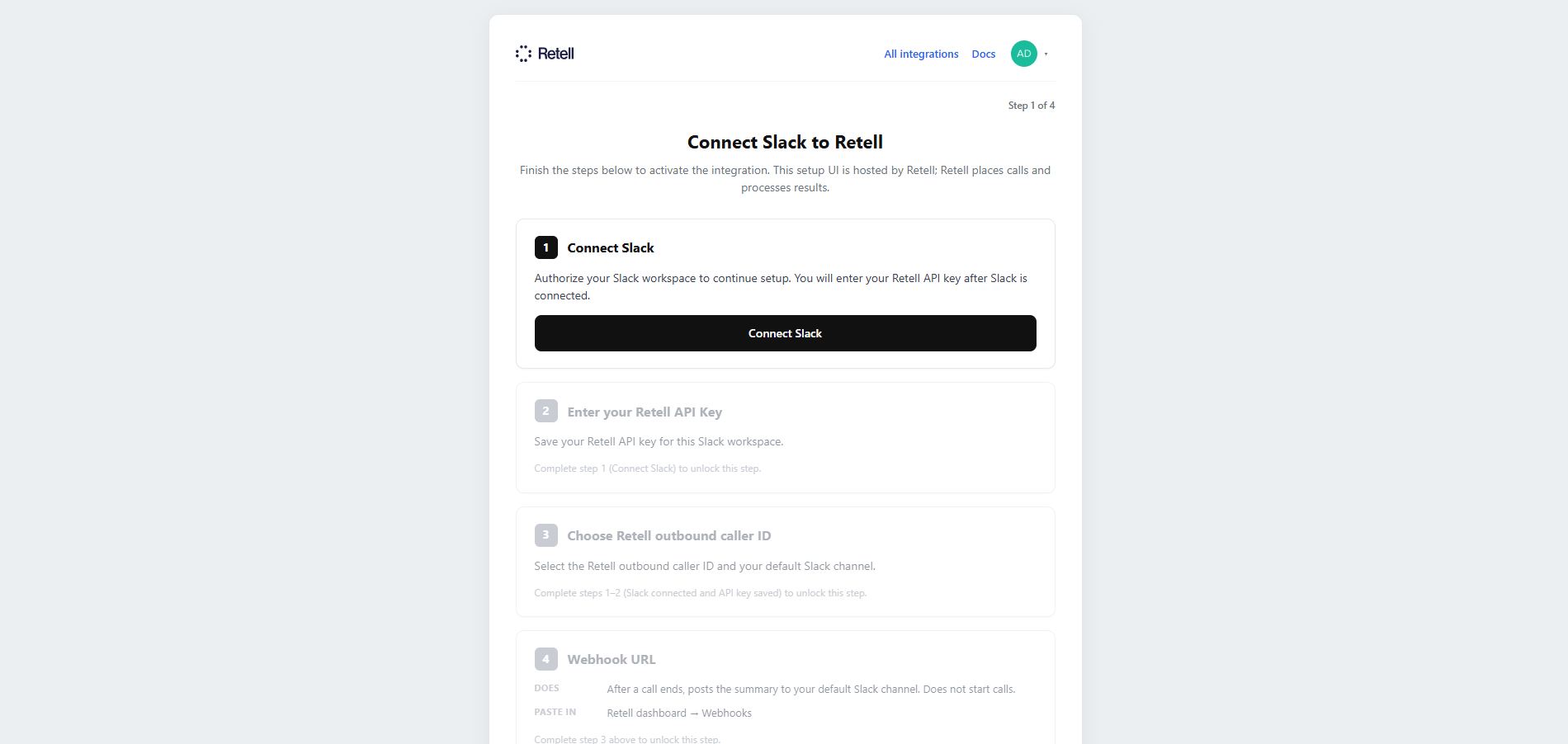
From App Home, select Launch configuration wizard. Sign in to Retell if required, or continue without signing in when your Retell account is already configured.
3
Set the webhook key
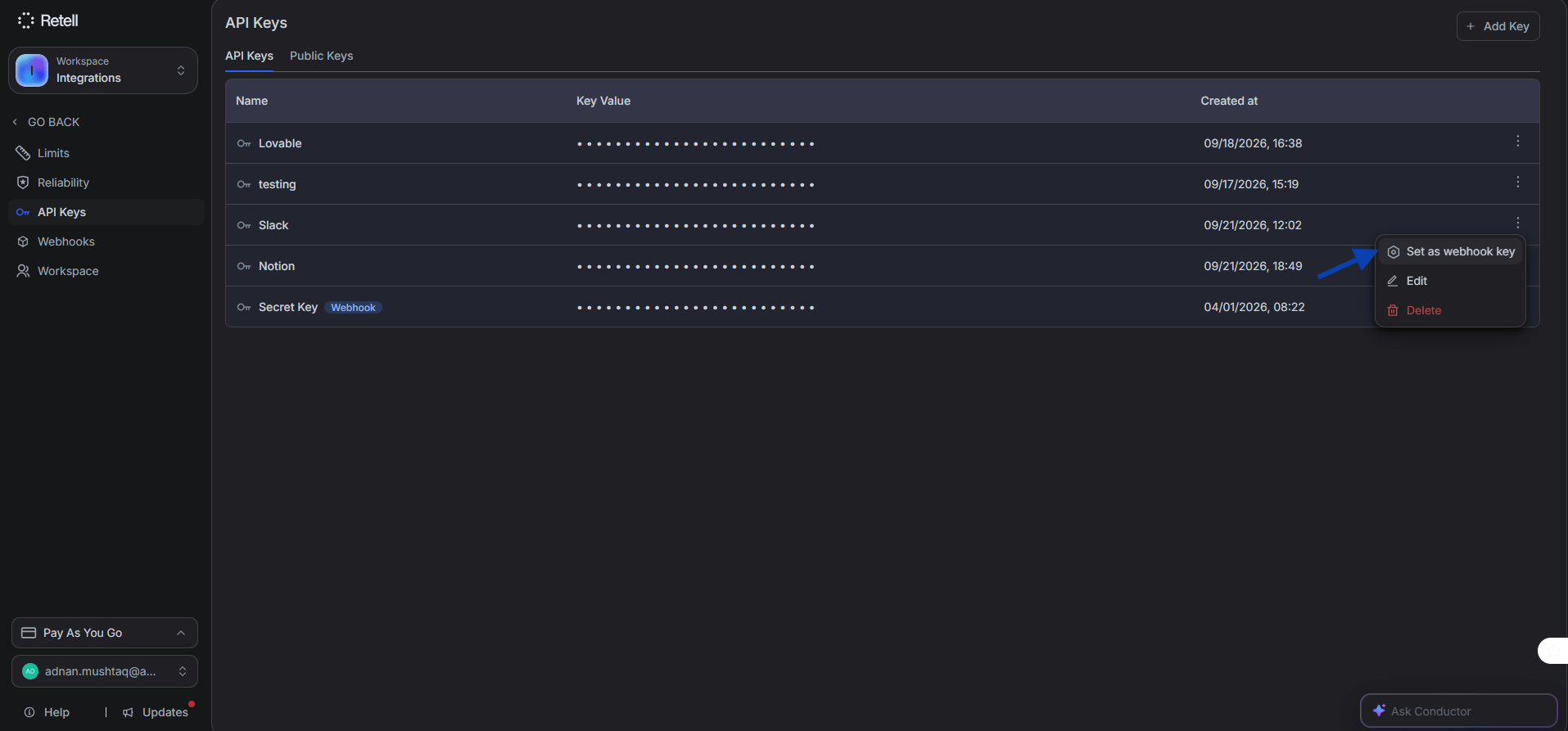
In the Retell dashboard, go to Settings → API Keys. Copy an existing key or select Add Key to create one. Open the key’s ⋮ options menu and select Set as webhook key, then copy the key value.
The API key must have the webhook option enabled. Post-call analysis data is only posted back to Slack when the key is designated as a webhook key.
4
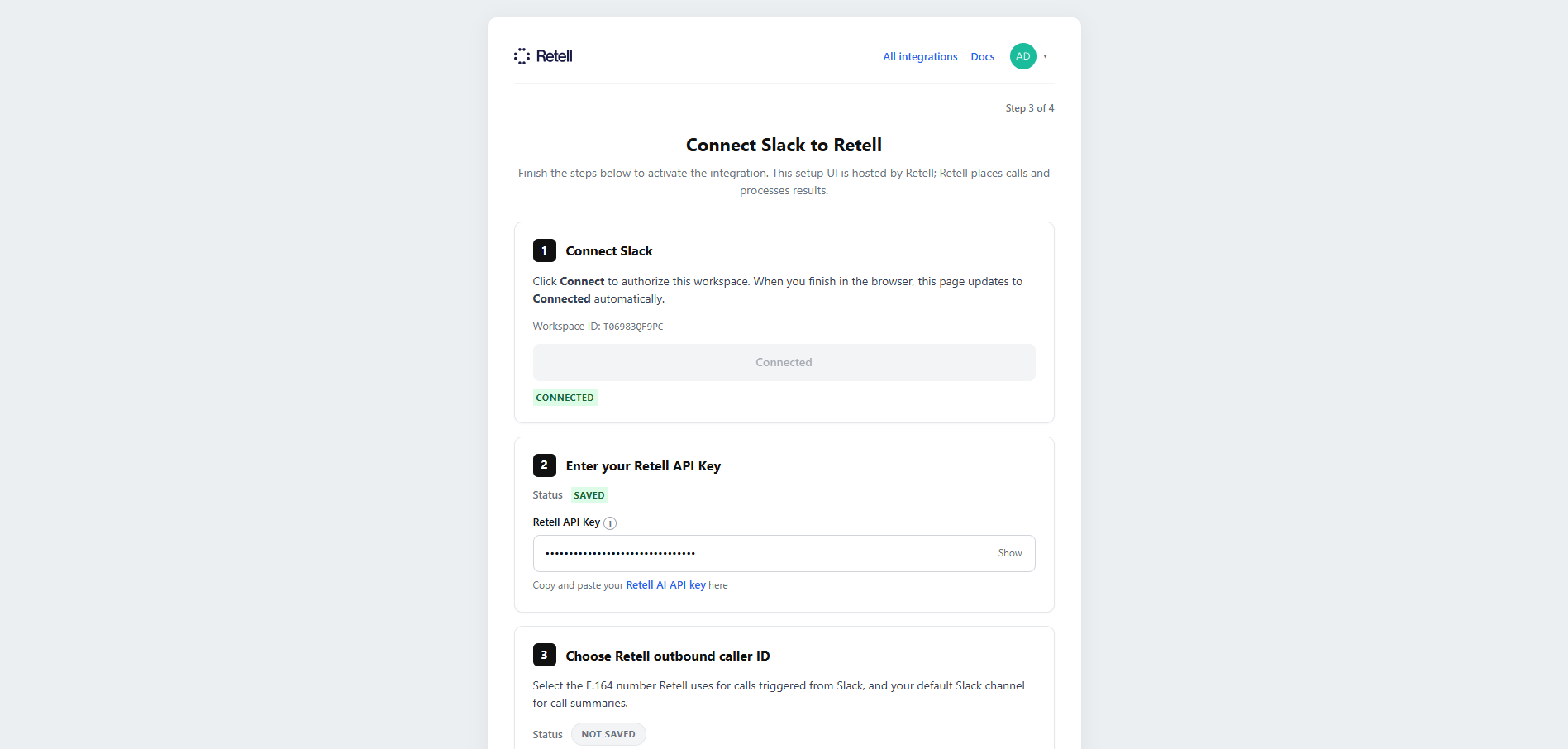
Save the API key
Paste the webhook key into Retell API Key and select Save API key. Confirm that the status shows Saved before continuing.Retell AI supports only one active webhook integration at a time. If you are also using Notion or Zoho, choose which integration receives webhook events.
5
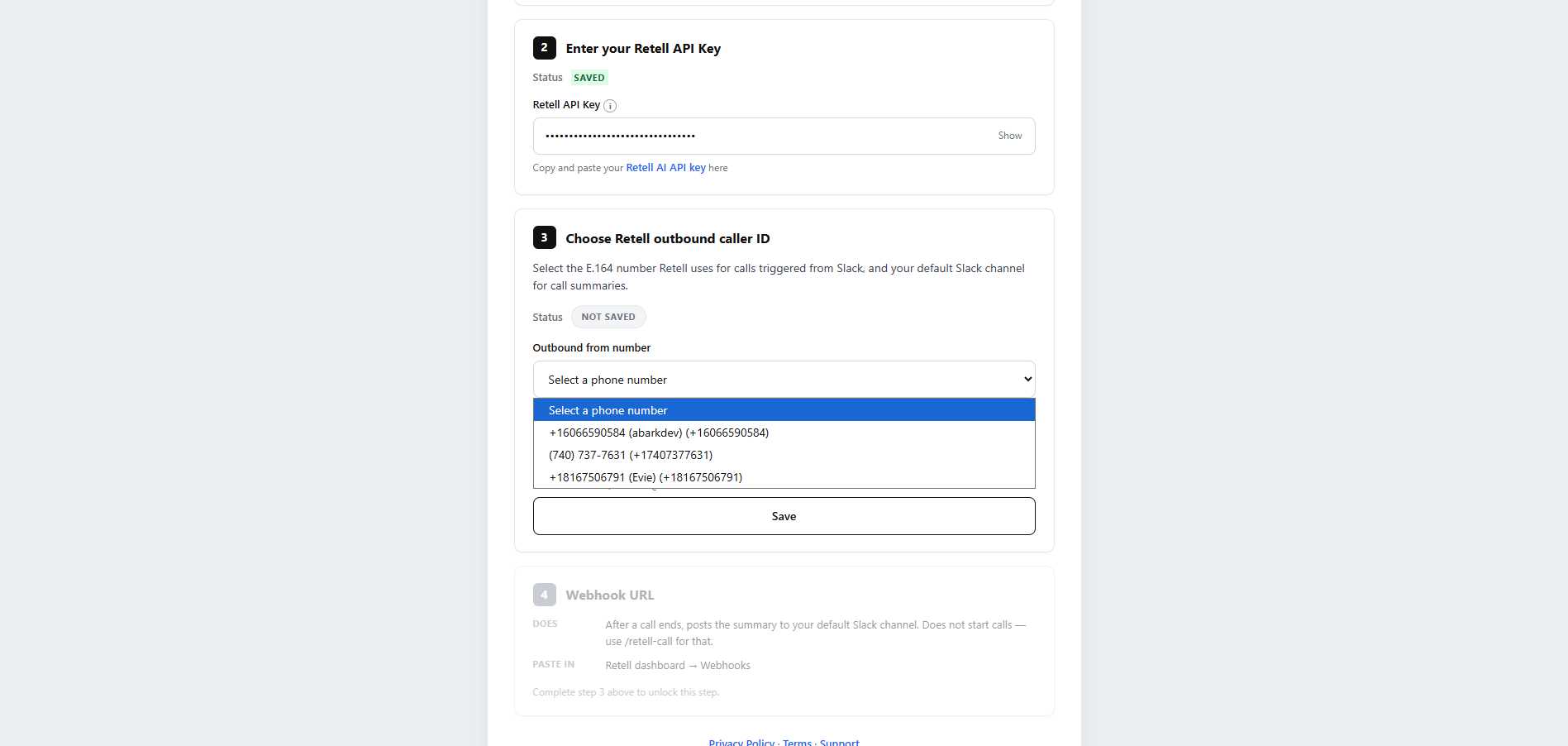
Choose the outbound caller ID
Select the Retell phone number used for outbound calls. If an agent option appears, choose the default agent or keep the Retell account default.
6
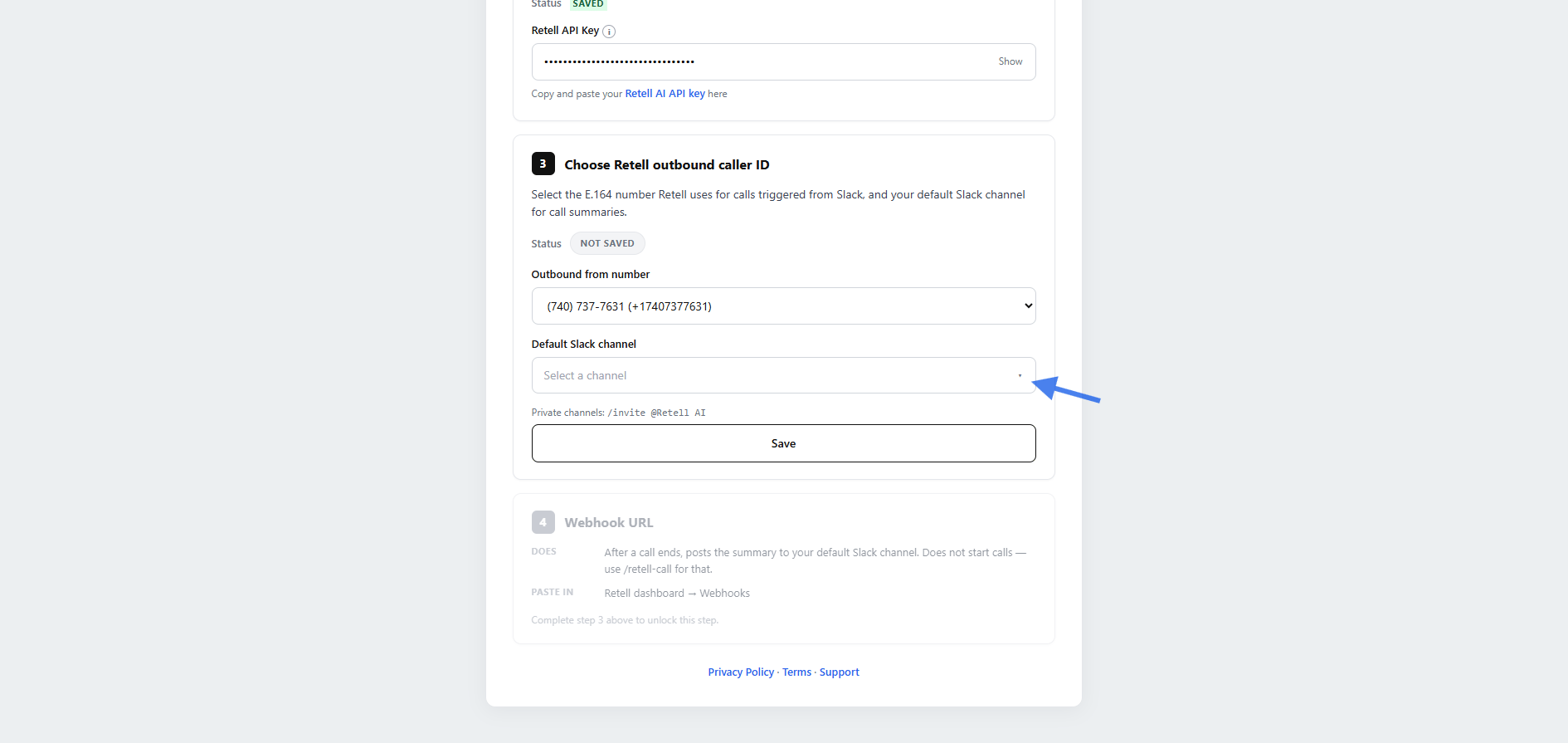
Set the default notification channel
Choose the Slack channel that receives results when a call does not specify one. For a private channel, first run /invite @Retell AI in that channel.
In the setup wizard, find Register the Webhook URL in Retell and select Copy webhook URL.
2
Add the webhook URL to the Retell agent
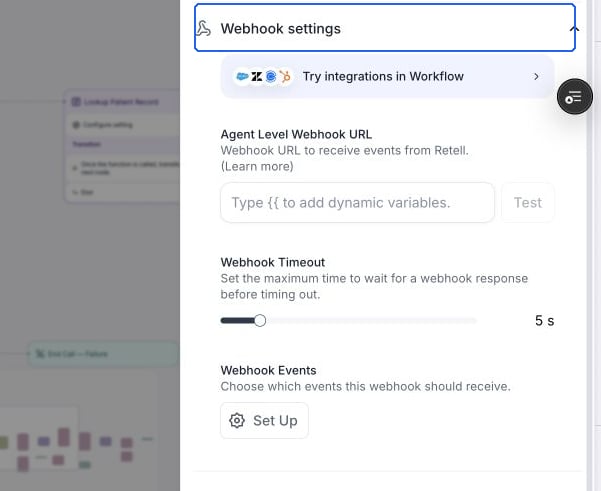
Open the Retell dashboard, select Agents, and open the agent used for Slack. Expand Webhook settings, paste the URL into Agent Level Webhook URL, and select Test. Under Webhook Events, make sure call_analyzed is enabled so Retell can send the post-call result. Save or publish the changes.
Paste the integration URL into Agent Level Webhook URL.
Use the slash command for the fastest end-to-end test.
1
Run the slash command
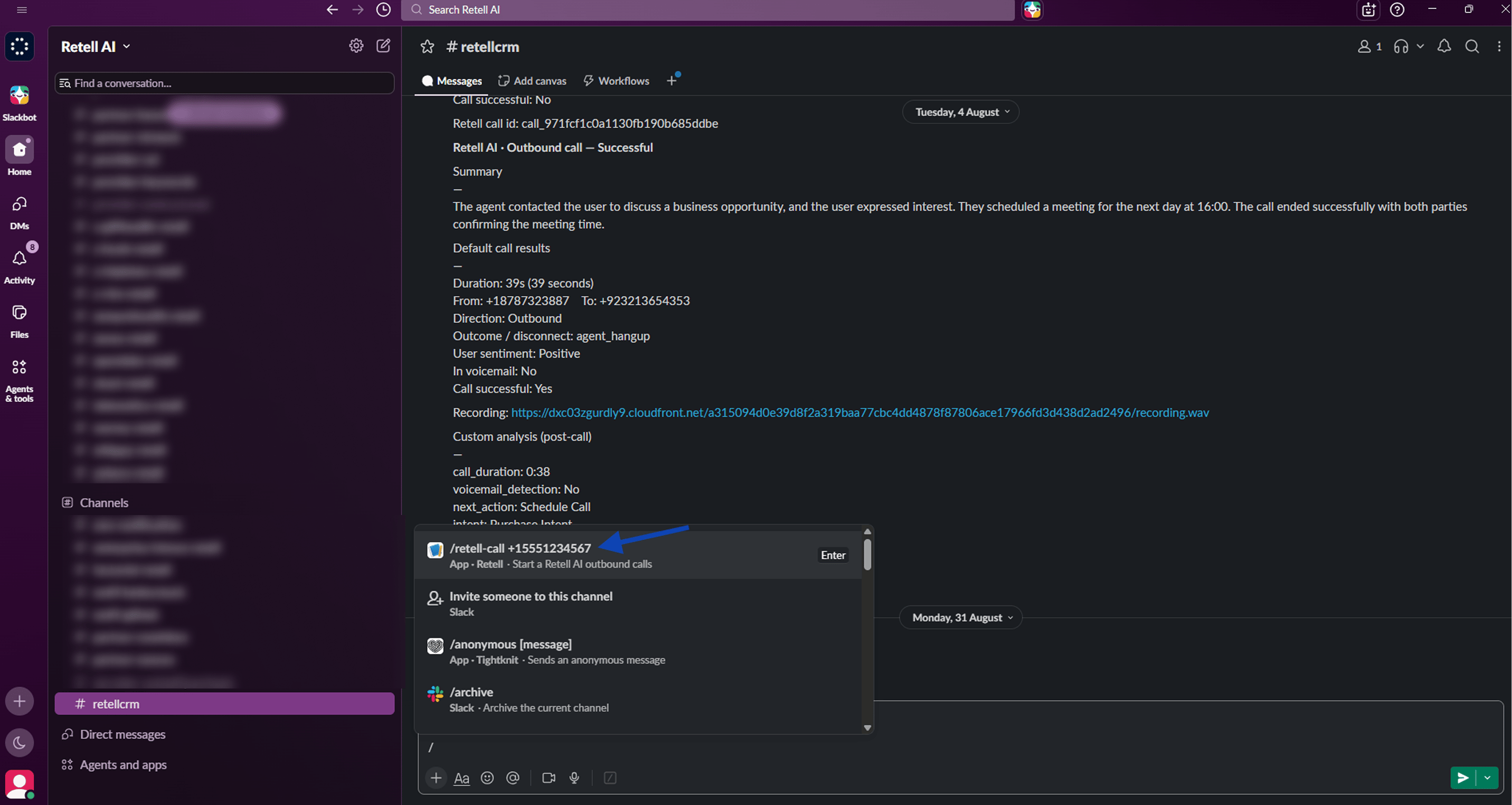
In a channel where Retell AI can post, enter the command below with a valid E.164 destination number. Slack displays a private confirmation when the call starts.
/retell-call +15551234567
2
Review the post-call message
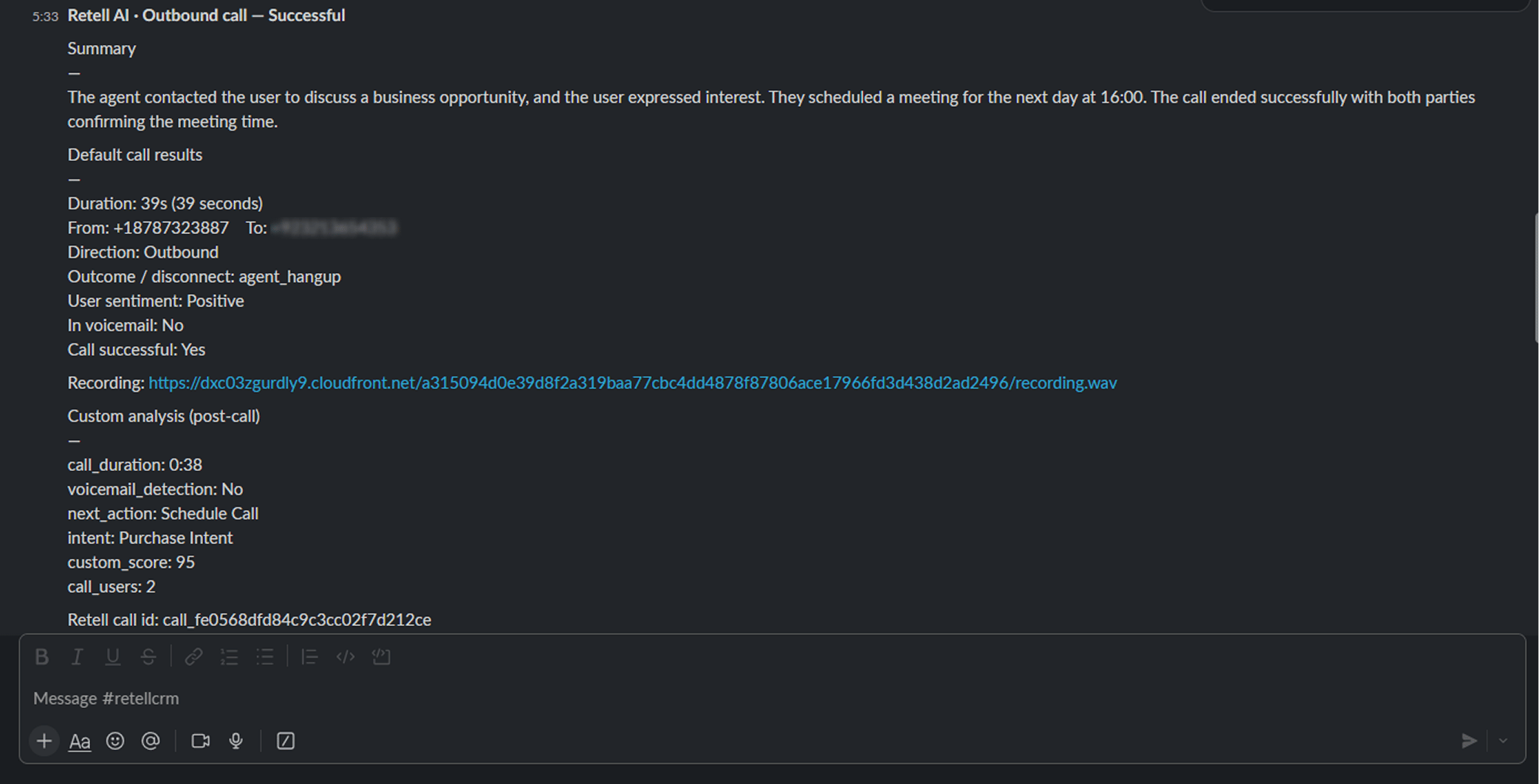
After Retell analyzes the call, review the Slack message for the summary, duration, direction, sentiment, transcript details, and recording link.
Select Connect Slack in App Home, approve access, then reopen the Home tab.
Setup will not complete
Confirm the API key, caller ID, default channel, and webhook test are complete.
Webhook test fails
Copy the full URL without editing it and complete the Slack connection before testing.
Slash command says not connected
Finish the setup wizard. An admin may need to reconnect or reinstall the app.
Invalid phone number
Use E.164 format with a leading plus and country code, without brackets or spaces.
No post-call message
Check the originating channel, invite Retell AI to private channels, and enable call_analyzed.
Message goes to the wrong channel
Update the default notification channel in the setup wizard.
Channel is not accessible
Invite Retell AI to the private channel or use an accessible public or default channel.
Wrong agent or caller ID
Update the default agent and caller ID in the wizard and confirm they match Retell.
Was this page helpful?
⌘I
{"docsConfig":{"theme":"almond","$schema":"https://mintlify.com/docs.json","name":"Retell AI","description":"Explore Retell AI docs to learn how to build, test, deploy, and optimize AI voice agents with APIs, integrations, conversation flows, and production-ready tools.","colors":{"primary":"#606A78","light":"#F5F5FA","dark":"#172131"},"logo":{"light":"https://mintcdn.com/retellai/-E9UettTBfBiCBBS/images/docs-light.png?fit=max\u0026auto=format\u0026n=-E9UettTBfBiCBBS\u0026q=85\u0026s=64eb26a2d3cc9a67ee3ea0bfe086dd14","dark":"https://mintcdn.com/retellai/-E9UettTBfBiCBBS/images/docs-dark.png?fit=max\u0026auto=format\u0026n=-E9UettTBfBiCBBS\u0026q=85\u0026s=08472a0c78599498b85d23348d7826f6"},"favicon":"https://mintcdn.com/retellai/TsBk7Stx4694-7p1/logo/favicon-light.ico?fit=max\u0026auto=format\u0026n=TsBk7Stx4694-7p1\u0026q=85\u0026s=4e90f4db5e89b5ec7fe249a4844c2d97","api":{"openapi":["openapi-final.yaml"],"playground":{"display":"interactive"},"mdx":{"auth":{"method":"bearer"},"server":"https://api.retellai.com"}},"navbar":{"links":[{"icon":"message-circle-question-mark","href":"https://docs.retellai.com/general/support","label":"Support"},{"icon":"chart-line","href":"https://status.retellai.com/","label":"Status"},{"icon":"book","href":"https://www.retellai.com/changelog","label":"Changelog"}],"primary":{"type":"button","label":"Dashboard","href":"https://dashboard.retellai.com"}},"footer":{"socials":{"x":"https://x.com/retellai","linkedin":"https://www.linkedin.com/company/98828489","github":"https://github.com/RetellAI","instagram":"https://www.instagram.com/retell_ai","youtube":"https://www.youtube.com/@retellai"}},"fonts":{"family":"Inter"},"icons":{"library":"lucide"},"styling":{"codeblocks":"dark","latex":true},"integrations":{"mixpanel":{"projectToken":"c8676d3561adb5eefc366aa2a66725bc"}},"contextual":{"options":["copy","view","chatgpt","claude","cursor"],"display":"header"},"interaction":{"drilldown":false},"navigation":{"pages":[]}},"deployment":{"deploymentMetadataValue":{"subdomain":"retellai","hasAudioNarration":false,"actualSubdomain":"retellai","customDomains":["docs.retellai.com"],"gitSource":{"type":"github","owner":"retellai","repo":"docs","deployBranch":"main","contentDirectory":"","isPrivate":true,"mountPath":"","label":""},"chroma":{"liveDeploymentHistoryId":"6ae8ee41fc9ddee2eaca8581","collectionId":"e6ae21b9-96a5-462a-9e62-9377a330d865","schemaVersion":"v3","latestBuiltDeploymentHistoryId":"6ae8ee41fc9ddee2eaca8581"},"feedback":{"thumbs":true,"edits":false,"issues":false,"agentFeedback":true},"entitlements":{"AI_CHAT":{"status":"ENABLED"},"CONTEXTUAL_FEEDBACK":{"status":"ENABLED"},"CODE_SNIPPET_FEEDBACK":{"status":"ENABLED"},"WEB_MCP":{"status":"ENABLED"},"NARRATION":{"status":"ENABLED"}},"buildId":"6ae92d9685741843a85818d0","clientVersion":"0.0.4045","searchFilterCounts":[{"language":"default","tag":"Guides","count":214},{"language":"default","tag":"API Reference","count":107},{"language":"default","tag":"Build","count":68},{"language":"default","tag":"Deploy","count":35},{"language":"default","tag":"Integrations","count":30},{"language":"default","tag":"Conversation flow agents","count":24},{"language":"default","tag":"Deprecations","count":22},{"language":"default","tag":"CRM","count":21},{"language":"default","tag":"Detailed Deprecation Guide","count":21},{"language":"default","tag":"Monitor","count":17}]},"assistantConfig":{},"basePath":"","hasChatPermissions":true,"hasWebMcpPermissions":true,"toggles":[{"name":"kill-isr","enabled":true,"variant":{"name":"disabled","enabled":false,"feature_enabled":true},"impressionData":false},{"name":"agent-mintlify-slack","enabled":true,"variant":{"name":"disabled","enabled":false,"feature_enabled":true},"impressionData":false},{"name":"agent-integrations-settings","enabled":true,"variant":{"name":"disabled","enabled":false,"feature_enabled":true},"impressionData":false},{"name":"automations-pr-grouping","enabled":true,"variant":{"name":"disabled","enabled":false,"feature_enabled":true},"impressionData":false},{"name":"custom-prefix","enabled":true,"variant":{"name":"disabled","enabled":false,"feature_enabled":true},"impressionData":false},{"name":"analytics-v7","enabled":true,"variant":{"name":"disabled","enabled":false,"feature_enabled":true},"impressionData":false},{"name":"user-flows-analytics","enabled":true,"variant":{"name":"disabled","enabled":false,"feature_enabled":true},"impressionData":false},{"name":"no-publish-flow","enabled":true,"variant":{"name":"disabled","enabled":false,"feature_enabled":true},"impressionData":false},{"name":"workos-onboarding","enabled":true,"variant":{"name":"disabled","enabled":false,"feature_enabled":true},"impressionData":false},{"name":"llms-txt-v2","enabled":true,"variant":{"name":"disabled","enabled":false,"feature_enabled":true},"impressionData":false},{"name":"snapshot-serving-live","enabled":true,"variant":{"name":"disabled","enabled":false,"feature_enabled":true},"impressionData":false},{"name":"stripTemperatureMiddleware","enabled":true,"variant":{"name":"disabled","enabled":false,"feature_enabled":true},"impressionData":false},{"name":"support-platform-pylon-zendesk","enabled":true,"variant":{"name":"disabled","enabled":false,"feature_enabled":true},"impressionData":false},{"name":"snapshot-serving","enabled":true,"variant":{"name":"disabled","enabled":false,"feature_enabled":true},"impressionData":false},{"name":"instant-rollback","enabled":true,"variant":{"name":"disabled","enabled":false,"feature_enabled":true},"impressionData":false},{"name":"granular-notifications-server","enabled":true,"variant":{"name":"disabled","enabled":false,"feature_enabled":true},"impressionData":false},{"name":"granular-notifications","enabled":true,"variant":{"name":"disabled","enabled":false,"feature_enabled":true},"impressionData":false},{"name":"automations-fable","enabled":true,"variant":{"name":"disabled","enabled":false,"feature_enabled":true},"impressionData":false},{"name":"fixed-ai-action-pricing","enabled":true,"variant":{"name":"disabled","enabled":false,"feature_enabled":true},"impressionData":false},{"name":"automation-resolve-merge-conflict","enabled":true,"variant":{"name":"disabled","enabled":false,"feature_enabled":true},"impressionData":false},{"name":"scoped-publishing","enabled":true,"variant":{"name":"disabled","enabled":false,"feature_enabled":true},"impressionData":false},{"name":"mintql","enabled":true,"variant":{"name":"disabled","enabled":false,"feature_enabled":true},"impressionData":false},{"name":"page-level-analytics","enabled":true,"variant":{"name":"disabled","enabled":false,"feature_enabled":true},"impressionData":false},{"name":"editor-version-history-v2","enabled":true,"variant":{"name":"disabled","enabled":false,"feature_enabled":true},"impressionData":false},{"name":"instinct-self-updating-docs","enabled":true,"variant":{"name":"disabled","enabled":false,"feature_enabled":true},"impressionData":false},{"name":"billing-page-v2","enabled":true,"variant":{"name":"disabled","enabled":false,"feature_enabled":true},"impressionData":false},{"name":"full-page-search","enabled":true,"variant":{"name":"disabled","enabled":false,"feature_enabled":true},"impressionData":false},{"name":"workspace-projects","enabled":true,"variant":{"name":"disabled","enabled":false,"feature_enabled":true},"impressionData":false},{"name":"assistant-v5","enabled":true,"variant":{"name":"disabled","enabled":false,"feature_enabled":true},"impressionData":false},{"name":"byok-sep-25","enabled":true,"variant":{"name":"disabled","enabled":false,"feature_enabled":true},"impressionData":false},{"name":"fork-pr-previews","enabled":true,"variant":{"name":"disabled","enabled":false,"feature_enabled":true},"impressionData":false},{"name":"revalidation-jwt","enabled":true,"variant":{"name":"disabled","enabled":false,"feature_enabled":true},"impressionData":false},{"name":"vite-origin","enabled":true,"variant":{"name":"disabled","enabled":false,"feature_enabled":true},"impressionData":false},{"name":"billing-updated-9-15","enabled":true,"variant":{"name":"disabled","enabled":false,"feature_enabled":true},"impressionData":false},{"name":"workos-sso-scim","enabled":true,"variant":{"name":"disabled","enabled":false,"feature_enabled":true},"impressionData":false},{"name":"hobby-abuse-scan","enabled":true,"variant":{"name":"disabled","enabled":false,"feature_enabled":true},"impressionData":false},{"name":"dashboard-inbox","enabled":true,"variant":{"name":"disabled","enabled":false,"feature_enabled":true},"impressionData":false},{"name":"workos-signup","enabled":true,"variant":{"name":"disabled","enabled":false,"feature_enabled":true},"impressionData":false},{"name":"turbopuffer-dual-write","enabled":true,"variant":{"name":"disabled","enabled":false,"feature_enabled":true},"impressionData":false},{"name":"workos-enabled","enabled":true,"variant":{"name":"disabled","enabled":false,"feature_enabled":true},"impressionData":false},{"name":"approve-review-flow","enabled":true,"variant":{"name":"disabled","enabled":false,"feature_enabled":true},"impressionData":false},{"name":"sso-setup-deadline-banner","enabled":true,"variant":{"name":"disabled","enabled":false,"feature_enabled":true},"impressionData":false}],"googleFontsInlined":false},"customCss":[{"filePath":"style.css","content":"@media (min-width:1024px){#navbar .flex-1:has(>[data-slot=context-menu-trigger]),#navbar .flex-1:has(>a>.nav-logo){flex:none!important;width:15rem}#navbar .justify-end:has(.nav-tabs),#navbar .ustify-end:has(.nav-tabs){justify-content:space-between!important;margin-left:0!important}#navbar .flex:has(>.justify-end),#navbar .flex:has(>.ustify-end){flex:1!important}#navbar .nav-tabs{white-space:nowrap}}.max-w-prose,.max-w-xl,article{max-width:48rem!important}video.scroll-play{cursor:zoom-in}.video-zoom-overlay{position:fixed;inset:0;z-index:9999;display:flex;align-items:center;justify-content:center;padding:4vmin;background:rgba(0,0,0,.8);backdrop-filter:blur(2px);cursor:zoom-out}.video-zoom-media{max-width:92vw;max-height:92vh;width:auto;height:auto;border-radius:12px;box-shadow:0 10px 40px rgba(0,0,0,.5);cursor:default}.video-zoom-close{position:fixed;top:16px;right:20px;display:flex;align-items:center;justify-content:center;width:40px;height:40px;padding:0;border:0;border-radius:999px;background:rgba(255,255,255,.15);color:#fff;font-size:24px;line-height:1;cursor:pointer}.video-zoom-close:hover{background:rgba(255,255,255,.3)}.ui-btn{background-color:#f4f5f7!important;color:#1f2328!important;border:1px solid #d0d5dd!important;border-bottom-width:2px!important;border-radius:6px!important;padding:.1em .42em!important}[data-theme=dark] .ui-btn,html.dark .ui-btn{background-color:#21252d!important;color:#e6e8eb!important;border-color:#3a4048!important}img[src$=\"/images/icons/wss-badge.svg\"]{width:auto!important;height:15px!important}a[aria-current=page] img[src$=\"/images/icons/wss-badge.svg\"]{content:url(\"data:image/svg+xml,%3Csvg xmlns=%22http://www.w3.org/2000/svg%22 width=%2227%22 height=%2215%22 viewBox=%220 0 27 15%22 role=%22img%22 aria-label=%22WSS%22%3E %3Crect width=%2227%22 height=%2215%22 rx=%224%22 fill=%22%23F54A00%22/%3E %3Ctext x=%2213.5%22 y=%2210.7%22 text-anchor=%22middle%22 font-family=%22ui-sans-serif, system-ui, -apple-system, Segoe UI, Inter, Helvetica, Arial, sans-serif%22 font-size=%228.8%22 font-weight=%22700%22 fill=%22%23FFFFFF%22%3EWSS%3C/text%3E %3C/svg%3E\")}"}],"page":{"pagePath":"integrations/slack-marketplace","slug":"/integrations/slack-marketplace","pageMetadata":{"title":"Trigger Retell calls from Slack","description":"Install the Retell AI Slack app to start outbound voice agent calls from Slack and post call summaries, results, and recordings back to channels.","keywords":["Retell Slack integration","Slack outbound calls","Slack voice AI","Slack app installation","voicebot Slack integration","AI assistant Slack calls"],"og:title":"Trigger Retell AI calls from Slack","og:description":"Install and configure the Retell AI Slack app, start outbound calls with a slash command, and receive analyzed call results in Slack.","href":"/integrations/slack-marketplace"},"description":{"compiledSource":"\"use strict\";\nconst {jsx: _jsx} = arguments[0];\nconst {useMDXComponents: _provideComponents} = arguments[0];\nfunction _createMdxContent(props) {\n const _components = {\n p: \"p\",\n ..._provideComponents(),\n ...props.components\n };\n return _jsx(_components.p, {\n children: \"Install the Retell AI Slack app to start outbound voice agent calls from Slack and post call summaries, results, and recordings back to channels.\"\n });\n}\nfunction MDXContent(props = {}) {\n const {wrapper: MDXLayout} = {\n ..._provideComponents(),\n ...props.components\n };\n return MDXLayout ? _jsx(MDXLayout, {\n ...props,\n children: _jsx(_createMdxContent, {\n ...props\n })\n }) : _createMdxContent(props);\n}\nreturn {\n default: MDXContent\n};\n","frontmatter":{},"scope":{}},"pageType":"default","mdx":{"mdxSource":{"compiledSource":"\"use strict\";const{Fragment:_Fragment,jsx:_jsx,jsxs:_jsxs}=arguments[0];const{useMDXComponents:_provideComponents}=arguments[0];function _createMdxContent(props){const _components={code:`code`,li:`li`,p:`p`,pre:`pre`,span:`span`,strong:`strong`,tbody:`tbody`,td:`td`,th:`th`,thead:`thead`,tr:`tr`,ul:`ul`,..._provideComponents(),...props.components},{CodeBlock,Frame,Heading,Note,OptimizedImage,Step,Steps,Table}=_components;if(!CodeBlock)_missingMdxReference(`CodeBlock`,true);if(!Frame)_missingMdxReference(`Frame`,true);if(!Heading)_missingMdxReference(`Heading`,true);if(!Note)_missingMdxReference(`Note`,true);if(!OptimizedImage)_missingMdxReference(`OptimizedImage`,true);if(!Step)_missingMdxReference(`Step`,true);if(!Steps)_missingMdxReference(`Steps`,true);if(!Table)_missingMdxReference(`Table`,true);return _jsxs(_Fragment,{children:[_jsxs(_components.p,{children:[`This guide connects `,_jsx(_components.strong,{children:`Retell AI`}),` to Slack so team members can start outbound calls with a slash command. After each analyzed call, Retell posts the result to the originating channel.`]}),`\n`,_jsx(Heading,{level:`2`,id:`before-you-start`,children:`Before you start`}),`\n`,_jsxs(_components.ul,{children:[`\n`,_jsx(_components.li,{children:`Permission to install apps in the target Slack workspace`}),`\n`,_jsx(_components.li,{children:`A Retell account with an API key, configured voice agent, and outbound phone number`}),`\n`,_jsx(_components.li,{children:`A Slack channel where Retell can post call results; invite Retell AI before using a private channel`}),`\n`,_jsxs(_components.li,{children:[`A valid destination number in E.164 format, such as `,_jsx(_components.code,{children:`+15551234567`})]}),`\n`]}),`\n`,_jsx(Note,{children:_jsx(_components.p,{children:`Use your own API key, webhook URL, agent, caller ID, channels, and test numbers. The screenshots use sample or masked values.`})}),`\n`,_jsx(Heading,{level:`2`,id:`install-retell-ai-in-slack`,children:`Install Retell AI in Slack`}),`\n`,_jsxs(Steps,{children:[_jsxs(Step,{title:`Add Retell AI to the workspace`,children:[_jsxs(_components.p,{children:[`Open the Slack App Directory, search for `,_jsx(_components.strong,{children:`Retell AI`}),`, select `,_jsx(_components.strong,{children:`Add to Slack`}),`, and choose the workspace you want to connect.`]}),_jsx(Frame,{children:_jsx(OptimizedImage,{src:`https://mintcdn.com/retellai/74XP5i9H3wbJHpKM/images/slack/screenshot-1.png?fit=max\u0026auto=format\u0026n=74XP5i9H3wbJHpKM\u0026q=85\u0026s=aab90d24f0895f5b13551f5717d77466`,alt:`Slack App Directory listing for Retell AI with the Add to Slack button`,style:{maxHeight:560},\"data-og-width\":`1916`,width:`1916`,\"data-og-height\":`1015`,height:`1015`,\"data-path\":`images/slack/screenshot-1.png`,\"data-optimize\":`true`,\"data-opv\":`3`,srcset:`https://mintcdn.com/retellai/74XP5i9H3wbJHpKM/images/slack/screenshot-1.png?w=280\u0026fit=max\u0026auto=format\u0026n=74XP5i9H3wbJHpKM\u0026q=85\u0026s=88a1864fd2c4b74e1f87f6528ffc838f 280w, https://mintcdn.com/retellai/74XP5i9H3wbJHpKM/images/slack/screenshot-1.png?w=560\u0026fit=max\u0026auto=format\u0026n=74XP5i9H3wbJHpKM\u0026q=85\u0026s=5bd30f361e0f23d9371ae9d76471b7de 560w, https://mintcdn.com/retellai/74XP5i9H3wbJHpKM/images/slack/screenshot-1.png?w=840\u0026fit=max\u0026auto=format\u0026n=74XP5i9H3wbJHpKM\u0026q=85\u0026s=0da0f903e738644ba2b600fa4f22cd6c 840w, https://mintcdn.com/retellai/74XP5i9H3wbJHpKM/images/slack/screenshot-1.png?w=1100\u0026fit=max\u0026auto=format\u0026n=74XP5i9H3wbJHpKM\u0026q=85\u0026s=6eef9b7ad167c83e5724431302cf01ac 1100w, https://mintcdn.com/retellai/74XP5i9H3wbJHpKM/images/slack/screenshot-1.png?w=1650\u0026fit=max\u0026auto=format\u0026n=74XP5i9H3wbJHpKM\u0026q=85\u0026s=010fb45692b426bcf534d45a2731536d 1650w, https://mintcdn.com/retellai/74XP5i9H3wbJHpKM/images/slack/screenshot-1.png?w=2500\u0026fit=max\u0026auto=format\u0026n=74XP5i9H3wbJHpKM\u0026q=85\u0026s=52fd602ba6238cd110822f727163bbd4 2500w`})})]}),_jsxs(Step,{title:`Approve the requested permissions`,children:[_jsxs(_components.p,{children:[`Review the Slack permissions, then select `,_jsx(_components.strong,{children:`Allow`}),` to finish installing the app.`]}),_jsx(Frame,{children:_jsx(OptimizedImage,{src:`https://mintcdn.com/retellai/74XP5i9H3wbJHpKM/images/slack/screenshot-2.png?fit=max\u0026auto=format\u0026n=74XP5i9H3wbJHpKM\u0026q=85\u0026s=df51370d759e8d87177eaf1e0fb627df`,alt:`Slack OAuth permission screen for Retell AI with the Allow button`,style:{maxHeight:560},\"data-og-width\":`1907`,width:`1907`,\"data-og-height\":`904`,height:`904`,\"data-path\":`images/slack/screenshot-2.png`,\"data-optimize\":`true`,\"data-opv\":`3`,srcset:`https://mintcdn.com/retellai/74XP5i9H3wbJHpKM/images/slack/screenshot-2.png?w=280\u0026fit=max\u0026auto=format\u0026n=74XP5i9H3wbJHpKM\u0026q=85\u0026s=5735d53aeea2feee74d657e8cf1b2f54 280w, https://mintcdn.com/retellai/74XP5i9H3wbJHpKM/images/slack/screenshot-2.png?w=560\u0026fit=max\u0026auto=format\u0026n=74XP5i9H3wbJHpKM\u0026q=85\u0026s=b6b5daa6783bdcc1c063229f498655bb 560w, https://mintcdn.com/retellai/74XP5i9H3wbJHpKM/images/slack/screenshot-2.png?w=840\u0026fit=max\u0026auto=format\u0026n=74XP5i9H3wbJHpKM\u0026q=85\u0026s=6d52e0307e89039555087531c662a465 840w, https://mintcdn.com/retellai/74XP5i9H3wbJHpKM/images/slack/screenshot-2.png?w=1100\u0026fit=max\u0026auto=format\u0026n=74XP5i9H3wbJHpKM\u0026q=85\u0026s=f41341b1dd6d833ca2b83352bffa80f2 1100w, https://mintcdn.com/retellai/74XP5i9H3wbJHpKM/images/slack/screenshot-2.png?w=1650\u0026fit=max\u0026auto=format\u0026n=74XP5i9H3wbJHpKM\u0026q=85\u0026s=2b746548b0ceedd2c5793e9b71c0dab0 1650w, https://mintcdn.com/retellai/74XP5i9H3wbJHpKM/images/slack/screenshot-2.png?w=2500\u0026fit=max\u0026auto=format\u0026n=74XP5i9H3wbJHpKM\u0026q=85\u0026s=c9ec8ad9daa03294d843781fb8600b61 2500w`})})]})]}),`\n`,_jsx(Heading,{level:`2`,id:`connect-slack-and-configure-retell`,children:`Connect Slack and configure Retell`}),`\n`,_jsxs(Steps,{children:[_jsxs(Step,{title:`Open the Retell AI App Home`,children:[_jsxs(_components.p,{children:[`In Slack, open `,_jsx(_components.strong,{children:`Apps → Retell AI → Home`}),`. If the workspace is not connected, select `,_jsx(_components.strong,{children:`Connect Slack`}),` and approve access.`]}),_jsx(Frame,{children:_jsx(OptimizedImage,{src:`https://mintcdn.com/retellai/74XP5i9H3wbJHpKM/images/slack/screenshot-3.png?fit=max\u0026auto=format\u0026n=74XP5i9H3wbJHpKM\u0026q=85\u0026s=dc159308e2f8051289efc0ef424b7427`,alt:`Retell AI App Home showing the Connect Slack option`,style:{maxHeight:560},\"data-og-width\":`1364`,width:`1364`,\"data-og-height\":`956`,height:`956`,\"data-path\":`images/slack/screenshot-3.png`,\"data-optimize\":`true`,\"data-opv\":`3`,srcset:`https://mintcdn.com/retellai/74XP5i9H3wbJHpKM/images/slack/screenshot-3.png?w=280\u0026fit=max\u0026auto=format\u0026n=74XP5i9H3wbJHpKM\u0026q=85\u0026s=6e5eb4f9d4077e39336e61ff768f4037 280w, https://mintcdn.com/retellai/74XP5i9H3wbJHpKM/images/slack/screenshot-3.png?w=560\u0026fit=max\u0026auto=format\u0026n=74XP5i9H3wbJHpKM\u0026q=85\u0026s=beb5bc69bc6283087f15052c4df1680f 560w, https://mintcdn.com/retellai/74XP5i9H3wbJHpKM/images/slack/screenshot-3.png?w=840\u0026fit=max\u0026auto=format\u0026n=74XP5i9H3wbJHpKM\u0026q=85\u0026s=6bcb9609c582fca5c433facbb9545eb0 840w, https://mintcdn.com/retellai/74XP5i9H3wbJHpKM/images/slack/screenshot-3.png?w=1100\u0026fit=max\u0026auto=format\u0026n=74XP5i9H3wbJHpKM\u0026q=85\u0026s=2a524baf5386f53108a9c10a341a305e 1100w, https://mintcdn.com/retellai/74XP5i9H3wbJHpKM/images/slack/screenshot-3.png?w=1650\u0026fit=max\u0026auto=format\u0026n=74XP5i9H3wbJHpKM\u0026q=85\u0026s=8f2d6b8e876c156ea0be63fe58df62e4 1650w, https://mintcdn.com/retellai/74XP5i9H3wbJHpKM/images/slack/screenshot-3.png?w=2500\u0026fit=max\u0026auto=format\u0026n=74XP5i9H3wbJHpKM\u0026q=85\u0026s=a4c446d5499a8ddaebb20050c56ca4c4 2500w`})})]}),_jsxs(Step,{title:`Launch the configuration wizard`,children:[_jsxs(_components.p,{children:[`From App Home, select `,_jsx(_components.strong,{children:`Launch configuration wizard`}),`. Sign in to Retell if required, or continue without signing in when your Retell account is already configured.`]}),_jsx(Frame,{children:_jsx(OptimizedImage,{src:`https://mintcdn.com/retellai/74XP5i9H3wbJHpKM/images/slack/screenshot-4.png?fit=max\u0026auto=format\u0026n=74XP5i9H3wbJHpKM\u0026q=85\u0026s=b0ee4e1521d14c55609b345849bc8b83`,alt:`Retell AI App Home showing the Launch configuration wizard button`,style:{maxHeight:560},\"data-og-width\":`1900`,width:`1900`,\"data-og-height\":`902`,height:`902`,\"data-path\":`images/slack/screenshot-4.png`,\"data-optimize\":`true`,\"data-opv\":`3`,srcset:`https://mintcdn.com/retellai/74XP5i9H3wbJHpKM/images/slack/screenshot-4.png?w=280\u0026fit=max\u0026auto=format\u0026n=74XP5i9H3wbJHpKM\u0026q=85\u0026s=11c71e1e3d987332a28022f8986adb91 280w, https://mintcdn.com/retellai/74XP5i9H3wbJHpKM/images/slack/screenshot-4.png?w=560\u0026fit=max\u0026auto=format\u0026n=74XP5i9H3wbJHpKM\u0026q=85\u0026s=b4b40e1f0d239cb50dbe8878b668e48e 560w, https://mintcdn.com/retellai/74XP5i9H3wbJHpKM/images/slack/screenshot-4.png?w=840\u0026fit=max\u0026auto=format\u0026n=74XP5i9H3wbJHpKM\u0026q=85\u0026s=f091aadb66a0b8e9cb0d8966a477bba1 840w, https://mintcdn.com/retellai/74XP5i9H3wbJHpKM/images/slack/screenshot-4.png?w=1100\u0026fit=max\u0026auto=format\u0026n=74XP5i9H3wbJHpKM\u0026q=85\u0026s=c91960eb32bc12bc392f6211d6cad760 1100w, https://mintcdn.com/retellai/74XP5i9H3wbJHpKM/images/slack/screenshot-4.png?w=1650\u0026fit=max\u0026auto=format\u0026n=74XP5i9H3wbJHpKM\u0026q=85\u0026s=af2141f765b388a709781860c3ebcf28 1650w, https://mintcdn.com/retellai/74XP5i9H3wbJHpKM/images/slack/screenshot-4.png?w=2500\u0026fit=max\u0026auto=format\u0026n=74XP5i9H3wbJHpKM\u0026q=85\u0026s=c7189810d6019d6266e271682790c3f5 2500w`})})]}),_jsxs(Step,{title:`Set the webhook key`,children:[_jsxs(_components.p,{children:[`In the Retell dashboard, go to `,_jsx(_components.strong,{children:`Settings → API Keys`}),`. Copy an existing key or select `,_jsx(_components.strong,{children:`Add Key`}),` to create one. Open the key’s `,_jsx(_components.strong,{children:`⋮`}),` options menu and select `,_jsx(_components.strong,{children:`Set as webhook key`}),`, then copy the key value.`]}),_jsx(Frame,{children:_jsx(OptimizedImage,{src:`https://mintcdn.com/retellai/o06lgtAxxC9SPFv2/images/slack/api-key-webhook.png?fit=max\u0026auto=format\u0026n=o06lgtAxxC9SPFv2\u0026q=85\u0026s=791373030455c7ccc1cf9d9c183ba7c3`,alt:`Retell API Keys page with the key options menu open and Set as webhook key highlighted`,style:{maxHeight:560},\"data-og-width\":`1915`,width:`1915`,\"data-og-height\":`893`,height:`893`,\"data-path\":`images/slack/api-key-webhook.png`,\"data-optimize\":`true`,\"data-opv\":`3`,srcset:`https://mintcdn.com/retellai/o06lgtAxxC9SPFv2/images/slack/api-key-webhook.png?w=280\u0026fit=max\u0026auto=format\u0026n=o06lgtAxxC9SPFv2\u0026q=85\u0026s=57e94453c84b96c6d42242d0136ebfeb 280w, https://mintcdn.com/retellai/o06lgtAxxC9SPFv2/images/slack/api-key-webhook.png?w=560\u0026fit=max\u0026auto=format\u0026n=o06lgtAxxC9SPFv2\u0026q=85\u0026s=0ce3eb6f215e0b200a0b65537fdf2c36 560w, https://mintcdn.com/retellai/o06lgtAxxC9SPFv2/images/slack/api-key-webhook.png?w=840\u0026fit=max\u0026auto=format\u0026n=o06lgtAxxC9SPFv2\u0026q=85\u0026s=60bcbed5367ba3acb486dc6785ce658d 840w, https://mintcdn.com/retellai/o06lgtAxxC9SPFv2/images/slack/api-key-webhook.png?w=1100\u0026fit=max\u0026auto=format\u0026n=o06lgtAxxC9SPFv2\u0026q=85\u0026s=414c6836667868aac1afa18b2163942e 1100w, https://mintcdn.com/retellai/o06lgtAxxC9SPFv2/images/slack/api-key-webhook.png?w=1650\u0026fit=max\u0026auto=format\u0026n=o06lgtAxxC9SPFv2\u0026q=85\u0026s=aa24e5af6e5f19b01e6db4c6a3f8620b 1650w, https://mintcdn.com/retellai/o06lgtAxxC9SPFv2/images/slack/api-key-webhook.png?w=2500\u0026fit=max\u0026auto=format\u0026n=o06lgtAxxC9SPFv2\u0026q=85\u0026s=ea7c1860603dc4229ebdddd4cf4730c3 2500w`})}),_jsx(Note,{children:_jsx(_components.p,{children:`The API key must have the webhook option enabled. Post-call analysis data is only posted back to Slack when the key is designated as a webhook key.`})})]}),_jsxs(Step,{title:`Save the API key`,children:[_jsxs(_components.p,{children:[`Paste the webhook key into `,_jsx(_components.strong,{children:`Retell API Key`}),` and select `,_jsx(_components.strong,{children:`Save API key`}),`. Confirm that the status shows `,_jsx(_components.strong,{children:`Saved`}),` before continuing.`]}),_jsx(_components.p,{children:`Retell AI supports only one active webhook integration at a time. If you are also using Notion or Zoho, choose which integration receives webhook events.`}),_jsx(Frame,{children:_jsx(OptimizedImage,{src:`https://mintcdn.com/retellai/74XP5i9H3wbJHpKM/images/slack/screenshot-5.png?fit=max\u0026auto=format\u0026n=74XP5i9H3wbJHpKM\u0026q=85\u0026s=99346c167a7d4f04a2333a353065efc0`,alt:`Retell setup wizard showing the Retell API Key field and Save API key button`,style:{maxHeight:560},\"data-og-width\":`1897`,width:`1897`,\"data-og-height\":`906`,height:`906`,\"data-path\":`images/slack/screenshot-5.png`,\"data-optimize\":`true`,\"data-opv\":`3`,srcset:`https://mintcdn.com/retellai/74XP5i9H3wbJHpKM/images/slack/screenshot-5.png?w=280\u0026fit=max\u0026auto=format\u0026n=74XP5i9H3wbJHpKM\u0026q=85\u0026s=b72d61beeb431dc1279723023512093a 280w, https://mintcdn.com/retellai/74XP5i9H3wbJHpKM/images/slack/screenshot-5.png?w=560\u0026fit=max\u0026auto=format\u0026n=74XP5i9H3wbJHpKM\u0026q=85\u0026s=db3b824c0cb6fb9a5fd8e7cea1bd9f10 560w, https://mintcdn.com/retellai/74XP5i9H3wbJHpKM/images/slack/screenshot-5.png?w=840\u0026fit=max\u0026auto=format\u0026n=74XP5i9H3wbJHpKM\u0026q=85\u0026s=20de14986cfd160d481098e275568d93 840w, https://mintcdn.com/retellai/74XP5i9H3wbJHpKM/images/slack/screenshot-5.png?w=1100\u0026fit=max\u0026auto=format\u0026n=74XP5i9H3wbJHpKM\u0026q=85\u0026s=03cf8b4e9ff590034c5c61faa29ceef0 1100w, https://mintcdn.com/retellai/74XP5i9H3wbJHpKM/images/slack/screenshot-5.png?w=1650\u0026fit=max\u0026auto=format\u0026n=74XP5i9H3wbJHpKM\u0026q=85\u0026s=771a6cee73ea87615ca1bcf64862923e 1650w, https://mintcdn.com/retellai/74XP5i9H3wbJHpKM/images/slack/screenshot-5.png?w=2500\u0026fit=max\u0026auto=format\u0026n=74XP5i9H3wbJHpKM\u0026q=85\u0026s=f8ee29935c79cdc77ee901ed1a8bfe09 2500w`})})]}),_jsxs(Step,{title:`Choose the outbound caller ID`,children:[_jsx(_components.p,{children:`Select the Retell phone number used for outbound calls. If an agent option appears, choose the default agent or keep the Retell account default.`}),_jsx(Frame,{children:_jsx(OptimizedImage,{src:`https://mintcdn.com/retellai/74XP5i9H3wbJHpKM/images/slack/screenshot-6.png?fit=max\u0026auto=format\u0026n=74XP5i9H3wbJHpKM\u0026q=85\u0026s=3cb66b0961881a228481e553ff7ca3e9`,alt:`Retell setup wizard showing the outbound caller ID and agent options`,style:{maxHeight:560},\"data-og-width\":`1897`,width:`1897`,\"data-og-height\":`902`,height:`902`,\"data-path\":`images/slack/screenshot-6.png`,\"data-optimize\":`true`,\"data-opv\":`3`,srcset:`https://mintcdn.com/retellai/74XP5i9H3wbJHpKM/images/slack/screenshot-6.png?w=280\u0026fit=max\u0026auto=format\u0026n=74XP5i9H3wbJHpKM\u0026q=85\u0026s=f73409c1cd0a226e50cc7828368addf2 280w, https://mintcdn.com/retellai/74XP5i9H3wbJHpKM/images/slack/screenshot-6.png?w=560\u0026fit=max\u0026auto=format\u0026n=74XP5i9H3wbJHpKM\u0026q=85\u0026s=ec8e2456c9574181682c56e4a4791268 560w, https://mintcdn.com/retellai/74XP5i9H3wbJHpKM/images/slack/screenshot-6.png?w=840\u0026fit=max\u0026auto=format\u0026n=74XP5i9H3wbJHpKM\u0026q=85\u0026s=7694092ac6295e8494163db910893206 840w, https://mintcdn.com/retellai/74XP5i9H3wbJHpKM/images/slack/screenshot-6.png?w=1100\u0026fit=max\u0026auto=format\u0026n=74XP5i9H3wbJHpKM\u0026q=85\u0026s=1666f498958ff85a095ec5a96dc5d357 1100w, https://mintcdn.com/retellai/74XP5i9H3wbJHpKM/images/slack/screenshot-6.png?w=1650\u0026fit=max\u0026auto=format\u0026n=74XP5i9H3wbJHpKM\u0026q=85\u0026s=434580696d14cb1bbfb9d32ebf241c13 1650w, https://mintcdn.com/retellai/74XP5i9H3wbJHpKM/images/slack/screenshot-6.png?w=2500\u0026fit=max\u0026auto=format\u0026n=74XP5i9H3wbJHpKM\u0026q=85\u0026s=021ac087d1ae6e174d983b645f51a18a 2500w`})})]}),_jsxs(Step,{title:`Set the default notification channel`,children:[_jsxs(_components.p,{children:[`Choose the Slack channel that receives results when a call does not specify one. For a private channel, first run `,_jsx(_components.code,{children:`/invite @Retell AI`}),` in that channel.`]}),_jsx(Frame,{children:_jsx(OptimizedImage,{src:`https://mintcdn.com/retellai/74XP5i9H3wbJHpKM/images/slack/screenshot-7.png?fit=max\u0026auto=format\u0026n=74XP5i9H3wbJHpKM\u0026q=85\u0026s=d1612609262f0d56704906272863433f`,alt:`Retell setup wizard showing the default Slack notification channel selector`,style:{maxHeight:560},\"data-og-width\":`1890`,width:`1890`,\"data-og-height\":`895`,height:`895`,\"data-path\":`images/slack/screenshot-7.png`,\"data-optimize\":`true`,\"data-opv\":`3`,srcset:`https://mintcdn.com/retellai/74XP5i9H3wbJHpKM/images/slack/screenshot-7.png?w=280\u0026fit=max\u0026auto=format\u0026n=74XP5i9H3wbJHpKM\u0026q=85\u0026s=084066b0e9480e030017c96b95dc531c 280w, https://mintcdn.com/retellai/74XP5i9H3wbJHpKM/images/slack/screenshot-7.png?w=560\u0026fit=max\u0026auto=format\u0026n=74XP5i9H3wbJHpKM\u0026q=85\u0026s=8c0f8a5db960e8dff0bf39e3a840888b 560w, https://mintcdn.com/retellai/74XP5i9H3wbJHpKM/images/slack/screenshot-7.png?w=840\u0026fit=max\u0026auto=format\u0026n=74XP5i9H3wbJHpKM\u0026q=85\u0026s=eb79f596286ec1748e0faafc83614de4 840w, https://mintcdn.com/retellai/74XP5i9H3wbJHpKM/images/slack/screenshot-7.png?w=1100\u0026fit=max\u0026auto=format\u0026n=74XP5i9H3wbJHpKM\u0026q=85\u0026s=56c1cdd3dd786c9568d8e839d65e9684 1100w, https://mintcdn.com/retellai/74XP5i9H3wbJHpKM/images/slack/screenshot-7.png?w=1650\u0026fit=max\u0026auto=format\u0026n=74XP5i9H3wbJHpKM\u0026q=85\u0026s=e08d4420e0cfff769e6accbf9c6dd597 1650w, https://mintcdn.com/retellai/74XP5i9H3wbJHpKM/images/slack/screenshot-7.png?w=2500\u0026fit=max\u0026auto=format\u0026n=74XP5i9H3wbJHpKM\u0026q=85\u0026s=3f7ae9e0c16cc588e6ff3a6582aa17c1 2500w`})})]})]}),`\n`,_jsx(Heading,{level:`2`,id:`register-the-retell-webhook`,children:`Register the Retell webhook`}),`\n`,_jsxs(Steps,{children:[_jsxs(Step,{title:`Copy the generated webhook URL`,children:[_jsxs(_components.p,{children:[`In the setup wizard, find `,_jsx(_components.strong,{children:`Register the Webhook URL in Retell`}),` and select `,_jsx(_components.strong,{children:`Copy webhook URL`}),`.`]}),_jsx(Frame,{children:_jsx(OptimizedImage,{src:`https://mintcdn.com/retellai/74XP5i9H3wbJHpKM/images/slack/screenshot-8.png?fit=max\u0026auto=format\u0026n=74XP5i9H3wbJHpKM\u0026q=85\u0026s=c4588c89b880668a244e8f0ac151f22d`,alt:`Retell setup wizard showing the generated webhook URL and Copy webhook URL button`,style:{maxHeight:560},\"data-og-width\":`1823`,width:`1823`,\"data-og-height\":`496`,height:`496`,\"data-path\":`images/slack/screenshot-8.png`,\"data-optimize\":`true`,\"data-opv\":`3`,srcset:`https://mintcdn.com/retellai/74XP5i9H3wbJHpKM/images/slack/screenshot-8.png?w=280\u0026fit=max\u0026auto=format\u0026n=74XP5i9H3wbJHpKM\u0026q=85\u0026s=a70ec5b02b8e22dbdd00906d2d3f673a 280w, https://mintcdn.com/retellai/74XP5i9H3wbJHpKM/images/slack/screenshot-8.png?w=560\u0026fit=max\u0026auto=format\u0026n=74XP5i9H3wbJHpKM\u0026q=85\u0026s=ed57aa5f92931512ae80ccba2101d554 560w, https://mintcdn.com/retellai/74XP5i9H3wbJHpKM/images/slack/screenshot-8.png?w=840\u0026fit=max\u0026auto=format\u0026n=74XP5i9H3wbJHpKM\u0026q=85\u0026s=35c7e47d165efa760976c26591999bbe 840w, https://mintcdn.com/retellai/74XP5i9H3wbJHpKM/images/slack/screenshot-8.png?w=1100\u0026fit=max\u0026auto=format\u0026n=74XP5i9H3wbJHpKM\u0026q=85\u0026s=970d137f8a9da16b5430a30c46721f6c 1100w, https://mintcdn.com/retellai/74XP5i9H3wbJHpKM/images/slack/screenshot-8.png?w=1650\u0026fit=max\u0026auto=format\u0026n=74XP5i9H3wbJHpKM\u0026q=85\u0026s=6b7120a5146d344fc8c75fab2ea8d268 1650w, https://mintcdn.com/retellai/74XP5i9H3wbJHpKM/images/slack/screenshot-8.png?w=2500\u0026fit=max\u0026auto=format\u0026n=74XP5i9H3wbJHpKM\u0026q=85\u0026s=60b5223344cb45f4a6a8e503c35fb081 2500w`})})]}),_jsxs(Step,{title:`Add the webhook URL to the Retell agent`,children:[_jsxs(_components.p,{children:[`Open the Retell dashboard, select `,_jsx(_components.strong,{children:`Agents`}),`, and open the agent used for Slack. Expand `,_jsx(_components.strong,{children:`Webhook settings`}),`, paste the URL into `,_jsx(_components.strong,{children:`Agent Level Webhook URL`}),`, and select `,_jsx(_components.strong,{children:`Test`}),`. Under `,_jsx(_components.strong,{children:`Webhook Events`}),`, make sure `,_jsx(_components.code,{children:`call_analyzed`}),` is enabled so Retell can send the post-call result. Save or publish the changes.`]}),_jsx(Frame,{caption:`Paste the integration URL into Agent Level Webhook URL.`,children:_jsx(OptimizedImage,{src:`https://mintcdn.com/retellai/Mg1hiS-BnevMo90k/images/agent-settings-webhook.png?fit=max\u0026auto=format\u0026n=Mg1hiS-BnevMo90k\u0026q=85\u0026s=2ad5b5138b46885f97c4d77fedd61801`,alt:`Webhook settings with the agent URL field, Test button, timeout, and event selection. The URL is not yet configured.`,style:{maxHeight:560},\"data-og-width\":`601`,width:`601`,\"data-og-height\":`491`,height:`491`,\"data-path\":`images/agent-settings-webhook.png`,\"data-optimize\":`true`,\"data-opv\":`3`,srcset:`https://mintcdn.com/retellai/Mg1hiS-BnevMo90k/images/agent-settings-webhook.png?w=280\u0026fit=max\u0026auto=format\u0026n=Mg1hiS-BnevMo90k\u0026q=85\u0026s=d3adbf69ee378804b1621f26efd123de 280w, https://mintcdn.com/retellai/Mg1hiS-BnevMo90k/images/agent-settings-webhook.png?w=560\u0026fit=max\u0026auto=format\u0026n=Mg1hiS-BnevMo90k\u0026q=85\u0026s=d0029aadb8abd478571fa047b1e586c5 560w, https://mintcdn.com/retellai/Mg1hiS-BnevMo90k/images/agent-settings-webhook.png?w=840\u0026fit=max\u0026auto=format\u0026n=Mg1hiS-BnevMo90k\u0026q=85\u0026s=7a8951579da8e109cd57aff905355c65 840w, https://mintcdn.com/retellai/Mg1hiS-BnevMo90k/images/agent-settings-webhook.png?w=1100\u0026fit=max\u0026auto=format\u0026n=Mg1hiS-BnevMo90k\u0026q=85\u0026s=aa71951923265f8dbec8f478fd1c54f0 1100w, https://mintcdn.com/retellai/Mg1hiS-BnevMo90k/images/agent-settings-webhook.png?w=1650\u0026fit=max\u0026auto=format\u0026n=Mg1hiS-BnevMo90k\u0026q=85\u0026s=fa23709f6dfc0e07c87d174ba141e84d 1650w, https://mintcdn.com/retellai/Mg1hiS-BnevMo90k/images/agent-settings-webhook.png?w=2500\u0026fit=max\u0026auto=format\u0026n=Mg1hiS-BnevMo90k\u0026q=85\u0026s=acc15d9757f7c8adcec9bf37b13e9477 2500w`})})]})]}),`\n`,_jsx(Heading,{level:`2`,id:`place-an-outbound-call-from-slack`,children:`Place an outbound call from Slack`}),`\n`,_jsx(_components.p,{children:`Use the slash command for the fastest end-to-end test.`}),`\n`,_jsxs(Steps,{children:[_jsxs(Step,{title:`Run the slash command`,children:[_jsx(_components.p,{children:`In a channel where Retell AI can post, enter the command below with a valid E.164 destination number. Slack displays a private confirmation when the call starts.`}),_jsx(CodeBlock,{filename:``,numberOfLines:`2`,language:`text`,children:_jsx(_components.pre,{className:`shiki shiki-themes dark-plus dark-plus`,style:{backgroundColor:`#0B0C0E`,\"--shiki-dark-bg\":`#0B0C0E`,color:`#D4D4D4`,\"--shiki-dark\":`#D4D4D4`},language:`text`,children:_jsxs(_components.code,{language:`text`,numberOfLines:`2`,children:[_jsx(_components.span,{className:`line`,children:_jsx(_components.span,{children:`/retell-call +15551234567`})}),`\n`,_jsx(_components.span,{className:`line`,children:_jsx(_components.span,{})})]})})}),_jsx(Frame,{children:_jsx(OptimizedImage,{src:`https://mintcdn.com/retellai/74XP5i9H3wbJHpKM/images/slack/screenshot-10.png?fit=max\u0026auto=format\u0026n=74XP5i9H3wbJHpKM\u0026q=85\u0026s=27650727e0e2d2ecc73fad60b95287ab`,alt:`Slack channel showing the retell-call slash command with an E.164 destination number`,style:{maxHeight:560},\"data-og-width\":`2864`,width:`2864`,\"data-og-height\":`1524`,height:`1524`,\"data-path\":`images/slack/screenshot-10.png`,\"data-optimize\":`true`,\"data-opv\":`3`,srcset:`https://mintcdn.com/retellai/74XP5i9H3wbJHpKM/images/slack/screenshot-10.png?w=280\u0026fit=max\u0026auto=format\u0026n=74XP5i9H3wbJHpKM\u0026q=85\u0026s=eeebd8abd08a8b76bffc74a7533f2a8d 280w, https://mintcdn.com/retellai/74XP5i9H3wbJHpKM/images/slack/screenshot-10.png?w=560\u0026fit=max\u0026auto=format\u0026n=74XP5i9H3wbJHpKM\u0026q=85\u0026s=a9d409d90221d0b409b01ada03293bbc 560w, https://mintcdn.com/retellai/74XP5i9H3wbJHpKM/images/slack/screenshot-10.png?w=840\u0026fit=max\u0026auto=format\u0026n=74XP5i9H3wbJHpKM\u0026q=85\u0026s=be4bdca3992e605a6e3b0a66e13d609a 840w, https://mintcdn.com/retellai/74XP5i9H3wbJHpKM/images/slack/screenshot-10.png?w=1100\u0026fit=max\u0026auto=format\u0026n=74XP5i9H3wbJHpKM\u0026q=85\u0026s=257d9aff823aa67abf6fb2bfdfdfa87a 1100w, https://mintcdn.com/retellai/74XP5i9H3wbJHpKM/images/slack/screenshot-10.png?w=1650\u0026fit=max\u0026auto=format\u0026n=74XP5i9H3wbJHpKM\u0026q=85\u0026s=4b4d3ac76dc0d137a90812b796018510 1650w, https://mintcdn.com/retellai/74XP5i9H3wbJHpKM/images/slack/screenshot-10.png?w=2500\u0026fit=max\u0026auto=format\u0026n=74XP5i9H3wbJHpKM\u0026q=85\u0026s=7259fa03ae6c183f41cad9e9c5b97f7f 2500w`})})]}),_jsxs(Step,{title:`Review the post-call message`,children:[_jsx(_components.p,{children:`After Retell analyzes the call, review the Slack message for the summary, duration, direction, sentiment, transcript details, and recording link.`}),_jsx(Frame,{children:_jsx(OptimizedImage,{src:`https://mintcdn.com/retellai/74XP5i9H3wbJHpKM/images/slack/screenshot-12.png?fit=max\u0026auto=format\u0026n=74XP5i9H3wbJHpKM\u0026q=85\u0026s=979c61178fa032d138491d3cf3c54416`,alt:`Slack message containing the Retell AI post-call summary, call details, and recording link`,style:{maxHeight:560},\"data-og-width\":`2084`,width:`2084`,\"data-og-height\":`1062`,height:`1062`,\"data-path\":`images/slack/screenshot-12.png`,\"data-optimize\":`true`,\"data-opv\":`3`,srcset:`https://mintcdn.com/retellai/74XP5i9H3wbJHpKM/images/slack/screenshot-12.png?w=280\u0026fit=max\u0026auto=format\u0026n=74XP5i9H3wbJHpKM\u0026q=85\u0026s=5f92dccee400045234f96cb7cf46550c 280w, https://mintcdn.com/retellai/74XP5i9H3wbJHpKM/images/slack/screenshot-12.png?w=560\u0026fit=max\u0026auto=format\u0026n=74XP5i9H3wbJHpKM\u0026q=85\u0026s=2799cb3b50972f1a565b2677c4a93954 560w, https://mintcdn.com/retellai/74XP5i9H3wbJHpKM/images/slack/screenshot-12.png?w=840\u0026fit=max\u0026auto=format\u0026n=74XP5i9H3wbJHpKM\u0026q=85\u0026s=a516ef0391031c29786e847e30a17a9b 840w, https://mintcdn.com/retellai/74XP5i9H3wbJHpKM/images/slack/screenshot-12.png?w=1100\u0026fit=max\u0026auto=format\u0026n=74XP5i9H3wbJHpKM\u0026q=85\u0026s=2320e2c29f21319edacc1382a6192fda 1100w, https://mintcdn.com/retellai/74XP5i9H3wbJHpKM/images/slack/screenshot-12.png?w=1650\u0026fit=max\u0026auto=format\u0026n=74XP5i9H3wbJHpKM\u0026q=85\u0026s=80816762faa6a9857cbe2526b48e8a93 1650w, https://mintcdn.com/retellai/74XP5i9H3wbJHpKM/images/slack/screenshot-12.png?w=2500\u0026fit=max\u0026auto=format\u0026n=74XP5i9H3wbJHpKM\u0026q=85\u0026s=9c9986d8e122a825fa1809d278cc08d4 2500w`})})]})]}),`\n`,_jsx(Heading,{level:`2`,id:`troubleshooting`,children:`Troubleshooting`}),`\n`,_jsxs(Table,{children:[_jsx(_components.thead,{children:_jsxs(_components.tr,{children:[_jsx(_components.th,{children:`Problem`}),_jsx(_components.th,{children:`Resolution`})]})}),_jsxs(_components.tbody,{children:[_jsxs(_components.tr,{children:[_jsx(_components.td,{children:`Slack is not connected`}),_jsxs(_components.td,{children:[`Select `,_jsx(_components.strong,{children:`Connect Slack`}),` in App Home, approve access, then reopen the Home tab.`]})]}),_jsxs(_components.tr,{children:[_jsx(_components.td,{children:`Setup will not complete`}),_jsx(_components.td,{children:`Confirm the API key, caller ID, default channel, and webhook test are complete.`})]}),_jsxs(_components.tr,{children:[_jsx(_components.td,{children:`Webhook test fails`}),_jsx(_components.td,{children:`Copy the full URL without editing it and complete the Slack connection before testing.`})]}),_jsxs(_components.tr,{children:[_jsx(_components.td,{children:`Slash command says not connected`}),_jsx(_components.td,{children:`Finish the setup wizard. An admin may need to reconnect or reinstall the app.`})]}),_jsxs(_components.tr,{children:[_jsx(_components.td,{children:`Invalid phone number`}),_jsx(_components.td,{children:`Use E.164 format with a leading plus and country code, without brackets or spaces.`})]}),_jsxs(_components.tr,{children:[_jsx(_components.td,{children:`No post-call message`}),_jsxs(_components.td,{children:[`Check the originating channel, invite Retell AI to private channels, and enable `,_jsx(_components.code,{children:`call_analyzed`}),`.`]})]}),_jsxs(_components.tr,{children:[_jsx(_components.td,{children:`Message goes to the wrong channel`}),_jsx(_components.td,{children:`Update the default notification channel in the setup wizard.`})]}),_jsxs(_components.tr,{children:[_jsx(_components.td,{children:`Channel is not accessible`}),_jsx(_components.td,{children:`Invite Retell AI to the private channel or use an accessible public or default channel.`})]}),_jsxs(_components.tr,{children:[_jsx(_components.td,{children:`Wrong agent or caller ID`}),_jsx(_components.td,{children:`Update the default agent and caller ID in the wizard and confirm they match Retell.`})]})]})]})]})}function MDXContent(props={}){const{wrapper:MDXLayout}={..._provideComponents(),...props.components};return MDXLayout?_jsx(MDXLayout,{...props,children:_jsx(_createMdxContent,{...props})}):_createMdxContent(props)}return{default:MDXContent};function _missingMdxReference(id,component){throw new Error(`Expected `+(component?`component`:`object`)+\" `\"+id+\"` to be defined: you likely forgot to import, pass, or provide it.\")}","frontmatter":{},"scope":{"codeStyling":"dark","config":{},"pageMetadata":{"title":"Trigger Retell calls from Slack","description":"Install the Retell AI Slack app to start outbound voice agent calls from Slack and post call summaries, results, and recordings back to channels.","keywords":["Retell Slack integration","Slack outbound calls","Slack voice AI","Slack app installation","voicebot Slack integration","AI assistant Slack calls"],"og:title":"Trigger Retell AI calls from Slack","og:description":"Install and configure the Retell AI Slack app, start outbound calls with a slash command, and receive analyzed call results in Slack.","href":"/integrations/slack-marketplace"}}},"mdxSourceWithNoJs":null},"mdxExtracts":{"tableOfContents":[{"title":"Before you start","slug":"before-you-start","depth":2,"children":[]},{"title":"Install Retell AI in Slack","slug":"install-retell-ai-in-slack","depth":2,"children":[]},{"title":"Connect Slack and configure Retell","slug":"connect-slack-and-configure-retell","depth":2,"children":[]},{"title":"Register the Retell webhook","slug":"register-the-retell-webhook","depth":2,"children":[]},{"title":"Place an outbound call from Slack","slug":"place-an-outbound-call-from-slack","depth":2,"children":[]},{"title":"Troubleshooting","slug":"troubleshooting","depth":2,"children":[]}],"codeExamples":{}},"jsLinks":["/_mintlify/custom/retellai/e3fe5c9b64f9e274/scroll-play-videos.js"],"subdomain":"retellai","siteName":"Retell AI","title":"Trigger Retell AI calls from Slack","navMaps":{"firstHrefInVersion":{},"firstHrefInLanguage":{}},"lastModified":"2026-09-28T23:07:23.337Z","originalFileLocation":"integrations/slack-marketplace.mdx"},"headHtml":"\u003cscript data-mint-head>(function(){var d=document.documentElement,p=null;if(!p){try{p=localStorage.getItem(\"isDarkMode\")}catch(e){}if(p==='true')p='dark';else if(p==='false')p='light';if(p!=='light'\u0026\u0026p!=='dark'\u0026\u0026p!=='system')p=\"system\"}var r=p==='system'?(matchMedia(\"(prefers-color-scheme: dark)\").matches?'dark':'light'):p;d.classList.remove(r==='dark'?'light':'dark');d.classList.add(r);d.setAttribute(\"data-theme-preference\",p)})();\u003c/script>\u003cmeta data-mint-head name=\"description\" content=\"Install the Retell AI Slack app to start outbound voice agent calls from Slack and post call summaries, results, and recordings back to channels.\">\u003cmeta data-mint-head name=\"application-name\" content=\"Retell AI\">\u003cmeta data-mint-head name=\"generator\" content=\"Mintlify\">\u003clink data-mint-head rel=\"icon\" type=\"image/png\" sizes=\"192x192\" href=\"/mintlify-assets/_mintlify/favicons/retellai/aRxZhiMifgkRJF_R/_generated/favicon/android-chrome-192x192.png\" media=\"(prefers-color-scheme: light)\">\u003clink data-mint-head rel=\"apple-touch-icon\" type=\"image/png\" sizes=\"180x180\" href=\"/mintlify-assets/_mintlify/favicons/retellai/aRxZhiMifgkRJF_R/_generated/favicon/apple-touch-icon.png\">\u003clink data-mint-head rel=\"icon\" type=\"image/png\" sizes=\"16x16\" href=\"/mintlify-assets/_mintlify/favicons/retellai/aRxZhiMifgkRJF_R/_generated/favicon/favicon-16x16.png\" media=\"(prefers-color-scheme: light)\">\u003clink data-mint-head rel=\"icon\" type=\"image/png\" sizes=\"32x32\" href=\"/mintlify-assets/_mintlify/favicons/retellai/aRxZhiMifgkRJF_R/_generated/favicon/favicon-32x32.png\" media=\"(prefers-color-scheme: light)\">\u003clink data-mint-head rel=\"shortcut icon\" type=\"image/x-icon\" href=\"/mintlify-assets/_mintlify/favicons/retellai/aRxZhiMifgkRJF_R/_generated/favicon/favicon.ico\" media=\"(prefers-color-scheme: light)\">\u003clink data-mint-head rel=\"icon\" type=\"image/png\" sizes=\"192x192\" href=\"/mintlify-assets/_mintlify/favicons/retellai/aRxZhiMifgkRJF_R/_generated/favicon-dark/android-chrome-192x192.png\" media=\"(prefers-color-scheme: dark)\">\u003clink data-mint-head rel=\"icon\" type=\"image/png\" sizes=\"16x16\" href=\"/mintlify-assets/_mintlify/favicons/retellai/aRxZhiMifgkRJF_R/_generated/favicon-dark/favicon-16x16.png\" media=\"(prefers-color-scheme: dark)\">\u003clink data-mint-head rel=\"icon\" type=\"image/png\" sizes=\"32x32\" href=\"/mintlify-assets/_mintlify/favicons/retellai/aRxZhiMifgkRJF_R/_generated/favicon-dark/favicon-32x32.png\" media=\"(prefers-color-scheme: dark)\">\u003clink data-mint-head rel=\"shortcut icon\" type=\"image/x-icon\" href=\"/mintlify-assets/_mintlify/favicons/retellai/aRxZhiMifgkRJF_R/_generated/favicon-dark/favicon.ico\" media=\"(prefers-color-scheme: dark)\">\u003cmeta data-mint-head property=\"og:title\" content=\"Trigger Retell AI calls from Slack\">\u003cmeta data-mint-head property=\"og:description\" content=\"Install and configure the Retell AI Slack app, start outbound calls with a slash command, and receive analyzed call results in Slack.\">\u003cmeta data-mint-head property=\"og:site_name\" content=\"Retell AI\">\u003cmeta data-mint-head property=\"og:url\" content=\"https://docs.retellai.com/integrations/slack-marketplace\">\u003cmeta data-mint-head property=\"og:type\" content=\"website\">\u003cmeta data-mint-head property=\"og:image\" content=\"https://retellai.mintlify.app/_mintlify/api/og/v2?division=Marketplace\u0026amp;title=Trigger+Retell+calls+from+Slack\u0026amp;description=Install+the+Retell+AI+Slack+app+to+start+outbound+voice+agent+calls+from+Slack+and+post+call+summaries%2C+results%2C+and+recordings+back+to+channels.\u0026amp;theme=35696226f7b423b96c359dbf\u0026amp;signature=9fb72f4022711d2458e2a77eb9c4952fbd517bfcb195a9bc742e4f33f57c9783\">\u003cmeta data-mint-head property=\"og:image:width\" content=\"1200\">\u003cmeta data-mint-head property=\"og:image:height\" content=\"630\">\u003cmeta data-mint-head name=\"twitter:card\" content=\"summary_large_image\">\u003cmeta data-mint-head name=\"twitter:title\" content=\"Trigger Retell AI calls from Slack\">\u003cmeta data-mint-head name=\"twitter:description\" content=\"Install and configure the Retell AI Slack app, start outbound calls with a slash command, and receive analyzed call results in Slack.\">\u003cmeta data-mint-head name=\"twitter:image\" content=\"https://retellai.mintlify.app/_mintlify/api/og/v2?division=Marketplace\u0026amp;title=Trigger+Retell+calls+from+Slack\u0026amp;description=Install+the+Retell+AI+Slack+app+to+start+outbound+voice+agent+calls+from+Slack+and+post+call+summaries%2C+results%2C+and+recordings+back+to+channels.\u0026amp;theme=35696226f7b423b96c359dbf\u0026amp;signature=9fb72f4022711d2458e2a77eb9c4952fbd517bfcb195a9bc742e4f33f57c9783\">\u003cmeta data-mint-head name=\"twitter:image:width\" content=\"1200\">\u003cmeta data-mint-head name=\"twitter:image:height\" content=\"630\">\u003cmeta data-mint-head name=\"msapplication-config\" content=\"/mintlify-assets/_mintlify/favicons/retellai/aRxZhiMifgkRJF_R/_generated/favicon/browserconfig.xml\">\u003cmeta data-mint-head name=\"apple-mobile-web-app-title\" content=\"Retell AI\">\u003cmeta data-mint-head name=\"msapplication-TileColor\" content=\"#606A78\">\u003clink data-mint-head rel=\"canonical\" href=\"https://docs.retellai.com/integrations/slack-marketplace\">\u003clink data-mint-head rel=\"alternate\" type=\"application/xml\" href=\"/sitemap.xml\">\u003clink data-mint-head rel=\"alternate\" type=\"text/markdown\" href=\"/integrations/slack-marketplace.md\">\u003cscript data-mint-head type=\"application/ld+json\">{\"@context\":\"https://schema.org\",\"@graph\":[{\"@type\":\"Organization\",\"@id\":\"https://docs.retellai.com/#organization\",\"name\":\"Retell AI\",\"url\":\"https://docs.retellai.com\",\"logo\":{\"@type\":\"ImageObject\",\"url\":\"https://mintcdn.com/retellai/-E9UettTBfBiCBBS/images/docs-light.png?fit=max\u0026auto=format\u0026n=-E9UettTBfBiCBBS\u0026q=85\u0026s=64eb26a2d3cc9a67ee3ea0bfe086dd14\"}},{\"@type\":\"WebSite\",\"@id\":\"https://docs.retellai.com#website\",\"name\":\"Retell AI\",\"url\":\"https://docs.retellai.com\",\"publisher\":{\"@id\":\"https://docs.retellai.com/#organization\"}},{\"@type\":\"WebPage\",\"@id\":\"https://docs.retellai.com/integrations/slack-marketplace#webpage\",\"url\":\"https://docs.retellai.com/integrations/slack-marketplace\",\"name\":\"Trigger Retell calls from Slack\",\"description\":\"Install the Retell AI Slack app to start outbound voice agent calls from Slack and post call summaries, results, and recordings back to channels.\",\"dateModified\":\"2026-09-28T23:07:23.337Z\",\"isPartOf\":{\"@id\":\"https://docs.retellai.com#website\"},\"breadcrumb\":{\"@id\":\"https://docs.retellai.com/integrations/slack-marketplace#breadcrumb\"}},{\"@type\":\"BreadcrumbList\",\"@id\":\"https://docs.retellai.com/integrations/slack-marketplace#breadcrumb\",\"itemListElement\":[{\"@type\":\"ListItem\",\"position\":1,\"name\":\"Marketplace\",\"item\":\"https://docs.retellai.com/integrations/hubspot-marketplace\"},{\"@type\":\"ListItem\",\"position\":2,\"name\":\"Trigger Retell calls from Slack\",\"item\":\"https://docs.retellai.com/integrations/slack-marketplace\"}]},{\"@type\":[\"Article\",\"TechArticle\"],\"@id\":\"https://docs.retellai.com/integrations/slack-marketplace#article\",\"headline\":\"Trigger Retell calls from Slack\",\"name\":\"Trigger Retell calls from Slack\",\"description\":\"Install the Retell AI Slack app to start outbound voice agent calls from Slack and post call summaries, results, and recordings back to channels.\",\"url\":\"https://docs.retellai.com/integrations/slack-marketplace\",\"mainEntityOfPage\":{\"@id\":\"https://docs.retellai.com/integrations/slack-marketplace#webpage\"},\"dateModified\":\"2026-09-28T23:07:23.337Z\",\"keywords\":\"Retell Slack integration, Slack outbound calls, Slack voice AI, Slack app installation, voicebot Slack integration, AI assistant Slack calls\",\"publisher\":{\"@id\":\"https://docs.retellai.com/#organization\"},\"isPartOf\":{\"@id\":\"https://docs.retellai.com#website\"}}]}\u003c/script>\u003cscript data-mint-head type=\"application/ld+json\">{\"@context\":\"https://schema.org\",\"@type\":\"WebSite\",\"name\":\"Retell AI\",\"creator\":{\"@type\":\"Organization\",\"name\":\"Mintlify\",\"url\":\"https://mintlify.com\"}}\u003c/script>","siteName":"Retell AI","nav":{"global":null,"tabs":[{"tab":"Guides","icon":"book","groups":[{"group":" ","pages":[{"title":"Introduction to Retell","href":"/general/introduction"},{"title":"Build your first phone agent in 15 minutes","href":"/get-started/quick-start"}]},{"group":"Conductor (AI Assistant)","icon":"https://mintlify.s3.us-west-1.amazonaws.com/retellai/images/conductor/conductor-icon.svg","pages":[{"title":"Retell AI Conductor overview","sidebarTitle":"Overview","href":"/conductor/overview"},{"group":"Functionality","pages":[{"title":"Build and refine agents","href":"/conductor/build-and-refine"},{"title":"Test and improve agents","href":"/conductor/test-and-improve"},{"title":"Inspect knowledge bases","href":"/conductor/knowledge-base"},{"title":"Review calls and chats","href":"/conductor/call-and-chat-history"},{"title":"Build analytics dashboards","href":"/conductor/analytics-dashboards"},{"title":"Review QA results","href":"/conductor/ai-qa"},{"title":"Review contacts","href":"/conductor/contacts"}]},{"title":"Pricing","href":"/conductor/usage-and-billing"}]},{"group":"Build","icon":"bot","pages":[{"title":"Build a Retell agent: configuration overview","href":"/build/overview"},{"title":"Single prompt vs. conversation flow","href":"/build/choose-agent-type"},{"title":"General prompting principles","href":"/build/prompt-engineering-guide"},{"group":"Single prompt agents","pages":[{"title":"Single prompt best practices","href":"/build/single-multi-prompt/write-single-prompt"},{"title":"Configure basic settings","href":"/build/single-multi-prompt/configure-basic-settings"},{"group":"Functions","pages":[{"title":"Function calling for single and multi-prompt agents","href":"/build/single-multi-prompt/function-calling"},{"title":"End call","href":"/build/single-multi-prompt/end-call"},{"title":"Transfer call tool (single \u0026 multi-prompt agents)","href":"/build/single-multi-prompt/transfer-call"},{"title":"Send SMS","href":"/build/single-multi-prompt/send-sms"},{"title":"Press digit (IVR navigation)","href":"/build/single-multi-prompt/press-digit"},{"title":"Integrate any system with custom function","href":"/build/single-multi-prompt/custom-function"},{"title":"Integration tools","href":"/build/single-multi-prompt/integration-tools"},{"title":"Code tool: run JavaScript in a Retell agent","href":"/build/single-multi-prompt/code-tool"},{"title":"Extract Dynamic Variables","href":"/build/single-multi-prompt/extract-dv"},{"title":"Agent Transfer tool: hand a call to another AI agent","href":"/build/single-multi-prompt/transfer-agent"},{"title":"MCP tools for single and multi-prompt agents","href":"/build/single-multi-prompt/mcp"}]}]},{"group":"Conversation flow agents","pages":[{"title":"Conversation flow agents: structured voice AI call control","href":"/build/conversation-flow/overview"},{"title":"Conversation flow best practices","href":"/build/conversation-flow/best-practices"},{"title":"Configure global settings","href":"/build/conversation-flow/global-setting"},{"group":"Nodes","pages":[{"title":"Nodes and edges","href":"/build/conversation-flow/node"},{"title":"Subagent node","href":"/build/conversation-flow/subagent-node"},{"title":"Conversation node","href":"/build/conversation-flow/conversation-node"},{"group":"Function Node","pages":[{"title":"Call a function from a conversation flow node","href":"/build/conversation-flow/function-node"},{"title":"Custom function in conversation flow","href":"/build/conversation-flow/custom-function"},{"title":"Integration tools in conversation flow","href":"/build/conversation-flow/integration-tools"}]},{"title":"Code node: run JavaScript in a conversation flow","href":"/build/conversation-flow/code-node"},{"title":"Call transfer node in conversation flow","href":"/build/conversation-flow/call-transfer-node"},{"title":"Press Digit Node","href":"/build/conversation-flow/press-digit-node"},{"title":"End node","href":"/build/conversation-flow/end-node"},{"title":"Logic Split Node","href":"/build/conversation-flow/logic-split-node"},{"title":"SMS Node","href":"/build/conversation-flow/sms-node"},{"title":"Extract Dynamic Variable Node","href":"/build/conversation-flow/extract-dv-node"},{"title":"Agent Transfer Node","href":"/build/conversation-flow/transfer-agent-node"},{"title":"MCP node in conversation flow","href":"/build/conversation-flow/mcp-node"}]},{"title":"Transition conditions","href":"/build/conversation-flow/transition-condition"},{"title":"Reusable subflows for conversation flow agents","href":"/build/conversation-flow/components"},{"title":"Flex Mode: dynamic conversation flow execution","href":"/build/conversation-flow/flex-mode"},{"group":"Advanced features","pages":[{"title":"Global Node","href":"/build/conversation-flow/global-node"},{"title":"Finetune Examples","href":"/build/conversation-flow/finetune-examples"}]},{"title":"Debug guide","href":"/build/conversation-flow/debug-guide"}]},{"group":"Multi-prompt agents (legacy)","pages":[{"title":"Multi-prompt agents","href":"/build/single-multi-prompt/write-multi-prompt"}]},{"title":"Create chat agent","href":"/build/create-chat-agent"},{"title":"Agent workflow","href":"/agent/agent-workflow"},{"title":"Set language for your agent","href":"/agent/language"},{"title":"Configure a multilingual agent","href":"/agent/multilingual"},{"title":"Supported languages by provider","href":"/build/language-support"},{"group":"Understand user speech better","pages":[{"title":"Speech recognition providers","href":"/build/asr-providers"},{"title":"Transcription modes","href":"/build/transcription-mode"},{"title":"Handle background speech \u0026 noise","href":"/build/handle-background-noise"}]},{"group":"Generate better responses from LLM","pages":[{"title":"Agent Handbook","href":"/build/agent-handbook"},{"title":"Conversational Mode","href":"/build/conversational-mode"},{"title":"Pronunciation examples","href":"/build/prompt-situation-guide"},{"title":"LLM settings","href":"/build/llm-options"},{"title":"GPT-Live voice model","href":"/build/gpt-live"}]},{"group":"Customize the synthesized speech","pages":[{"title":"Choose a custom voice","href":"/build/voice"},{"title":"Platform voices","href":"/build/platform-voices"},{"title":"Expressive Mode: add emotion and emphasis to agent speech","href":"/build/expressive-mode"},{"title":"Add custom pronunciation","href":"/build/add-pronunciation"},{"title":"Make the agent stay silent","href":"/build/no-response"},{"title":"Speech controls","href":"/build/speech-controls"},{"title":"Set up TTS fallback","href":"/build/tts-fallback"}]},{"group":"Integrate telephony features","pages":[{"title":"Handle voicemail and IVR","href":"/build/handle-voicemail"},{"title":"Capture DTMF input from user","href":"/build/user-dtmf"},{"title":"Set \u0026 parse custom SIP headers","href":"/build/telephony/sip-headers"}]},{"group":"Provide context to the agent","pages":[{"title":"Knowledge base setup and retrieval tuning","href":"/build/knowledge-base"},{"title":"Dynamic variables","href":"/build/dynamic-variables"}]},{"title":"Guardrails","href":"/build/guardrails"},{"title":"Do-not-call requests","href":"/build/do-not-call"}]},{"group":"Test","icon":"flask-conical","pages":[{"title":"Testing overview","href":"/test/test-overview"},{"group":"LLM Playground","pages":[{"title":"Manually test your agent","href":"/test/llm-playground"},{"title":"Debug your agent response","href":"/test/llm-playground-debug"}]},{"group":"LLM Simulation Testing","pages":[{"title":"Automatically test your agent","href":"/test/llm-simulation-testing"},{"title":"Batch test your agent","href":"/test/batch-test-simulation"}]},{"group":"Audio Testing","pages":[{"title":"Web call testing","href":"/test/test-web"},{"title":"Phone call testing","href":"/test/test-phone"}]},{"title":"Testing with Conductor","icon":"https://mintlify.s3.us-west-1.amazonaws.com/retellai/images/conductor/conductor-icon.svg","href":"/test/testing-with-conductor"},{"title":"Testing pricing","href":"/test/testing-pricing"}]},{"group":"Deploy","icon":"phone","pages":[{"title":"Purchase phone number","href":"/deploy/purchase-number"},{"title":"A/B Testing","href":"/deploy/ab-testing"},{"group":"Connect to custom telephony providers via SIP","pages":[{"title":"Connect Retell voice agents to custom telephony","href":"/deploy/custom-telephony"},{"group":"Connect via SIP trunking","pages":[{"title":"Connect a Twilio number to Retell with elastic SIP trunking","sidebarTitle":"Twilio","href":"/deploy/twilio"},{"title":"Telnyx","href":"/deploy/telnyx"},{"title":"Vonage","href":"/deploy/vonage"}]},{"group":"Connect to CCaaS","pages":[{"title":"Avaya","href":"/deploy/avaya"},{"title":"Connect Genesys Cloud to Retell","href":"/deploy/genesys"},{"title":"Connect Five9 to Retell","href":"/deploy/five9"},{"title":"Amazon Connect","href":"/deploy/amazon-connect"}]}]},{"group":"Make \u0026 receive phone calls","pages":[{"title":"Make outbound calls","href":"/deploy/outbound-call"},{"group":"Inbound calls","pages":[{"title":"Receive calls","href":"/deploy/inbound-call"},{"title":"Inbound call \u0026 SMS webhook","href":"/features/inbound-call-webhook"}]},{"title":"International calling","href":"/deploy/international-call"}]},{"title":"Implement chat with create chat completion","href":"/deploy/create-chat-completion"},{"title":"Website widget","href":"/deploy/chat-widget"},{"group":"Send \u0026 receive SMS","pages":[{"title":"Enable SMS","href":"/deploy/enable-sms"},{"title":"SMS campaign application","href":"/deploy/sms-campaign-application"}]},{"title":"Agent versions and tags","href":"/agent/version"},{"title":"Compare agent versions","href":"/agent/version-comparison"},{"title":"Create and schedule batch calls","href":"/deploy/make-batch-call"},{"group":"Dialer","pages":[{"title":"Outbound call campaigns","sidebarTitle":"Overview","href":"/dialer/overview"},{"title":"Choose contacts","href":"/dialer/contacts"},{"title":"Compliance checks","href":"/dialer/compliance-checks"},{"title":"Build a sequence","href":"/dialer/sequences"},{"title":"Caller ID and pacing","href":"/dialer/phone-numbers"}]},{"group":"Increase call pickup rate","pages":[{"title":"Spam likely overview","href":"/build/telephony/call_efficiency_overview"},{"title":"Add a business profile","href":"/build/telephony/business-profile"},{"title":"Apply for verified phone number","href":"/build/telephony/verified-phone"},{"title":"Apply for branded call","href":"/build/telephony/branded-call"},{"title":"Handle application rejection","href":"/build/telephony/branded-call-rejection"},{"title":"Stop caller ID service","href":"/build/telephony/delete-service"}]},{"title":"Make a web call","href":"/deploy/web-call"},{"title":"Web calls in native apps","href":"/deploy/native-web-call"},{"title":"Understand concurrency \u0026 limits","href":"/deploy/concurrency"}]},{"group":"Data","icon":"database","pages":[{"title":"Call \u0026 chat history","href":"/features/session-history"},{"title":"Contacts","href":"/features/contacts"},{"title":"Contact memory","href":"/features/contact-memory"}]},{"group":"Monitor","icon":"square-activity","pages":[{"title":"Monitor live calls","href":"/features/live-monitoring"},{"title":"Analytics dashboard","href":"/features/analytics-dashboard"},{"title":"Alert rules for call and chat metrics","href":"/features/alerting-overview"},{"group":"Register \u0026 handle webhooks","pages":[{"group":"Call Event Webhook","pages":[{"title":"Retell webhooks overview","href":"/features/webhook-overview"},{"title":"Register and set up a Retell webhook","href":"/features/register-webhook"}]},{"title":"Secure the webhook","href":"/features/secure-webhook"}]},{"group":"Post Call Extraction","pages":[{"title":"Post Call Extraction overview and categories","href":"/features/post-call-analysis-overview"},{"title":"Define the information you want to extract","href":"/features/post-call-analysis-create"},{"title":"Consume the analysis data","href":"/features/post-call-analysis-consumption"},{"title":"Rerun Post Call/Chat Extraction","href":"/features/rerun-call-analysis"}]},{"group":"AI Quality Assurance","pages":[{"title":"Automatically evaluate call quality with AI QA","sidebarTitle":"AI Quality Assurance","href":"/ai-qa/overview"},{"group":"Create QA","pages":[{"title":"Access AI QA","href":"/ai-qa/get-started"},{"title":"Define a QA cohort","href":"/ai-qa/create-cohort"},{"title":"Define resolution criteria","href":"/ai-qa/define-resolution-criteria"}]},{"title":"View QA results","href":"/ai-qa/view-qa-results"},{"title":"AI QA metrics","href":"/ai-qa/terminologies"},{"title":"Address metric issues","href":"/ai-qa/address-metric-issues"}]}]},{"group":"Reliability \u0026 Debugging","icon":"bug","pages":[{"title":"Reliability Overview","href":"/reliability/reliability-overview"},{"group":"Latency","pages":[{"title":"Check estimated latency","href":"/reliability/check-estimated-latency"},{"title":"Check actual latency","href":"/reliability/check-actual-latency"},{"title":"Troubleshoot high latency","href":"/reliability/troubleshoot-latency"}]},{"group":"Fix agent behaviors","pages":[{"title":"Transcription accuracy","href":"/reliability/wrong-transcript"},{"title":"Debug wrong response","href":"/reliability/wrong-response"}]},{"group":"Debug phone call issues","pages":[{"title":"Debug call transfer failure","href":"/reliability/call-performance"},{"title":"Debug call disconnection","href":"/reliability/debug-call-disconnect"},{"title":"Debug outbound connection issues","href":"/reliability/debug-outbound-call"},{"title":"Debug SIP calls using PCAP file","href":"/reliability/debug-calls-pcap"}]},{"title":"Agent paused or banned","href":"/reliability/agent-paused"},{"title":"Prevent abuse","href":"/reliability/prevent-abuse"},{"title":"Fraud Protection","href":"/reliability/fraud-protection"}]},{"group":"Accounts and Workspace","icon":"circle-user-round","pages":[{"title":"Create and manage Retell workspaces","href":"/accounts/workspace"},{"title":"Manage your Retell AI account","href":"/accounts/account"},{"title":"Use your business email","href":"/accounts/business-email"},{"title":"Access Control","href":"/accounts/access-control"},{"title":"KYC Verification","href":"/accounts/kyc"},{"group":"Billing","pages":[{"title":"Retell AI billing: credits, auto recharge, and invoices","href":"/accounts/billing"},{"title":"Exceptions to Our Per-Minute Pricing","href":"/accounts/billing-exceptions"},{"title":"Add payment methods","href":"/accounts/add-payment"},{"title":"Handle failed payments","href":"/accounts/fail-payment"}]},{"group":"Keys","pages":[{"title":"API Key Overview","href":"/accounts/api-keys-overview"},{"title":"Manage API keys and permission scopes","href":"/accounts/manage-api-keys"},{"title":"Public keys","href":"/accounts/public-keys"}]},{"group":"Privacy and Compliance","pages":[{"title":"Data Storage Settings","href":"/accounts/privacy-disable"},{"title":"Data Retention Policy","href":"/accounts/data-retention"},{"title":"Opt in to secure URL","href":"/accounts/signed-secure-url"},{"title":"Security and compliance","href":"/general/compliance"}]}]},{"group":"Integrations","icon":"unplug","pages":[{"title":"Connect CRMs, calendars, and knowledge sources to Retell","sidebarTitle":"Integrations overview","href":"/integrations/overview"},{"group":"CRM","pages":[{"title":"CRM integrations","href":"/integrations/crm-overview"},{"title":"CRM data mappings","href":"/integrations/crm-mappings"},{"group":"HubSpot","pages":[{"title":"Connect HubSpot","sidebarTitle":"Connect","href":"/integrations/hubspot"},{"title":"HubSpot contact sync","sidebarTitle":"Contact sync","href":"/integrations/hubspot-contact-sync"},{"title":"HubSpot agent functions","sidebarTitle":"Agent functions","href":"/integrations/hubspot-functions"}]},{"group":"Salesforce","pages":[{"title":"Connect Salesforce","sidebarTitle":"Connect","href":"/integrations/salesforce"},{"title":"Salesforce contact sync","sidebarTitle":"Contact sync","href":"/integrations/salesforce-contact-sync"},{"title":"Salesforce agent functions","sidebarTitle":"Agent functions","href":"/integrations/salesforce-functions"}]},{"group":"Microsoft Dynamics 365","pages":[{"title":"Connect Dynamics 365","sidebarTitle":"Connect","href":"/integrations/microsoft-dynamics"},{"title":"Dynamics 365 contact sync","sidebarTitle":"Contact sync","href":"/integrations/microsoft-dynamics-contact-sync"},{"title":"Dynamics 365 agent functions","sidebarTitle":"Agent functions","href":"/integrations/microsoft-dynamics-functions"}]},{"group":"GoHighLevel","pages":[{"title":"Connect GoHighLevel","sidebarTitle":"Connect","href":"/integrations/gohighlevel"},{"title":"GoHighLevel contact sync","sidebarTitle":"Contact sync","href":"/integrations/gohighlevel-contact-sync"},{"title":"GoHighLevel agent functions","sidebarTitle":"Agent functions","href":"/integrations/gohighlevel-functions"}]},{"group":"Zoho CRM","pages":[{"title":"Connect Zoho CRM","sidebarTitle":"Connect","href":"/integrations/zoho"},{"title":"Zoho contact sync","sidebarTitle":"Contact sync","href":"/integrations/zoho-contact-sync"},{"title":"Zoho agent functions","sidebarTitle":"Agent functions","href":"/integrations/zoho-functions"}]}]},{"group":"Helpdesk","pages":[{"group":"Zendesk","pages":[{"title":"Connect Zendesk","sidebarTitle":"Connect","href":"/integrations/zendesk"},{"title":"Zendesk agent functions","sidebarTitle":"Agent functions","href":"/integrations/zendesk-functions"}]}]},{"group":"Knowledge Base","pages":[{"group":"Google Drive","pages":[{"title":"Connect Google Drive","sidebarTitle":"Connect","href":"/integrations/google-drive"},{"title":"Google Drive knowledge base sync","sidebarTitle":"Knowledge base sync","href":"/integrations/google-drive-knowledge-base"}]},{"group":"Microsoft OneDrive","pages":[{"title":"Connect OneDrive","sidebarTitle":"Connect","href":"/integrations/microsoft-onedrive"},{"title":"OneDrive knowledge base sync","sidebarTitle":"Knowledge base sync","href":"/integrations/microsoft-onedrive-knowledge-base"}]},{"group":"Notion","pages":[{"title":"Connect Notion","sidebarTitle":"Connect","href":"/integrations/notion"},{"title":"Notion knowledge base sync","sidebarTitle":"Knowledge base sync","href":"/integrations/notion-knowledge-base"}]}]},{"group":"Calendar","pages":[{"group":"GoHighLevel","pages":[{"title":"GoHighLevel agent functions","sidebarTitle":"Agent functions","href":"/integrations/gohighlevel-functions"}]},{"group":"Calendly","pages":[{"title":"Connect Calendly","sidebarTitle":"Connect","href":"/integrations/calendly"},{"title":"Calendly agent functions","sidebarTitle":"Agent functions","href":"/integrations/calendly-functions"}]},{"group":"Cal.com","pages":[{"title":"Connect Cal.com","sidebarTitle":"Connect","href":"/integrations/cal-com"},{"title":"Cal.com agent functions","sidebarTitle":"Agent functions","href":"/integrations/cal-com-functions"}]}]}]},{"group":"Marketplace","icon":"store","pages":[{"title":"Trigger Retell calls from HubSpot workflows","href":"/integrations/hubspot-marketplace"},{"title":"Trigger Retell calls from Zoho CRM workflows","description":"Install the Retell AI Zoho CRM extension to trigger outbound voice agent calls from workflow rules and write summaries, results, and recordings back.","href":"/integrations/zoho-marketplace"},{"title":"Trigger Retell calls from Slack","href":"/integrations/slack-marketplace"},{"title":"Trigger Retell calls from Notion","description":"Connect Retell AI to a Notion database to trigger outbound voice agent calls and write call summaries and recordings back to the originating row.","href":"/integrations/notion-marketplace"},{"title":"Trigger Retell calls from Google Sheets","href":"/integrations/google-sheets-marketplace"}]},{"group":"Other Topics","pages":[{"group":"Custom LLM","pages":[{"title":"Custom LLM overview","href":"/integrate-llm/overview"},{"title":"Set up a custom LLM WebSocket server for your Retell agent","href":"/integrate-llm/setup-websocket-server"},{"title":"Connect your LLM","href":"/integrate-llm/integrate-llm"},{"title":"Add function calling","href":"/integrate-llm/integrate-function-calling"},{"title":"Troubleshooting","href":"/integrate-llm/troubleshooting"},{"title":"Best practices","href":"/integrate-llm/llm-best-practice"}]},{"title":"Audio Basics","href":"/knowledge/audio-basics"}]}]},{"tab":"API Reference","icon":"code-xml","pages":[{"title":"API Reference","href":"/api-references/overview"}]},{"tab":"SDK","icon":"package","pages":[{"title":"SDK","href":"/get-started/sdk"}]},{"tab":"MCP","icon":"plug-zap","pages":[{"title":"MCP","href":"/get-started/mcp-server"}]},{"tab":"CLI","icon":"terminal","pages":[{"title":"CLI","href":"/get-started/cli"}]},{"tab":"Deprecations","icon":"book-alert","pages":[{"title":"Deprecations","href":"/deprecation-notice/overview"}]}]},"basePath":"","title":"Trigger Retell AI calls from Slack","buildId":"dpl_36EDyZCDfRuoUD9af5CH4M1bqY2h","deploymentId":"dpl_36EDyZCDfRuoUD9af5CH4M1bqY2h","dynamics":["07c022d89b","a74be98ba7"],"chunks":["Frame-DW6UFrUy.js","DynamicMarkdown-B62XqCSI.js","zoom-image-lightbox-eHyQ0tlO.js","lightbox-handle-r17bVUz3.js"]}