

When to use it
Reach for Live Monitoring when you need eyes or ears on a call before it ends:- Supervise agents and QA in real time. Listen silently to live calls to judge quality, tone, and where the agent needs coaching. The caller and the agent never know you’re there.
- Rescue a call. When the agent is stuck or the caller asks for a person, take over and speak with the caller yourself.
- Spot-check compliance. Audit sensitive or high-stakes conversations as they happen, instead of catching problems only in review.
Access Live Monitoring
- Go to the dashboard
- Select Live Monitoring in the navigation
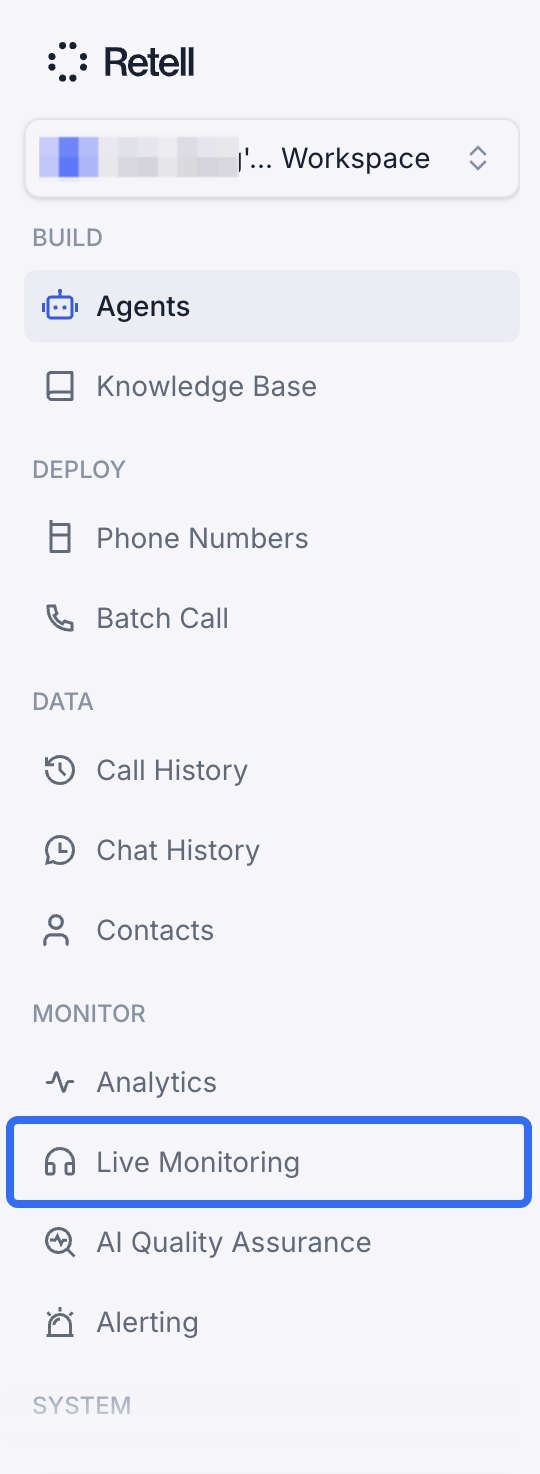
Finding Live Monitoring in the dashboard navigation
Live Monitoring is available to the Admin and Developer roles, and to any custom role granted call management (write) permission. The Member role can’t access it. If you don’t see Live Monitoring in the navigation, ask your workspace admin to update your role — see Access Control.
Live call list
The main view lists every call in progress across your workspace, newest first. It covers phone calls (inbound and outbound) and web calls.
The list of calls currently in progress
- Updates on its own. The list refreshes about every 4 seconds: new calls appear as they start, briefly highlighted, and drop off as they end.
- Keyboard navigation. With a call selected, use the up and down arrow keys to move through the list.
Follow a live transcript
Opening a call shows its details and a live transcript that streams in over the call as it happens.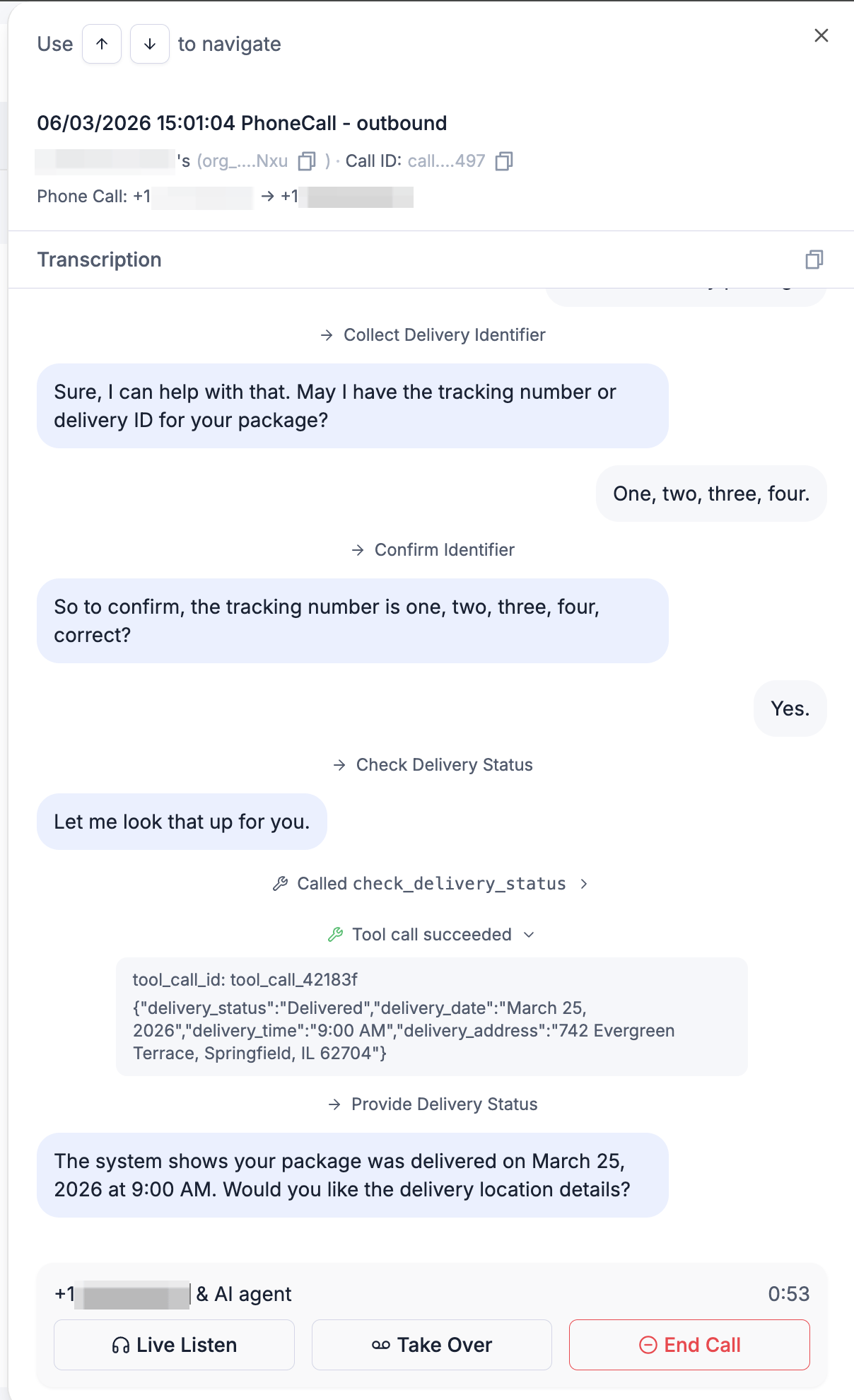
A call's streaming transcript, with the live actions below it
- Agent and caller turns as chat bubbles.
- Tool calls — each function the agent invokes, with its arguments and result in an expandable entry marked Tool call succeeded or Tool call failed.
- Node transitions — each step a flow-based agent moves into.
- Keypad input — DTMF digits the caller presses.
- SMS messages the caller sends during the call.
Listen, take over, or end a call
When you have call management permission, three actions sit below the transcript.
The Live Listen, Take Over, and End Call actions
Live Listen
Select Live Listen to hear the call audio in real time. Listening is silent and hidden: neither the caller nor the agent is notified, and your microphone is never transmitted. A You’re listening live indicator shows while you’re connected. Select Exit Live Listen to stop. Any number of people can listen to the same call at once.Take Over
Select Take Over to leave the agent behind and speak with the caller yourself. You confirm in a dialog (“This permanently stops the AI agent and connects you directly to the caller. It can’t be undone.”), then your browser prompts for microphone access.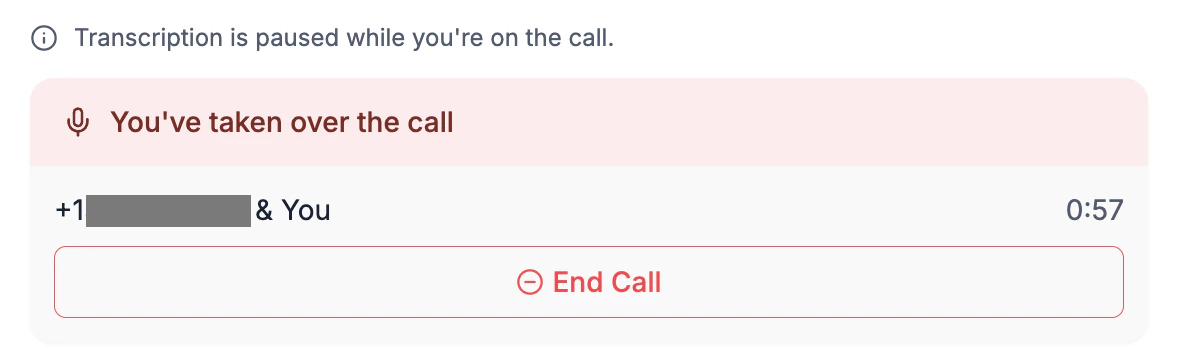
After you take over: the transcript pauses and only End Call remains
- Retell asks for your microphone before it stops the agent, so if you deny the prompt the take-over is canceled and the agent keeps handling the call.
- Only one person can take over a given call. If someone else already has, you’ll see “Call already taken over by another participant.”
- Works for both phone and web calls.
- While you’re on the call, leaving the view or closing the tab warns you first, since leaving ends the call for the caller.
End Call
Select End Call to disconnect the caller and end the call for everyone. You confirm first (“This disconnects the caller and ends the call for everyone.”). It’s available whether or not you’ve taken over.Monitor calls from your own app
Every action above has an API behind it, so you can follow, listen to, and take over calls from your own tools instead of the dashboard.
Listening and taking over happen in a browser, because both join the call’s audio over WebRTC. The Retell Web SDK sets up that connection, and one session covers all three actions. It’s the same SDK that places web calls.
You monitor a call by its ID, which you get from the
call_started webhook or List Calls. A call that has already ended is rejected; one that hasn’t connected yet is retried until it does, so you can open the session as soon as you have the ID.
listen(). It’s on by default here, unlike createWebCall(); pass transcript: false for an audio-only session. Each session holds one of the 5 transcript connections a call allows (as of September 2026), counted together with dashboard viewers.
listen() is silent and reversible: no one is notified, your microphone stays off, and stopListening() drops the audio and goes back to transcript only. takeOver() is neither. It prompts for the microphone before it stops the agent, so a denied prompt rejects the promise and leaves the agent running; once it succeeds the agent is gone for that call, and mute() and unmute() control your own microphone. Only one person can take over a given call, and a second attempt rejects.
FAQ
Why don't I see the Live Monitoring tab?
Why don't I see the Live Monitoring tab?
Live Monitoring is available to the Admin and Developer roles, and to any custom role granted call management (write) permission — the Member role can’t access it. Contact your workspace admin if you need access. See Access Control for details.
Can the caller or agent tell that I'm listening?
Can the caller or agent tell that I'm listening?
No. Live Listen is silent and hidden: neither the caller nor the agent is notified, and your microphone is never transmitted until you explicitly take over.
Can several people monitor the same call at once?
Can several people monitor the same call at once?
Up to 5 connections can follow the same call’s live transcript at the same time, counting both dashboard viewers and monitor call WebSocket connections; a sixth is turned away with a “max watchers reached” message until a slot frees up. Any number of people can Live Listen to the audio. Only one person can Take Over a call.
Why can't I monitor, listen to, or take over some calls?
Why can't I monitor, listen to, or take over some calls?
If the agent has PII scrubbing enabled, monitoring, listening, and taking over require permission to view raw data — held by the Admin and Developer roles. Scrubbing runs only after the call ends, so there’s no redacted transcript to show mid-call, and users without raw-data access are blocked from those live calls.
What happens to the agent when I take over?
What happens to the agent when I take over?
The agent is permanently stopped for that call. You’re connected directly to the caller, and the agent does not resume. The call ends normally when either side hangs up or you end it.
What if I deny the microphone prompt when taking over?
What if I deny the microphone prompt when taking over?
The take-over is canceled and the agent keeps handling the call. Grant microphone access and try again to take over.
Can I get the live transcript through the API?
Can I get the live transcript through the API?
Yes. The monitor call WebSocket streams the same transcript, tool calls, and node transitions to your server while the call is ongoing. Live Listen and Take Over are available through the Retell Web SDK — see Monitor calls from your own app.
Can I whisper or coach the agent during a live call?
Can I whisper or coach the agent during a live call?
Whispering isn’t supported: there’s no way to speak to the agent so only it hears you. You can steer it in text instead. Update Live Call injects context into the conversation with
call_control.additional_context, and trigger_response makes the agent act on it without waiting for the caller’s next turn. Neither party speaks the injected text, and it shows up in the transcript as an injected item. trigger_response is a no-op while the caller is speaking, so the agent never talks over them, and also while the agent is speaking if its interruption_sensitivity is 0. In the dashboard, the live actions remain Live Listen, Take Over, and End Call.