Install the Retell AI Zoho CRM extension to trigger outbound voice agent calls from workflow rules and write summaries, results, and recordings back.
This guide provides instructions for setting up and using the Retell AI extension within Zoho CRM to automate outbound phone calls using voice agents.
This extension lets Zoho CRM trigger calls. If you want the reverse, Zoho contacts synced into Retell and call activity written back to the record, set up the Zoho CRM integration instead. The two are independent and can be used together.
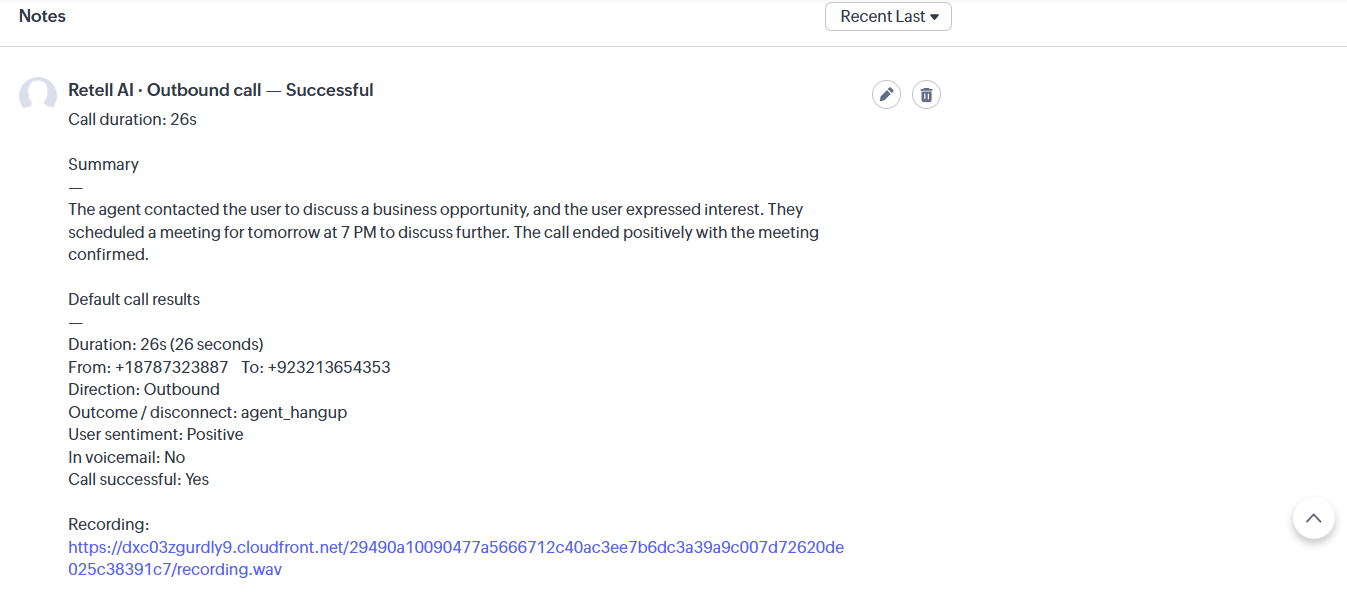
The Retell AI Application adds a RetellOutboundCall function action to Zoho CRM workflow rules. This action creates an outbound call using your AI agents when a workflow rule fires.Once a call is completed, Zoho CRM is automatically updated with a Note on the triggering record containing:
Summary: The AI-generated call summary
Default call results: Duration, direction, disconnect reason, user sentiment, voicemail detection, and call success
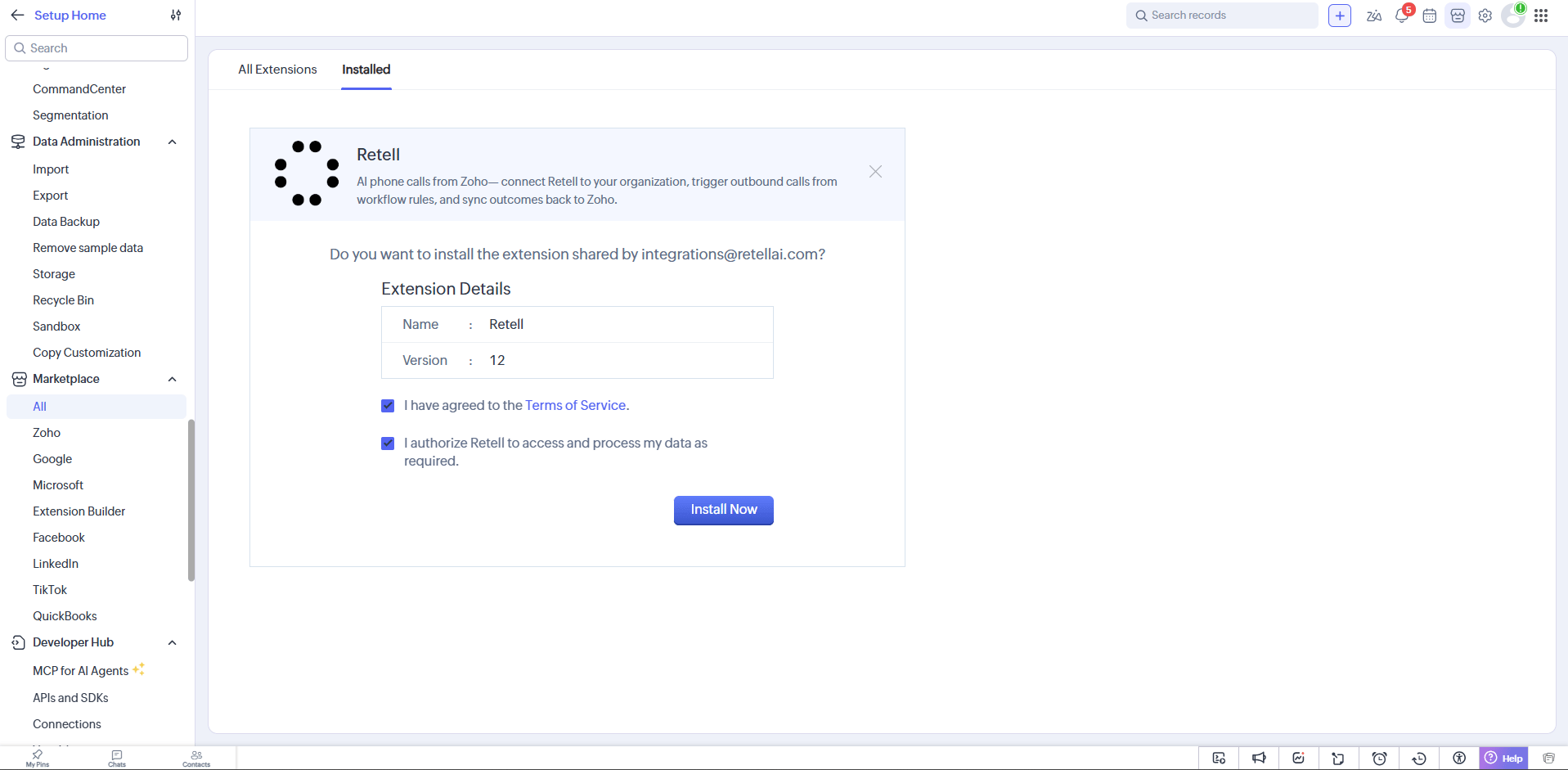
From the Zoho Marketplace, open the Retell listing and select Install Now. Accept the terms of service and authorize Retell to access and process your data.
2
Connect Zoho CRM
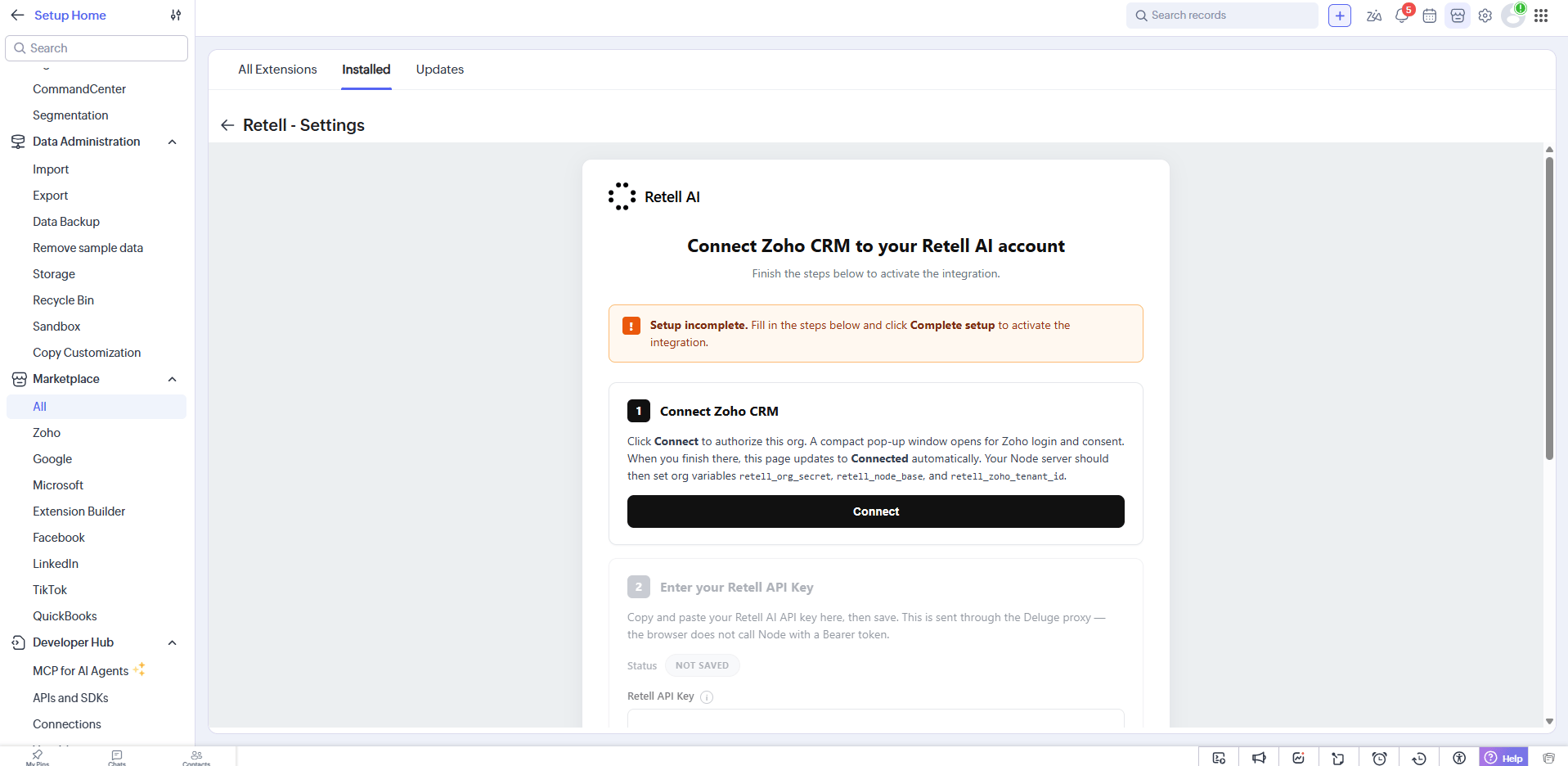
On the Retell - Settings page, select Connect under step 1, Connect Zoho CRM. A pop-up window opens for Zoho login and consent.
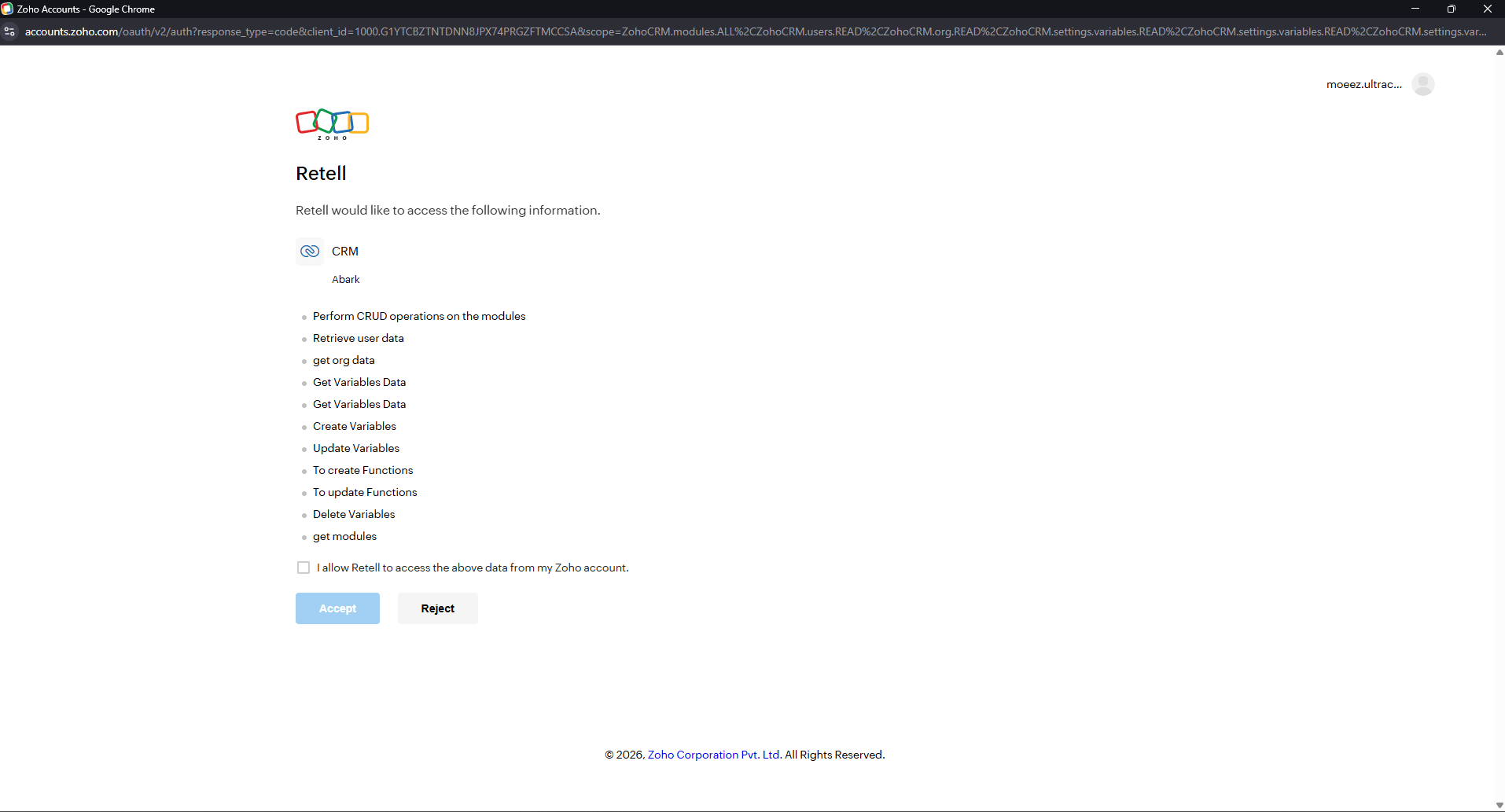
Review the requested permissions and check I allow Retell to access the above data from my Zoho account, then select Accept.
When you finish, the page updates to Connected automatically.
3
Get your API key
Sign up on the Retell AI website to access your dashboard if you don’t already have an account.Go to Settings → API Keys in the Retell dashboard. Copy an existing key or select Add Key to create one. Open the key’s ⋮ options menu and select Set as webhook key, then copy the key value.Retell AI supports only one active webhook integration at a time. If you are also using Notion or Slack, choose which integration receives webhook events.
The API key must have the webhook option enabled. Post-call analysis data is only written back to Zoho CRM when the key is designated as a webhook key.
4
Save the API key and register the webhook
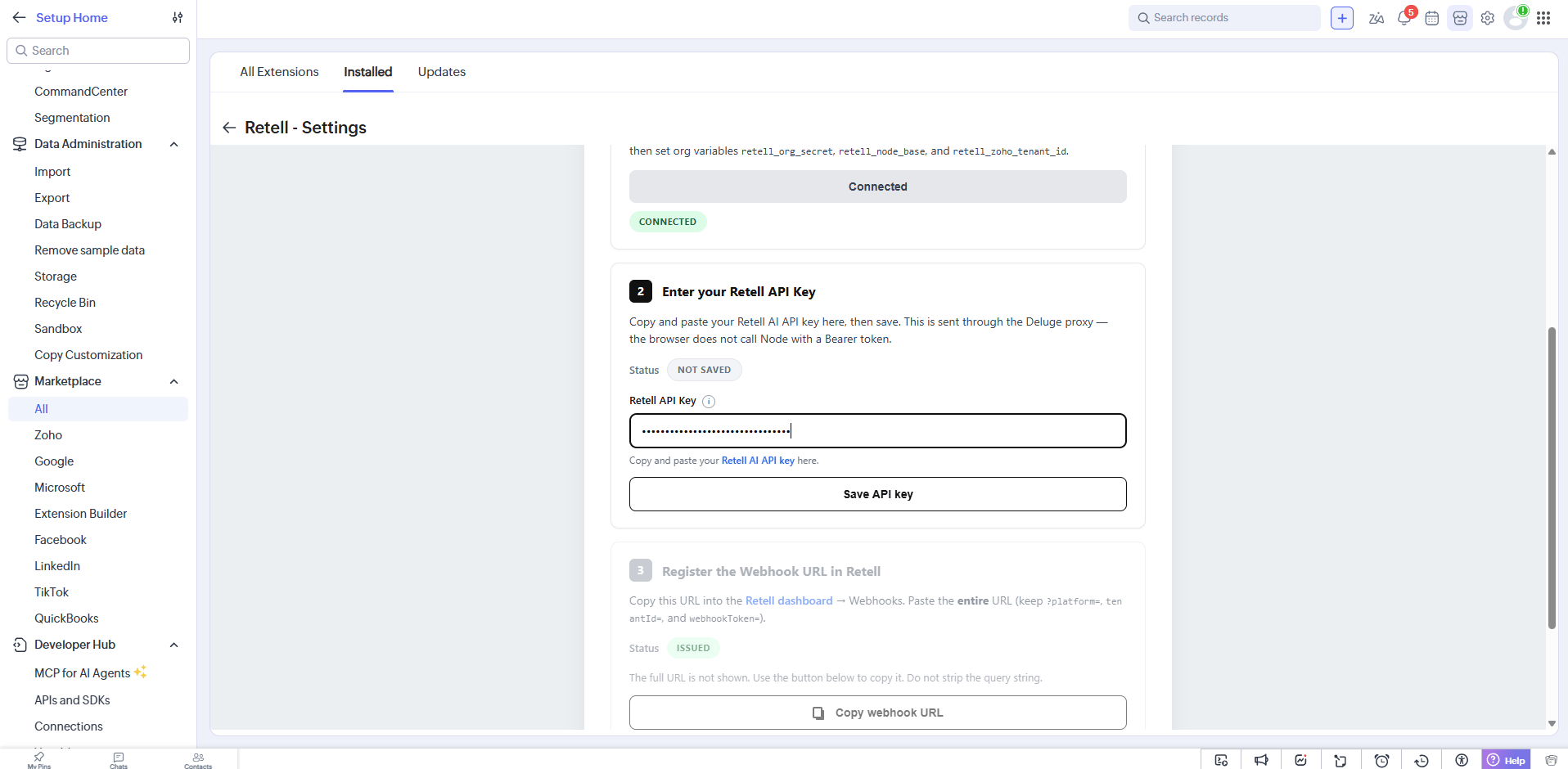
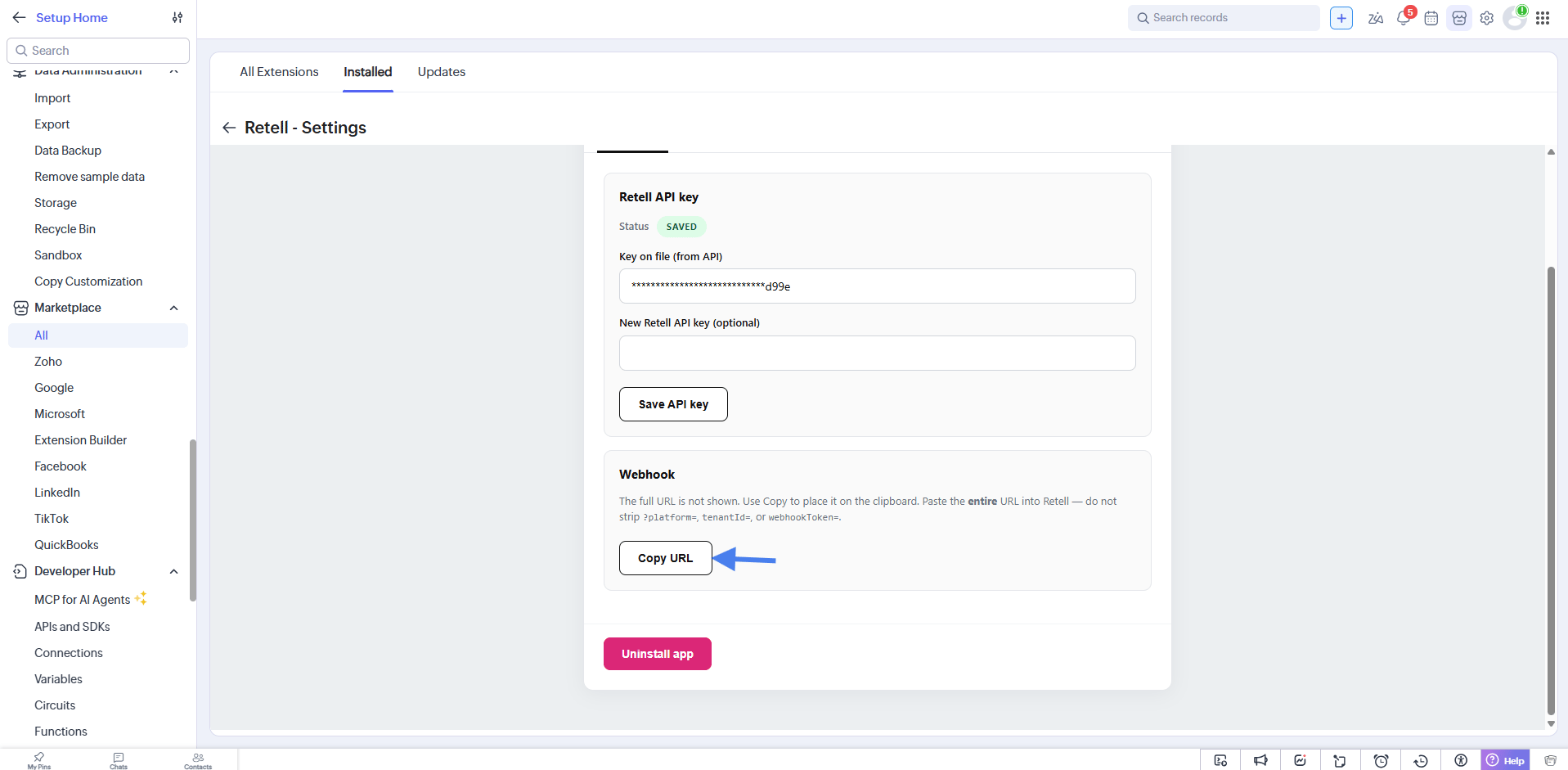
Back in Zoho, paste the webhook key into Retell API Key under step 2 and select Save API key.
Select Copy webhook URL. Copy the full URL without changing its token or query string.
5
Complete the setup
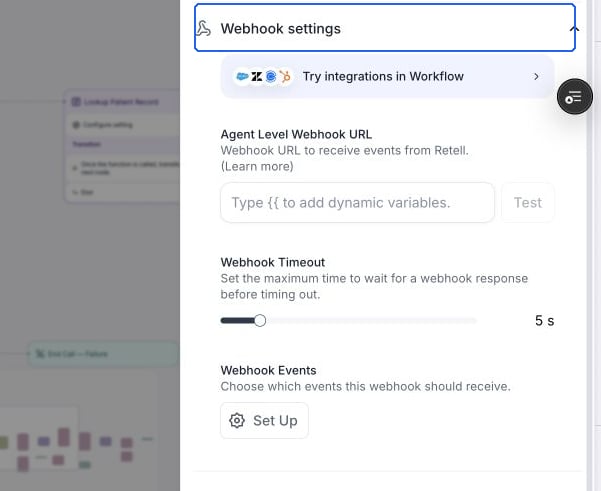
Once the API key is saved, the page shows the key status as Saved and a Webhook section with a Copy URL button. Paste this URL into the Retell dashboard under your agent’s webhook settings (see the next section).
Paste the integration URL into Agent Level Webhook URL.
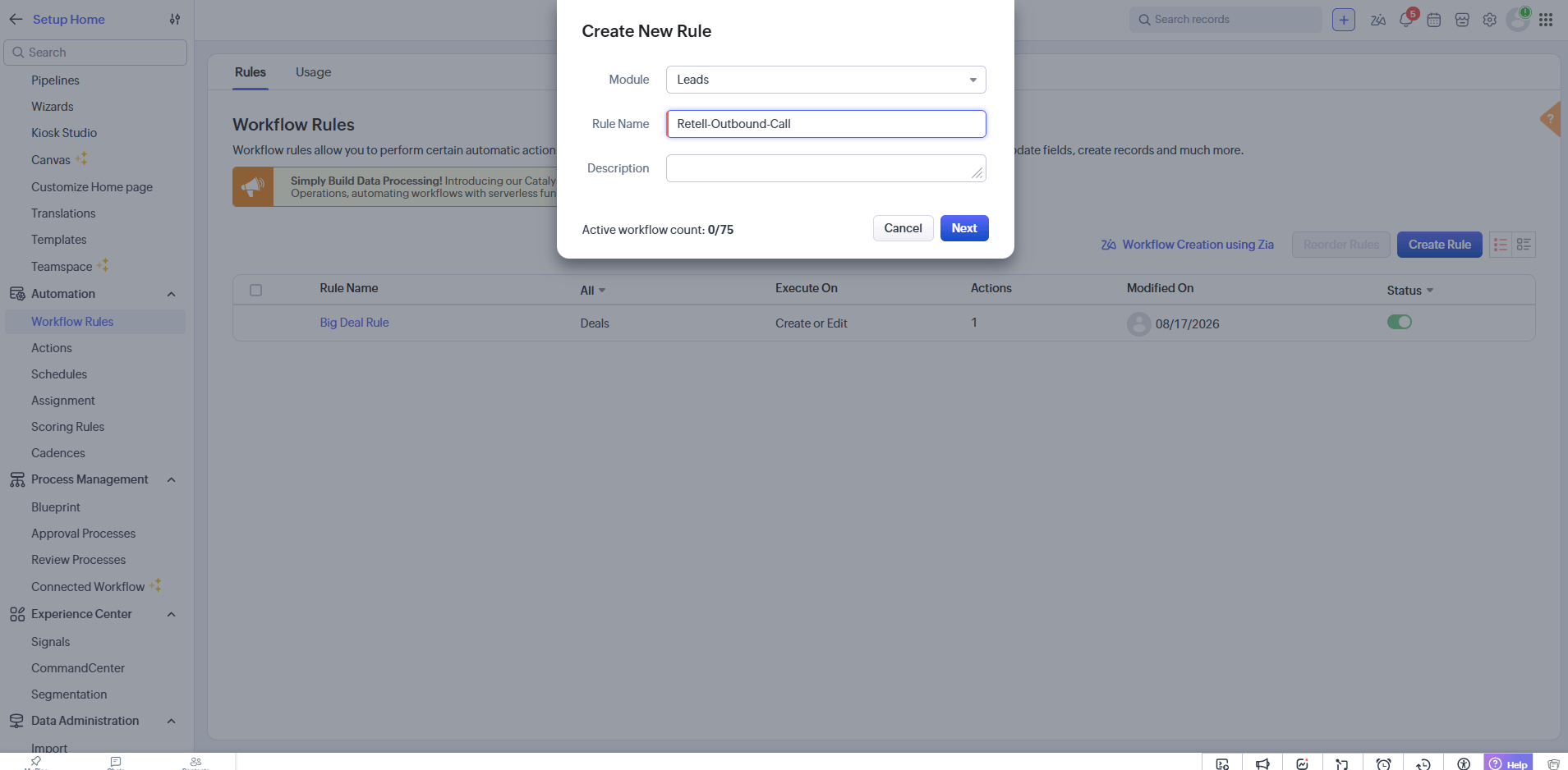
In Zoho CRM, go to Setup → Automation → Workflow Rules. Select Create Rule, choose the module that should trigger calls (such as Leads or Contacts), and name the rule.
2
Set the trigger and conditions
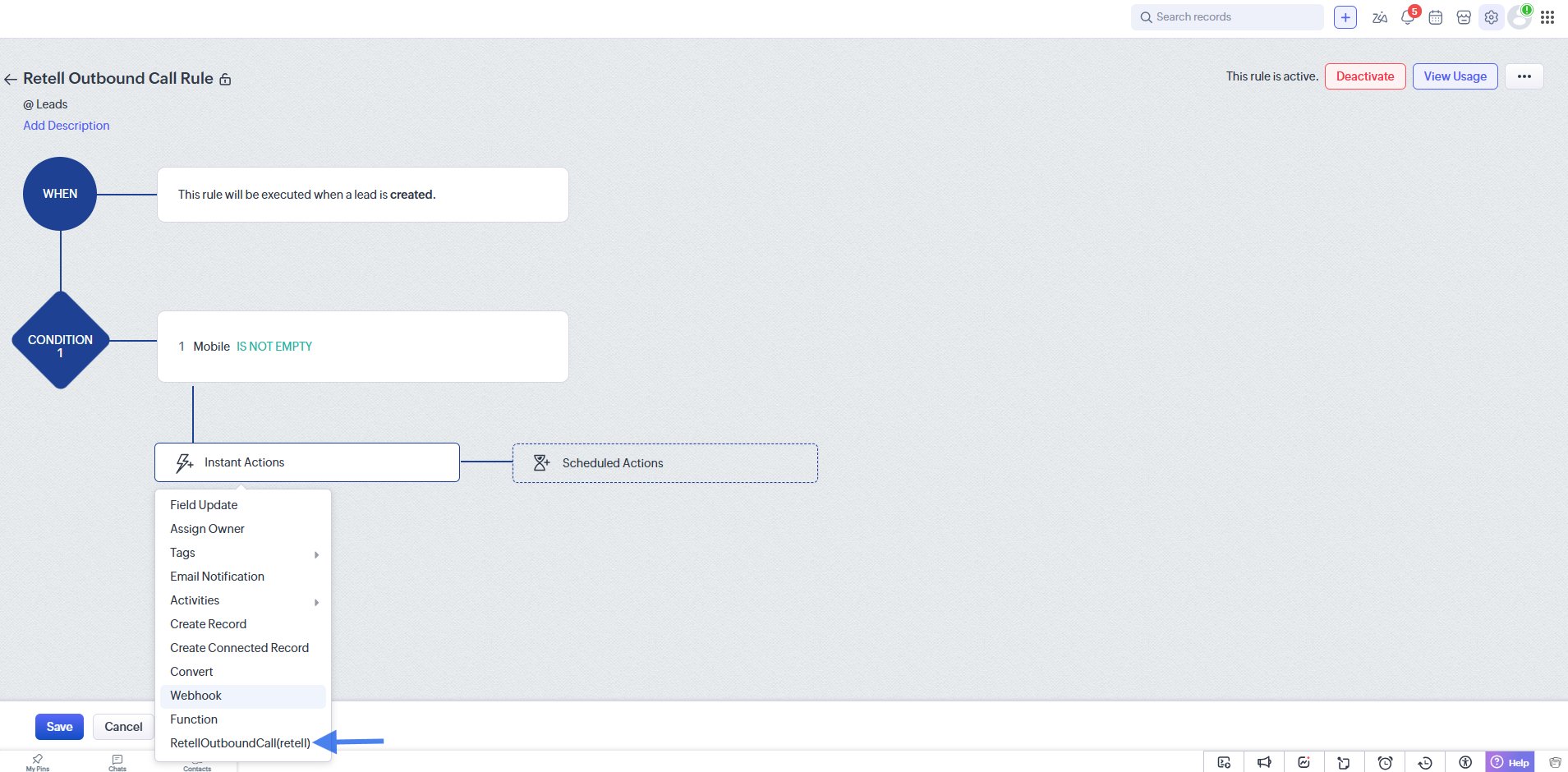
Choose when the rule runs, for example On a record action → Create. Add a condition such as Mobile is not empty to prevent calls without a destination number.Under Instant Actions, select RetellOutboundCall(retell) from the action list.
3
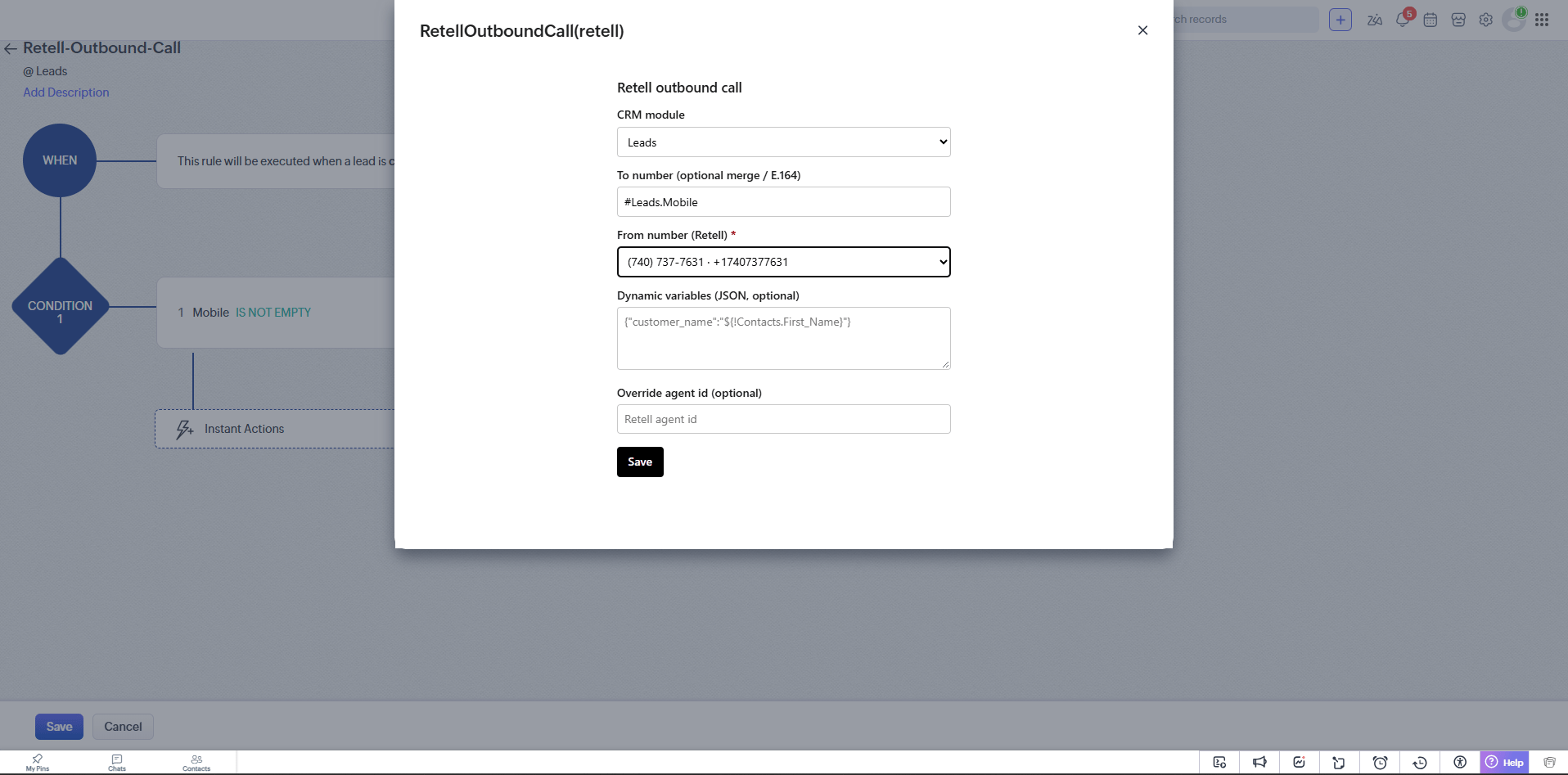
Configure the outbound call fields
Map the fields Retell needs to place the call and write the result back to the correct record:
Field
Typical value
Purpose
CRM module
Leads, Contacts
The module the triggering record belongs to
To number
#Leads.Mobile (merge field)
Destination number in E.164 format
From number (Retell)
Your Retell phone number
The Retell number the call places from
Dynamic variables (JSON, optional)
{"customer_name":"${!Contacts.First_Name}"}
Optional context passed to the agent
Override agent id (optional)
Retell agent ID
Optional override for the default agent
Select Save, then save and activate the workflow rule.
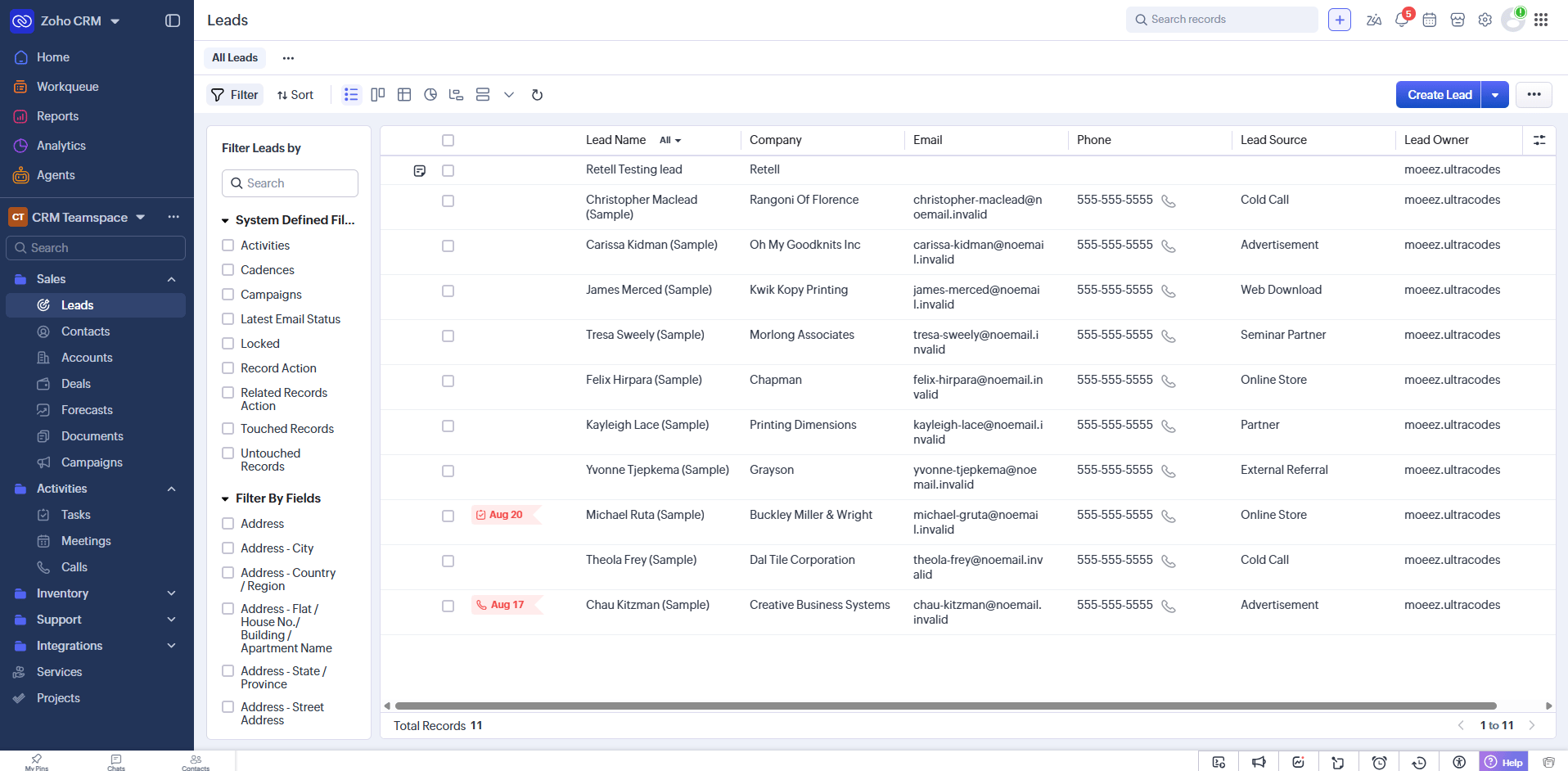
Open the module you selected in the workflow rule (such as Leads), and create a record that meets the rule’s conditions. Populate the mapped Mobile or Phone field with a valid E.164 number, then save the record.
2
Check the call result
After the call finishes, open the record and check Notes. The Retell AI note includes the call summary, duration, direction, disconnect reason, user sentiment, voicemail detection, call success, and a recording link.