Connect Retell AI to Google Sheets to start outbound voice agent calls from spreadsheet rows. After each call is analyzed, Retell writes status and summary back to the originating row and archives the recording and a summary doc in Google Drive.

When to use it

Use Google Sheets when your call list lives in a spreadsheet and you want to:
  • Dial leads from mapped Phone cells (manually or when you leave the cell)
  • Write call status and AI summaries back onto the same row
  • Keep recordings and summary docs in a Drive folder without leaving Google Workspace

Example

A sales ops lead keeps prospects in a Sheet with Name, Phone, Status, and Summary. They paste a new E.164 number, leave the cell with auto-process on, and Retell calls from their outbound number. When analysis finishes, Status becomes Completed and Summary fills in; the recording lands under retell-crm in Drive.
Use your own API key, webhook URL, agent, caller ID, and test numbers. The screenshots use sample or masked values.

Before you start

  • A Google account with access to Google Sheets and Google Drive
  • Permission to install Google Workspace Marketplace add-ons (or access to a shared Retell add-on deployment)
  • A Retell account with an API key, configured voice agent, and outbound phone number
  • A spreadsheet you will use as the call table (column names are flexible — you map them in the sidebar)

Spreadsheet columns

Create a header row with the fields you want to call from and write results into. Map them later in the Retell sidebar. Column names can differ from the examples above. At least one column must be mapped as Phone.

Install Retell in Google Sheets

1

Install the add-on

Open Google Workspace Marketplace and search for Retell. Select the listing, then Install. Choose the Google account that owns or can edit the campaign spreadsheet, review the permissions, and allow access.
Google Sheets menu showing Retell Open Sidebar and Setup Wizard

Open the Retell sidebar or Setup Wizard from the sheet menu.
2

Open your campaign spreadsheet

Open or create a Google Sheet with a header row and the columns you plan to map (for example Name, Phone, Status, Summary). Add phone numbers with a country code, such as +15551234567.
3

Launch the Retell add-on

In the spreadsheet, open Extensions → Retell, or use the spreadsheet menu Retell → Open Sidebar. On first use, open Retell → Setup Wizard (or the Setup Wizard entry from the sidebar) to connect Retell and Google.
Google Sheets menu showing Retell Open Sidebar and Setup Wizard

Open the Retell sidebar or Setup Wizard from the sheet menu.

Connect Retell and Google Sheets

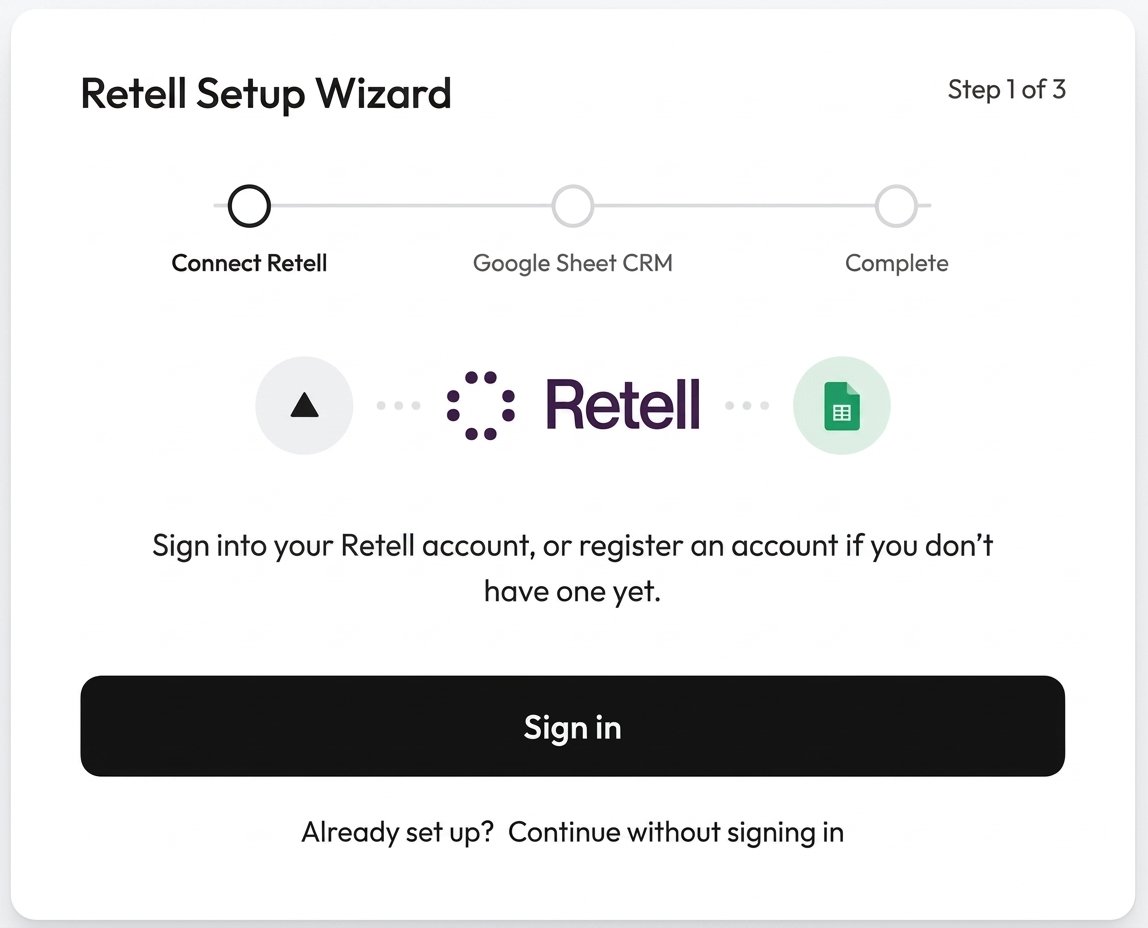
Use the setup wizard to save your API key, authorize Google access, and issue the webhook URL Retell uses for post-call writeback.
1

Set the webhook key in Retell

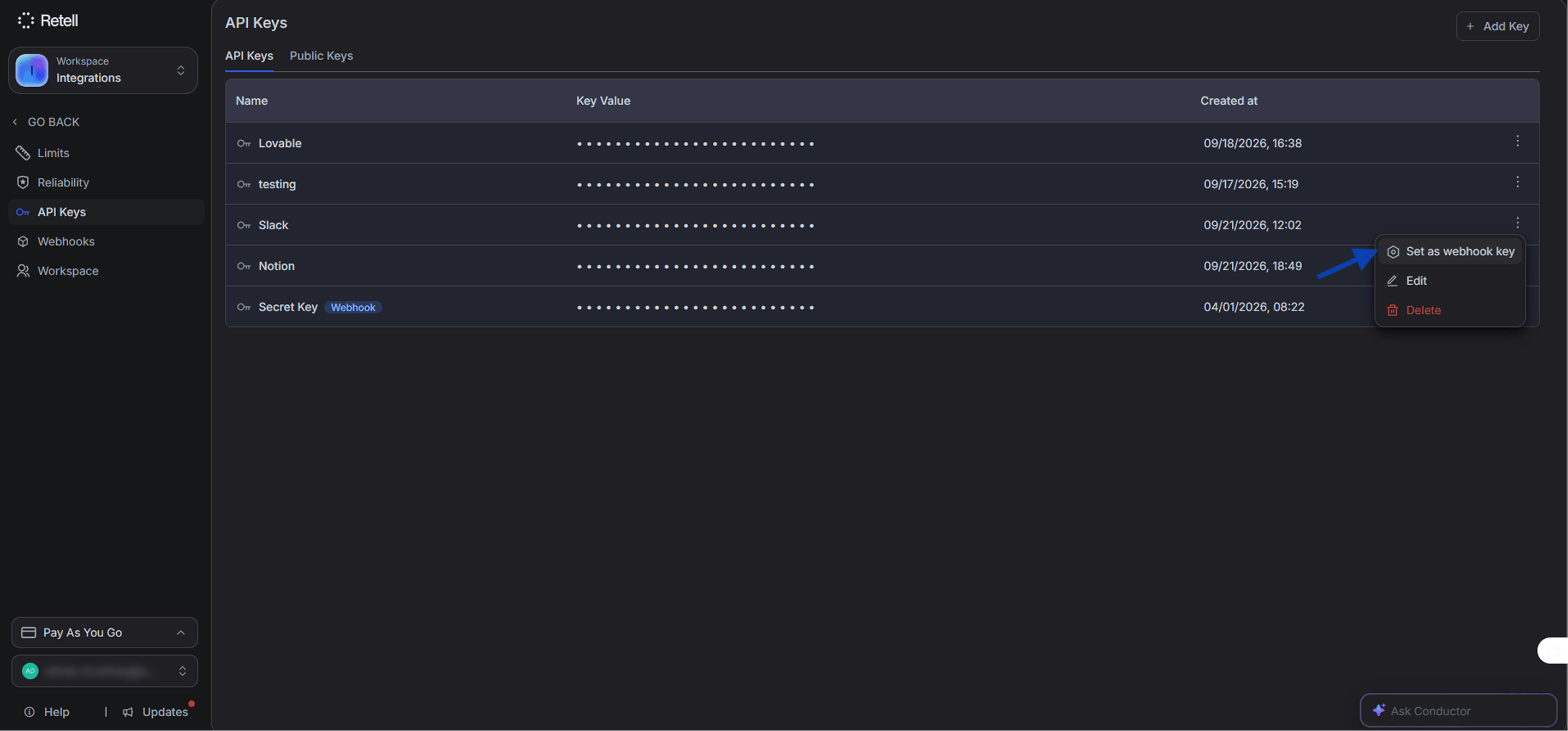
Sign in to the Retell dashboard. Go to Settings → API Keys. Copy an existing key or select Add Key to create one. Open the key’s ⋮ options menu and select Set as webhook key, then copy the key value.
Google Sheets menu showing Retell Open Sidebar and Setup Wizard

Open the Retell sidebar or Setup Wizard from the sheet menu.

Retell API Keys page with the key options menu open and Set as webhook key highlighted

Designate an API key as the webhook key in Retell.

The API key must have the webhook option enabled. Post-call analysis data is only written back to Google Sheets when the key is designated as a webhook key.
2

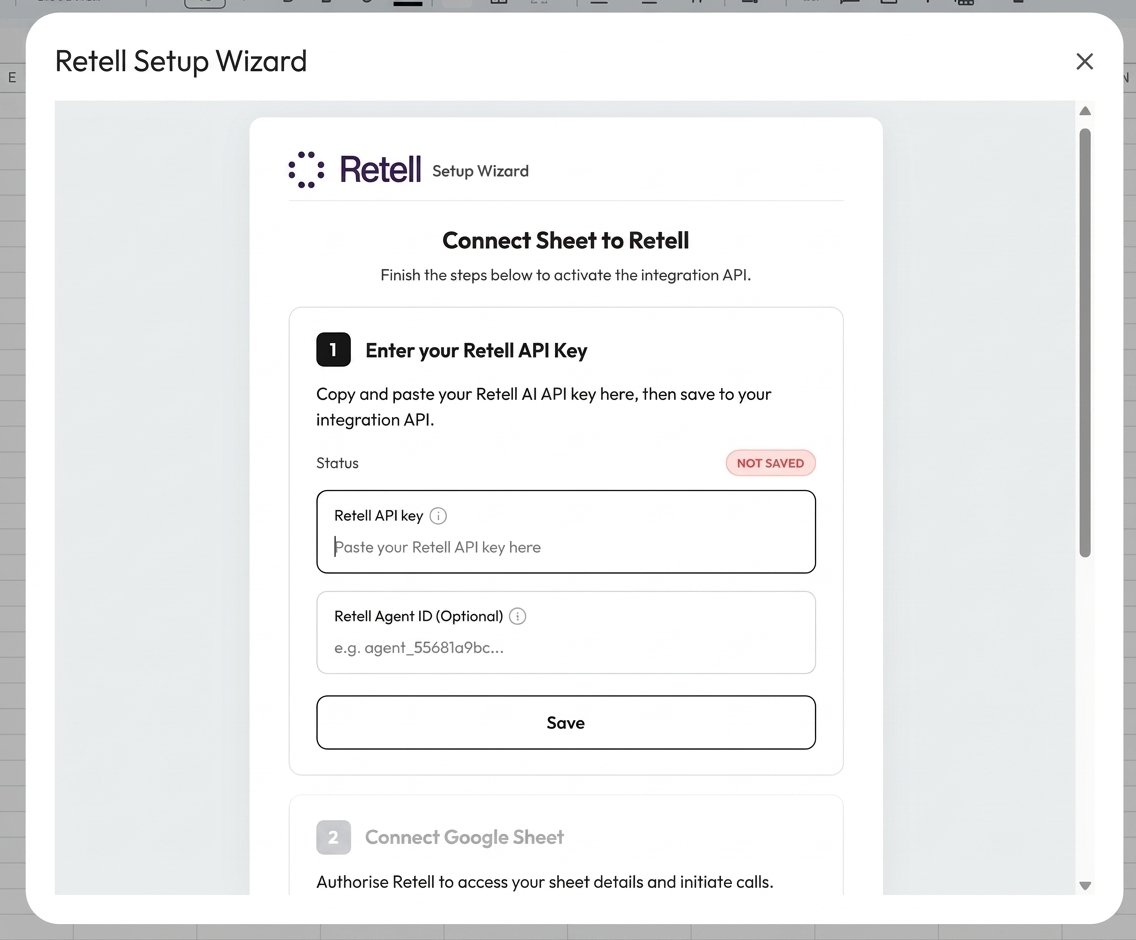
Save the Retell API key

In the Setup Wizard, under step 1 Enter your Retell API Key, paste the webhook key into Retell API key. Optionally paste a Retell Agent ID if you want this integration to use a specific agent. Select Save. Confirm that the status shows Saved before continuing.Retell AI supports only one active webhook integration at a time. If you are also using Slack, Notion, Zoho, Airtable, or HubSpot, choose which integration receives webhook events.
Retell Setup Wizard in Google Sheets showing the Retell API key field, optional Agent ID, and Save button

Paste the webhook key and optionally set an Agent ID.

3

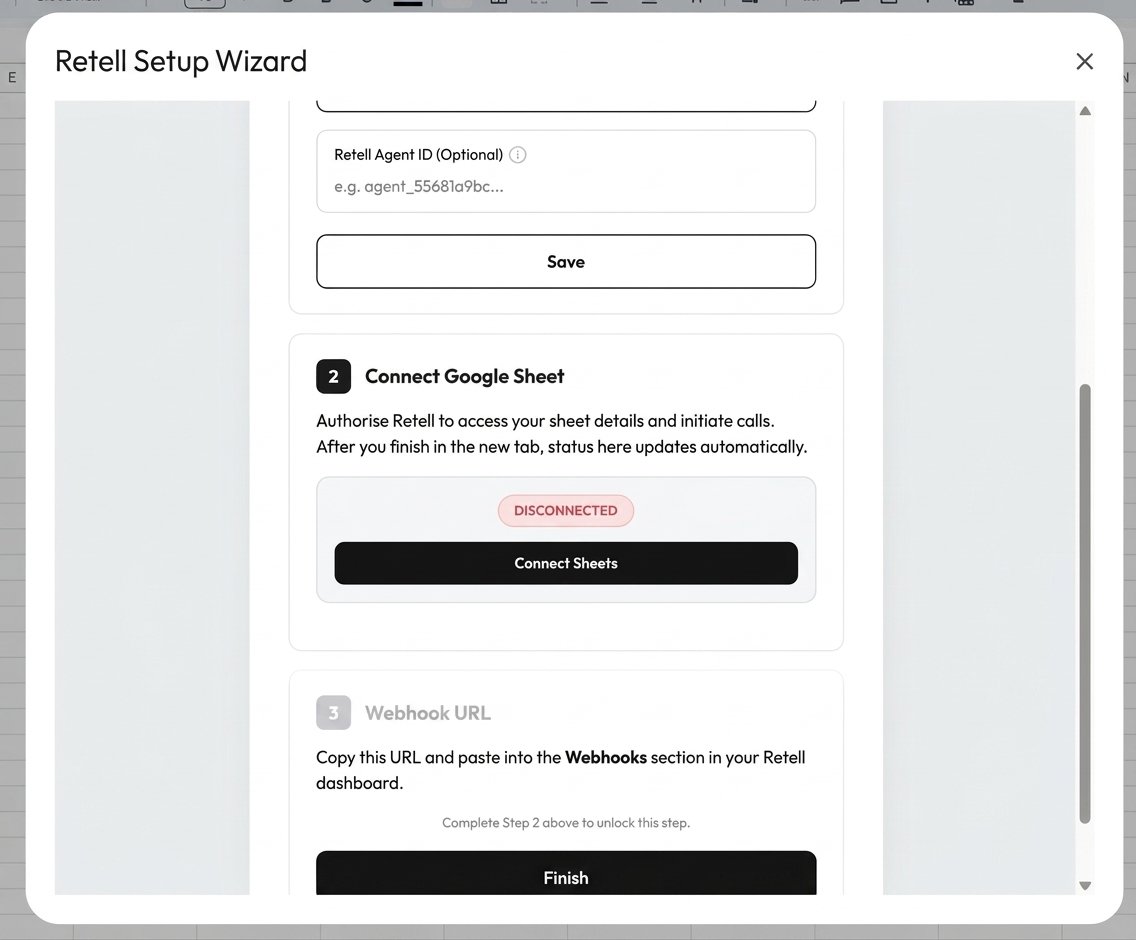
Connect Google Sheet

Under step 2 Connect Google Sheet, select Connect Sheets. A new browser tab opens for Google sign-in and consent. Approve access so Retell can read and update the spreadsheet used for calling and store call artifacts in Drive.Return to the wizard. The Google status updates to Connected automatically after authorization finishes.
Retell Setup Wizard step 2 Connect Google Sheet with Connect Sheets button and Connected status

Authorize Google Sheets and Drive from the wizard.

4

Pick your campaign spreadsheet

After Google shows Connected, select Pick spreadsheet (or the equivalent control in the wizard). Google Picker opens — choose the campaign Sheet you prepared earlier, then confirm.Retell saves that spreadsheet as the one it can read and update. This step is required under Google’s drive.file scope: the add-on only receives access to files you pick, not your entire Drive.
Pick the same spreadsheet you will open for calling. If you change campaign sheets later, reopen the Setup Wizard or settings and pick the new file again so Retell has access under drive.file.
5

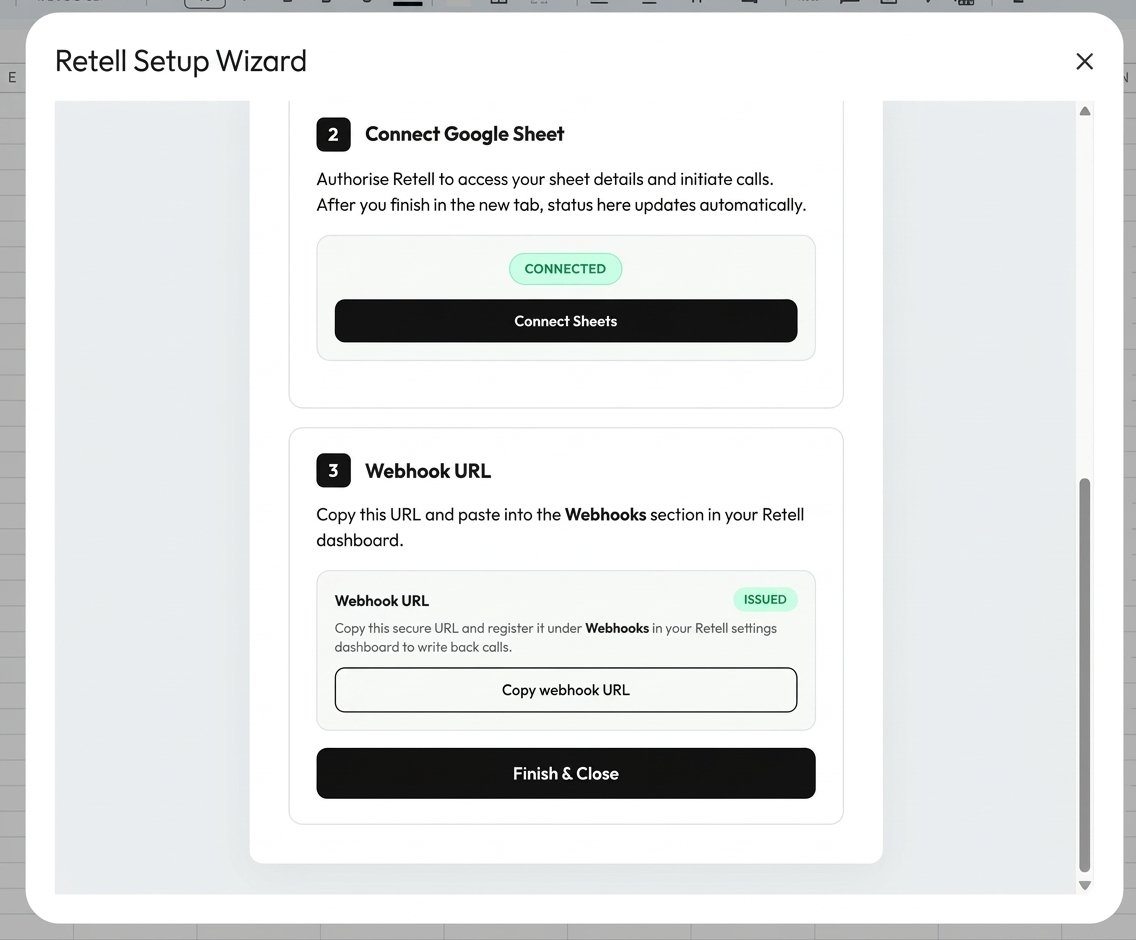
Copy the webhook URL

After the spreadsheet is selected, the Webhook URL step shows an issued URL. Select Copy webhook URL. Copy the full URL without changing its token or query string.
Retell Setup Wizard showing the issued Webhook URL and Copy webhook URL button

Copy the issued webhook URL for your Retell agent.

6

Register the webhook on your Retell agent

In the Retell dashboard, go to Agents and open the agent used for Sheets. Expand Webhook Settings, paste the URL into Agent Level Webhook URL, and select Test if available. Under Webhook Events, make sure call_analyzed is enabled so Retell can send post-call results. Save or publish the changes.
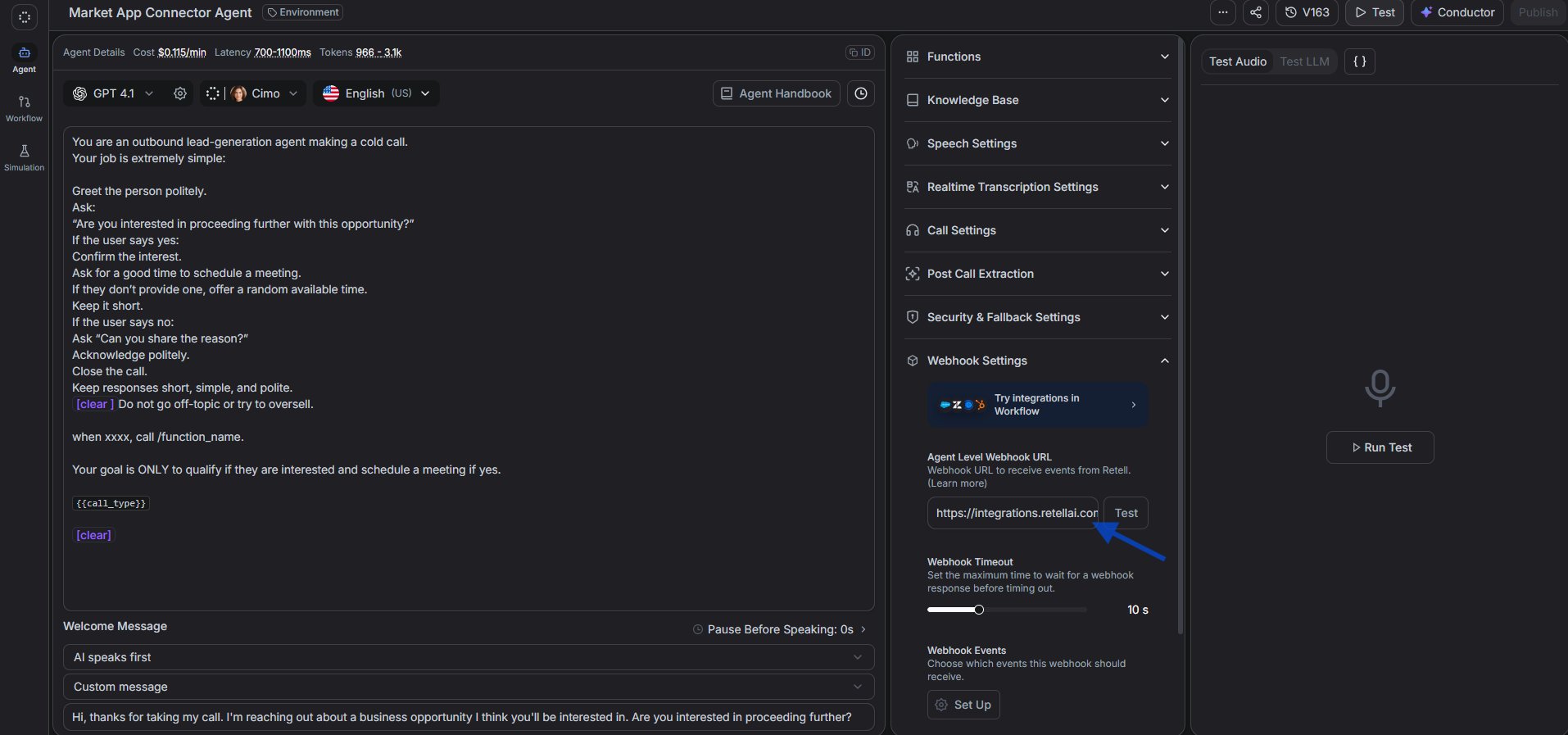
Retell agent Webhook Settings with the Google Sheets webhook URL pasted and call_analyzed enabled

Paste the Sheets webhook URL on the agent and enable call_analyzed.

7

Finish setup

Return to the Setup Wizard and select Finish & Close. Confirm that setup completes successfully. You can reopen settings later from the sidebar if you need to update the API key, review activity, or uninstall.

Configure calling in the sidebar

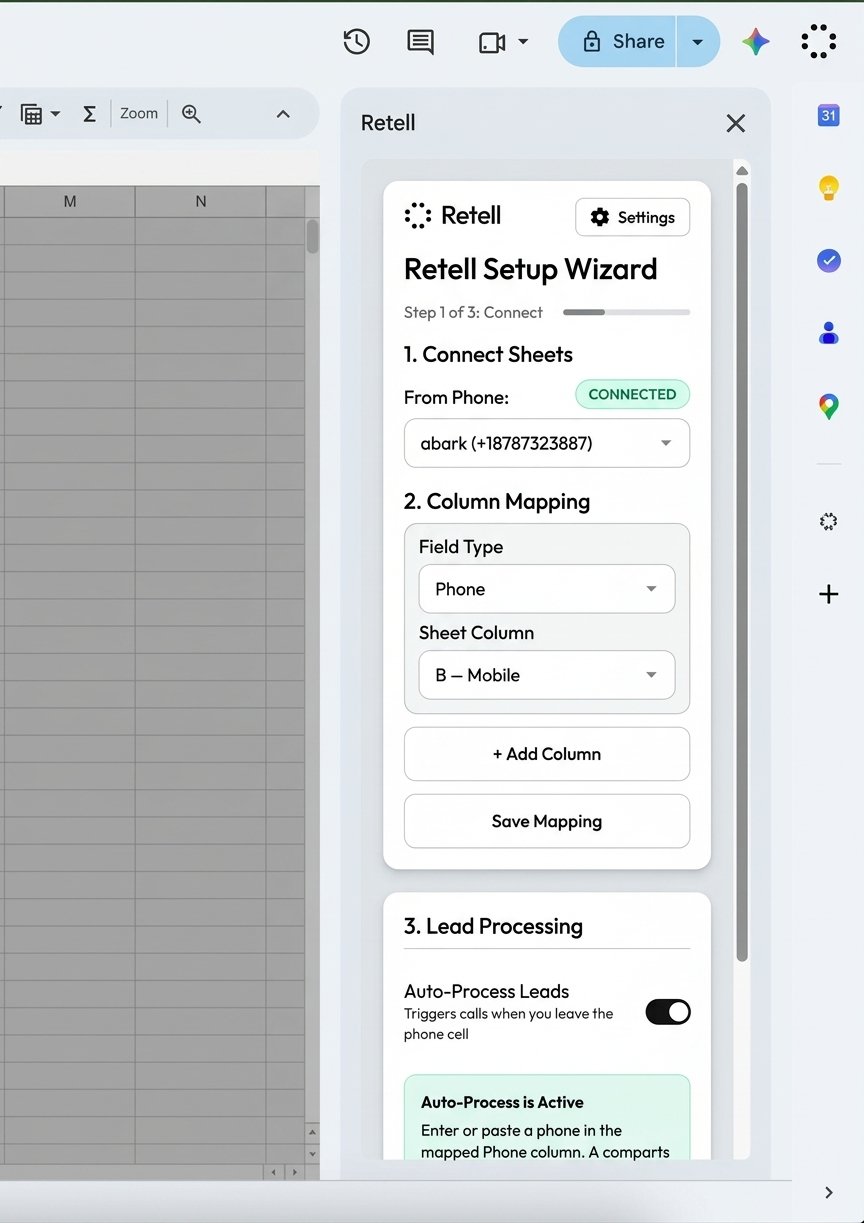
After setup, use the Retell sidebar to choose the outbound number, map columns, and enable auto-process or manual calls.
1

Choose the From Phone number

Open the Retell sidebar (Retell → Open Sidebar). Under Outbound Calling, select your Retell outbound number from From Phone.
Retell sidebar From Phone selector listing Retell outbound numbers

Select the Retell number used as caller ID.

2

Map spreadsheet columns

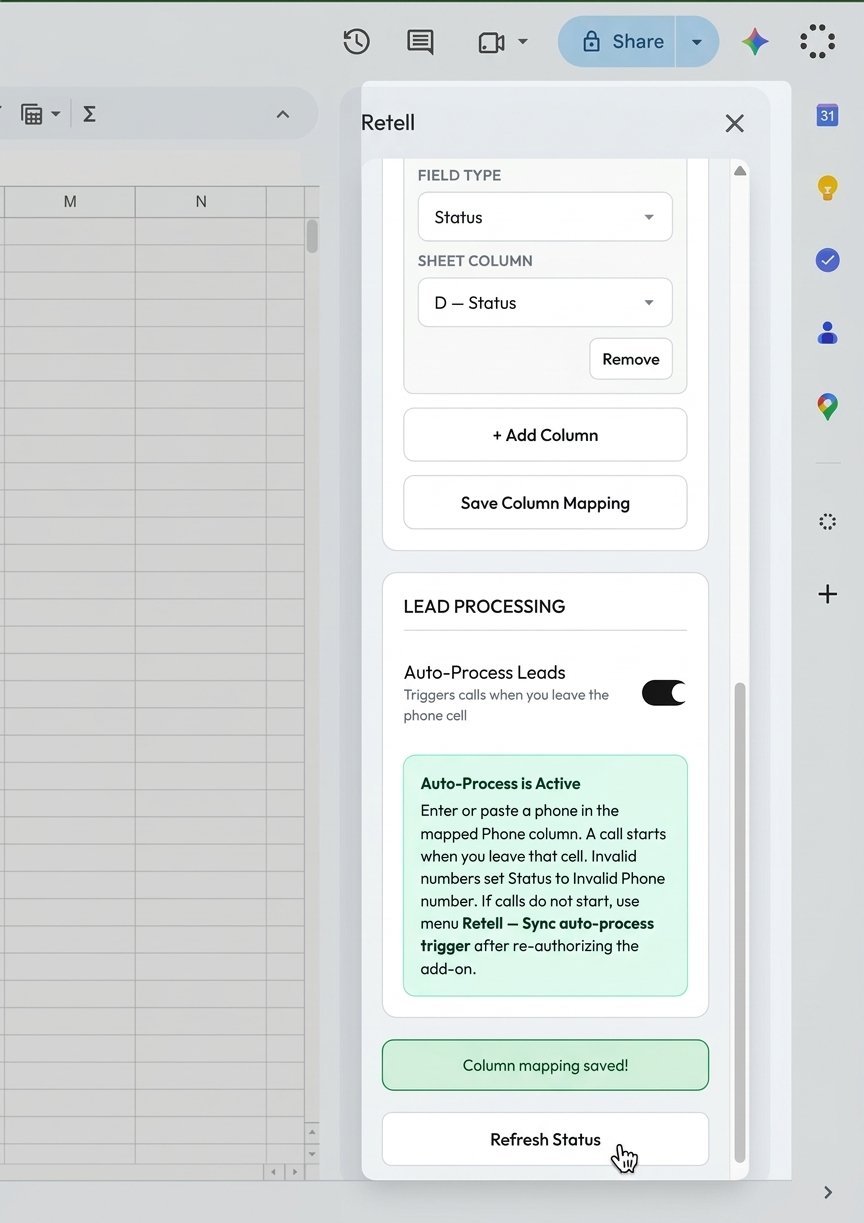
Under Column Mapping, map sheet columns to Retell field types. At least one column must be Phone. Map Name, Status, and Summary so results write back to the correct cells.Select Save Column Mapping when finished. Use + Add Column if you need another mapped field.
3

Enable Auto-Process (optional)

Turn on Auto-Process Leads if you want a call to start when you enter or paste a number in the mapped Phone column and leave the cell.If calls do not start after enabling auto-process, use Retell → Sync auto-process trigger from the spreadsheet menu, then try editing a Phone cell again.
Retell sidebar Auto-Process Leads toggle enabled with guidance to sync the auto-process trigger

Optionally start calls when you leave a Phone cell.

Place an outbound call

You can trigger calls automatically from the Phone column or manually for the selected row.
1

Trigger a test call

Add a test row with your own valid E.164 number in the mapped Phone column.
  • Auto-process: Enter or paste the number, then leave the cell (press Enter or click another cell).
  • Manual: Select the row in the sheet, then select Call Selected Lead in the sidebar.
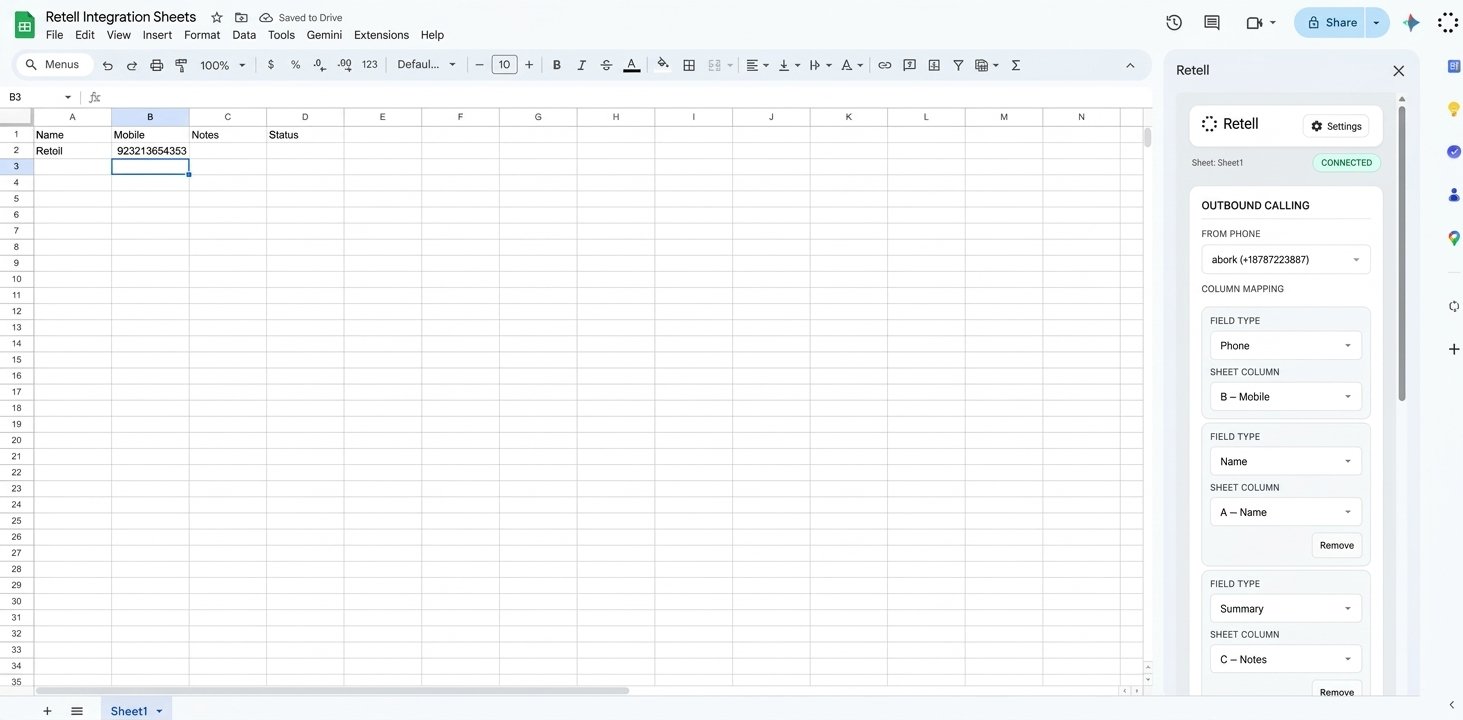
Google Sheet row with a test phone number and Retell sidebar Call Selected Lead button

Start a test call from a Phone cell or Call Selected Lead.

Invalid numbers are marked with Invalid Phone number in the Status column when Status is mapped. Use a leading plus and country code, such as +15551234567.
2

Check sheet writeback

While the call is placing, the mapped Status cell typically shows Calling.... After Retell analyzes the call (call_analyzed), confirm the row updates:
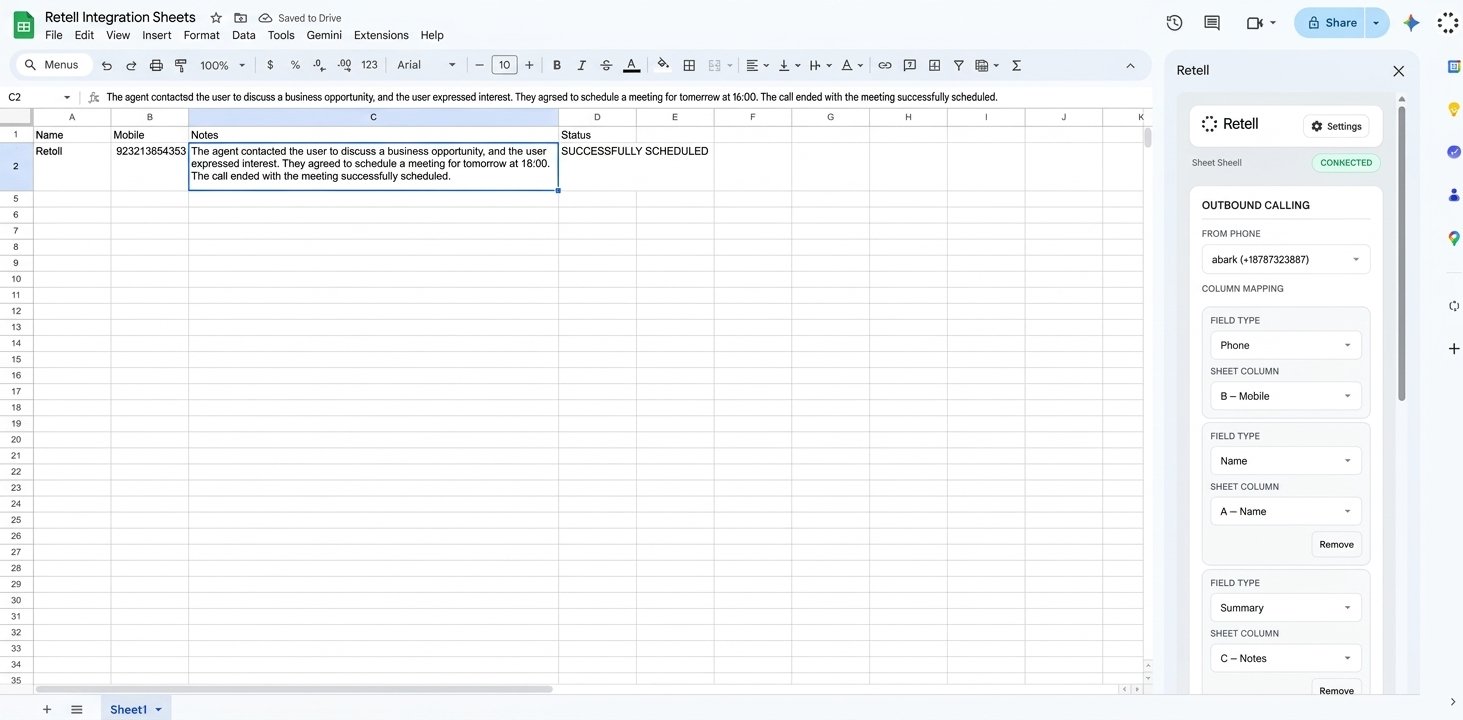
Google Sheet row after a completed Retell call showing Status and Summary populated

Confirm Status and Summary update on the originating row.

3

Check Drive artifacts

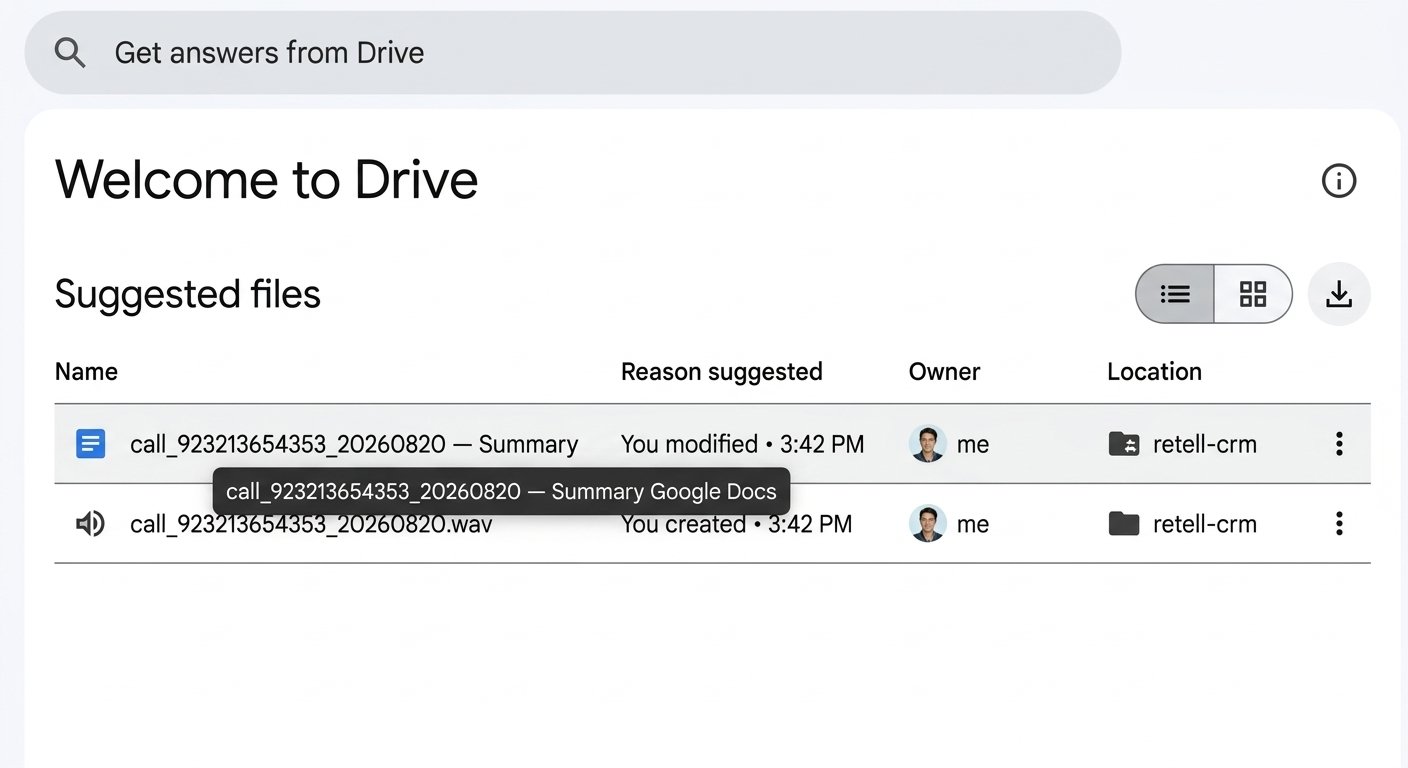
In Google Drive, open the retell-crm folder created for this integration. Confirm it contains the call recording and a summary Google Doc for the test call.
Google Drive retell-crm folder containing a call recording file and summary document

Find the recording and summary doc under retell-crm in Drive.

Review activity and permissions

In the Retell settings dialog (after setup), open Activity to review integration events for recent calls, or Permissions to see the Google and Apps Script scopes the add-on uses.
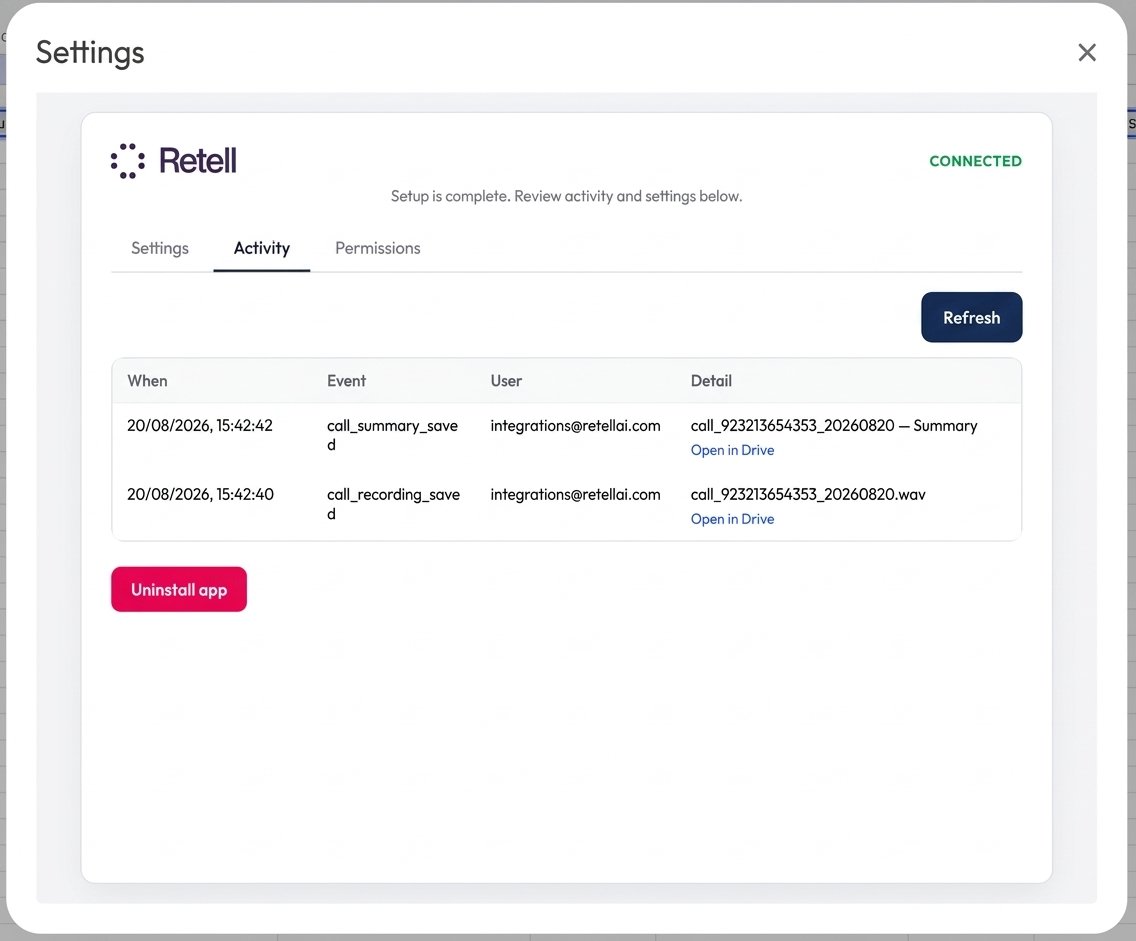
Retell settings Activity tab showing recent Google Sheets integration events

Review recent integration events in Retell settings.

Verify setup

  • The Retell Google Sheets add-on is installed and the Setup Wizard completed successfully.
  • Google Sheets shows Connected, a campaign spreadsheet is picked, the API key is saved, and the agent webhook URL is registered with call_analyzed enabled.
  • From Phone is selected and column mapping includes a Phone column (plus Status and Summary for writeback).
  • A test call completes; Status and Summary update on the originating row; recording and summary appear under retell-crm in Drive.

Uninstall the add-on

Open Retell settings from the sidebar, then select Uninstall app.
Uninstalling disconnects the Retell configuration for this Google account integration and clears spreadsheet integration settings stored for the add-on. Call history already written to your sheet and Drive files already created are not removed by this action unless your organization deletes them separately.

Troubleshooting

FAQ

Retell supports only one active webhook integration at a time. If another marketplace app already owns the webhook key, choose which product should receive call_analyzed events — Sheets writeback needs that webhook.
No. Use any header labels you want, then map them in the sidebar. At least one column must be mapped as Phone.
Google’s drive.file scope only grants access to files the user selects (for example through Google Picker). Connecting Google alone is not enough — you must pick the campaign Sheet so Retell can read and update that file.
Rows whose Status is already Completed are skipped on re-edit so the same lead is not dialed again automatically.
After an analyzed call, Retell creates or uses a retell-crm folder in the connected Google Drive account and stores the recording file plus a summary Google Doc there.