

When to use it
Use memory when the next conversation should pick up where the last one ended: a caller’s preferences, a request still waiting on a response, or an agreed callback. Use contact fields for structured facts you need to filter, map to a CRM, or reference individually, such as an account tier or renewal date. For example, Ada calls a home-services company about a repair. She prefers afternoon appointments and is waiting for a revised estimate. A follow-up agent can ask whether she received the estimate and offer an afternoon slot without repeating the intake questions. After she accepts the estimate, the next memory update can replace the unresolved request with the agreed next step.How does contact memory work?
Saving and reading are separate agent settings. New agents default to saving off and reading on; check both switches on existing agents:Set up memory on an agent
Check storage and chat settings
Save conversations to memory
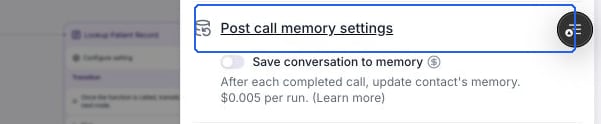
Enable saving in Post call memory settings.
Let the agent recall memory
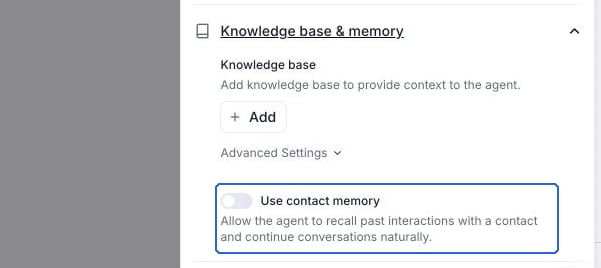
Use contact memory controls recall independently from saving.
Check the next conversation
Customize what agents remember
Select the Memory prompt to open its editor. This prompt controls how memory is rewritten; it is separate from the agent’s conversation prompt.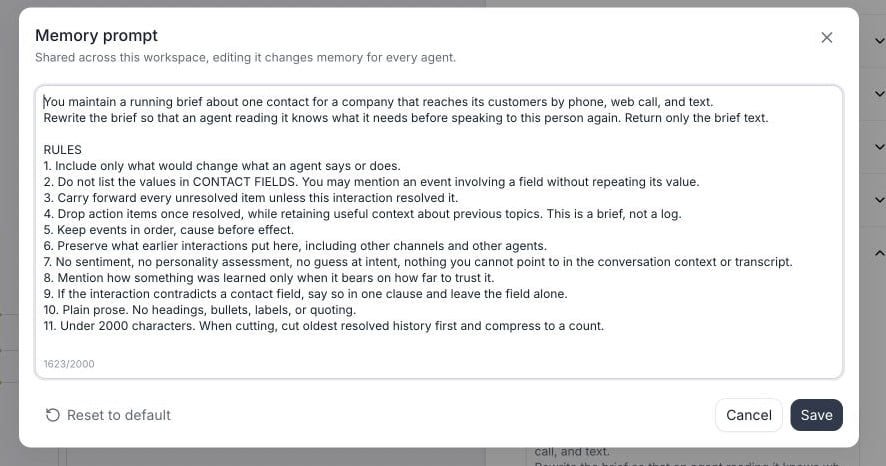
Edit the workspace prompt, or restore the default before saving.
Skip questions memory already answers
In a conversation flow, select a Conversation or Subagent node, open Node settings, and turn on Use memory to skip this node to make it skippable. Before entering a skippable node, the agent checks whether information already available satisfies an outgoing transition condition. It can use answers from the current conversation; with Use contact memory enabled, it can also use saved contact memory.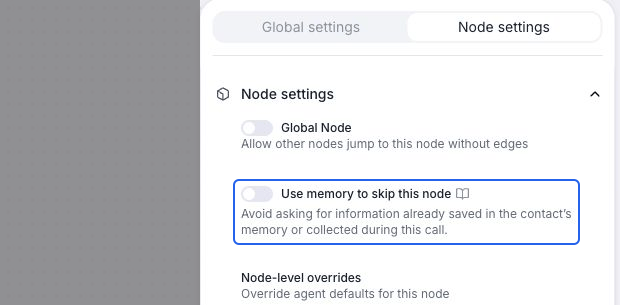
Node skipping can use memory or information collected during the current call.
Write instructions for skippable nodes
Describe what information is needed and when the task is complete. Keep the node instruction and transition condition consistent.Conversation node: collect contact details
For a Conversation node that collects the caller’s name and email address, enable Use contact memory and Use memory to skip this node. Node instruction:Subagent node: collect contact details
For a Subagent node that collects the caller’s name, email address, and delivery address, enable Use contact memory and Use memory to skip this node. Node instruction:Use memory in a single-prompt agent
For a single-prompt agent, enable Use contact memory under Knowledge base & memory and include memory guidance in the agent’s prompt. Node skipping and outgoing transition conditions apply to conversation flows; a single-prompt agent follows one prompt throughout the conversation.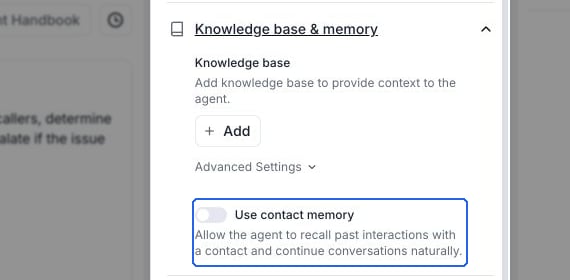
Open Knowledge base & memory in the single-prompt editor to enable recall.
Manage and backfill memory
Open a contact to view, edit, or clear its memory. You can also read its memory in the Contact information panel in call and chat history; editing is available from Contacts. To build memory from earlier calls and SMS chats, choose Actions → Backfill and select Memory. Memory is a built-in target and doesn’t need a Post Call Extraction mapping. Backfill uses the current workspace memory prompt and processes eligible conversations oldest first, starting with the contact’s existing memory. Agents must have saving enabled in their latest configuration, and the past conversations must have retained transcripts. See backfill requirements and progress.Memory and custom contact fields
Built-in memory doesn’t require creating extraction fields or configuring Accumulate & summarize. Those mappings remain useful when you need a separate, structured record:{{contact_memory}} when stored. Explicitly referencing a variable is separate from Use contact memory, which adds memory to the agent’s context automatically.
Pricing
As of September 2026, saving contact memory costs $0.005 per run. Memory backfill costs $0.005 per conversation processed, so one contact with multiple eligible conversations can incur multiple updates. Custom-field Accumulate & summarize merges are a separate operation with their own merge pricing.FAQ
Why does a Conversation node ask for information the caller already provided?
Why does a Conversation node ask for information the caller already provided?
- Inspect the saved memory. Under Data → Contacts, open the contact matching the caller’s phone number in your workspace. Read Conversation Memory in Contact information and check for the values the node needs.
- Check the agent settings. Enable Use contact memory on the agent handling the new call. The earlier call’s agent must have had Save conversation to memory enabled to save it automatically. Wait for memory processing to finish before testing again.
- Review the memory prompt. Under Post call memory settings, open Memory prompt and specify the details future conversations need. This workspace prompt controls what gets saved; the node instruction controls the call. Prompt changes apply to future updates and don’t rewrite existing memory immediately.
- Check contact fields. The default memory prompt avoids repeating values stored in contact fields. If a required value is stored there, reference its contact dynamic variable in the agent or node prompt.
- Update the memory and retest. Edit existing memory or backfill eligible conversations using the updated memory prompt. Check the saved values before starting a new call.
Should I clear contact memory when testing a Conversation node?
Should I clear contact memory when testing a Conversation node?
- Clear the saved memory. Under Data → Contacts, open the contact for the phone number you’re testing. Select Edit in Contact information, delete the text in Conversation Memory, and save Contact information. If you use the expanded memory editor, save that draft first, then save the contact.
- Start a new phone call. Enable Save conversation to memory and use the same contact’s phone number. The agent may ask for details again because saved memory is now empty. A browser test call doesn’t save memory.
- Check the new memory. After the call ends and memory processing finishes, check for the values your node needs. Then test another call with Use contact memory enabled.
Why is Save conversation to memory disabled?
Why is Save conversation to memory disabled?
Why does a contact show No memory yet?
Why does a contact show No memory yet?
Does changing the prompt affect only this agent?
Does changing the prompt affect only this agent?
Do I need Post Call Extraction or a CRM connection?
Do I need Post Call Extraction or a CRM connection?
Can another conversation replace a manual edit?
Can another conversation replace a manual edit?