

Define functions (common part)
No matter what type of tool you are using, there are some fields you have to define.-
tool name: the unique identifier of the tool.- Must consist of a-z, A-Z, 0-9, or contain underscores and dashes, with a maximum length of 64 (no space allowed).
- It has to be unique across all tools available to the model at any given time.
- Best to be a natural language string that LLM can understand like transfer_to_support.
-
description: a clear description of what this tool does, sometimes you can also include when to call the tool in this field.- This can be optional for some pre-defined tools, as we have some default values (see below for details).
- IMPORTANT: generally you would write what this tool does here, and write in prompt explicitly when you want to call this tool. (for example: “step 6. After all questions answered, call function end_call to hang up.”)
Pre-defined tools
There are several pre-defined tools we already provide for your convenience.Pre-defined tool types
End Call
This tool is used to end the call, no matter if it’s a web or phone call, no matter if it’s a Retell number or your own Twilio. You can specify a description about when to end the call. If the description is omitted, it would use the defaultEnd the call with user.
When end call is triggered, it would always say a farewell sentence to the user before hanging up.
Transfer Call
This tool is used to transfer the call to another number, and it can even be another phone associated with Retell agent. You can specify a description about when to transfer the call. If the description is omitted, it would use the defaultTransfer the call to another number.
When transfer call is triggered, it would always say a sentence like “Transferring you to… one moment” to the user before actual transferring.
When you need to have multiple numbers to transfer to (for example, transfer to support department, transfer to sales department),
you need to define multiple transfer tools with different names, and in prompt explicitly write when to invoke which tool.
Press Digit
This tool is used to press digit or digits, mainly to navigate IVR. If the description is omitted, it would use the defaultThe digit to press, can be a single digit, or a combination of digits like '1234*'. Usually either selecting an option in IVR or entering information like phone number.
Since IVR usually speaks slowly, this tool tends to wait a bit longer before actually pressing the digit.
Add via dashboard
Step 1 - Add end call tool
Click ”+ Add” and select “End Call”.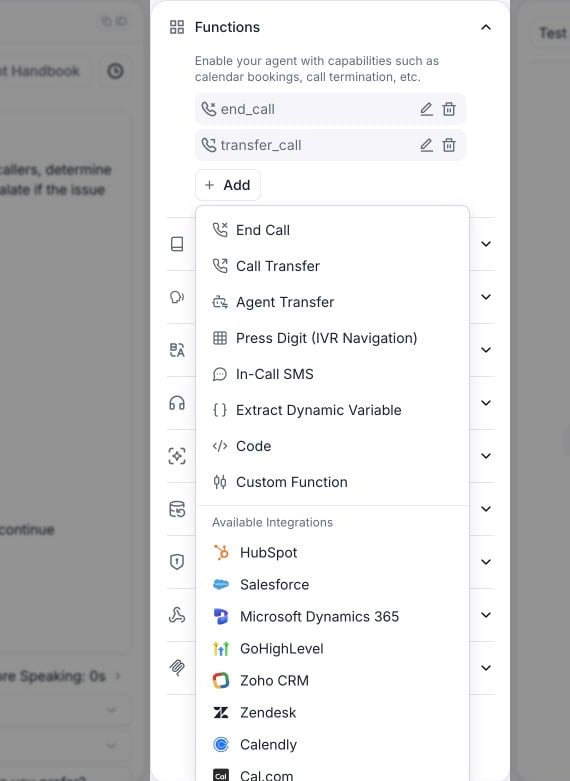
Open Functions and select Add to choose a tool.
Step 2 - Provide more details to the tool
- Clarify the conditions under which the call should be terminated.
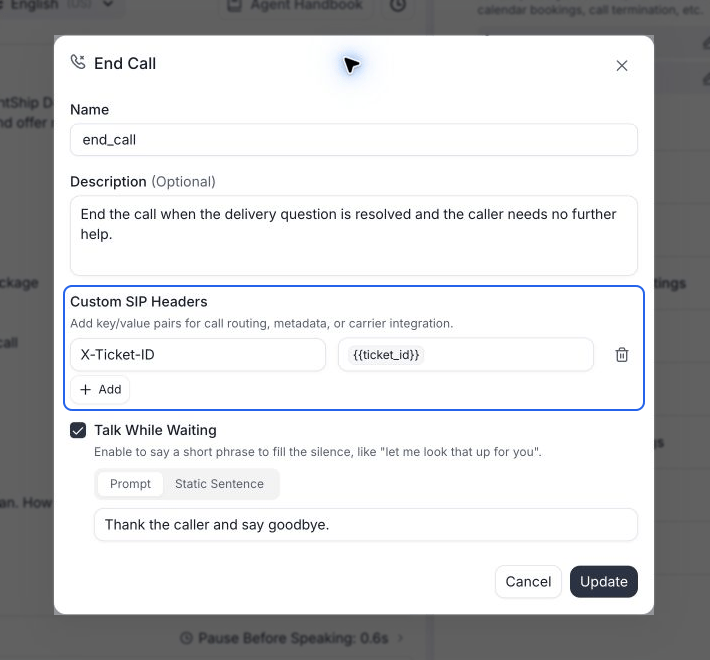
Set the end-call condition and optional custom SIP headers.
- It’s advisable to reiterate the requirements in the prompt to ensure optimal precision.
- Don’t forget to click “Save LLM” on the top right.
Add via API
You can also add predefined tools programmatically.Integration tools
Integration tools call a connected provider (HubSpot, Salesforce, Zendesk, Cal.com, and the other supported providers) directly. Your agent can look up the caller in a CRM, book an appointment, or create a support ticket; Retell handles the provider’s API and auth, so unlike a custom tool there’s no URL to host or request to verify. Add them from your agent’s Functions section with + Add; connected providers and their tools appear in the menu.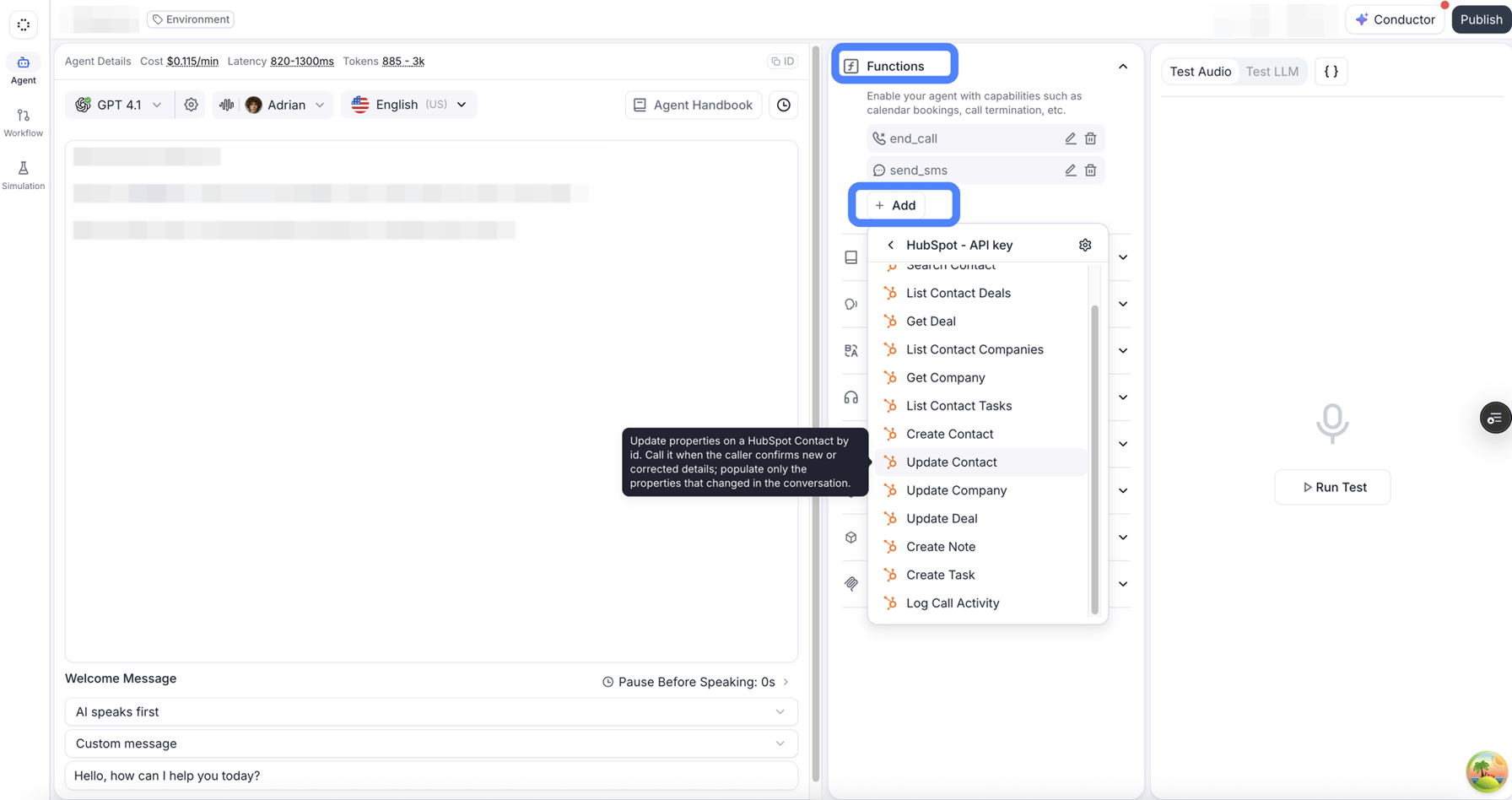
Adding a HubSpot tool from the agent's Functions section.
Custom tools
For tasks not covered by pre-defined tools, you can define your custom tool to execute external APIs, provide knowledge to agent, etc. For custom tools, apart from the usual name and description you would define a URL and the parameters for it. Once the LLM decides to call this tool, we willPOST to the URL defined with the function name and parameters, and the call information.
Add via dashboard
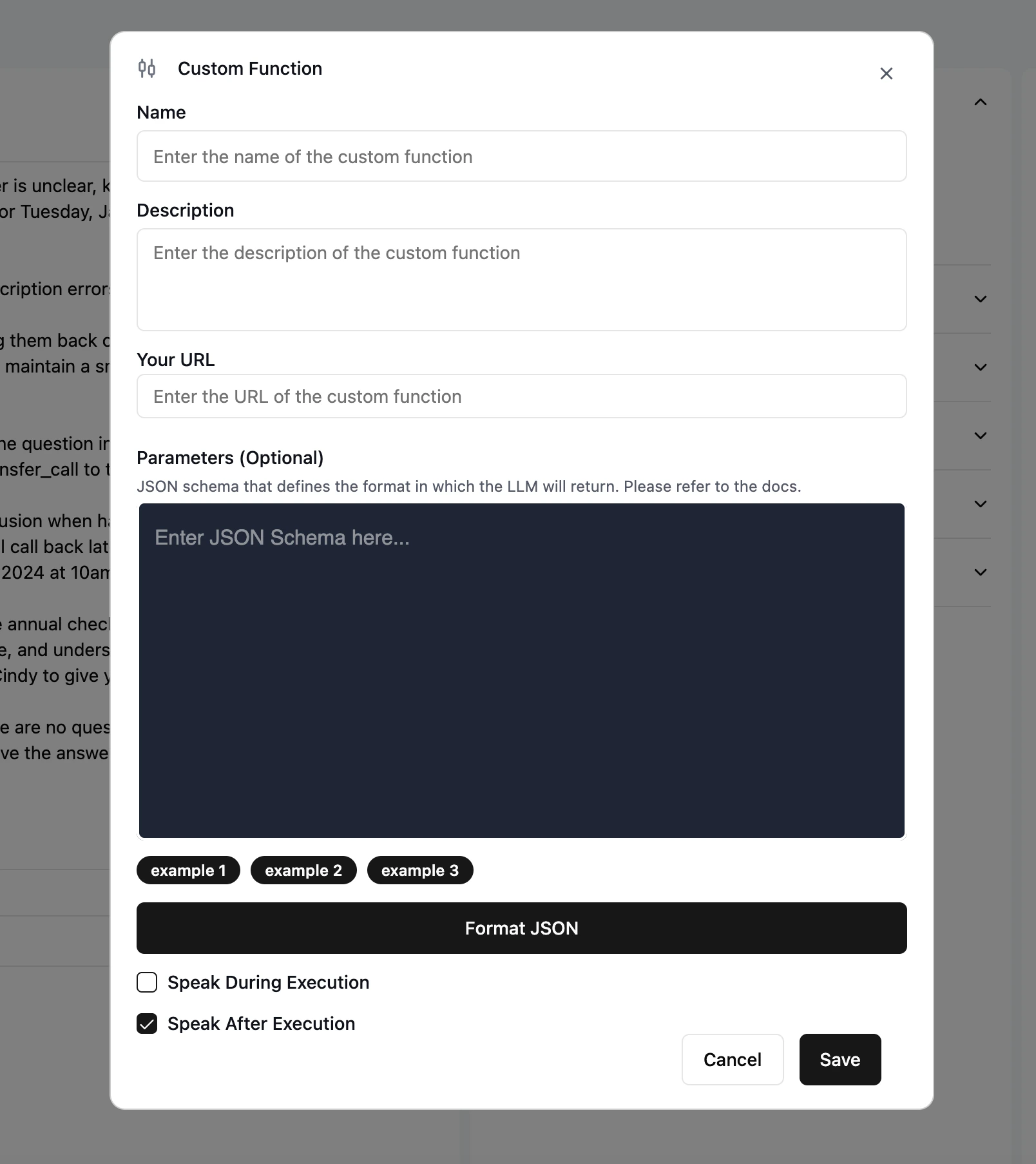
Add via API
You can also add the tool programmatically, similar to how you added it for pre-defined tools.Define parameters for custom tool
This is a JSON schema to let the LLM know what inputs this tool would need. For example, for the followingget-weather custom tool, we defined the parameters to be a city name.
POST a JSON body like the following to the URL specified:
Verify and handle the request
Now you’ve got the tool call request, you need to verify the request is from Retell and handle it.You can secure your server from public network by only allowlisting Retell IP addresses:
100.20.5.228