Add HubSpot, Salesforce, Zendesk, or Cal.com tools to a Retell AI prompt agent: connect once, configure inputs and outputs, and test with live data.
Integration tools let a single- or multi-prompt agent act on a connected provider during the conversation, or before or after it. Examples: look up the caller in a CRM, book an appointment, create a support ticket.Retell handles the provider’s API and authentication for you. Unlike a custom function, there’s no endpoint to host and no request to verify.See the integrations overview for the list of supported providers, what each provider’s tools do, and how to connect them.
Connect it once on the dashboard’s Integrations page — a workspace-level step covered in the integrations overview. Every agent can then use the connection.
2
Add the tool to the agent
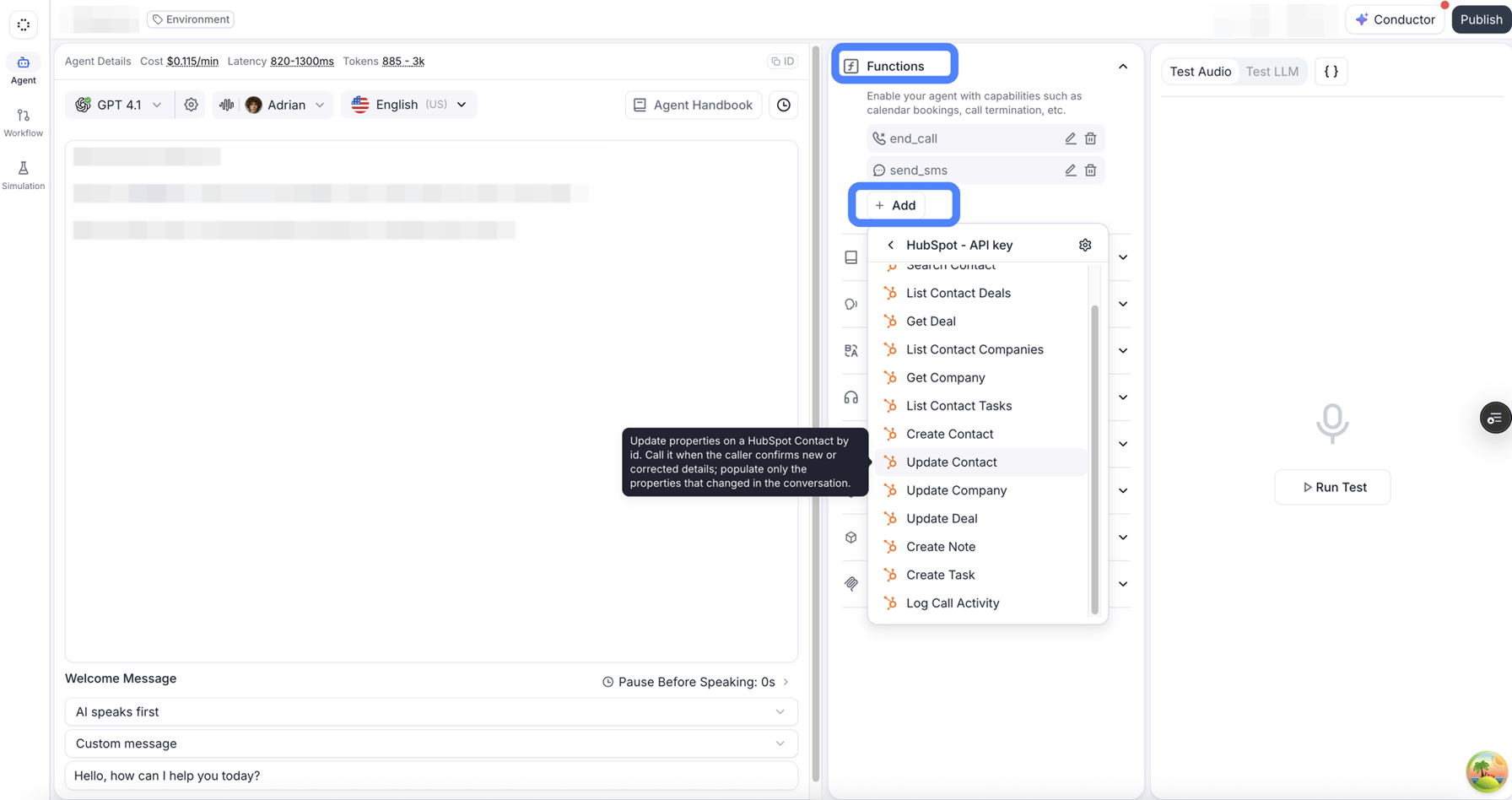
In your agent’s Functions section, click + Add. Connected providers and their tools appear in the menu, and Add integration lets you connect a new provider without leaving the agent.
Adding a HubSpot tool from the agent's Functions section.
3
Configure it
Pick the tool and set up its pieces:
Connection: which account the tool acts on, if you’ve connected several.
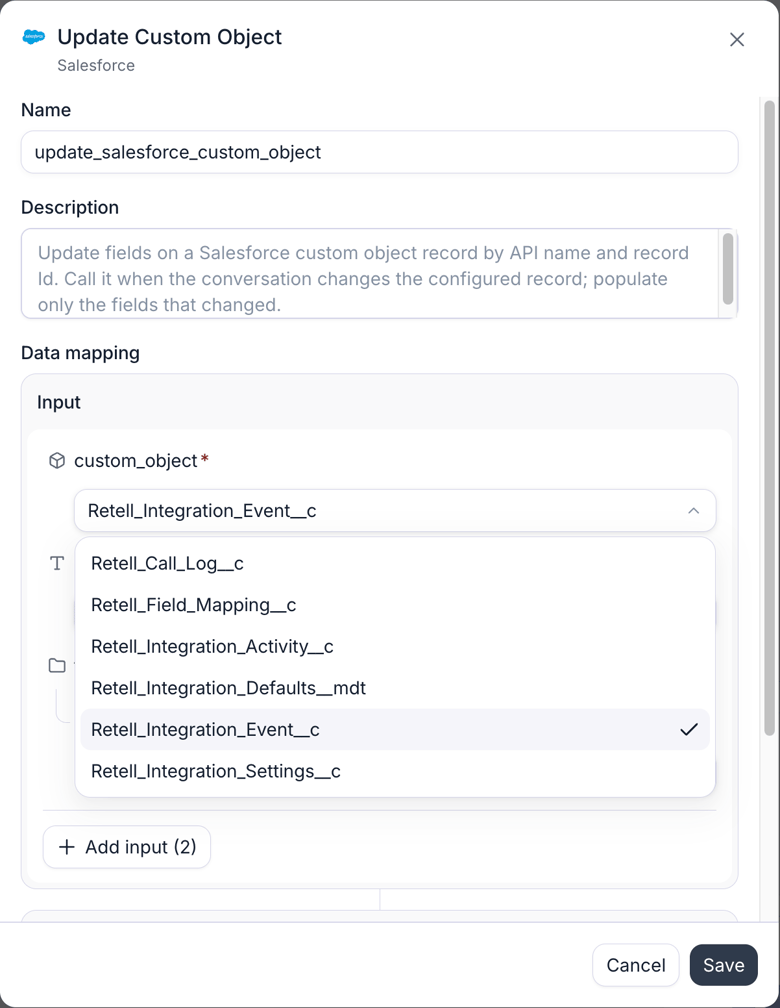
Inputs: each input is either a fixed value you set now (a Cal.com event type ID, a GoHighLevel pipeline) or a description the agent uses to fill the value from the conversation (the caller’s preferred time).
Response variables: map fields from the tool’s result to dynamic variables, so the prompt and later tools can use them (for example, save the contact ID from Search Contact and pass it to Create Task).
Presentation: like other tools, you can have the agent speak while the tool executes, and override the description that tells the LLM when to call it.
Configuring Salesforce's Update Custom Object tool: the custom object is a fixed value picked at configuration time.
4
Test it before the first call
Test requests are sent to the connected provider for real. A lookup reads live data, and testing a create or update tool writes a real record. Use values you don’t mind touching.
In the tool’s config, enter real input values and click Run a test. Retell calls the provider and shows the actual response. Tick the response fields worth keeping and click Add selected outputs to save them as dynamic variables, instead of typing field paths by hand.
The test panel for a Search Contact tool, with three response fields selected as outputs.
Chain tools through response variables: a support agent calls Zendesk’s Search User with {{user_number}}, saves the returned user ID to a dynamic variable, then passes it to List User Requested Tickets when the caller asks for a status update.
Each tool call times out after 3 to 14 seconds, depending on the provider and tool (as of August 2026). On timeout or error, the agent continues the conversation — prompt it on what to say when a lookup or booking doesn’t go through.