

When to use global search
Use search when you know a name, an ID, or a phrase from the content you need. For example, searchreschedule to find an appointment agent whose prompt handles rescheduling, a matching call transcript, or a Conductor conversation about that workflow.
For date ranges, outcomes, or other session filters, use Call History or Chat History.
Search and open a result
1
Open search
Click Search & create in the sidebar or use ⌘K / Ctrl+K.You can also click Search agents on the Agents page to start in the Agents category, or Search chats on Home to start in Conductor. These page entry points start with an empty query. The sidebar and keyboard shortcut reopen your previous query and category.
2
Enter a query
Type at least 2 characters. Results appear as you type. Choose a category to narrow the results, or All to search across categories.
3
Open a match
Click a result, or use ↑ / ↓ to highlight one and press Enter. Agents open in the builder, calls and chats open their detail panels, and Conductor results reopen the conversation. Retell Docs results open in a new browser tab.Press Esc to close search.
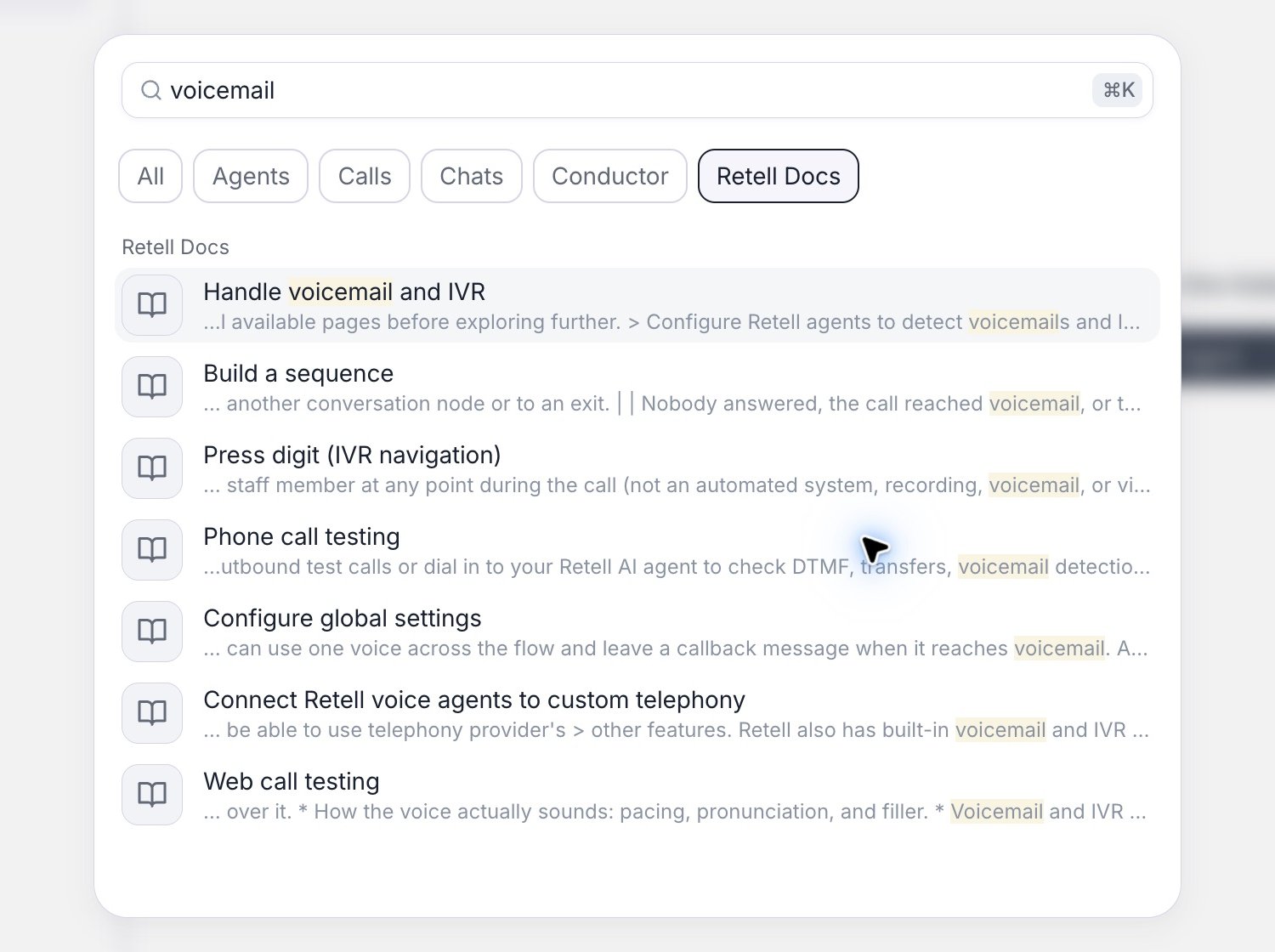
Search for voicemail and choose Retell Docs to find related guides.
What can you search?
Workspace results respect your permissions and the workspace you have selected. Chats contains conversations with your agents; Conductor contains your conversations with the dashboard’s AI assistant.