

How to attach context
- In the Conductor message box, click the attach (+) button.
- Choose what you want to add.
- Pick the specific item from the list.
- Type your message and send. The attached item appears as a tag on your message.
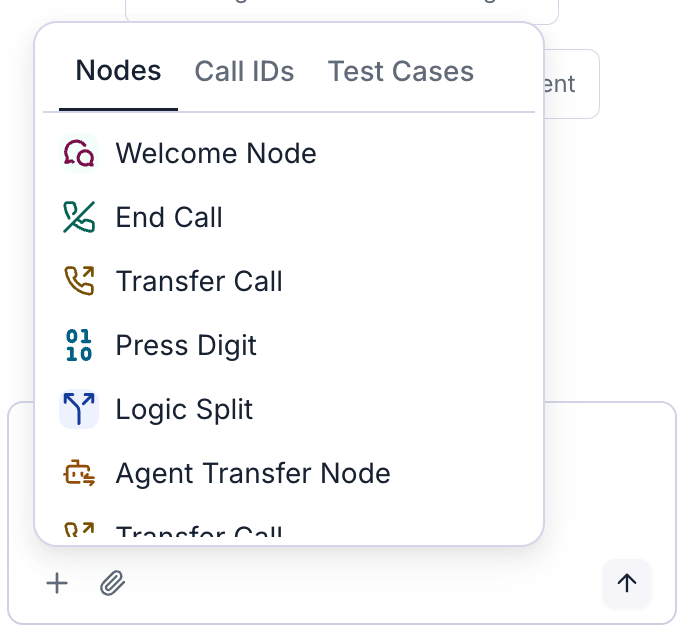
What you can attach
A conversation step (node)
A conversation step (node)
Point Conductor at a specific step in your agent so it edits the right place.Example: attach the “Collect email” step and say “Make this step confirm the spelling back to the caller.”
A past call
A past call
Attach a real call so Conductor can see what actually happened and suggest improvements.Example: attach a call where things went wrong and ask “Why did the agent end the call here, and how do I fix it?”
A test case
A test case
Attach a saved test case to refine how your agent handles that scenario.Example: attach a test case and say “Make sure the agent passes this every time.”
A file
A file
Upload a file (such as a document or screenshot) to give Conductor extra information to work from.You can add files in two ways: click the attach (+) button and choose your files, or drag and drop them straight onto the message box. While you drag files over it, a Drop files to attach overlay appears; release to attach them.Supported file types: images (JPG, JPEG, PNG, GIF, WebP), PDF, and text-based files (TXT, CSV, HTML, HTM, MD, RTF, JSON).Limits: up to 10 files per message, and each file must be 50 MB or smaller. If a file isn’t a supported type, is too large, or would exceed the 10-file limit, Conductor shows a message explaining which files it couldn’t attach.
Tips
- Attach the call or step you’re talking about instead of describing it — it’s faster and more accurate.
- You can attach more than one item to a single message.
- Remove an attachment before sending by clicking the x on its tag.
Steps and test cases shown in the picker come from the agent you currently have open. Calls come from that agent too — unless you’re on the home page, where calls (and an Agents tab) span your whole workspace instead of a single agent.