

Reading a proposal
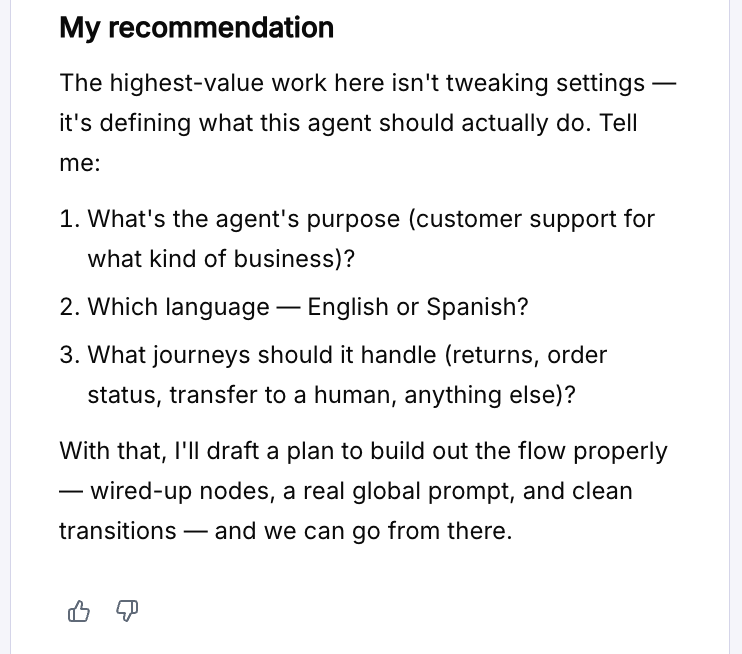
Each proposal lists the individual changes Conductor wants to make to your agent — for example, an edit to a step, a new setting, or a reworded message. Each item shows what’s being changed so you can tell at a glance whether it’s what you wanted.See exactly what’s changing
Conductor doesn’t just tell you what it changed — it shows you, right where the change happens. You never have to guess.Before-and-after preview on the setting itself
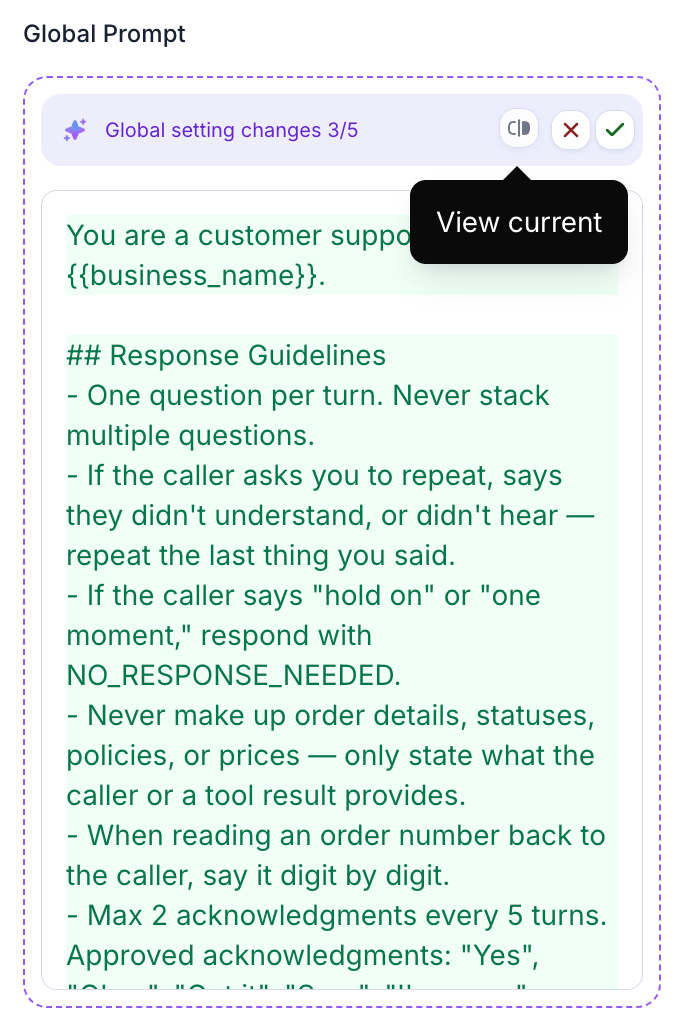
Each proposed change appears directly on the affected setting or step, so you can see it in context. By default, the setting shows the new (proposed) value, with a sparkle marker indicating it’s a Conductor suggestion. Use the view toggle on the change to flip between:- View incoming changes — what Conductor wants the value to be.
- View current — what the value is right now.
Move through changes one at a time
When a proposal touches several settings, each change shows a counter like 1 / 3. As you move between changes, Conductor scrolls the affected setting into view and briefly highlights it, so you always know exactly what you’re looking at — even if it’s on another part of the agent.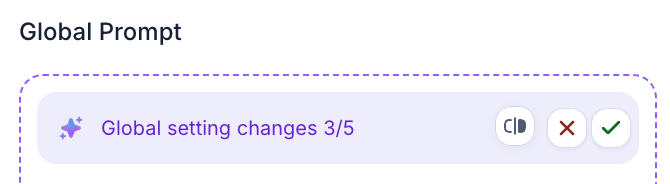
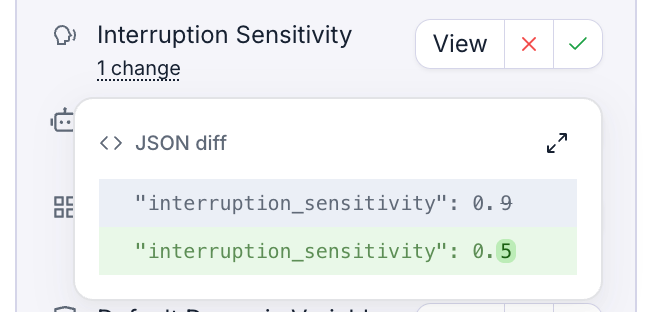
Detailed (JSON) diff
For more complex values, you can open the JSON diff to see a precise line-by-line comparison:- Removed content is shown struck-through.
- Added content is highlighted in green.
Accept or reject
You can decide on changes one at a time or all at once:- Accept (✓) — Conductor applies that change to your agent. You’ll see it reflected in the builder right away.
- Reject (✗) — that change is discarded and the setting stays exactly as it was.
Applied, reverted, and undo
After you decide, each change shows its outcome:- Change applied — the new value is now in your agent.
- Reverted to original — the change was rejected and nothing was altered.
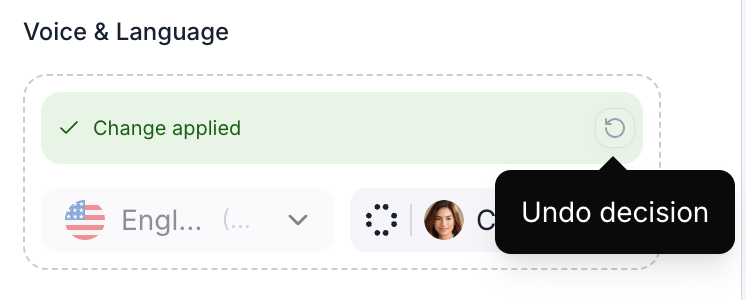
If some changes can’t be applied, Conductor lets you know and reviews the failed items before continuing — so your agent never ends up in a half-finished state.
Finish reviewing before sending a new message
While a proposal is waiting for your decision, the message box is locked and shows:Accept or reject all changes before prompting Conductor.This makes sure you and Conductor are always looking at the same version of your agent. Once you’ve accepted or rejected the proposal, you can keep chatting.
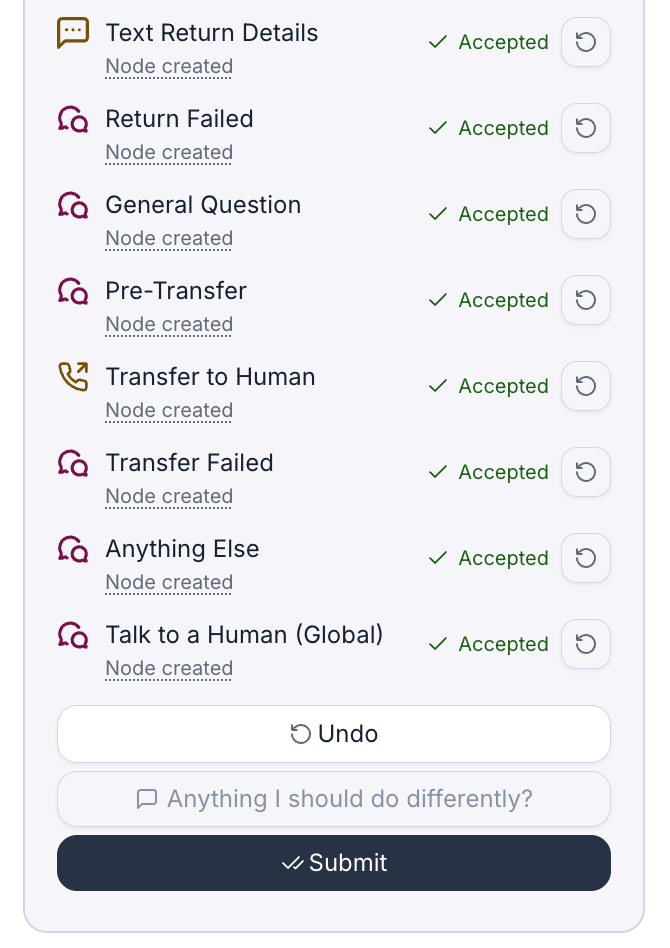
Proposals for a different agent
If you open a proposal that was created for a different agent, Conductor won’t let you apply it on the wrong agent. You’ll see a message with a Go to that agent button — click it to open the correct agent in a new tab, where you can review and apply the changes safely.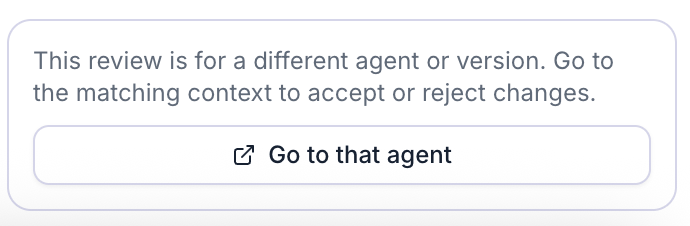
Tips
- Review before accepting. Skim each change so you know what’s being applied.
- Reject freely. If a suggestion isn’t right, reject it and tell Conductor what to do differently.
- Test after big changes. Use testing tools to confirm your agent behaves the way you expect.