

This page describes the history icon inside an agent. On the Retell home page, history lives in its own searchable panel next to Conductor instead — the same new-chat and reopen behavior applies, just with different controls.
Start a new conversation
Click the New chat icon at the top of the Conductor panel to start fresh. Your previous conversation is saved to history — you’re not losing anything.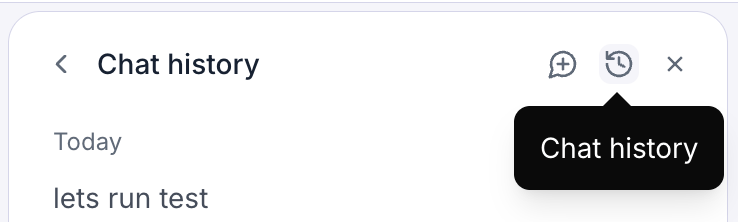
Open your chat history
Click the History icon to see your past conversations. Select any one to reopen it and read the full exchange. From history you can also start a brand-new conversation at any time.Reopen a conversation later
Conductor remembers your most recent conversation and brings it back automatically the next time you open the panel — so you can continue without hunting for it.Share a conversation
Each conversation has its own link. When you open a shared link, Conductor loads that exact conversation. This is handy for revisiting a specific chat or sharing context with a teammate who has access to the same workspace.Long conversations stay smooth
When a conversation runs long, Conductor automatically condenses the earlier parts to keep responses fast and focused. While it does this, you’ll briefly see a Condensed conversation context step in Conductor’s activity. This is normal — you don’t need to do anything. Conductor keeps the important details, and your chat continues right where you left off. If you’d rather start clean for a new task, just open a New chat.Give feedback (👍 / 👎)
Conductor shows thumbs-up and thumbs-down buttons on its replies. Use them to say whether a response was helpful:- 👍 Helpful — the response did what you needed.
- 👎 Not helpful — it missed the mark.

Tips
- One task per conversation keeps history easy to scan.
- Reopen a past chat to remember why a change was made.
- Leave feedback when a reply is especially good or bad — it makes Conductor better.