

Connecting Notion lets you add Notion pages to knowledge bases, so your agent answers from the wiki, policies, and FAQs your team already maintains in Notion. Notion connects with an API key: the token of an internal connection you create in Notion’s developer portal. Retell reads only the pages you share with that connection and never writes to your workspace. This page covers getting the key, sharing pages, and making the connection. Notion adds no integration tools. Like Google Drive and Microsoft OneDrive, its job is feeding knowledge bases.

When to use it

Connect Notion when the content your agent should know lives in a Notion workspace that people keep editing. It’s the right choice when you want to:
  • Stop exporting Notion to files. A page added from Notion re-syncs when the page changes, so the knowledge base follows the page instead of a PDF or Markdown export that goes stale.
  • Let non-developers own the content. The team edits the Notion page they already work in; nobody exports files or opens the dashboard to keep the agent current.
  • Decide page by page what the agent sees. Access is granted in Notion by sharing a page with the connection. Everything else in the workspace stays invisible to Retell.
For example, a veterinary clinic group keeps its clinic handbook in Notion: hours and locations, vaccination schedules, pre-surgery fasting instructions, and pricing, each as its own page. Those pages are knowledge base sources, so when the practice manager changes the fasting instructions in Notion, the inbound agent gives the new guidance after the next refresh.

Prerequisites

  • You need to be a Workspace Owner in Notion. Only Workspace Owners can create internal connections. If you’re a Member, ask an owner to follow Get your Notion API key and send you the token; you can still share pages with the connection yourself.
  • You need an Admin or Developer role in Retell, or a custom role with the App.Write and CRM.Write permissions.
  • Know which pages the agent should read. A connection starts with access to nothing, so have the top page of each wiki or handbook in mind. Sharing a page shares everything nested under it.

Get your Notion API key

The API key Retell asks for is the access token of a Notion internal connection: a bot identity that belongs to your workspace and can read only the pages you share with it. Notion recommends internal connections for team-owned automations in one workspace, which is what a knowledge base sync is.
1

Create an internal connection

Sign in to Notion as a Workspace Owner and open the developer portal at app.notion.com/developers/connections (inside Notion, this is Developer tools, then Connections). Click New connection.In the dialog, give the connection a name your team will recognize, such as Retell. This name is what people see when they share a page with it, so avoid something generic. Under Authentication method, choose Access token: Notion describes it as a workspace-scoped static API token, limited to one workspace, which is exactly what Retell needs. Click Create connection. Notion creates the connection immediately; its page has Configuration, Content access, and other tabs. The connection belongs to the workspace you created it in and can only ever reach pages inside it.
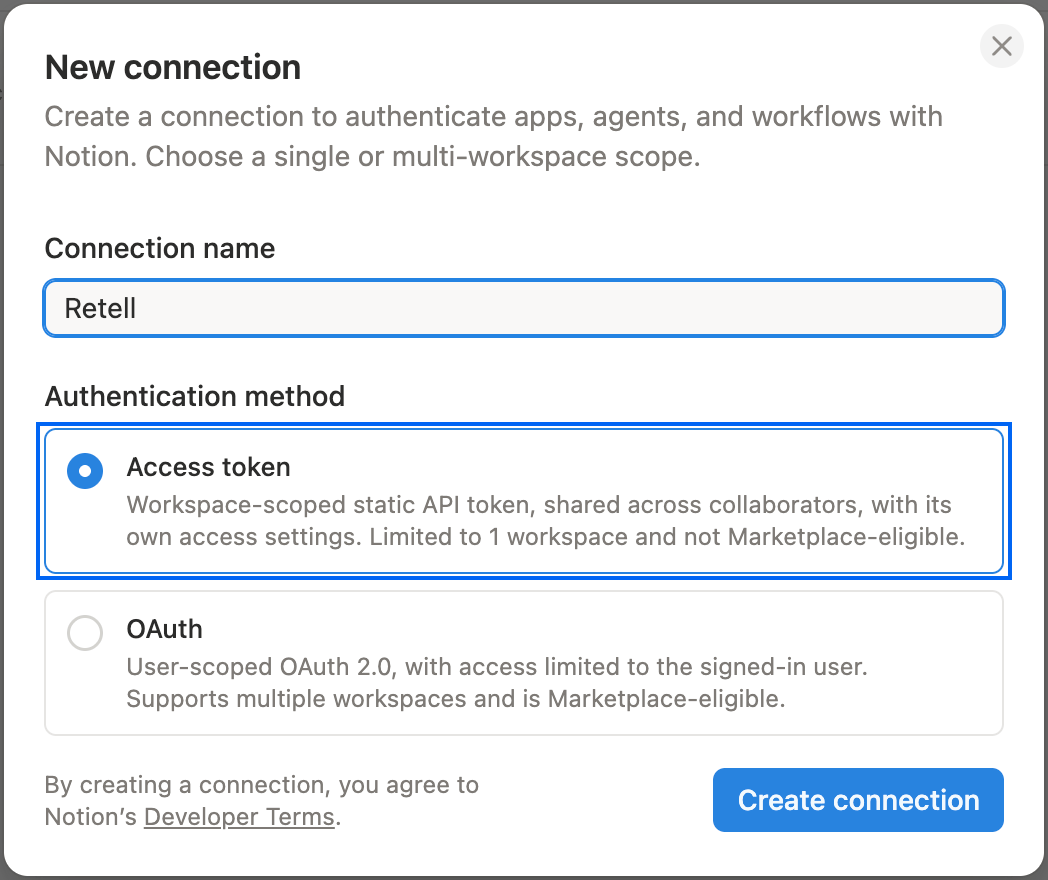
Notion's New connection dialog. The Connection name field reads Retell. Under Authentication method, the Access token option is selected and ringed in blue; its description reads 'Workspace-scoped static API token, shared across collaborators, with its own access settings. Limited to 1 workspace and not Marketplace-eligible.' A second, unselected authentication option sits below it, and a blue Create connection button is at the bottom right.

Notion's New connection dialog, with the Access token authentication method selected.

2

Turn off every capability except Read content

Open the connection’s Configuration tab and review its capabilities. Retell only reads pages, so set them as follows:Leaving extra capabilities on doesn’t break anything, but the key would then carry more power than Retell uses, which matters if it ever leaks.
3

Copy the Installation access token

Still on the Configuration tab, find the Installation access token and copy it. It starts with ntn_, and it is the value you paste into Retell’s API Key field.Treat the token like a password: anyone holding it can read every page shared with the connection. Don’t paste it into shared documents or chat. If it’s ever exposed, refresh it from the same tab to replace it, then paste the new token into Retell (see the FAQ).

Share pages with the connection

A new connection has access to nothing. Until you share pages with it, Retell’s page picker is empty and there’s nothing to sync.
1

Share a page from inside Notion

Open a page your agent should know, click the ••• menu in the top-right corner, select Connections, and click + Add connection (in some Notion versions the menu item is labeled Add connections). Search for the connection by the name you gave it, select it, and confirm.Sharing a page also shares every page nested under it, so sharing the top page of a wiki shares the whole wiki. Share the top page rather than each child page individually.
2

Or pick pages from the developer portal
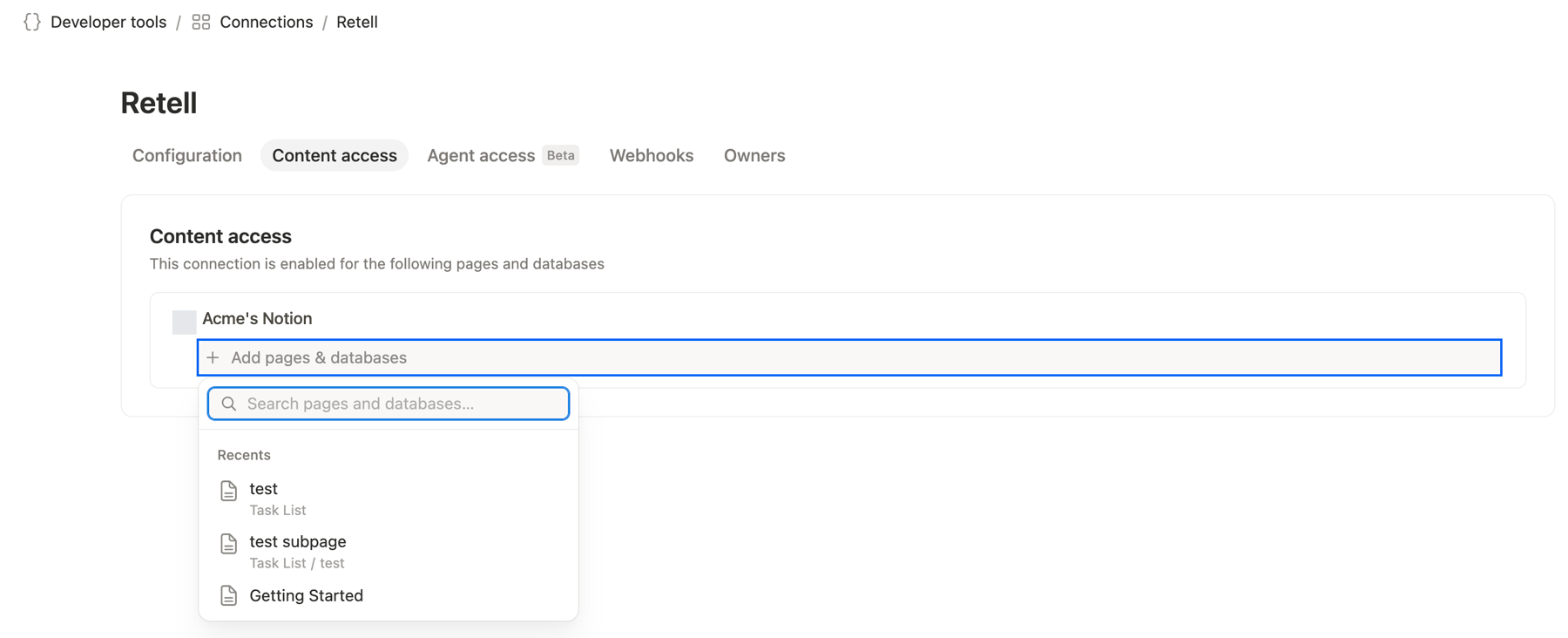
Open the connection at app.notion.com/developers/connections and select the Content access tab. It lists the pages and databases the connection is enabled for, grouped by workspace. Click + Add pages & databases, search for a page, and select it. This tab is also the quickest way to see everything the connection can currently read.
A connection named Retell in Notion's developer portal, under the breadcrumb Developer tools, Connections, Retell. The tabs are Configuration, Content access (selected), Agent access (Beta), Webhooks, and Owners. The Content access panel reads 'This connection is enabled for the following pages and databases' above a workspace named Acme's Notion, and its + Add pages & databases row is ringed in blue. Below it a search box labeled 'Search pages and databases…' lists recent pages: test (in Task List), test subpage (in Task List / test), and Getting Started. The workspace name and icon are demo values.

The connection's Content access tab in Notion's developer portal, where you add pages directly.

3

Check the result in Retell

In a knowledge base, open the Add menu and select the connection. The Select pages dialog lists the shared pages as a tree. Nothing there yet means the share hasn’t landed; reopen the picker after sharing, since it lists pages fresh every time.
To take a page away from the connection later, open the page’s ••• menu, hover over the connection’s name under Connections, and select Disconnect, or remove it on the Content access tab in the developer portal. Pages already synced from it keep their content in Retell but stop refreshing.
On Notion’s Enterprise plan, workspace owners can limit which connections members may add to pages and which pages a connection can reach, under Settings, then Connections, on the Manage tab. If Add connection is missing from a page menu or your connection isn’t offered, ask a workspace owner to allow it.

Add the connection in Retell

1

Add the connection

In the Retell Dashboard, open Integrations, select the Available tab, find Notion, and click Connect (Add Account if a connection already exists). You can also start from a knowledge base: the Add menu shows Connect Notion when no account is connected yet.
2

Paste the API key

The dialog asks for a connection name (prefilled with Notion - API key) and an API Key. Paste the Installation access token and click Connect. Retell checks the key against Notion right away and reports Connected to Notion. when it works; click Done. The check passes even before you’ve shared any pages, so you can connect first and share afterwards.If Notion rejects the key, the dialog reports Could not connect. Check your credentials and try again. and nothing is saved. Copy the token again from the connection’s Configuration tab, making sure you have the whole ntn_ string, and retry.
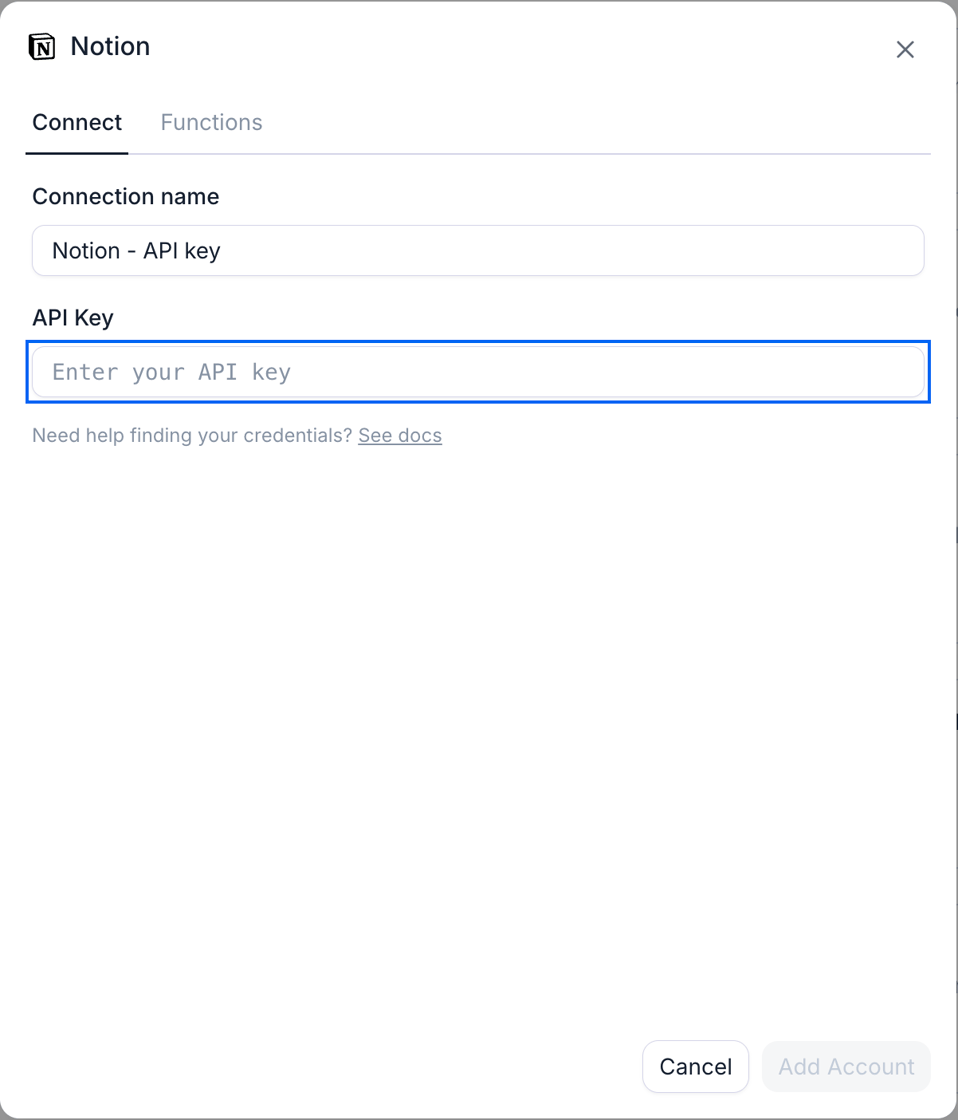
Retell's Notion connection dialog on its Connect tab, with a Functions tab beside it. It has a Connection name field prefilled with Notion - API key and an API Key field, ringed in blue, with the placeholder 'Enter your API key'. Below the field a hint reads 'Need help finding your credentials? See docs'. Cancel and Add Account buttons sit at the bottom right; the button reads Add Account because a Notion connection already exists in this workspace.

Retell's Notion connection dialog, with the API Key field for the token.

Once connected, the account appears in every knowledge base’s Add menu. See Notion knowledge base sync for picking pages and how refresh works.

How access works

Retell stores the API key encrypted and never returns it through the API. With it, Retell can reach exactly the pages shared with the connection, including pages nested under a shared page, and nothing else in the workspace. Retell uses the key for three things:
  • Listing shared pages, so the knowledge base picker can show them.
  • Reading a page’s title and last-edited time, to decide whether a page changed since its last sync.
  • Fetching a page’s content, as Markdown, to chunk and embed it.
Retell also checks the key by retrieving the connection’s own bot user when you connect and before every refresh. All of this is read-only: with only Read content enabled, Retell can’t create, edit, or delete anything in Notion. To end Retell’s access, delete the connection on the Connected tab, which discards the stored key. To revoke from Notion’s side as well, disconnect the connection from individual pages, refresh the token from the connection’s Configuration tab, or delete the connection in the developer portal.

FAQ

The Installation access token of an internal connection, shown on the connection’s Configuration tab in Notion’s developer portal at app.notion.com/developers/connections. It starts with ntn_. Create the connection in the workspace that holds the pages, copy the token from that tab, and paste it into the API Key field in Retell.
To create the connection, yes: Notion only lets Workspace Owners create internal connections. If you’re a Member, an owner can create it in a minute and send you the token, and you paste it into Retell. Sharing pages with an existing connection works for any Member from the page’s ••• menu, unless your Enterprise workspace restricts which connections members may add.
No. The connection sees nothing until a page is shared with it, and then only the shared pages and the pages nested under them. Pages you never shared don’t appear in the picker and can’t be synced. A page that is later unshared or moved to the trash stops refreshing, and Retell keeps the content it already synced. The connection’s Content access tab in Notion’s developer portal shows exactly what it can reach.
Yes. A connection reads only the workspace it was created in, so create an internal connection in each workspace and add each one to Retell as its own connection. Retell allows up to 20 Notion connections per Retell workspace (as of September 2026), and the knowledge base Add menu lists them all.
No. The Installation access token is static, so the connection keeps working until you refresh the token from the Configuration tab or delete the connection in Notion. After a refresh, update Retell with the new token: open the connection on the Connected tab and paste it. Until you do, Notion turns Retell away, the connection shows a red Connection error tag, and its refreshes pause.
Up to 25 Notion pages per knowledge base, with each nested page counting as its own source; split larger wikis across several knowledge bases, since an agent can use more than one. The page picker lists up to about 3,000 shared pages per connection. A database can’t be added as a single source, though its rows can be added one by one. See the knowledge base sync limits for the full list and the error each one produces.
Content already synced stays in your knowledge bases and keeps answering; it just stops refreshing, and its source rows show Sync not available. Reconnecting and re-picking the pages resumes updates. To see which knowledge bases use a connection before deleting it, open it on the Connected tab and check its Used by tab.
Notion rejected the key: the token was refreshed from the Configuration tab, or the connection was deleted in Notion. Retell keeps the content already synced and skips refreshes for that connection’s pages until the key works again. Open the connection on the Connected tab and paste the current token.

Next steps

Notion knowledge base sync

Pick the pages your agent answers from, and keep them re-syncing as they change.

Integrations overview

See every provider Retell connects to and how integration tools work.