Sync Microsoft OneDrive files into a Retell AI knowledge base: pick files in Microsoft’s file picker, and changed files re-sync every 24 hours.
Files you add from Microsoft OneDrive become knowledge base sources that follow the file: when the document changes in OneDrive, Retell re-syncs it on the next refresh, so your agent answers from the version your team edits. This page covers picking the files and keeping them current.Adding OneDrive files requires a connected OneDrive account.
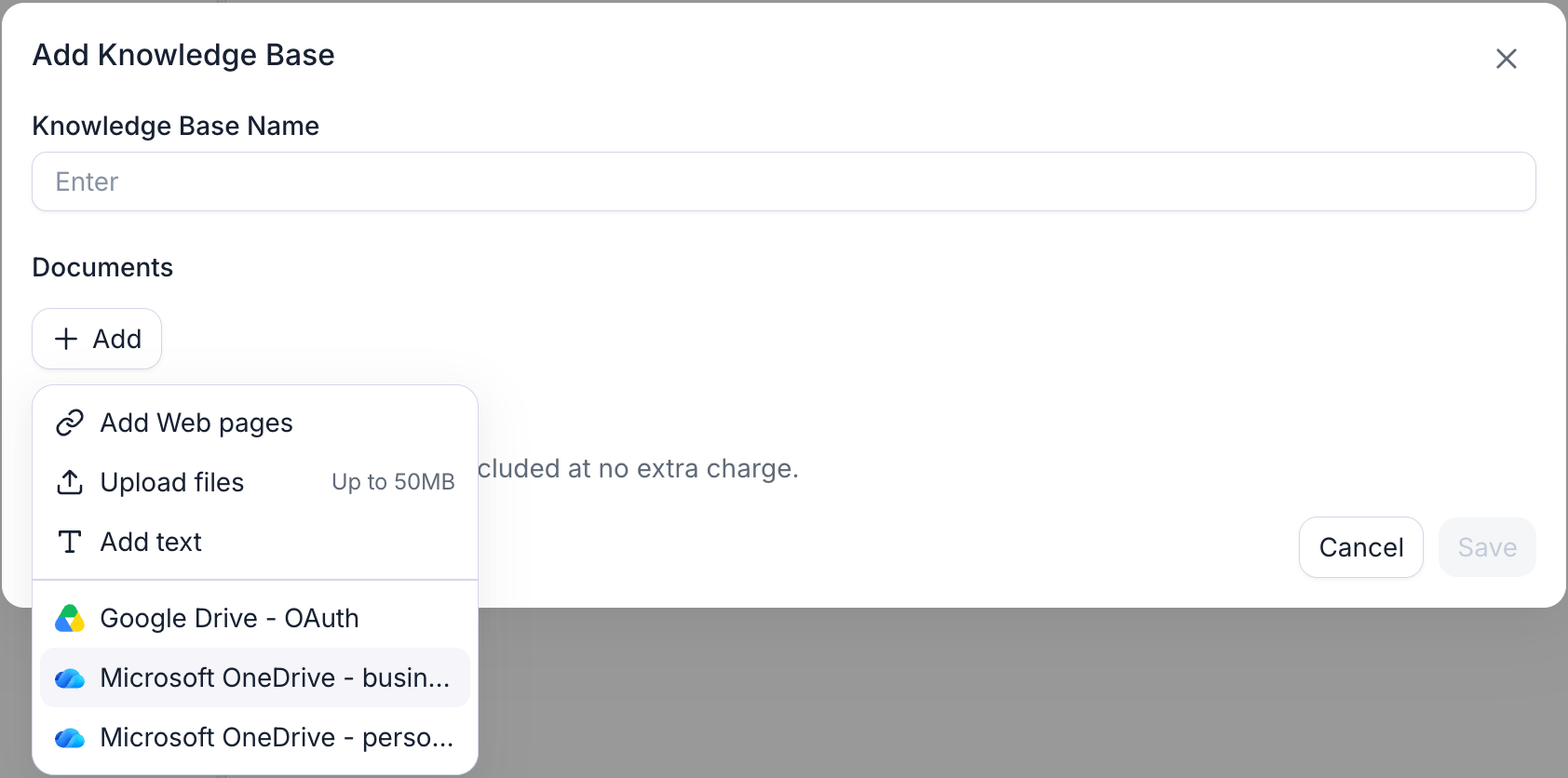
Go to Knowledge Base, open or create one, and open the Add menu. Your connected OneDrive accounts are listed there; with none connected yet, the menu offers Connect Microsoft OneDrive instead.
The knowledge base Add menu, listing connected OneDrive accounts below the built-in source types.
2
Pick the files
Select the OneDrive account. Microsoft’s own file picker opens in a pop-up window, so allow pop-ups for the Retell dashboard. If the browser blocks it, Retell reports Allow pop-ups for this site to pick files from OneDrive.Select one or more files, then confirm. The picker only offers file types the knowledge base can parse, and only files in the connected account’s own OneDrive — not SharePoint libraries, shared-with-me files, folders, or OneNote notebooks (see what you can pick).
3
Wait for processing
Picked files are downloaded, chunked, and embedded like any other source. The knowledge base shows each file with its processing status, and its row is labeled OneDrive. A source that fails to process doesn’t block the others.
50 MB per file. Oversized files are dropped before the knowledge base saves, with a File too large notice naming them.
OneDrive sources per knowledge base
25. Adding beyond that fails with too many OneDrive sources, please reduce the number to below 25.
Refresh cadence
Every 24 hours, with auto-refresh enabled on the knowledge base.
Adding the same file twice is skipped rather than duplicated: Retell identifies a file by its drive and item, and reports Already added.Adding files and manually refreshing them also uses the Files source-addition quota, shared with uploads, Google Drive, and Notion. Scheduled auto-refresh does not consume this quota.
A file with no extractable text produces no content to index and fails with produced no content to index. The common case is a scanned, image-only PDF: Retell doesn’t run OCR on it.
With auto-refresh enabled on the knowledge base, Retell re-checks each OneDrive file’s last-modified time every 24 hours and re-downloads only the files that changed; unchanged files are skipped. Adding a OneDrive file to a new knowledge base turns auto-refresh on for you, and the toggle then reads Automatically sync OneDrive files every 24 hours.Renaming a file in OneDrive is safe. Retell reads the current name from OneDrive on every sync, so a renamed file keeps syncing and a changed extension still picks the right parser.If a file can’t be re-fetched (deleted, permission lost, or the connection removed), the knowledge base keeps serving the previously synced content rather than dropping it. When the connection behind a source is gone, its row shows Sync not available.
Microsoft’s picker runs in a pop-up rather than inside the page, so a pop-up blocker stops it and Retell reports Allow pop-ups for this site to pick files from OneDrive. Allow pop-ups for the dashboard and try again. Only one picker runs at a time: launching a second one refocuses the window that’s already open instead of starting over.
'OneDrive picker failed to load'
The picker has 30 seconds to load and connect back to the dashboard. Missing that window means the pop-up couldn’t reach Microsoft’s picker page: a network block, a browser extension interfering with the pop-up, or your organization’s policy blocking the page. Retry once those are ruled out, and reconnect the integration if it keeps failing.
'This OneDrive connection needs to be reconnected before picking files'
The connection is missing the account details the picker needs, which happens when a connect flow was interrupted partway. Open the connection on the Connected tab and click Reconnect to run the Microsoft sign-in again.
A file I expect isn't in the picker
The picker shows only files in the connected account’s own OneDrive, filtered to supported types. Files in a SharePoint site or document library, files shared with you from someone else’s OneDrive, folders, and OneNote notebooks are all excluded. Copy the file into the connected account’s OneDrive to sync it.
A file failed to process
The knowledge base detail view names the source and the reason. The common ones are is too large to index (max 50 MB), produced no content to index (an empty file or a scanned PDF), is not a downloadable file (a folder or OneNote notebook), and Selected file is in SharePoint, not OneDrive. Fix the file or pick a different one; the other sources still finish.
A OneDrive source stopped updating
Check three things: the knowledge base has auto-refresh enabled, the OneDrive connection still exists on the Connected tab, and the connected account still has access to the file in OneDrive.
With auto-refresh enabled, changed files re-sync on the knowledge base’s refresh cycle, which runs every 24 hours. An edit made this morning reaches the agent after the next refresh, not instantly. You can also trigger a sync by hand from the knowledge base detail view.
Can I sync a SharePoint library or a file shared with me?
No. A connection reaches the signed-in account’s own OneDrive only, personal or business. Copy the file into that OneDrive, or connect an account that owns it.
Can one knowledge base mix OneDrive files with uploads and URLs?
Yes. OneDrive sources sit alongside uploaded documents, crawled URLs, custom text, Google Drive files, and Notion pages in the same knowledge base, and the auto-refresh toggle covers whichever syncing source types it holds.
Can I download a OneDrive source from Retell?
No. The file stays in OneDrive: the knowledge base row references the OneDrive item rather than a stored copy, so it has no download action. Retell keeps only the extracted, embedded content used for retrieval.
Create a knowledge base, tune retrieval, and see the formatting that retrieves well.
Connect OneDrive
Set up the connection and see exactly what access Retell asks Microsoft for.
Notion knowledge base sync
Do the same with pages from a connected Notion workspace.
Was this page helpful?
⌘I
{"docsConfig":{"theme":"almond","$schema":"https://mintlify.com/docs.json","name":"Retell AI","description":"Explore Retell AI docs to learn how to build, test, deploy, and optimize AI voice agents with APIs, integrations, conversation flows, and production-ready tools.","colors":{"primary":"#606A78","light":"#F5F5FA","dark":"#172131"},"logo":{"light":"https://mintcdn.com/retellai/-E9UettTBfBiCBBS/images/docs-light.png?fit=max\u0026auto=format\u0026n=-E9UettTBfBiCBBS\u0026q=85\u0026s=64eb26a2d3cc9a67ee3ea0bfe086dd14","dark":"https://mintcdn.com/retellai/-E9UettTBfBiCBBS/images/docs-dark.png?fit=max\u0026auto=format\u0026n=-E9UettTBfBiCBBS\u0026q=85\u0026s=08472a0c78599498b85d23348d7826f6"},"favicon":"https://mintcdn.com/retellai/TsBk7Stx4694-7p1/logo/favicon-light.ico?fit=max\u0026auto=format\u0026n=TsBk7Stx4694-7p1\u0026q=85\u0026s=4e90f4db5e89b5ec7fe249a4844c2d97","api":{"openapi":["openapi-final.yaml"],"playground":{"display":"interactive"},"mdx":{"auth":{"method":"bearer"},"server":"https://api.retellai.com"}},"navbar":{"links":[{"icon":"message-circle-question-mark","href":"https://docs.retellai.com/general/support","label":"Support"},{"icon":"chart-line","href":"https://status.retellai.com/","label":"Status"},{"icon":"book","href":"https://www.retellai.com/changelog","label":"Changelog"}],"primary":{"type":"button","label":"Dashboard","href":"https://dashboard.retellai.com"}},"footer":{"socials":{"x":"https://x.com/retellai","linkedin":"https://www.linkedin.com/company/98828489","github":"https://github.com/RetellAI","instagram":"https://www.instagram.com/retell_ai","youtube":"https://www.youtube.com/@retellai"}},"fonts":{"family":"Inter"},"icons":{"library":"lucide"},"styling":{"codeblocks":"dark","latex":true},"integrations":{"mixpanel":{"projectToken":"c8676d3561adb5eefc366aa2a66725bc"}},"contextual":{"options":["copy","view","chatgpt","claude","cursor"],"display":"header"},"interaction":{"drilldown":false},"navigation":{"pages":[]}},"deployment":{"deploymentMetadataValue":{"subdomain":"retellai","hasAudioNarration":false,"actualSubdomain":"retellai","customDomains":["docs.retellai.com"],"gitSource":{"type":"github","owner":"retellai","repo":"docs","deployBranch":"main","contentDirectory":"","isPrivate":true,"mountPath":"","label":""},"chroma":{"liveDeploymentHistoryId":"6ae52c364dc623ac1751f1b5","collectionId":"2475b9a8-10e5-42d7-95d5-17867509ffb2","schemaVersion":"v3","latestBuiltDeploymentHistoryId":"6ae52c364dc623ac1751f1b5"},"feedback":{"thumbs":true,"edits":false,"issues":false,"agentFeedback":true},"entitlements":{"AI_CHAT":{"status":"ENABLED"},"CONTEXTUAL_FEEDBACK":{"status":"ENABLED"},"CODE_SNIPPET_FEEDBACK":{"status":"ENABLED"},"WEB_MCP":{"status":"ENABLED"},"NARRATION":{"status":"ENABLED"}},"buildId":"6ae67e1ef80d76da94878caf","clientVersion":"0.0.4044","searchFilterCounts":[{"language":"default","tag":"Guides","count":213},{"language":"default","tag":"API Reference","count":107},{"language":"default","tag":"Build","count":67},{"language":"default","tag":"Deploy","count":35},{"language":"default","tag":"Integrations","count":30},{"language":"default","tag":"Conversation flow agents","count":24},{"language":"default","tag":"Deprecations","count":22},{"language":"default","tag":"CRM","count":21},{"language":"default","tag":"Detailed Deprecation Guide","count":21},{"language":"default","tag":"Monitor","count":17}]},"assistantConfig":{},"basePath":"","hasChatPermissions":true,"hasWebMcpPermissions":true,"toggles":[{"name":"kill-isr","enabled":true,"variant":{"name":"disabled","enabled":false,"feature_enabled":true},"impressionData":false},{"name":"agent-mintlify-slack","enabled":true,"variant":{"name":"disabled","enabled":false,"feature_enabled":true},"impressionData":false},{"name":"agent-integrations-settings","enabled":true,"variant":{"name":"disabled","enabled":false,"feature_enabled":true},"impressionData":false},{"name":"automations-pr-grouping","enabled":true,"variant":{"name":"disabled","enabled":false,"feature_enabled":true},"impressionData":false},{"name":"custom-prefix","enabled":true,"variant":{"name":"disabled","enabled":false,"feature_enabled":true},"impressionData":false},{"name":"analytics-v7","enabled":true,"variant":{"name":"disabled","enabled":false,"feature_enabled":true},"impressionData":false},{"name":"user-flows-analytics","enabled":true,"variant":{"name":"disabled","enabled":false,"feature_enabled":true},"impressionData":false},{"name":"no-publish-flow","enabled":true,"variant":{"name":"disabled","enabled":false,"feature_enabled":true},"impressionData":false},{"name":"workos-onboarding","enabled":true,"variant":{"name":"disabled","enabled":false,"feature_enabled":true},"impressionData":false},{"name":"llms-txt-v2","enabled":true,"variant":{"name":"disabled","enabled":false,"feature_enabled":true},"impressionData":false},{"name":"snapshot-serving-live","enabled":true,"variant":{"name":"disabled","enabled":false,"feature_enabled":true},"impressionData":false},{"name":"stripTemperatureMiddleware","enabled":true,"variant":{"name":"disabled","enabled":false,"feature_enabled":true},"impressionData":false},{"name":"support-platform-pylon-zendesk","enabled":true,"variant":{"name":"disabled","enabled":false,"feature_enabled":true},"impressionData":false},{"name":"snapshot-serving","enabled":true,"variant":{"name":"disabled","enabled":false,"feature_enabled":true},"impressionData":false},{"name":"instant-rollback","enabled":true,"variant":{"name":"disabled","enabled":false,"feature_enabled":true},"impressionData":false},{"name":"granular-notifications-server","enabled":true,"variant":{"name":"disabled","enabled":false,"feature_enabled":true},"impressionData":false},{"name":"granular-notifications","enabled":true,"variant":{"name":"disabled","enabled":false,"feature_enabled":true},"impressionData":false},{"name":"automations-fable","enabled":true,"variant":{"name":"disabled","enabled":false,"feature_enabled":true},"impressionData":false},{"name":"fixed-ai-action-pricing","enabled":true,"variant":{"name":"disabled","enabled":false,"feature_enabled":true},"impressionData":false},{"name":"automation-resolve-merge-conflict","enabled":true,"variant":{"name":"disabled","enabled":false,"feature_enabled":true},"impressionData":false},{"name":"scoped-publishing","enabled":true,"variant":{"name":"disabled","enabled":false,"feature_enabled":true},"impressionData":false},{"name":"mintql","enabled":true,"variant":{"name":"disabled","enabled":false,"feature_enabled":true},"impressionData":false},{"name":"page-level-analytics","enabled":true,"variant":{"name":"disabled","enabled":false,"feature_enabled":true},"impressionData":false},{"name":"editor-version-history-v2","enabled":true,"variant":{"name":"disabled","enabled":false,"feature_enabled":true},"impressionData":false},{"name":"instinct-self-updating-docs","enabled":true,"variant":{"name":"disabled","enabled":false,"feature_enabled":true},"impressionData":false},{"name":"billing-page-v2","enabled":true,"variant":{"name":"disabled","enabled":false,"feature_enabled":true},"impressionData":false},{"name":"full-page-search","enabled":true,"variant":{"name":"disabled","enabled":false,"feature_enabled":true},"impressionData":false},{"name":"workspace-projects","enabled":true,"variant":{"name":"disabled","enabled":false,"feature_enabled":true},"impressionData":false},{"name":"assistant-v5","enabled":true,"variant":{"name":"disabled","enabled":false,"feature_enabled":true},"impressionData":false},{"name":"byok-sep-25","enabled":true,"variant":{"name":"disabled","enabled":false,"feature_enabled":true},"impressionData":false},{"name":"fork-pr-previews","enabled":true,"variant":{"name":"disabled","enabled":false,"feature_enabled":true},"impressionData":false},{"name":"revalidation-jwt","enabled":true,"variant":{"name":"disabled","enabled":false,"feature_enabled":true},"impressionData":false},{"name":"vite-origin","enabled":true,"variant":{"name":"disabled","enabled":false,"feature_enabled":true},"impressionData":false},{"name":"billing-updated-9-15","enabled":true,"variant":{"name":"disabled","enabled":false,"feature_enabled":true},"impressionData":false},{"name":"workos-sso-scim","enabled":true,"variant":{"name":"disabled","enabled":false,"feature_enabled":true},"impressionData":false},{"name":"hobby-abuse-scan","enabled":true,"variant":{"name":"disabled","enabled":false,"feature_enabled":true},"impressionData":false},{"name":"dashboard-inbox","enabled":true,"variant":{"name":"disabled","enabled":false,"feature_enabled":true},"impressionData":false},{"name":"workos-signup","enabled":true,"variant":{"name":"disabled","enabled":false,"feature_enabled":true},"impressionData":false},{"name":"turbopuffer-dual-write","enabled":true,"variant":{"name":"disabled","enabled":false,"feature_enabled":true},"impressionData":false},{"name":"workos-enabled","enabled":true,"variant":{"name":"disabled","enabled":false,"feature_enabled":true},"impressionData":false},{"name":"approve-review-flow","enabled":true,"variant":{"name":"disabled","enabled":false,"feature_enabled":true},"impressionData":false},{"name":"sso-setup-deadline-banner","enabled":true,"variant":{"name":"disabled","enabled":false,"feature_enabled":true},"impressionData":false}],"googleFontsInlined":false},"customCss":[{"filePath":"style.css","content":"@media (min-width:1024px){#navbar .flex-1:has(>[data-slot=context-menu-trigger]),#navbar .flex-1:has(>a>.nav-logo){flex:none!important;width:15rem}#navbar .justify-end:has(.nav-tabs),#navbar .ustify-end:has(.nav-tabs){justify-content:space-between!important;margin-left:0!important}#navbar .flex:has(>.justify-end),#navbar .flex:has(>.ustify-end){flex:1!important}#navbar .nav-tabs{white-space:nowrap}}.max-w-prose,.max-w-xl,article{max-width:48rem!important}video.scroll-play{cursor:zoom-in}.video-zoom-overlay{position:fixed;inset:0;z-index:9999;display:flex;align-items:center;justify-content:center;padding:4vmin;background:rgba(0,0,0,.8);backdrop-filter:blur(2px);cursor:zoom-out}.video-zoom-media{max-width:92vw;max-height:92vh;width:auto;height:auto;border-radius:12px;box-shadow:0 10px 40px rgba(0,0,0,.5);cursor:default}.video-zoom-close{position:fixed;top:16px;right:20px;display:flex;align-items:center;justify-content:center;width:40px;height:40px;padding:0;border:0;border-radius:999px;background:rgba(255,255,255,.15);color:#fff;font-size:24px;line-height:1;cursor:pointer}.video-zoom-close:hover{background:rgba(255,255,255,.3)}.ui-btn{background-color:#f4f5f7!important;color:#1f2328!important;border:1px solid #d0d5dd!important;border-bottom-width:2px!important;border-radius:6px!important;padding:.1em .42em!important}[data-theme=dark] .ui-btn,html.dark .ui-btn{background-color:#21252d!important;color:#e6e8eb!important;border-color:#3a4048!important}img[src$=\"/images/icons/wss-badge.svg\"]{width:auto!important;height:15px!important}a[aria-current=page] img[src$=\"/images/icons/wss-badge.svg\"]{content:url(\"data:image/svg+xml,%3Csvg xmlns=%22http://www.w3.org/2000/svg%22 width=%2227%22 height=%2215%22 viewBox=%220 0 27 15%22 role=%22img%22 aria-label=%22WSS%22%3E %3Crect width=%2227%22 height=%2215%22 rx=%224%22 fill=%22%23F54A00%22/%3E %3Ctext x=%2213.5%22 y=%2210.7%22 text-anchor=%22middle%22 font-family=%22ui-sans-serif, system-ui, -apple-system, Segoe UI, Inter, Helvetica, Arial, sans-serif%22 font-size=%228.8%22 font-weight=%22700%22 fill=%22%23FFFFFF%22%3EWSS%3C/text%3E %3C/svg%3E\")}"}],"page":{"pagePath":"integrations/microsoft-onedrive-knowledge-base","slug":"/integrations/microsoft-onedrive-knowledge-base","pageMetadata":{"title":"OneDrive knowledge base sync","sidebarTitle":"Knowledge base sync","description":"Sync Microsoft OneDrive files into a Retell AI knowledge base: pick files in Microsoft's file picker, and changed files re-sync every 24 hours.","keywords":["OneDrive knowledge base","sync OneDrive files","Microsoft file picker","knowledge base sync","Microsoft 365 AI agent","voicebot knowledge base"],"og:title":"Sync Microsoft OneDrive files into Retell knowledge bases","og:description":"Add Word, Excel, PDF, and PowerPoint files from OneDrive to a Retell AI knowledge base. Changed files re-sync every 24 hours; unchanged files are skipped.","href":"/integrations/microsoft-onedrive-knowledge-base"},"description":{"compiledSource":"\"use strict\";\nconst {jsx: _jsx} = arguments[0];\nconst {useMDXComponents: _provideComponents} = arguments[0];\nfunction _createMdxContent(props) {\n const _components = {\n p: \"p\",\n ..._provideComponents(),\n ...props.components\n };\n return _jsx(_components.p, {\n children: \"Sync Microsoft OneDrive files into a Retell AI knowledge base: pick files in Microsoft’s file picker, and changed files re-sync every 24 hours.\"\n });\n}\nfunction MDXContent(props = {}) {\n const {wrapper: MDXLayout} = {\n ..._provideComponents(),\n ...props.components\n };\n return MDXLayout ? _jsx(MDXLayout, {\n ...props,\n children: _jsx(_createMdxContent, {\n ...props\n })\n }) : _createMdxContent(props);\n}\nreturn {\n default: MDXContent\n};\n","frontmatter":{},"scope":{}},"pageType":"default","mdx":{"mdxSource":{"compiledSource":"\"use strict\";const{Fragment:_Fragment,jsx:_jsx,jsxs:_jsxs}=arguments[0];const{useMDXComponents:_provideComponents}=arguments[0];function _createMdxContent(props){const _components={a:`a`,code:`code`,p:`p`,strong:`strong`,tbody:`tbody`,td:`td`,th:`th`,thead:`thead`,tr:`tr`,..._provideComponents(),...props.components},{Accordion,AccordionGroup,Card,CardGroup,Frame,Heading,Note,OptimizedImage,Step,Steps,Table}=_components;if(!Accordion)_missingMdxReference(`Accordion`,true);if(!AccordionGroup)_missingMdxReference(`AccordionGroup`,true);if(!Card)_missingMdxReference(`Card`,true);if(!CardGroup)_missingMdxReference(`CardGroup`,true);if(!Frame)_missingMdxReference(`Frame`,true);if(!Heading)_missingMdxReference(`Heading`,true);if(!Note)_missingMdxReference(`Note`,true);if(!OptimizedImage)_missingMdxReference(`OptimizedImage`,true);if(!Step)_missingMdxReference(`Step`,true);if(!Steps)_missingMdxReference(`Steps`,true);if(!Table)_missingMdxReference(`Table`,true);return _jsxs(_Fragment,{children:[_jsxs(_components.p,{children:[`Files you add from Microsoft OneDrive become `,_jsx(_components.a,{href:`/build/knowledge-base`,children:`knowledge base`}),` sources that follow the file: when the document changes in OneDrive, Retell re-syncs it on the next refresh, so your agent answers from the version your team edits. This page covers picking the files and keeping them current.`]}),`\n`,_jsxs(_components.p,{children:[`Adding OneDrive files requires a `,_jsx(_components.a,{href:`/integrations/microsoft-onedrive`,children:`connected OneDrive account`}),`.`]}),`\n`,_jsx(Heading,{level:`2`,id:`add-onedrive-files`,children:`Add OneDrive files`}),`\n`,_jsxs(Steps,{children:[_jsxs(Step,{title:`Open the knowledge base`,children:[_jsxs(_components.p,{children:[`Go to `,_jsx(_components.strong,{children:`Knowledge Base`}),`, open or create one, and open the `,_jsx(_components.strong,{children:`Add`}),` menu. Your connected OneDrive accounts are listed there; with none connected yet, the menu offers `,_jsx(_components.strong,{children:`Connect Microsoft OneDrive`}),` instead.`]}),_jsx(Frame,{caption:`The knowledge base Add menu, listing connected OneDrive accounts below the built-in source types.`,children:_jsx(`div`,{style:{aspectRatio:`16 / 9`,width:`100%`,background:`rgba(128,128,128,0.15)`,display:`flex`,alignItems:`center`,justifyContent:`center`,borderRadius:`8px`,overflow:`hidden`},children:_jsx(OptimizedImage,{src:`https://mintcdn.com/retellai/1tHVSSAFz8J09UUc/images/integration/knowledge-base-add-menu-onedrive.png?fit=max\u0026auto=format\u0026n=1tHVSSAFz8J09UUc\u0026q=85\u0026s=f087015e79187d6319ebfca012217152`,alt:`The Add Knowledge Base dialog with a Knowledge Base Name field and a Documents section whose + Add button has opened the source menu. The menu lists Add Web pages, Upload files (Up to 50MB), and Add text, then a divider, then three connected accounts: Google Drive - OAuth and two OneDrive connections named Microsoft OneDrive - busin… and Microsoft OneDrive - perso…. Selecting a OneDrive account opens Microsoft's file picker in a pop-up.`,style:{maxWidth:`100%`,maxHeight:`100%`,objectFit:`contain`},\"data-og-width\":`1684`,width:`1684`,\"data-og-height\":`836`,height:`836`,\"data-path\":`images/integration/knowledge-base-add-menu-onedrive.png`,\"data-optimize\":`true`,\"data-opv\":`3`,srcset:`https://mintcdn.com/retellai/1tHVSSAFz8J09UUc/images/integration/knowledge-base-add-menu-onedrive.png?w=280\u0026fit=max\u0026auto=format\u0026n=1tHVSSAFz8J09UUc\u0026q=85\u0026s=fb8f396d65ebc89ae54cfb8afd176006 280w, https://mintcdn.com/retellai/1tHVSSAFz8J09UUc/images/integration/knowledge-base-add-menu-onedrive.png?w=560\u0026fit=max\u0026auto=format\u0026n=1tHVSSAFz8J09UUc\u0026q=85\u0026s=7f264b4bdc9340a51f17baad857a4316 560w, https://mintcdn.com/retellai/1tHVSSAFz8J09UUc/images/integration/knowledge-base-add-menu-onedrive.png?w=840\u0026fit=max\u0026auto=format\u0026n=1tHVSSAFz8J09UUc\u0026q=85\u0026s=ac842829f75e64664a6cf5736f45bb67 840w, https://mintcdn.com/retellai/1tHVSSAFz8J09UUc/images/integration/knowledge-base-add-menu-onedrive.png?w=1100\u0026fit=max\u0026auto=format\u0026n=1tHVSSAFz8J09UUc\u0026q=85\u0026s=6f2cb25a3625b3c383bb569f4c7e8cf4 1100w, https://mintcdn.com/retellai/1tHVSSAFz8J09UUc/images/integration/knowledge-base-add-menu-onedrive.png?w=1650\u0026fit=max\u0026auto=format\u0026n=1tHVSSAFz8J09UUc\u0026q=85\u0026s=6504c28b7d522d724b1391e4d67b5fe3 1650w, https://mintcdn.com/retellai/1tHVSSAFz8J09UUc/images/integration/knowledge-base-add-menu-onedrive.png?w=2500\u0026fit=max\u0026auto=format\u0026n=1tHVSSAFz8J09UUc\u0026q=85\u0026s=8461b1aff3021a1a0bfe3a1ee467a94f 2500w`})})})]}),_jsxs(Step,{title:`Pick the files`,children:[_jsxs(_components.p,{children:[`Select the OneDrive account. Microsoft’s own file picker opens in a `,_jsx(_components.strong,{children:`pop-up window`}),`, so allow pop-ups for the Retell dashboard. If the browser blocks it, Retell reports `,_jsx(_components.strong,{children:`Allow pop-ups for this site to pick files from OneDrive`}),`.`]}),_jsxs(_components.p,{children:[`Select one or more files, then confirm. The picker only offers `,_jsx(_components.a,{href:`#supported-file-types`,children:`file types the knowledge base can parse`}),`, and only files in the connected account’s own OneDrive — not SharePoint libraries, shared-with-me files, folders, or OneNote notebooks (see `,_jsx(_components.a,{href:`/integrations/microsoft-onedrive#what-you-can-pick`,children:`what you can pick`}),`).`]})]}),_jsx(Step,{title:`Wait for processing`,children:_jsxs(_components.p,{children:[`Picked files are downloaded, chunked, and embedded like any other source. The knowledge base shows each file with its processing status, and its row is labeled `,_jsx(_components.strong,{children:`OneDrive`}),`. A source that fails to process doesn’t block the others.`]})})]}),`\n`,_jsx(Heading,{level:`2`,id:`limits`,children:`Limits`}),`\n`,_jsxs(Table,{children:[_jsx(_components.thead,{children:_jsxs(_components.tr,{children:[_jsx(_components.th,{children:`Limit`}),_jsx(_components.th,{children:`Value`})]})}),_jsxs(_components.tbody,{children:[_jsxs(_components.tr,{children:[_jsx(_components.td,{children:`File size`}),_jsxs(_components.td,{children:[`50 MB per file. Oversized files are dropped before the knowledge base saves, with a `,_jsx(_components.strong,{children:`File too large`}),` notice naming them.`]})]}),_jsxs(_components.tr,{children:[_jsx(_components.td,{children:`OneDrive sources per knowledge base`}),_jsxs(_components.td,{children:[`25. Adding beyond that fails with `,_jsx(_components.code,{children:`too many OneDrive sources, please reduce the number to below 25`}),`.`]})]}),_jsxs(_components.tr,{children:[_jsx(_components.td,{children:`Refresh cadence`}),_jsx(_components.td,{children:`Every 24 hours, with auto-refresh enabled on the knowledge base.`})]})]})]}),`\n`,_jsxs(_components.p,{children:[`Adding the same file twice is skipped rather than duplicated: Retell identifies a file by its drive and item, and reports `,_jsx(_components.strong,{children:`Already added`}),`.`]}),`\n`,_jsxs(_components.p,{children:[`Adding files and manually refreshing them also uses the `,_jsx(_components.a,{href:`/build/knowledge-base#source-addition-quotas`,children:`Files source-addition quota`}),`, shared with uploads, Google Drive, and Notion. Scheduled auto-refresh does not consume this quota.`]}),`\n`,_jsx(Heading,{level:`2`,id:`supported-file-types`,children:`Supported file types`}),`\n`,_jsxs(_components.p,{children:[`OneDrive stores plain files, so what syncs is exactly what the knowledge base accepts for `,_jsx(_components.a,{href:`/build/knowledge-base`,children:`document upload`}),`:`]}),`\n`,_jsxs(Table,{children:[_jsx(_components.thead,{children:_jsxs(_components.tr,{children:[_jsx(_components.th,{children:`Kind`}),_jsx(_components.th,{children:`Formats`})]})}),_jsxs(_components.tbody,{children:[_jsxs(_components.tr,{children:[_jsx(_components.td,{children:`Documents`}),_jsxs(_components.td,{children:[_jsx(_components.code,{children:`.pdf`}),`, `,_jsx(_components.code,{children:`.doc`}),`, `,_jsx(_components.code,{children:`.docx`}),`, `,_jsx(_components.code,{children:`.odt`}),`, `,_jsx(_components.code,{children:`.rtf`}),`, `,_jsx(_components.code,{children:`.epub`}),`, `,_jsx(_components.code,{children:`.txt`}),`, `,_jsx(_components.code,{children:`.md`}),`, `,_jsx(_components.code,{children:`.rst`}),`, `,_jsx(_components.code,{children:`.org`})]})]}),_jsxs(_components.tr,{children:[_jsx(_components.td,{children:`Spreadsheets`}),_jsxs(_components.td,{children:[_jsx(_components.code,{children:`.xls`}),`, `,_jsx(_components.code,{children:`.xlsx`}),`, `,_jsx(_components.code,{children:`.csv`}),`, `,_jsx(_components.code,{children:`.tsv`})]})]}),_jsxs(_components.tr,{children:[_jsx(_components.td,{children:`Presentations`}),_jsxs(_components.td,{children:[_jsx(_components.code,{children:`.ppt`}),`, `,_jsx(_components.code,{children:`.pptx`})]})]}),_jsxs(_components.tr,{children:[_jsx(_components.td,{children:`Web and data`}),_jsxs(_components.td,{children:[_jsx(_components.code,{children:`.htm`}),`, `,_jsx(_components.code,{children:`.html`}),`, `,_jsx(_components.code,{children:`.xml`})]})]}),_jsxs(_components.tr,{children:[_jsx(_components.td,{children:`Email`}),_jsxs(_components.td,{children:[_jsx(_components.code,{children:`.eml`}),`, `,_jsx(_components.code,{children:`.msg`}),`, `,_jsx(_components.code,{children:`.p7s`})]})]}),_jsxs(_components.tr,{children:[_jsx(_components.td,{children:`Images`}),_jsxs(_components.td,{children:[_jsx(_components.code,{children:`.bmp`}),`, `,_jsx(_components.code,{children:`.heic`}),`, `,_jsx(_components.code,{children:`.jpg`}),`, `,_jsx(_components.code,{children:`.jpeg`}),`, `,_jsx(_components.code,{children:`.png`}),`, `,_jsx(_components.code,{children:`.tif`}),`, `,_jsx(_components.code,{children:`.tiff`})]})]})]})]}),`\n`,_jsx(Note,{children:_jsxs(_components.p,{children:[`A file with no extractable text produces no content to index and fails with `,_jsx(_components.code,{children:`produced no content to index`}),`. The common case is a scanned, image-only PDF: Retell doesn’t run OCR on it.`]})}),`\n`,_jsx(Heading,{level:`2`,id:`keeping-content-in-sync`,children:`Keeping content in sync`}),`\n`,_jsxs(_components.p,{children:[`With auto-refresh enabled on the knowledge base, Retell re-checks each OneDrive file’s last-modified time every 24 hours and re-downloads only the files that changed; unchanged files are skipped. Adding a OneDrive file to a new knowledge base turns auto-refresh on for you, and the toggle then reads `,_jsx(_components.strong,{children:`Automatically sync OneDrive files every 24 hours`}),`.`]}),`\n`,_jsx(_components.p,{children:`Renaming a file in OneDrive is safe. Retell reads the current name from OneDrive on every sync, so a renamed file keeps syncing and a changed extension still picks the right parser.`}),`\n`,_jsxs(_components.p,{children:[`If a file can’t be re-fetched (deleted, permission lost, or the connection removed), the knowledge base keeps serving the previously synced content rather than dropping it. When the connection behind a source is gone, its row shows `,_jsx(_components.strong,{children:`Sync not available`}),`.`]}),`\n`,_jsx(Heading,{level:`2`,id:`troubleshooting`,children:`Troubleshooting`}),`\n`,_jsxs(AccordionGroup,{children:[_jsx(Accordion,{title:`The picker doesn't open`,id:`the-picker-doesnt-open`,children:_jsxs(_components.p,{children:[`Microsoft’s picker runs in a pop-up rather than inside the page, so a pop-up blocker stops it and Retell reports `,_jsx(_components.strong,{children:`Allow pop-ups for this site to pick files from OneDrive`}),`. Allow pop-ups for the dashboard and try again. Only one picker runs at a time: launching a second one refocuses the window that’s already open instead of starting over.`]})}),_jsx(Accordion,{title:`'OneDrive picker failed to load'`,id:`onedrive-picker-failed-to-load`,children:_jsx(_components.p,{children:`The picker has 30 seconds to load and connect back to the dashboard. Missing that window means the pop-up couldn’t reach Microsoft’s picker page: a network block, a browser extension interfering with the pop-up, or your organization’s policy blocking the page. Retry once those are ruled out, and reconnect the integration if it keeps failing.`})}),_jsx(Accordion,{title:`'This OneDrive connection needs to be reconnected before picking files'`,id:`this-onedrive-connection-needs-to-be-reconnected-before-picking-files`,children:_jsxs(_components.p,{children:[`The connection is missing the account details the picker needs, which happens when a connect flow was interrupted partway. Open the connection on the `,_jsx(_components.strong,{children:`Connected`}),` tab and click `,_jsx(_components.strong,{children:`Reconnect`}),` to run the `,_jsx(_components.a,{href:`/integrations/microsoft-onedrive`,children:`Microsoft sign-in`}),` again.`]})}),_jsx(Accordion,{title:`A file I expect isn't in the picker`,id:`a-file-i-expect-isnt-in-the-picker`,children:_jsxs(_components.p,{children:[`The picker shows only files in the connected account’s own OneDrive, filtered to `,_jsx(_components.a,{href:`#supported-file-types`,children:`supported types`}),`. Files in a SharePoint site or document library, files shared with you from someone else’s OneDrive, folders, and OneNote notebooks are all excluded. Copy the file into the connected account’s OneDrive to sync it.`]})}),_jsx(Accordion,{title:`A file failed to process`,id:`a-file-failed-to-process`,children:_jsxs(_components.p,{children:[`The knowledge base detail view names the source and the reason. The common ones are `,_jsx(_components.code,{children:`is too large to index (max 50 MB)`}),`, `,_jsx(_components.code,{children:`produced no content to index`}),` (an empty file or a scanned PDF), `,_jsx(_components.code,{children:`is not a downloadable file`}),` (a folder or OneNote notebook), and `,_jsx(_components.code,{children:`Selected file is in SharePoint, not OneDrive`}),`. Fix the file or pick a different one; the other sources still finish.`]})}),_jsx(Accordion,{title:`A OneDrive source stopped updating`,id:`a-onedrive-source-stopped-updating`,children:_jsxs(_components.p,{children:[`Check three things: the knowledge base has auto-refresh enabled, the OneDrive connection still exists on the `,_jsx(_components.strong,{children:`Connected`}),` tab, and the connected account still has access to the file in OneDrive.`]})})]}),`\n`,_jsx(Heading,{level:`2`,id:`faq`,children:`FAQ`}),`\n`,_jsxs(AccordionGroup,{children:[_jsx(Accordion,{title:`How fresh is the content?`,id:`how-fresh-is-the-content`,children:_jsx(_components.p,{children:`With auto-refresh enabled, changed files re-sync on the knowledge base’s refresh cycle, which runs every 24 hours. An edit made this morning reaches the agent after the next refresh, not instantly. You can also trigger a sync by hand from the knowledge base detail view.`})}),_jsx(Accordion,{title:`Can I sync a SharePoint library or a file shared with me?`,id:`can-i-sync-a-sharepoint-library-or-a-file-shared-with-me`,children:_jsx(_components.p,{children:`No. A connection reaches the signed-in account’s own OneDrive only, personal or business. Copy the file into that OneDrive, or connect an account that owns it.`})}),_jsx(Accordion,{title:`Can one knowledge base mix OneDrive files with uploads and URLs?`,id:`can-one-knowledge-base-mix-onedrive-files-with-uploads-and-urls`,children:_jsxs(_components.p,{children:[`Yes. OneDrive sources sit alongside uploaded documents, crawled URLs, custom text, `,_jsx(_components.a,{href:`/integrations/google-drive-knowledge-base`,children:`Google Drive files`}),`, and `,_jsx(_components.a,{href:`/integrations/notion-knowledge-base`,children:`Notion pages`}),` in the same knowledge base, and the auto-refresh toggle covers whichever syncing source types it holds.`]})}),_jsx(Accordion,{title:`Can I download a OneDrive source from Retell?`,id:`can-i-download-a-onedrive-source-from-retell`,children:_jsx(_components.p,{children:`No. The file stays in OneDrive: the knowledge base row references the OneDrive item rather than a stored copy, so it has no download action. Retell keeps only the extracted, embedded content used for retrieval.`})})]}),`\n`,_jsx(Heading,{level:`2`,id:`next-steps`,children:`Next steps`}),`\n`,_jsxs(CardGroup,{cols:2,children:[_jsx(Card,{title:`Knowledge base`,icon:`book`,href:`/build/knowledge-base`,children:_jsx(_components.p,{children:`Create a knowledge base, tune retrieval, and see the formatting that retrieves well.`})}),_jsx(Card,{title:`Connect OneDrive`,icon:`link`,href:`/integrations/microsoft-onedrive`,children:_jsx(_components.p,{children:`Set up the connection and see exactly what access Retell asks Microsoft for.`})}),_jsx(Card,{title:`Notion knowledge base sync`,icon:`rotate`,href:`/integrations/notion-knowledge-base`,children:_jsx(_components.p,{children:`Do the same with pages from a connected Notion workspace.`})})]})]})}function MDXContent(props={}){const{wrapper:MDXLayout}={..._provideComponents(),...props.components};return MDXLayout?_jsx(MDXLayout,{...props,children:_jsx(_createMdxContent,{...props})}):_createMdxContent(props)}return{default:MDXContent};function _missingMdxReference(id,component){throw new Error(`Expected `+(component?`component`:`object`)+\" `\"+id+\"` to be defined: you likely forgot to import, pass, or provide it.\")}","frontmatter":{},"scope":{"codeStyling":"dark","config":{},"pageMetadata":{"title":"OneDrive knowledge base sync","sidebarTitle":"Knowledge base sync","description":"Sync Microsoft OneDrive files into a Retell AI knowledge base: pick files in Microsoft's file picker, and changed files re-sync every 24 hours.","keywords":["OneDrive knowledge base","sync OneDrive files","Microsoft file picker","knowledge base sync","Microsoft 365 AI agent","voicebot knowledge base"],"og:title":"Sync Microsoft OneDrive files into Retell knowledge bases","og:description":"Add Word, Excel, PDF, and PowerPoint files from OneDrive to a Retell AI knowledge base. Changed files re-sync every 24 hours; unchanged files are skipped.","href":"/integrations/microsoft-onedrive-knowledge-base"}}},"mdxSourceWithNoJs":null},"mdxExtracts":{"tableOfContents":[{"title":"Add OneDrive files","slug":"add-onedrive-files","depth":2,"children":[]},{"title":"Limits","slug":"limits","depth":2,"children":[]},{"title":"Supported file types","slug":"supported-file-types","depth":2,"children":[]},{"title":"Keeping content in sync","slug":"keeping-content-in-sync","depth":2,"children":[]},{"title":"Troubleshooting","slug":"troubleshooting","depth":2,"children":[]},{"title":"FAQ","slug":"faq","depth":2,"children":[]},{"title":"Next steps","slug":"next-steps","depth":2,"children":[]}],"codeExamples":{}},"jsLinks":["/_mintlify/custom/retellai/e3fe5c9b64f9e274/scroll-play-videos.js"],"subdomain":"retellai","siteName":"Retell AI","title":"Sync Microsoft OneDrive files into Retell knowledge bases","navMaps":{"firstHrefInVersion":{},"firstHrefInLanguage":{}},"lastModified":"2026-10-29T18:18:23.253Z","originalFileLocation":"integrations/microsoft-onedrive-knowledge-base.mdx"},"headHtml":"\u003cscript data-mint-head>(function(){var d=document.documentElement,p=null;if(!p){try{p=localStorage.getItem(\"isDarkMode\")}catch(e){}if(p==='true')p='dark';else if(p==='false')p='light';if(p!=='light'\u0026\u0026p!=='dark'\u0026\u0026p!=='system')p=\"system\"}var r=p==='system'?(matchMedia(\"(prefers-color-scheme: dark)\").matches?'dark':'light'):p;d.classList.remove(r==='dark'?'light':'dark');d.classList.add(r);d.setAttribute(\"data-theme-preference\",p)})();\u003c/script>\u003cmeta data-mint-head name=\"description\" content=\"Sync Microsoft OneDrive files into a Retell AI knowledge base: pick files in Microsoft\u0026#x27;s file picker, and changed files re-sync every 24 hours.\">\u003cmeta data-mint-head name=\"application-name\" content=\"Retell AI\">\u003cmeta data-mint-head name=\"generator\" content=\"Mintlify\">\u003clink data-mint-head rel=\"icon\" type=\"image/png\" sizes=\"192x192\" href=\"/mintlify-assets/_mintlify/favicons/retellai/aRxZhiMifgkRJF_R/_generated/favicon/android-chrome-192x192.png\" media=\"(prefers-color-scheme: light)\">\u003clink data-mint-head rel=\"apple-touch-icon\" type=\"image/png\" sizes=\"180x180\" href=\"/mintlify-assets/_mintlify/favicons/retellai/aRxZhiMifgkRJF_R/_generated/favicon/apple-touch-icon.png\">\u003clink data-mint-head rel=\"icon\" type=\"image/png\" sizes=\"16x16\" href=\"/mintlify-assets/_mintlify/favicons/retellai/aRxZhiMifgkRJF_R/_generated/favicon/favicon-16x16.png\" media=\"(prefers-color-scheme: light)\">\u003clink data-mint-head rel=\"icon\" type=\"image/png\" sizes=\"32x32\" href=\"/mintlify-assets/_mintlify/favicons/retellai/aRxZhiMifgkRJF_R/_generated/favicon/favicon-32x32.png\" media=\"(prefers-color-scheme: light)\">\u003clink data-mint-head rel=\"shortcut icon\" type=\"image/x-icon\" href=\"/mintlify-assets/_mintlify/favicons/retellai/aRxZhiMifgkRJF_R/_generated/favicon/favicon.ico\" media=\"(prefers-color-scheme: light)\">\u003clink data-mint-head rel=\"icon\" type=\"image/png\" sizes=\"192x192\" href=\"/mintlify-assets/_mintlify/favicons/retellai/aRxZhiMifgkRJF_R/_generated/favicon-dark/android-chrome-192x192.png\" media=\"(prefers-color-scheme: dark)\">\u003clink data-mint-head rel=\"icon\" type=\"image/png\" sizes=\"16x16\" href=\"/mintlify-assets/_mintlify/favicons/retellai/aRxZhiMifgkRJF_R/_generated/favicon-dark/favicon-16x16.png\" media=\"(prefers-color-scheme: dark)\">\u003clink data-mint-head rel=\"icon\" type=\"image/png\" sizes=\"32x32\" href=\"/mintlify-assets/_mintlify/favicons/retellai/aRxZhiMifgkRJF_R/_generated/favicon-dark/favicon-32x32.png\" media=\"(prefers-color-scheme: dark)\">\u003clink data-mint-head rel=\"shortcut icon\" type=\"image/x-icon\" href=\"/mintlify-assets/_mintlify/favicons/retellai/aRxZhiMifgkRJF_R/_generated/favicon-dark/favicon.ico\" media=\"(prefers-color-scheme: dark)\">\u003cmeta data-mint-head property=\"og:title\" content=\"Sync Microsoft OneDrive files into Retell knowledge bases\">\u003cmeta data-mint-head property=\"og:description\" content=\"Add Word, Excel, PDF, and PowerPoint files from OneDrive to a Retell AI knowledge base. Changed files re-sync every 24 hours; unchanged files are skipped.\">\u003cmeta data-mint-head property=\"og:site_name\" content=\"Retell AI\">\u003cmeta data-mint-head property=\"og:url\" content=\"https://docs.retellai.com/integrations/microsoft-onedrive-knowledge-base\">\u003cmeta data-mint-head property=\"og:type\" content=\"website\">\u003cmeta data-mint-head property=\"og:image\" content=\"https://retellai.mintlify.app/_mintlify/api/og/v2?division=Microsoft+OneDrive\u0026amp;title=OneDrive+knowledge+base+sync\u0026amp;description=Sync+Microsoft+OneDrive+files+into+a+Retell+AI+knowledge+base%3A+pick+files+in+Microsoft%27s+file+picker%2C+and+changed+files+re-sync+every+24+hours.\u0026amp;theme=35696226f7b423b96c359dbf\u0026amp;signature=59865b406e047fb38ffa3a37c357163c05c88c4c9022f139971e84a81d9d5736\">\u003cmeta data-mint-head property=\"og:image:width\" content=\"1200\">\u003cmeta data-mint-head property=\"og:image:height\" content=\"630\">\u003cmeta data-mint-head name=\"twitter:card\" content=\"summary_large_image\">\u003cmeta data-mint-head name=\"twitter:title\" content=\"Sync Microsoft OneDrive files into Retell knowledge bases\">\u003cmeta data-mint-head name=\"twitter:description\" content=\"Add Word, Excel, PDF, and PowerPoint files from OneDrive to a Retell AI knowledge base. Changed files re-sync every 24 hours; unchanged files are skipped.\">\u003cmeta data-mint-head name=\"twitter:image\" content=\"https://retellai.mintlify.app/_mintlify/api/og/v2?division=Microsoft+OneDrive\u0026amp;title=OneDrive+knowledge+base+sync\u0026amp;description=Sync+Microsoft+OneDrive+files+into+a+Retell+AI+knowledge+base%3A+pick+files+in+Microsoft%27s+file+picker%2C+and+changed+files+re-sync+every+24+hours.\u0026amp;theme=35696226f7b423b96c359dbf\u0026amp;signature=59865b406e047fb38ffa3a37c357163c05c88c4c9022f139971e84a81d9d5736\">\u003cmeta data-mint-head name=\"twitter:image:width\" content=\"1200\">\u003cmeta data-mint-head name=\"twitter:image:height\" content=\"630\">\u003cmeta data-mint-head name=\"msapplication-config\" content=\"/mintlify-assets/_mintlify/favicons/retellai/aRxZhiMifgkRJF_R/_generated/favicon/browserconfig.xml\">\u003cmeta data-mint-head name=\"apple-mobile-web-app-title\" content=\"Retell AI\">\u003cmeta data-mint-head name=\"msapplication-TileColor\" content=\"#606A78\">\u003clink data-mint-head rel=\"canonical\" href=\"https://docs.retellai.com/integrations/microsoft-onedrive-knowledge-base\">\u003clink data-mint-head rel=\"alternate\" type=\"application/xml\" href=\"/sitemap.xml\">\u003clink data-mint-head rel=\"alternate\" type=\"text/markdown\" href=\"/integrations/microsoft-onedrive-knowledge-base.md\">\u003cscript data-mint-head type=\"application/ld+json\">{\"@context\":\"https://schema.org\",\"@graph\":[{\"@type\":\"Organization\",\"@id\":\"https://docs.retellai.com/#organization\",\"name\":\"Retell AI\",\"url\":\"https://docs.retellai.com\",\"logo\":{\"@type\":\"ImageObject\",\"url\":\"https://mintcdn.com/retellai/-E9UettTBfBiCBBS/images/docs-light.png?fit=max\u0026auto=format\u0026n=-E9UettTBfBiCBBS\u0026q=85\u0026s=64eb26a2d3cc9a67ee3ea0bfe086dd14\"}},{\"@type\":\"WebSite\",\"@id\":\"https://docs.retellai.com#website\",\"name\":\"Retell AI\",\"url\":\"https://docs.retellai.com\",\"publisher\":{\"@id\":\"https://docs.retellai.com/#organization\"}},{\"@type\":\"WebPage\",\"@id\":\"https://docs.retellai.com/integrations/microsoft-onedrive-knowledge-base#webpage\",\"url\":\"https://docs.retellai.com/integrations/microsoft-onedrive-knowledge-base\",\"name\":\"OneDrive knowledge base sync\",\"description\":\"Sync Microsoft OneDrive files into a Retell AI knowledge base: pick files in Microsoft's file picker, and changed files re-sync every 24 hours.\",\"dateModified\":\"2026-10-29T18:18:23.253Z\",\"isPartOf\":{\"@id\":\"https://docs.retellai.com#website\"},\"breadcrumb\":{\"@id\":\"https://docs.retellai.com/integrations/microsoft-onedrive-knowledge-base#breadcrumb\"}},{\"@type\":\"BreadcrumbList\",\"@id\":\"https://docs.retellai.com/integrations/microsoft-onedrive-knowledge-base#breadcrumb\",\"itemListElement\":[{\"@type\":\"ListItem\",\"position\":1,\"name\":\"Integrations\",\"item\":\"https://docs.retellai.com/integrations/overview\"},{\"@type\":\"ListItem\",\"position\":2,\"name\":\"Knowledge Base\",\"item\":\"https://docs.retellai.com/integrations/google-drive\"},{\"@type\":\"ListItem\",\"position\":3,\"name\":\"Microsoft OneDrive\",\"item\":\"https://docs.retellai.com/integrations/microsoft-onedrive\"},{\"@type\":\"ListItem\",\"position\":4,\"name\":\"OneDrive knowledge base sync\",\"item\":\"https://docs.retellai.com/integrations/microsoft-onedrive-knowledge-base\"}]},{\"@type\":[\"Article\",\"TechArticle\"],\"@id\":\"https://docs.retellai.com/integrations/microsoft-onedrive-knowledge-base#article\",\"headline\":\"OneDrive knowledge base sync\",\"name\":\"OneDrive knowledge base sync\",\"description\":\"Sync Microsoft OneDrive files into a Retell AI knowledge base: pick files in Microsoft's file picker, and changed files re-sync every 24 hours.\",\"url\":\"https://docs.retellai.com/integrations/microsoft-onedrive-knowledge-base\",\"mainEntityOfPage\":{\"@id\":\"https://docs.retellai.com/integrations/microsoft-onedrive-knowledge-base#webpage\"},\"dateModified\":\"2026-10-29T18:18:23.253Z\",\"keywords\":\"OneDrive knowledge base, sync OneDrive files, Microsoft file picker, knowledge base sync, Microsoft 365 AI agent, voicebot knowledge base\",\"publisher\":{\"@id\":\"https://docs.retellai.com/#organization\"},\"isPartOf\":{\"@id\":\"https://docs.retellai.com#website\"}}]}\u003c/script>\u003cscript data-mint-head type=\"application/ld+json\">{\"@context\":\"https://schema.org\",\"@type\":\"WebSite\",\"name\":\"Retell AI\",\"creator\":{\"@type\":\"Organization\",\"name\":\"Mintlify\",\"url\":\"https://mintlify.com\"}}\u003c/script>","siteName":"Retell AI","nav":{"global":null,"tabs":[{"tab":"Guides","icon":"book","groups":[{"group":" ","pages":[{"title":"Introduction to Retell","href":"/general/introduction"},{"title":"Build your first phone agent in 15 minutes","href":"/get-started/quick-start"}]},{"group":"Conductor (AI Assistant)","icon":"https://mintlify.s3.us-west-1.amazonaws.com/retellai/images/conductor/conductor-icon.svg","pages":[{"title":"Retell AI Conductor overview","sidebarTitle":"Overview","href":"/conductor/overview"},{"group":"Functionality","pages":[{"title":"Build and refine agents","href":"/conductor/build-and-refine"},{"title":"Test and improve agents","href":"/conductor/test-and-improve"},{"title":"Inspect knowledge bases","href":"/conductor/knowledge-base"},{"title":"Review calls and chats","href":"/conductor/call-and-chat-history"},{"title":"Build analytics dashboards","href":"/conductor/analytics-dashboards"},{"title":"Review QA results","href":"/conductor/ai-qa"},{"title":"Review contacts","href":"/conductor/contacts"}]},{"title":"Pricing","href":"/conductor/usage-and-billing"}]},{"group":"Build","icon":"bot","pages":[{"title":"Build a Retell agent: configuration overview","href":"/build/overview"},{"title":"Single prompt vs. conversation flow","href":"/build/choose-agent-type"},{"title":"General prompting principles","href":"/build/prompt-engineering-guide"},{"group":"Single prompt agents","pages":[{"title":"Single prompt best practices","href":"/build/single-multi-prompt/write-single-prompt"},{"title":"Configure basic settings","href":"/build/single-multi-prompt/configure-basic-settings"},{"group":"Functions","pages":[{"title":"Function calling for single and multi-prompt agents","href":"/build/single-multi-prompt/function-calling"},{"title":"End call","href":"/build/single-multi-prompt/end-call"},{"title":"Transfer call tool (single \u0026 multi-prompt agents)","href":"/build/single-multi-prompt/transfer-call"},{"title":"Send SMS","href":"/build/single-multi-prompt/send-sms"},{"title":"Press digit (IVR navigation)","href":"/build/single-multi-prompt/press-digit"},{"title":"Integrate any system with custom function","href":"/build/single-multi-prompt/custom-function"},{"title":"Integration tools","href":"/build/single-multi-prompt/integration-tools"},{"title":"Code tool: run JavaScript in a Retell agent","href":"/build/single-multi-prompt/code-tool"},{"title":"Extract Dynamic Variables","href":"/build/single-multi-prompt/extract-dv"},{"title":"Agent Transfer tool: hand a call to another AI agent","href":"/build/single-multi-prompt/transfer-agent"},{"title":"MCP tools for single and multi-prompt agents","href":"/build/single-multi-prompt/mcp"}]}]},{"group":"Conversation flow agents","pages":[{"title":"Conversation flow agents: structured voice AI call control","href":"/build/conversation-flow/overview"},{"title":"Conversation flow best practices","href":"/build/conversation-flow/best-practices"},{"title":"Configure global settings","href":"/build/conversation-flow/global-setting"},{"group":"Nodes","pages":[{"title":"Nodes and edges","href":"/build/conversation-flow/node"},{"title":"Subagent node","href":"/build/conversation-flow/subagent-node"},{"title":"Conversation node","href":"/build/conversation-flow/conversation-node"},{"group":"Function Node","pages":[{"title":"Call a function from a conversation flow node","href":"/build/conversation-flow/function-node"},{"title":"Custom function in conversation flow","href":"/build/conversation-flow/custom-function"},{"title":"Integration tools in conversation flow","href":"/build/conversation-flow/integration-tools"}]},{"title":"Code node: run JavaScript in a conversation flow","href":"/build/conversation-flow/code-node"},{"title":"Call transfer node in conversation flow","href":"/build/conversation-flow/call-transfer-node"},{"title":"Press Digit Node","href":"/build/conversation-flow/press-digit-node"},{"title":"End node","href":"/build/conversation-flow/end-node"},{"title":"Logic Split Node","href":"/build/conversation-flow/logic-split-node"},{"title":"SMS Node","href":"/build/conversation-flow/sms-node"},{"title":"Extract Dynamic Variable Node","href":"/build/conversation-flow/extract-dv-node"},{"title":"Agent Transfer Node","href":"/build/conversation-flow/transfer-agent-node"},{"title":"MCP node in conversation flow","href":"/build/conversation-flow/mcp-node"}]},{"title":"Transition conditions","href":"/build/conversation-flow/transition-condition"},{"title":"Reusable subflows for conversation flow agents","href":"/build/conversation-flow/components"},{"title":"Flex Mode: dynamic conversation flow execution","href":"/build/conversation-flow/flex-mode"},{"group":"Advanced features","pages":[{"title":"Global Node","href":"/build/conversation-flow/global-node"},{"title":"Finetune Examples","href":"/build/conversation-flow/finetune-examples"}]},{"title":"Debug guide","href":"/build/conversation-flow/debug-guide"}]},{"group":"Multi-prompt agents (legacy)","pages":[{"title":"Multi-prompt agents","href":"/build/single-multi-prompt/write-multi-prompt"}]},{"title":"Create chat agent","href":"/build/create-chat-agent"},{"title":"Agent workflow","href":"/agent/agent-workflow"},{"title":"Set language for your agent","href":"/agent/language"},{"title":"Configure a multilingual agent","href":"/agent/multilingual"},{"title":"Supported languages by provider","href":"/build/language-support"},{"group":"Understand user speech better","pages":[{"title":"Speech recognition providers","href":"/build/asr-providers"},{"title":"Transcription modes","href":"/build/transcription-mode"},{"title":"Handle background speech \u0026 noise","href":"/build/handle-background-noise"}]},{"group":"Generate better responses from LLM","pages":[{"title":"Agent Handbook","href":"/build/agent-handbook"},{"title":"Conversational Mode","href":"/build/conversational-mode"},{"title":"Pronunciation examples","href":"/build/prompt-situation-guide"},{"title":"LLM settings","href":"/build/llm-options"}]},{"group":"Customize the synthesized speech","pages":[{"title":"Choose a custom voice","href":"/build/voice"},{"title":"Platform voices","href":"/build/platform-voices"},{"title":"Expressive Mode: add emotion and emphasis to agent speech","href":"/build/expressive-mode"},{"title":"Add custom pronunciation","href":"/build/add-pronunciation"},{"title":"Make the agent stay silent","href":"/build/no-response"},{"title":"Speech controls","href":"/build/speech-controls"},{"title":"Set up TTS fallback","href":"/build/tts-fallback"}]},{"group":"Integrate telephony features","pages":[{"title":"Handle voicemail and IVR","href":"/build/handle-voicemail"},{"title":"Capture DTMF input from user","href":"/build/user-dtmf"},{"title":"Set \u0026 parse custom SIP headers","href":"/build/telephony/sip-headers"}]},{"group":"Provide context to the agent","pages":[{"title":"Knowledge base setup and retrieval tuning","href":"/build/knowledge-base"},{"title":"Dynamic variables","href":"/build/dynamic-variables"}]},{"title":"Guardrails","href":"/build/guardrails"},{"title":"Do-not-call requests","href":"/build/do-not-call"}]},{"group":"Test","icon":"flask-conical","pages":[{"title":"Testing overview","href":"/test/test-overview"},{"group":"LLM Playground","pages":[{"title":"Manually test your agent","href":"/test/llm-playground"},{"title":"Debug your agent response","href":"/test/llm-playground-debug"}]},{"group":"LLM Simulation Testing","pages":[{"title":"Automatically test your agent","href":"/test/llm-simulation-testing"},{"title":"Batch test your agent","href":"/test/batch-test-simulation"}]},{"group":"Audio Testing","pages":[{"title":"Web call testing","href":"/test/test-web"},{"title":"Phone call testing","href":"/test/test-phone"}]},{"title":"Testing with Conductor","icon":"https://mintlify.s3.us-west-1.amazonaws.com/retellai/images/conductor/conductor-icon.svg","href":"/test/testing-with-conductor"},{"title":"Testing pricing","href":"/test/testing-pricing"}]},{"group":"Deploy","icon":"phone","pages":[{"title":"Purchase phone number","href":"/deploy/purchase-number"},{"title":"A/B Testing","href":"/deploy/ab-testing"},{"group":"Connect to custom telephony providers via SIP","pages":[{"title":"Connect Retell voice agents to custom telephony","href":"/deploy/custom-telephony"},{"group":"Connect via SIP trunking","pages":[{"title":"Connect a Twilio number to Retell with elastic SIP trunking","sidebarTitle":"Twilio","href":"/deploy/twilio"},{"title":"Telnyx","href":"/deploy/telnyx"},{"title":"Vonage","href":"/deploy/vonage"}]},{"group":"Connect to CCaaS","pages":[{"title":"Avaya","href":"/deploy/avaya"},{"title":"Connect Genesys Cloud to Retell","href":"/deploy/genesys"},{"title":"Connect Five9 to Retell","href":"/deploy/five9"},{"title":"Amazon Connect","href":"/deploy/amazon-connect"}]}]},{"group":"Make \u0026 receive phone calls","pages":[{"title":"Make outbound calls","href":"/deploy/outbound-call"},{"group":"Inbound calls","pages":[{"title":"Receive calls","href":"/deploy/inbound-call"},{"title":"Inbound call \u0026 SMS webhook","href":"/features/inbound-call-webhook"}]},{"title":"International calling","href":"/deploy/international-call"}]},{"title":"Implement chat with create chat completion","href":"/deploy/create-chat-completion"},{"title":"Website widget","href":"/deploy/chat-widget"},{"group":"Send \u0026 receive SMS","pages":[{"title":"Enable SMS","href":"/deploy/enable-sms"},{"title":"SMS campaign application","href":"/deploy/sms-campaign-application"}]},{"title":"Agent versions and tags","href":"/agent/version"},{"title":"Compare agent versions","href":"/agent/version-comparison"},{"title":"Create and schedule batch calls","href":"/deploy/make-batch-call"},{"group":"Dialer","pages":[{"title":"Outbound call campaigns","sidebarTitle":"Overview","href":"/dialer/overview"},{"title":"Choose contacts","href":"/dialer/contacts"},{"title":"Compliance checks","href":"/dialer/compliance-checks"},{"title":"Build a sequence","href":"/dialer/sequences"},{"title":"Caller ID and pacing","href":"/dialer/phone-numbers"}]},{"group":"Increase call pickup rate","pages":[{"title":"Spam likely overview","href":"/build/telephony/call_efficiency_overview"},{"title":"Add a business profile","href":"/build/telephony/business-profile"},{"title":"Apply for verified phone number","href":"/build/telephony/verified-phone"},{"title":"Apply for branded call","href":"/build/telephony/branded-call"},{"title":"Handle application rejection","href":"/build/telephony/branded-call-rejection"},{"title":"Stop caller ID service","href":"/build/telephony/delete-service"}]},{"title":"Make a web call","href":"/deploy/web-call"},{"title":"Web calls in native apps","href":"/deploy/native-web-call"},{"title":"Understand concurrency \u0026 limits","href":"/deploy/concurrency"}]},{"group":"Data","icon":"database","pages":[{"title":"Call \u0026 chat history","href":"/features/session-history"},{"title":"Contacts","href":"/features/contacts"},{"title":"Contact memory","href":"/features/contact-memory"}]},{"group":"Monitor","icon":"square-activity","pages":[{"title":"Monitor live calls","href":"/features/live-monitoring"},{"title":"Analytics dashboard","href":"/features/analytics-dashboard"},{"title":"Alert rules for call and chat metrics","href":"/features/alerting-overview"},{"group":"Register \u0026 handle webhooks","pages":[{"group":"Call Event Webhook","pages":[{"title":"Retell webhooks overview","href":"/features/webhook-overview"},{"title":"Register and set up a Retell webhook","href":"/features/register-webhook"}]},{"title":"Secure the webhook","href":"/features/secure-webhook"}]},{"group":"Post Call Extraction","pages":[{"title":"Post Call Extraction overview and categories","href":"/features/post-call-analysis-overview"},{"title":"Define the information you want to extract","href":"/features/post-call-analysis-create"},{"title":"Consume the analysis data","href":"/features/post-call-analysis-consumption"},{"title":"Rerun Post Call/Chat Extraction","href":"/features/rerun-call-analysis"}]},{"group":"AI Quality Assurance","pages":[{"title":"Automatically evaluate call quality with AI QA","sidebarTitle":"AI Quality Assurance","href":"/ai-qa/overview"},{"group":"Create QA","pages":[{"title":"Access AI QA","href":"/ai-qa/get-started"},{"title":"Define a QA cohort","href":"/ai-qa/create-cohort"},{"title":"Define resolution criteria","href":"/ai-qa/define-resolution-criteria"}]},{"title":"View QA results","href":"/ai-qa/view-qa-results"},{"title":"AI QA metrics","href":"/ai-qa/terminologies"},{"title":"Address metric issues","href":"/ai-qa/address-metric-issues"}]}]},{"group":"Reliability \u0026 Debugging","icon":"bug","pages":[{"title":"Reliability Overview","href":"/reliability/reliability-overview"},{"group":"Latency","pages":[{"title":"Check estimated latency","href":"/reliability/check-estimated-latency"},{"title":"Check actual latency","href":"/reliability/check-actual-latency"},{"title":"Troubleshoot high latency","href":"/reliability/troubleshoot-latency"}]},{"group":"Fix agent behaviors","pages":[{"title":"Transcription accuracy","href":"/reliability/wrong-transcript"},{"title":"Debug wrong response","href":"/reliability/wrong-response"}]},{"group":"Debug phone call issues","pages":[{"title":"Debug call transfer failure","href":"/reliability/call-performance"},{"title":"Debug call disconnection","href":"/reliability/debug-call-disconnect"},{"title":"Debug outbound connection issues","href":"/reliability/debug-outbound-call"},{"title":"Debug SIP calls using PCAP file","href":"/reliability/debug-calls-pcap"}]},{"title":"Agent paused or banned","href":"/reliability/agent-paused"},{"title":"Prevent abuse","href":"/reliability/prevent-abuse"},{"title":"Fraud Protection","href":"/reliability/fraud-protection"}]},{"group":"Accounts and Workspace","icon":"circle-user-round","pages":[{"title":"Create and manage Retell workspaces","href":"/accounts/workspace"},{"title":"Manage your Retell AI account","href":"/accounts/account"},{"title":"Use your business email","href":"/accounts/business-email"},{"title":"Access Control","href":"/accounts/access-control"},{"title":"KYC Verification","href":"/accounts/kyc"},{"group":"Billing","pages":[{"title":"Retell AI billing: credits, auto recharge, and invoices","href":"/accounts/billing"},{"title":"Exceptions to Our Per-Minute Pricing","href":"/accounts/billing-exceptions"},{"title":"Add payment methods","href":"/accounts/add-payment"},{"title":"Handle failed payments","href":"/accounts/fail-payment"}]},{"group":"Keys","pages":[{"title":"API Key Overview","href":"/accounts/api-keys-overview"},{"title":"Manage API keys and permission scopes","href":"/accounts/manage-api-keys"},{"title":"Public keys","href":"/accounts/public-keys"}]},{"group":"Privacy and Compliance","pages":[{"title":"Data Storage Settings","href":"/accounts/privacy-disable"},{"title":"Data Retention Policy","href":"/accounts/data-retention"},{"title":"Opt in to secure URL","href":"/accounts/signed-secure-url"},{"title":"Security and compliance","href":"/general/compliance"}]}]},{"group":"Integrations","icon":"unplug","pages":[{"title":"Connect CRMs, calendars, and knowledge sources to Retell","sidebarTitle":"Integrations overview","href":"/integrations/overview"},{"group":"CRM","pages":[{"title":"CRM integrations","href":"/integrations/crm-overview"},{"title":"CRM data mappings","href":"/integrations/crm-mappings"},{"group":"HubSpot","pages":[{"title":"Connect HubSpot","sidebarTitle":"Connect","href":"/integrations/hubspot"},{"title":"HubSpot contact sync","sidebarTitle":"Contact sync","href":"/integrations/hubspot-contact-sync"},{"title":"HubSpot agent functions","sidebarTitle":"Agent functions","href":"/integrations/hubspot-functions"}]},{"group":"Salesforce","pages":[{"title":"Connect Salesforce","sidebarTitle":"Connect","href":"/integrations/salesforce"},{"title":"Salesforce contact sync","sidebarTitle":"Contact sync","href":"/integrations/salesforce-contact-sync"},{"title":"Salesforce agent functions","sidebarTitle":"Agent functions","href":"/integrations/salesforce-functions"}]},{"group":"Microsoft Dynamics 365","pages":[{"title":"Connect Dynamics 365","sidebarTitle":"Connect","href":"/integrations/microsoft-dynamics"},{"title":"Dynamics 365 contact sync","sidebarTitle":"Contact sync","href":"/integrations/microsoft-dynamics-contact-sync"},{"title":"Dynamics 365 agent functions","sidebarTitle":"Agent functions","href":"/integrations/microsoft-dynamics-functions"}]},{"group":"GoHighLevel","pages":[{"title":"Connect GoHighLevel","sidebarTitle":"Connect","href":"/integrations/gohighlevel"},{"title":"GoHighLevel contact sync","sidebarTitle":"Contact sync","href":"/integrations/gohighlevel-contact-sync"},{"title":"GoHighLevel agent functions","sidebarTitle":"Agent functions","href":"/integrations/gohighlevel-functions"}]},{"group":"Zoho CRM","pages":[{"title":"Connect Zoho CRM","sidebarTitle":"Connect","href":"/integrations/zoho"},{"title":"Zoho contact sync","sidebarTitle":"Contact sync","href":"/integrations/zoho-contact-sync"},{"title":"Zoho agent functions","sidebarTitle":"Agent functions","href":"/integrations/zoho-functions"}]}]},{"group":"Helpdesk","pages":[{"group":"Zendesk","pages":[{"title":"Connect Zendesk","sidebarTitle":"Connect","href":"/integrations/zendesk"},{"title":"Zendesk agent functions","sidebarTitle":"Agent functions","href":"/integrations/zendesk-functions"}]}]},{"group":"Knowledge Base","pages":[{"group":"Google Drive","pages":[{"title":"Connect Google Drive","sidebarTitle":"Connect","href":"/integrations/google-drive"},{"title":"Google Drive knowledge base sync","sidebarTitle":"Knowledge base sync","href":"/integrations/google-drive-knowledge-base"}]},{"group":"Microsoft OneDrive","pages":[{"title":"Connect OneDrive","sidebarTitle":"Connect","description":"Connect Microsoft OneDrive to Retell AI with a read-only Microsoft sign-in, then sync OneDrive files into knowledge bases your agent answers from.","href":"/integrations/microsoft-onedrive"},{"title":"OneDrive knowledge base sync","sidebarTitle":"Knowledge base sync","href":"/integrations/microsoft-onedrive-knowledge-base"}]},{"group":"Notion","pages":[{"title":"Connect Notion","sidebarTitle":"Connect","description":"Connect Notion to Retell AI with an API key: create an internal connection, share pages with it, and sync them into knowledge bases your agent answers from.","href":"/integrations/notion"},{"title":"Notion knowledge base sync","sidebarTitle":"Knowledge base sync","href":"/integrations/notion-knowledge-base"}]}]},{"group":"Calendar","pages":[{"group":"GoHighLevel","pages":[{"title":"GoHighLevel agent functions","sidebarTitle":"Agent functions","href":"/integrations/gohighlevel-functions"}]},{"group":"Calendly","pages":[{"title":"Connect Calendly","sidebarTitle":"Connect","href":"/integrations/calendly"},{"title":"Calendly agent functions","sidebarTitle":"Agent functions","href":"/integrations/calendly-functions"}]},{"group":"Cal.com","pages":[{"title":"Connect Cal.com","sidebarTitle":"Connect","href":"/integrations/cal-com"},{"title":"Cal.com agent functions","sidebarTitle":"Agent functions","href":"/integrations/cal-com-functions"}]}]}]},{"group":"Marketplace","icon":"store","pages":[{"title":"Trigger Retell calls from HubSpot workflows","href":"/integrations/hubspot-marketplace"},{"title":"Trigger Retell calls from Zoho CRM workflows","href":"/integrations/zoho-marketplace"},{"title":"Trigger Retell calls from Slack","href":"/integrations/slack-marketplace"},{"title":"Trigger Retell calls from Notion","href":"/integrations/notion-marketplace"},{"title":"Trigger Retell calls from Google Sheets","href":"/integrations/google-sheets-marketplace"}]},{"group":"Other Topics","pages":[{"group":"Custom LLM","pages":[{"title":"Custom LLM overview","href":"/integrate-llm/overview"},{"title":"Set up a custom LLM WebSocket server for your Retell agent","href":"/integrate-llm/setup-websocket-server"},{"title":"Connect your LLM","href":"/integrate-llm/integrate-llm"},{"title":"Add function calling","href":"/integrate-llm/integrate-function-calling"},{"title":"Troubleshooting","href":"/integrate-llm/troubleshooting"},{"title":"Best practices","href":"/integrate-llm/llm-best-practice"}]},{"title":"Audio Basics","href":"/knowledge/audio-basics"}]}]},{"tab":"API Reference","icon":"code-xml","pages":[{"title":"API Reference","href":"/api-references/overview"}]},{"tab":"SDK","icon":"package","pages":[{"title":"SDK","href":"/get-started/sdk"}]},{"tab":"MCP","icon":"plug-zap","pages":[{"title":"MCP","href":"/get-started/mcp-server"}]},{"tab":"CLI","icon":"terminal","pages":[{"title":"CLI","href":"/get-started/cli"}]},{"tab":"Deprecations","icon":"book-alert","pages":[{"title":"Deprecations","href":"/deprecation-notice/overview"}]}]},"basePath":"","title":"Sync Microsoft OneDrive files into Retell knowledge bases","buildId":"dpl_DeHjVRGfFnhYQwHnfC2pjeXXv8h9","deploymentId":"dpl_DeHjVRGfFnhYQwHnfC2pjeXXv8h9","dynamics":["07c022d89b","a74be98ba7"],"chunks":["Frame-DXXFP6nH.js","DynamicMarkdown-B54_zNBF.js","zoom-image-lightbox-BG6oD64b.js","lightbox-handle-r17bVUz3.js"]}