Connect GoHighLevel to Retell AI with a Private Integration token and Location ID: the scopes to grant, where each value lives, and how to verify.
Connecting GoHighLevel takes a Private Integration token and the sub-account’s Location ID. One connection covers both contact sync and agent functions: your agents work the sub-account’s contacts, tags, and opportunities, and Retell keeps the records current. This page covers the GoHighLevel-side setup and the connection itself.
A GoHighLevel connection is scoped to one sub-account (location). An agency managing several locations connects each one separately.
Connect GoHighLevel when it’s your system of record and you want your agents working from it without anyone copying data between tools. It’s the right choice when you want to:
Call or text people who already exist in GoHighLevel. Contacts sync into Retell automatically, so your agent greets callers by name and knows their pipeline stage instead of asking.
Fire GoHighLevel workflows from conversation outcomes. The Add Contact Tags tool tags the contact — tags are what GoHighLevel workflows trigger on, so a “booked” or “interested” tag can kick off your existing follow-up automation.
Work deals from the phone. Your agent can list a contact’s opportunities, move one to a different pipeline stage, or create a new one when a caller qualifies.
Book the sub-account’s calendars. The same connection reads free slots and books, reschedules, or cancels appointments, so one integration covers both the caller’s record and their appointment.
Your agents can also look up and manage contacts, tasks, notes, and a contact’s appointments through integration tools, and book the sub-account’s calendars.For example, an agency runs a med spa location’s inbound line on Retell. The agent looks up the caller, answers from their record, tags them booked after scheduling, and the location’s existing GoHighLevel workflow sends the confirmation text. Nothing about the workflow changes.
Admin access to the GoHighLevel sub-account you want to connect. Private Integrations exist at both the agency and sub-account level, but Retell’s connection is location-scoped, so create the token inside the sub-account.
In the sub-account, go to Settings > Private Integrations (under Other Settings) and click Create new Integration. Name it something descriptive, for example Retell AI.
If Private Integrations isn’t in the Settings menu, enable the feature under Settings > Labs (agency or sub-account view) first. By default admins can create Private Integrations; access can be restricted per user under Roles & Permissions (Settings > Team at the agency, Settings > My Staff in a sub-account).
2
Select scopes
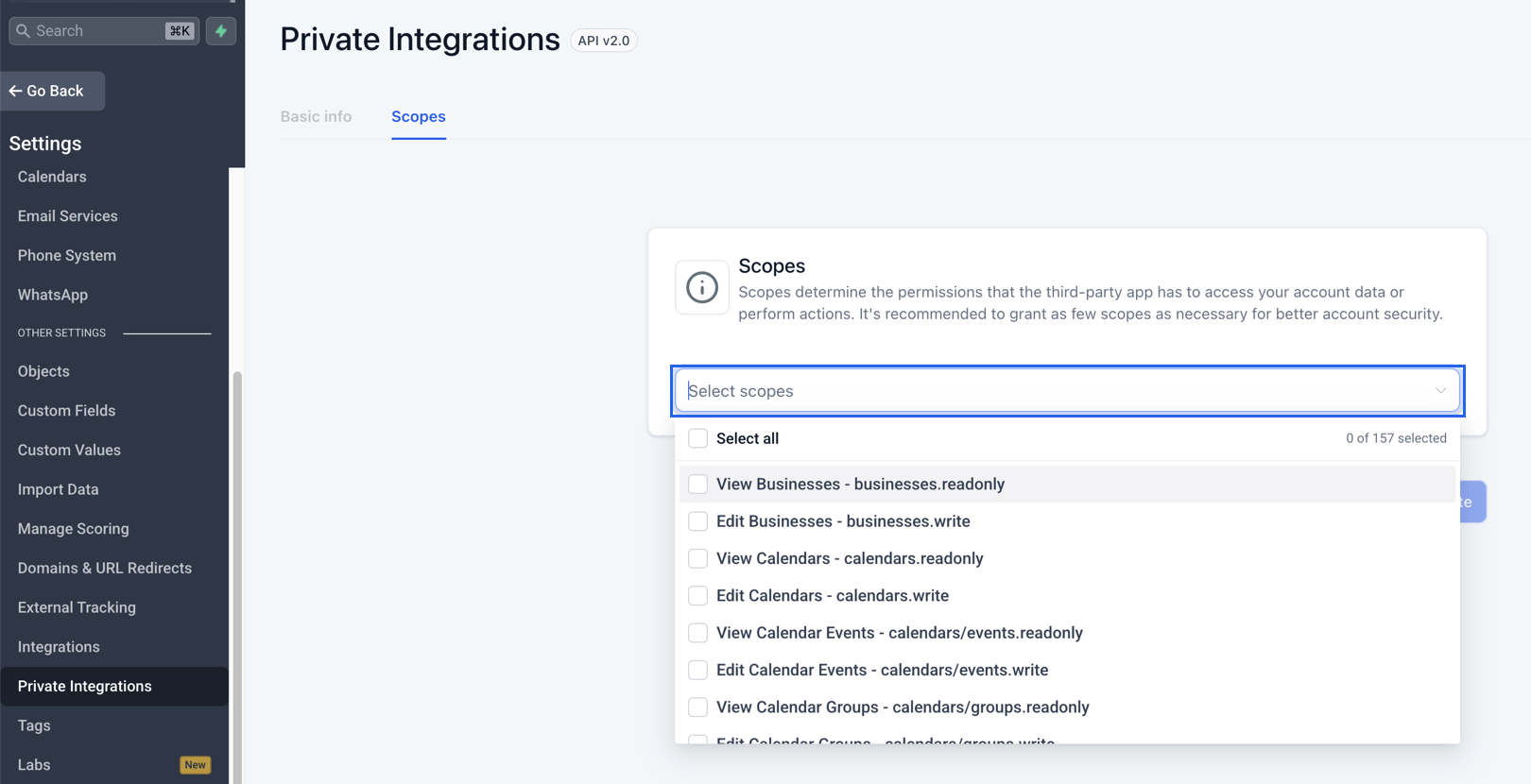
On the Scopes tab, open the Select scopes dropdown. Each of its entries pairs a label with the scope’s slug, like “View Contacts - contacts.readonly”, and the list is searchable, so search by the slugs below.
The Scopes tab of a GoHighLevel Private Integration, with the searchable scope picker open.
Grant the scopes covering what Retell uses. At minimum:
Scope
Required for
contacts.readonly and contacts.write
Contact sync, the connection test, contact lookups and updates, tags, tasks, notes, and listing a contact’s appointments
opportunities.readonly and opportunities.write
Listing, creating, and updating opportunities, and reading pipelines
locations/customFields.readonly
Reading custom field definitions so you can map custom fields
calendars.readonly, calendars/events.readonly, and calendars/events.write
The calendar tools: checking availability, and booking, rescheduling, or cancelling appointments
Grant the scopes up front. Without contacts.readonly the connection test itself fails. And when a tool call later hits a missing scope, GoHighLevel returns the same authorization error it returns for a revoked token, so the connection can end up flagged with a Connection error tag.
3
Copy the token
Save the integration and copy the token right away; GoHighLevel shows it only at creation.
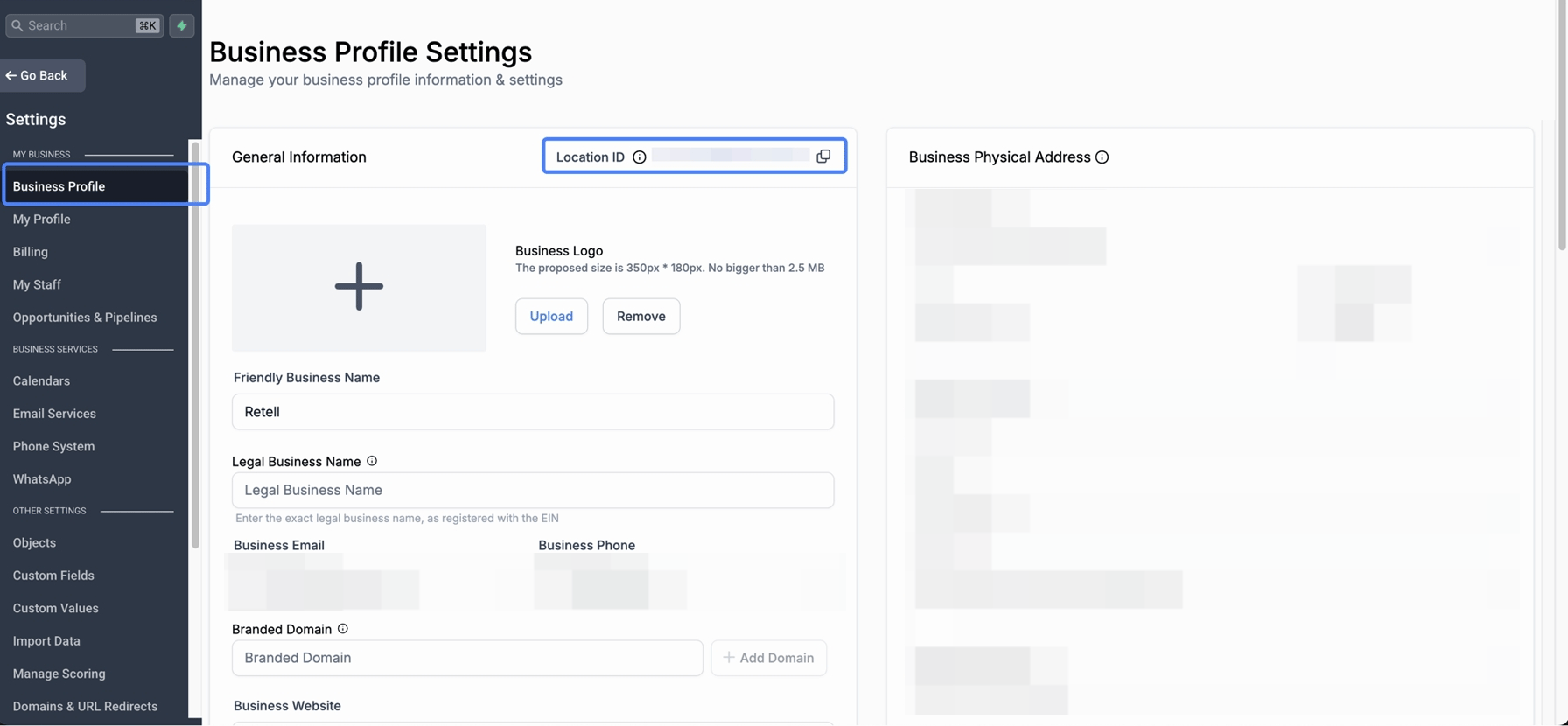
The Location ID identifies the sub-account. Read it in the sub-account under Settings > Business Profile, or from your browser’s address bar while inside the sub-account — it’s the string after /location/ in the URL, for example ve9EPM428h8vShlRW1KT.
Business Profile settings in the sub-account, with the Location ID at the top of General Information.
In the Retell Dashboard, open Integrations, select the Available tab, find GoHighLevel, and click Connect (Add Account if a connection already exists).
2
Enter the credentials
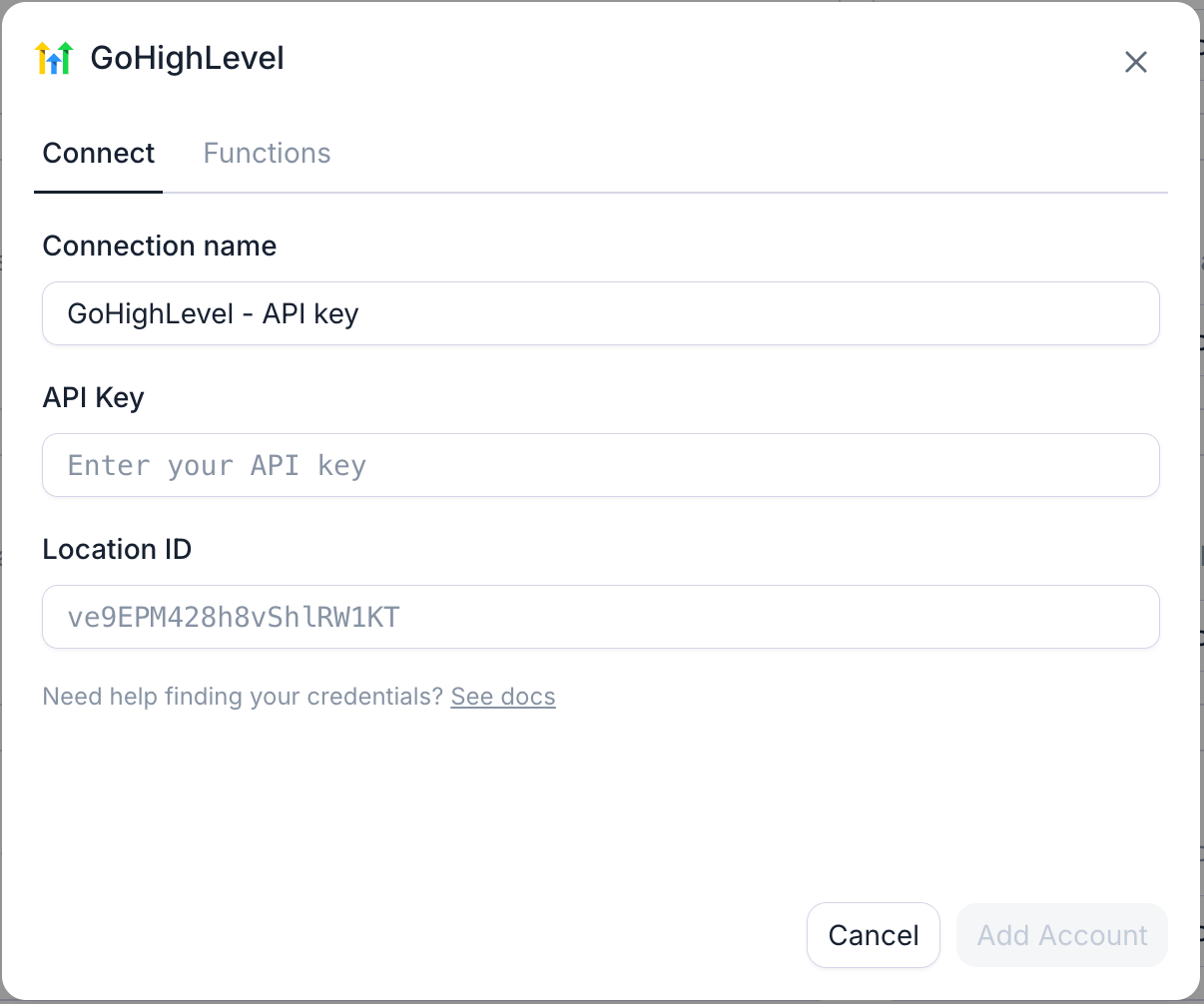
Fill in the fields:
Field
Value
Connection name
Alias for this connection; prefilled with GoHighLevel - API key. The location’s name makes a better alias.
API key
The Private Integration token from Step 1.
Location ID
The sub-account ID from Step 2.
Click Connect (Add Account if a connection already exists). Retell tests the credentials by searching the sub-account’s contacts. On success the dialog offers Set up contact sync.
The GoHighLevel connection dialog: token as the API key, plus the sub-account's Location ID.
3
Verify it worked
On the Connected tab, the GoHighLevel connection shows as connected. See GoHighLevel contact sync to import the sub-account’s contacts, or start using agent functions right away.
Change scopes anytime. Edit the Private Integration’s scopes without regenerating the token — additions take effect immediately.
Rotate on your schedule. Open the integration under Settings > Private Integrations to rotate its token; GoHighLevel recommends doing so every 90 days. Rotate and expire this token later keeps the old token valid for 7 days while you swap the credential over; Rotate and expire this token now kills it immediately, so Retell fails until it has the new one.
Reconnect after rotating. On the Connected tab, open the connection’s settings, paste the new token over the masked one, and click Reconnect. Retell verifies the new token before saving, and your field mappings and synced contacts are untouched.
Confirm you pasted a Private Integration token from the same sub-account whose Location ID you entered, not an agency-level key or a legacy API key. A token from one location can’t act on another.
The connection errored after working for a while
Retell flags a connection as errored when GoHighLevel rejects the credentials — usually a deleted or rotated token, though a tool call that hits a missing scope reports the same way. Open the connection’s settings, paste a current token (or grant the missing scope), and click Reconnect.
Yes, one connection per location, each with its own token and Location ID. Only one CRM connection in your workspace can drive contact sync at a time, across every provider — the Contact sync toggle in a connection’s settings decides which one. Integration tools work on every connection.