Investigate calls and chats with Retell AI Conductor. Filter conversations, inspect transcripts and tool calls, and compare failures to improve your agent.
Ask Conductor to find and investigate calls or chats, compare their outcomes, and suggest agent improvements. You can describe the conversations you want or select them directly from history.
Use Conductor when a conversation failed, a customer did not get an answer, or you want to understand a pattern across several sessions.For example: “Review chats where the customer’s question went unanswered and suggest improvements.”
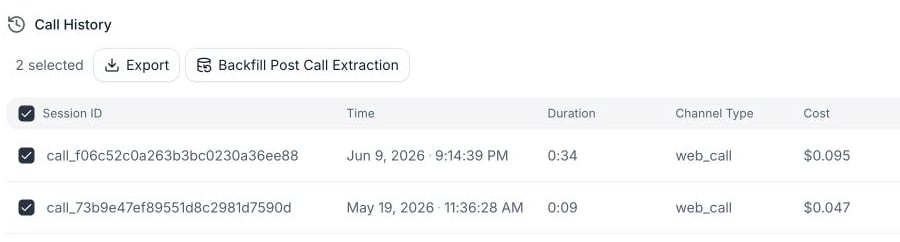
Open Call History or Chat History, click Select, and check the rows. Open Conductor to see the selected conversations as context chips. You can also use Add context (+), provide a session ID, or describe a set of conversations.
Select the history rows you want Conductor to investigate.
2
Describe the problem
Ask what went wrong or what the selected conversations have in common. Include the outcome you expected, such as confirming a booking or answering a delivery question.
3
Inspect the evidence
Ask Conductor to examine transcripts, outcomes, analysis, tool calls, or node transitions. Use inline call or chat links in the reply to open individual session details.
Two selected calls appear as context for a question about shared patterns.
Ask, “Show unsuccessful calls from last week,” or “Find unsuccessful chats for this agent.” Conductor can return a navigation card that opens Call History or Chat History with the requested filters. Check the filters after opening the results.See Call and chat history for the available filters and session details.
Ask Conductor to propose a targeted fix, then review the agent changes. For example: “Update the agent to explain the next step when the booking function returns no available slots.”Use Testing to check the change before deploying it. If the issue comes from a QA evaluation, inspect the QA result alongside the transcript.
Was this page helpful?
⌘I
Assistant
Responses are generated using AI and may contain mistakes.