

Available tools
These tools appear in your agent’s function menu once your account is connected. Check Availability and Book Appointment each take an event type ID, so they’re pinned to one event type. See use integration tools in an agent for how to add and configure them.Find an event type ID
Cal.com now calls event types links, and its dashboard shows a link’s ID instead of the numeric event type ID. The tool accepts either, so tools that already have a numeric ID keep working.1
Open the link
In the Cal.com dashboard, open Links and select the one the agent should book.
2
Copy the link ID
The link ID is the part of the address after
/links/, up to any ?. In https://app.cal.com/links/1cBDsFTQV6qXPjkbeb1gwW?tabName=setup, it’s 1cBDsFTQV6qXPjkbeb1gwW. Copy only the ID, not the whole URL.3
Paste it into the tool and save
Enter the ID in the tool’s event type ID input and save. Retell looks up the link and stores its numeric event type ID in place of the link ID, so the input shows a number when you reopen the tool. Point a separate tool at each link you want the agent to handle.
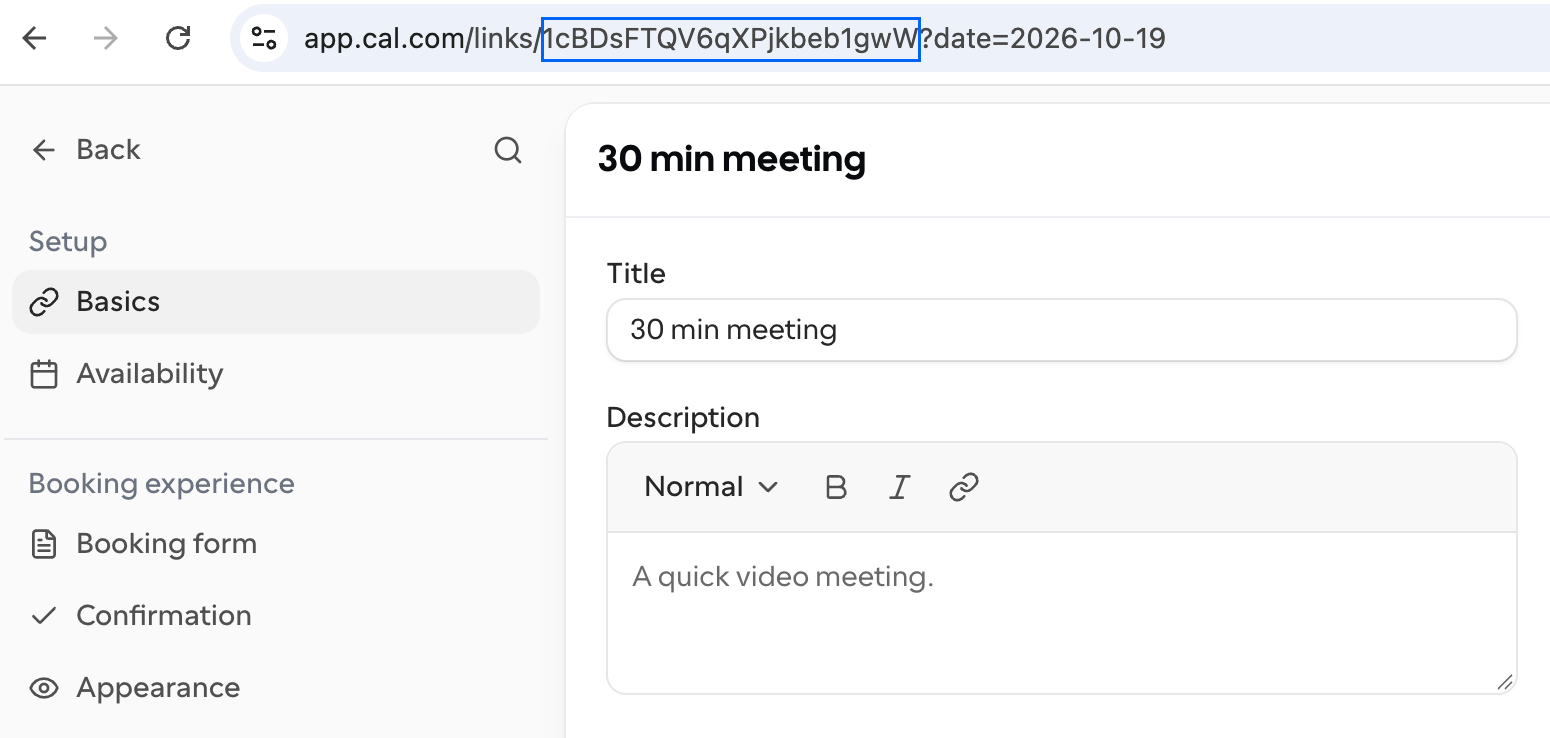
A link open in Cal.com, with its link ID outlined in the address bar.
Permissions
The API key grants the connected account’s full API access; there are no per-tool scopes to grant. Every tool reads the connected account’s event types and reads and writes its bookings.Troubleshooting
Availability comes back empty
Availability comes back empty
Check the event type ID on the tool: it must belong to a link the connected account can book. Then check the link on Cal.com: it needs open hours in the window the agent asked about, and its calendar (Google, Outlook, and so on) must be connected under Apps so Cal.com can read your busy times.
Saving fails with "Failed to load Cal.com event type"
Saving fails with "Failed to load Cal.com event type"
Enter a link ID or a numeric event type ID, not the full URL or the link’s slug. The connected Cal.com account must also have access to the link.
List Bookings can't find the caller's booking
List Bookings can't find the caller's booking
The lookup matches on the attendee email within the time window the agent supplies. Have the agent confirm the email used to book, and if the booking might sit outside the window, widen it.
FAQ
What happens to my agents on the built-in Cal.com tools?
What happens to my agents on the built-in Cal.com tools?
You can no longer add a built-in Cal.com tool from the dashboard, and the API stops creating and updating them on 09/30/2026, so that’s your last day to change a built-in tool’s key or event type ID. Existing tools keep running until 10/31/2026, when Retell migrates them to this integration: it sets up one connection per API key it finds, reusing a connection you’ve already made for that key, and keeps each tool’s function name so your prompts don’t break. A tool whose key Cal.com rejects, because it expired or was revoked, is skipped and stops working, so migrate that one by hand: connect Cal.com, add Check Availability and Book Appointment with the same event type ID, and delete the built-in tool. See the deprecation notice for the full timeline.
What if my scheduling lives somewhere else?
What if my scheduling lives somewhere else?
Calendly covers availability, booking, and cancellation, and GoHighLevel calendars cover the full lifecycle when your scheduling sits in the same sub-account as your contacts.
Does the attendee get a confirmation email?
Does the attendee get a confirmation email?
Yes. Bookings, reschedules, and cancellations go through Cal.com, so attendees get exactly the notifications and calendar invites your event type is configured to send.
Next steps
Integration tools for prompt agents
Add Cal.com tools to a single- or multi-prompt agent and test them with live requests.
Integration tools in conversation flow
Call Cal.com tools from a function node and branch on the result.
Dynamic variables
Carry booking UIDs and confirmed times between tools and prompts.
Simulation testing
Mock the booking tools to test your scheduling flow without creating real bookings.