

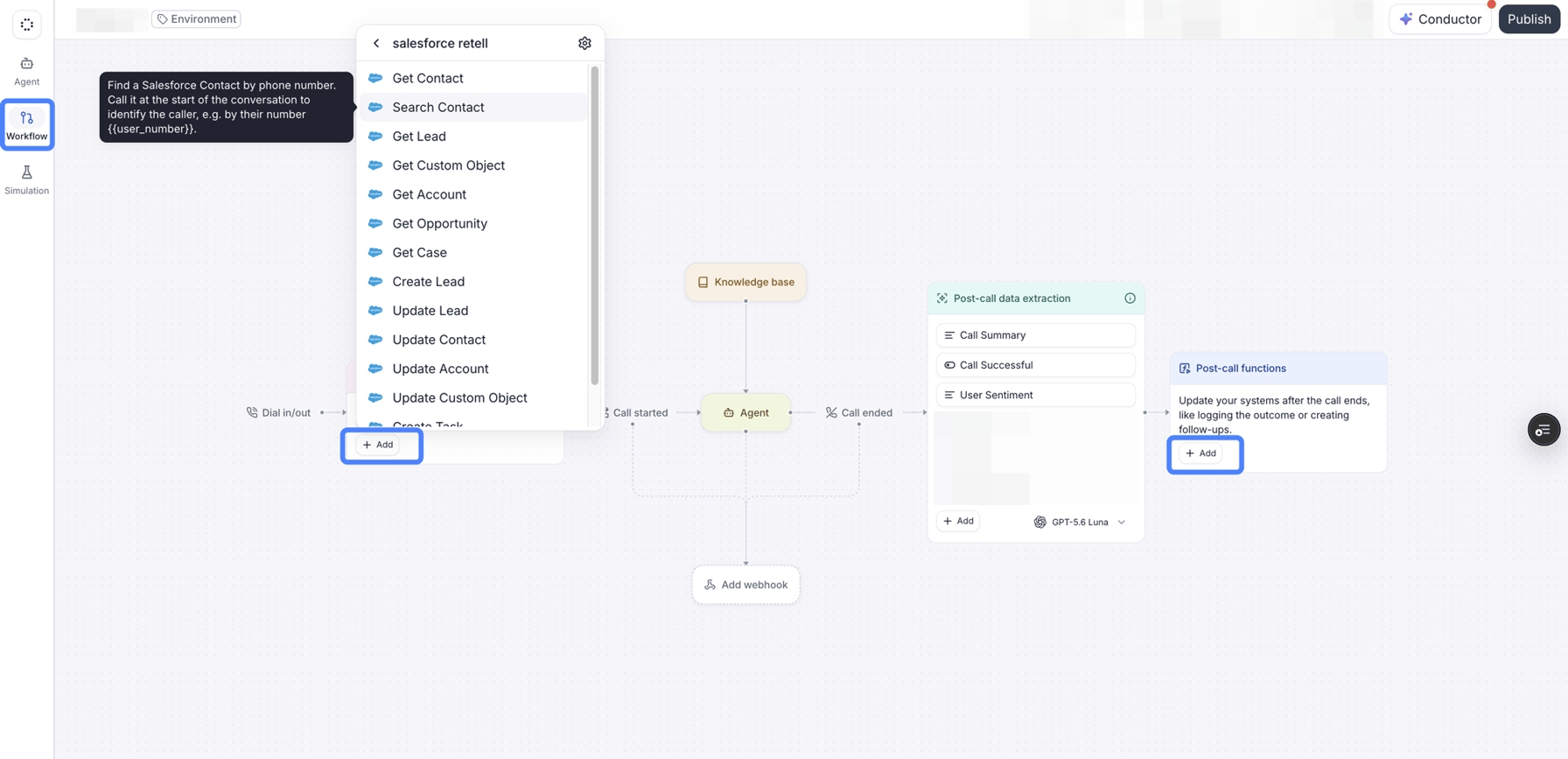
The agent's Workflow page: adding a Salesforce tool as a pre-call function, with post-call functions at the end of the flow.
When to use it
Reach for a pre-call or pre-chat function when the agent needs a fact it can’t ask for, or shouldn’t have to:- Greet an identified person by name. Look the caller’s number, or the chat’s contact details, up in your CRM before the first word, instead of asking “can I take your name?”
- Load account state. Pull their open tickets, last order, or policy status so the agent answers the first question without a lookup mid-conversation.
- Decide how to open. Fetch a flag (overdue balance, VIP tier, do-not-call) and branch the greeting on it.
- Log the outcome. Write the summary and disposition back to the CRM timeline.
- Create the follow-up. Open a task, a ticket, or a callback when the conversation agreed to one.
- Notify. Text the caller a confirmation, or push the result to your own endpoint.
create-agent or update-agent.Save conversation memory
The Save conversation to memory step runs after an eligible phone call or SMS chat ends. Its Enable switch is the same setting as Save conversation to memory under Post call memory settings on the Agent tab. The Memory prompt is shared across the workspace.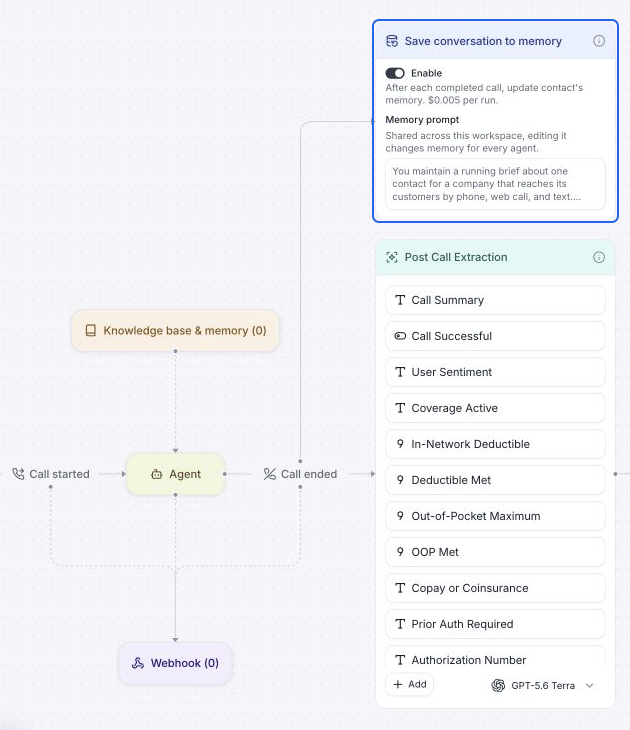
Memory updates after the conversation ends, alongside Post Call Extraction.
What you can run
Both slots take the same four kinds of function, from the same + menu:Add functions on the Workflow page
Open the Workflow page
Add the first function
Configure it
{{variable}} reference, or a description the LLM fills in; every output you keep is what the agent sees and, optionally, a dynamic variable. On a pre-call function the inputs start on a literal rather than a description, since there’s no conversation to infer from yet, but you can switch any of them. Configure a tool’s inputs and outputs covers the modes and the test run in full.Chain the next one
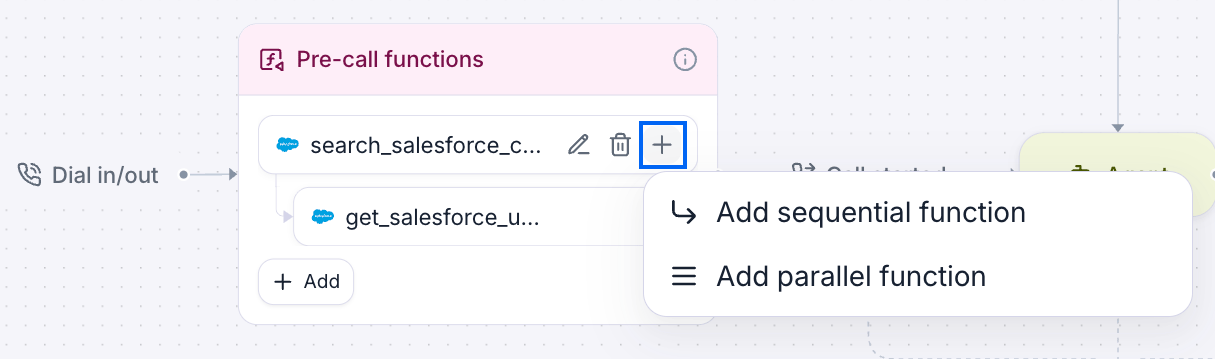
A function's row menu, offering a sequential or a parallel function.
Run functions in parallel or in sequence
Retell runs the graph in batches: every function whose dependencies have finished runs concurrently, then the next batch, until the graph is done. Total time is the longest chain, not the sum of every function.- Parallel. A function with no dependency starts as soon as the phase begins, so two independent lookups cost as long as the slower one. Add parallel function starts the new function at the same point as the row you clicked, and anything that was waiting on that row now waits for both.
- Sequential. Add sequential function makes the new function depend on every function in the row’s card, so it starts only once they’ve all succeeded. That’s what lets it use their output.
Pass a response from one function to the next
Chaining works through dynamic variables. On the function’s Output tab, give a response field a name in the Dynamic variable column; downstream functions then reference it as{{that_name}} in any input, and the agent’s prompt can use it too.
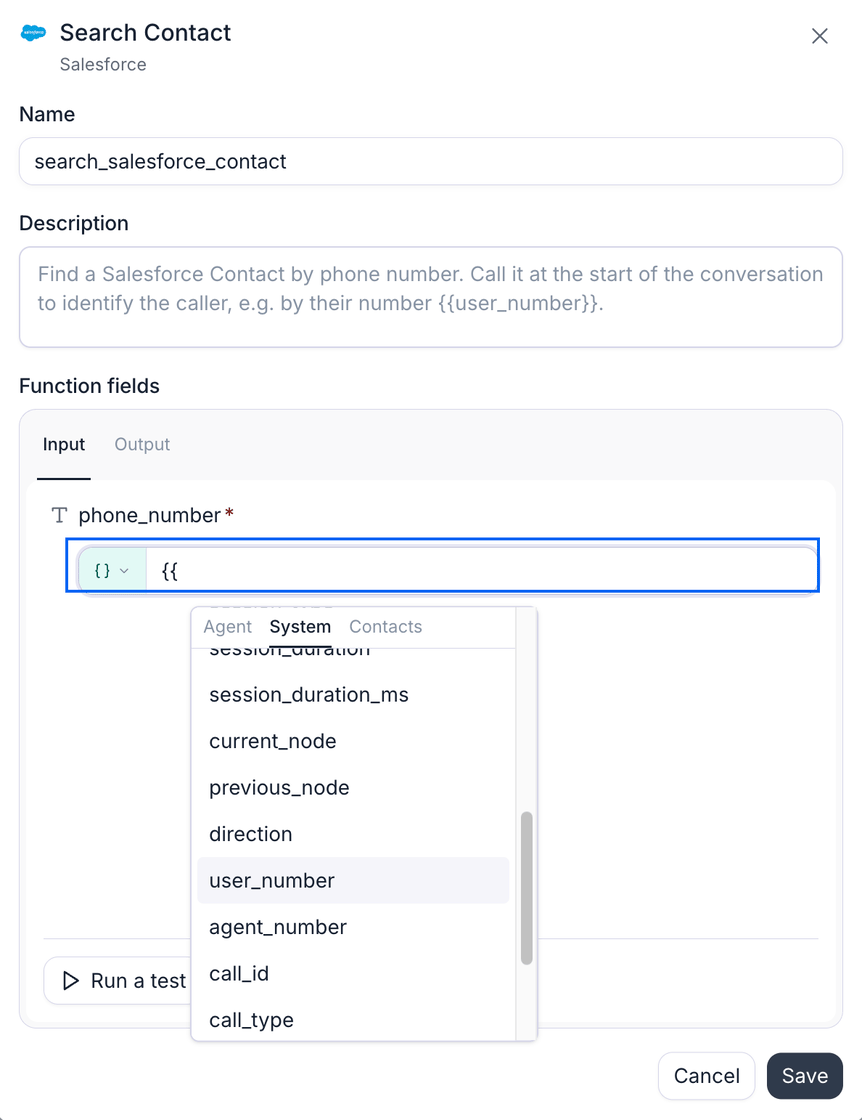
Pinning a function input to a dynamic variable: typing {{ in a value field opens the picker.
- The result itself lands in the agent’s context, not just the variables you named. Every tool call is woven into the transcript the LLM reads, with its arguments and its response; what a workflow function changes is only where — a pre-conversation call is prepended, so the agent has it from its first turn. Responses are capped at 30,000 characters for an integration tool and 15,000 for a custom function or code tool (as of August 2026). Use Select fields on the Output tab to send only the fields that matter, rather than letting a large provider payload crowd the prompt.
- Dynamic variables are extracted from the raw response, before that field selection. Narrowing what the agent sees never breaks a variable you mapped.
{{variable}} in an input has no value — the function it came from didn’t run, or returned nothing for that field — the input is left out. If that input was required, the function is skipped rather than sent with a gap in it.
Variables a post-conversation function can use
Post-call and post-chat functions run after Post Call Extraction, so they can read its results on top of everything available during the session:Gate a post-conversation function on a condition
Every post-call and post-chat function can carry an only when gate, so you don’t write a task on a call that never connected. In the function’s config, set the match to All or Any, then add rows:- Variables condition — compare a
{{variable}}against a value with=,≠,>,<,≥,≤, contains, not contains, exists, or not exists. Picking exists or not exists drops the value field, since there’s nothing to compare against. - Disconnection reason — pick one or more reasons the session must have ended with.
- Call status — require a specific final status.
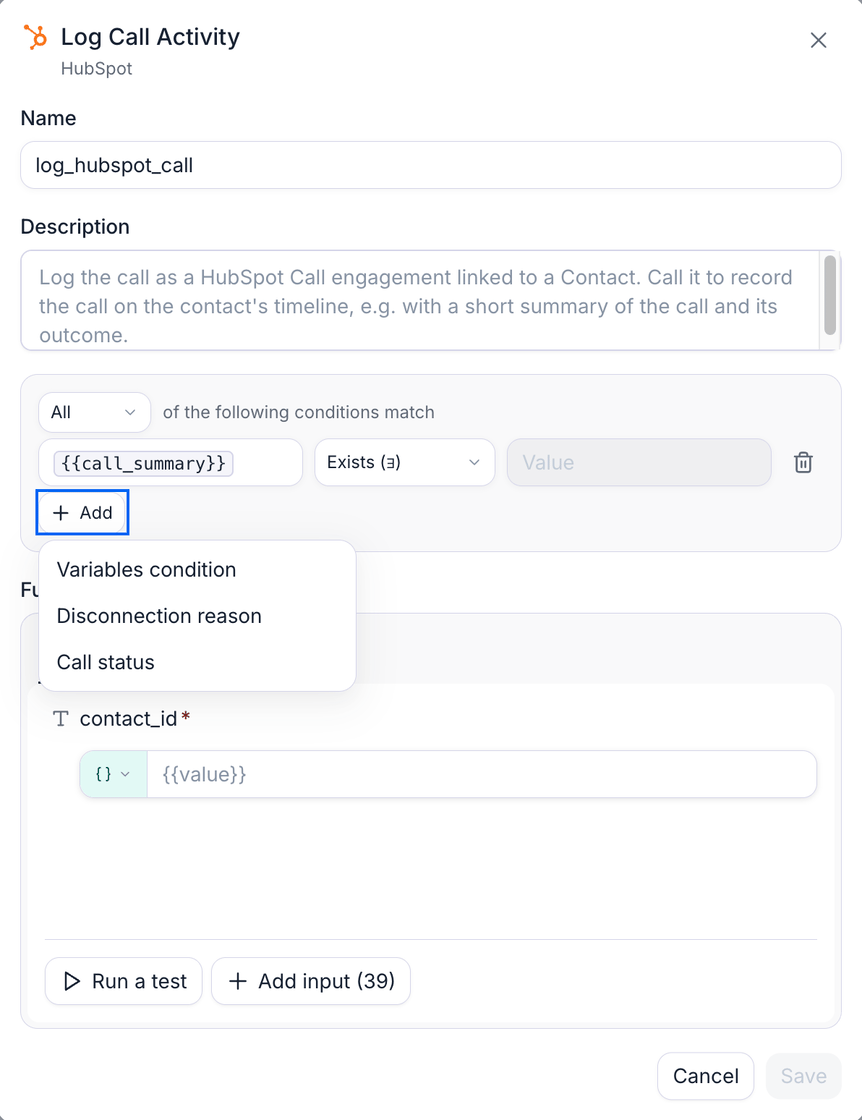
A post-call function gated on a condition: log the call only when the analysis produced a summary.
Examples
Greet an identified caller and load their tickets
A support line answers with the caller’s name and their open ticket already in context. Pre-call functions:find_user— Zendesk Search User, withphone_numberpinned to{{user_number}}. On the Output tab, map the user’sidtozendesk_user_idandnametocaller_name.list_tickets— Zendesk List User Requested Tickets, added as a sequential function underfind_user, withuser_idset to{{zendesk_user_id}}.
Greet {{caller_name}} by name. and the agent already has the ticket list in context, so “what’s the status of my ticket?” is answered on the first turn instead of the third.
The same pair works on a chat agent as pre-chat functions. Swap {{user_number}} for whichever dynamic variable your chat is started with, such as an email address passed in when the widget opens.
Log the session and open a follow-up task
A sales agent writes every conversation back to HubSpot, and creates a task only when there’s something to follow up on. Pre-call function:search_contact— HubSpot Search Contact on{{user_number}}, mapping the record ID tohubspot_contact_id.
log_hubspot_call— HubSpot Log Call Activity on{{hubspot_contact_id}}, with the body set to{{call_summary}}. Gated on All:{{call_summary}}exists, so a call that never got far enough to analyze writes nothing.create_followup— HubSpot Create Task, added as a parallel function besidelog_hubspot_callso both writes go out at once. Gated on All:{{call_status}}=endedand{{followup_needed}}=true, wherefollowup_neededis a custom Post Call Extraction field. Its subject is a description the LLM fills in from the transcript.
Confirm a booking by text
A clinic texts the caller after the call, but only when a booking actually happened. Post-call functions:get_booking— Cal.com Get Booking, with the UID set to{{booking_uid}}, a variable an in-conversation Book Appointment tool mapped earlier in the call. Gated on All:{{booking_uid}}exists.send_confirmation— an SMS function, sequential underget_booking, whose content the LLM writes from the transcript and the booking response.
{{booking_uid}} never gets set, the gate fails, and both functions drop, so no text goes out. On a chat agent, replace the SMS with a Custom function that posts to your own notification endpoint.
Timing and limits
A call waits for its pre-call graph before the conversation begins, up to a budget that depends on the call:- Inbound and web calls wait 1 minute.
- Outbound calls wait 5 minutes, before Retell dials. The extra room is there because nothing is ringing yet, so nobody is sitting on the line while a CRM lookup runs.
When a function fails
A failure stays inside the function it happened in. A function that errors, times out, is missing a required input, or is gated off is marked unsuccessful, and:- Everything waiting on it is skipped, and everything waiting on those. A lookup that fails takes down the write that needed its ID, rather than sending a request with a blank field.
- Independent branches carry on. A failed CRM lookup doesn’t stop the calendar check running beside it.
- The session continues. A pre-conversation failure still connects the call or opens the chat, just without those variables, so write the prompt to read correctly when a lookup came back empty. A post-conversation failure still completes teardown.
See what ran
Open the call in call and chat history and read the transcript. Pre-call function calls sit under a Before call divider at the top, the conversation follows Call started, and post-call ones sit under Call ended at the bottom. Each entry shows the arguments sent and the response returned, so you can tell a bad input apart from a provider error. During a live call, the same entries collapse under Before conversation in the live transcript. Chat sessions run their pre-chat and post-chat functions the same way.FAQ
Can the agent decide not to run a pre-call function?
Can the agent decide not to run a pre-call function?
Where does the LLM get values for described inputs, before the conversation has started?
Where does the LLM get values for described inputs, before the conversation has started?
Do pre-call functions delay the call?
Do pre-call functions delay the call?
Can a post-call function read what a pre-call function returned?
Can a post-call function read what a pre-call function returned?
{{hubspot_contact_id}} without looking the contact up twice.What happens if two functions have the same name?
What happens if two functions have the same name?