Connecting Salesforce lets Retell import your Contacts, enrich them with post-call analysis results, push field updates back, and log every call and chat as a Salesforce Task. This page covers the Salesforce-side setup and the credentials Retell needs.
Retell authenticates with the OAuth 2.0 client credentials flow.

When to use it

Connect Salesforce when Salesforce is your system of record and you want your agents to work from it without anyone copying data between tools. It’s the right choice when you want to:
  • Call or text people who already exist in Salesforce. Contacts sync into Retell automatically, so your agent greets callers by name and knows their account details instead of asking for them.
  • Keep Salesforce current without manual data entry. Analysis results from each conversation (qualification status, stated preferences, a corrected email address) write back to the Contact record.
  • Give your sales team call history where they already work. Each call and chat lands on the Contact’s activity timeline as a Task, with the summary and duration.

Prerequisites

  • A Salesforce edition with API access: Enterprise, Unlimited, Developer, or Performance. API access is not available on Essentials or Professional without the API add-on.
  • System Administrator permissions in Salesforce, or a role that can create External Client Apps.
  • A Salesforce user to run the integration as. Use a dedicated integration user rather than a person’s account, so the connection doesn’t break when someone changes roles or leaves.

Step 1: Create an External Client App

1

Open the External Client App Manager

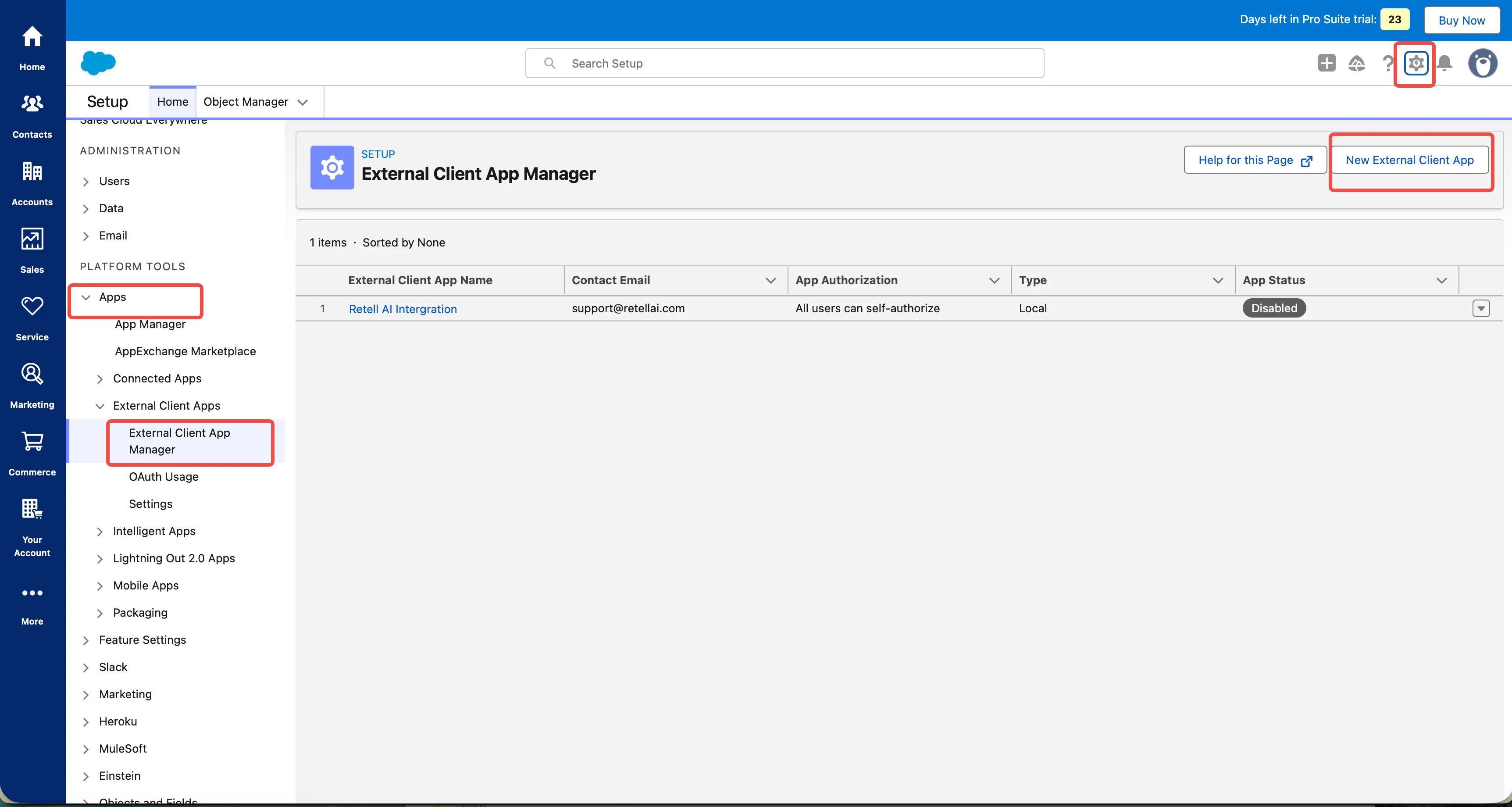
Log in to Salesforce as an administrator. Click the gear icon in the top-right corner, then select Setup.In the left sidebar under Platform Tools, go to Apps > External Client Apps > External Client App Manager. Click New External Client App in the top-right corner.
The Salesforce External Client App Manager page. The left Setup sidebar shows Apps expanded with External Client Apps > External Client App Manager selected, and the New External Client App button is highlighted at the top right of the page.

Setup > Apps > External Client Apps > External Client App Manager, with the New External Client App button in the top-right corner.

External Client Apps replace the older Connected Apps for new integrations. If your org still creates apps under App Manager > New Connected App, the field names are the same but the screens are laid out differently, and the client credentials setting lives under Manage > Edit Policies instead of the Policies tab.
2

Fill in the basic information

Under Basic Information, enter:
  • External Client App Name — a descriptive name, for example Retell AI.
  • API Name — auto-filled from the name; leave it as is.
  • Contact Email — your admin email address.
Leave Distribution State set to Local. The app only needs to work inside your own org.

Step 2: Enable OAuth and the client credentials flow

1

Enable OAuth settings

Still on the creation screen, expand API (Enable OAuth Settings) and turn OAuth on. This reveals the App Settings fields below.
2

Set a callback URL

Enter this Callback URL:
The client credentials flow never redirects a browser, so this value is never used. Salesforce requires the field regardless, and any valid HTTPS URL is accepted.
3

Select OAuth scopes

Move these from Available OAuth Scopes to Selected OAuth Scopes:
  • Manage user data via APIs (api) — the only scope Retell requires. It covers every REST and SOQL call Retell makes.
  • Perform requests at any time (refresh_token, offline_access) — optional. The client credentials flow doesn’t issue refresh tokens, so this changes nothing for Retell, but it’s harmless if your org adds it by default.
Selecting Full access (full) also works and is what many orgs pick, though it grants far more than Retell needs. Prefer api alone.
4

Enable the client credentials flow

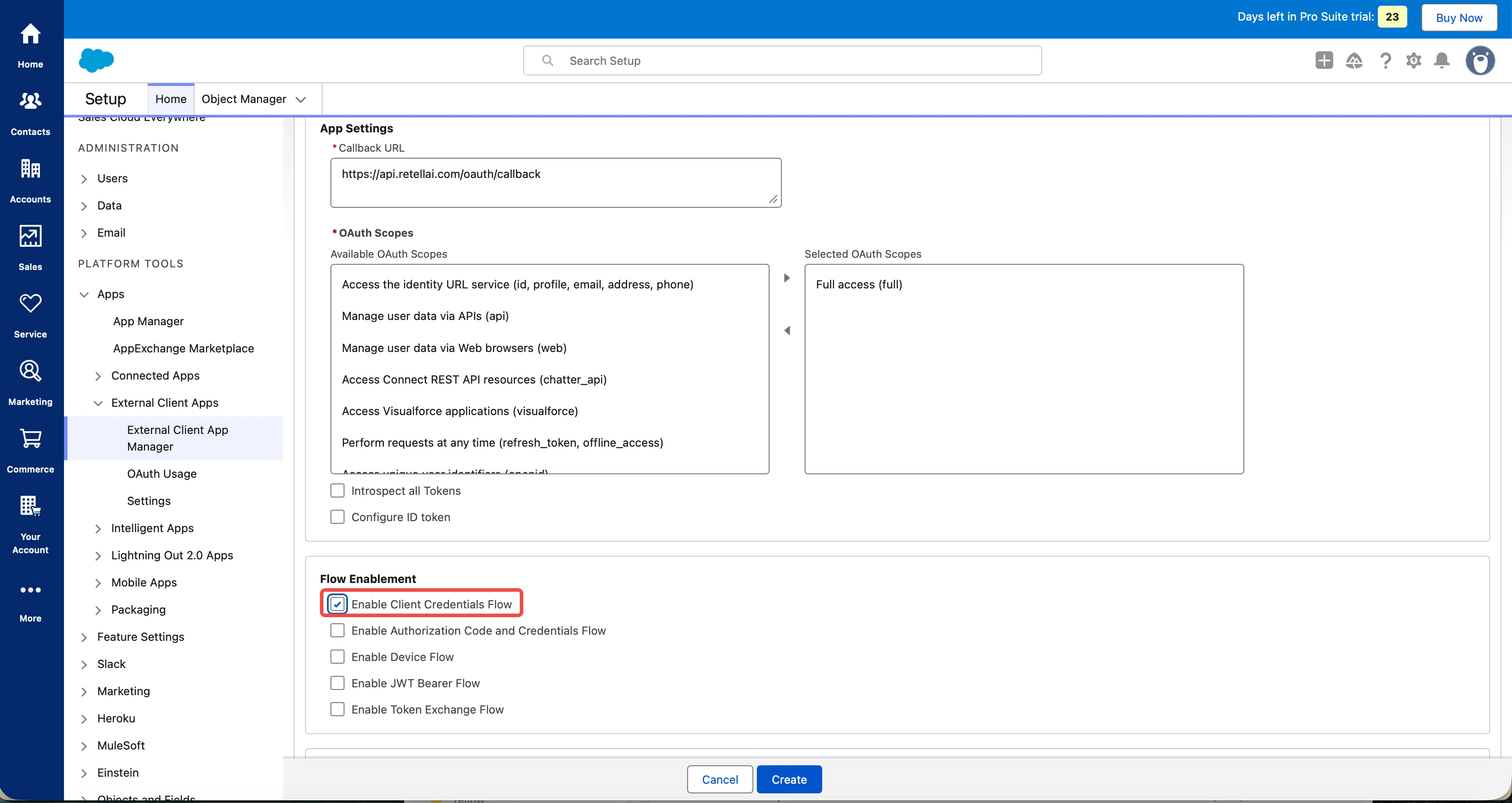
Under Flow Enablement, check Enable Client Credentials Flow. This is the setting that lets Retell authenticate without an interactive login. Leave the other flows unchecked.
Salesforce External Client App creation form. App Settings shows the Callback URL set to https://api.retellai.com/oauth/callback and Full access (full) in Selected OAuth Scopes. Below, the Flow Enablement section has the Enable Client Credentials Flow checkbox highlighted and checked, with Authorization Code, Device, JWT Bearer, and Token Exchange flows unchecked.

The External Client App creation screen: the Callback URL and OAuth Scopes fields, with Enable Client Credentials Flow checked under Flow Enablement.

5

Create the app

Click Create.
Salesforce can take up to 10 minutes to propagate a new app’s OAuth settings. If connecting in Retell fails right after you create the app, wait and try again before assuming the credentials are wrong.

Step 3: Copy the consumer key and secret

1

Open the app's Settings tab

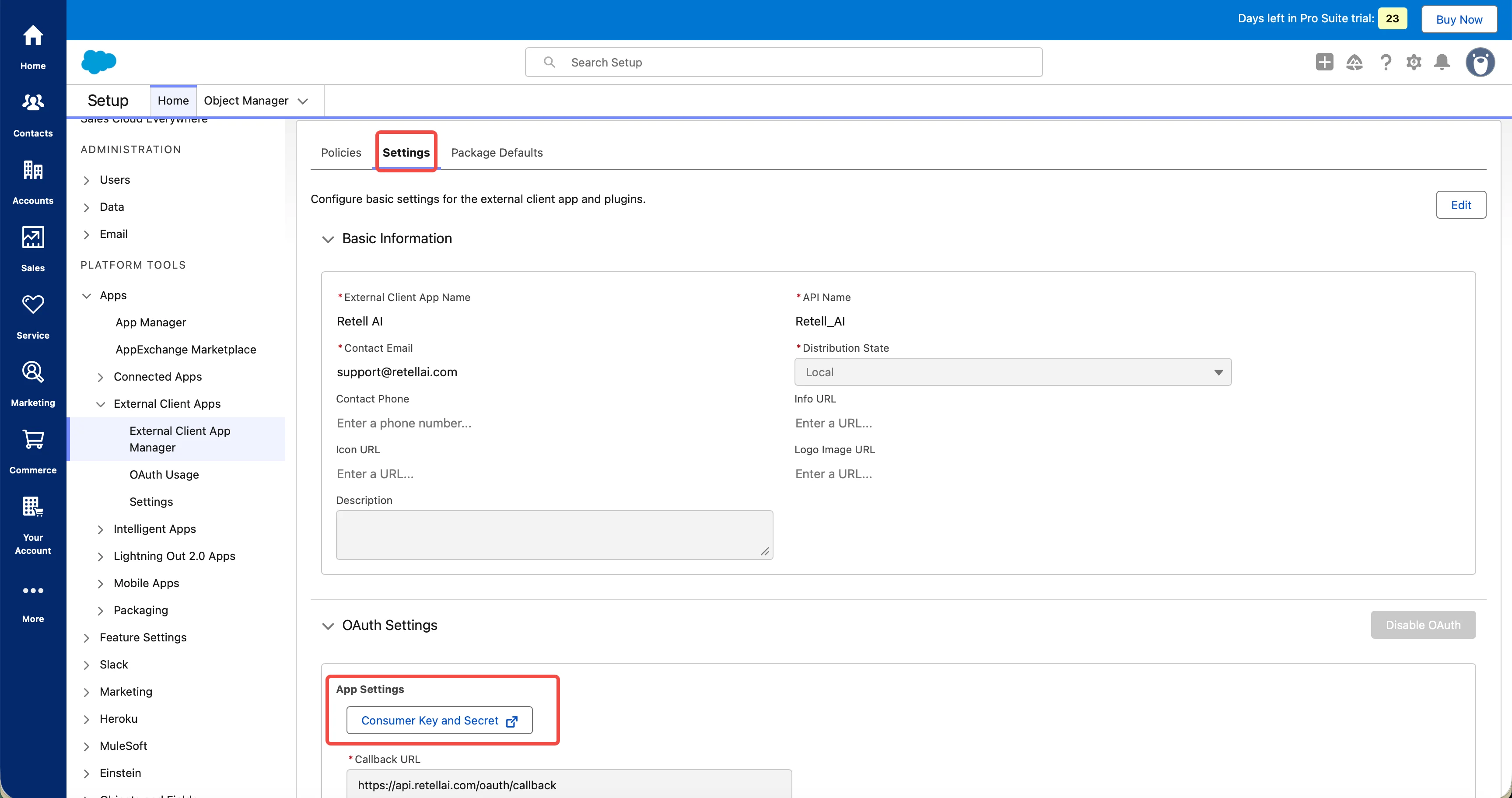
From the External Client App Manager, open the app you just created and select the Settings tab. Expand OAuth Settings, then under App Settings click Consumer Key and Secret.Salesforce opens the credentials in a new tab and may ask you to verify your identity with a code sent to your email.
The Settings tab of a Salesforce External Client App named Retell AI. Basic Information shows the app name, API name Retell_AI, contact email, and Distribution State Local. Below, the OAuth Settings section contains an App Settings box with the Consumer Key and Secret link highlighted, above the Callback URL field.

The app's Settings tab: OAuth Settings > App Settings, with the Consumer Key and Secret link highlighted.

2

Store both values

Copy and securely store:
  • Consumer Key — Retell’s Client ID.
  • Consumer Secret — Retell’s Client Secret.
Treat the consumer secret like a password. Don’t share it in plaintext or commit it to source control. Retell encrypts it at rest and never returns it once saved.

Step 4: Set the Run As user

The client credentials flow has no logged-in user, so Salesforce needs to know whose permissions to apply. Every read and write Retell makes runs as this user.
1

Open the Policies tab

On the app’s detail page, select the Policies tab and click Edit.
2

Enable the flow and pick the user

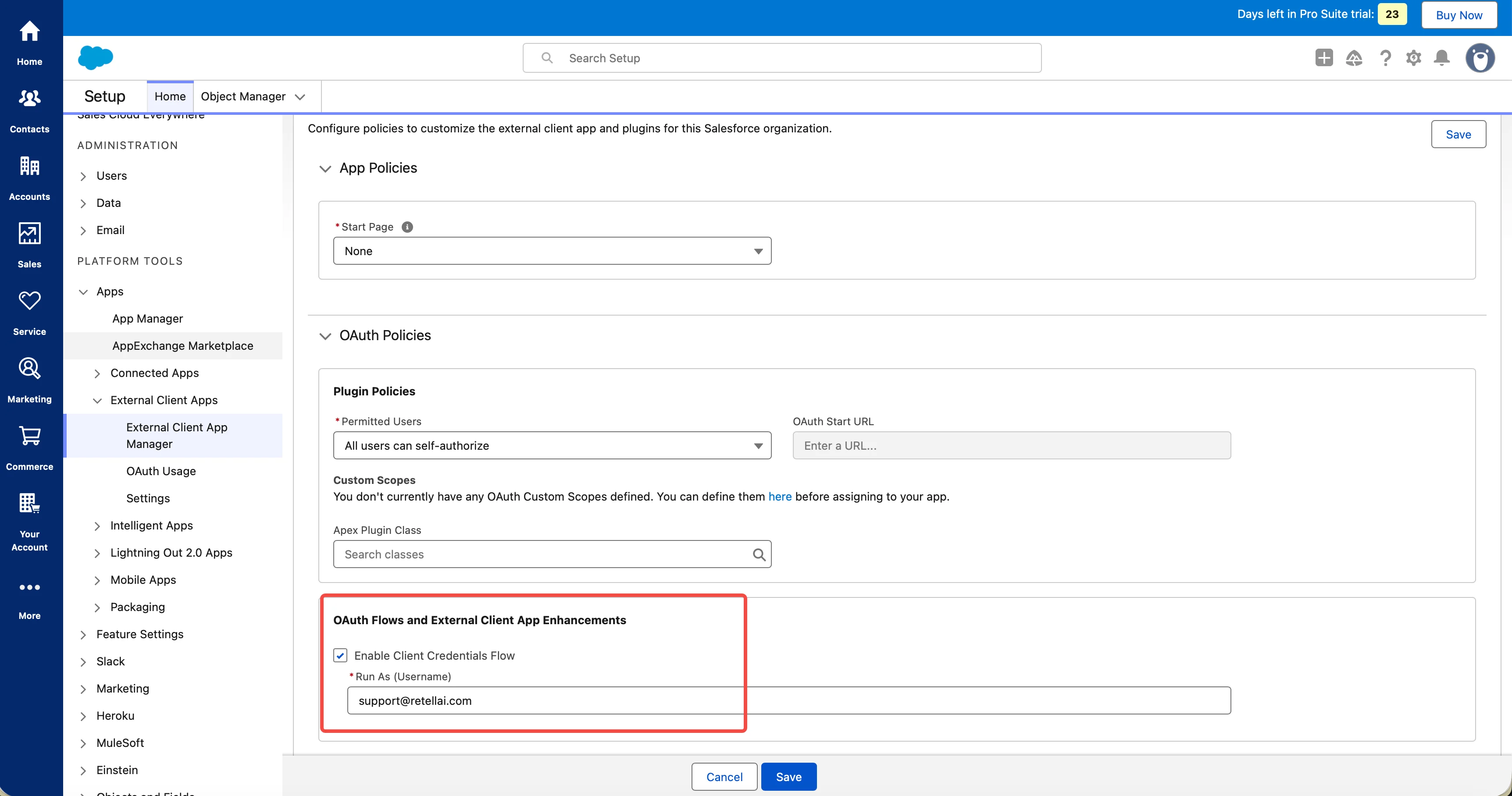
Expand OAuth Policies and find OAuth Flows and External Client App Enhancements. Check Enable Client Credentials Flow, then enter your integration user’s username in Run As (Username).
Enter the user’s Username, not their email address. They’re separate fields, and because a username has to be unique across every Salesforce org, they often differ. A sandbox, for example, appends the sandbox name, so you@acme.com becomes you@acme.com.dev. Copy the exact value from the Username column under Setup > Users > Users.
The Policies tab of a Salesforce External Client App. App Policies shows Start Page set to None. Under OAuth Policies, Plugin Policies sets Permitted Users to All users can self-authorize. The highlighted OAuth Flows and External Client App Enhancements section has Enable Client Credentials Flow checked and a Run As (Username) field filled in with an integration user's Salesforce username.

The Policies tab: under OAuth Flows and External Client App Enhancements, Enable Client Credentials Flow is checked and a Run As username is set.

You check Enable Client Credentials Flow in two places, and both are required. The checkbox at creation time turns the flow on for the app; this one binds it to a running user. Without a Run As user, token requests fail even though the flow looks enabled.
3

Confirm the user's permissions

The Run As user needs:
  • Read on Contact and on every field you plan to import.
  • Edit on Contact and on every field you plan to write back, if you enable outbound sync.
  • Create on Task, if you enable activity logging.
A missing field-level permission doesn’t break the connection. It makes that field silently fail to sync, which is harder to spot, so check the profile or permission set before you rely on a mapping.
4

Save

Click Save.

Step 5: Connect Salesforce in Retell

1

Add the connection

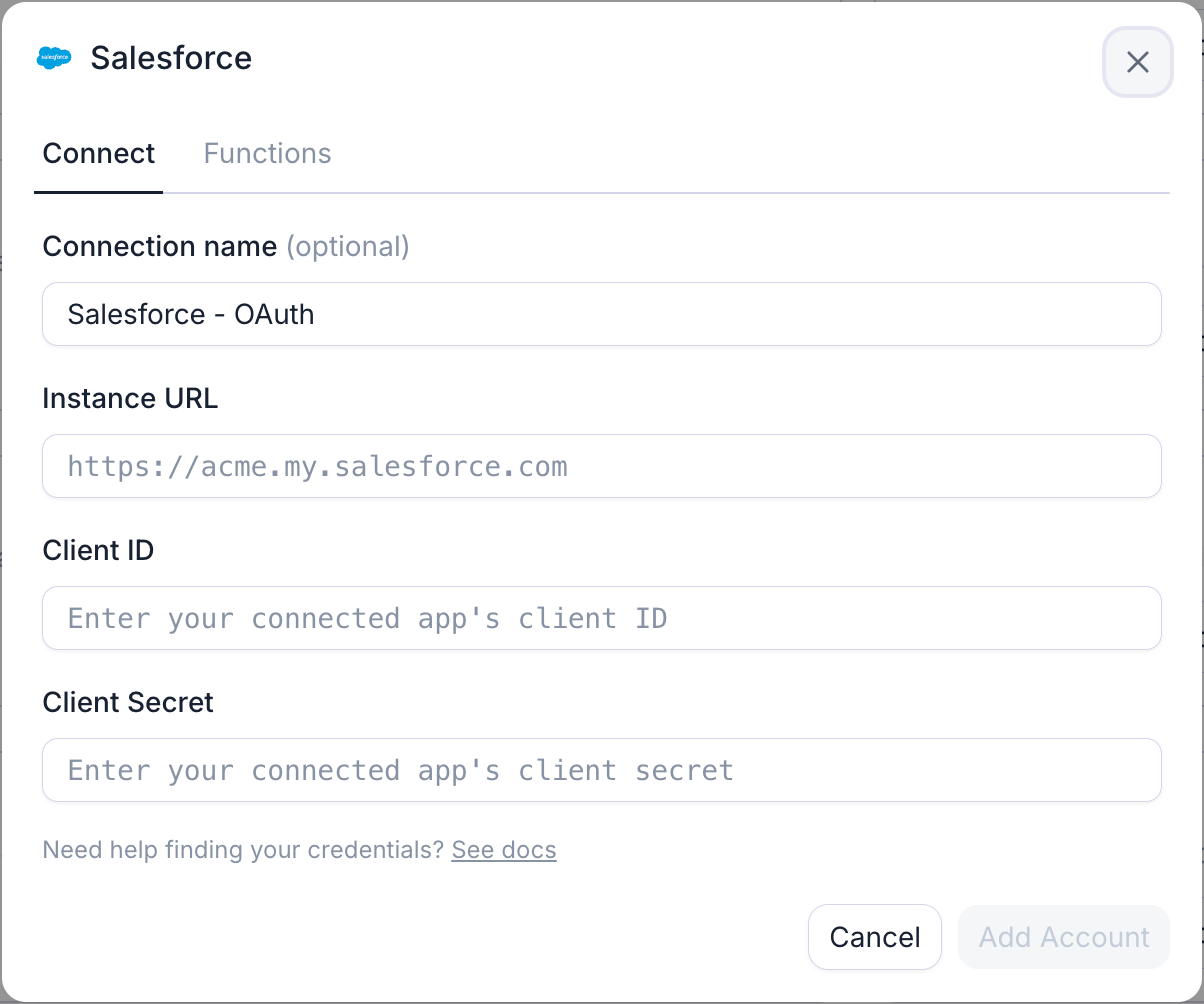
In the Retell Dashboard, open Integrations, select the Available tab, find Salesforce, and click + Add Account.
2

Enter your credentials

Fill in the fields:
The instance URL has to match https://<domain>.my.salesforce.com exactly: lowercase, https://, no trailing slash and no path. A Lightning URL like https://acme.lightning.force.com is rejected with Tenant URL must be in the format https://<domain>.my.salesforce.com. Sandbox domains such as https://acme--dev.sandbox.my.salesforce.com are accepted.
The Salesforce connection dialog in the Retell Dashboard. It has a Connection name field with the placeholder Alias for connection, an Instance URL field with the placeholder https://acme.my.salesforce.com, and Client ID and Client Secret fields for the connected app's credentials. A note reads that credentials are stored securely and used to authenticate with Salesforce, and a Connect button sits at the bottom right.

The Salesforce connection dialog in the Retell Dashboard, with fields for connection name, instance URL, client ID, and client secret.

3

Connect and confirm

Click Connect. Retell creates the connection and immediately tests it against the Salesforce API.On success the dialog reports the connection as verified and offers Set up contact sync. On failure it shows Salesforce’s own error and re-enables the fields so you can correct them.
4

Set up contact sync

Click Set up contact sync to open the field mapping dialog, then map the Salesforce fields you want to import and the Retell fields you want to write back.Retell pre-fills one mapping in each direction: Salesforce Phone to Retell phone_number. Phone number is how contacts are matched between the two systems, so it stays mapped and can’t be removed. See CRM data mappings for how to map the rest, create custom fields, and choose update modes.

Verify it worked

  • On the Connected tab, the Salesforce connection shows as connected.
  • Open Contacts. After the first sync, Salesforce Contacts appear with correctly formatted phone numbers and your mapped fields populated.
  • The first sync is a full scan of every Contact with a phone number, so a large org takes a while. After that, Retell polls every 5 minutes and imports only Contacts modified since the last run.
Contacts without a phone number are skipped, as are Contacts whose phone number can’t be parsed into a valid E.164 number. Fix or remove malformed numbers in Salesforce before relying on two-way sync.

Troubleshooting

Salesforce takes up to 10 minutes to propagate new OAuth settings. Wait, then retry. If it still fails, confirm Enable Client Credentials Flow is checked on both the app’s creation settings and its Policies tab, and that Run As (Username) is set.
The URL must be your My Domain URL in the form https://<domain>.my.salesforce.com, lowercase, with no trailing slash or path. Lightning URLs (.lightning.force.com) and bare .salesforce.com URLs are rejected. Find the correct value in Salesforce under Setup > Company Settings > My Domain.
Retell flags a connection as errored when Salesforce rejects the credentials: an HTTP 401, or Salesforce’s INVALID_SESSION_ID. The usual causes are a rotated consumer secret, a deactivated Run As user, or the app being deleted or disabled in Salesforce. Reconnect with current credentials.
A permission error on a single field doesn’t fail the sync or flag the connection, because Retell only treats credential rejections as connection errors. Check that the Run As user’s profile or permission set grants read (and edit, for outbound) on that specific field, and that the field is mapped on the right tab of the sync settings.
The dashboard shows a saved credential as masked and read-only, so there’s no field to paste a new secret into. Delete the connection and create it again with the new credentials. Your Retell contacts survive the delete; only the stored connection goes away.
Activity logging needs three things: Log activities automatically enabled on the Sync to Salesforce tab of the sync settings, a Retell contact that was imported from this Salesforce connection, and Create permission on Task for the Run As user. Retell attaches the Task to the Contact it matched by phone number, so a call from a number that isn’t a synced Salesforce Contact is never logged.

FAQ

No. Contact sync only updates Contacts that already exist in Salesforce, and never deletes them. Contacts that Retell creates on its own (for example from an inbound call from an unknown number) stay in Retell and are not pushed to Salesforce.
You can add multiple connections, but only one of them can drive contact sync for your organization at a time. When contact sync is already set up on another connection, Set up contact sync is disabled on the new one.
Both become Task records associated with the matched Contact through WhoId, with Status set to Completed. A call uses the Call task subtype, a subject of Call <call_id>, and sets CallDurationInSeconds. A chat uses the generic Task subtype, since Salesforce has no standard chat or SMS subtype. The description carries the conversation ID, the from and to numbers, the disconnection reason for calls, and the summary.
Only Contact. Leads, Accounts, Opportunities, and Cases are not part of contact sync.
Custom fields on Contact, yes. Map any Salesforce Contact field, including __c custom fields, to a Retell custom field. Custom objects are not part of contact sync.
They stay. Turning contact sync off stops future syncs, and deleting the connection removes the stored credentials. Contacts already imported remain in Retell either way.

Next steps

CRM data mappings

Map Salesforce fields to Retell contacts, choose update modes, and control what syncs back.

Build contact memory

Accumulate what your agents learn across conversations into the contact record.

CRM integration overview

How contact sync, analysis mapping, and activity logging fit together.

Dynamic variables

Reference synced contact fields from your agent’s prompt.