

When to use them
Use these tools when the agent needs to act on a caller’s work item immediately. For example, a lead-follow-up agent can find the caller by phone number, read the current status, confirm a follow-up date, update the item, and leave a note for the sales team.Available tools
Open the Functions tab in the Monday.com connection dialog to preview the available tools.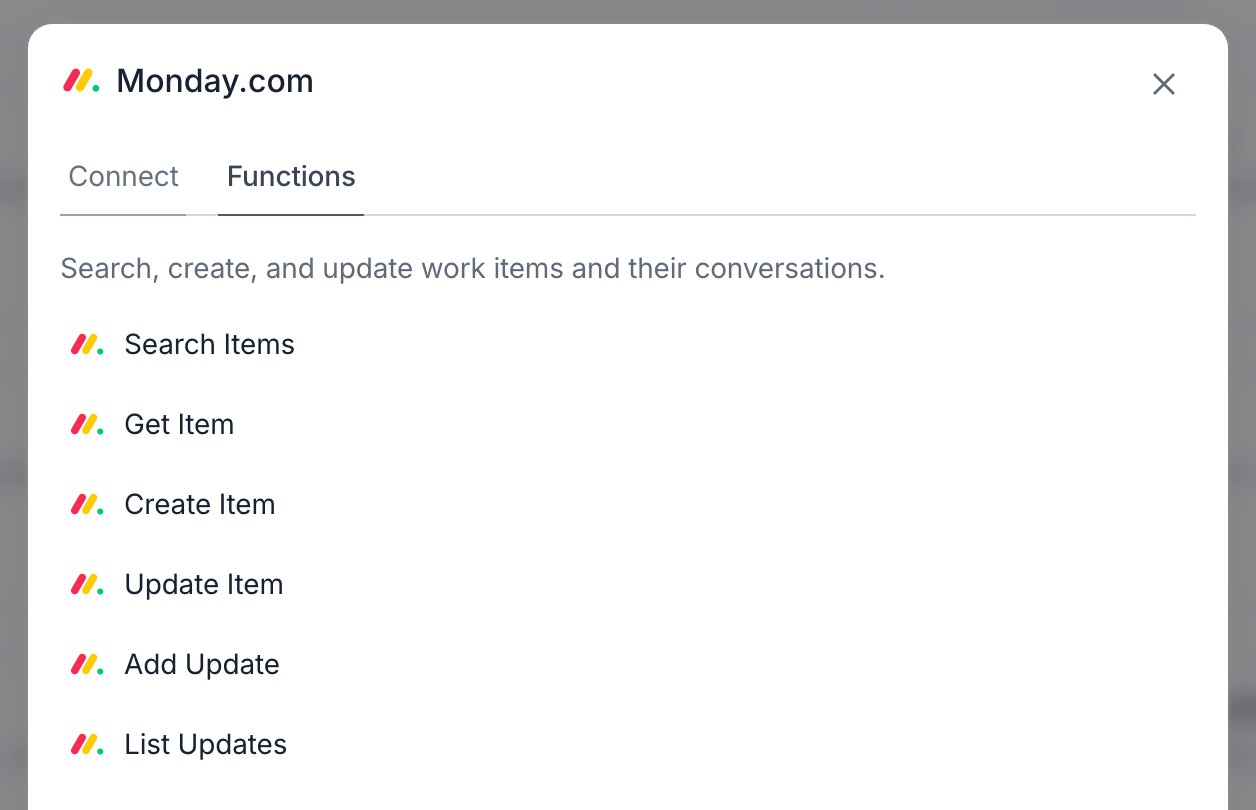
Preview the six Monday.com tools on the connection dialog's Functions tab.
All tools are limited to the classic board you configure. Multi-level boards aren’t supported. The authorizing Monday.com user’s permissions apply to every request.
Configure a tool
1
Choose the connection and function
In a conversation flow, add a Function node and open + Add → [Monday.com connection]. For a prompt agent, use + Add in Functions. Select a tool from the connection’s menu.
2
Select the board
Set
board_id to a fixed board. Retell loads its columns to build the remaining inputs. If there are too many boards to list, enter the numeric board ID from its URL.Each tool can use a different board. This selection is independent of the contacts board used for sync. The board must be fixed when you configure the tool, rather than chosen by the agent at runtime.3
Configure the inputs
For Search Items, also fix
search_column_id, then configure the search value. Other tools use an item_id from a previous search or creation. Use dynamic variables to pass IDs between tools; don’t ask the agent to invent them.Create Item requires name; optionally select a fixed group_id and add supported column inputs. Omitting the group uses the first active group. Update Item requires item_id and at least one column value. Add Update requires item_id and a non-empty body.See integration input modes to choose fixed values or let the agent infer caller-provided details.4
Test and save
Click Run a test with concrete sample inputs. Review the actual result and select any outputs to save as dynamic variables, then save the tool.Tests execute real requests. Use a test board for writes, and verify the created item, changed column, or new update in Monday.com. Test the agent separately to check how it collects the inputs from a conversation.
Search results and item IDs
Search Items searches one configured field. Item name and Text searches use exact matches. Phone search compares normalized phone numbers; include the country code to avoid ambiguity. For Status searches, select an existing option from the board. The result containsitems and has_more. No match returns an empty items array, not a tool error. Search returns at most 50 items per call (as of November 2026). If has_more is true, narrow the search rather than treating the result as complete. If several items match, ask the caller to identify the right one before updating anything.
Get Item and each entry in items return id, name, url, and fields. Field keys are Monday.com column IDs, while the dashboard displays their labels. Create and update operations return id and success; Add Update returns the new update’s ID, not the item’s ID.
List Updates returns updates and has_more. Its optional limit defaults to 10, accepts integers from 1 to 50, and each note body is capped at 4,000 characters (as of November 2026).
Supported fields
Create and update inputs come from supported writable columns on the selected board. Archived and calculated columns aren’t offered.
The dropdowns show labels for Status and People inputs; their values are IDs. Status values read back from an item are labels, so don’t pass that text directly as a write ID. People inputs support one individual owner, not teams or multiple assignees.
Update Item leaves omitted columns unchanged. Empty strings don’t clear fields. Add Update treats
body as plain text, including any HTML-like text the caller provides.
Example: confirm a follow-up
Configure Search Items against the lead board’s Phone column, then add Get Item, Update Item, and Add Update against the same board.- Ask for the caller’s account phone number and search it. If several items match, confirm the correct item.
- Read the selected item’s details and confirm the requested date with the caller.
- Update only the Date column, using the item ID from the lookup.
- After the update succeeds, add a note such as
Caller confirmed a follow-up on 2026-12-03.Tell the caller the outcome based on the tool result.
What should the agent do after a timeout?
Monday.com tools have a 20-second execution budget, except Search Items, which has 30 seconds (as of November 2026). Write tools cancel pending requests when their deadline or caller cancellation signal fires and won’t start another provider request after cancellation.FAQ
Do the tools require contact sync?
Do the tools require contact sync?
No. The tools work after you connect Monday.com. Contact sync and automatic activity logging are separate settings.
Can a tool access an item on another board?
Can a tool access an item on another board?
No. Item reads, updates, and notes validate that the item belongs to the configured board. Configure another tool for the other board if the authorizing user has access.
Should I use Add Update and automatic activity logging together?
Should I use Add Update and automatic activity logging together?
Add Update writes a note when the agent calls it. Log activities automatically posts conversation activity through contact sync. You can use both, but they create separate updates; use one if you want to avoid redundant notes.