

Standard campaigns
A Standard campaign gets its contacts in one of two ways, never both:- Filter the contacts already in your workspace.
- Upload one CSV or XLSX file. The upload adds the file’s rows to your workspace Contacts, and the campaign calls exactly those contacts.
Filter your contacts
1
Open the filter
On the Contacts tab, click Filter contacts.
2
Add conditions
In each row, pick a field, an operator, and a value. Click Add filter for another row. A contact must match every row.
3
Apply
Click Continue. The table lists every matching contact, 20 per page.
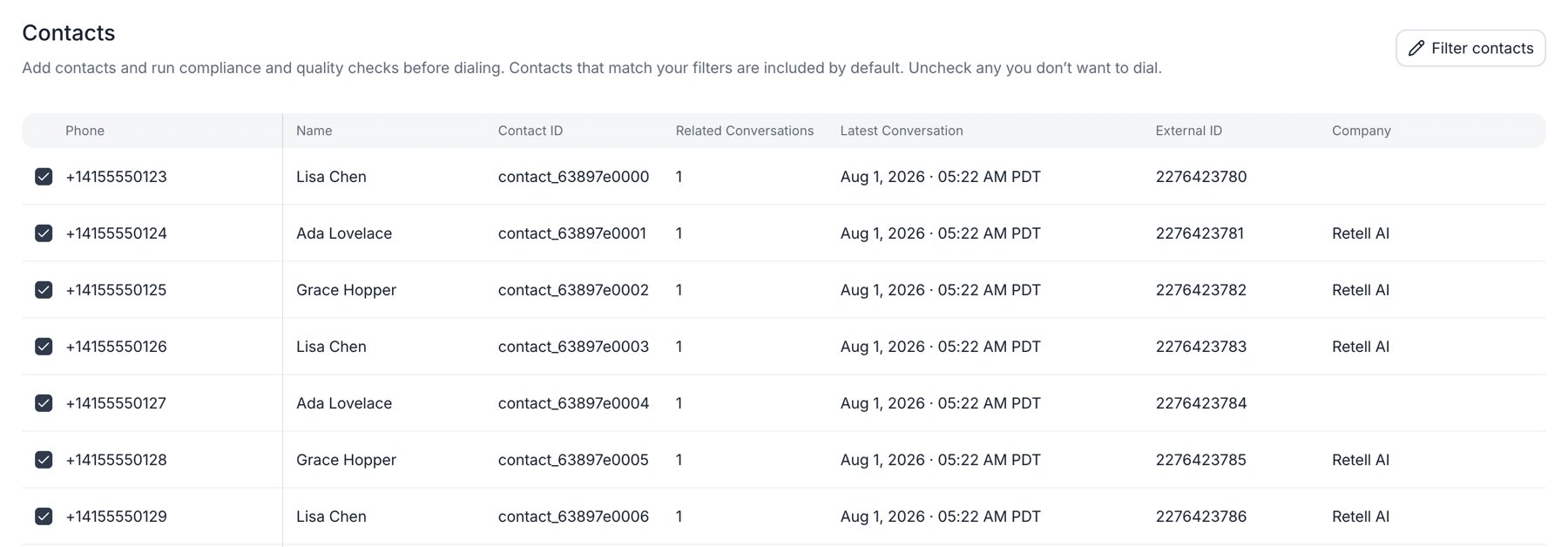
A Standard campaign's Contacts tab, listing the contacts that match its filter.
Conditions follow these rules:
- All conditions must match. There’s no OR between rows. To accept several values of one field, use is any of on a Tags or Selector field.
- Text matching is case-sensitive.
Missiondoesn’t matchmission. - A missing value never matches. A contact with no value in a field fails every condition on that field, including does not equal. Do not call is the exception.
- Some fields aren’t available. You can’t filter on first name, last name, or Date and Datetime fields.
- Phone number, Do not call, and Tags take one row each. A custom field can take several rows, for example
balance_duegreater than100and less than500.
Upload a CSV or XLSX file
1
Pick the file
On the Contacts tab, click Upload CSV or XLSX and choose a file. If a workbook has more than one sheet, select the worksheet to import. The preview shows the row count. Click Continue.
2
Map the columns
Select the columns to import and map each one to a contact field. A column whose header matches a field name, such as
first_name, maps automatically. Map exactly one column to Phone Number. To store a column that has no field yet, create one from the mapping list.3
Set the default country
Under Phone number formatting, choose the country for numbers that don’t include a country code. It defaults to the United States.
4
Confirm
Click Confirm. The dashboard checks every value first. If one doesn’t fit its field, you see “Invalid value · Row N” with the column and the expected format. Fix the file, map the column to another field, or unselect it. Then the import runs, and the table fills in when it finishes.
Each value must match the type of the contact field it maps to:
An empty cell, or one that reads
null, is skipped. Retell checks the values again when it runs the import. A row that fails that check is skipped, and the result banner counts it as failed.
Here’s a short file for a dental reminder campaign. The last two rows show phone numbers without a country code, which the default country fills in:
clinic mapped to a Text field, the agent’s prompt can say Hi {{first_name}}, this is Bright Smile Dental at our {{clinic}} office. See Use contact fields in the agent’s prompt.
What the upload changes in your Contacts
The upload is a normal contact import, so it writes to your workspace Contacts:- Rows match by phone number. A number that already has a contact updates that contact. A new number creates one. Numbers are formatted first, so
(415) 555-0102and+14155550102are the same contact. - Blank cells don’t clear values. An existing contact keeps any value your file leaves empty, and any field you don’t map.
- Do Not Call can be set but not cleared.
truemarks the contact as do-not-call.falsenever removes an existing mark. Clear it on the Contacts page instead. - The contacts stay. Replacing the file or deleting the campaign doesn’t remove contacts that an upload created or updated.
- Each upload adds a hidden tag. Retell tags every contact in the file with a new tag that the dashboard doesn’t show, and the campaign filters on it. A workspace can hold up to 1,000 contact tags, so heavy re-uploading can reach the limit.
- Running Auto-enroll campaigns see the changes. An uploaded contact that matches an Auto-enroll campaign’s conditions enrolls in that campaign too. See When contacts enroll.
- Go to Settings → Workspace → Users.
- Open the menu on your row and click Edit Roles.
- Pick Developer, Admin, or a custom role with CRM write permission.
Exclude contacts
Every matching contact is included by default. To leave one out, uncheck its row. There’s no select-all, so to drop many contacts, narrow the filter or the file instead. Click Restore excluded to bring every excluded contact back.When the list is fixed
Until launch, the list is a live filter. Contacts that are created or updated to match appear in the table, and the count changes. At launch, Retell takes a snapshot. Every contact that matches at that moment, minus the ones you excluded, enrolls in the campaign. For a scheduled campaign, the snapshot happens when you launch, not at the start time. Contacts that match later never join a Standard campaign. To keep adding contacts, use an Auto-enroll campaign. Each phone number enrolls once. A number that appears in several rows of your file is one contact, so it’s called once, and the later row’s values win. If the earlier row had a value that the later row leaves blank, whether it survives depends on where the rows fall in the file. Keep one row per number so you know which values the agent gets. A campaign can hold up to 100,000 contacts (as of October 2026). Launch stops with one of these messages:Auto-enroll campaigns
An Auto-enroll campaign’s Contacts tab opens Setup Trigger, which has three parts:- When to enroll: contacts enroll automatically when they’re created or updated.
- Who to enroll: your conditions. Click Add filter to add a row. They work exactly like the Standard campaign filter.
- Enrollment: a live count, such as “1,240 contacts match right now.” That’s how many contacts would enroll if you launched now, before compliance checks.
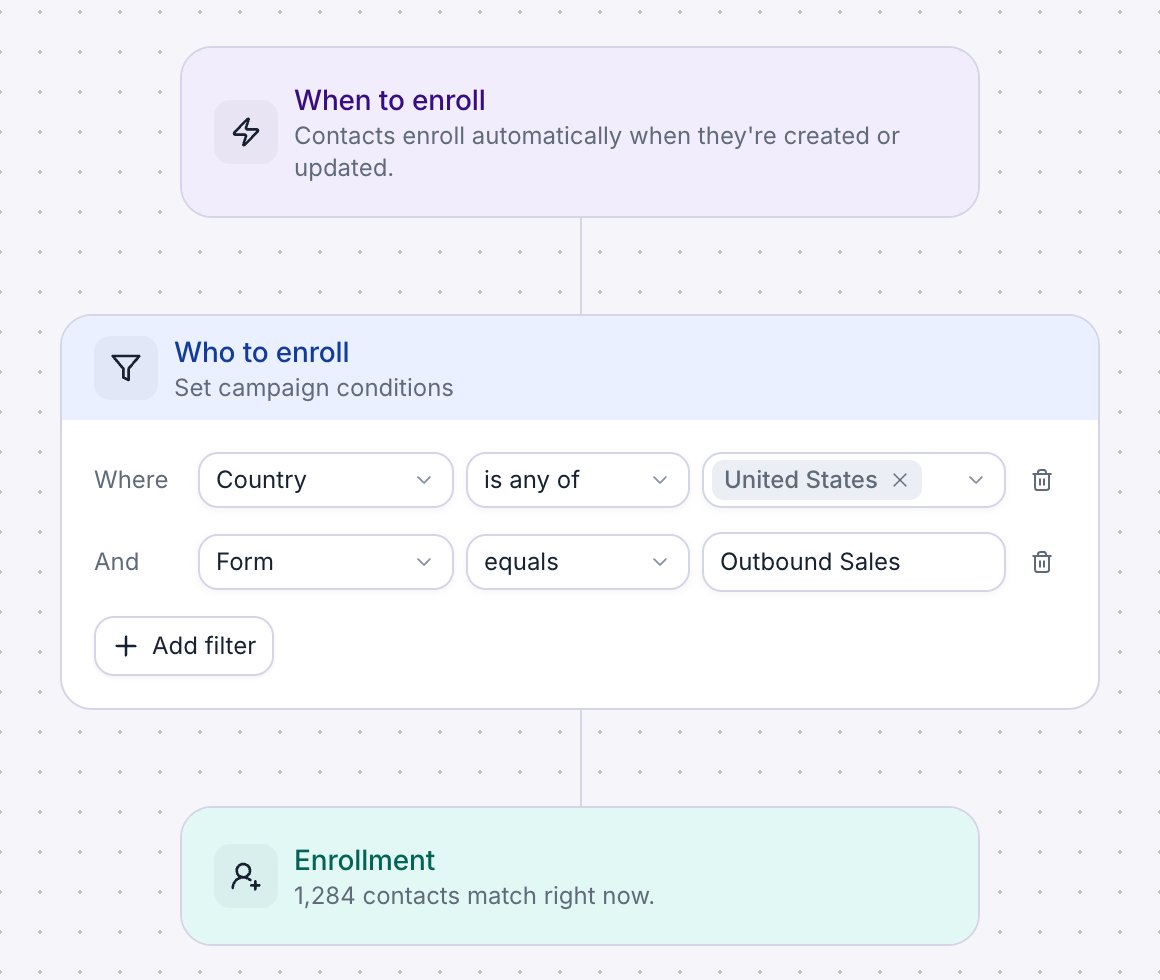
Setup Trigger for an Auto-enroll campaign with two conditions.
web-lead. Its Auto-enroll campaign uses one condition, Tags is any of web-lead, so each new lead enrolls as soon as it syncs. The campaign’s Interested outcome writes qualified to a lead_status contact field. A second Auto-enroll campaign with the condition lead_status equals qualified then enrolls the lead for a follow-up with a different agent.
When contacts enroll
At launch, every contact that matches enrolls. After launch, Retell checks a contact against your conditions when the contact is created, and when an update changes a field your conditions use. These changes count:- Edits on the Contacts page or through the API.
- Contact imports, including uploads to a Standard campaign.
- CRM sync.
- Field writes after a phone call or SMS chat, such as Post Call Extraction mappings and campaign outcomes that save to a contact field.
- Backfills from past conversations, which can enroll many contacts at once.
Enrollment rules
- Once per campaign, ever. A contact that finished, stopped, or failed in a campaign never enrolls in that campaign again, even if it matches again. To call it again, use a new campaign.
- No removal when a contact stops matching. A contact stays enrolled after its fields change. To end its calls, use Stop contact on the campaign page.
- Overlapping campaigns both call. If a contact matches two campaigns, it enrolls in both, and both call it. Keep the conditions of related campaigns mutually exclusive, for example with different tags.
- Paused campaigns keep enrolling. Scheduled, running, and paused campaigns enroll new matches. A paused campaign dials them after you resume it. A stopped campaign enrolls no one.
- The campaign doesn’t end on its own. It runs until you stop it.
- Up to 100,000 enrollments (as of October 2026). The count includes every contact that ever enrolled, including contacts that failed a compliance check. After that, new matches don’t enroll. Launch is blocked if more than 100,000 contacts match at launch.
- Conditions lock at launch. To change them, duplicate the campaign with Settings + contacts, edit the copy’s conditions, and launch it. Just settings starts the copy with no conditions.
- There’s no exclusion list. To keep contacts out, add a condition that rules them out.
Use contact fields in the agent’s prompt
Each call or SMS in a campaign passes the contact’s fields to the agent as dynamic variables:{{first_name}},{{last_name}}, and{{do_not_call}}{{contact_memory}}, when the contact has contact memory- One variable per custom contact field, named after the field, such as
{{clinic}}or{{balance_due}}. A Date or Datetime field arrives as a timestamp in milliseconds, so store any date the agent reads aloud, such as an appointment time, in a Text field.
{{user_number}}, like on any outbound call.
Retell reads the contact again before each attempt. A field that changes between attempts, from a new upload, a CRM sync, or an earlier call’s outcome, reaches the next attempt. A campaign has no dynamic variables of its own, so store anything the agent needs per contact in a contact field.
If a contact has no value for a field, its variable is missing. Write prompts that read correctly without it. See Handling missing variables.
FAQ
Do I need a time zone column in my file?
Do I need a time zone column in my file?
No. By default, a campaign dials each contact during the calling window in the contact’s local time, worked out from the area codes of US and Canadian numbers. Other numbers use the sequence’s fallback time zone. See Build a sequence.
Will uploading a file overwrite my existing contacts?
Will uploading a file overwrite my existing contacts?
Only the fields you map, and only where the cell has a value. Blank cells and unmapped fields keep their current values. A
false in the Do Not Call column never clears an existing do-not-call mark. See What the upload changes in your Contacts.My call list has more than 50,000 rows. How do I use it?
My call list has more than 50,000 rows. How do I use it?
A Standard campaign takes one uploaded file. Split the list into files of up to 50,000 rows and import each one from Actions → Upload CSV or XLSX on the Contacts page, adding the same tag to every file. Then filter the campaign on Tags is any of that tag. One campaign holds up to 100,000 contacts.
Why does my filter match fewer contacts than I expect?
Why does my filter match fewer contacts than I expect?
Check the condition rules. Text matching is case-sensitive, phone numbers need the
+ and country code, every condition must match, and a contact with no value in a field never matches a condition on that field.Can I add contacts to a Standard campaign after launch?
Can I add contacts to a Standard campaign after launch?
No. Its list is fixed at launch. Launch another Standard campaign for the new contacts, or use an Auto-enroll campaign for a list that keeps growing.
Can the same contact be in two campaigns?
Can the same contact be in two campaigns?
Yes. Campaigns don’t check each other, so a contact in two campaigns is called by both. The one exception is a copy made with Contacts not yet contacted, which skips numbers the original campaign already reached. Within one campaign, a contact enrolls only once. See Enrollment rules.