

When to use it
- You need several attempts per contact. Appointment reminders, payment follow-ups, and lead reactivation rarely connect on the first call.
- You want new contacts called automatically. An Auto-enroll campaign calls every contact that matches your rules, such as each new web lead, without a new upload.
- You must screen numbers before dialing. Campaigns can check federal and state Do Not Call registries, TCPA litigators, and line types before the first call.
- You want more calls answered. Local presence calls each contact from a number in its own area code, and spam check tells you when carriers label one of your US numbers “Spam Likely”.
recall-due. The agent calls each patient up to four times over three weeks, during clinic hours in the patient’s time zone. When a patient books, the campaign writes booked to a contact field and stops calling them.
If you only need one call to each number in a CSV, with no retries, set the sequence to one attempt. Batch calls are deprecated but still available. To place calls from your own code, use Create Phone Call.
Standard and Auto-enroll campaigns
Choose the type when you create a campaign. You can’t change it later.Key concepts
- Contact: a record in your workspace Contacts, keyed by phone number. Its contact fields reach the agent as dynamic variables.
- Sequence: the plan each contact follows. It’s made of conversation nodes connected by outcomes. See Build a sequence.
- Conversation node: one step of the sequence, run by one agent over a phone call or SMS, with one or more attempts.
- Attempt: one call or SMS conversation. If the contact doesn’t answer, the next attempt runs after the delay you set.
- Outcome: a result such as “Success” or “Not Interested” that sends the contact to another conversation node or ends the sequence. The Disposition mix chart on the Analytics tab counts contacts by outcome.
- Calling window: the days and hours when the campaign dials, in each contact’s time zone.
- Stage: where a contact is in the campaign, such as Enrolled, In progress, or Completed. A campaign has a status instead, such as Running or Paused.
How a campaign runs
1
Choose contacts
Select contacts for a Standard campaign, or set the conditions for an Auto-enroll campaign. See Choose contacts.
2
Turn on compliance checks
Pick the checks every contact must pass before it’s dialed. See Compliance checks.
3
Build the sequence
Assign agents, set attempts and delays, define outcomes, and set the calling window. See Build a sequence.
4
Set caller IDs and dialing rate
Pick the numbers the campaign calls from and how many calls run at once. See Caller ID and pacing.
5
Launch and monitor
Review the campaign on the Overview tab, launch it now or schedule it, and track results on the campaign page. Both are covered below.
Before you start
- An agent for each channel you use. Call steps need a voice agent and SMS steps need a chat agent.
- Billing and identity verification. Your workspace’s billing must be in good standing, and its identity verification complete. Billing isn’t in good standing when, for example, an invoice is overdue, a free trial has ended, or a spend budget or credit is used up. Buying your first phone number starts verification. Without both, you can’t create, edit, launch, resume, or duplicate campaigns. You can still pause, stop, and delete them. A running campaign stops dialing while billing isn’t in good standing, and resumes when it is. Buying numbers for a campaign also needs a payment method on file.
- The right role. Admins and Developers can create and run campaigns. Members can view campaigns but can’t change them. See access control.
- Phone numbers. Use numbers you own, or buy new ones while you set up the campaign.
- An FTC registration, if you screen against federal or state DNC lists. See Set up your FTC registration.
Create a campaign
1
Pick a campaign type
In Dialer, click Create new campaign and choose Standard campaign or Auto-enroll campaign. Retell saves a draft named “Untitled campaign” and opens it. Click the name to rename it.
2
Set up each tab
Work through Contacts, Sequence, and Numbers. Click Done on a tab to save it and return to Overview. On Contacts, click Continue first to reach the compliance checks. The Sequence tab saves each change as you make it.
3
Review the Overview tab
Overview summarizes the contacts, phone numbers, and sequence. In a draft, Contacts, Sequence, and Numbers each show a check mark once they’re set up.
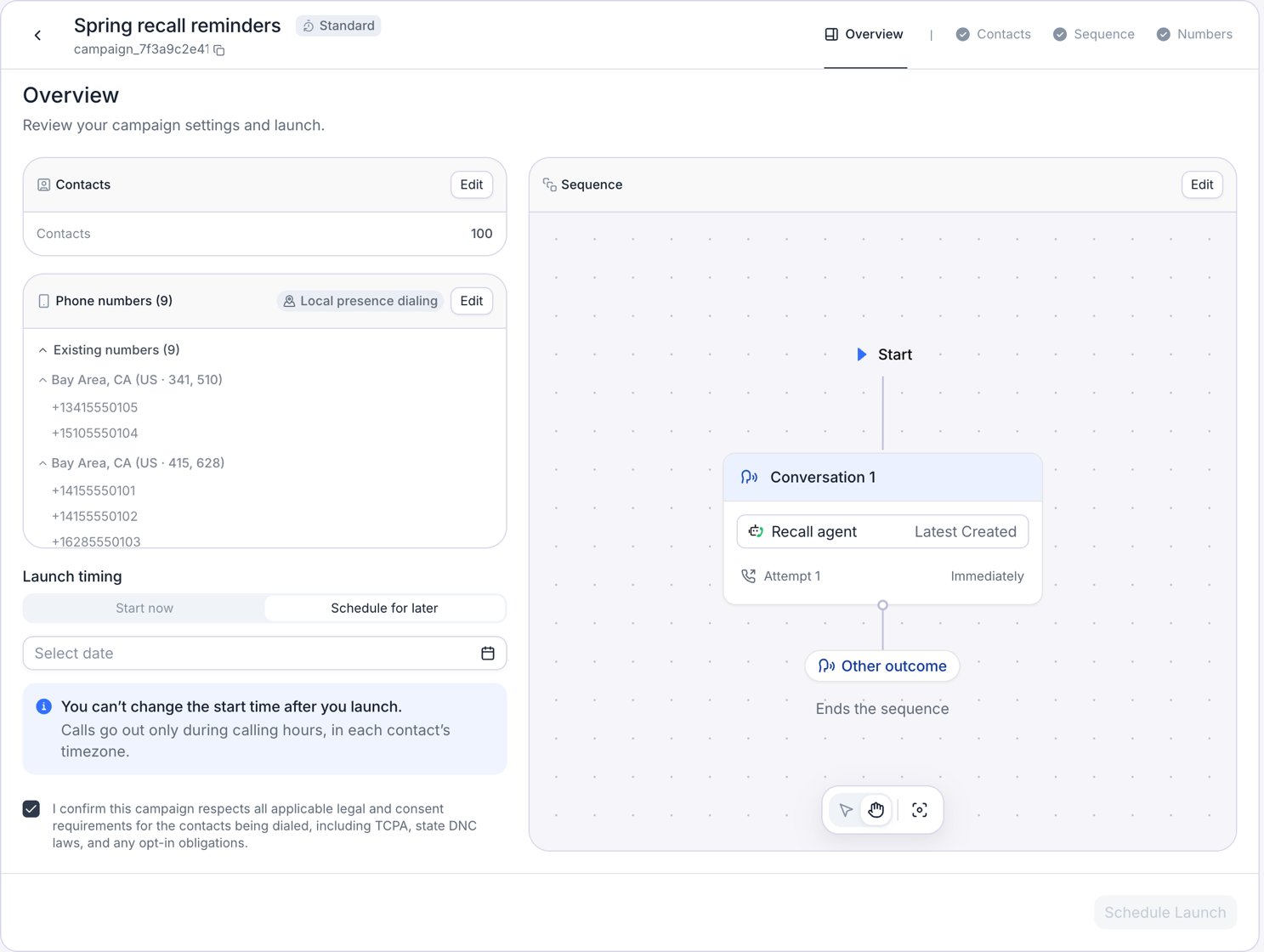
The Overview tab of a draft Standard campaign, set to schedule its launch.
Launch a campaign
1
Choose the launch timing
Under Launch timing, pick Start now or Schedule for later. A scheduled start must be at least 5 minutes away, and you can pick its time zone. You can’t change the start time after launch.
2
Confirm consent
Check the box that confirms the campaign “respects all applicable legal and consent requirements for the contacts being dialed, including TCPA, state DNC laws, and any opt-in obligations.”
3
Launch
Click Launch Now or Schedule Launch. A launch that starts now, or that buys new numbers, asks you to confirm. If it buys numbers, choose Twilio or Telnyx in that dialog. If it buys US numbers, a second step asks whether to verify them first. Verify first, launch in 7 days is on by default and delays the start by 7 days, even for Launch Now. To start on time, select Skip for now. See Buy new numbers.
What you can change after launch
Contacts, compliance checks, and the sequence lock at launch. You can still rename a running, scheduled, or paused campaign, and change its phone numbers and dialing rate. To change anything else, duplicate the campaign and launch the copy. On the campaign page, click Edit to open the setup tabs. They’re read-only, except Numbers. For a stopped or completed campaign the button reads Details, and every tab is read-only.Monitor a campaign
A launched campaign opens on its campaign page, with an Analytics tab and a Contacts tab.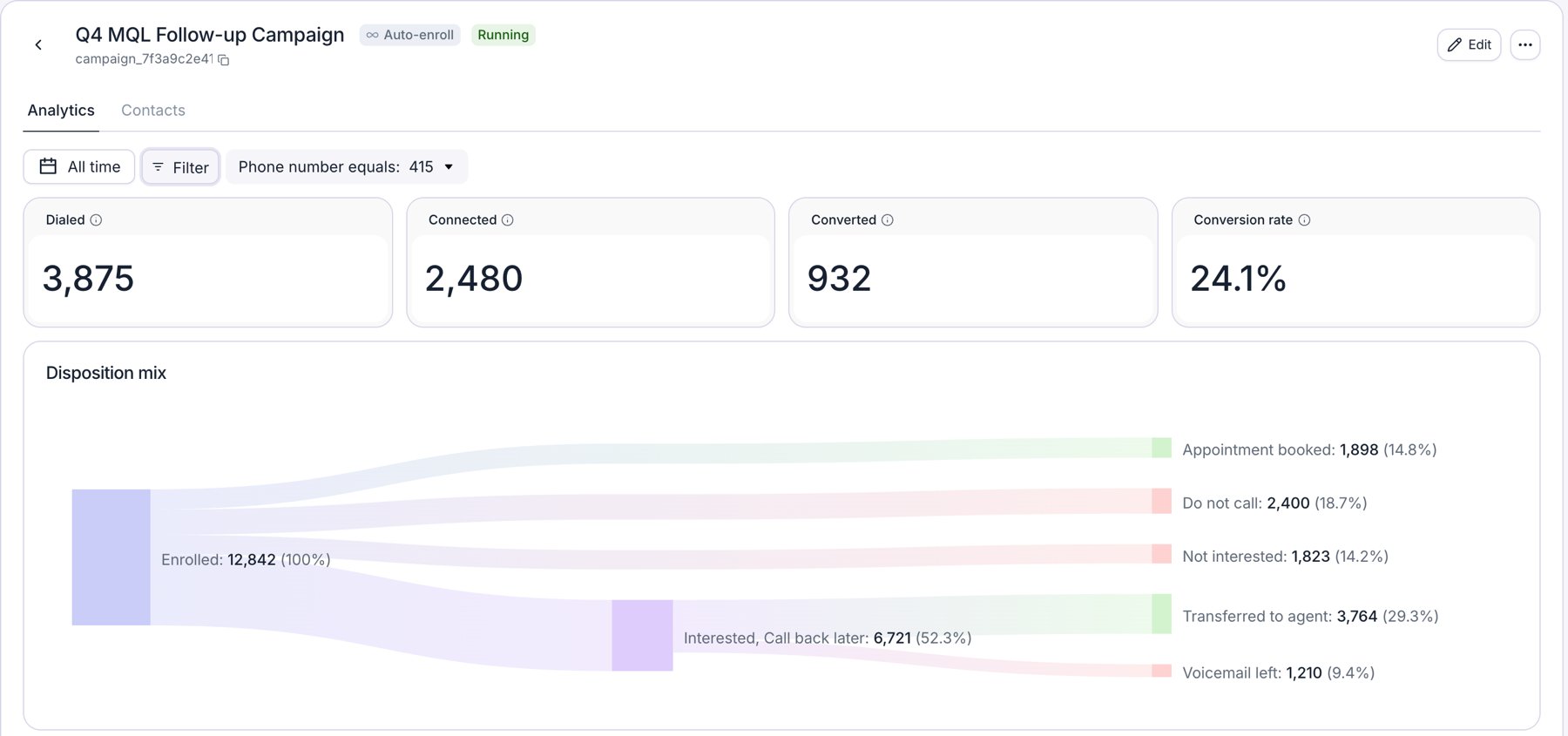
The Analytics tab of a running Auto-enroll campaign.
Analytics
Disposition mix shows how many contacts reached each outcome, starting from Enrolled. Dials over time counts every call and SMS attempt, retries included, and how many of them connected. Conversion rate over time shows the share of dialed contacts that converted. Both charts group by day, week, or month, depending on the date range.
Filter everything on the tab by date range, stage, phone number, or contact ID. Dates use your browser’s time zone unless you pick another in the date range.
Contacts
The Contacts tab lists every contact in the campaign with its stage, current conversation node, next attempt, and whether it was contacted and connected. Click a contact to see each call or SMS grouped by conversation node, with its outcome and the next scheduled attempt. Click a conversation to open its full transcript and recording.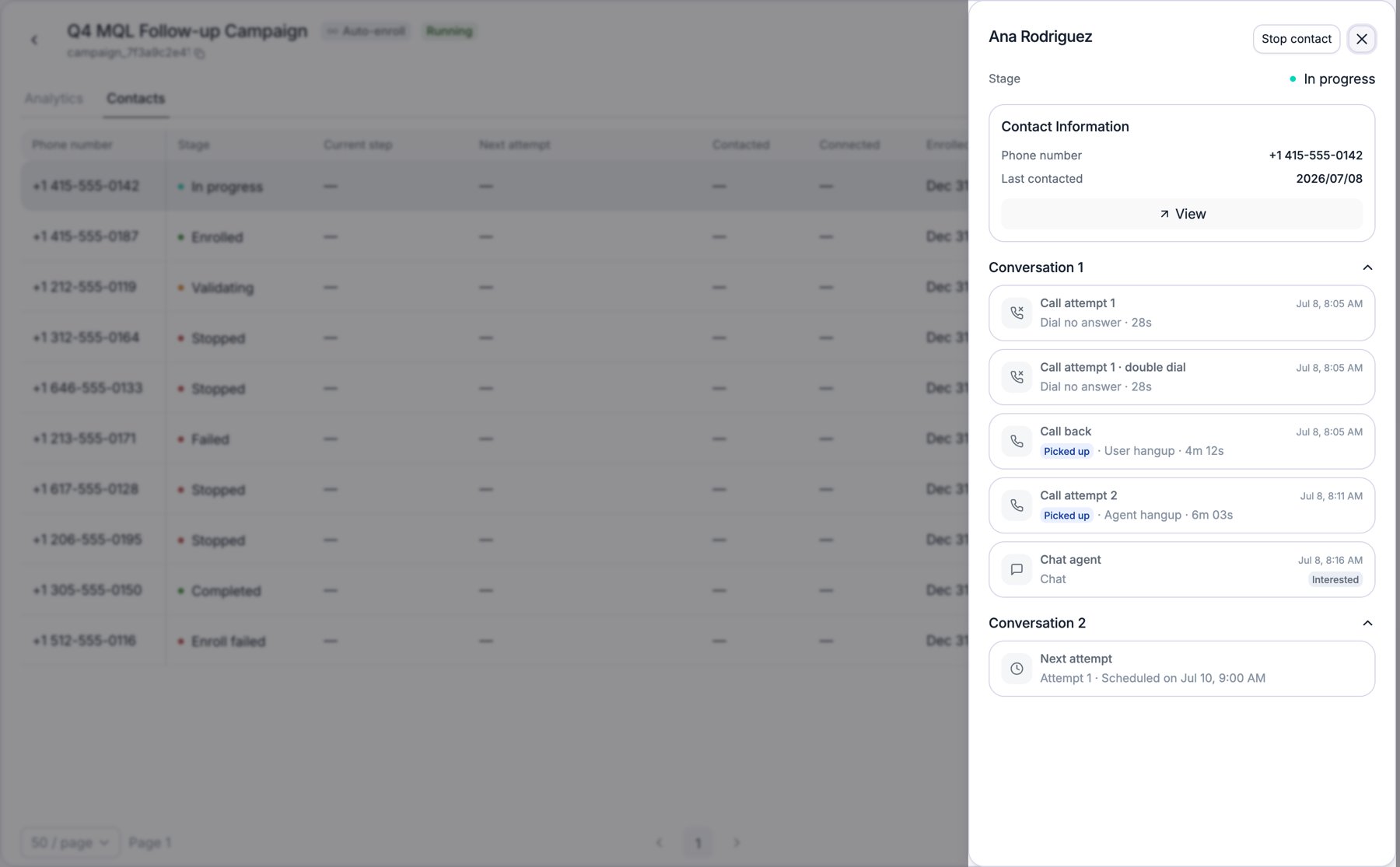
A contact's details on the Contacts tab, with its conversations grouped by conversation node.
The first three stages are active. The rest are final. Hover over a failed contact’s stage to see the reason.
To stop one contact, open its menu and click Stop contact. The contact gets no more calls or messages from this campaign, and a conversation already in progress finishes.
Pause, stop, duplicate, or delete
Open a campaign’s More actions menu on the campaign page or the Dialer list.- Pause stops new dials within about a minute. Calls already placed or about to start finish. When you Resume, contacts that came due during the pause are dialed first, inside their calling window.
- Stop ends the campaign for good: it “stops dialing new contacts and cannot be resumed. Calls already in flight finish.” It also releases the campaign’s phone numbers and stops Auto-enroll intake.
- Duplicate creates a new draft named “Duplicated from” followed by the original name. It copies the settings, number pool, planned number purchases, and dialing capacity, but not the schedule. Choose Just settings, Settings + contacts, or, for a stopped or completed campaign, Contacts not yet contacted.
- Delete removes a draft, stopped, or completed campaign, and “its dialing history will be removed. This cannot be undone.” Stop a scheduled, running, or paused campaign before you delete it.
Limits
These limits apply to every workspace (as of October 2026).FAQ
How is the Dialer different from batch calls?
How is the Dialer different from batch calls?
A batch call places one call to each row of a CSV. The Dialer adds retries, call and SMS steps, outcome-based routing, compliance checks, calling windows in each contact’s time zone, and per-contact tracking. Batch calls are deprecated but still available: open them from Legacy batch calls in the header of the Dialer page.
Do campaign calls count toward my concurrency limit?
Do campaign calls count toward my concurrency limit?
Yes. Campaign calls can use your workspace’s concurrency limit minus any reserved inbound concurrency, and they share it with your other outbound and web calls. Without an inbound reserve, a busy campaign can leave no room for inbound calls. Each campaign also has its own limit. See Caller ID and pacing.
Why is a contact stuck in Validating?
Why is a contact stuck in Validating?
Its compliance checks haven’t finished. Retell retries them, and a contact is never dialed until it passes. After 24 hours without a result, the contact fails with “Validation timed out”. See Compliance checks.
Why can't I create a campaign?
Why can't I create a campaign?
Your workspace’s billing must be in good standing, for example no overdue invoice, no ended free trial, and no spent budget or credit. Identity verification must be complete, and you need the Admin or Developer role. A payment method is required only to buy phone numbers.