

Expressive Mode works with platform voices only. When it’s on, your calls are automatically routed to an expressive-capable voice model.
Emotion and effect tags are applied in these languages only: English, Chinese, Japanese, German, French, Spanish, Korean, Arabic, Russian, Dutch, Italian, Polish, and Portuguese. If your agent’s language isn’t one of these, the agent still speaks normally — the tags are simply skipped, never read aloud. For a multi-language agent, every language it’s set up to speak must be in this list for tags to apply.
Turn on Expressive Mode
1
Open the voice selector
In your agent, open Select Voice and pick a platform voice. Expressive Mode is unavailable for custom or third-party voices.
2
Enable Expressive mode
Switch on the Expressive mode toggle.
3
Choose auto emotion tags
Pick the emotions the agent is allowed to use under Auto emotion tags. You’re choosing the palette — the agent decides when each one fits. Leave them all off to let the agent express naturally without a fixed set.
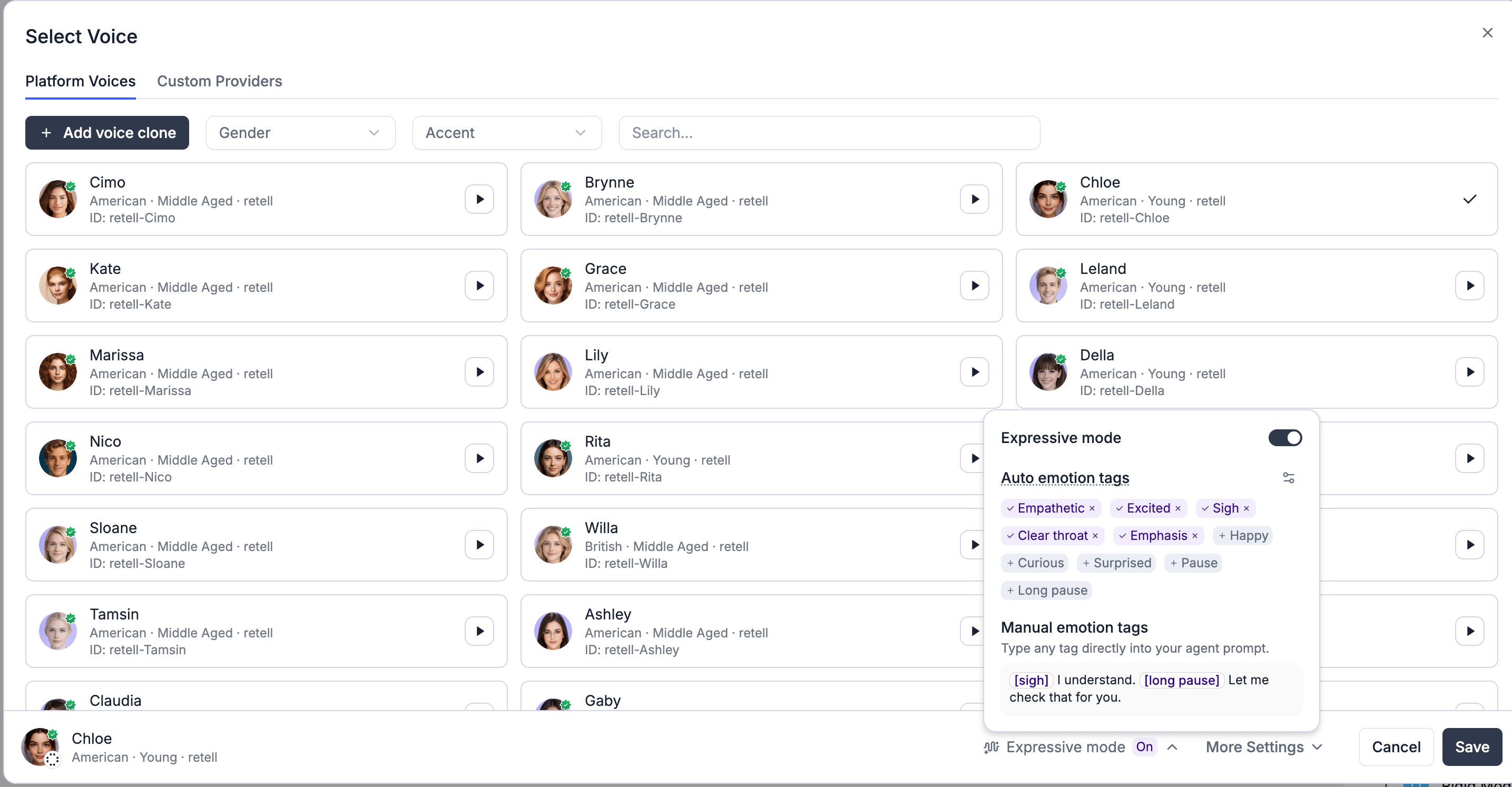
Emotions the agent can use
Auto emotion tags fall into three groups:- Emotions — empathetic, excited, happy, curious, surprised
- Effects — sigh, clear throat, pause, long pause
- Emphasis — stress on the word that matters
- “[empathetic] I’m so sorry — don’t worry about the details, I’ll sort it.”
- “[excited] It went through — you’re officially in.”
- “That form? [sigh] Yeah, it trips everyone up. Let’s just do it together now.”
- “Let me take a look. [pause] Okay, I see what happened.”
- “The deadline is [emphasis] next Friday, not this one.”
Customize when tags are used
By default, the agent follows Retell’s built-in guidance for when to use each tag. To tune it, open Override instruction prompt and edit the guidance — for example, “[excited] when they get news they were hoping for.” Use Reset to default to go back.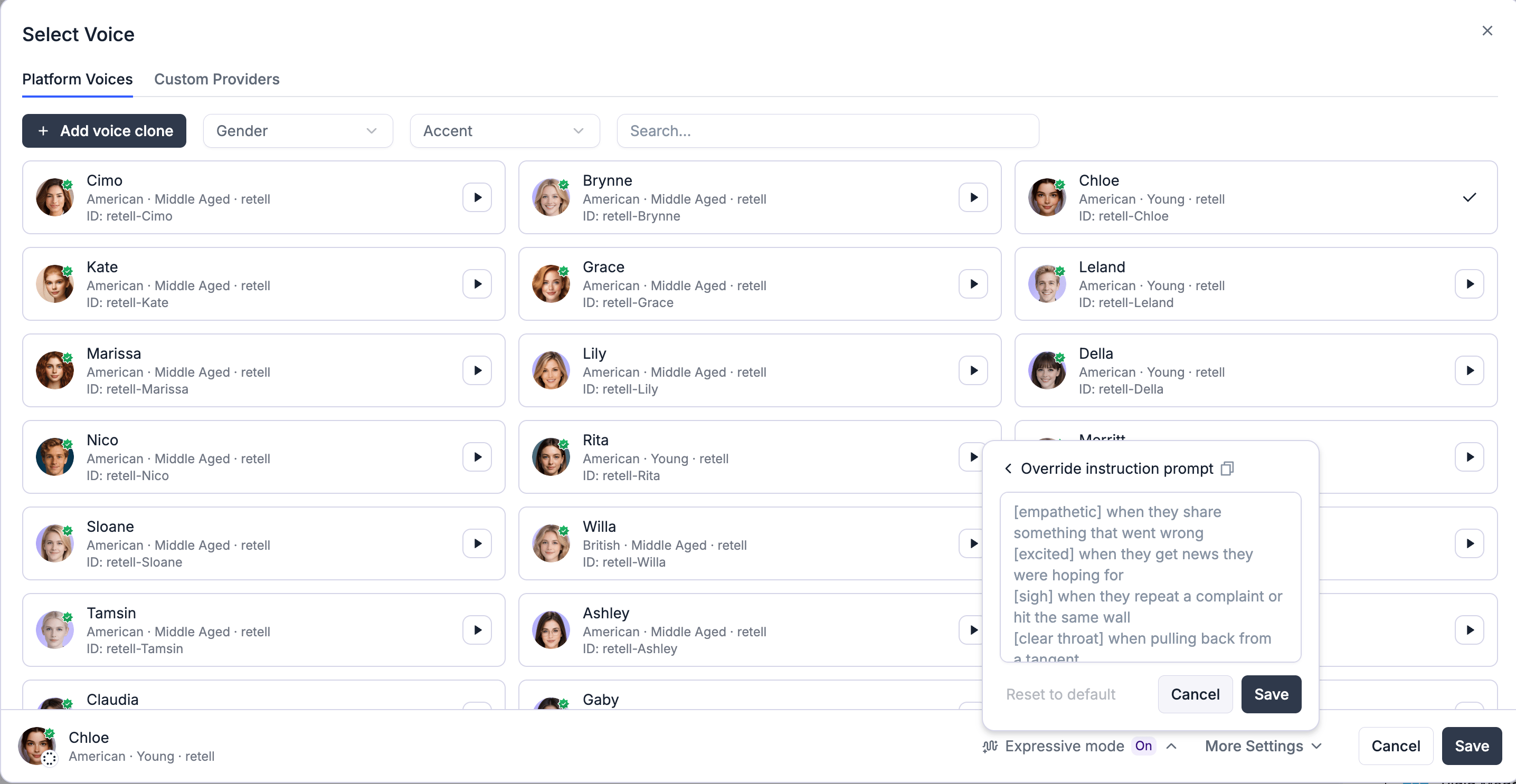
Place tags yourself
Beyond the automatic tags, you can write a tag directly into your prompt wherever you want that delivery — useful for a welcome message or a specific line. Just wrap it in square brackets.![A node prompt with a manually placed [happy] tag](https://mintcdn.com/retellai/1vPu7bH8sONSXkOB/images/expressive-mode/manual-tag.png?fit=max&auto=format&n=1vPu7bH8sONSXkOB&q=85&s=1b65e3be06c8616f882232daab60573f)
[happy] Hi, nice to meet you. will be spoken with a happy delivery.
Tips
What if I turn it on but choose no emotions?
What if I turn it on but choose no emotions?
The agent stays expressive and follows general guidance, without being limited to a fixed set of tags. Choose specific emotions to narrow it down.
Will callers hear the tag names?
Will callers hear the tag names?
No. Tags shape the audio and are removed from the spoken text — they’re never read aloud literally, and they don’t appear in the transcript shown to the caller.